By Nelson Milian, Odoo Expert & Agentic AI Developer
Published
Running an HVAC business with Odoo
How do I mark an opportunity as won or lost in Odoo?
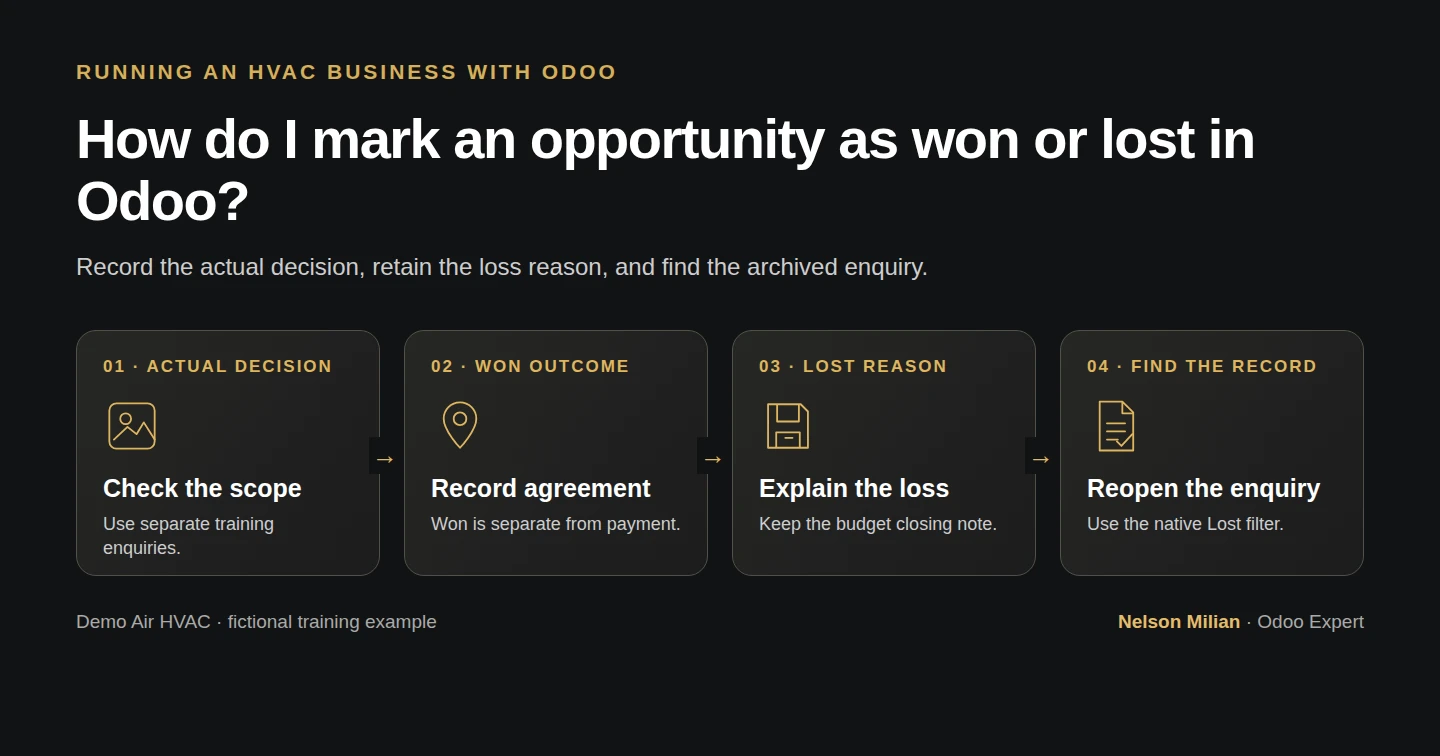
Workflow overview. Instructional screenshots show the actual demo interface.
Record won and lost Odoo CRM outcomes, retain the loss reason, and find the archived enquiry through the Lost filter.
Use won and lost outcomes to record the actual commercial decision. Alex's fictional examples distinguish an enquiry agreed offline from one postponed because of price; neither outcome posts an invoice or payment.
Alex Rivera and Demo Air HVAC are fictional training examples. Prices, dates, quantities and business situations in this guide are illustrative.
Before you begin
Tested in stock Odoo 20.0-20260926 Community as the demo owner administrator, with official modules and standard configuration. Complete enquiry qualification. Use two separate training enquiries, Demo Won Enquiry H22 and Demo Lost Enquiry H22, with the existing Demo Property H08 customer. Preserve Demo Service Enquiry H16 and its S00001 quotation. The new examples have no quotations or orders.
Step-by-step workflow
44 highlighted video actions with a white pointer, gold border and English captions, without narration. Each written step groups its smaller video actions. Stock Odoo 20 Community CRM. Two new fictional enquiries distinguish an offline agreement from a budget postponement. Native Won, Too expensive and Closing Note preserve the existing H16 enquiry and draft S00001. No order, appointment, invoice or payment is created. Restore execution and other roles are outside this lesson.
Step 1. Prepare the qualified outcome example
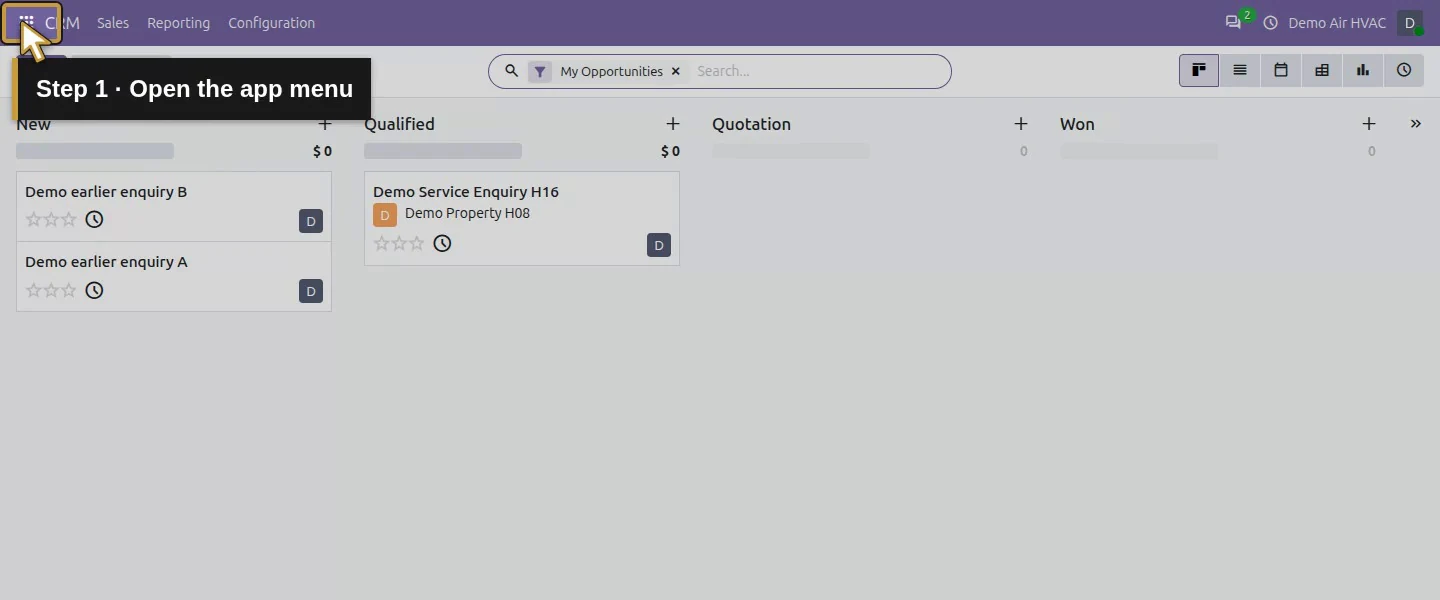
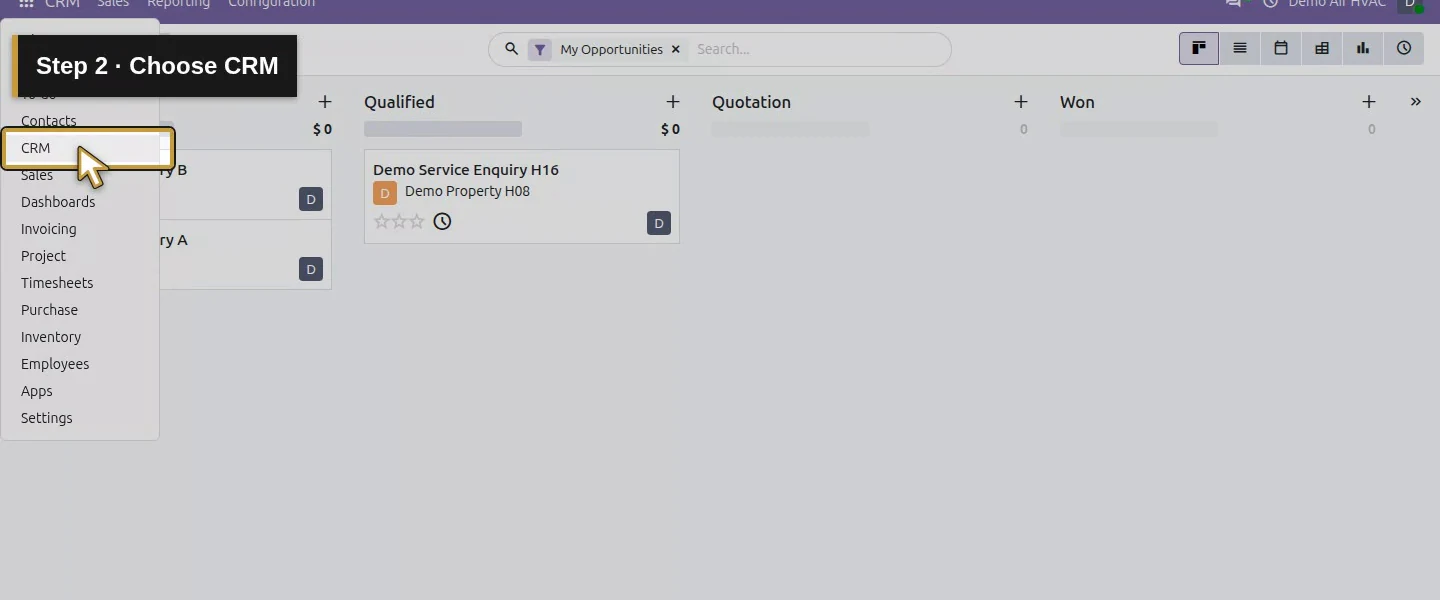
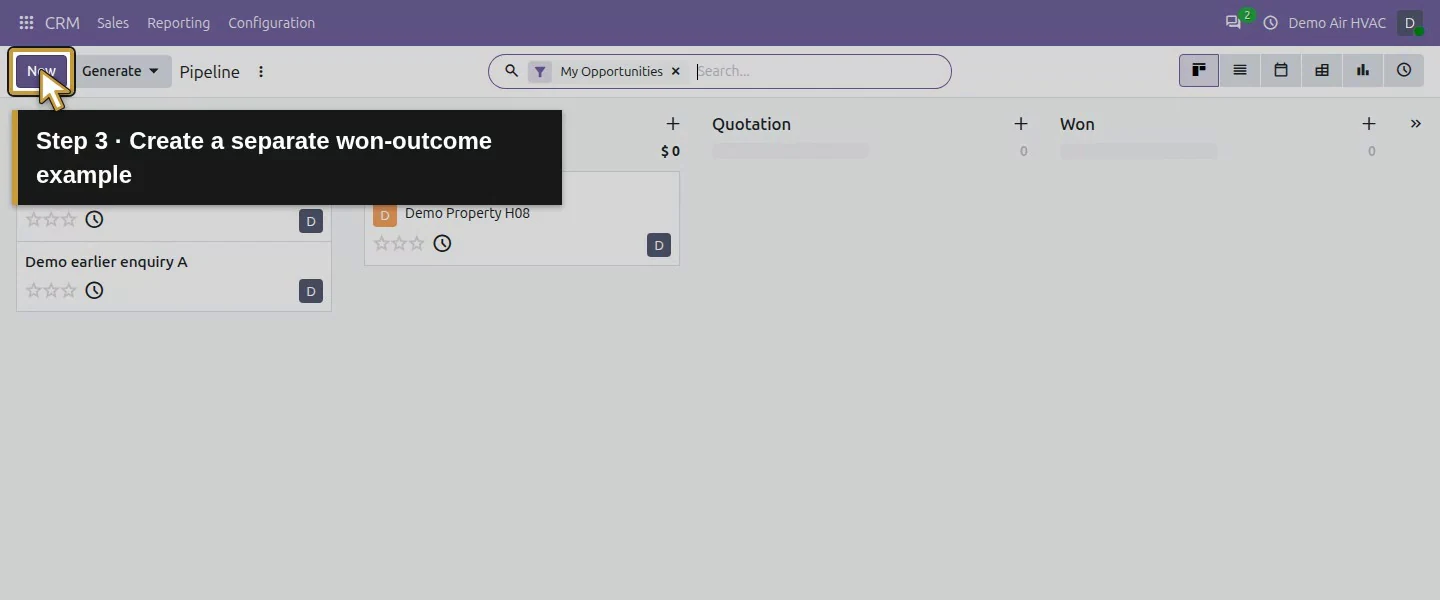
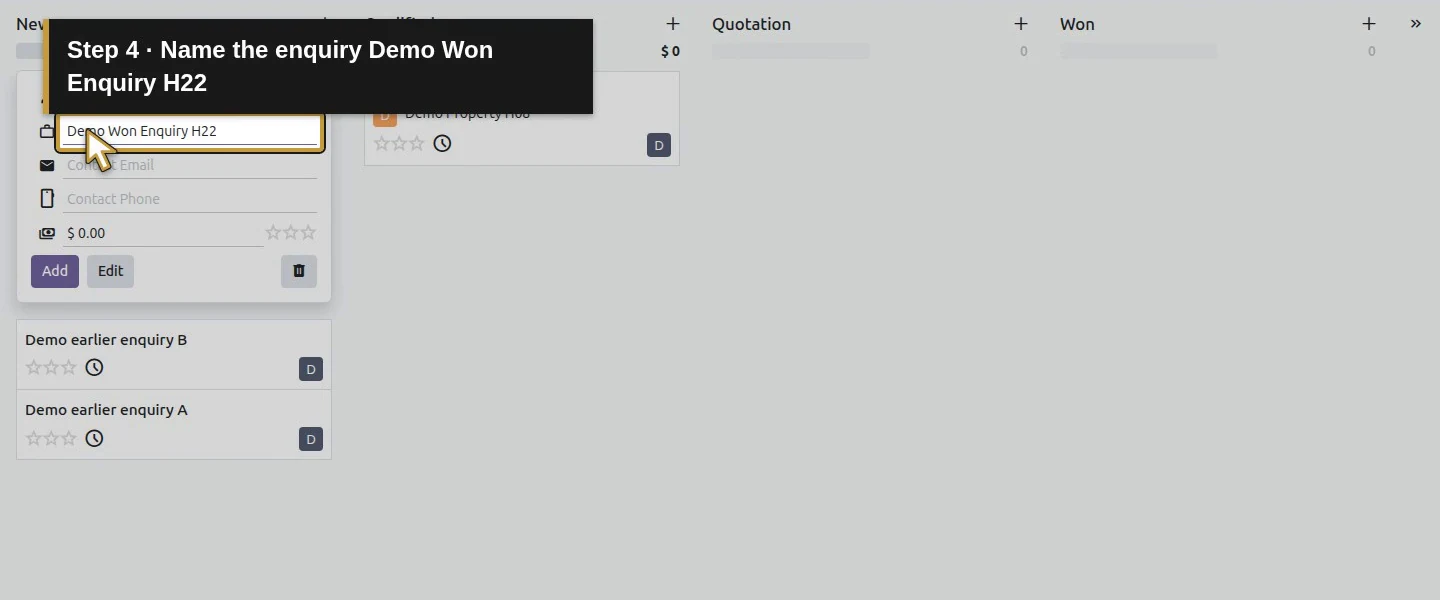
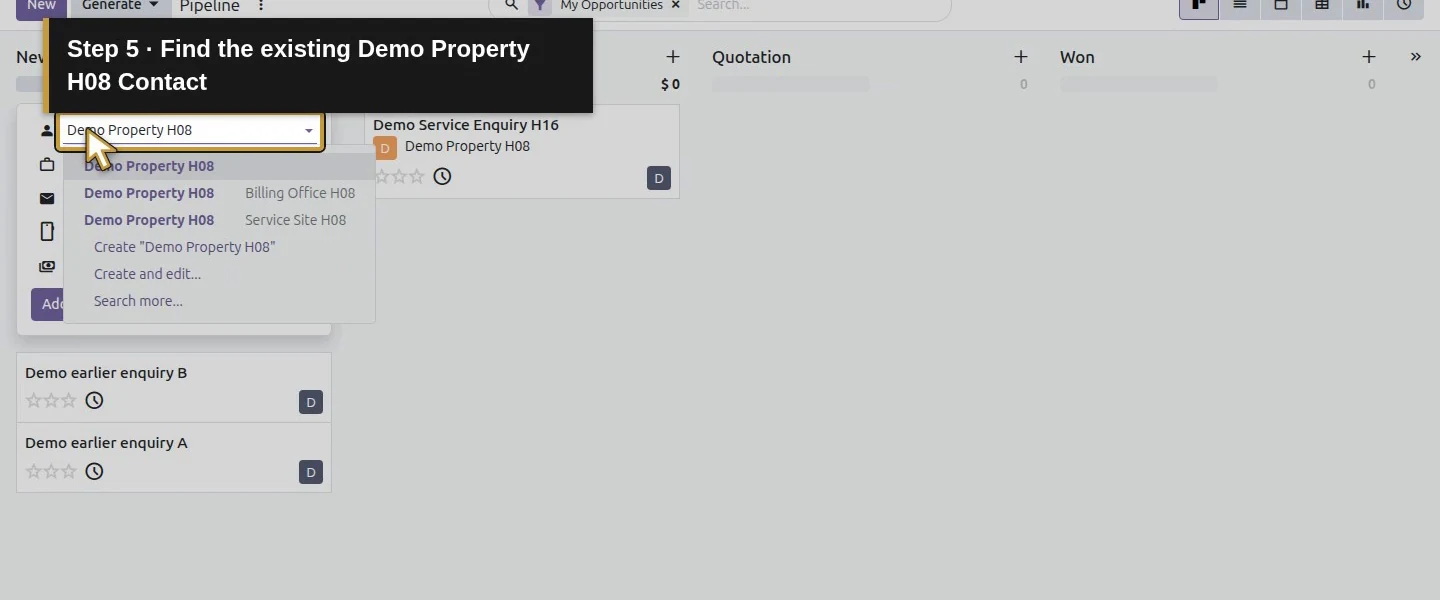
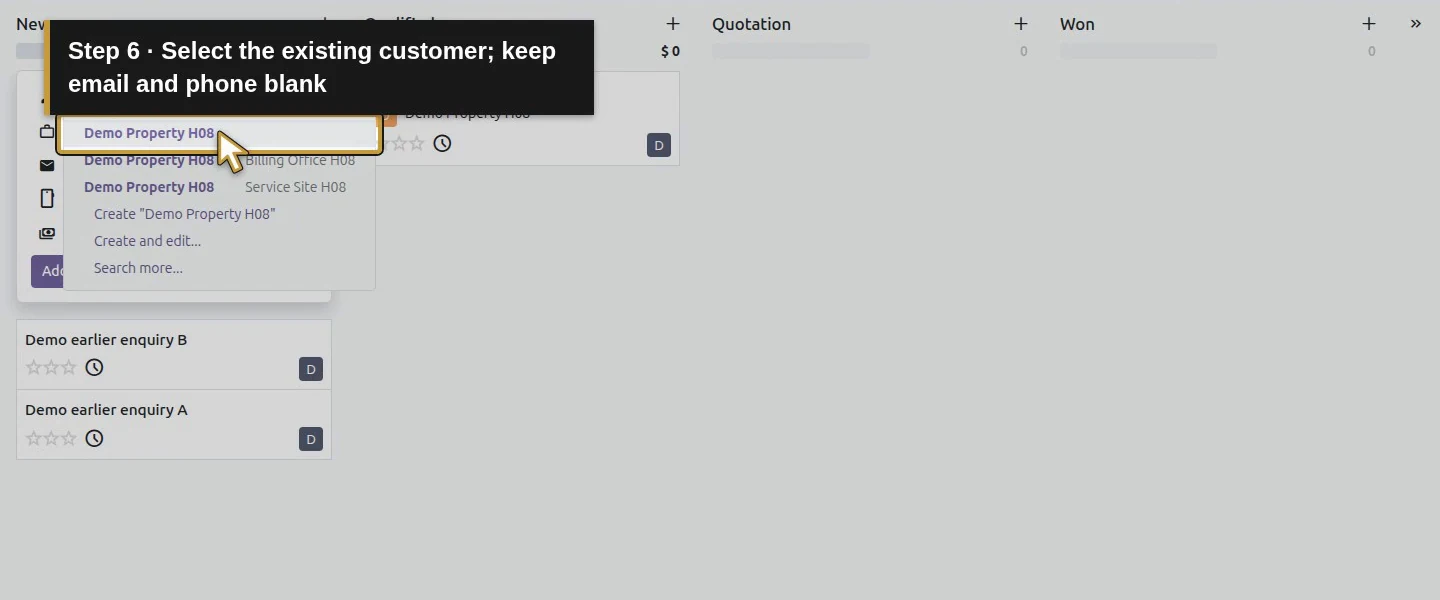
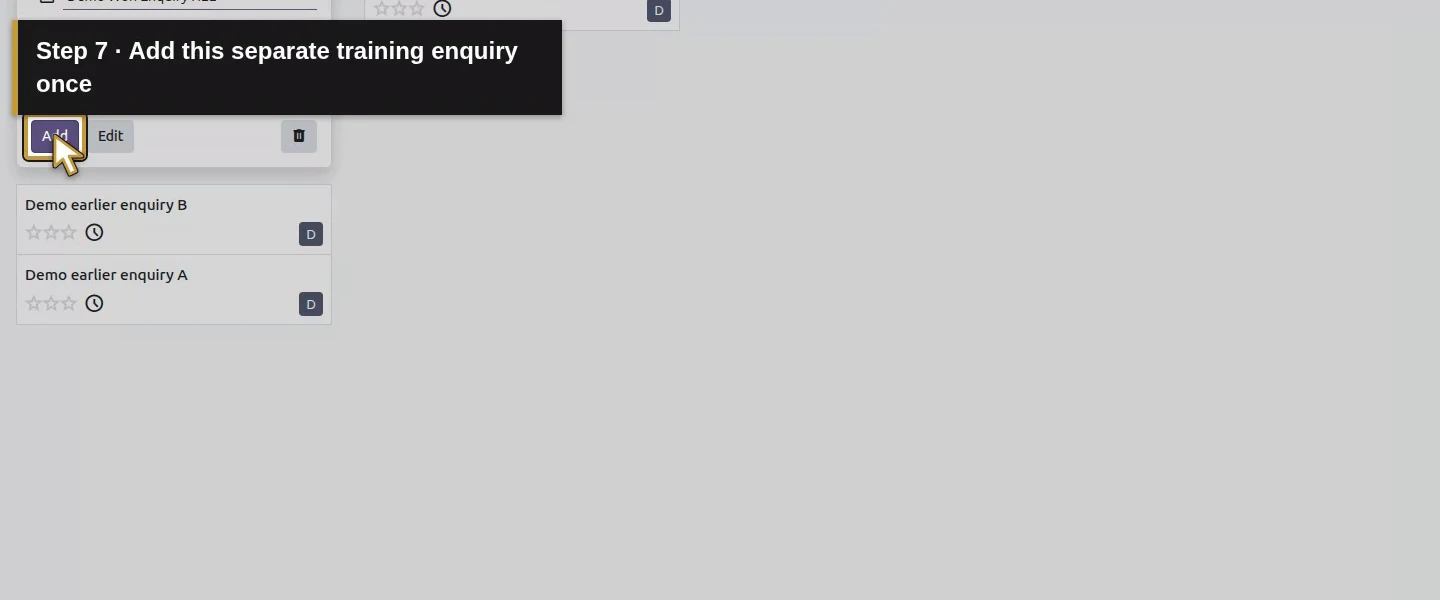
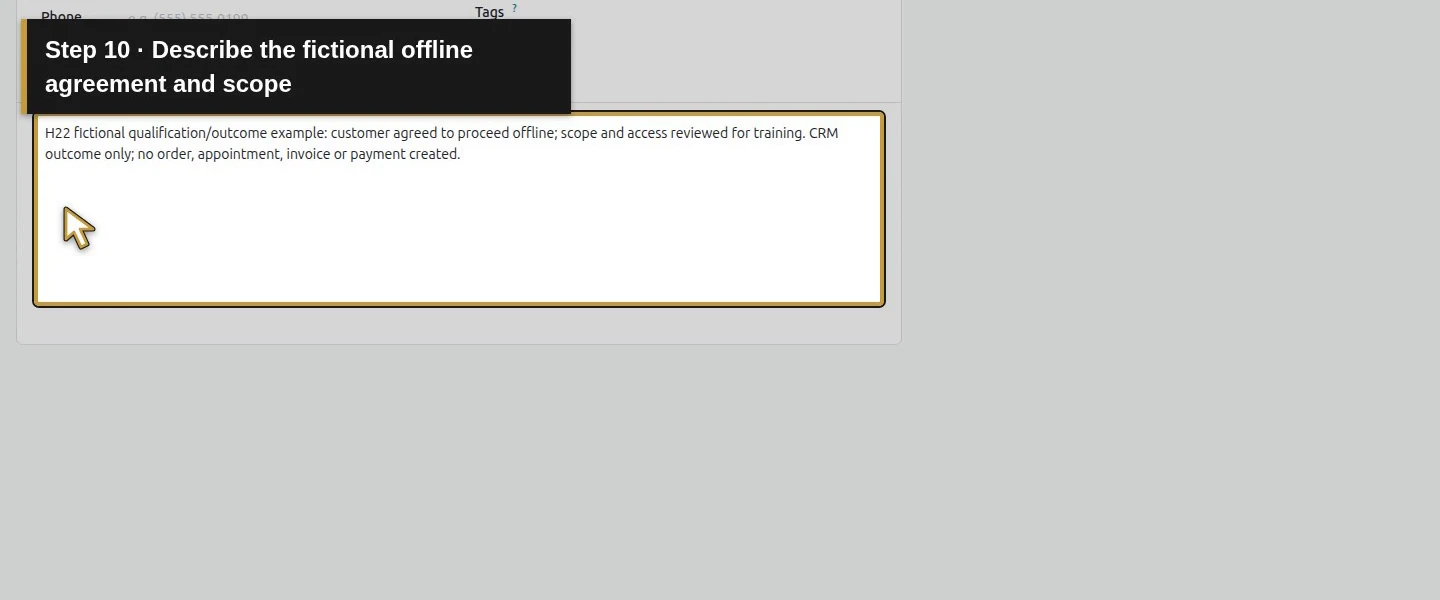
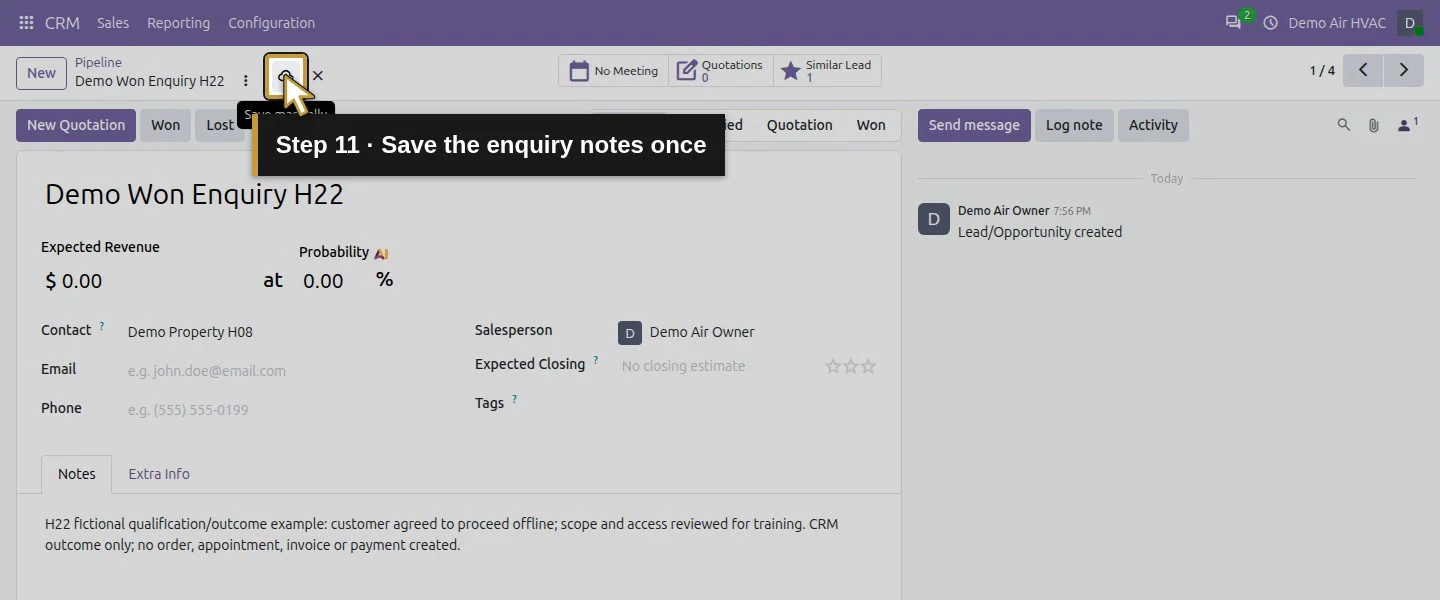
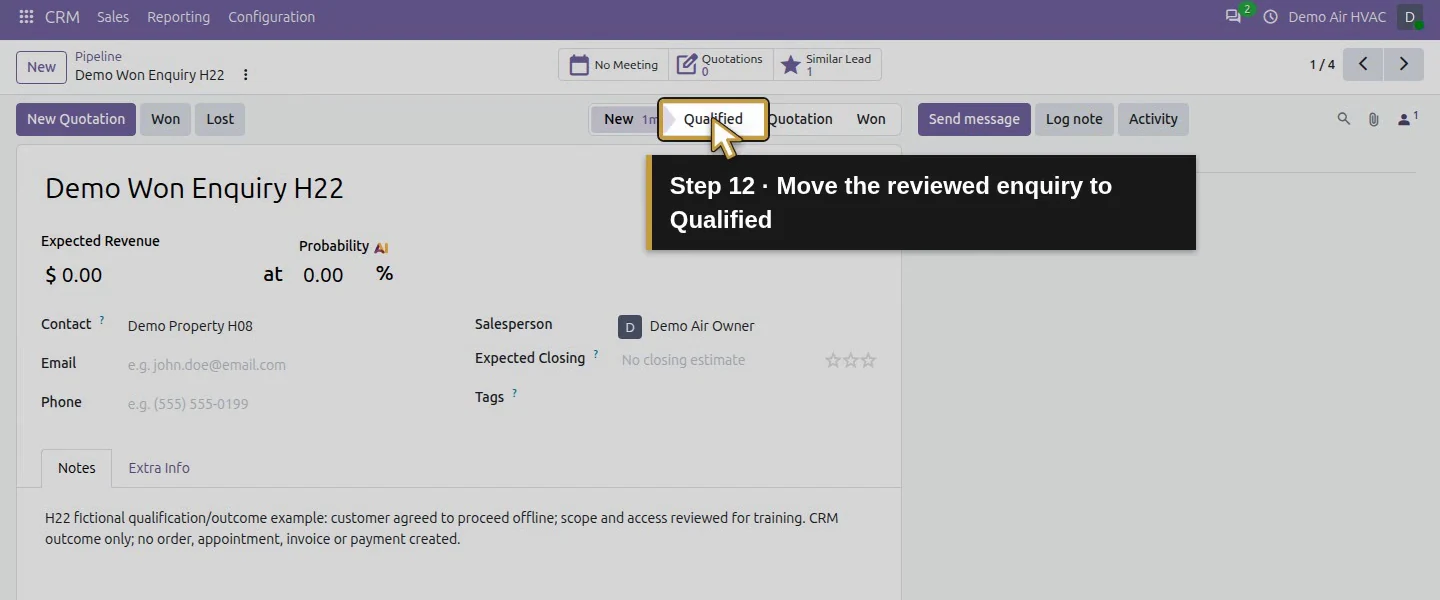
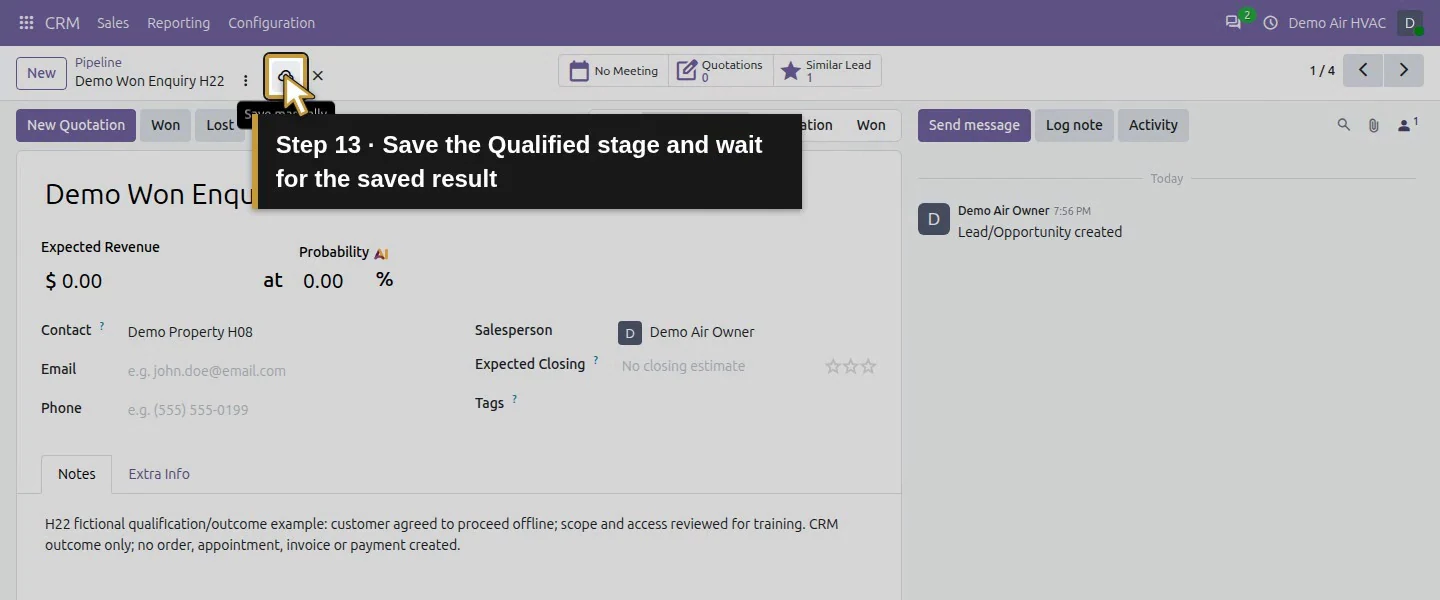
In CRM → Sales → My Pipeline, choose New. Enter Demo Won Enquiry H22, select the existing Demo Property H08 Contact and choose Add. Open the card, enter the fictional scope/decision in Notes, save, and move to Qualified. Check the actual customer decision and any linked quotation before choosing an outcome.
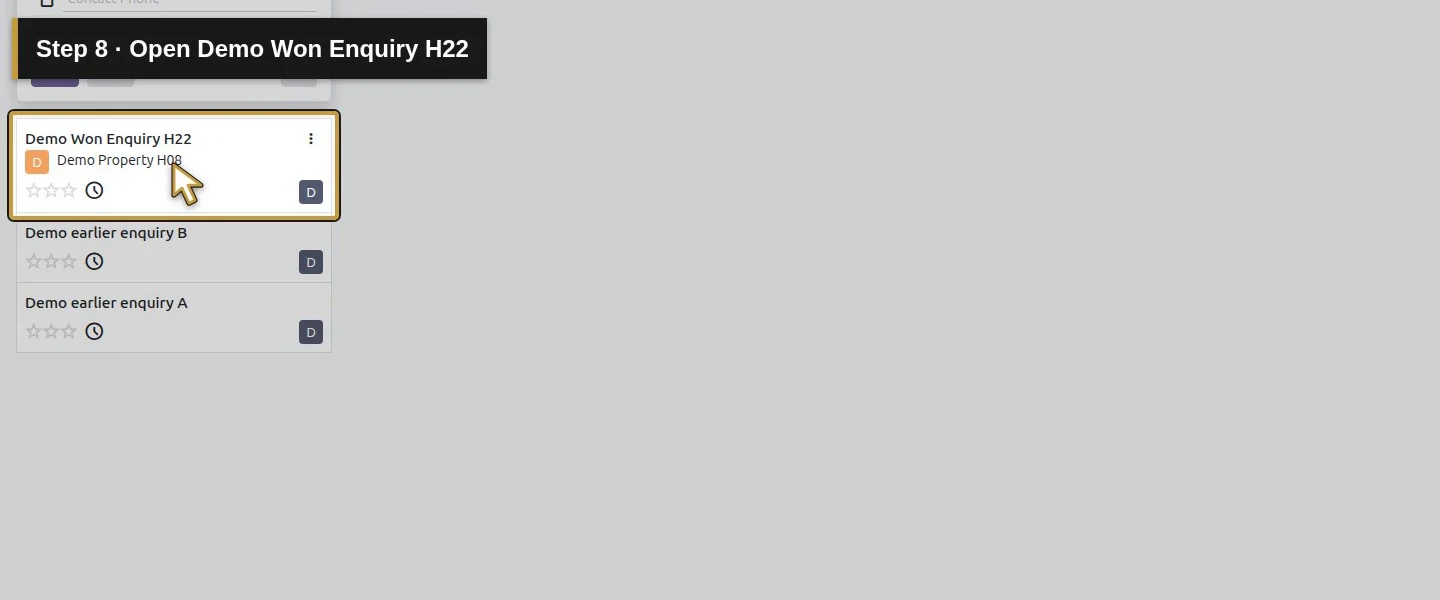
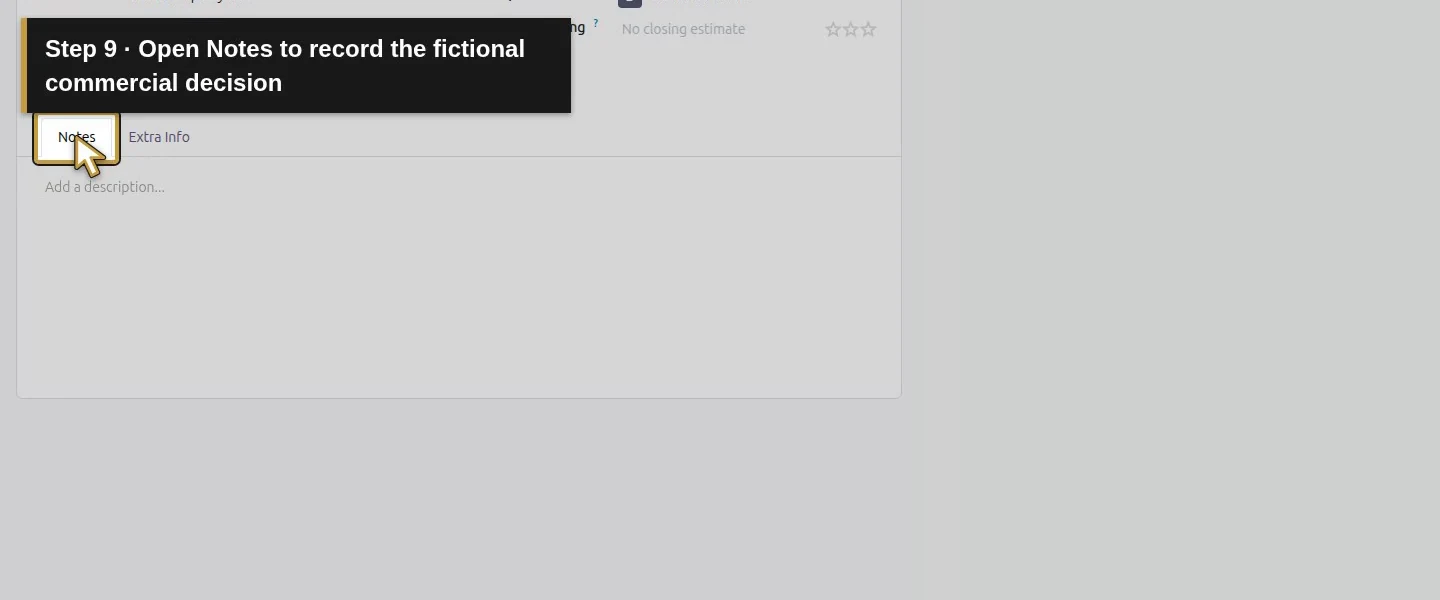
Open the app menu.Choose CRM.Create a separate won-outcome example.Name the enquiry Demo Won Enquiry H22.Find the existing Demo Property H08 Contact.Select the existing customer; keep email and phone blank.Add this separate training enquiry once.Open Demo Won Enquiry H22.Open Notes to record the fictional commercial decision.Describe the fictional offline agreement and scope.Save the enquiry notes once.Move the reviewed enquiry to Qualified.Save the Qualified stage and wait for the saved result.
Step 2. Record the won decision
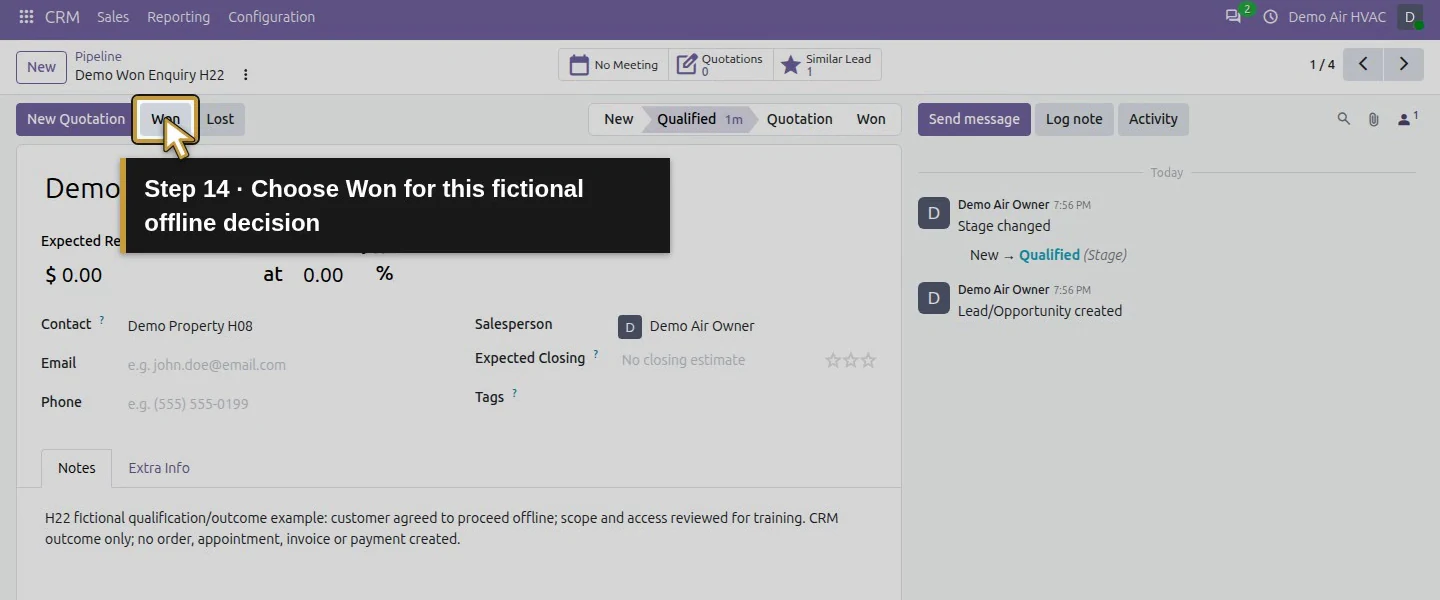
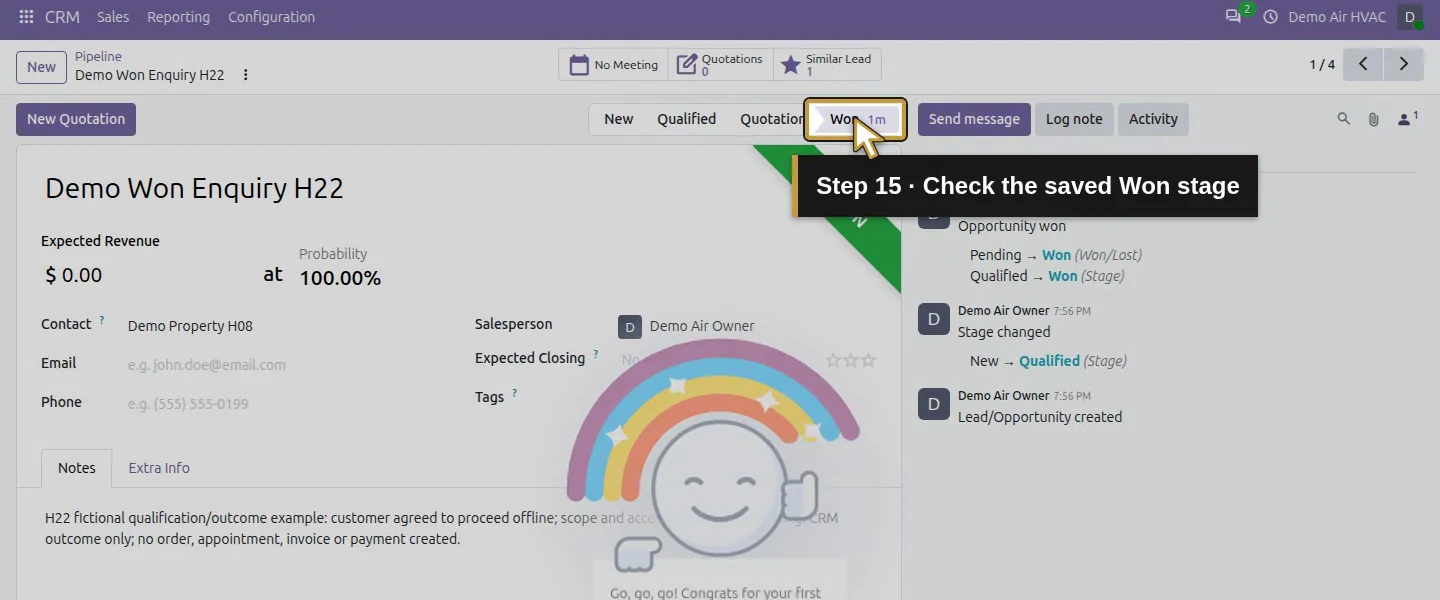
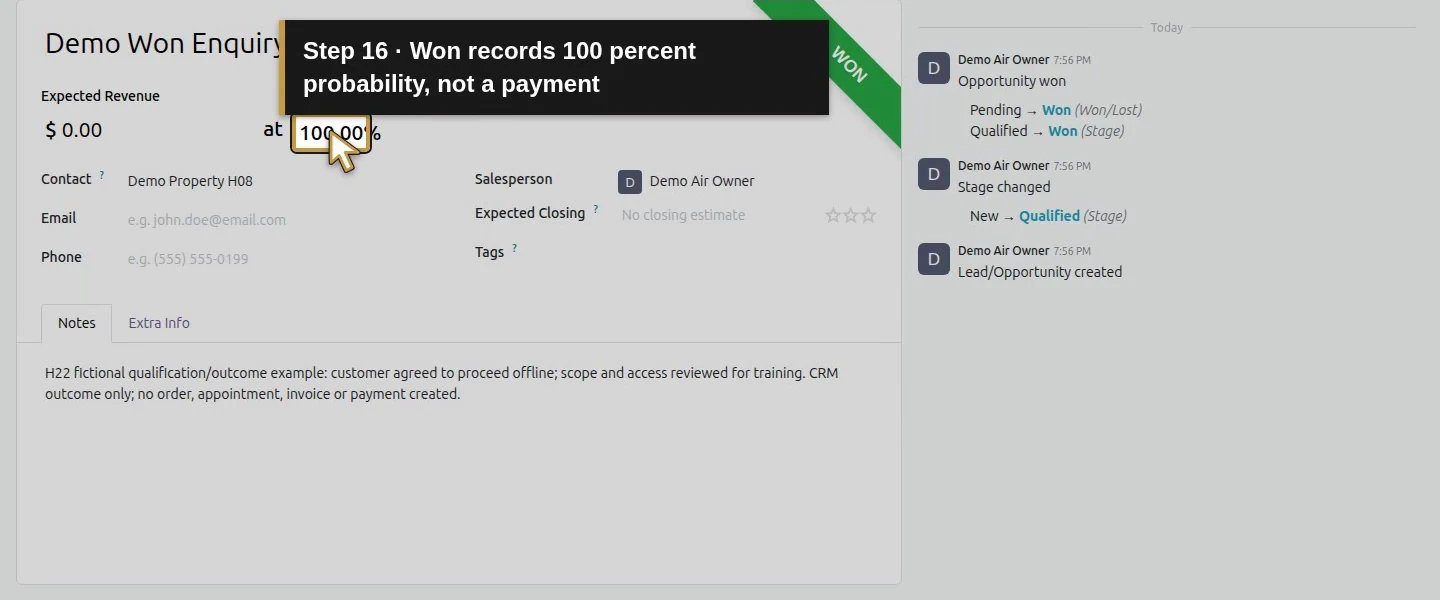
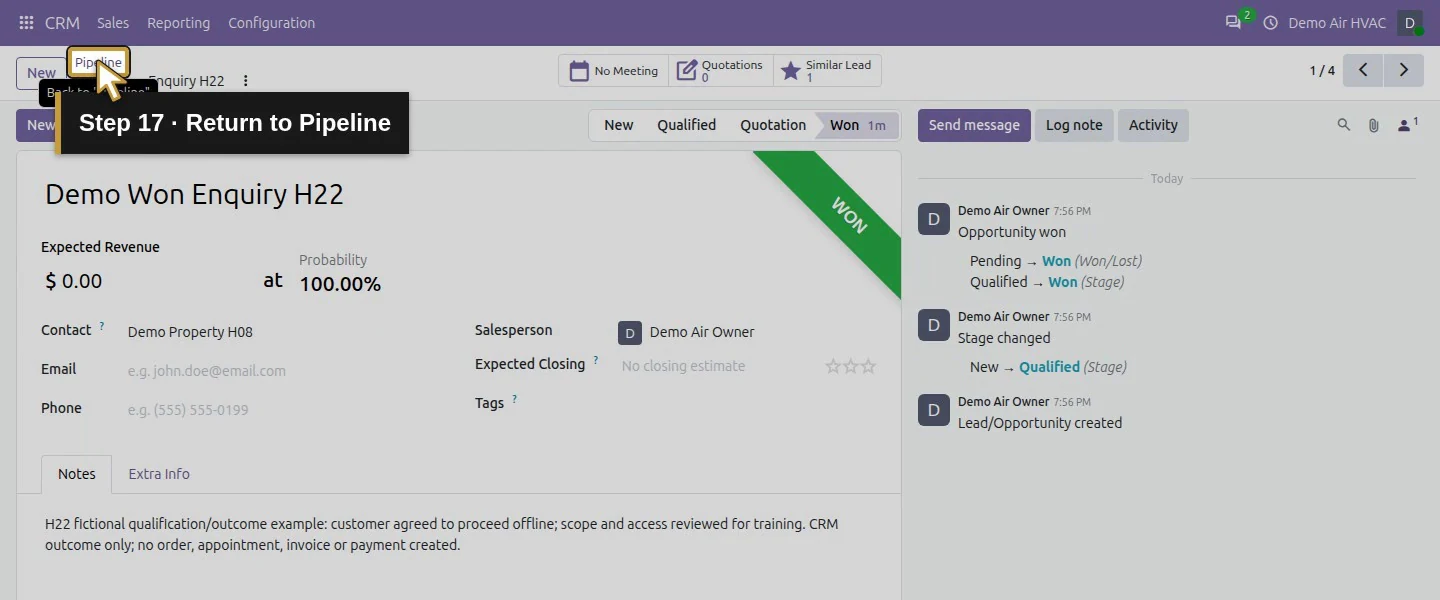
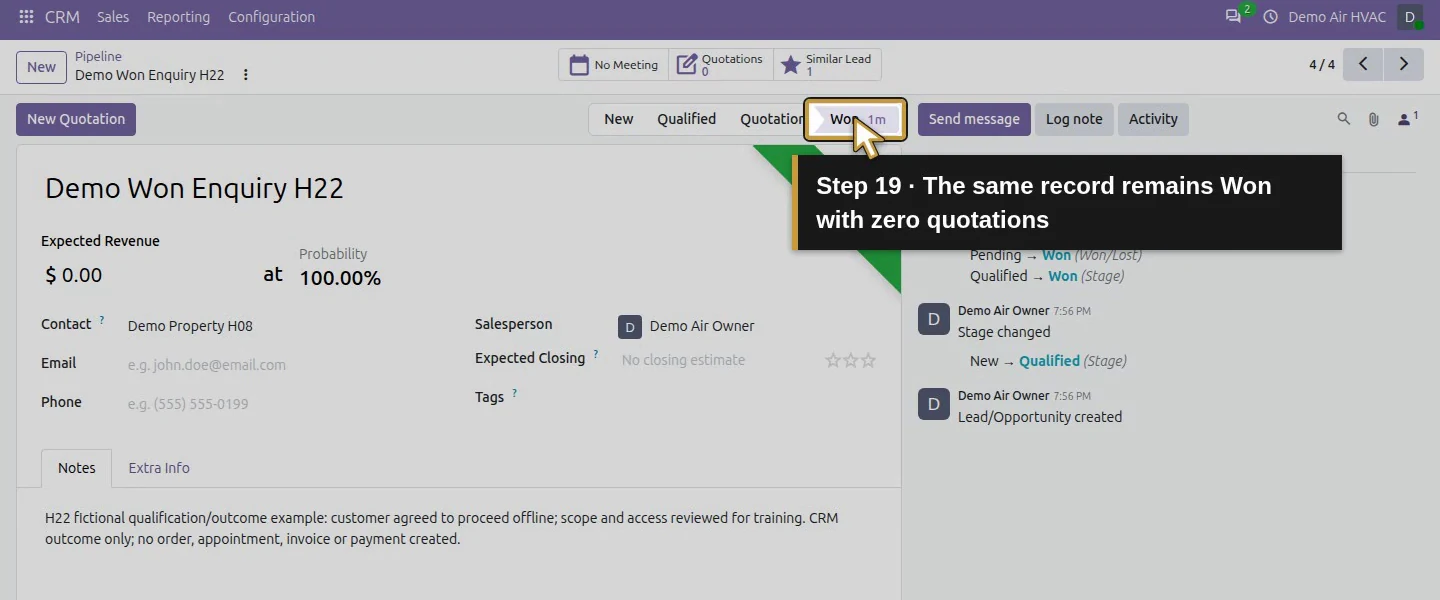
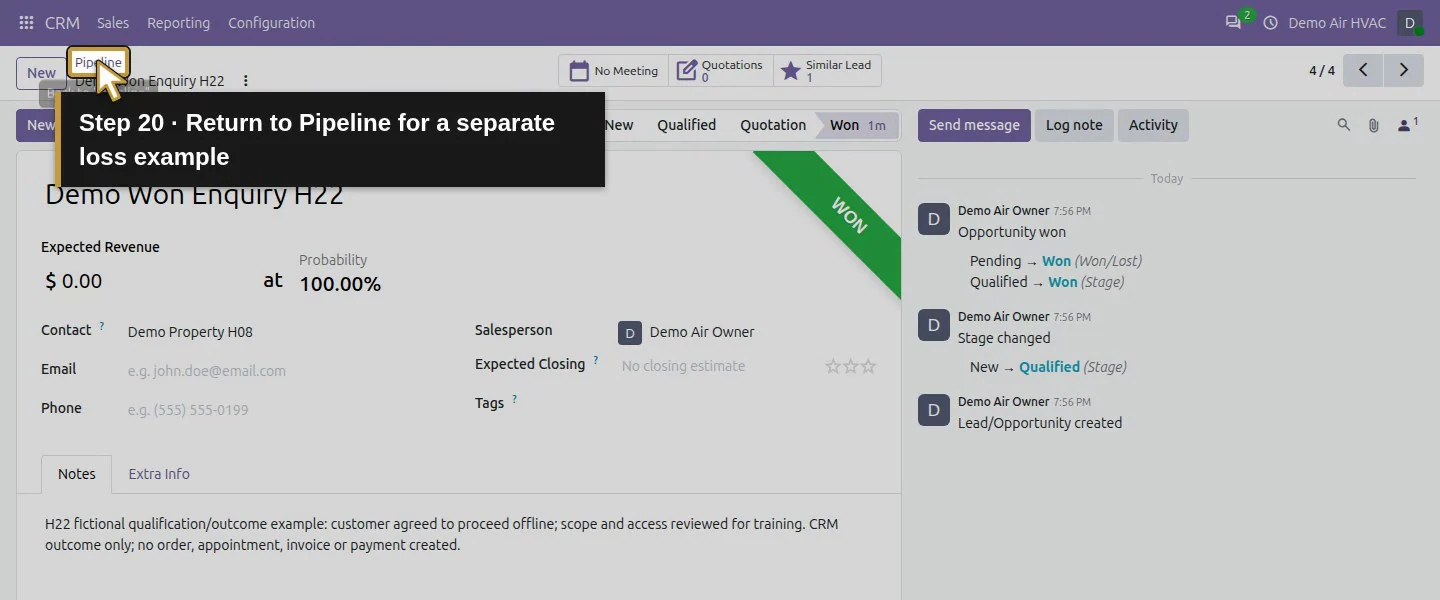
For this explicitly fictional offline agreement, choose the form's Won button. Wait for the Won stage and reopen the enquiry. The saved example is Won with probability 100%; its quotation counter remains zero. Recording CRM success did not create an order or confirm S00001.
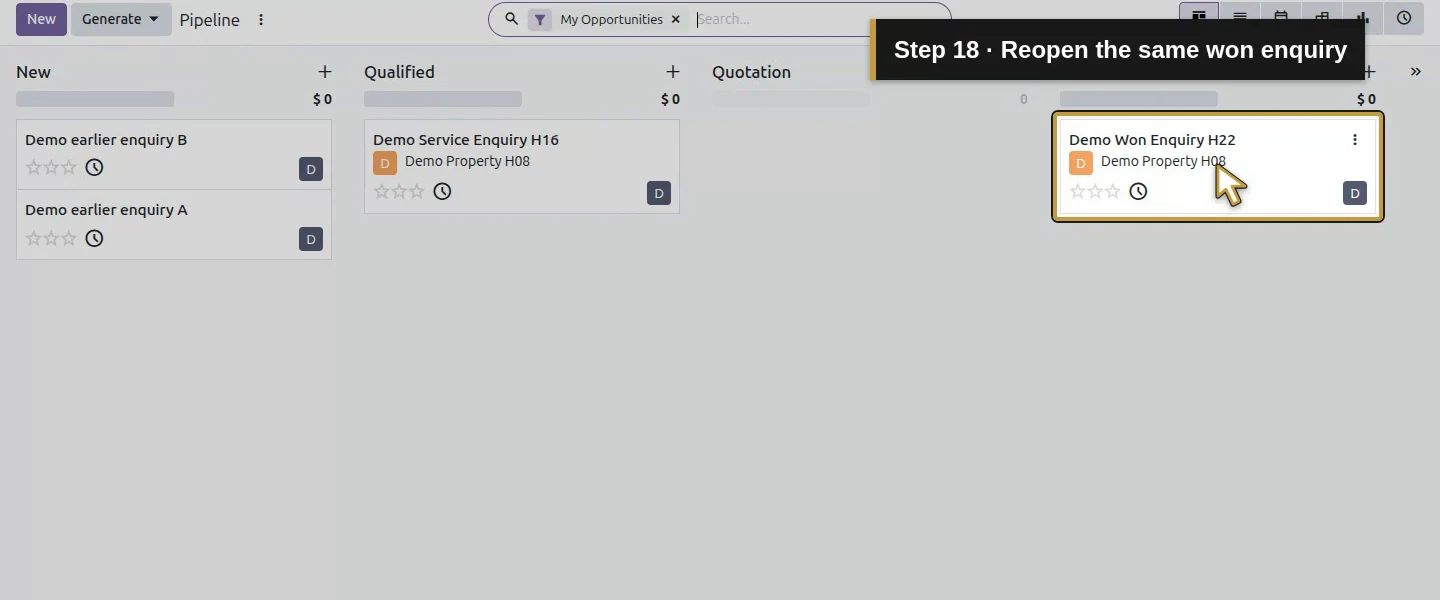
Choose Won for this fictional offline decision.Check the saved Won stage.Won records 100 percent probability, not a payment.Return to Pipeline.Reopen the same won enquiry.The same record remains Won with zero quotations.
Step 3. Prepare the separate loss example
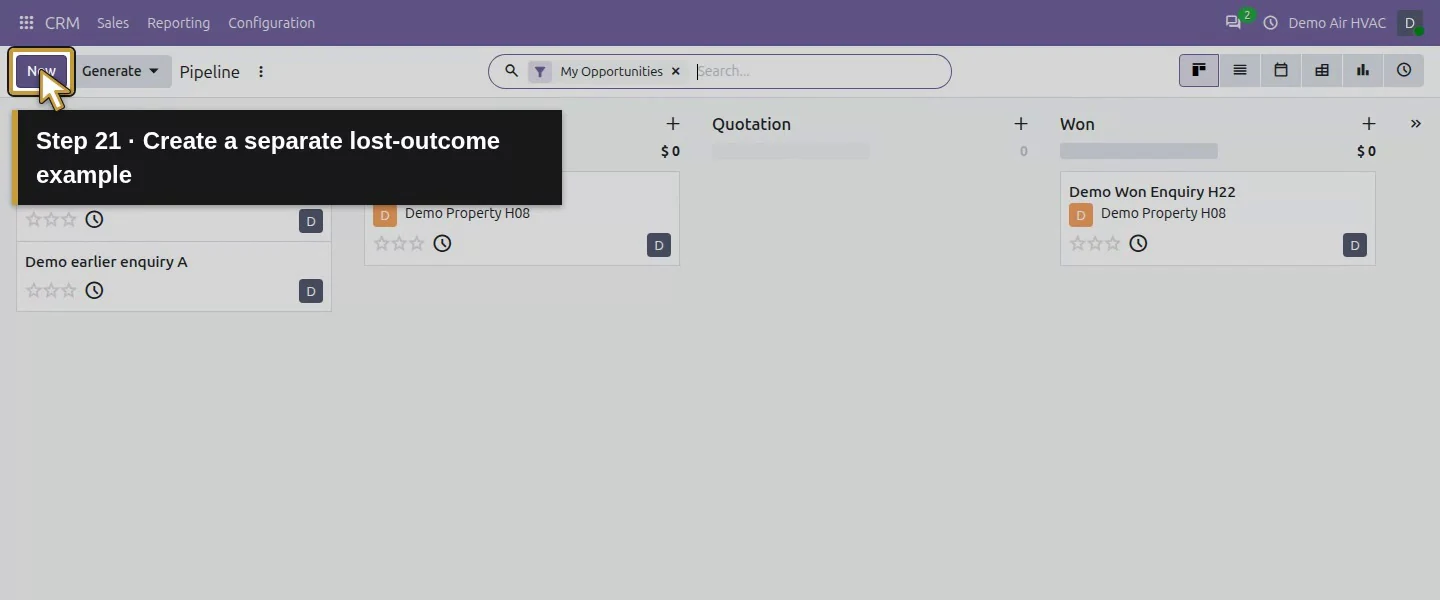
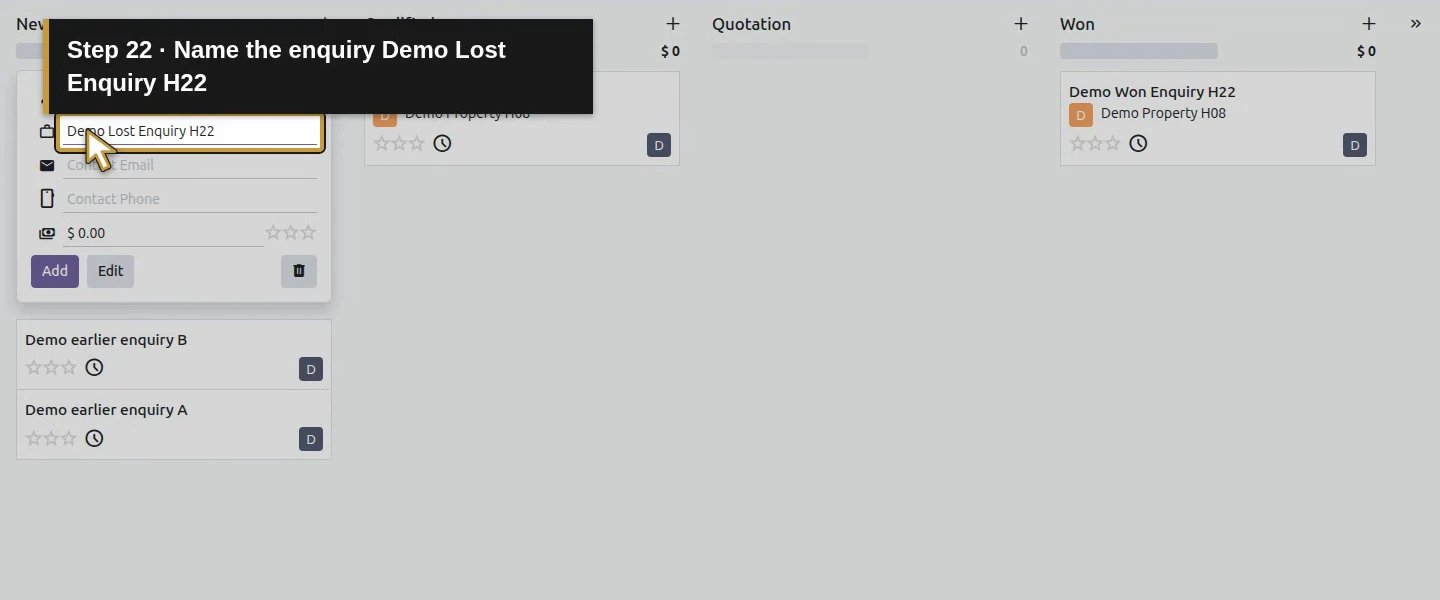
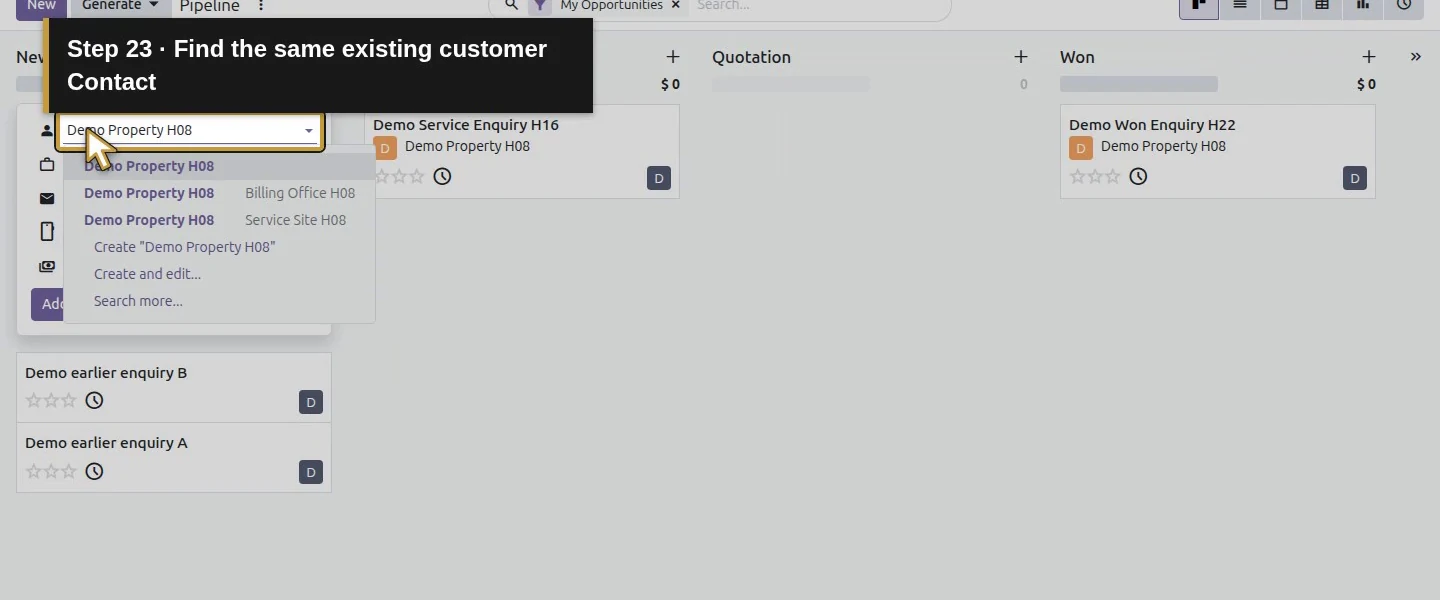
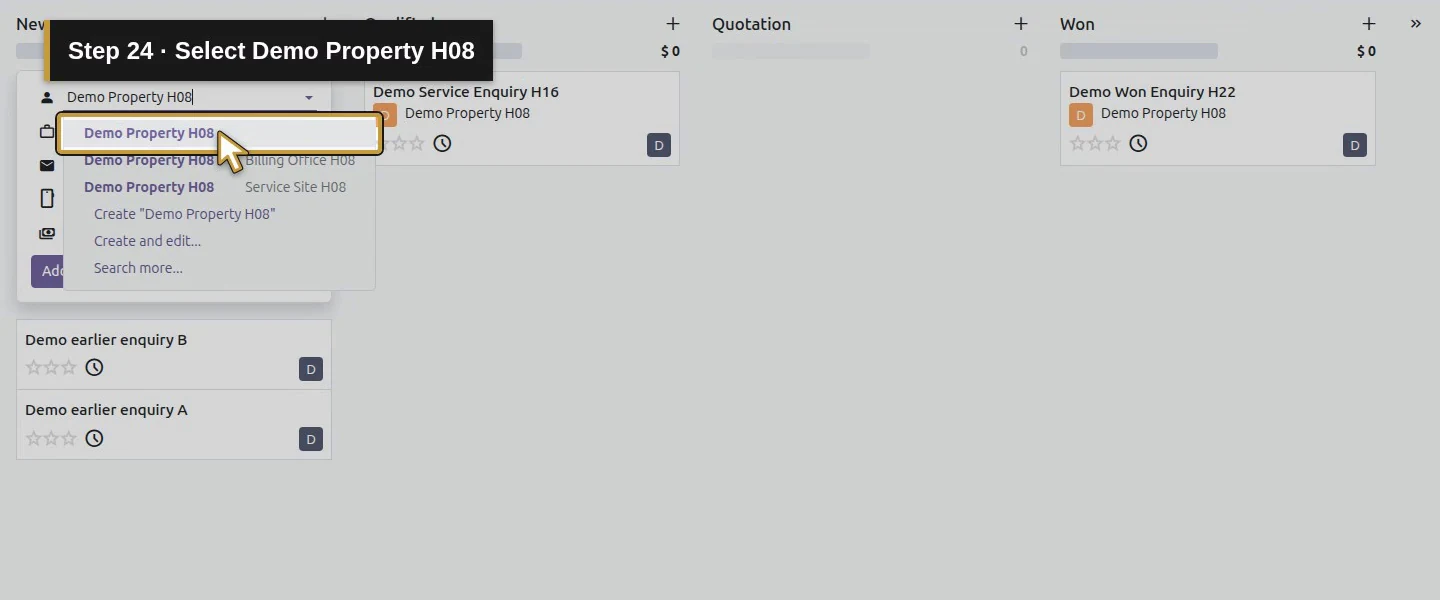
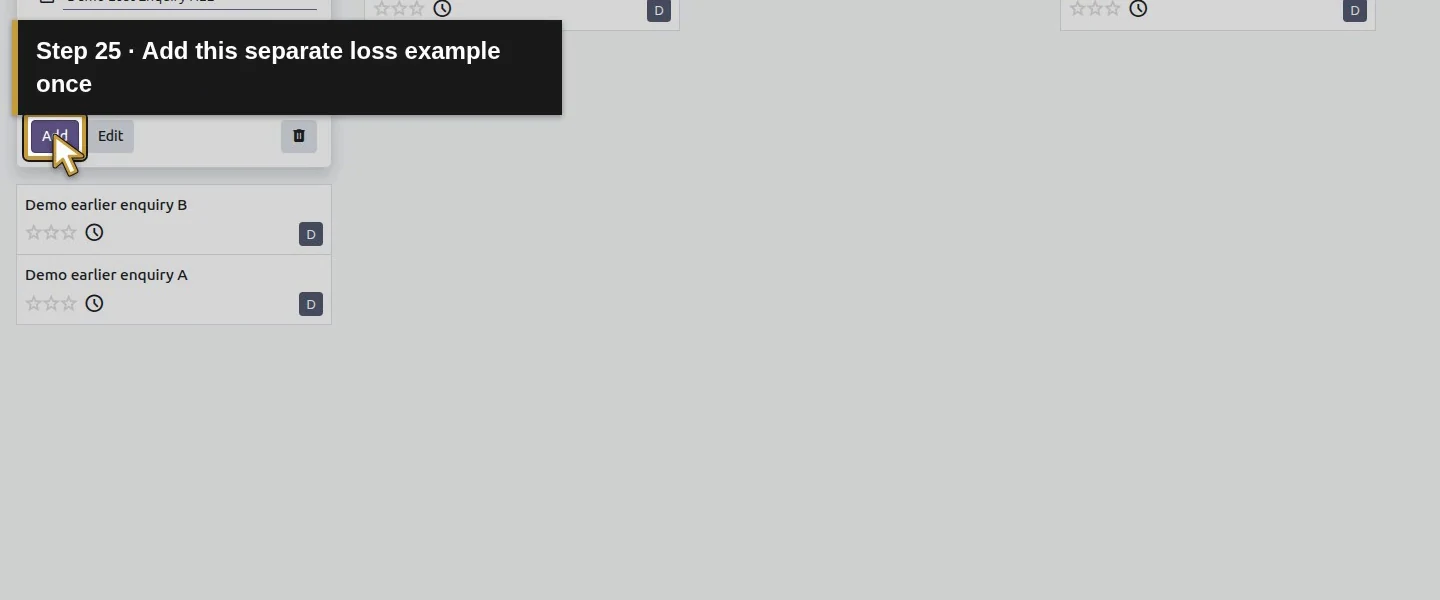
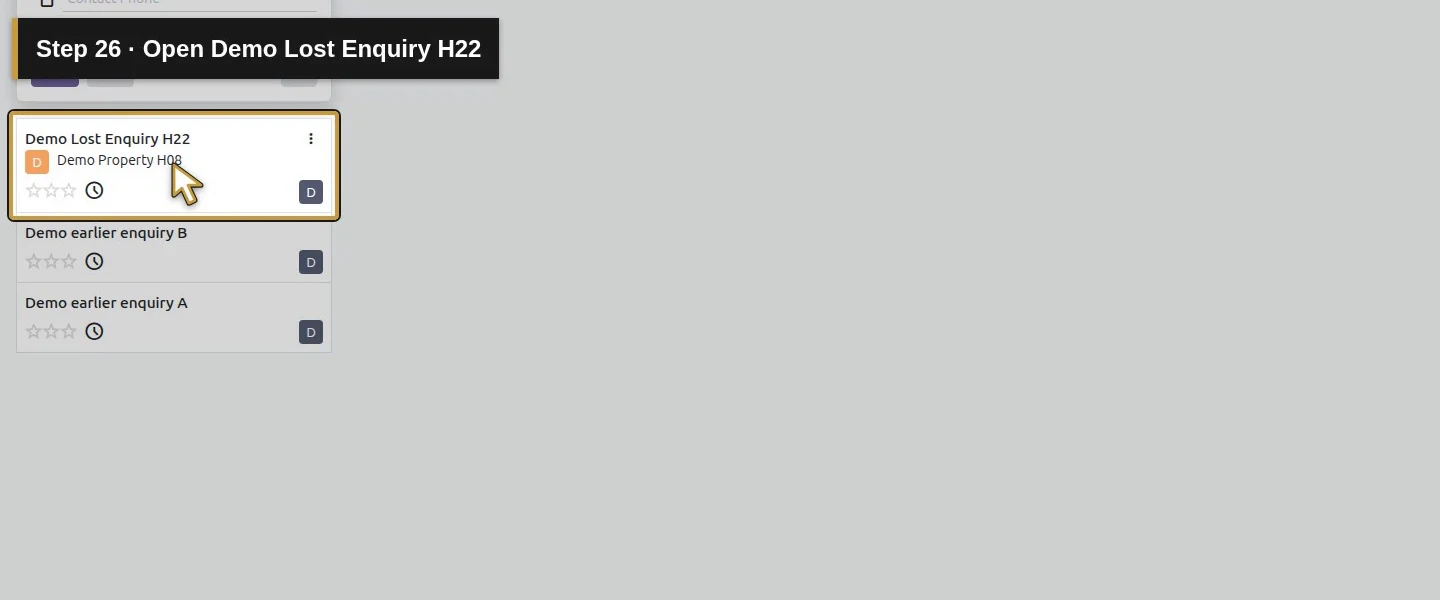
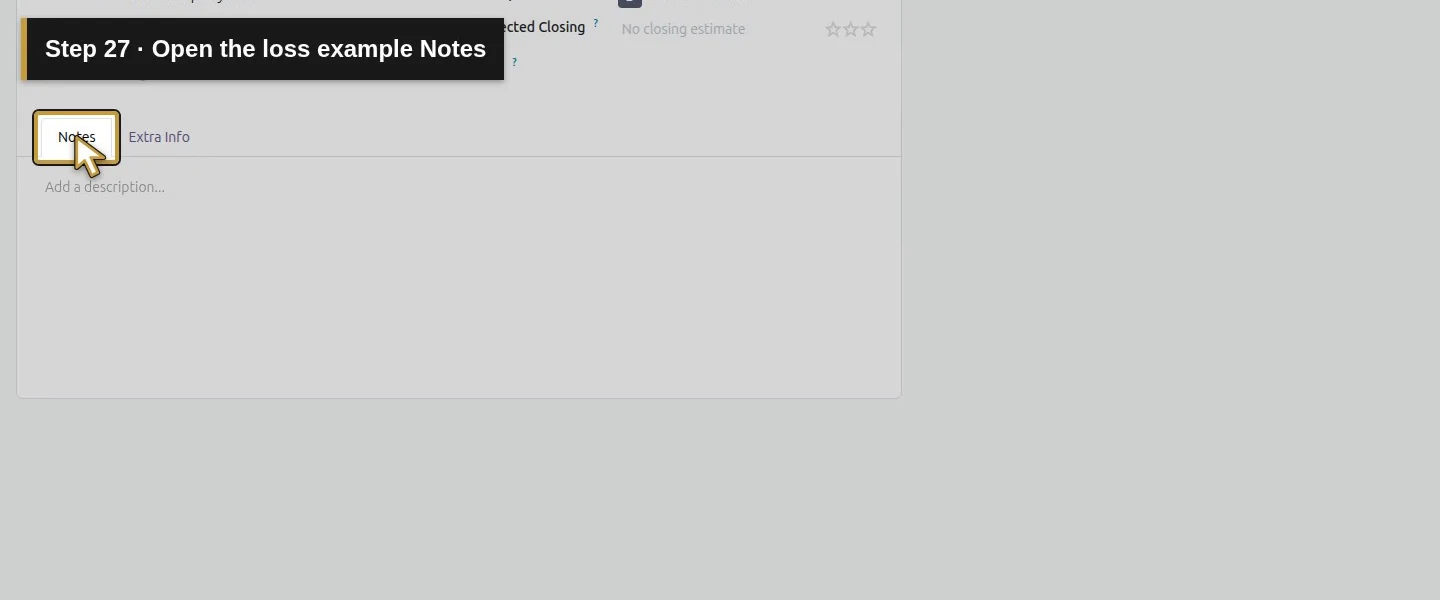
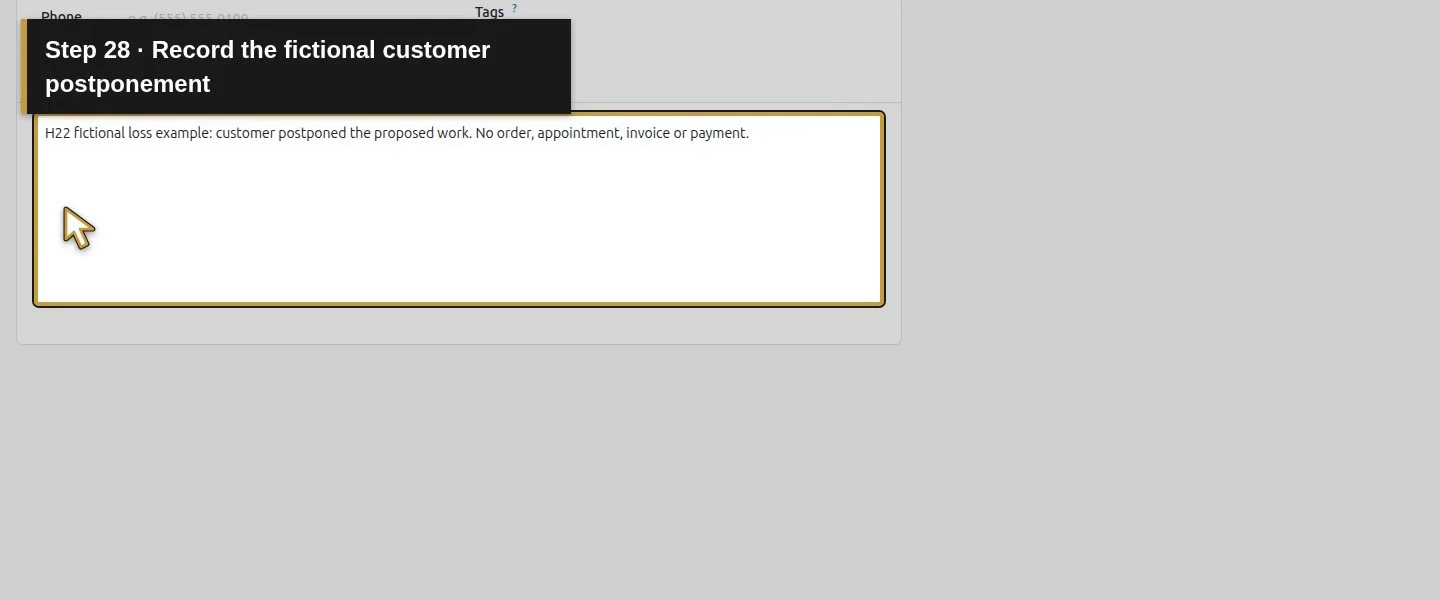
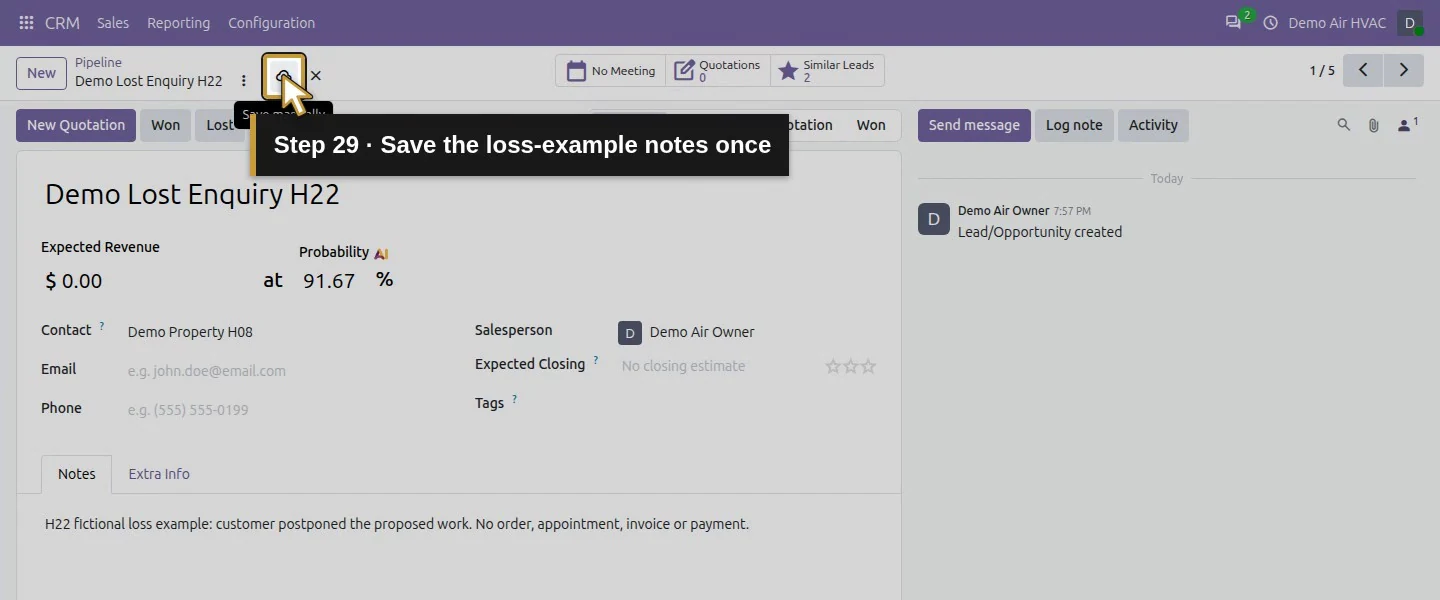
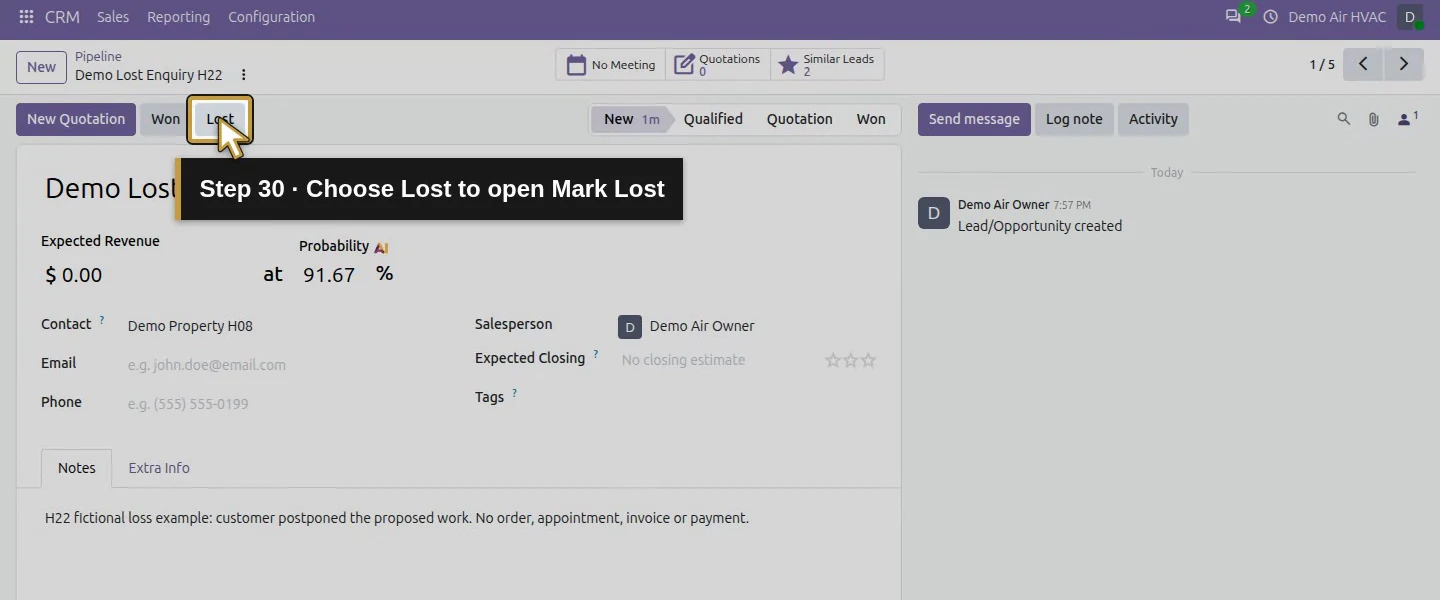
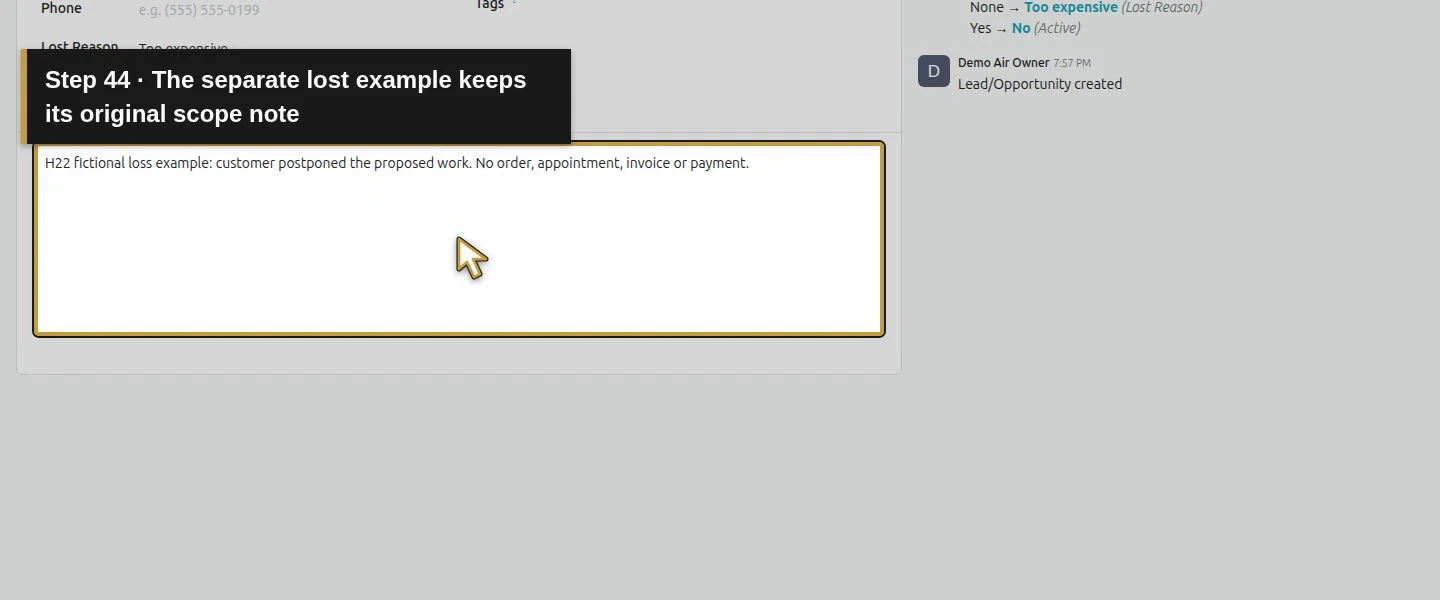
Choose New and enter Demo Lost Enquiry H22 with existing Contact Demo Property H08. Add Notes explaining the fictional customer postponed the proposed work. Save the enquiry, then choose Lost. Use a separate enquiry so the two outcomes remain distinguishable.
Return to Pipeline for a separate loss example.Create a separate lost-outcome example.Name the enquiry Demo Lost Enquiry H22.Find the same existing customer Contact.Select Demo Property H08.Add this separate loss example once.Open Demo Lost Enquiry H22.Open the loss example Notes.Record the fictional customer postponement.Save the loss-example notes once.
Step 4. Choose the reason and closing note
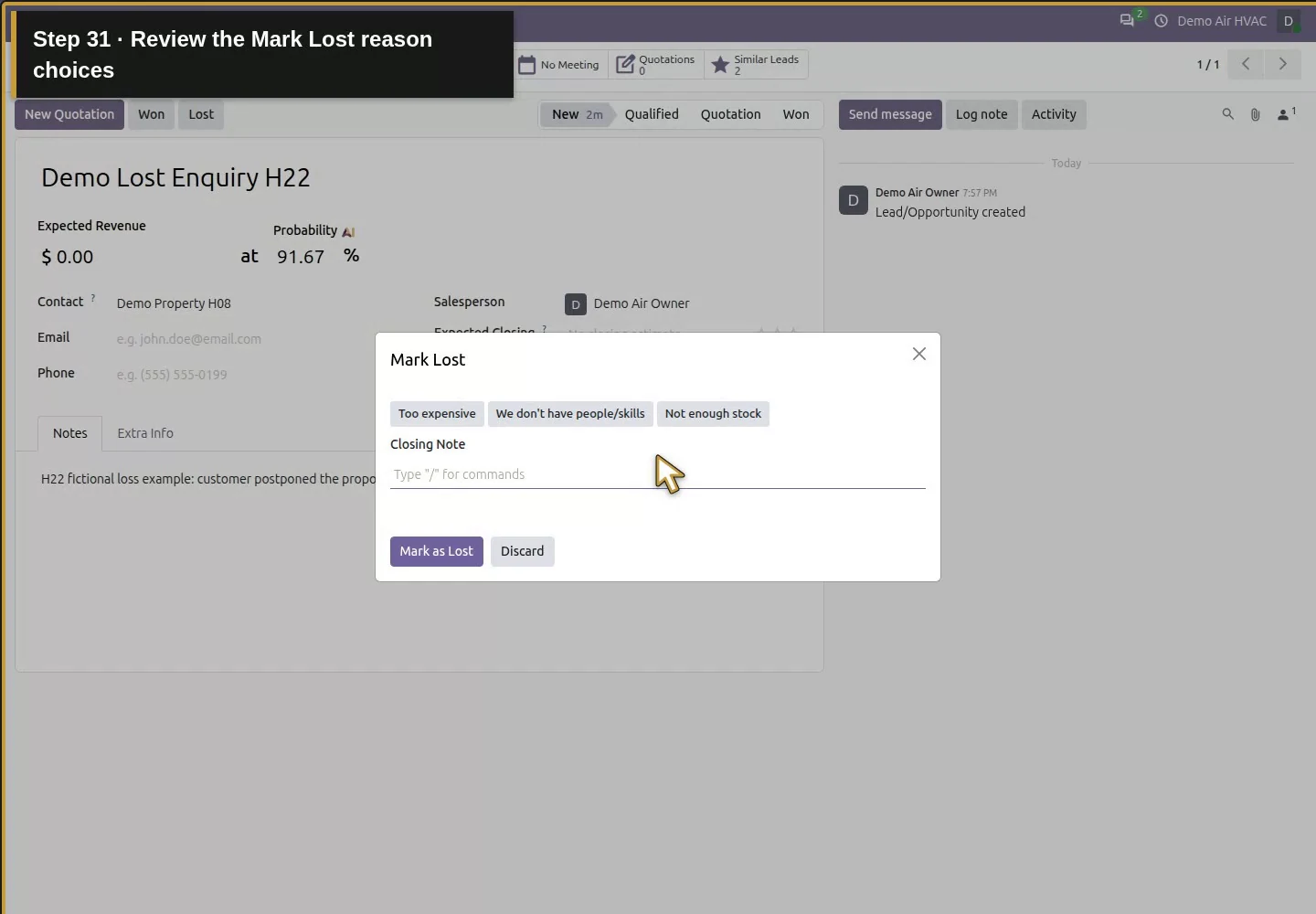
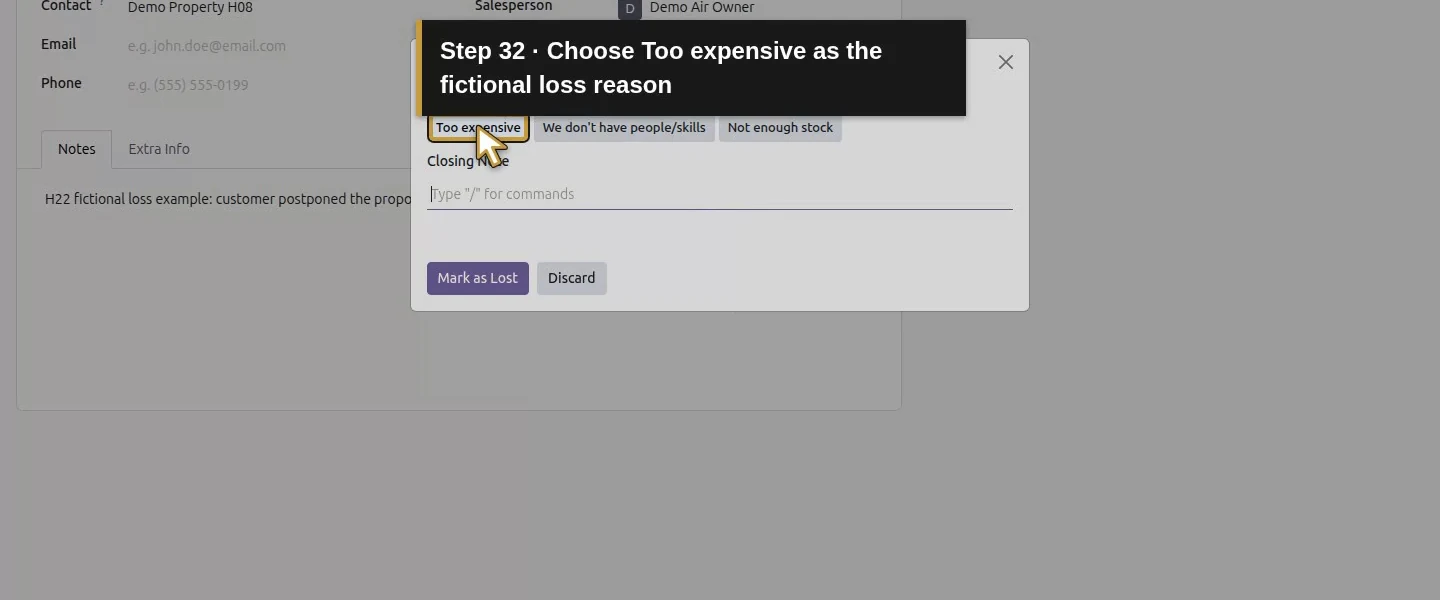
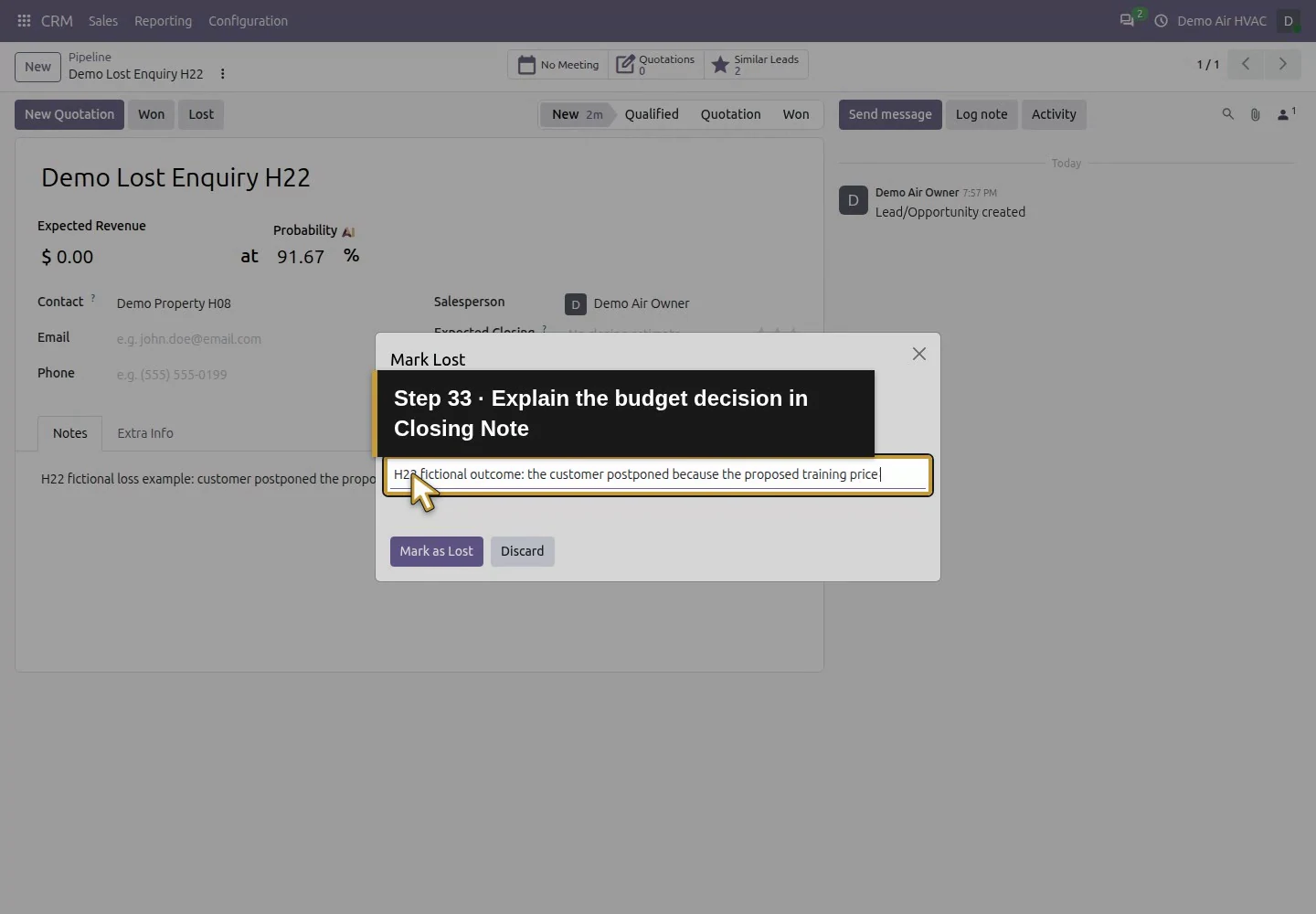
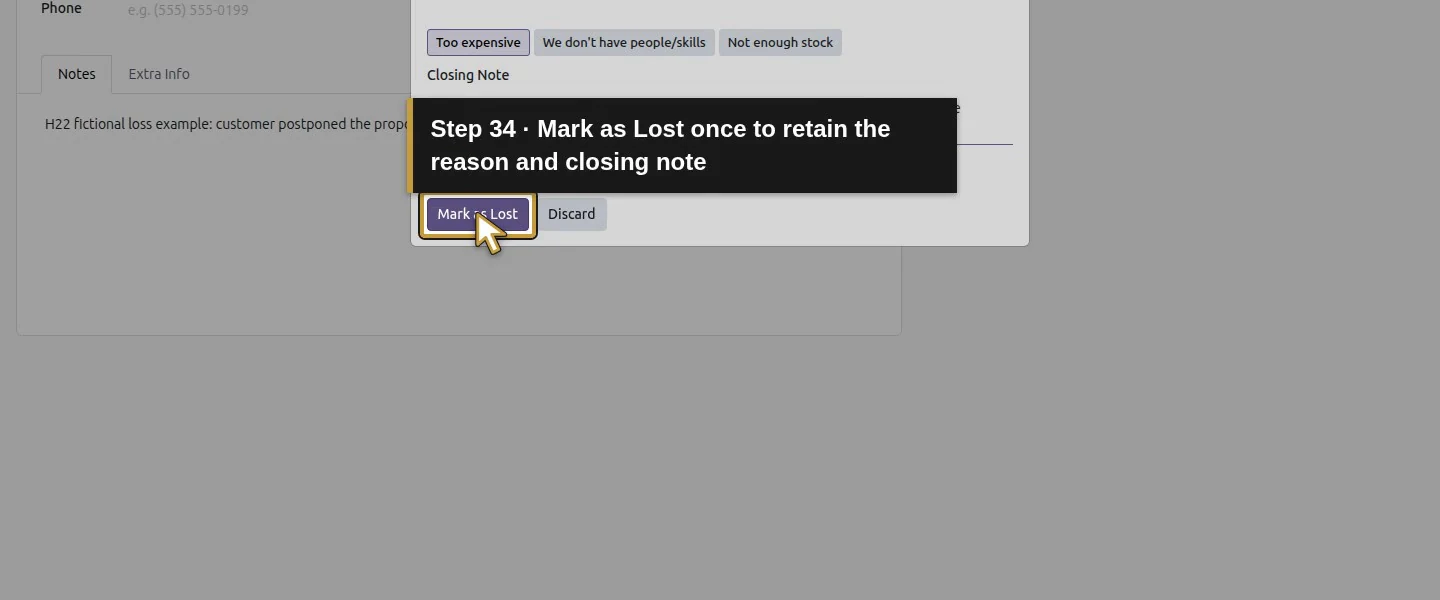
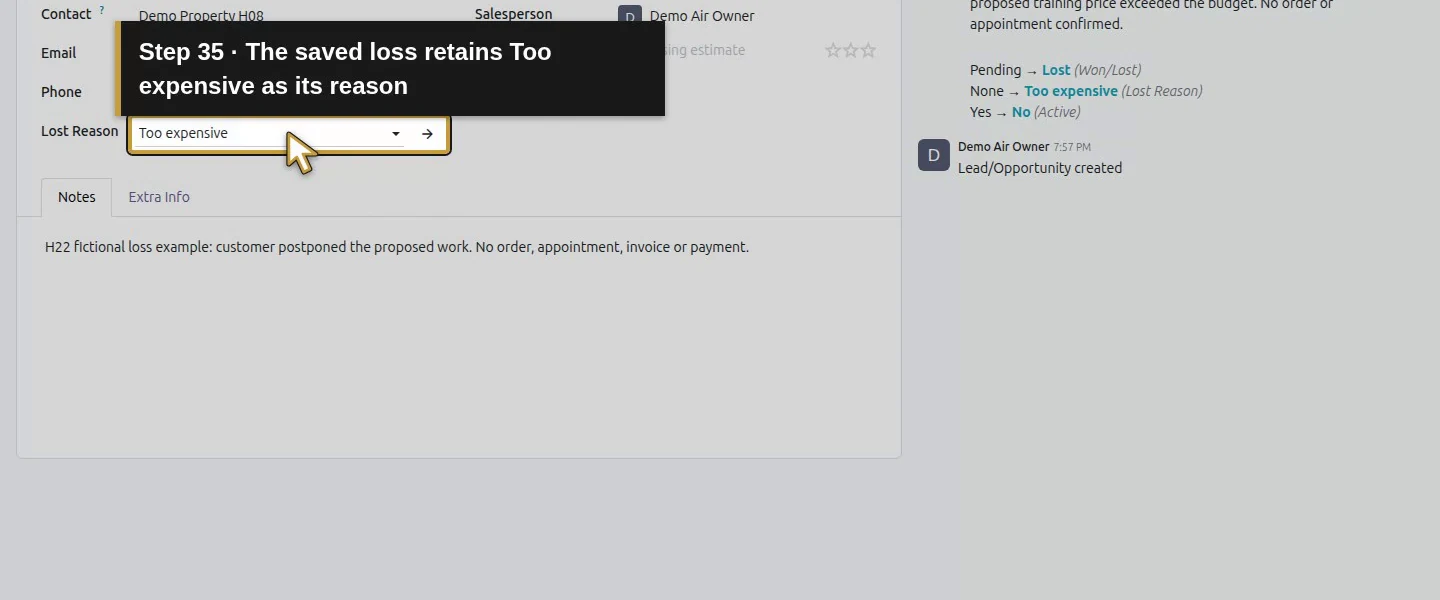
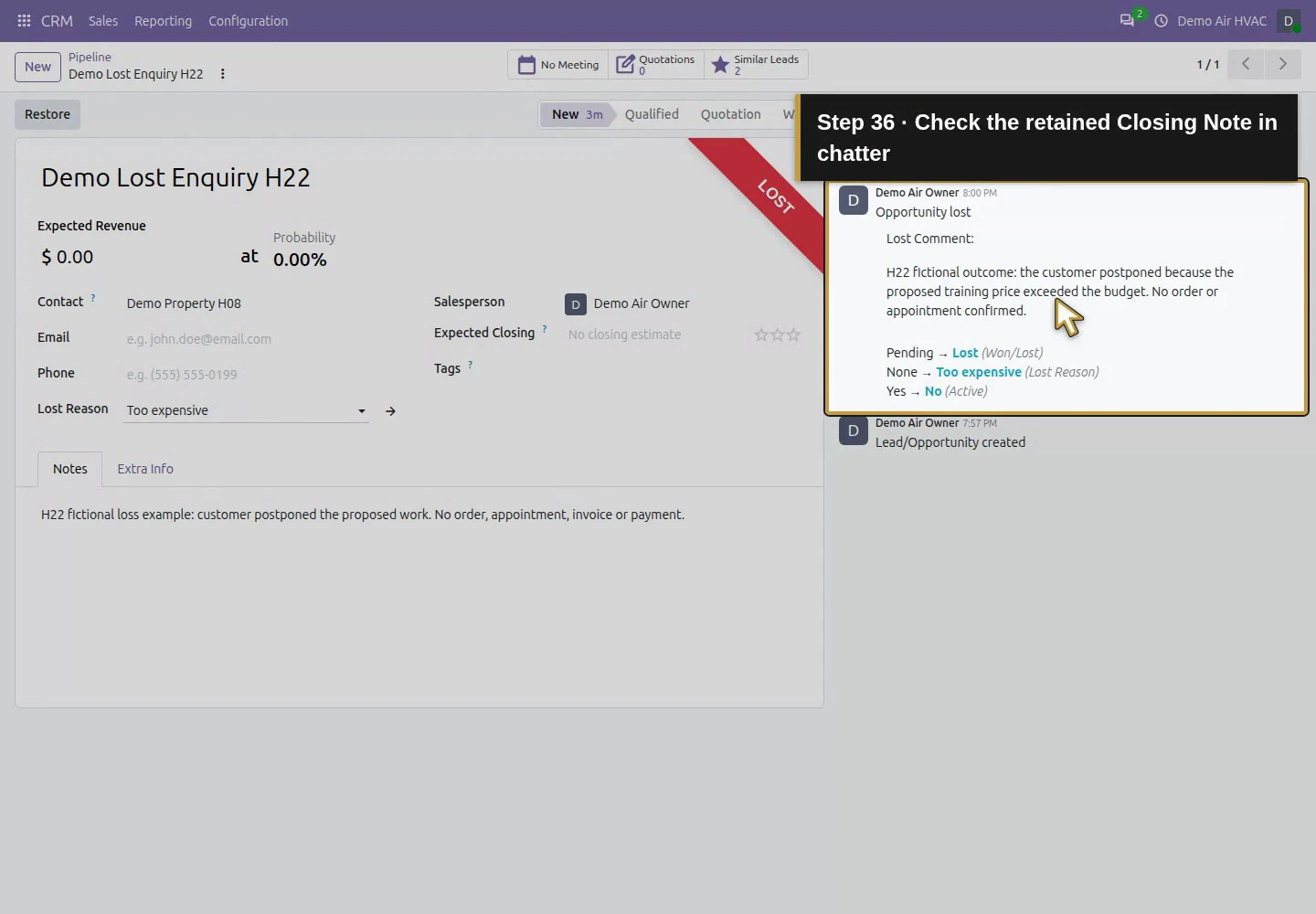
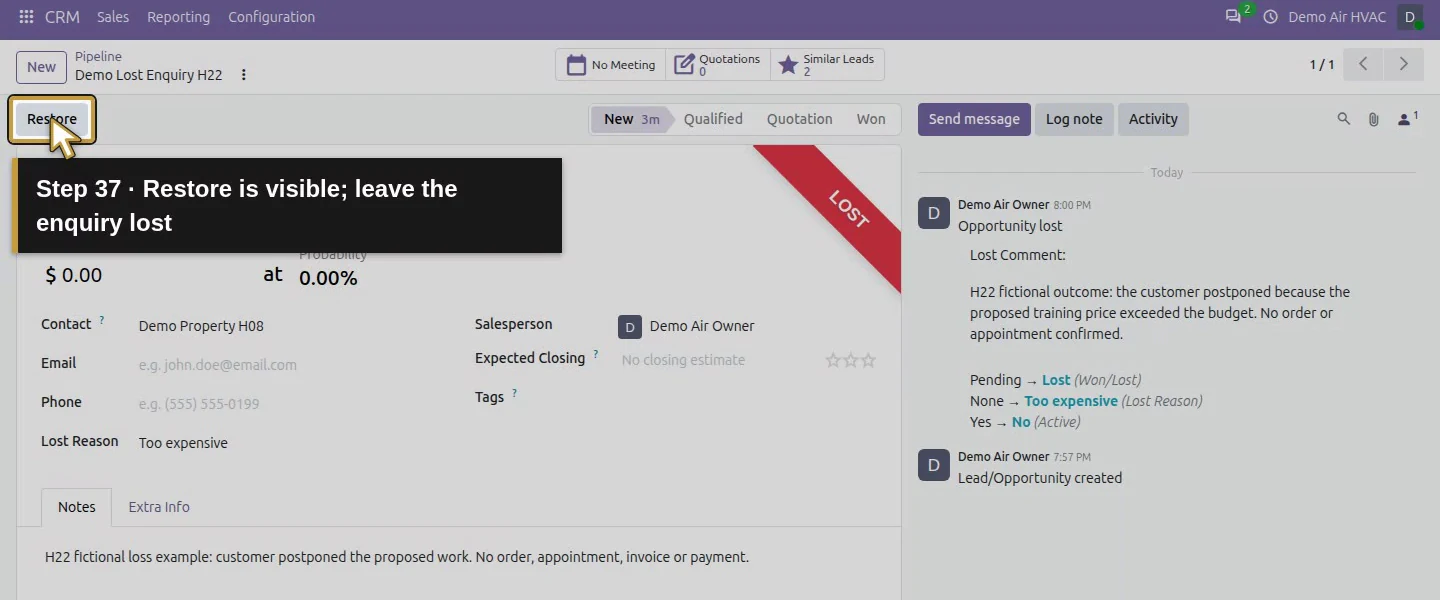
The Mark Lost dialog displays reason choices. Select Too expensive, and use Closing Note to explain that the fictional proposed training price exceeded the customer's budget. Choose Mark as Lost. The form shows Lost, Lost Reason: Too expensive and a retained closing note in chatter.
Choose Lost to open Mark Lost.Review the Mark Lost reason choices.Choose Too expensive as the fictional loss reason.Explain the budget decision in Closing Note.Mark as Lost once to retain the reason and closing note.The saved loss retains Too expensive as its reason.Check the retained Closing Note in chatter.Restore is visible; leave the enquiry lost.
Step 5. Find and reopen the lost enquiry
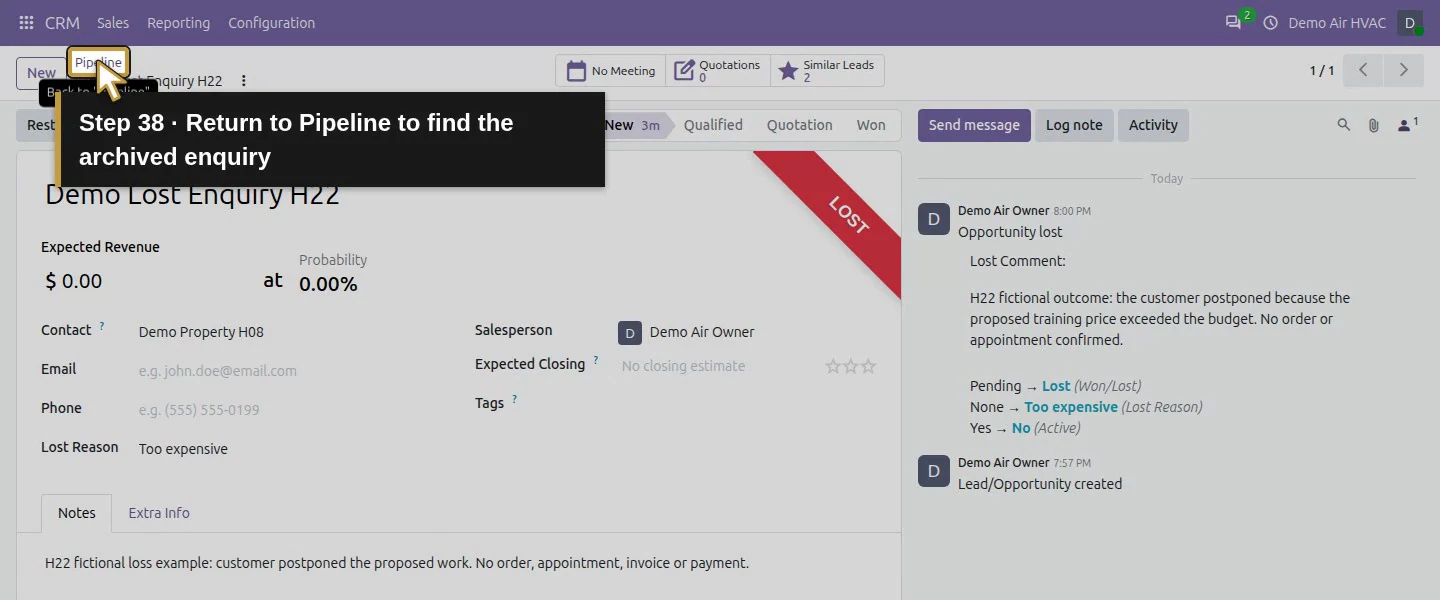
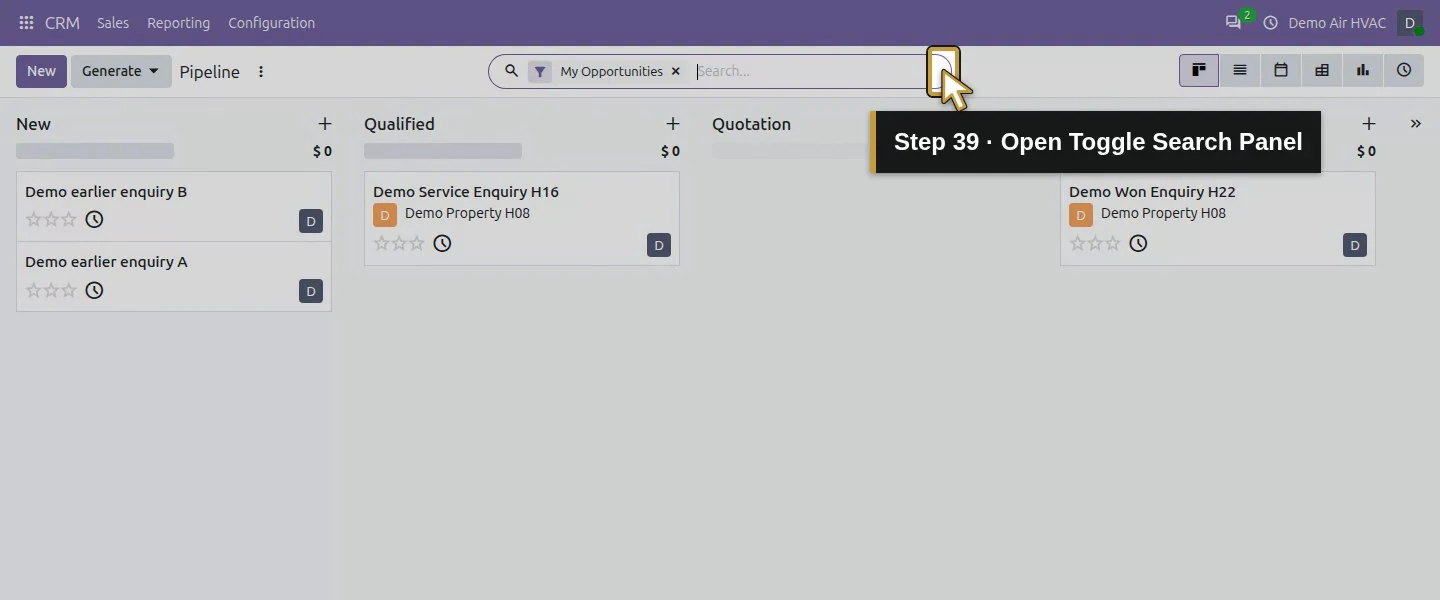
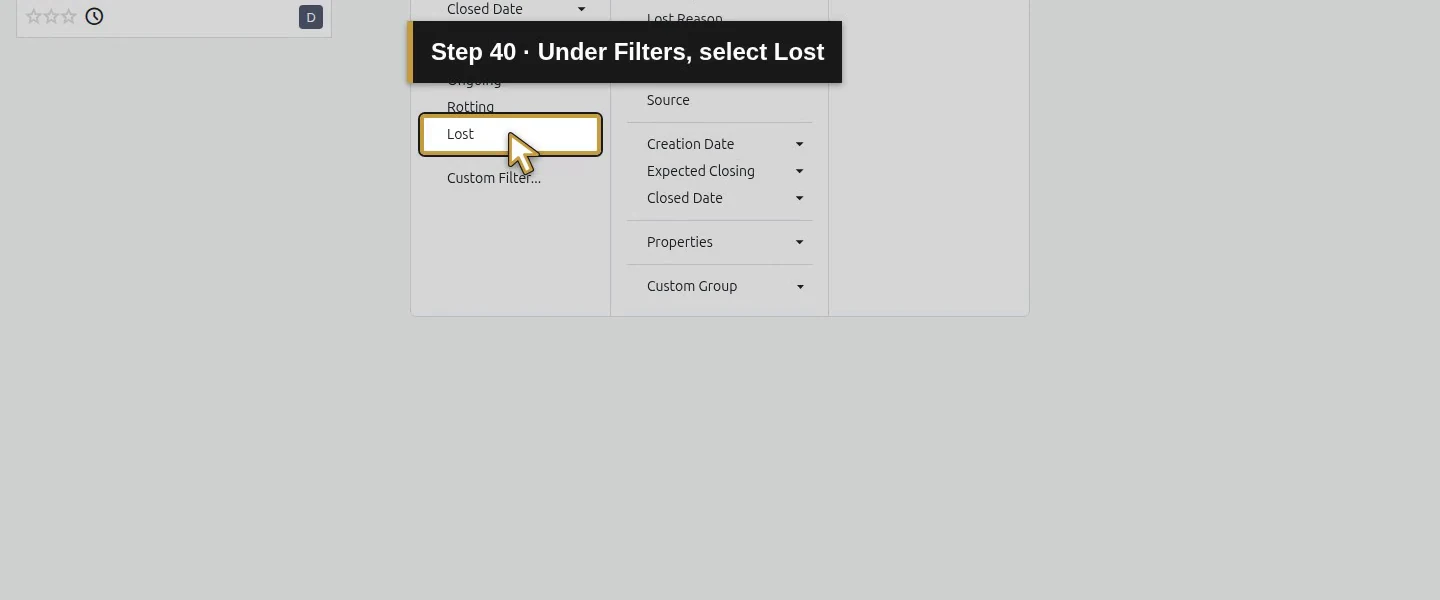
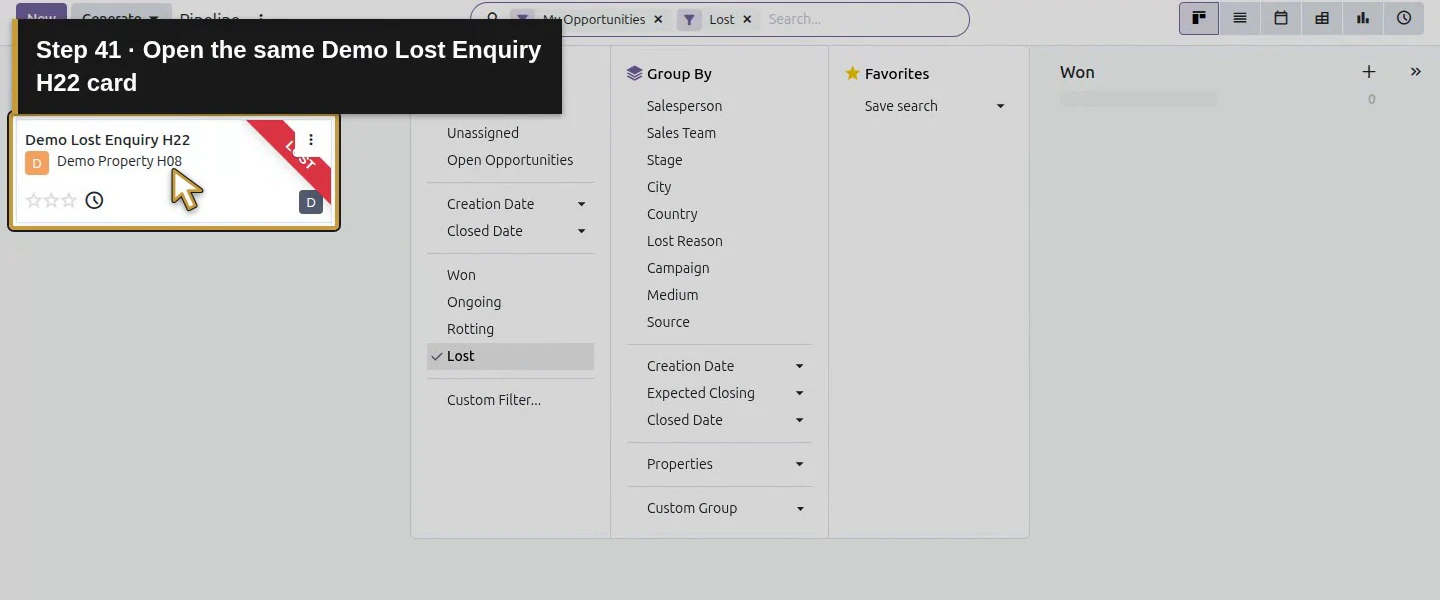
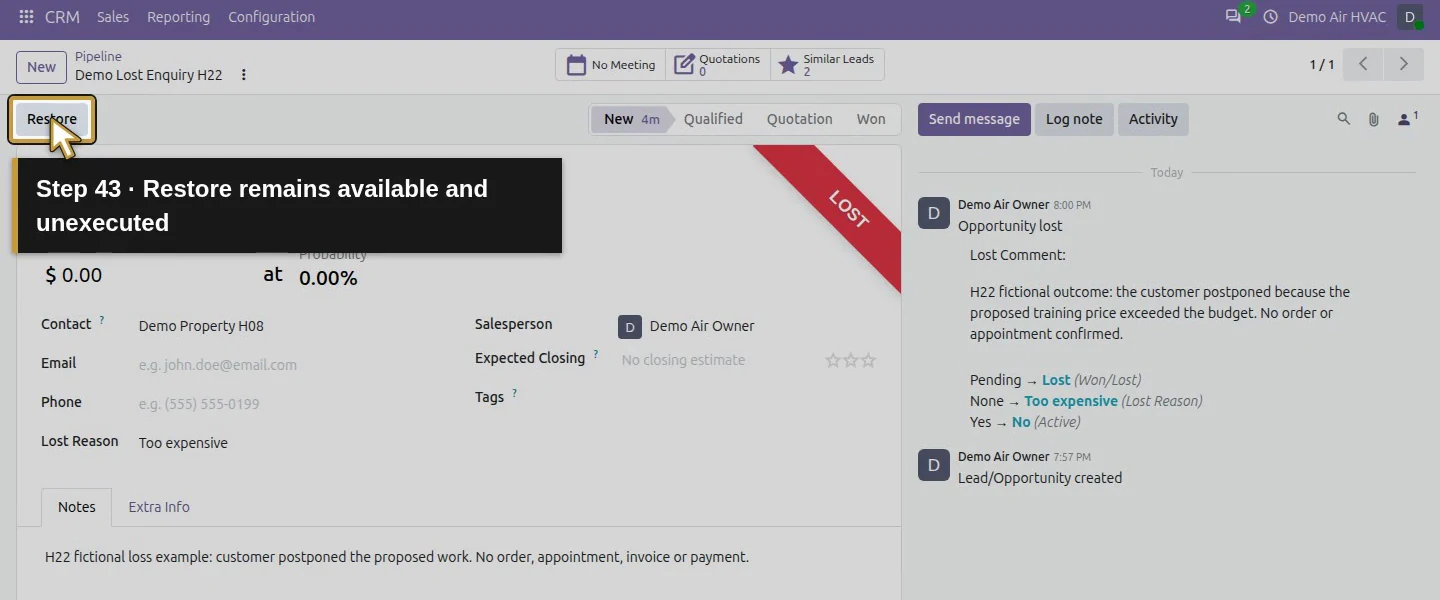
Return to the pipeline and choose Toggle Search Panel. Under Filters, select Lost and open Demo Lost Enquiry H22. It remains available with its saved reason and Restore button. Restore was visible in this test but was not used; the enquiry stays lost.
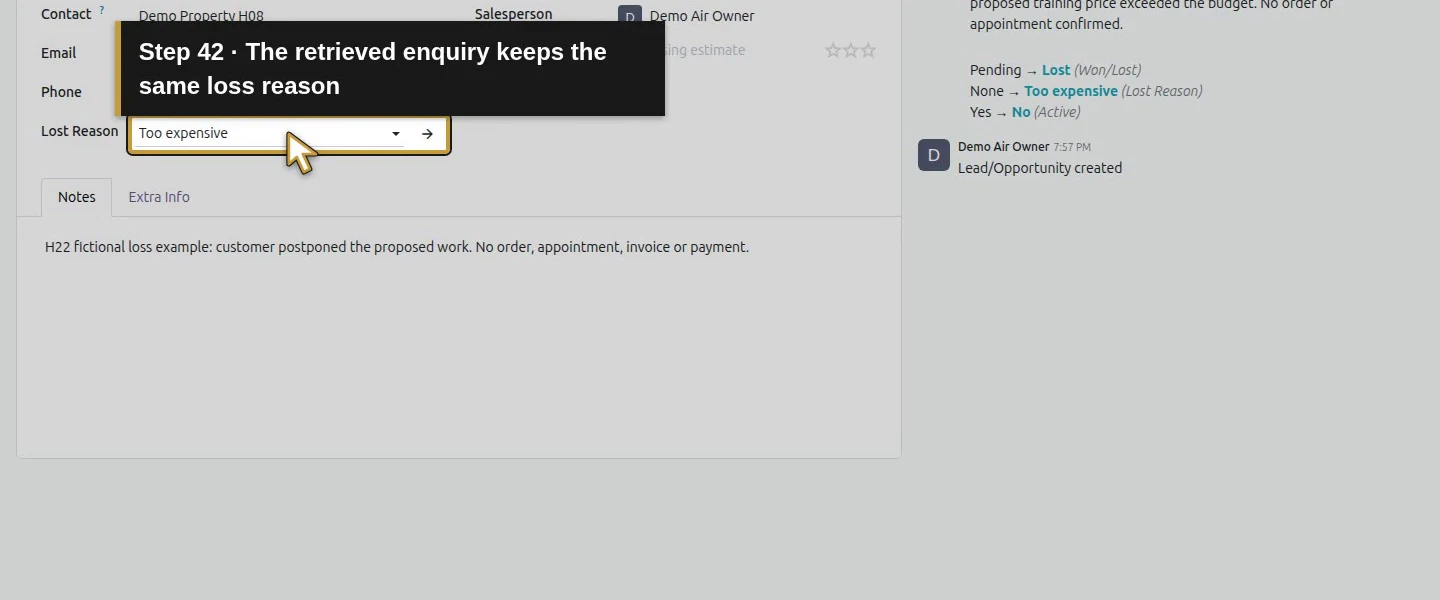
Return to Pipeline to find the archived enquiry.Open Toggle Search Panel.Under Filters, select Lost.Open the same Demo Lost Enquiry H22 card.The retrieved enquiry keeps the same loss reason.Restore remains available and unexecuted.The separate lost example keeps its original scope note.
Check the result
Demo Won Enquiry H22 (record 4) is active/Won, stage Won and probability 100%. Demo Lost Enquiry H22 (record 5) is inactive/Lost with Too expensive and its closing note. The Lost filter reopens it. Existing H03 enquiries and Demo Service Enquiry H16 remain intact; S00001 remains a draft quotation linked to H16.
If your screen differs
The actual form button is Won, not Mark Won. Lost archives the tested enquiry instead of deleting it, and the default pipeline hides it. The separate examples have no orders, invoices or payments. Restore execution, revenue reporting and other-user outcomes were not tested.
Frequently asked questions
How do I mark an opportunity as won in Odoo?
Open the enquiry and choose Won after checking the commercial decision. In this test it saved the Won stage and probability 100%, without creating a sales order, invoice or payment.
Where can I find lost opportunities in Odoo CRM?
In the pipeline, open Toggle Search Panel and select Filters → Lost. The tested lost enquiry reopened with its reason, closing note and visible Restore button.
Does a won Odoo opportunity count as paid revenue?
This CRM outcome did not create an invoice or payment. The tested won enquiry had zero quotations, and the original service quotation stayed draft. Check sales, invoicing and payment records separately.