
Running an HVAC business with Odoo
How do I track HVAC job costs in Odoo?
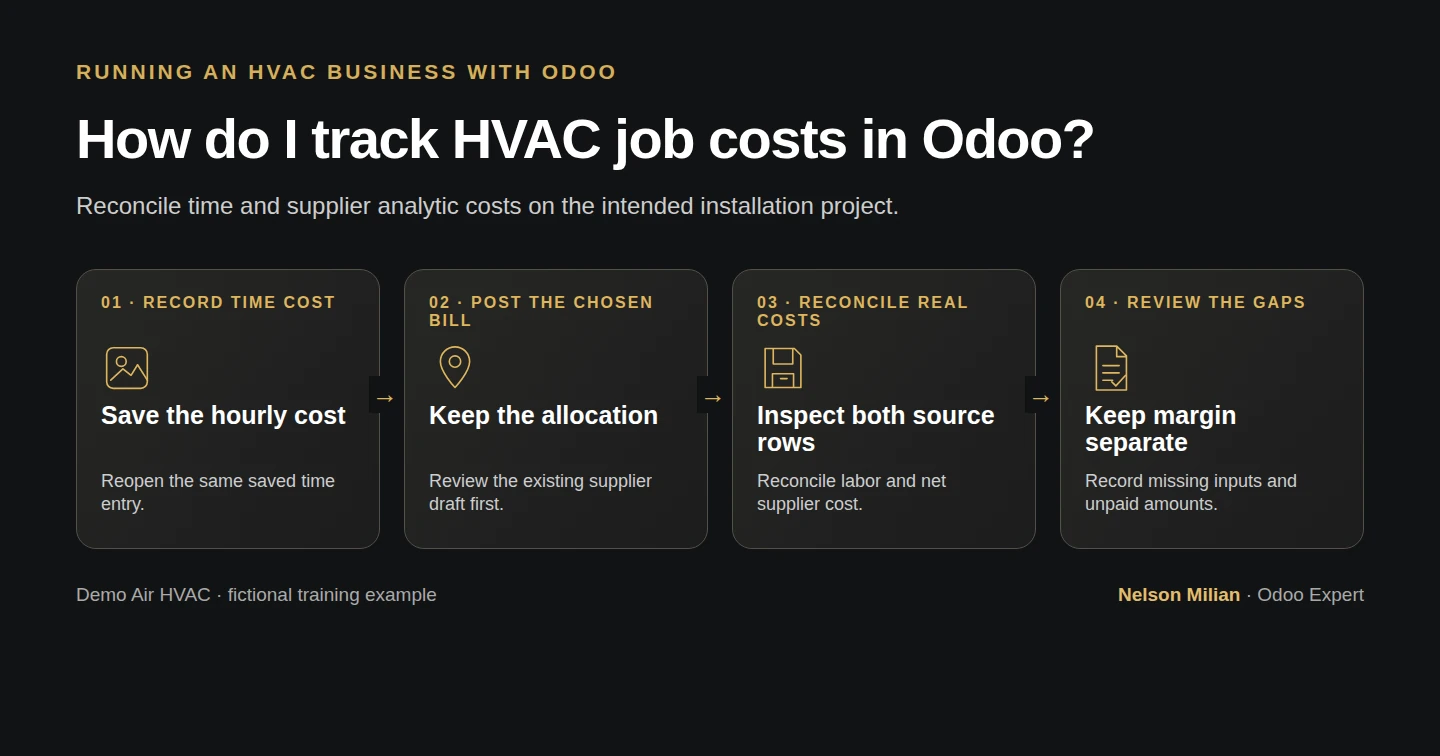
Track HVAC job costs in Odoo with an employee hourly cost, one project timesheet, a posted allocated supplier bill and the native Real Costs report.
Alex needs to see which costs actually belong to the installation job. This Odoo analytic-accounting example brings one technician timesheet and one purchased service into the existing project’s Real Costs report. We reconcile the $195 total to its source records and keep unfinished work, uninvoiced revenue and missing costs visible.
Alex Rivera and Demo Air HVAC are fictional training examples. Prices, dates, quantities and business situations in this guide are illustrative.
Before you begin
Tested in stock Odoo 20.0-20260926 Community as the demo owner administrator, with official modules and standard configuration. Complete How do I manage an HVAC installation project in Odoo?, How do I purchase subcontractor services for an Odoo job? and How do I record technician time on an Odoo job?. Reuse Demo Installation H47 — S00011, its existing Project Account, installation task and P00010 service purchase. H48 left its DEMO-H48-DRAFT-REVIEW supplier bill in Draft; this lesson deliberately advances that same bill to a simulated posting. The owner has existing HR, timesheet, Project and Invoicing access. Official analytic, project/account, timesheet and purchase integrations are already installed; no Enterprise profitability bundle or new permission is added. The $600 fixed-price installation remains open and uninvoiced. Use a training company and local mail sink. All time, review decisions, account selections and postings below are fictional; no real work, supplier document, customer approval or payment is asserted.
Step-by-step workflow
Step 1. Check the existing project and costing scope
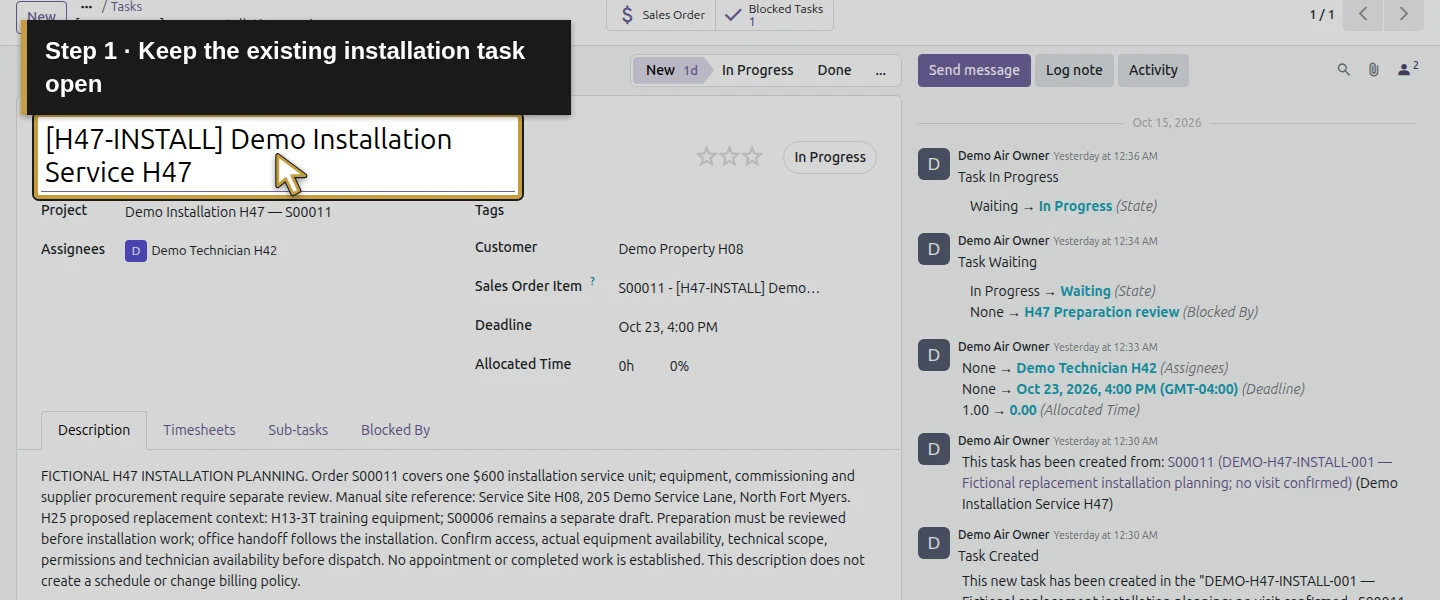
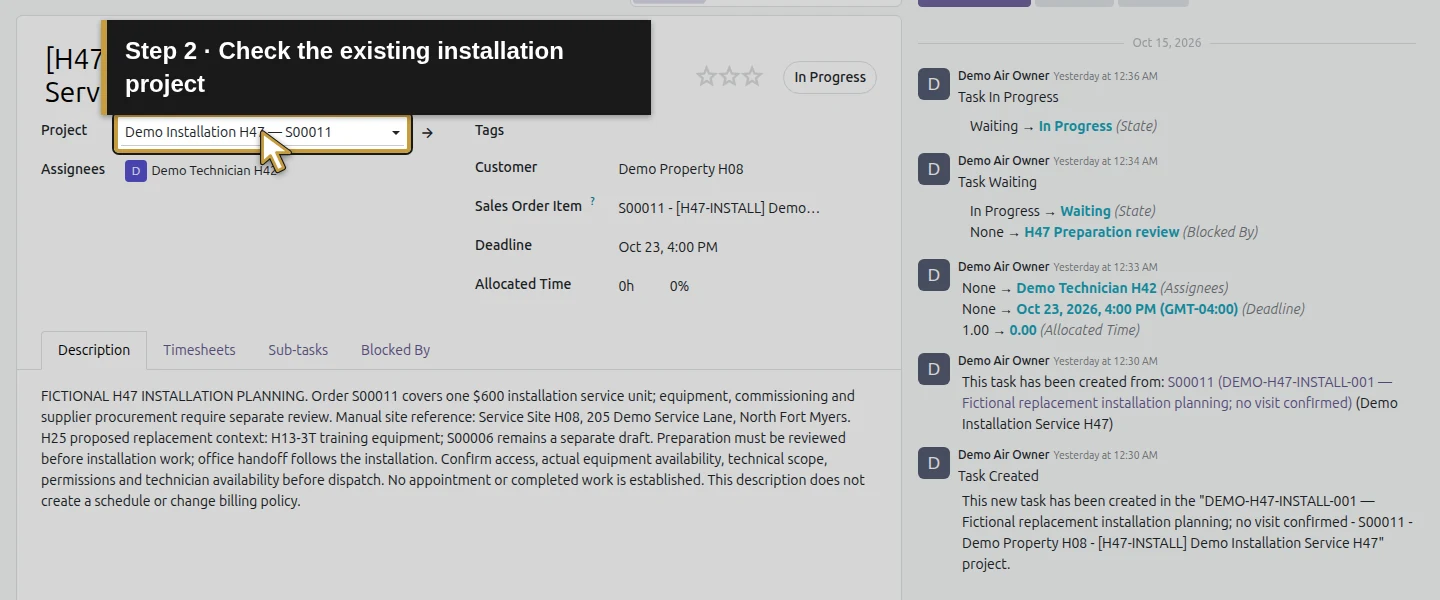
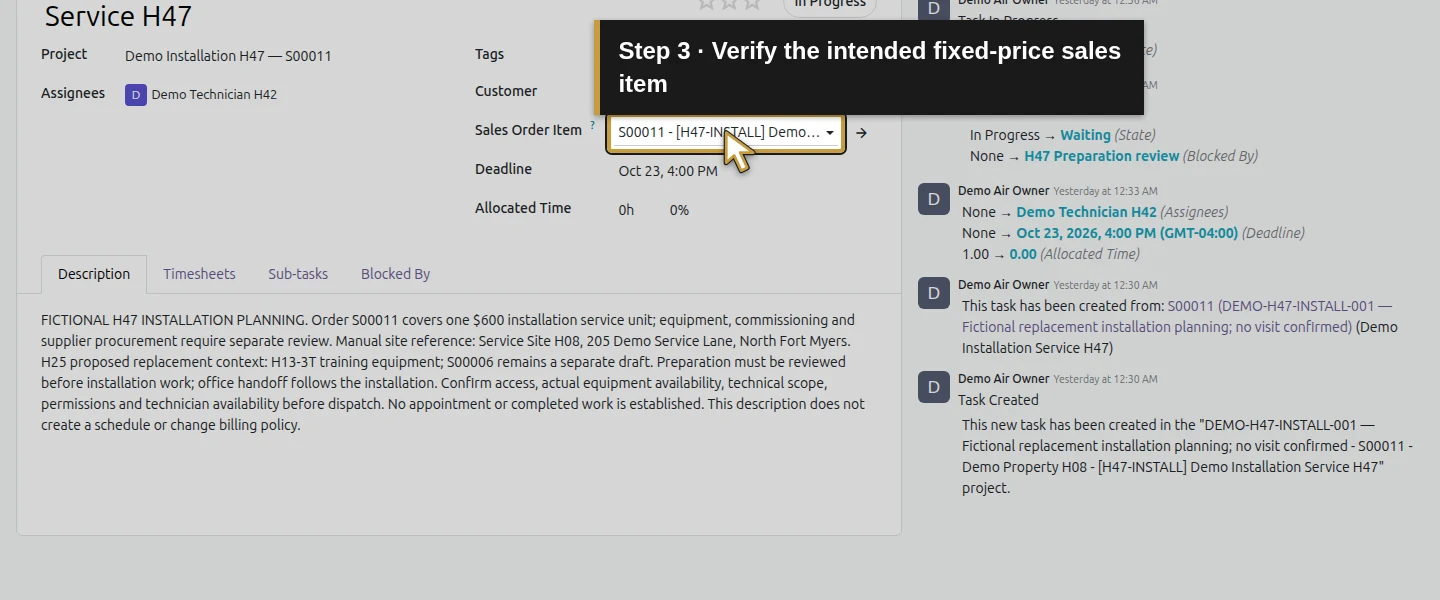
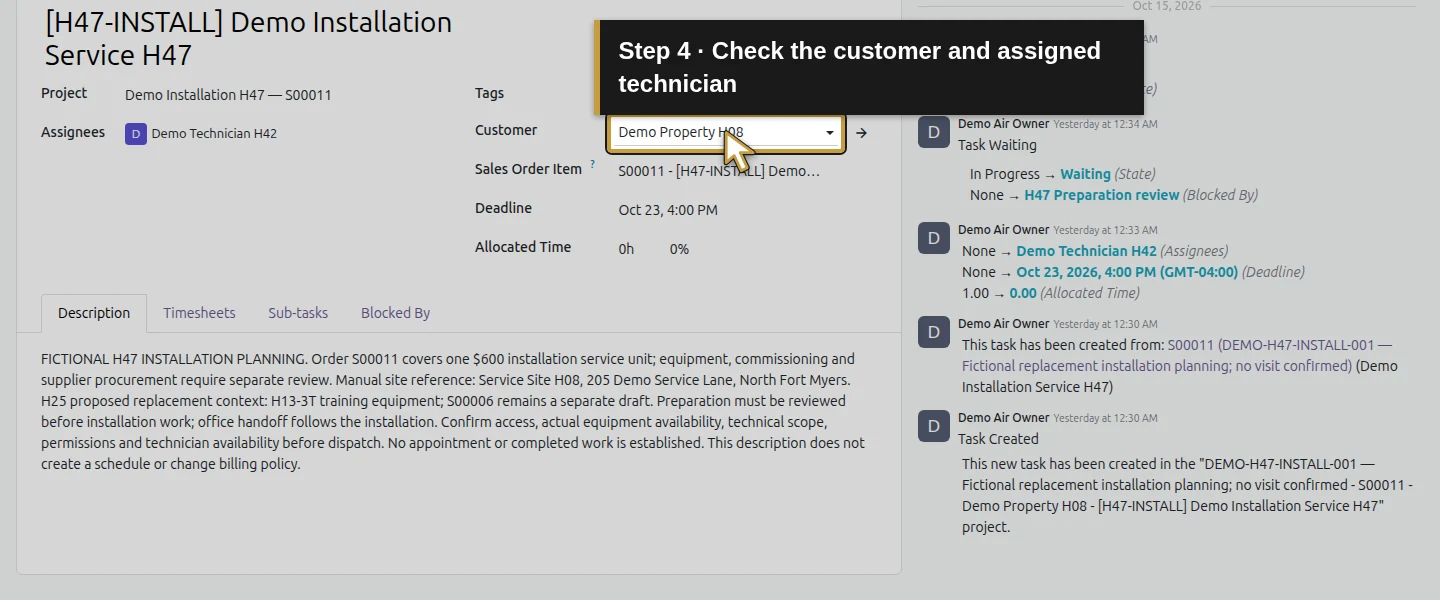
Open Project → Projects → Demo Installation H47 — S00011, then its existing [H47-INSTALL] Demo Installation Service H47 task. Verify the customer, assigned Demo Technician H42, project and Sales Order Item S00011. Keep the existing tasks, deadline and statuses. This example costs only one synthetic time entry and the H48 purchased review service. The project has its existing Project Account and Timesheets enabled. The separate H60 paid expense and earlier mixed inventory purchases belong outside this selection; do not assign them here merely because they exist in the company.
Step 2. Save the employee’s hourly cost before recording new time
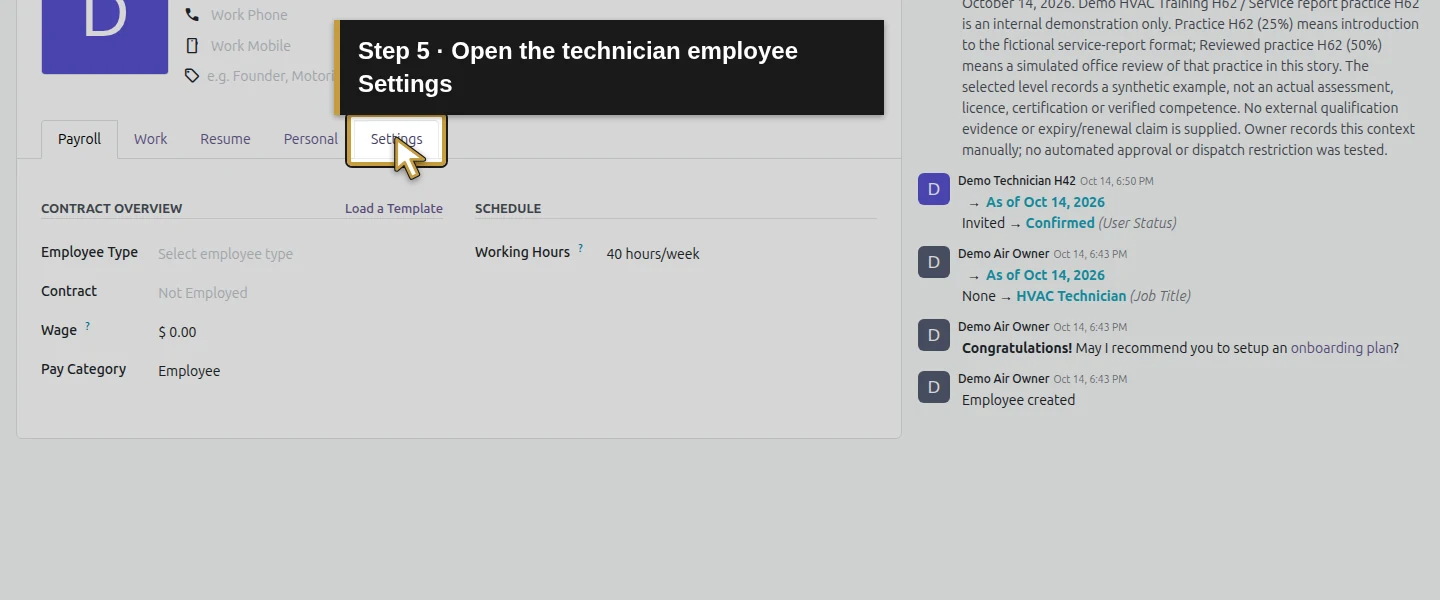
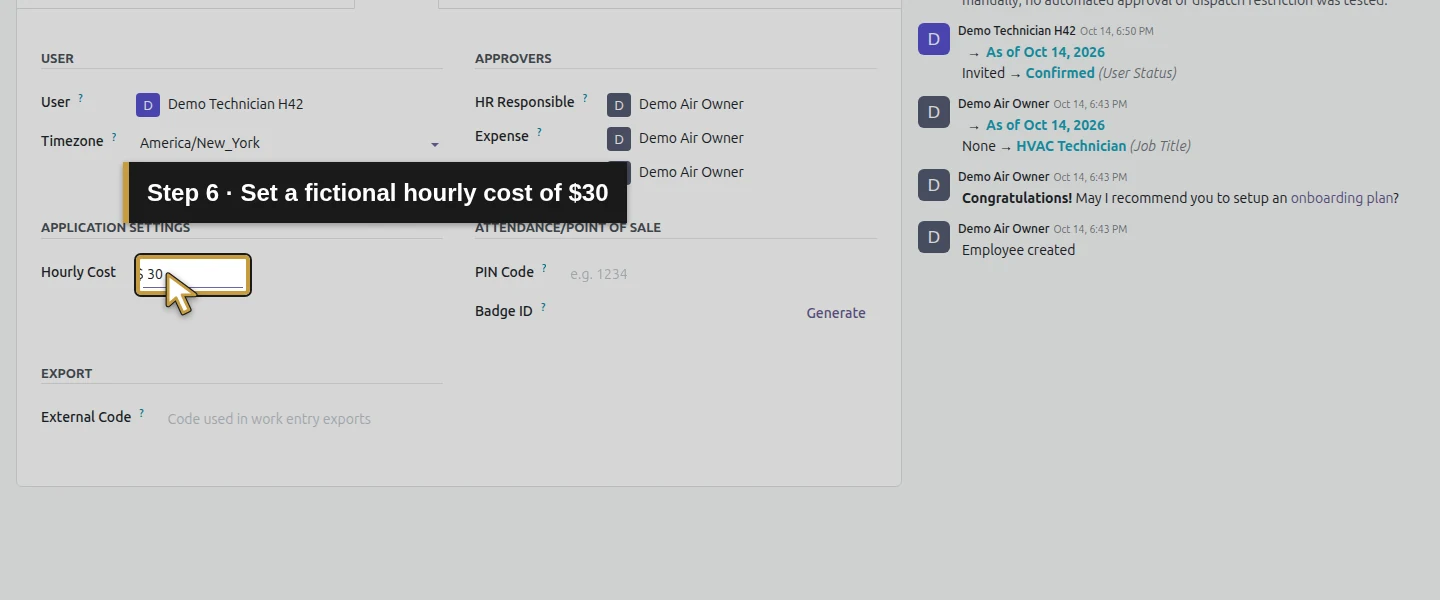
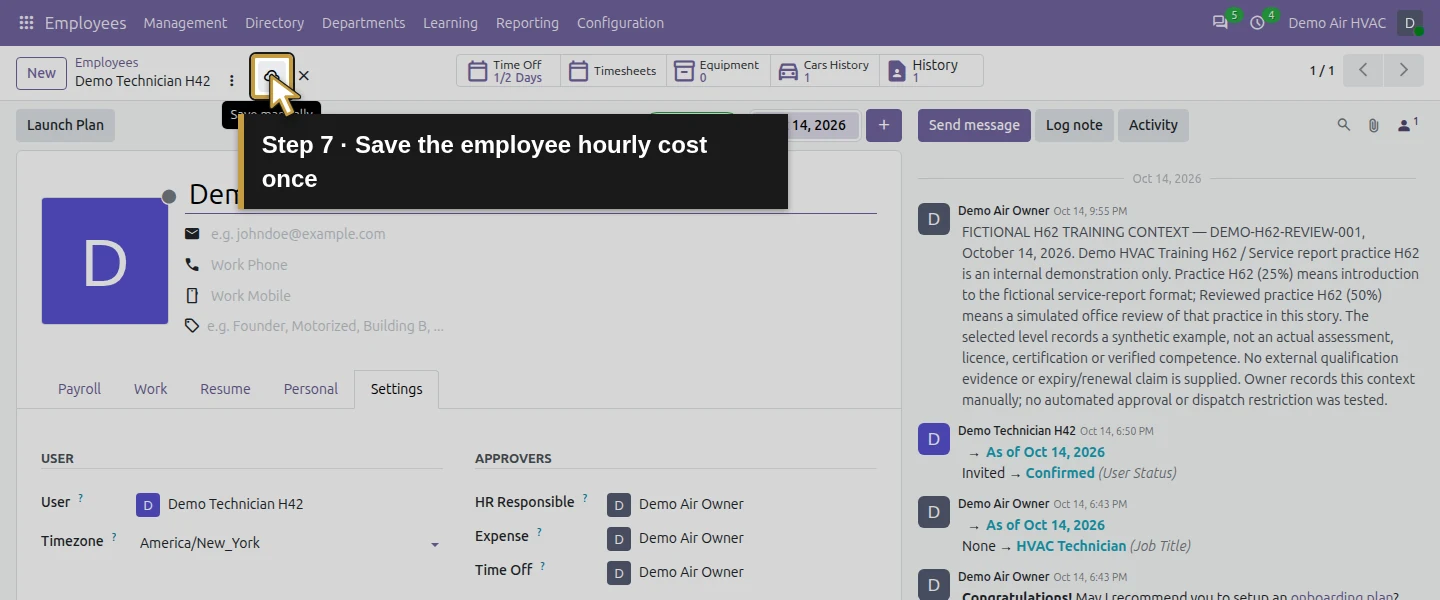
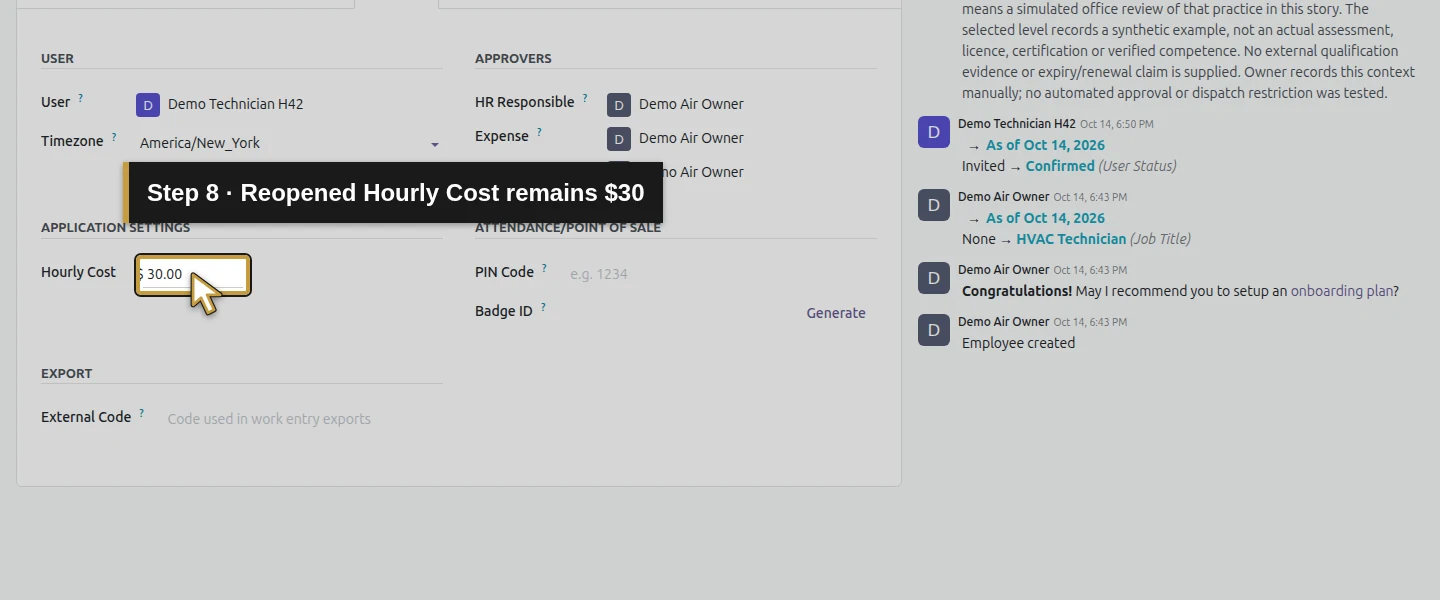
Open Employees → Demo Technician H42 → Settings. Under Application Settings, enter Hourly Cost $30. Click Save manually, wait for saving to finish, reload and reopen Settings to verify $30. This is a chosen training cost rate, separate from a customer billing rate or a verified wage/payroll calculation. Set an appropriate reviewed basis in your business. The older H44 and time-off entries retained their original zero costs after this save; changing the employee setting did not retroactively reprice them in this test.
Step 3. Enter one time row on the intended installation task
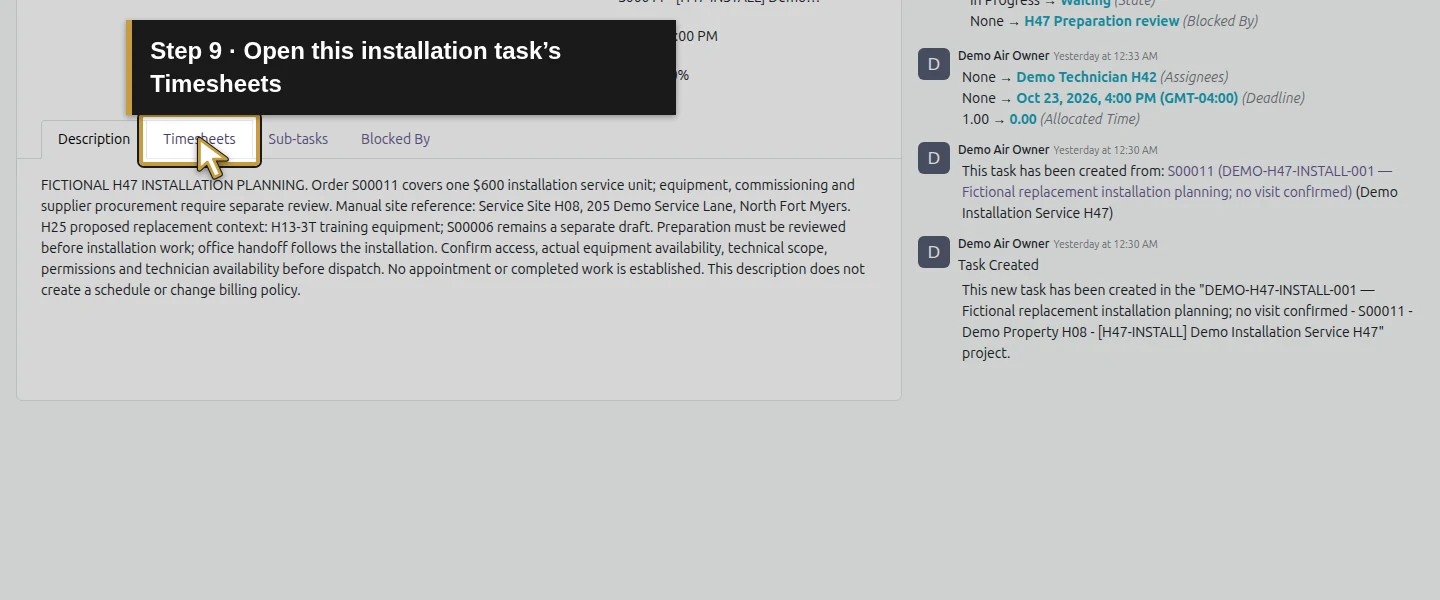
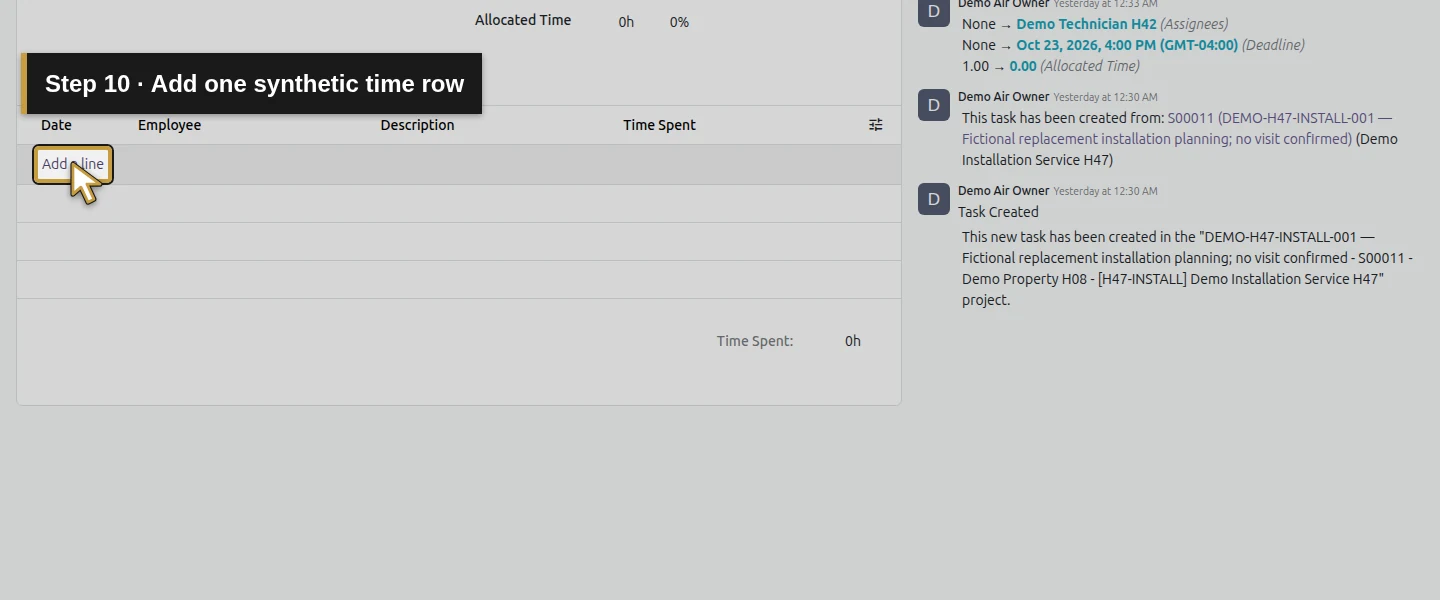
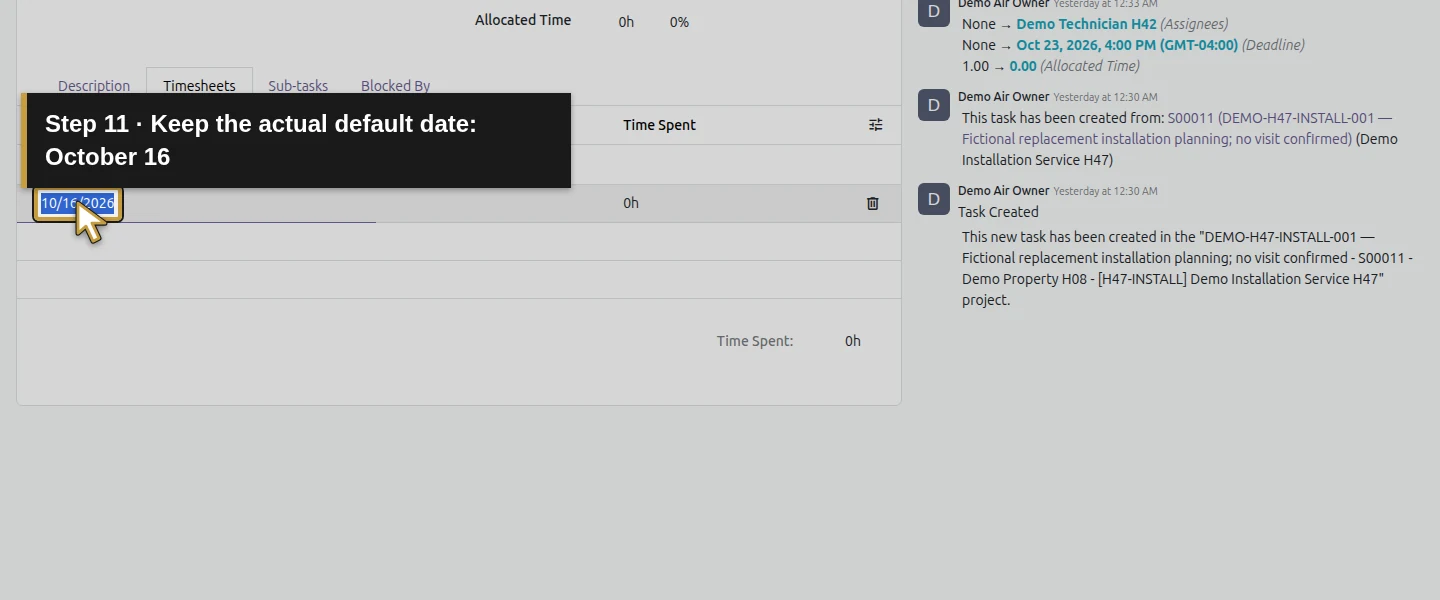
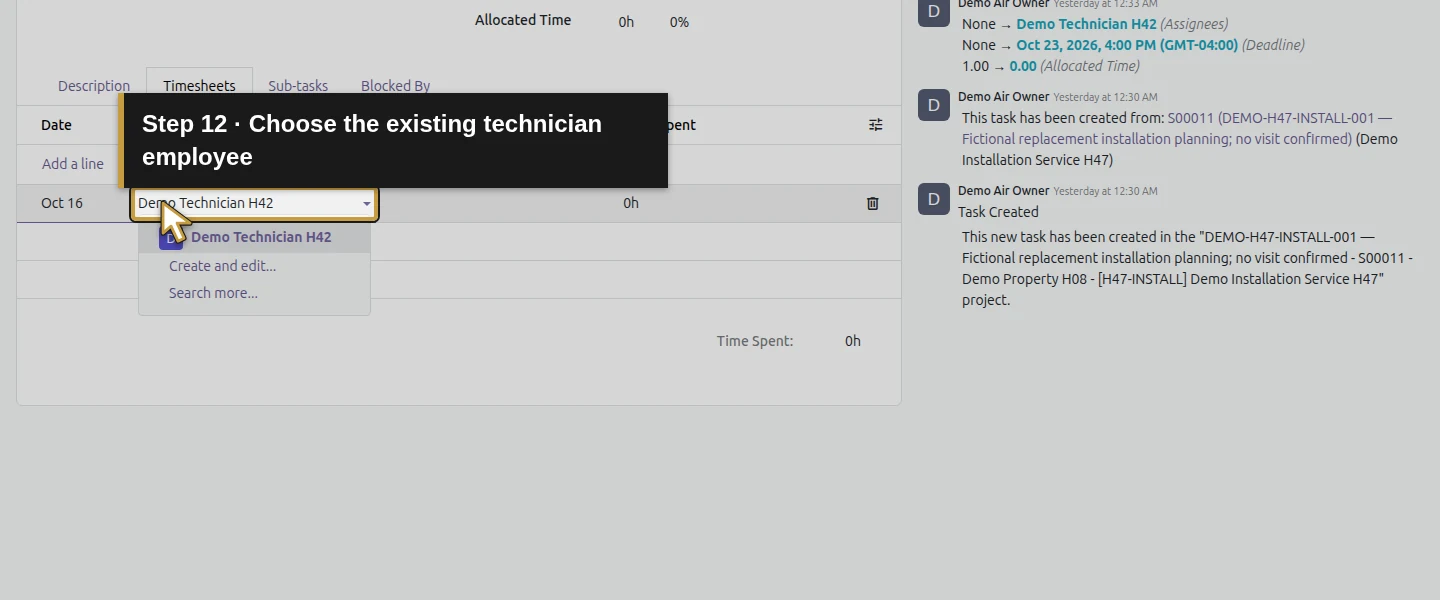
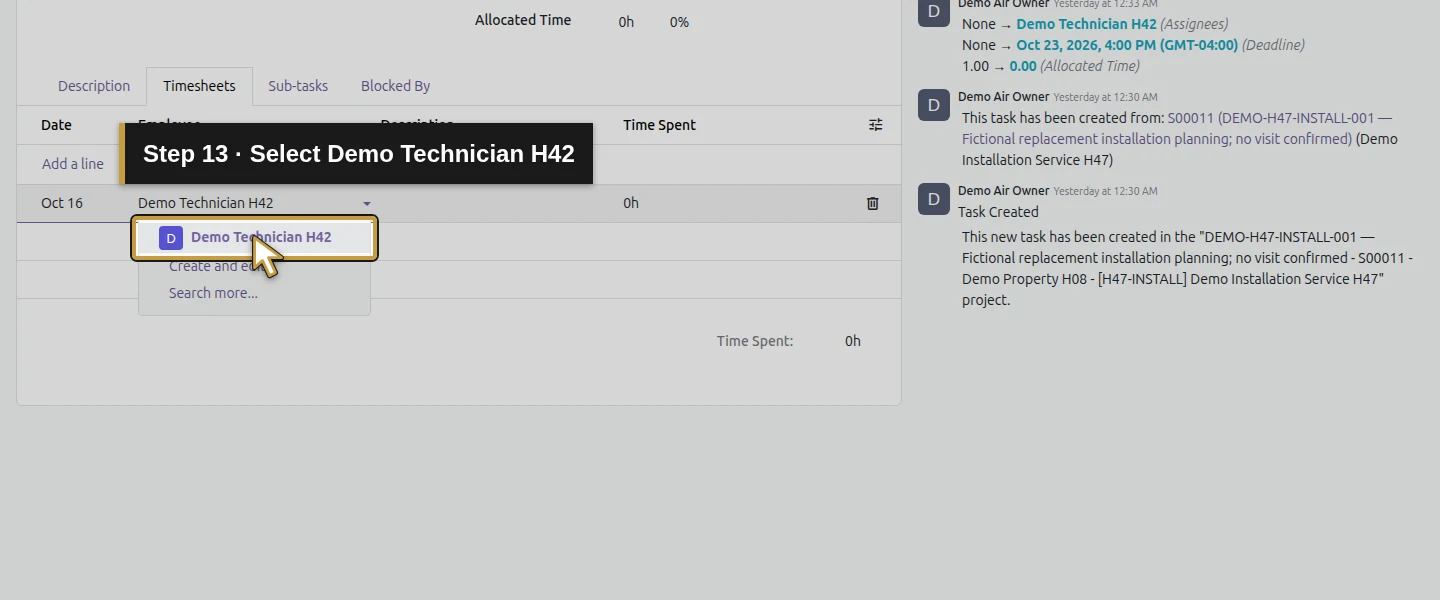
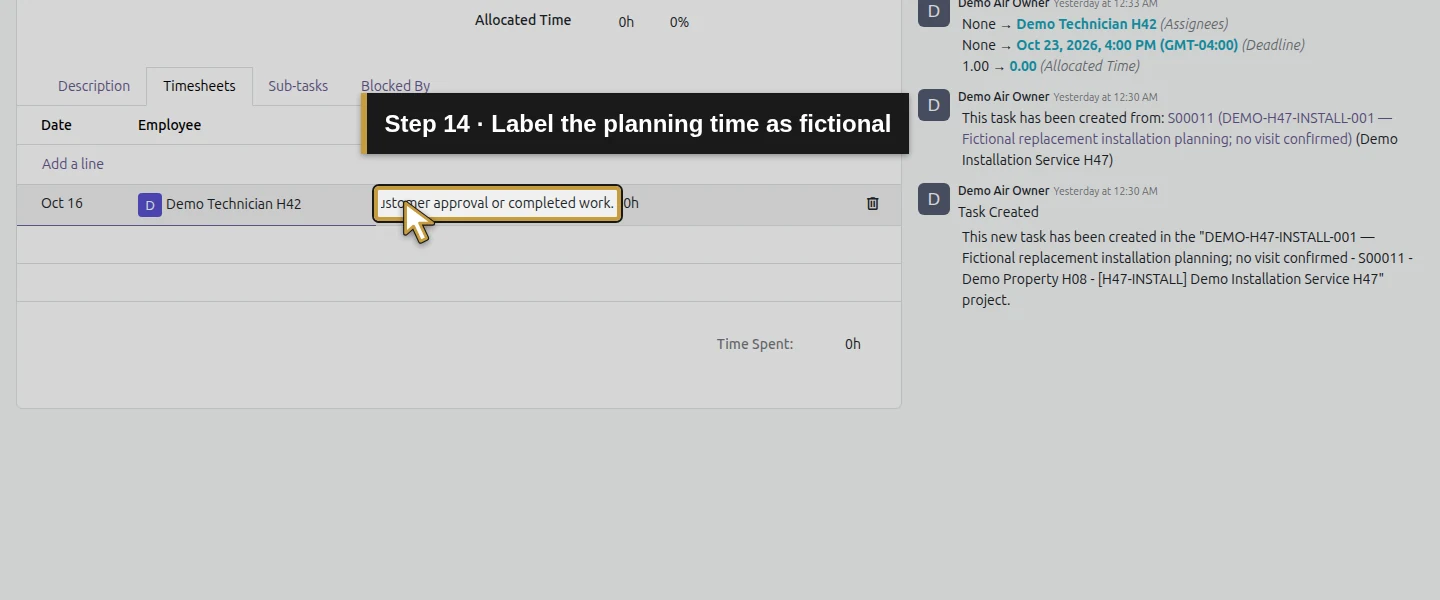
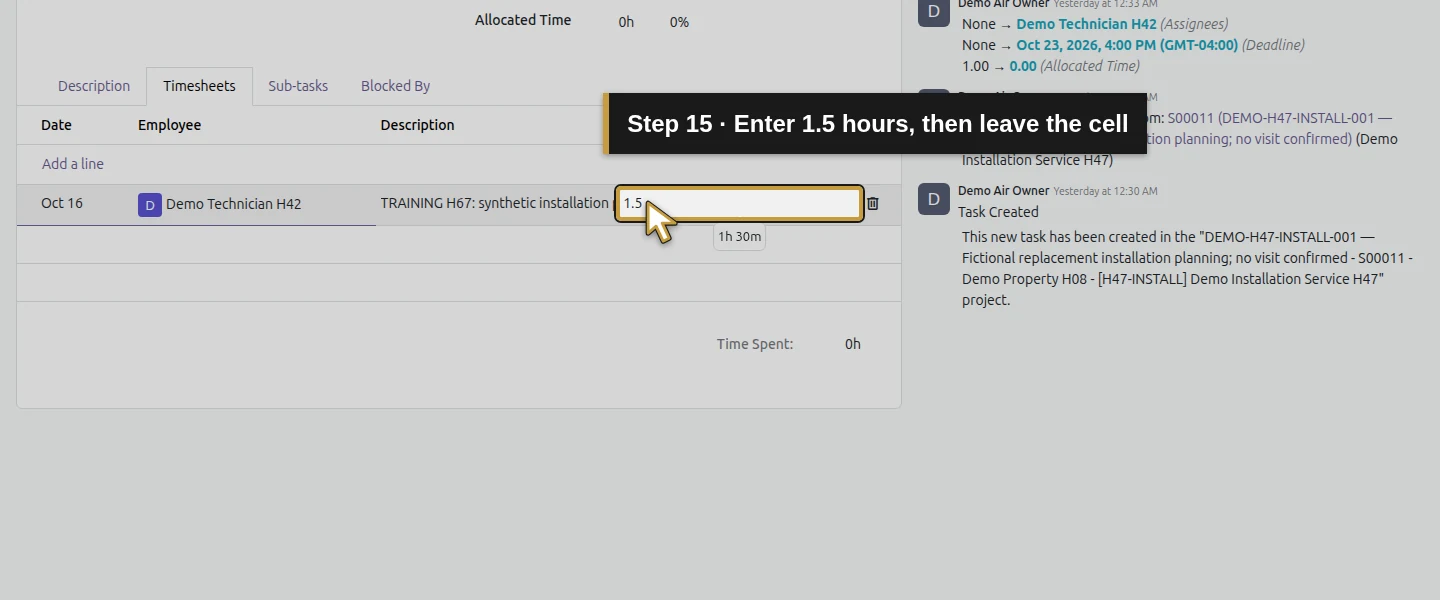
Return to the existing installation task and open Timesheets → Add a line once. As the owner, select the existing Demo Technician H42 employee. Verify October 16, 2026, the actual default training date. Enter TRAINING H67: synthetic installation planning-cost rehearsal; no real visit, installation, customer approval or completed work. Set Time Spent 1.5. Click the task heading to leave the last cell; it displays 1h 30m. Keep exactly one row and leave the task In Progress. In real use, record actual time and its actual date.
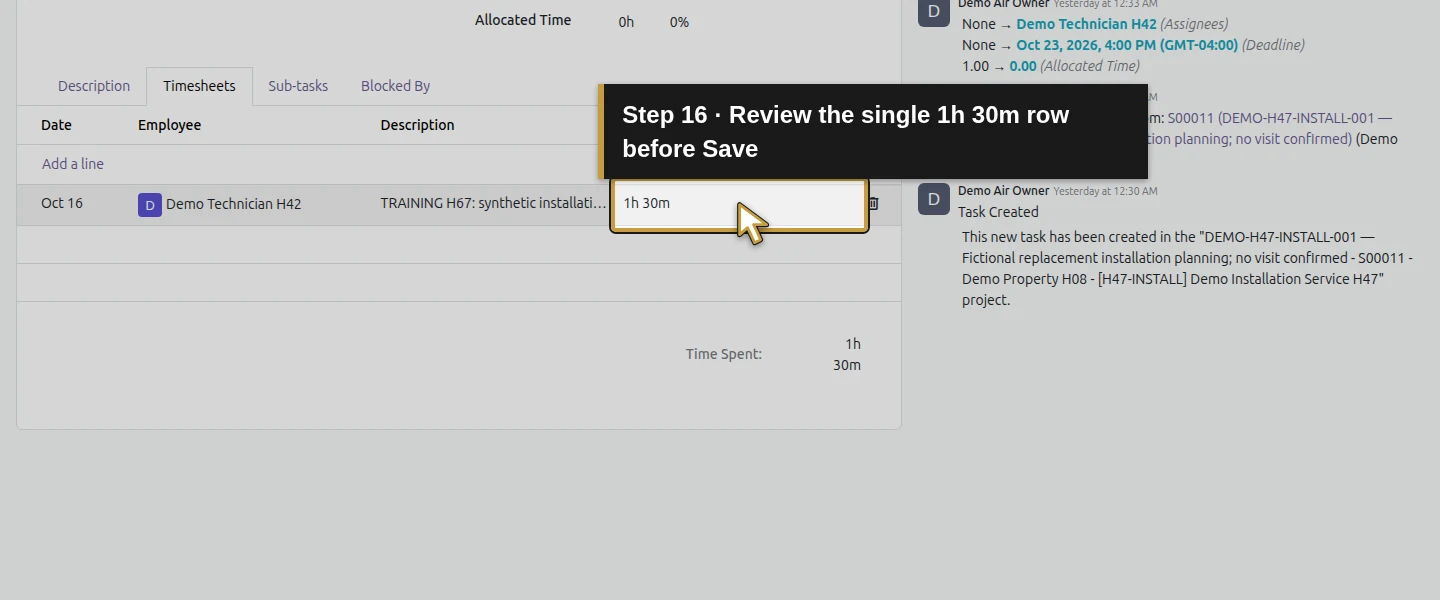
Step 4. Save and reopen the same time entry
Click Save manually once and wait before reloading. Reopen Timesheets and check the same one-row date, employee, description and 1h 30m duration. The native time entry belongs to this task, project, Project Account and sales item. At the saved $30 cost rate it creates $45 of analytic labor cost. It is an analytic time cost without a supplier journal item; this step does not post payroll. The owner entered this training row for the selected employee; a new technician-role costing test is not claimed.
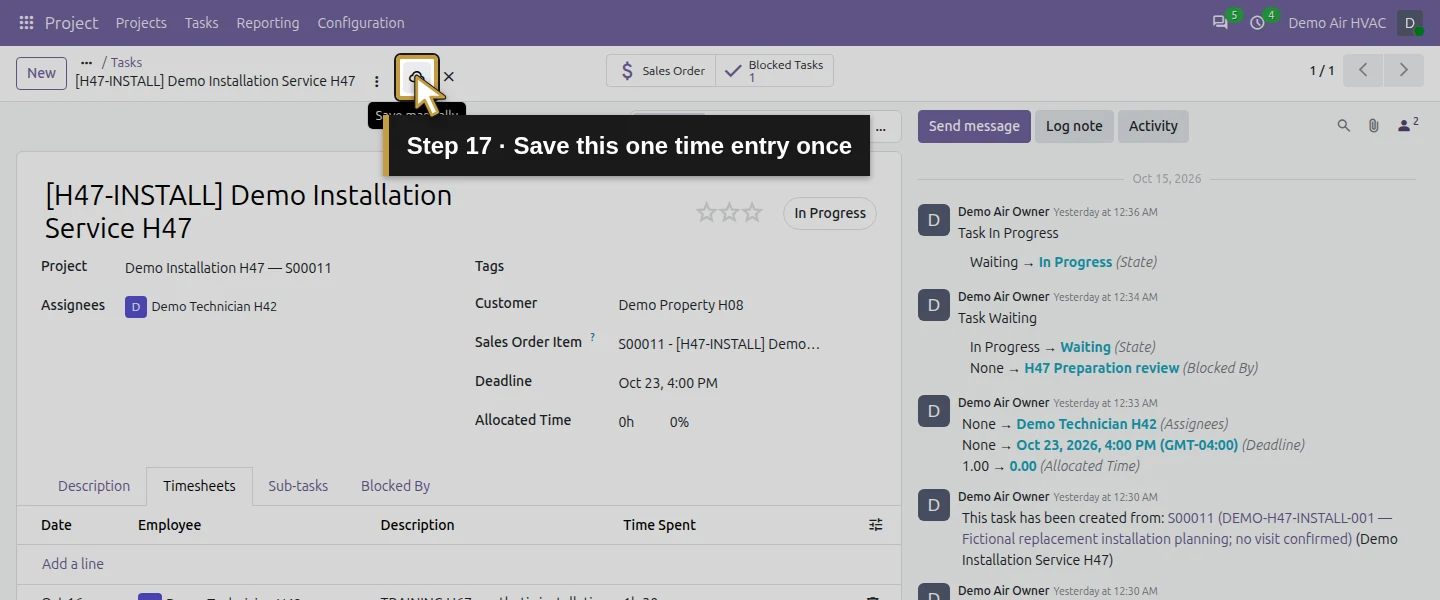
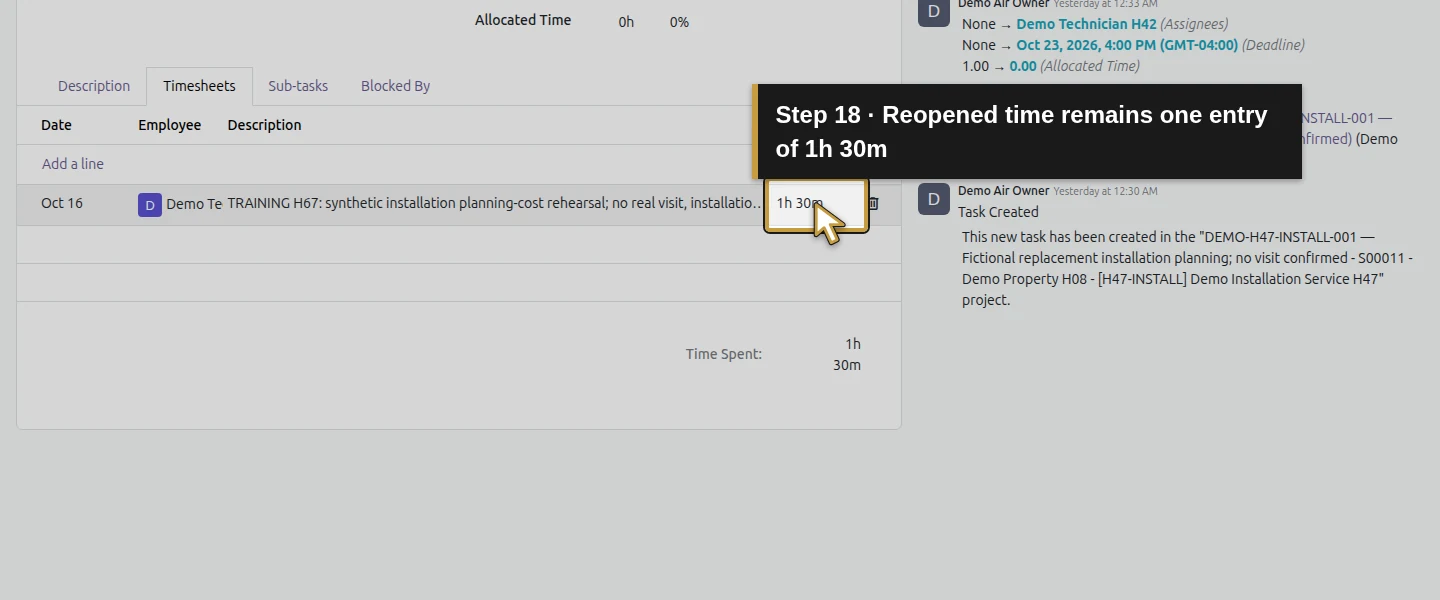
Step 5. Inspect the project’s costs before posting the supplier bill
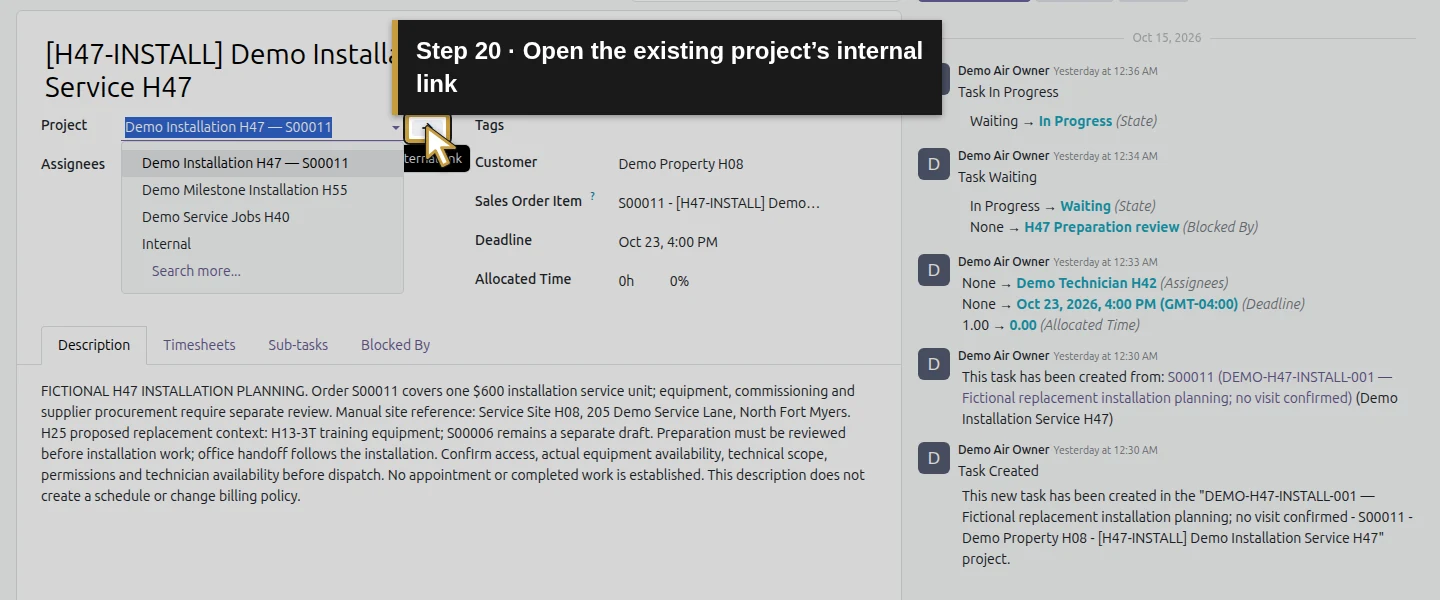
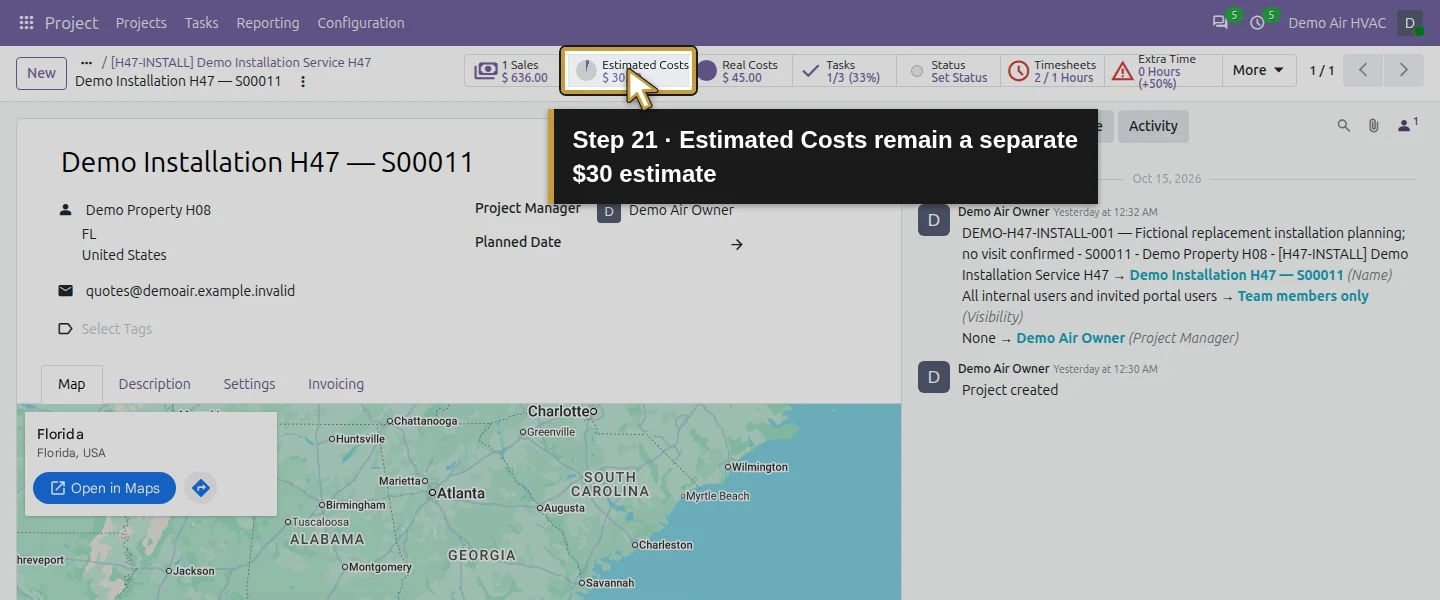
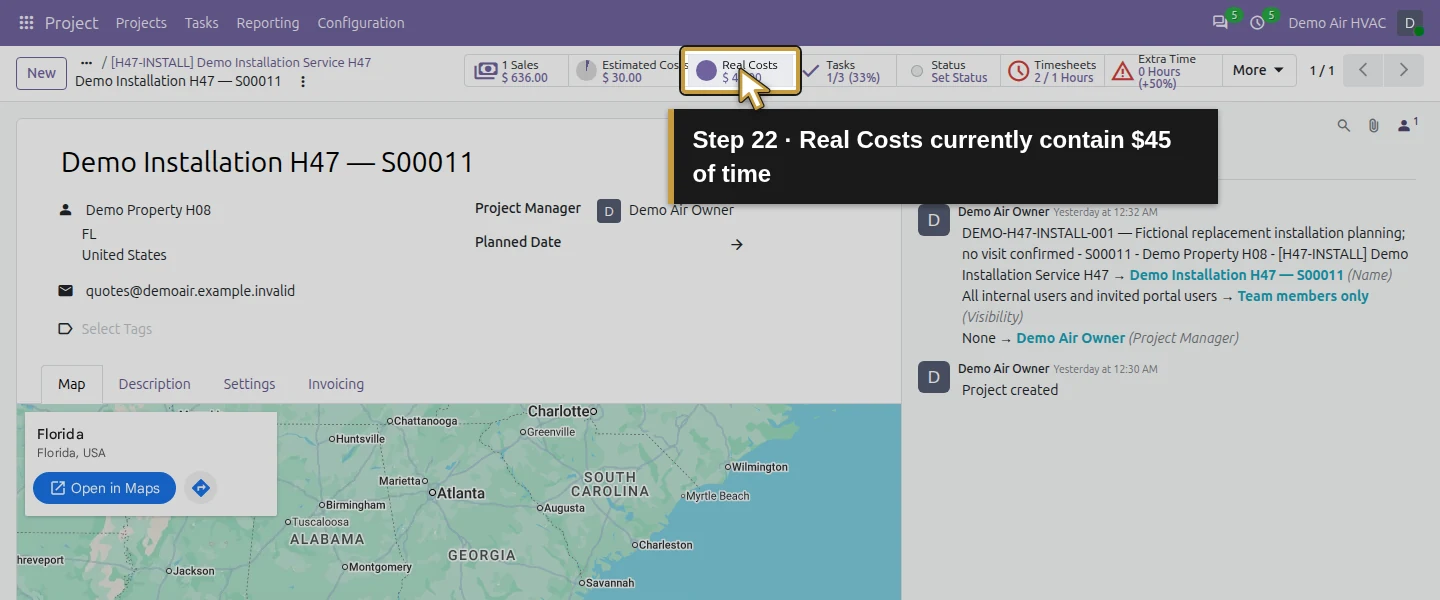
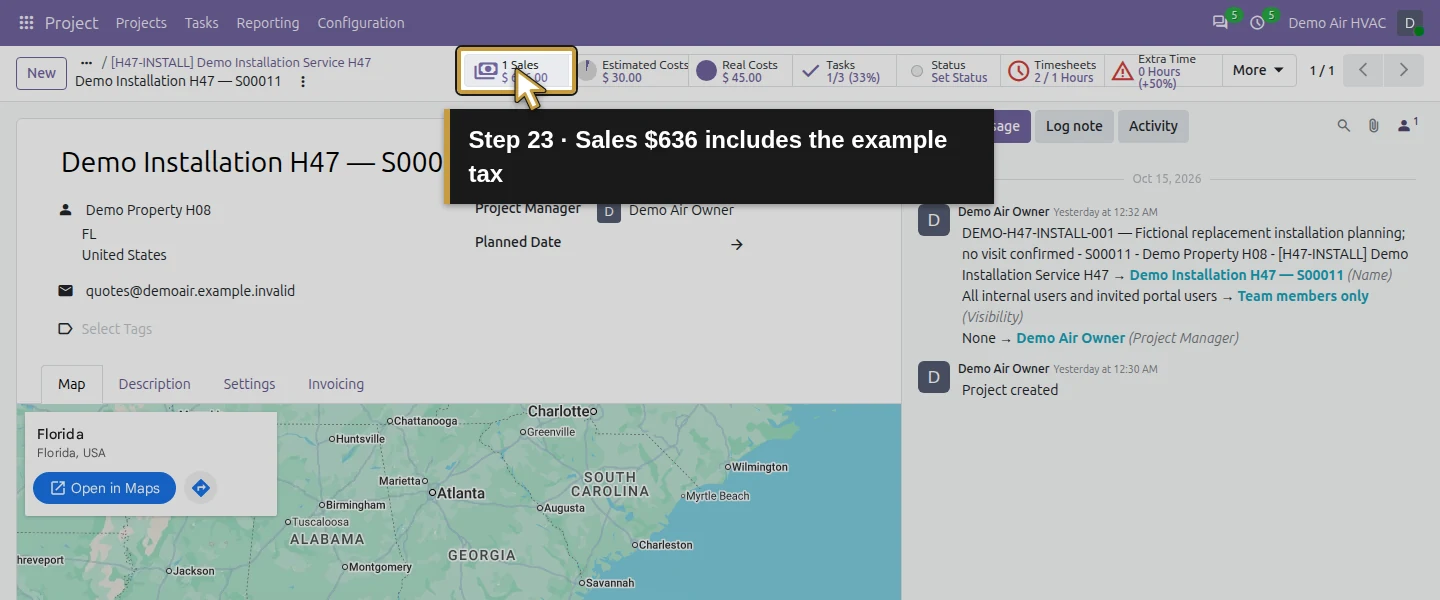
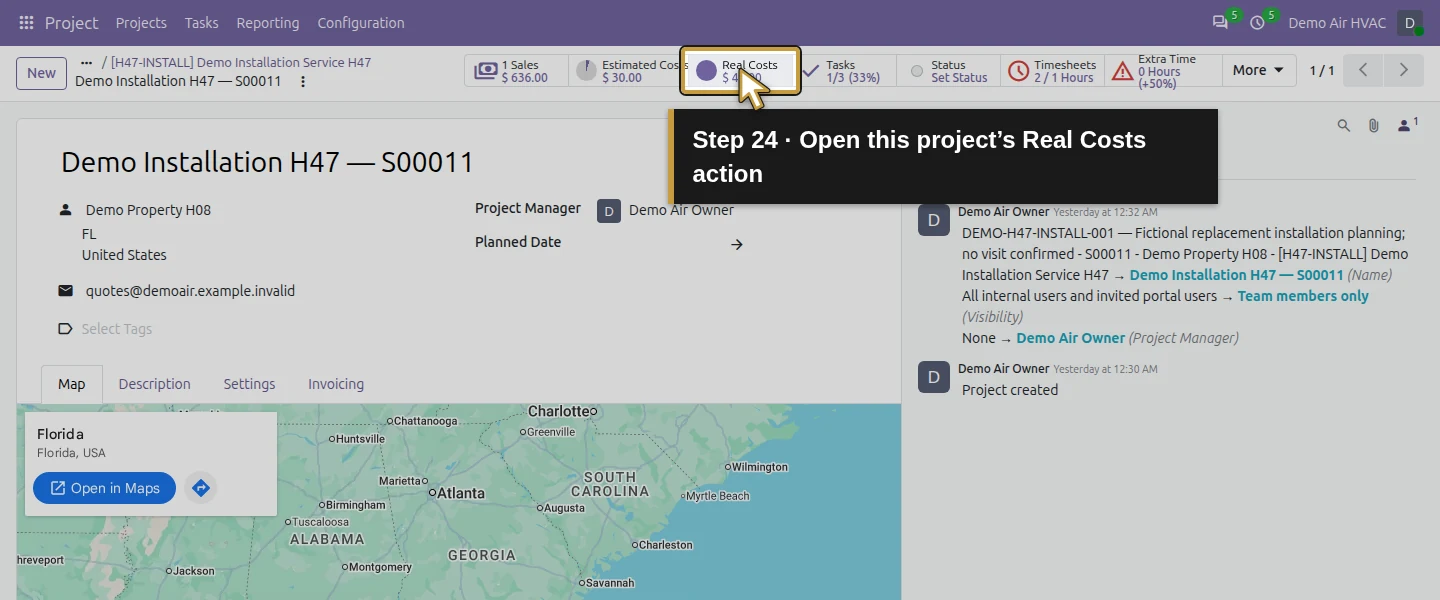
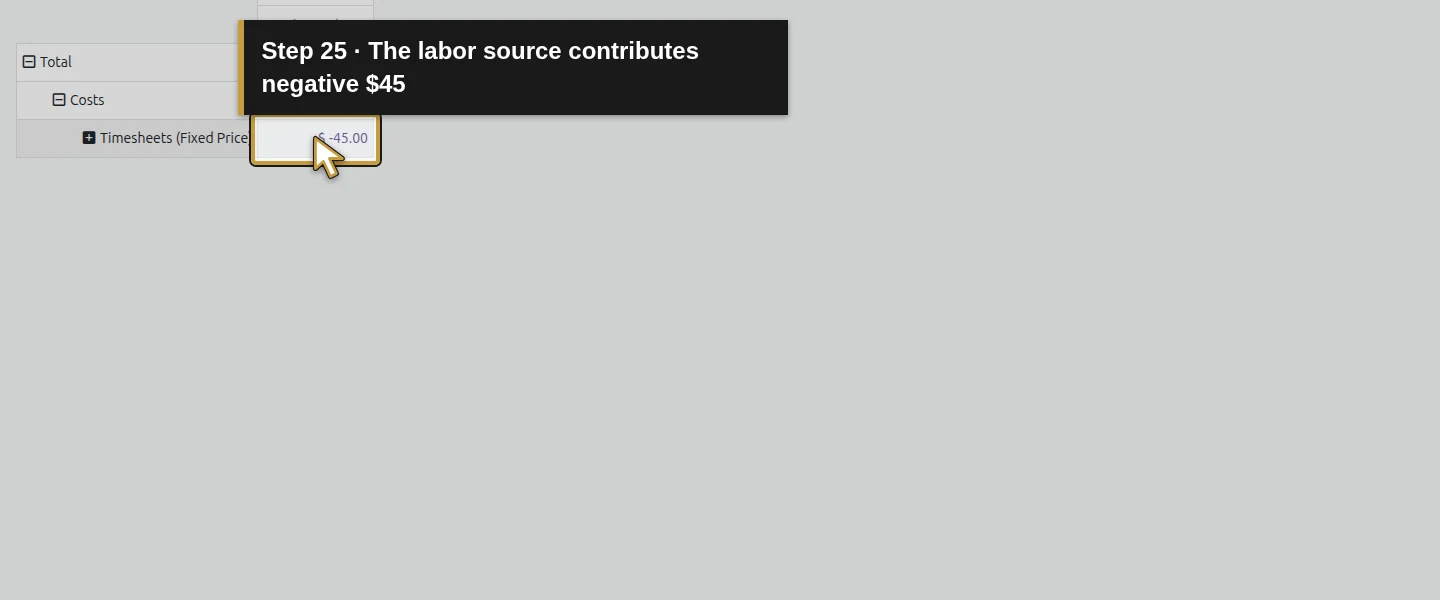
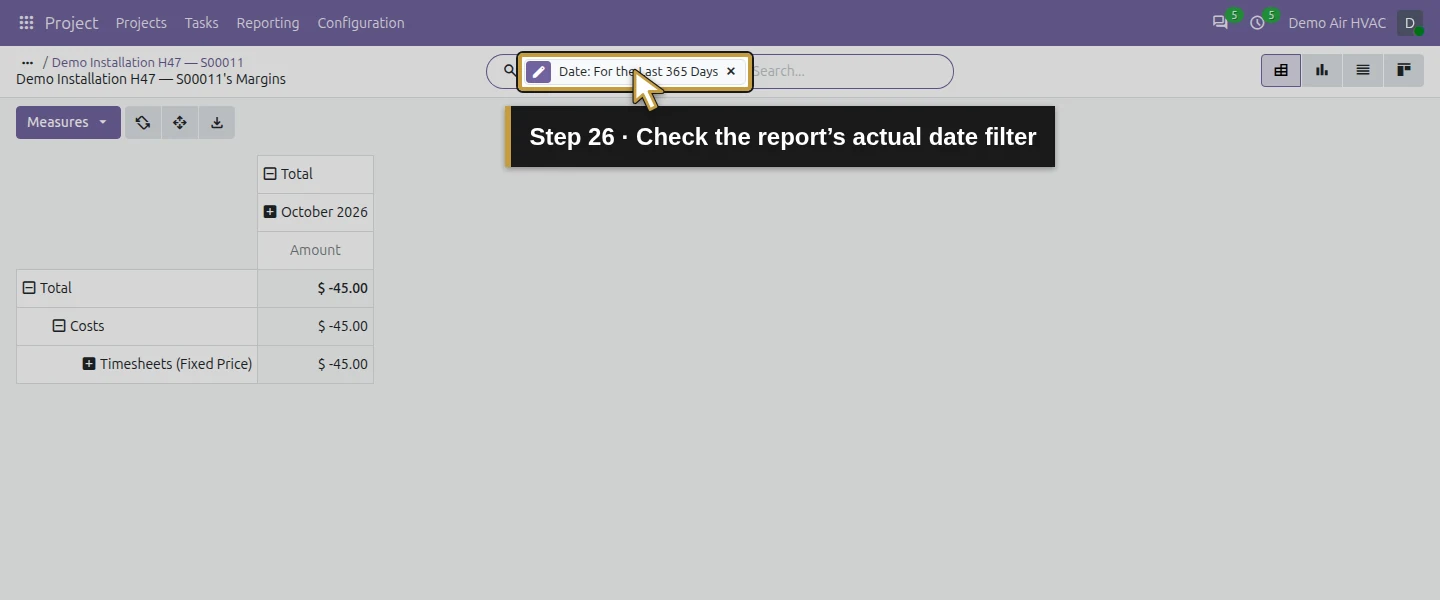
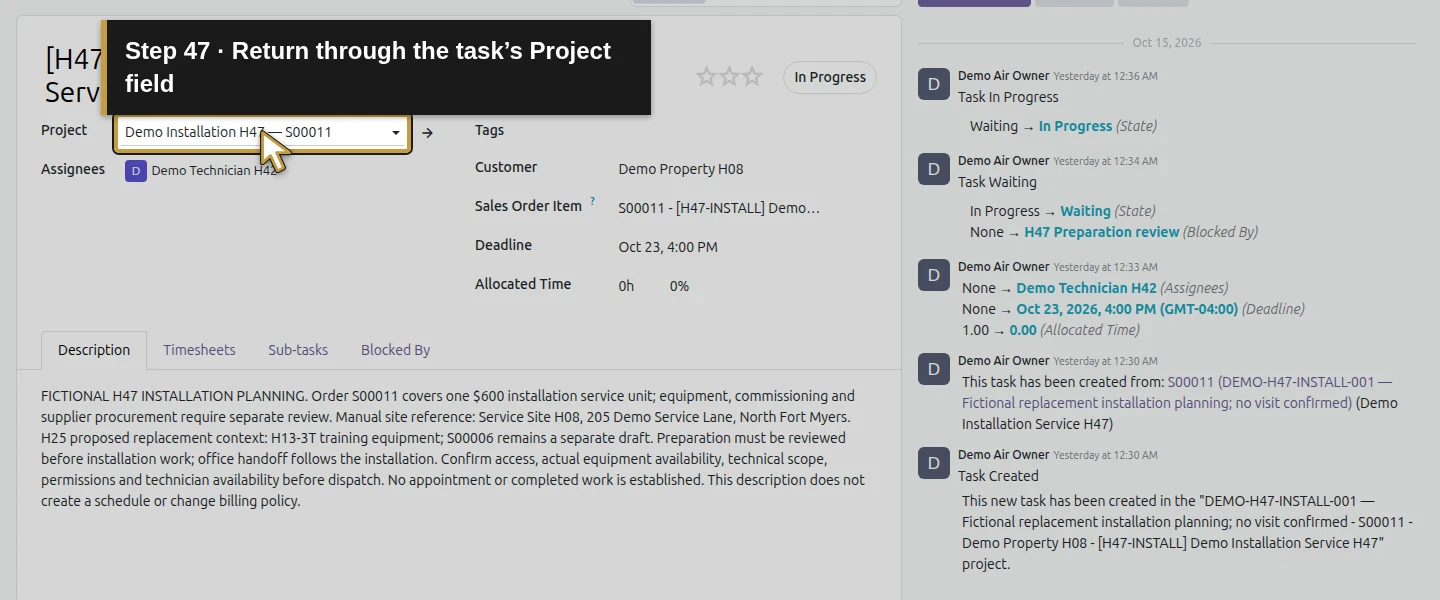
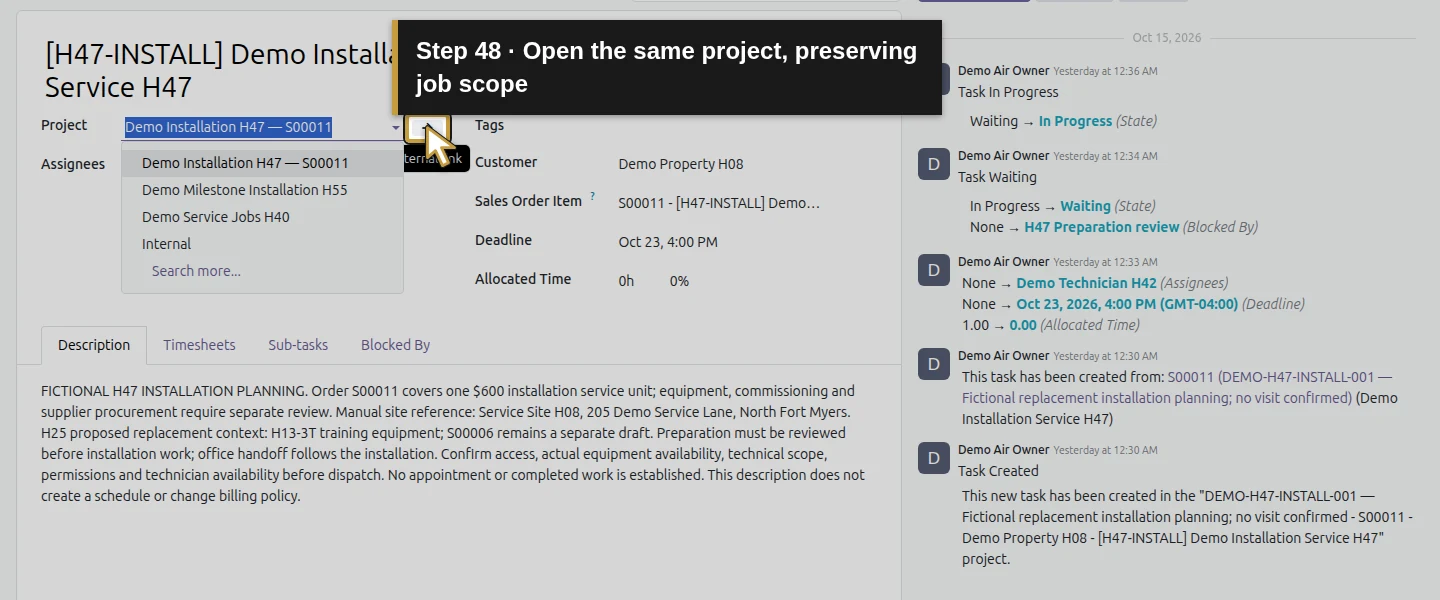
Click the task’s Project field, then its Internal link to open the project form. It shows Estimated Costs $30, Real Costs $45 and Sales $636 at this stage. Click Real Costs: the project’s Margins pivot shows Timesheets (Fixed Price) −$45. The $30 estimate is different from the $45 recorded time cost, and the Sales button includes the example’s tax. The H48 supplier bill is still Draft, so its $150 service cost has not yet joined this report.
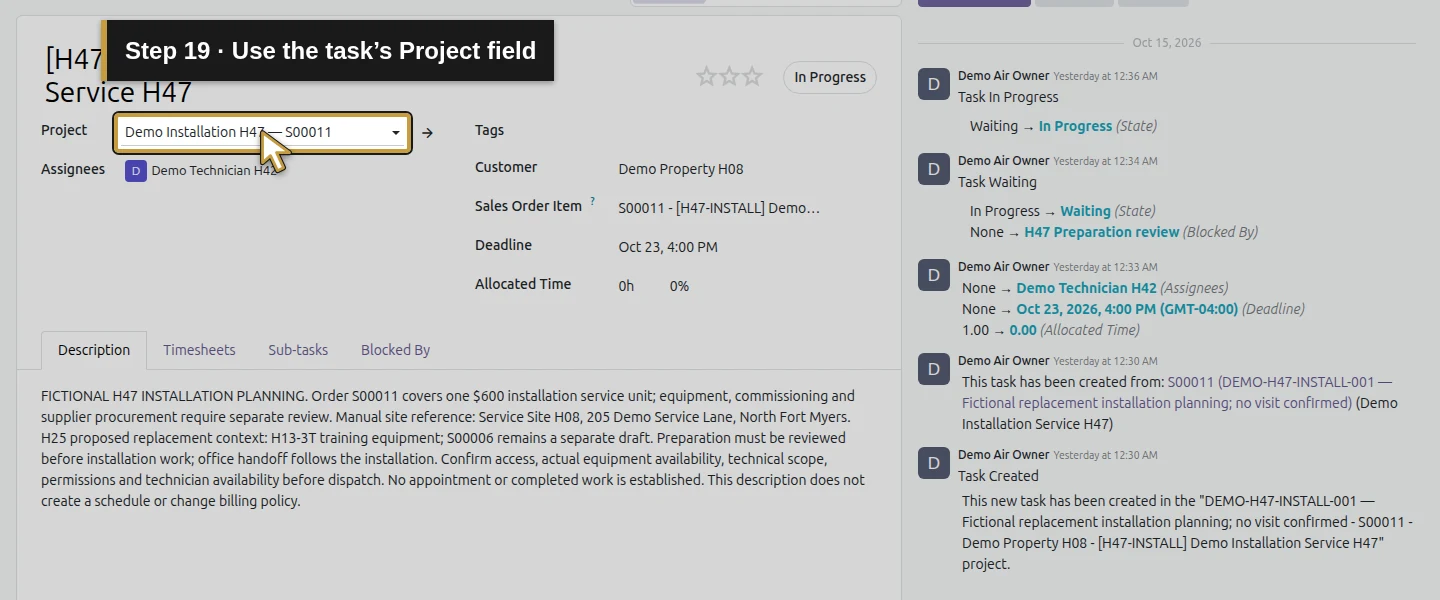
Step 6. Reopen the allocated purchase and its existing draft bill
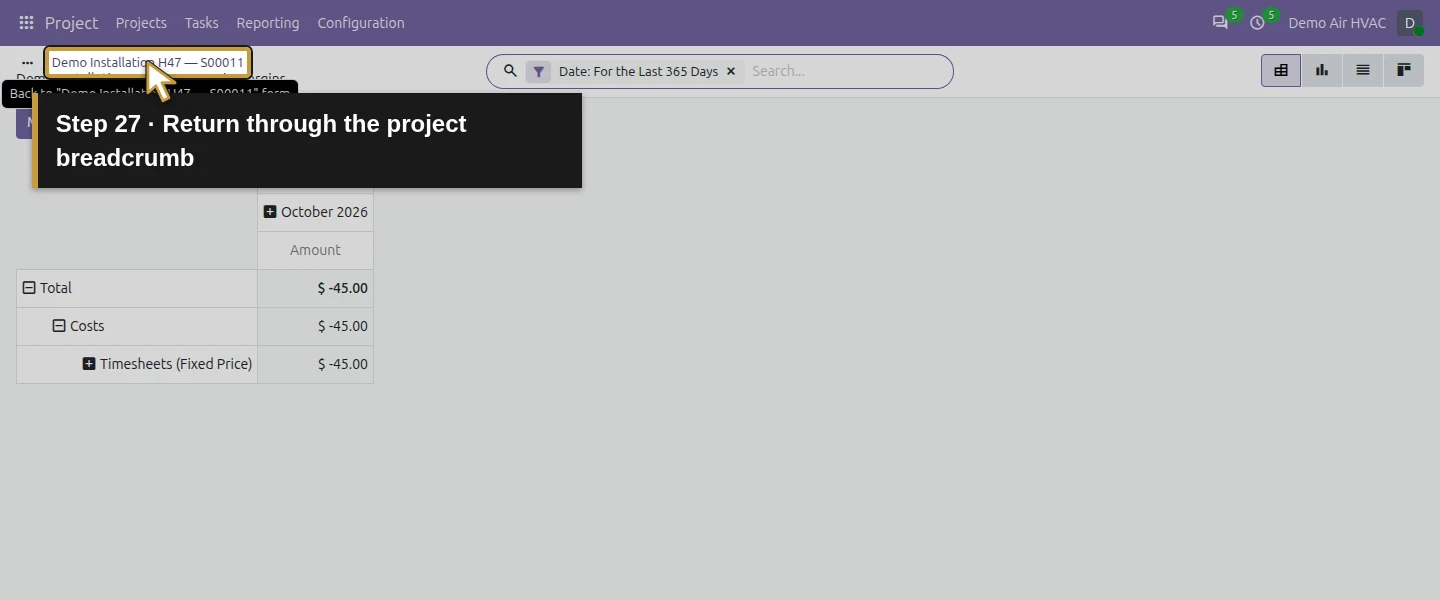
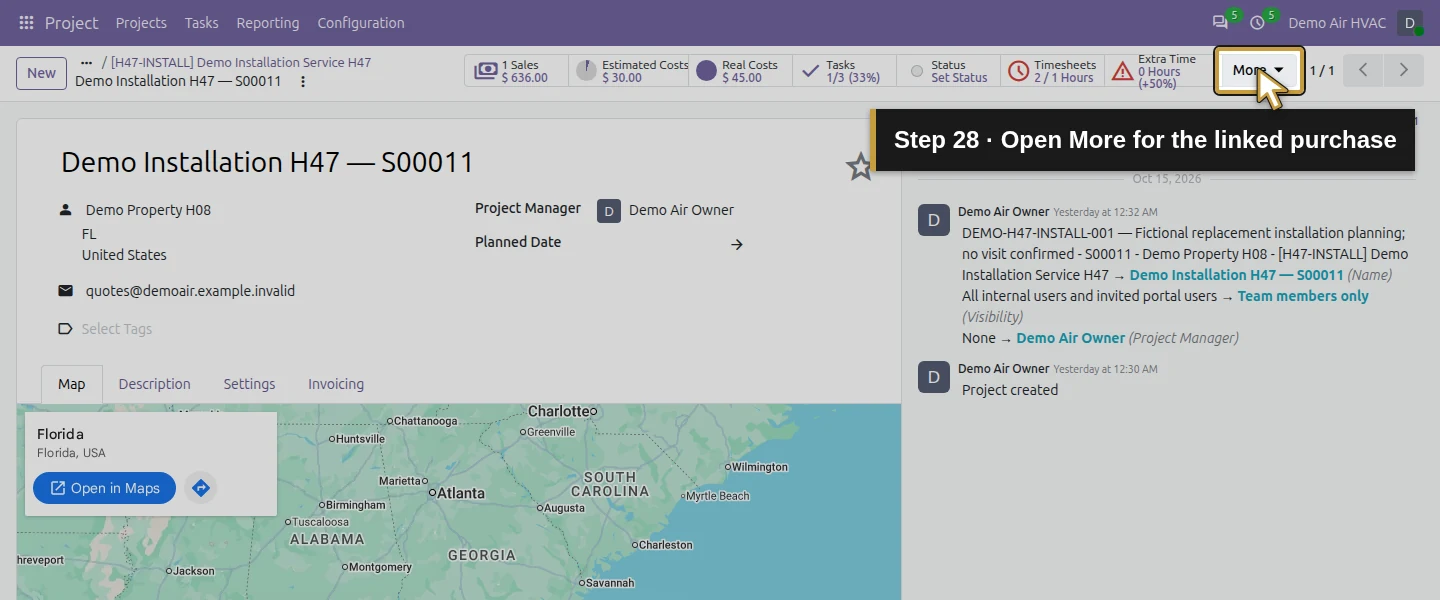
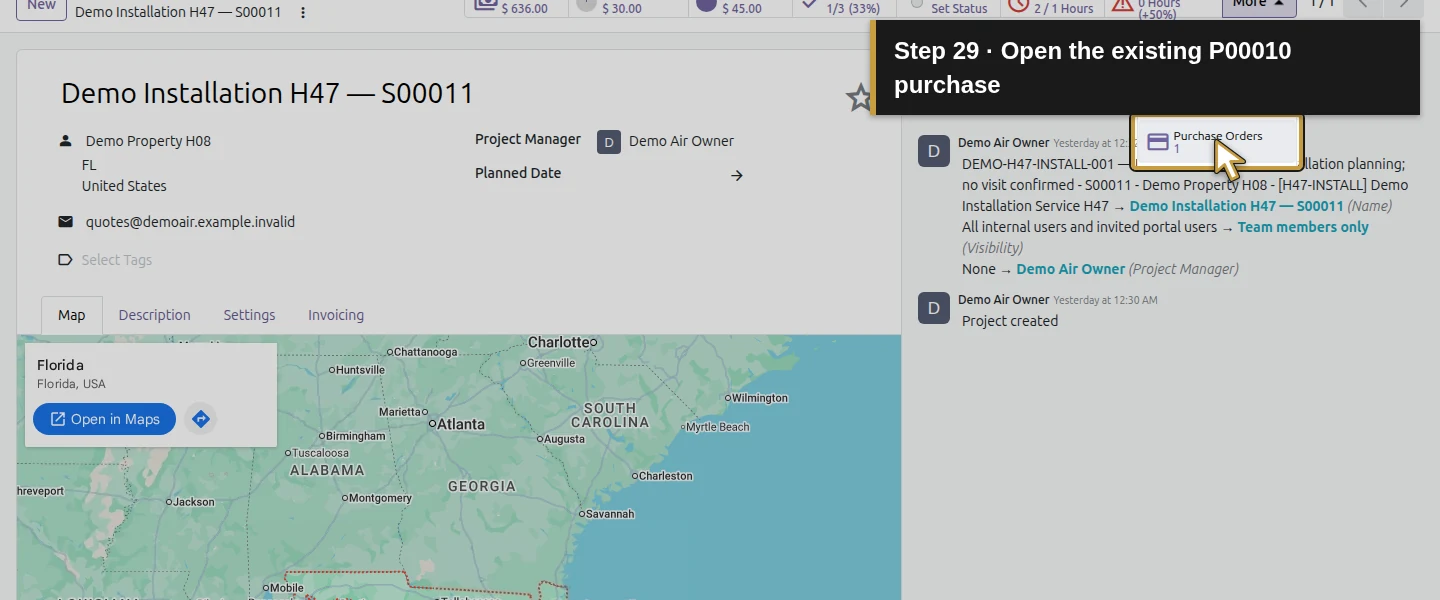
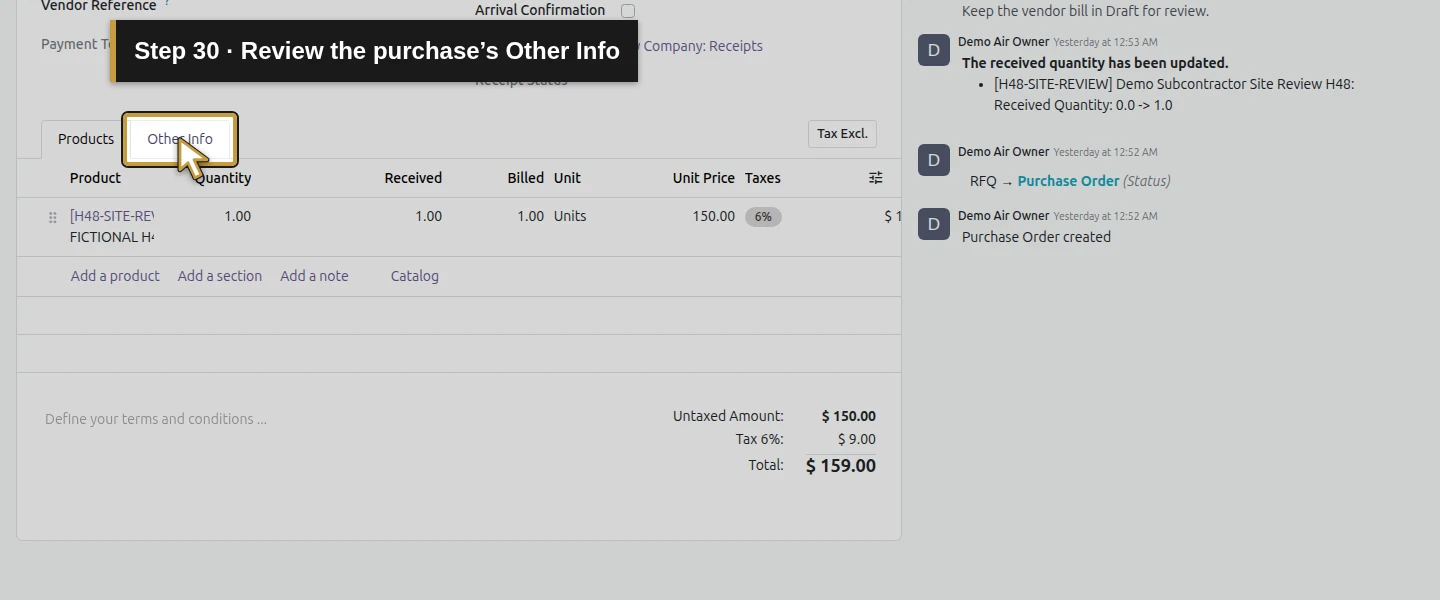
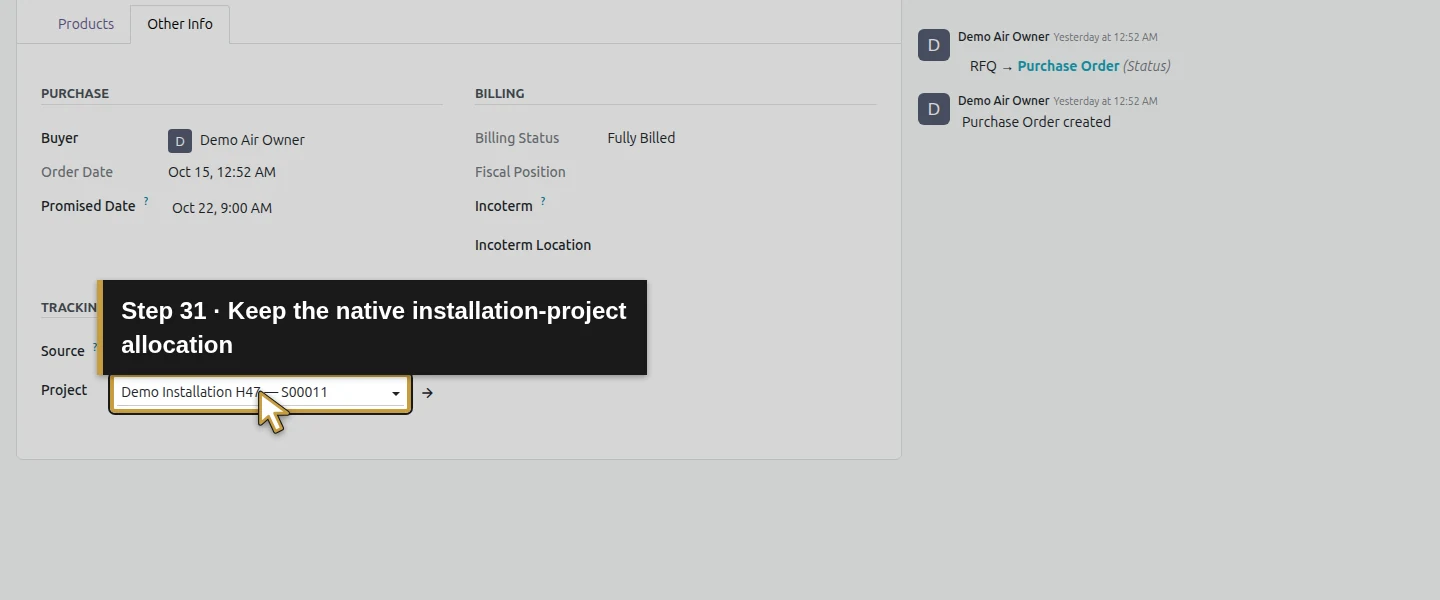
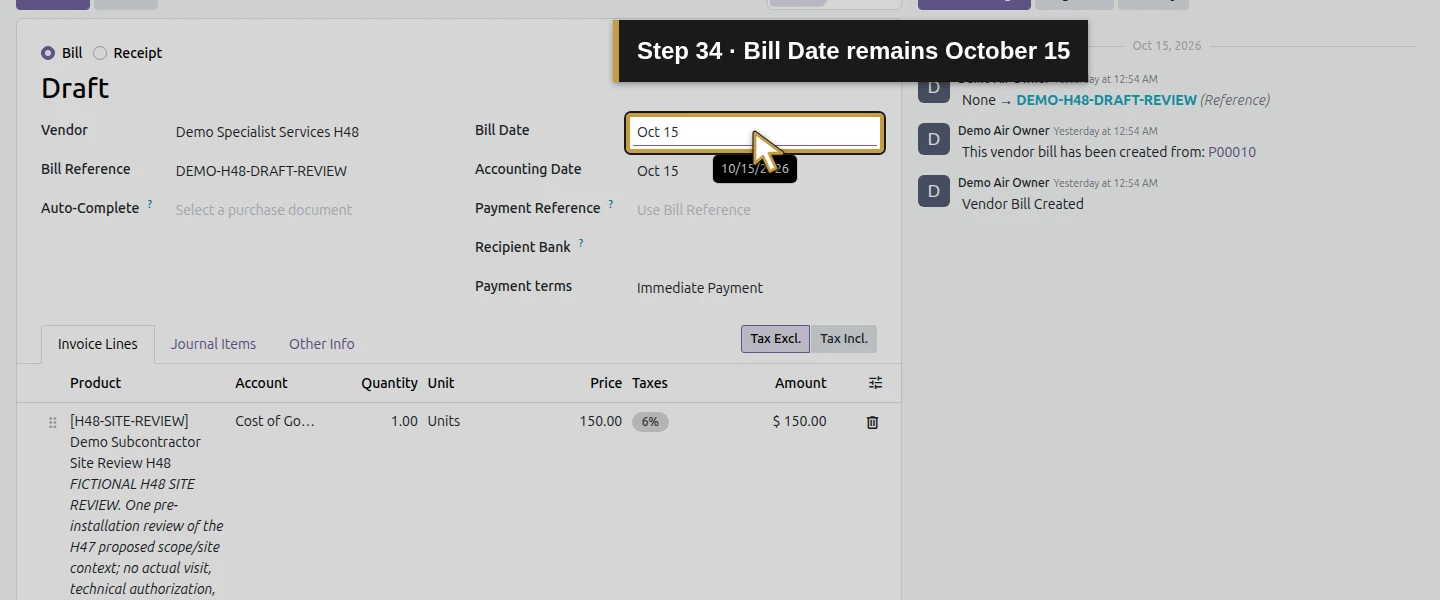
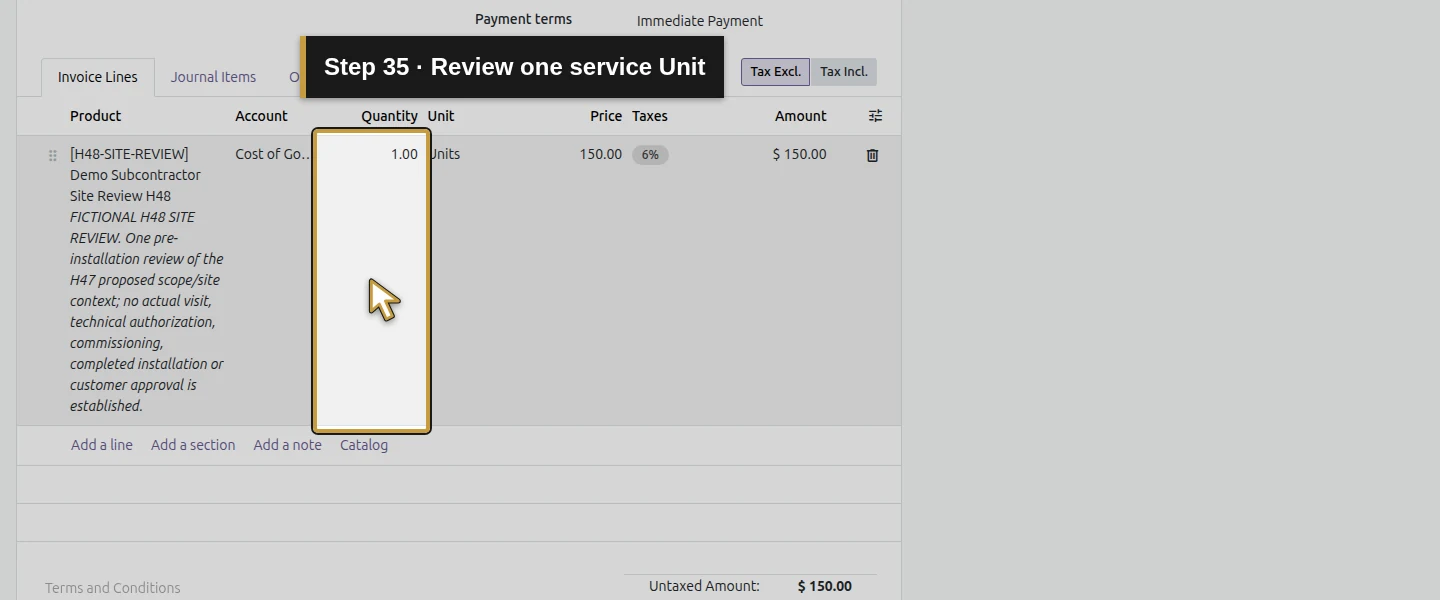
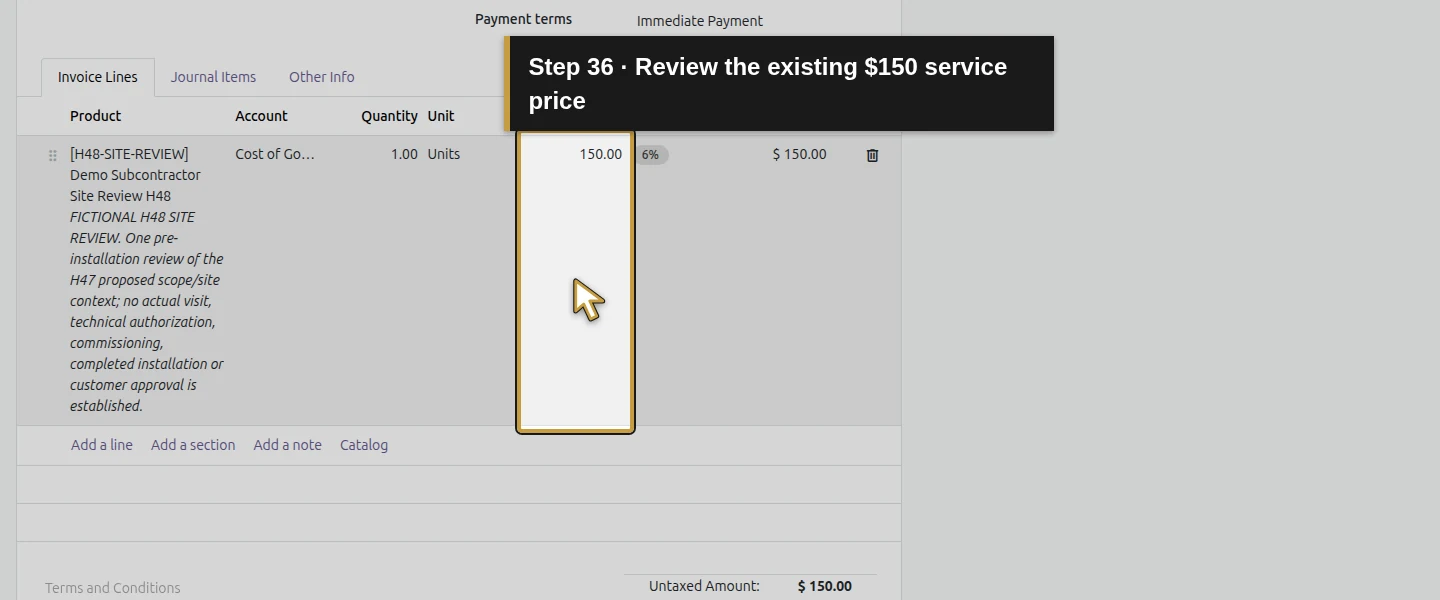
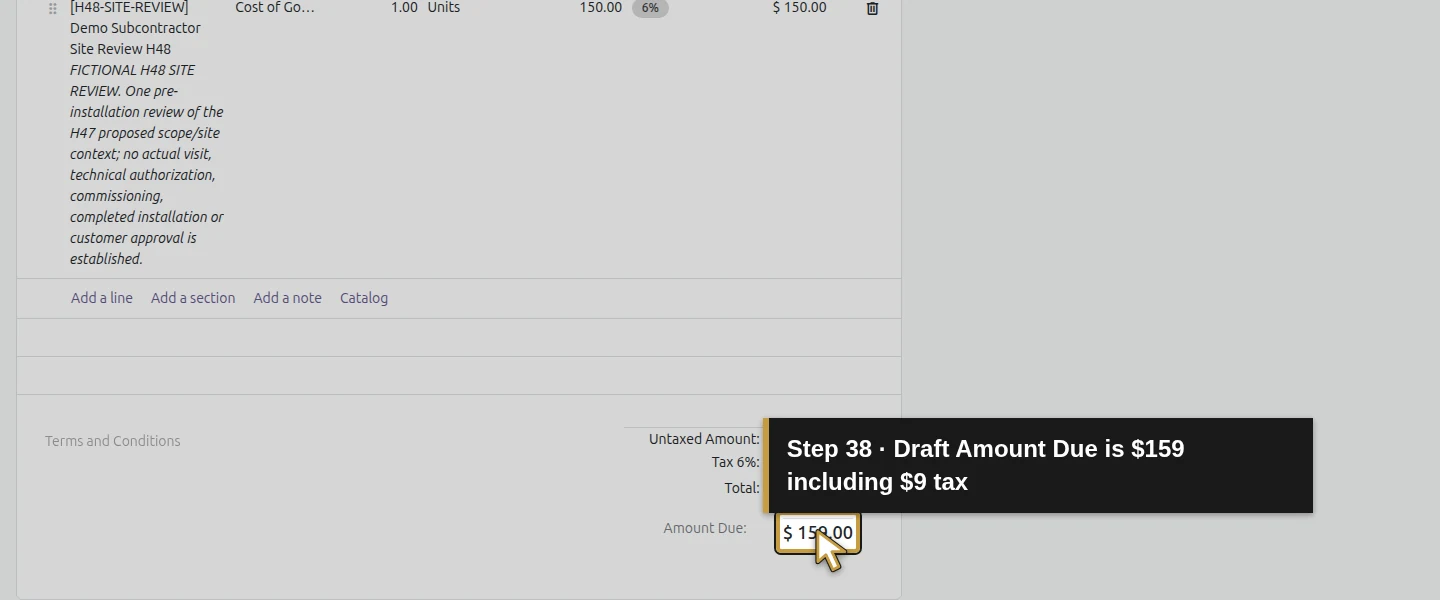
Return through the project breadcrumb. Choose More → 1 Purchase Orders to open P00010, then Other Info and check its existing Project: Demo Installation H47 — S00011. That native selection supplied the project allocation used by this purchase and bill; a typed order reference alone would not do so. Click 1 Vendor Bills and open the existing DEMO-H48-DRAFT-REVIEW bill. Review the supplier, copied service scope, 1 Unit × $150, $9 demo tax, $159 total, October 15 Bill Date and P00010 link. Use this bill rather than creating another one.
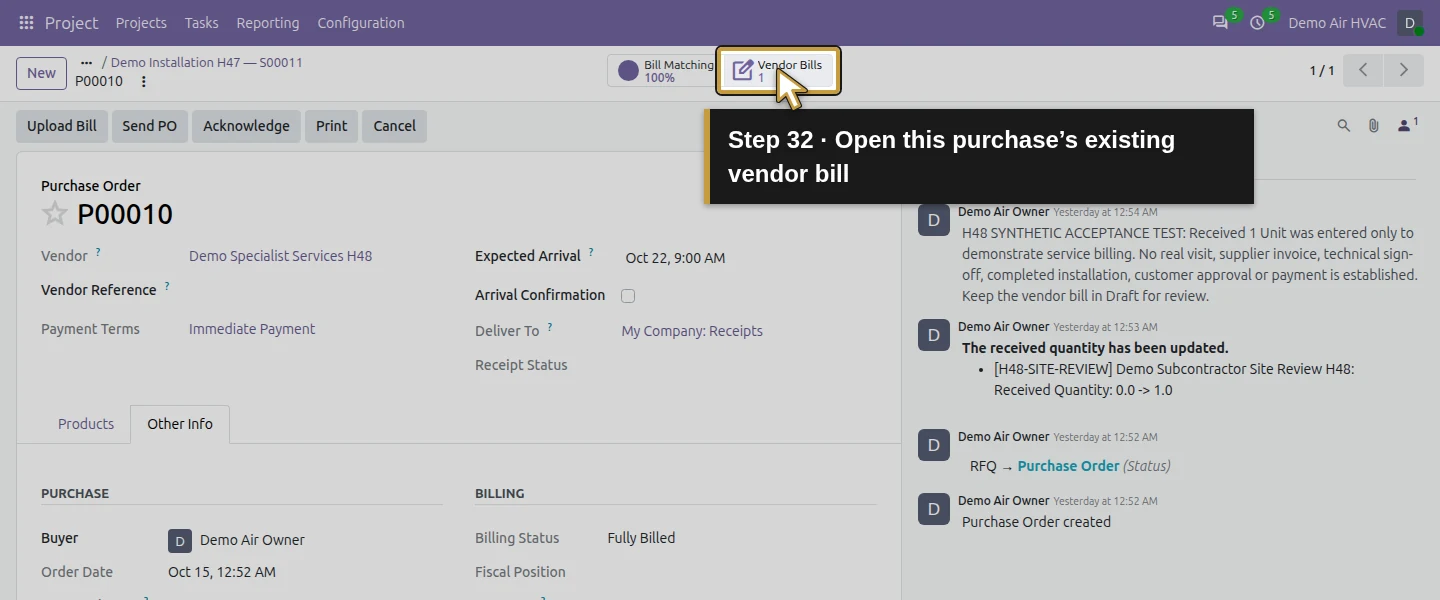
Step 7. Record the review decision and post only the selected bill
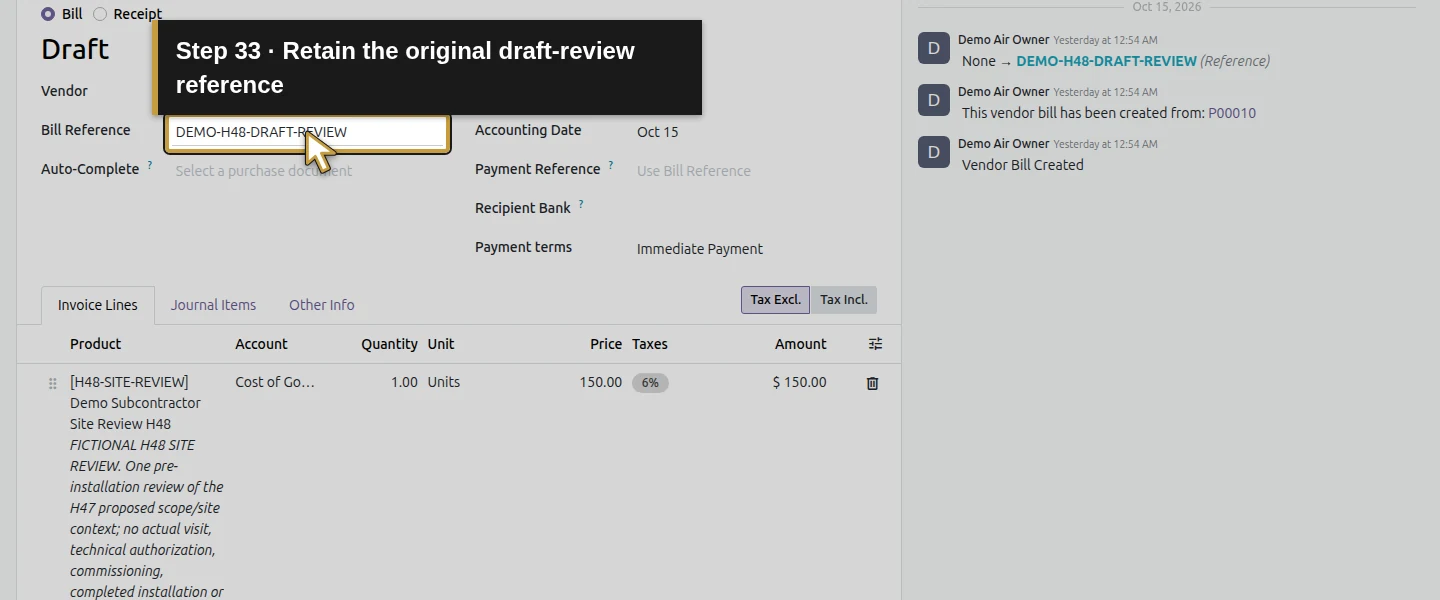
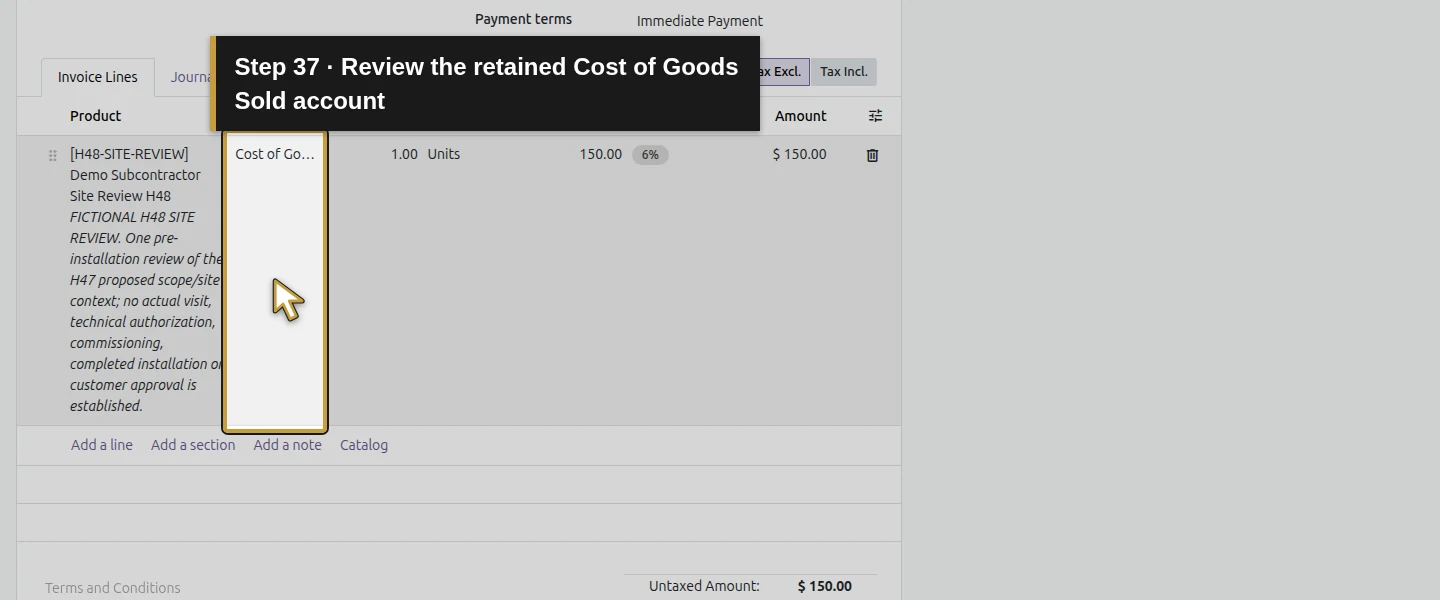
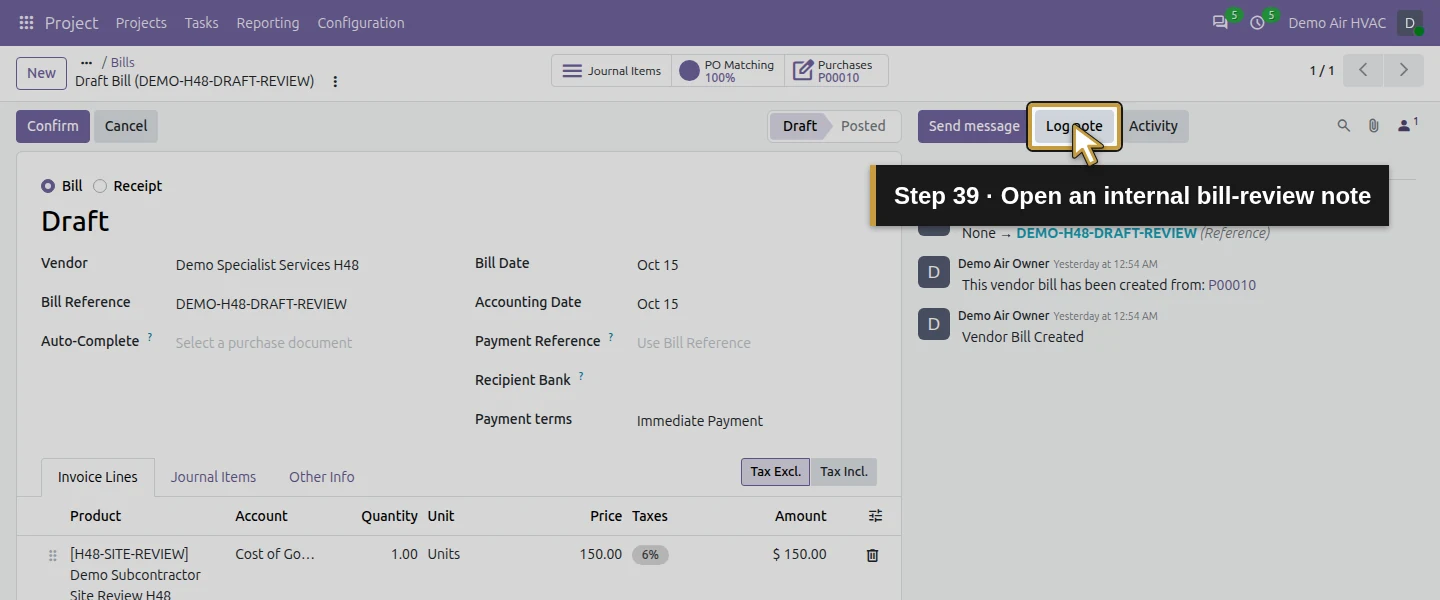
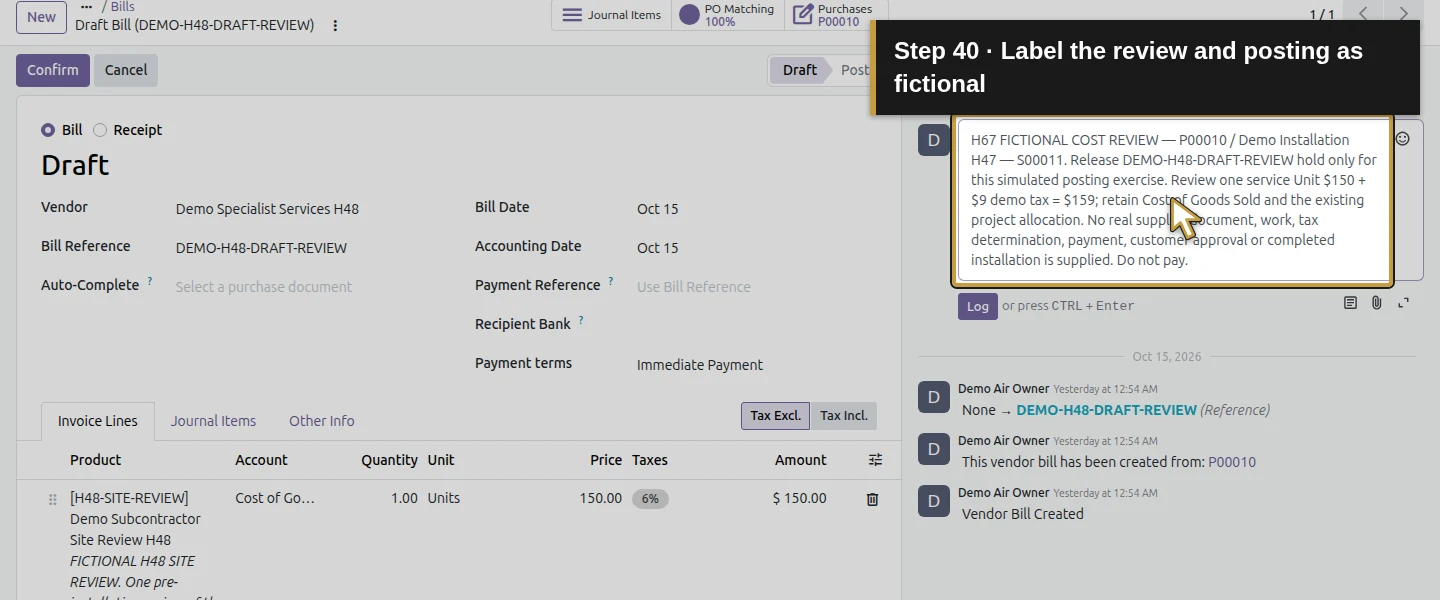
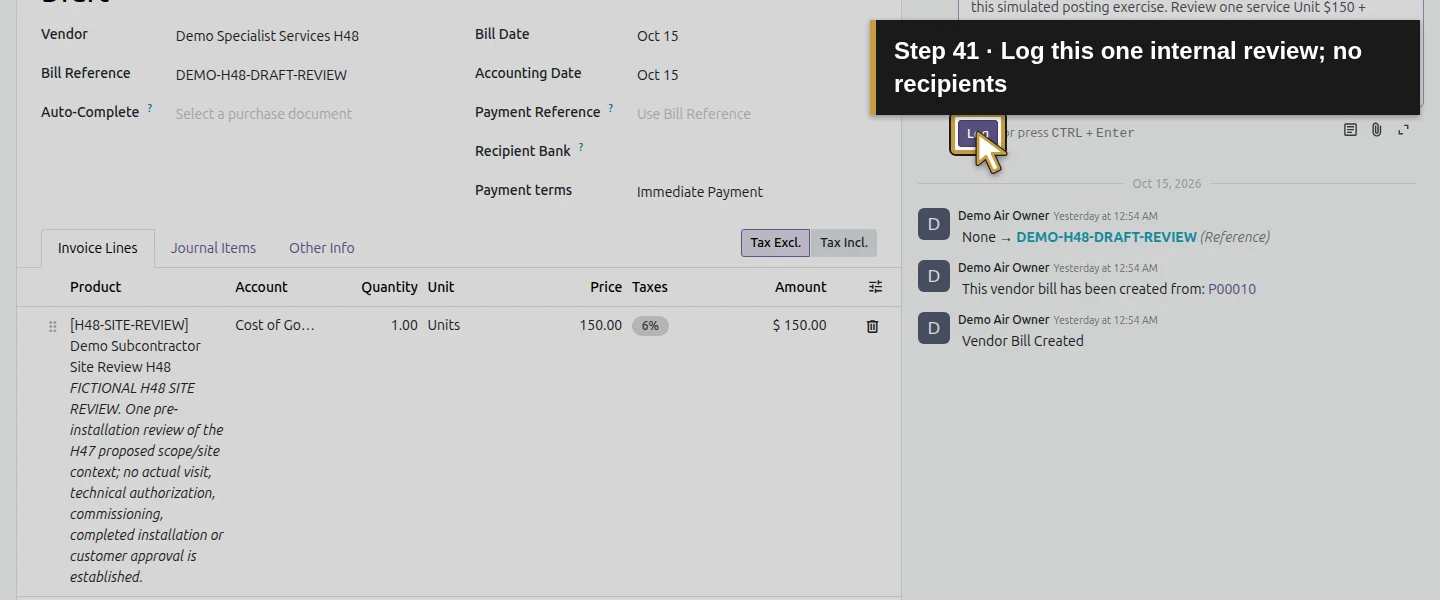
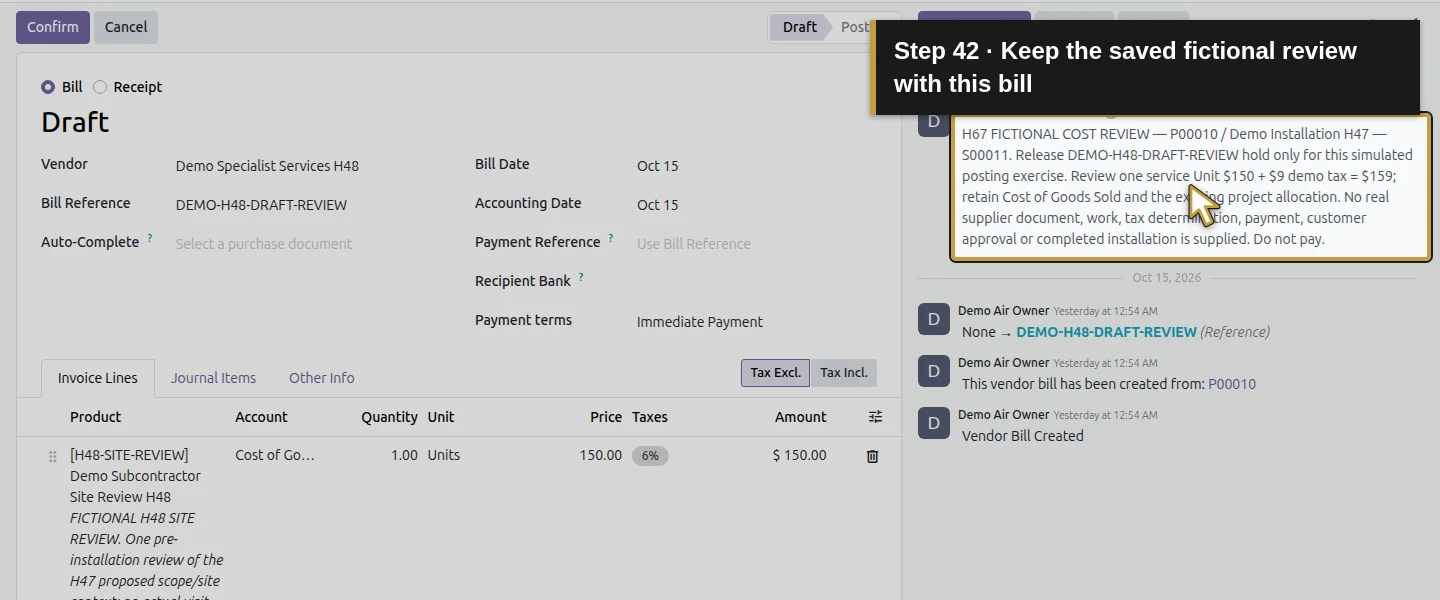
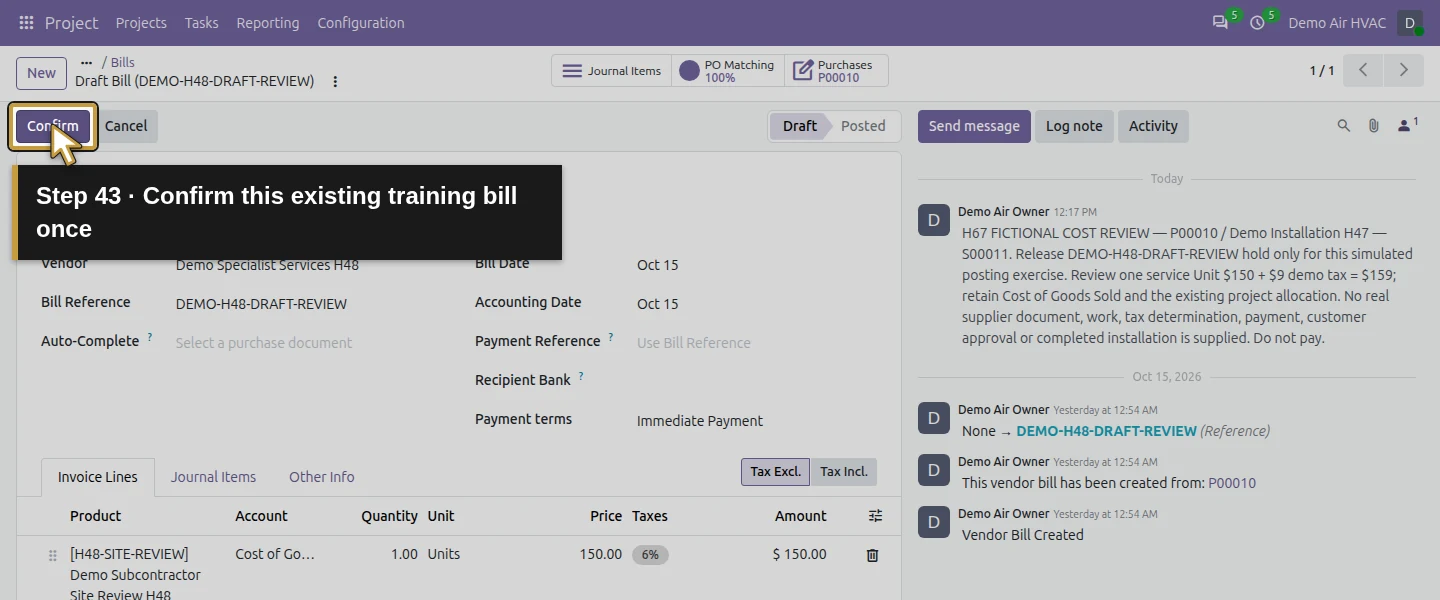
Review the bill’s Account and tax before posting. This fictional direct-service example retains Cost of Goods Sold; that is a selected training classification, not advice for every subcontractor invoice. Use Log note to label H67 FICTIONAL COST REVIEW, identify P00010 and the job, and state that the earlier draft hold is released only for this simulated accounting exercise. Keep the original bill reference. State no real supplier document, work, tax determination or payment. Click Log once, then Confirm once. For a real business, complete the actual documentation, duplicate, account, tax, allocation and authorization review first.
Step 8. Reopen the posted bill and distinguish cost from payment
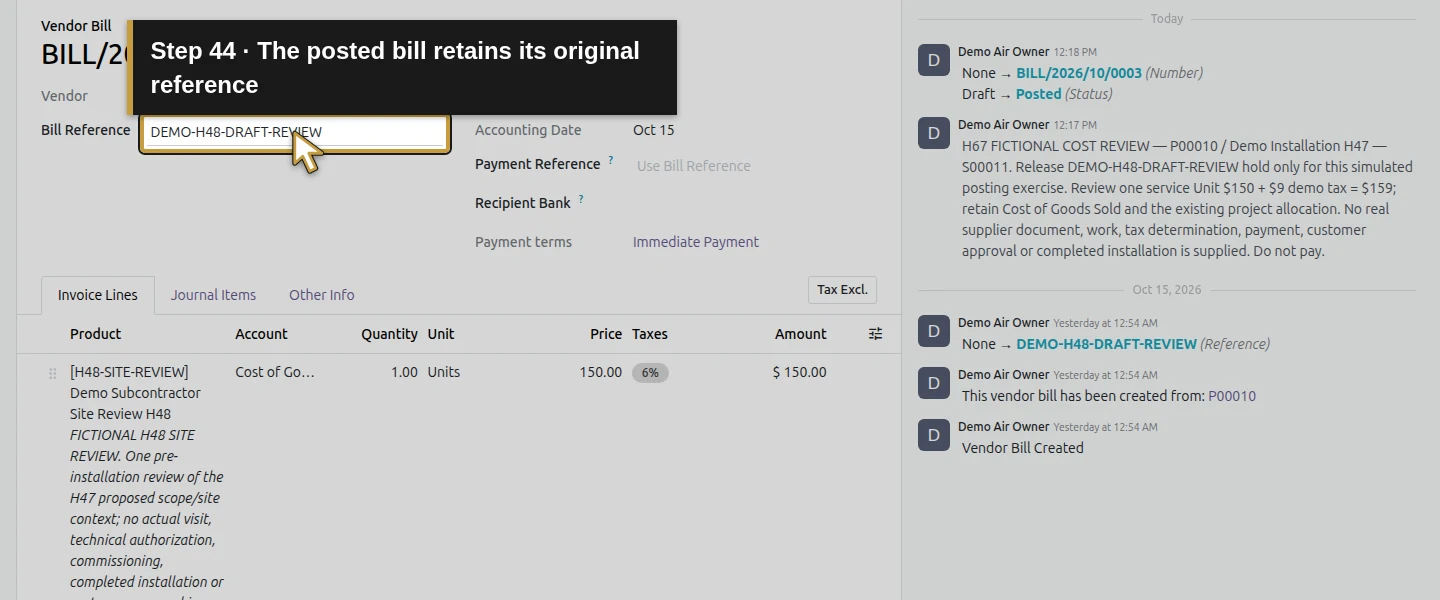
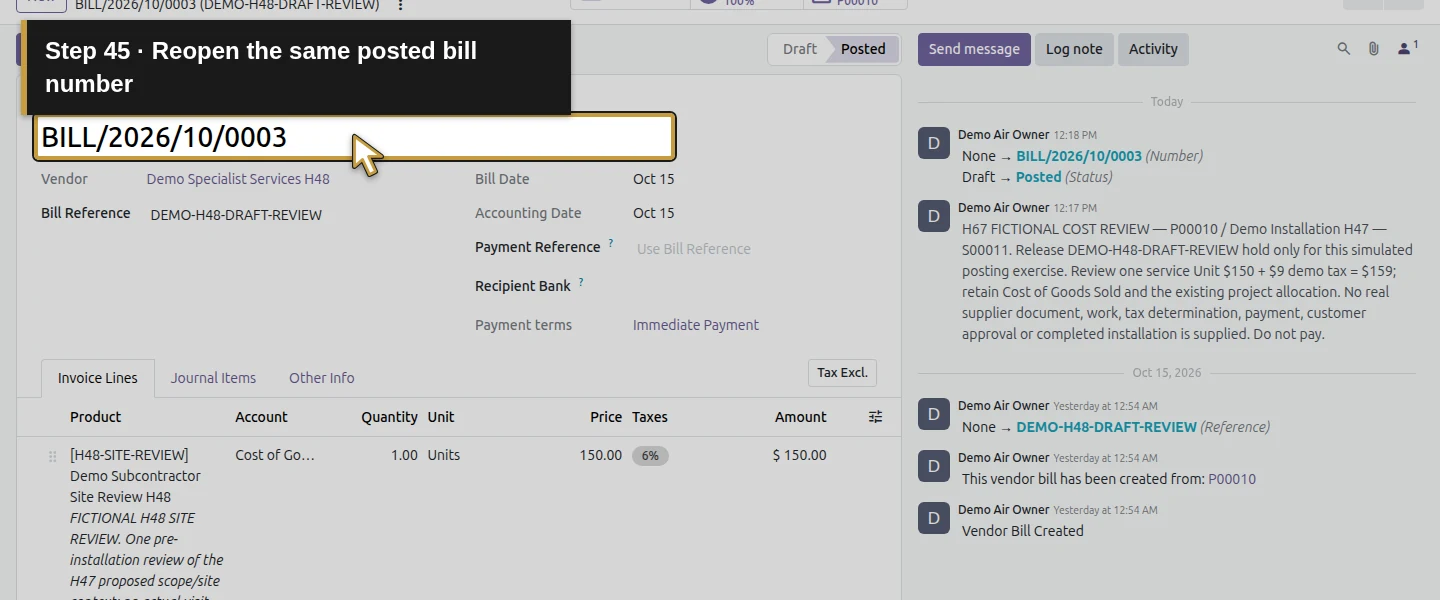
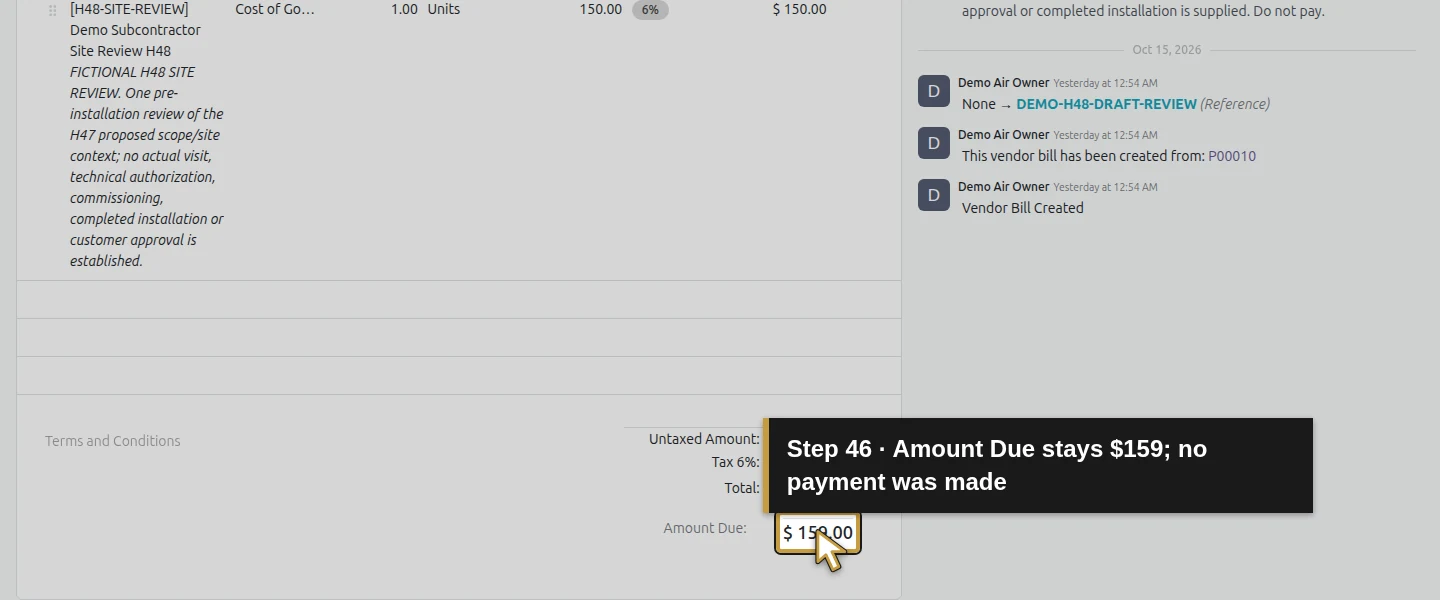
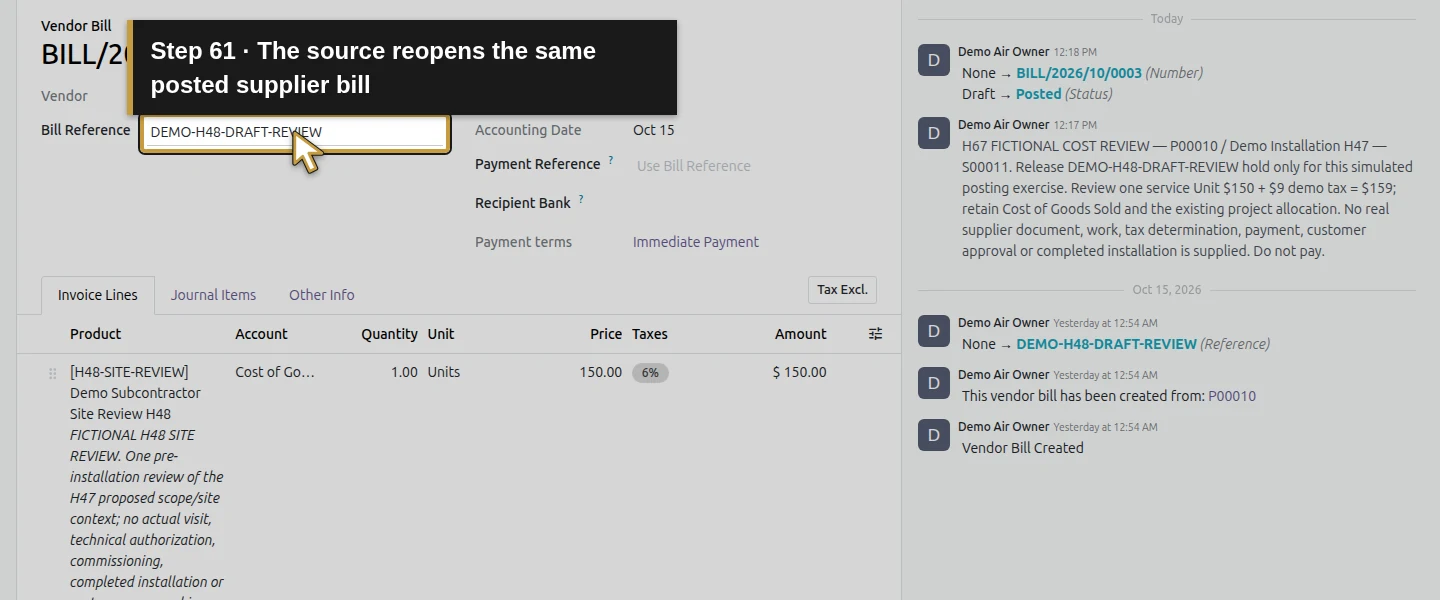
Wait for the bill to become Posted, then reload the same record. Its number is BILL/2026/10/0003, with original reference DEMO-H48-DRAFT-REVIEW and Amount Due $159. The existing service line’s 100% Project Account allocation generates one −$150 analytic supplier-cost entry. The journal records $150 expense, $9 Tax Paid and $159 Accounts Payable; the tax has no job analytic entry in this example. The bill remains unpaid. Posting recognizes this selected cost without making a payment, creating another bill or invoicing the customer.
Step 9. Open Real Costs from the project and reconcile the total
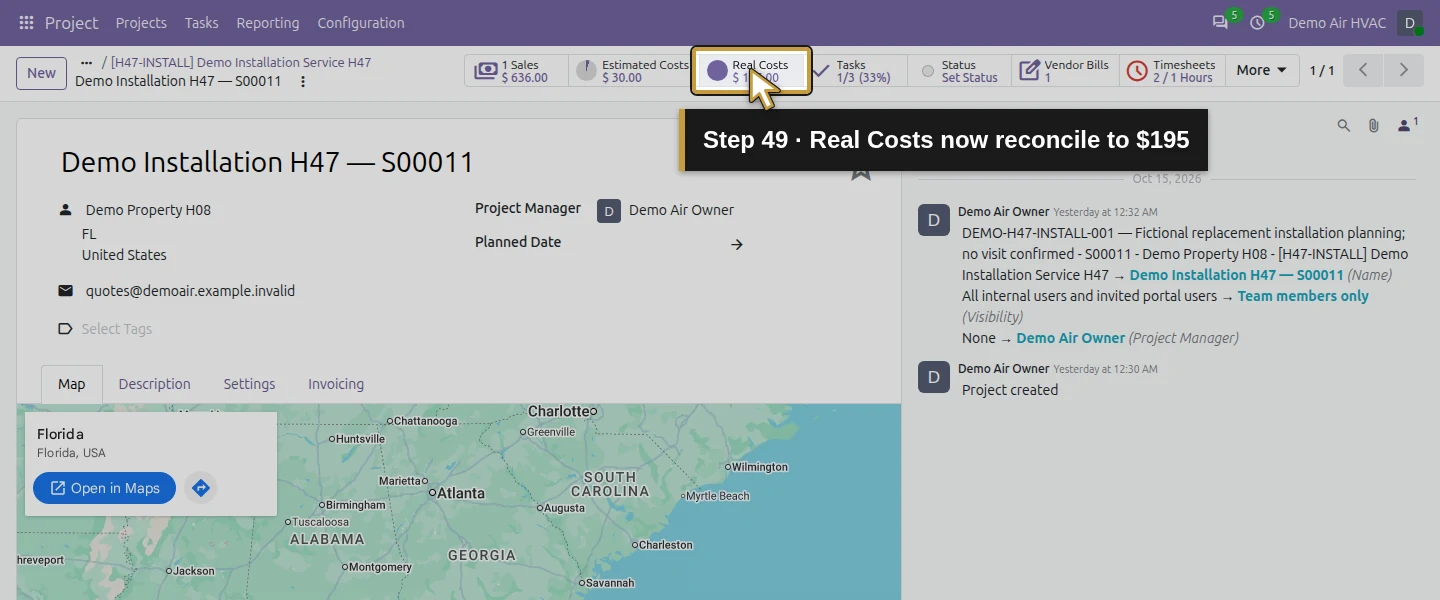
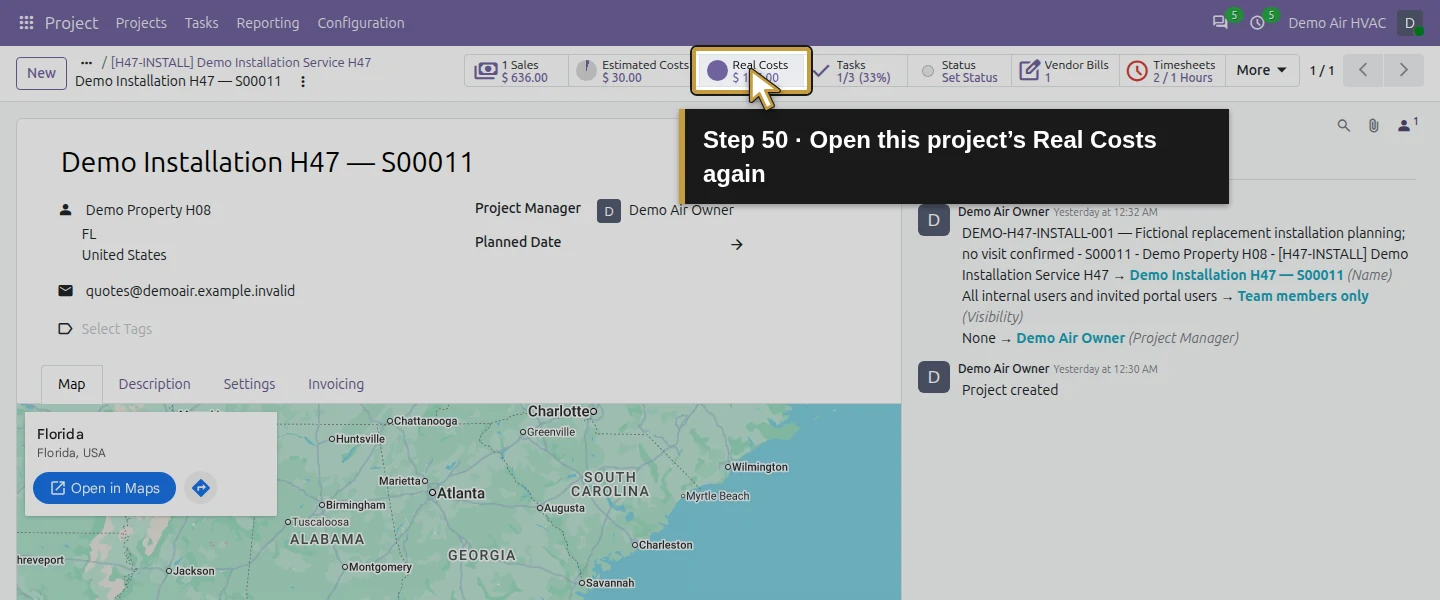
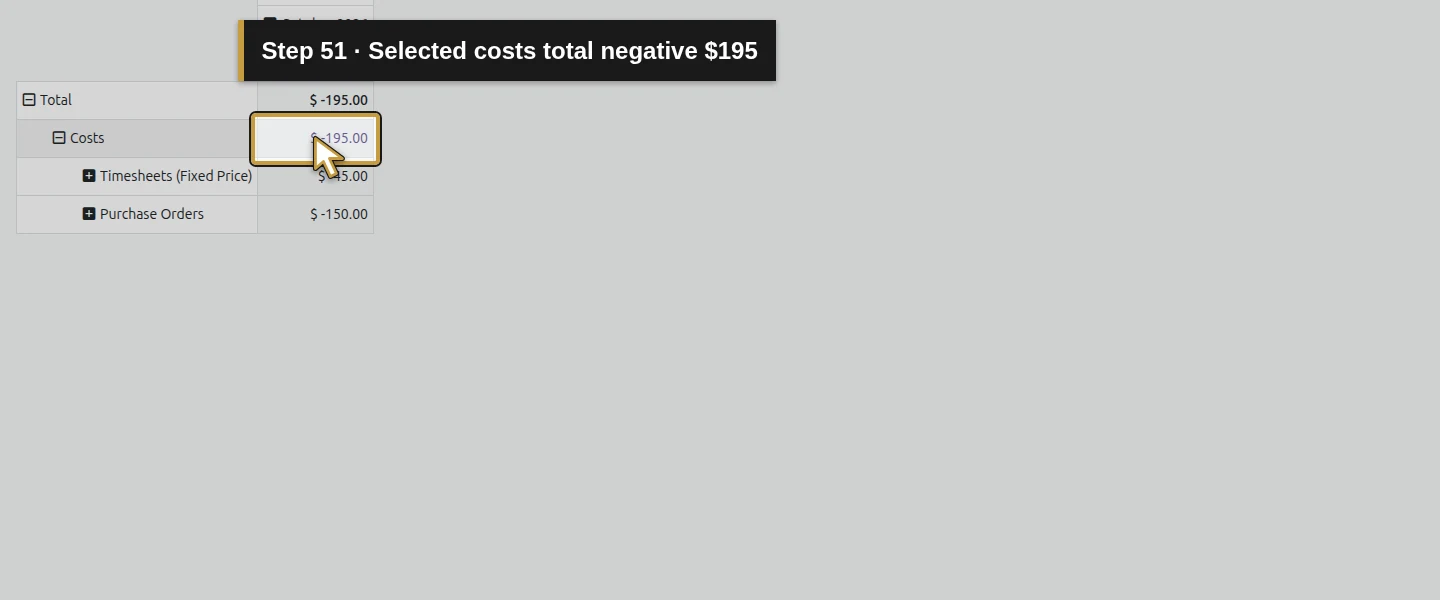
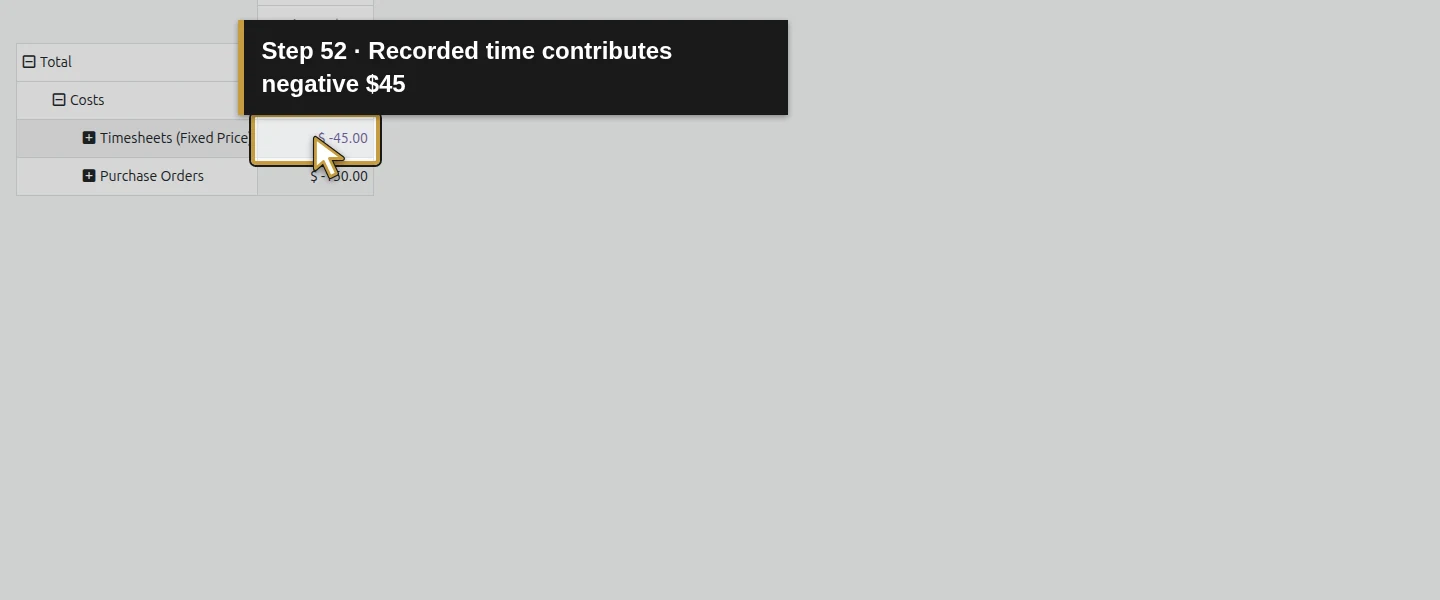
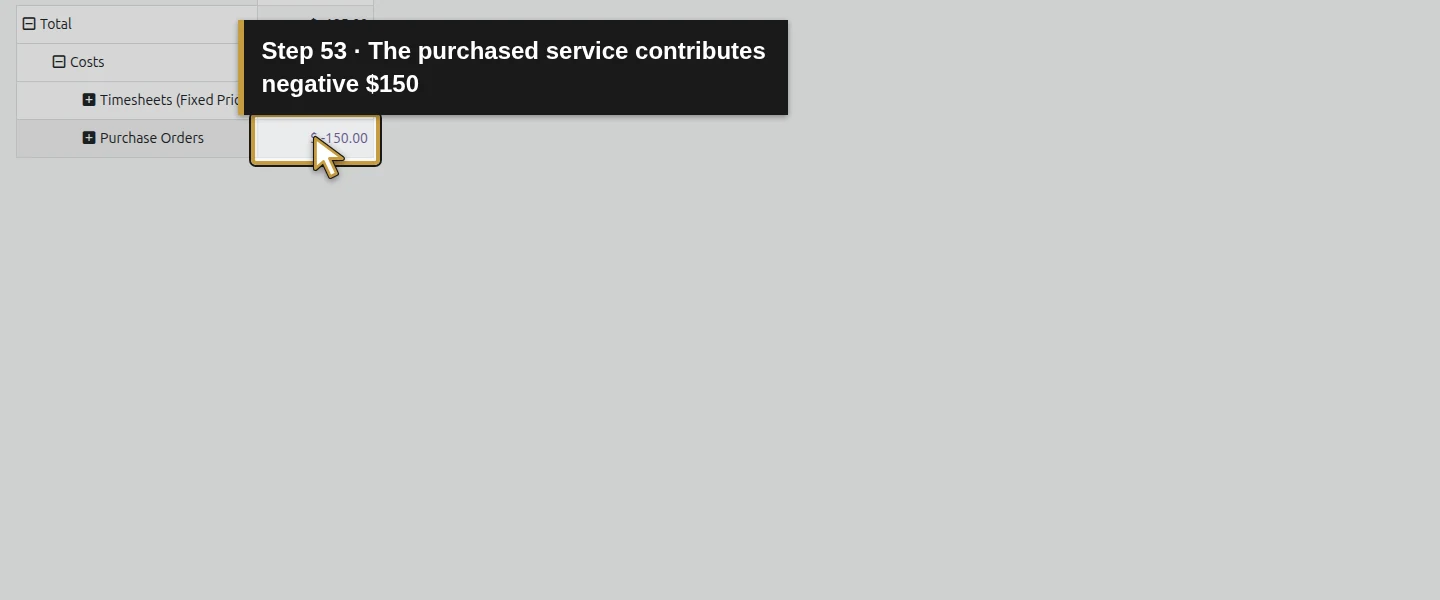
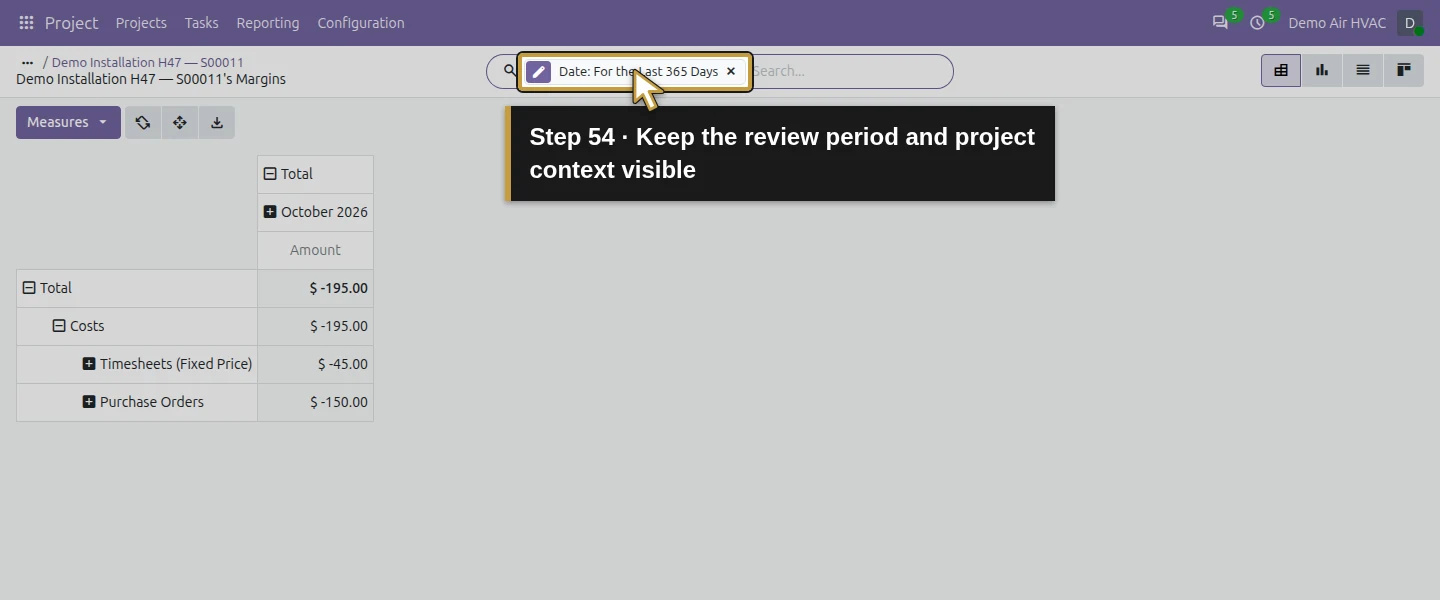
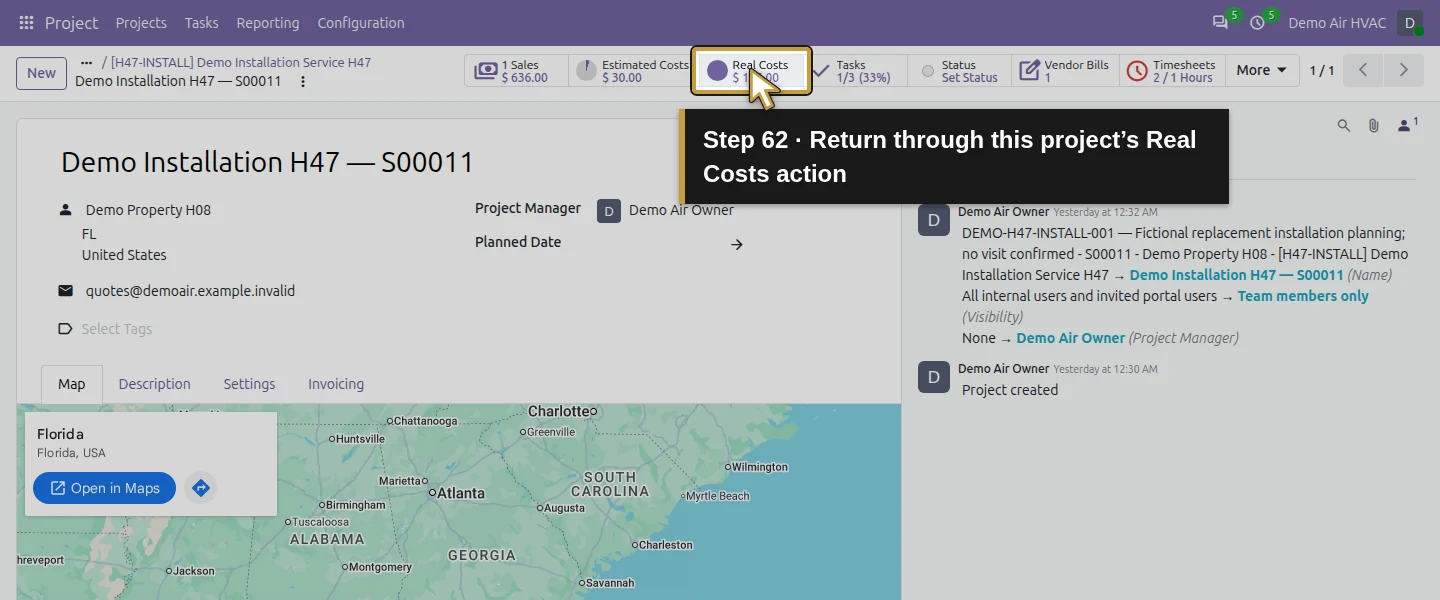
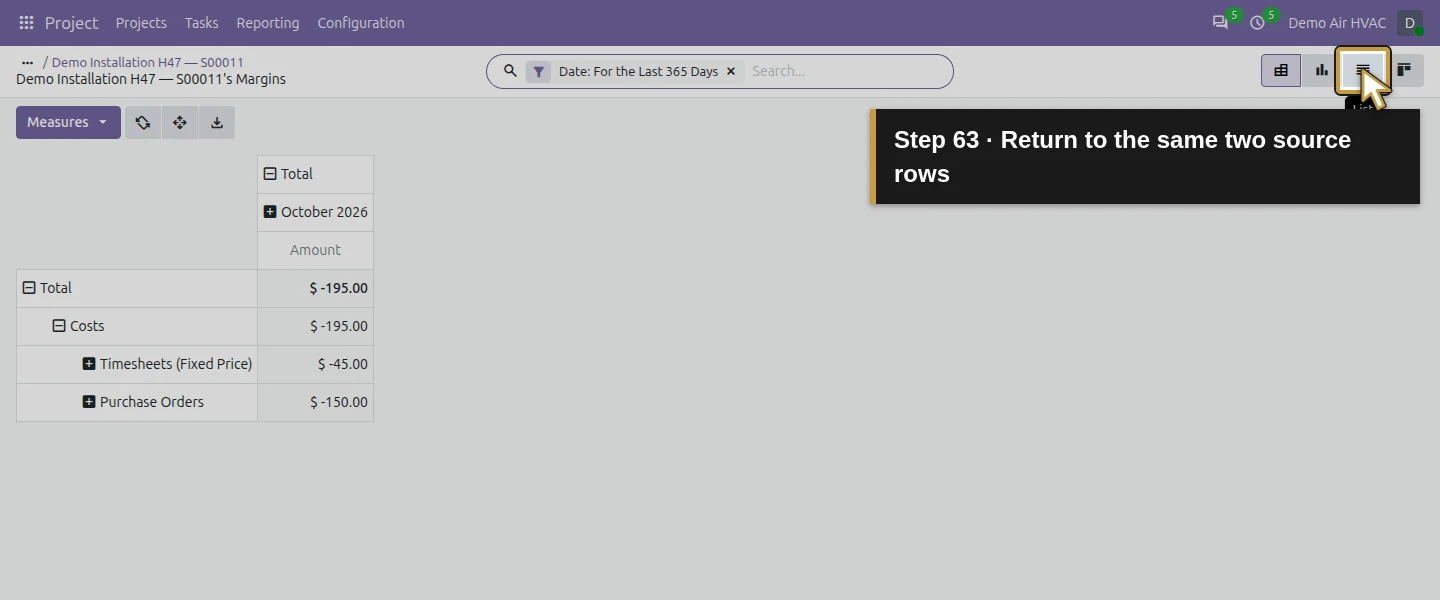
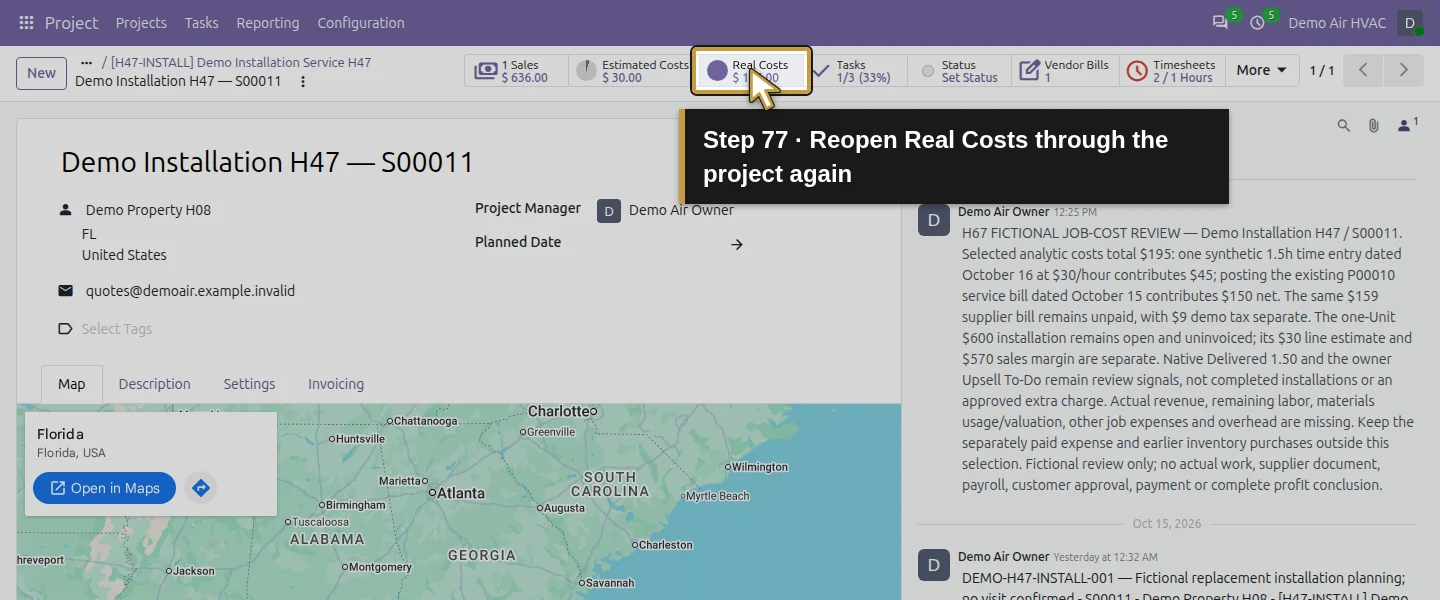
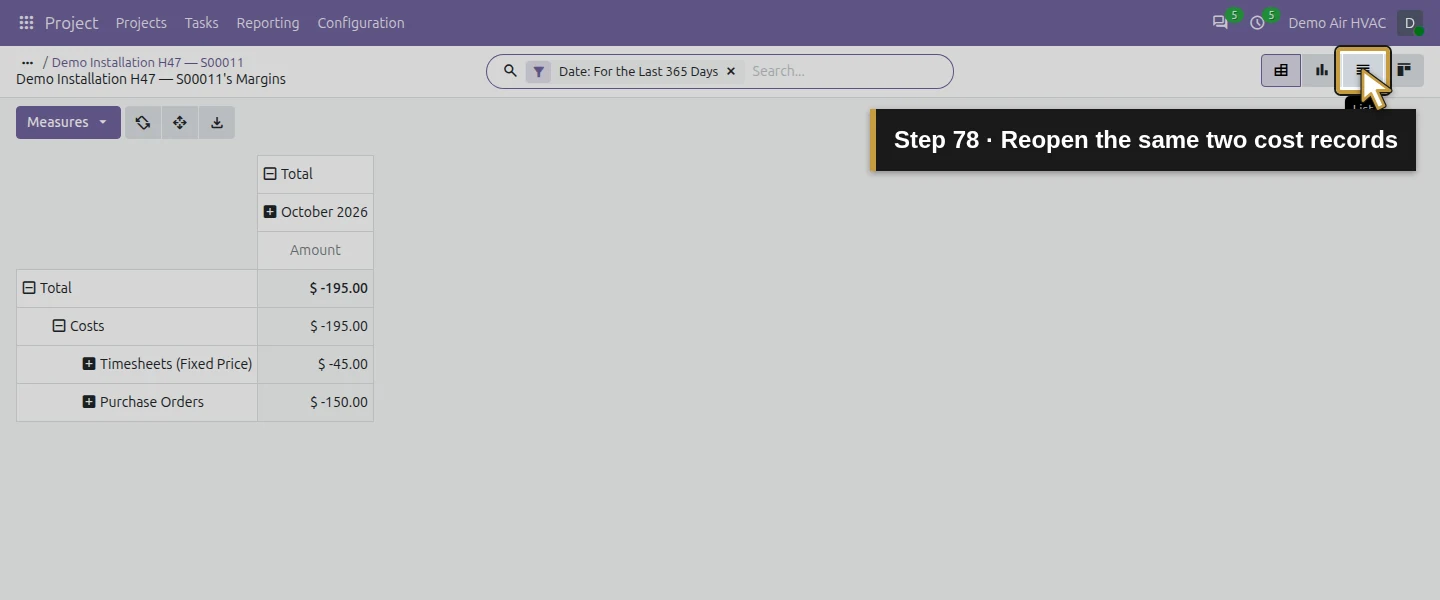
Return to the project form and click Real Costs again. Its button now shows $195. The project’s Margins pivot shows Costs −$195, comprising Timesheets (Fixed Price) −$45 and Purchase Orders −$150. Review the visible Date: For the Last 365 Days filter against your review period; the supplier-cost entry is October 15, 2026, and the time entry is October 16, 2026. The report shows costs with negative signs. Reconcile $45 + $150 = $195. Neither the $9 bill tax nor the $159 payable total is an additional job-cost row here.
Step 10. Inspect the two source rows without adding manual duplicates
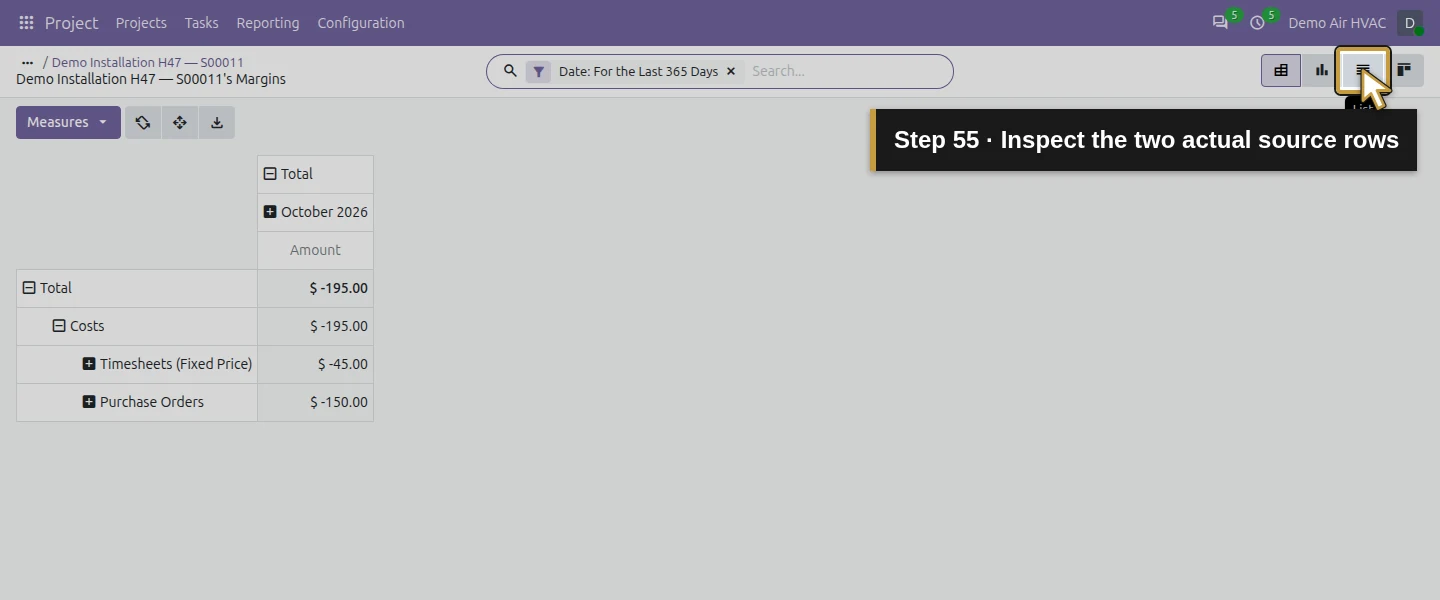
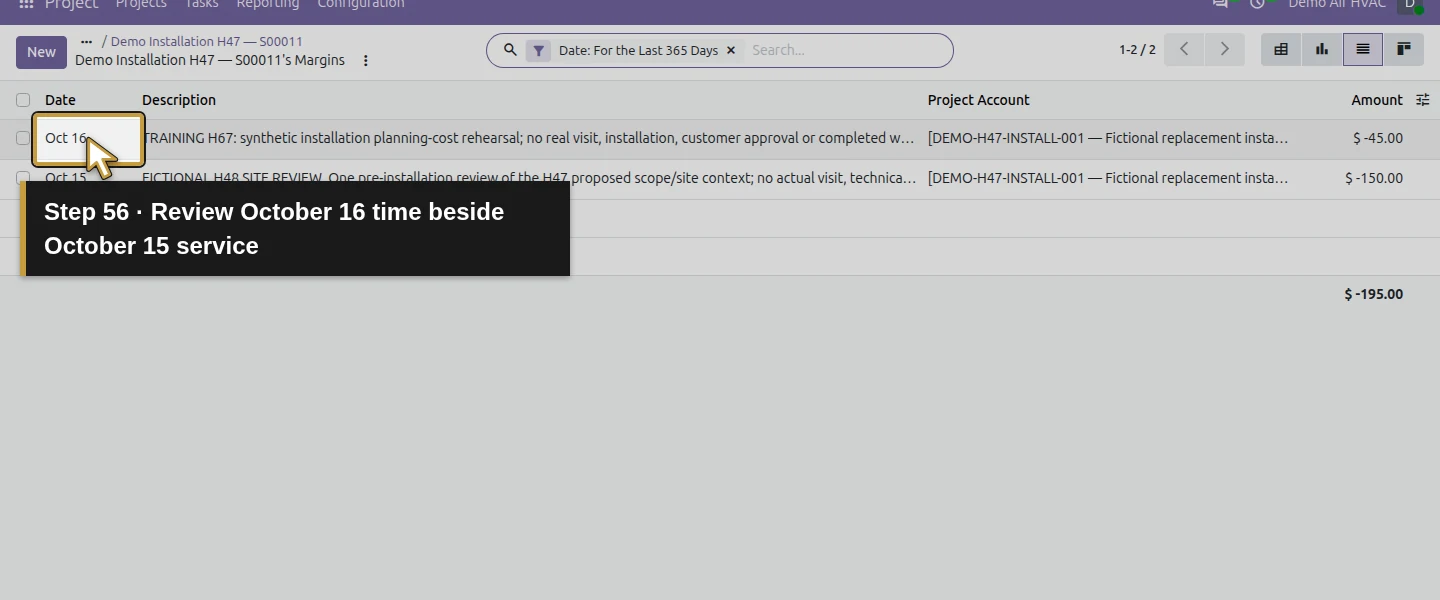
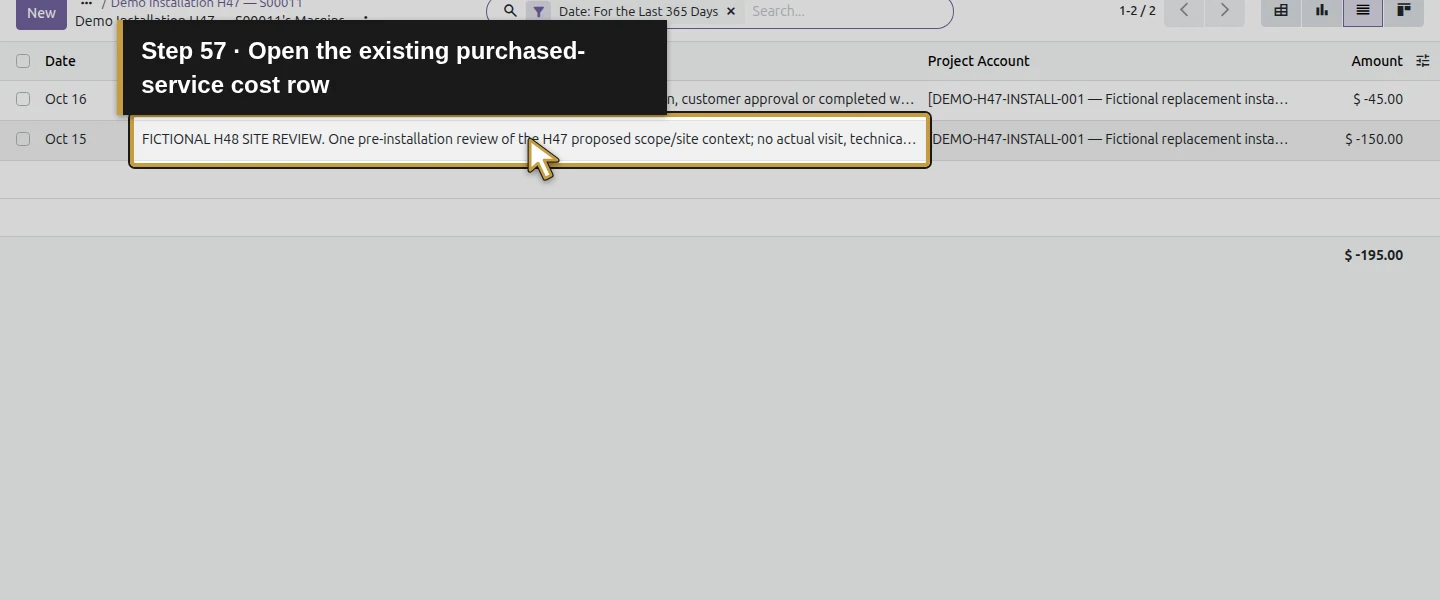
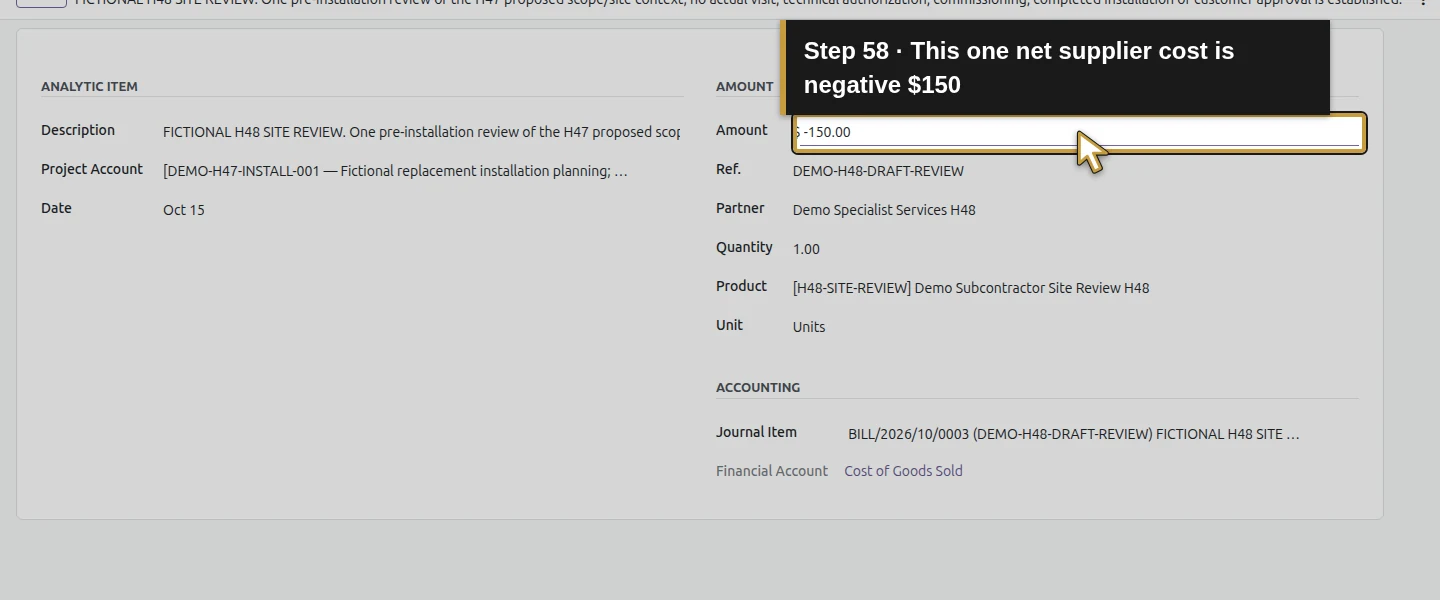
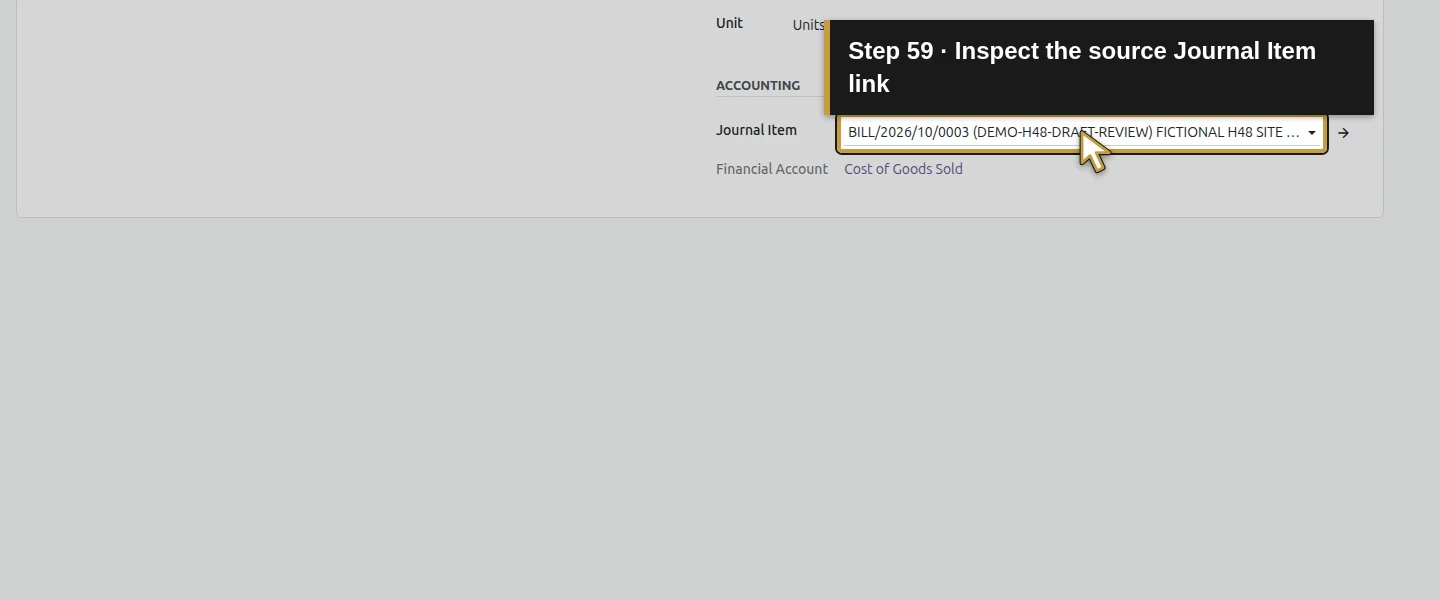
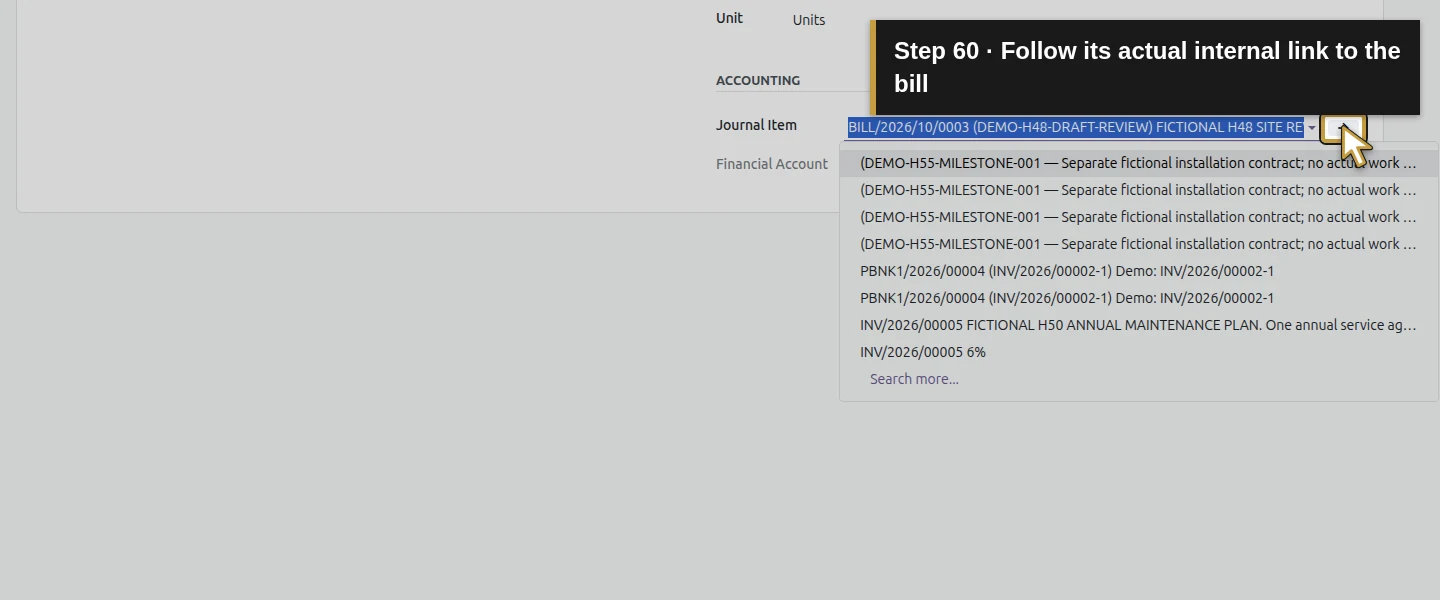
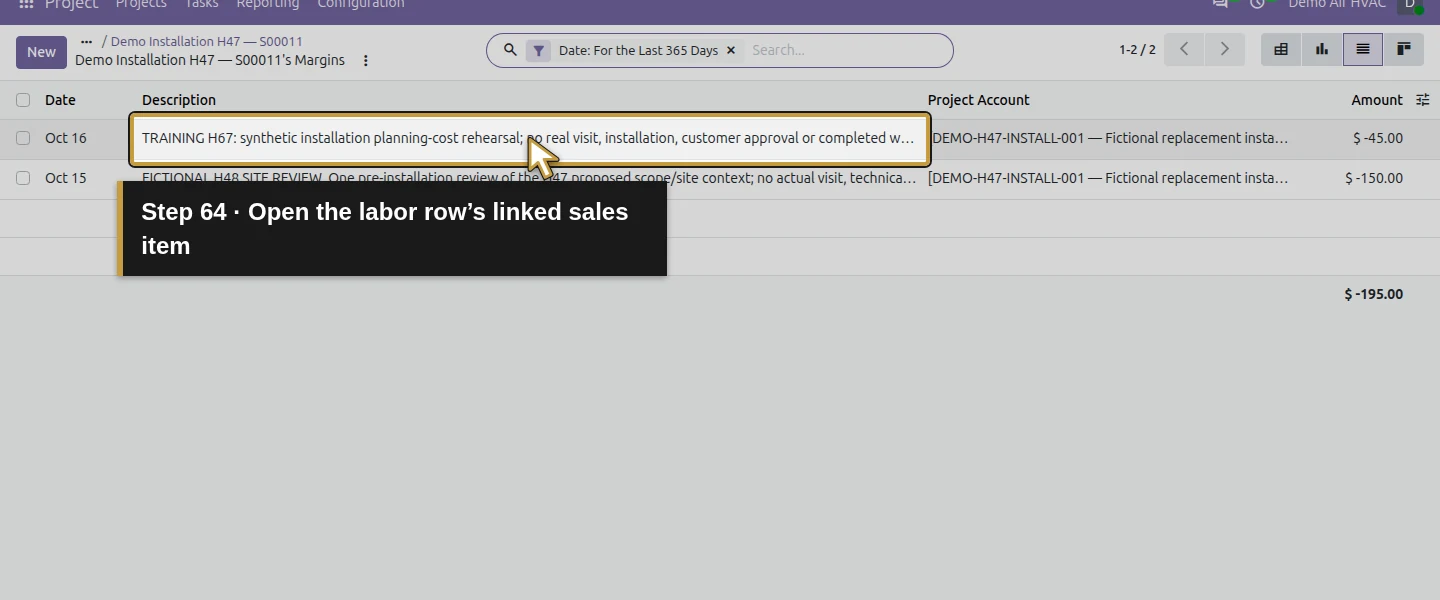
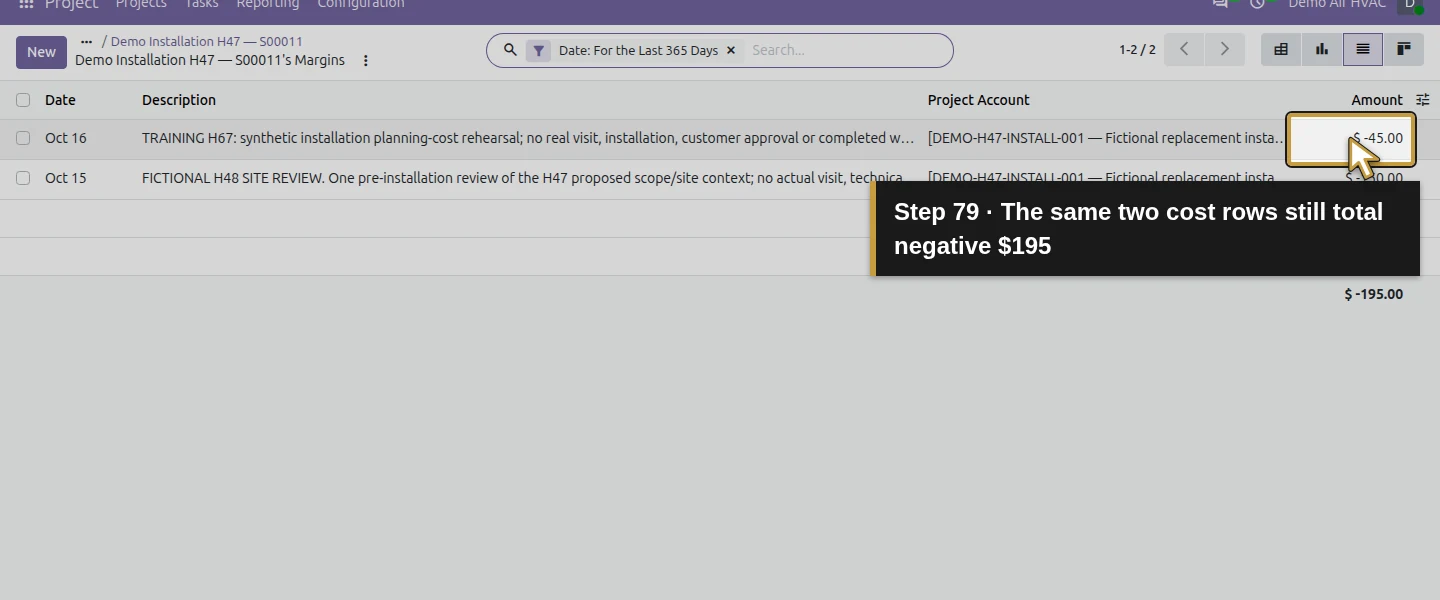
Click List View and verify exactly two rows dated October 15 and 16 under the same Project Account, totaling −$195. Open the purchased-service row: its analytic item shows −$150, Cost of Goods Sold and a Journal Item. Click that field and its Internal link; it reopens the same posted supplier bill. Return through the project’s Real Costs action to inspect the labor row; in this configuration clicking that row opens its linked sales item. Do not use New to copy either cost into another manual analytic entry. Open the report from the project each time: directly reopening its generic URL showed other projects during our check.
Step 11. Check billing counters and keep the sales margin separate
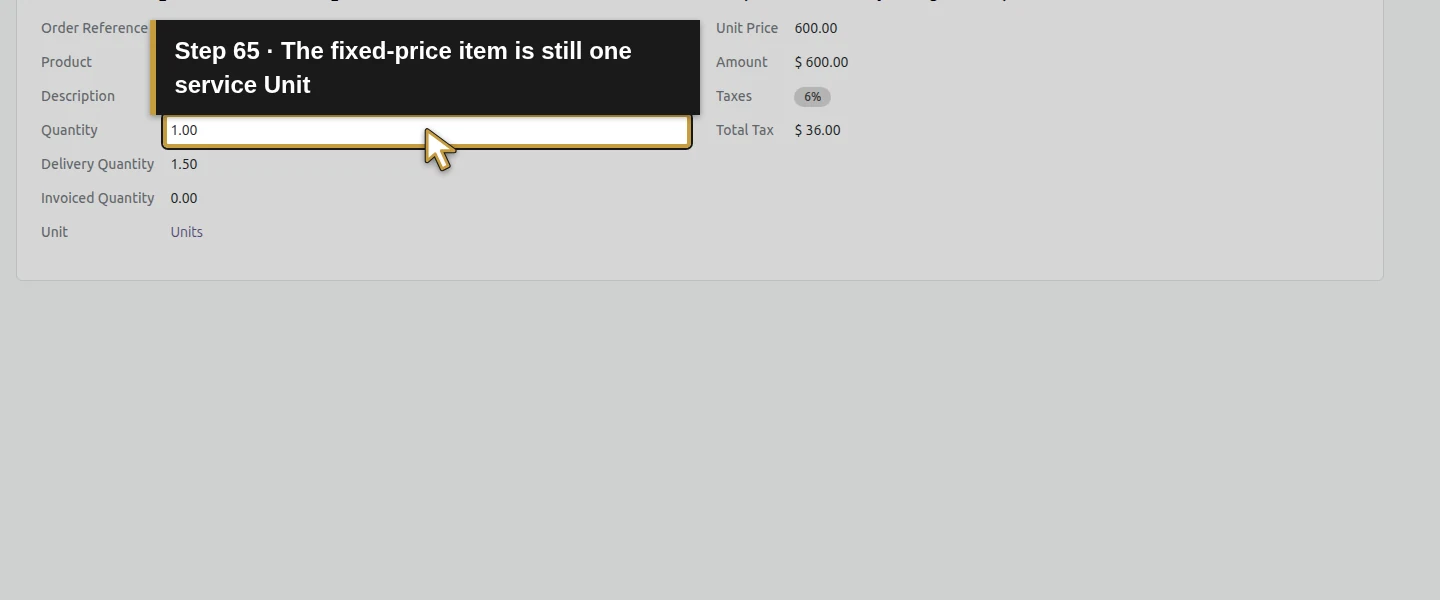
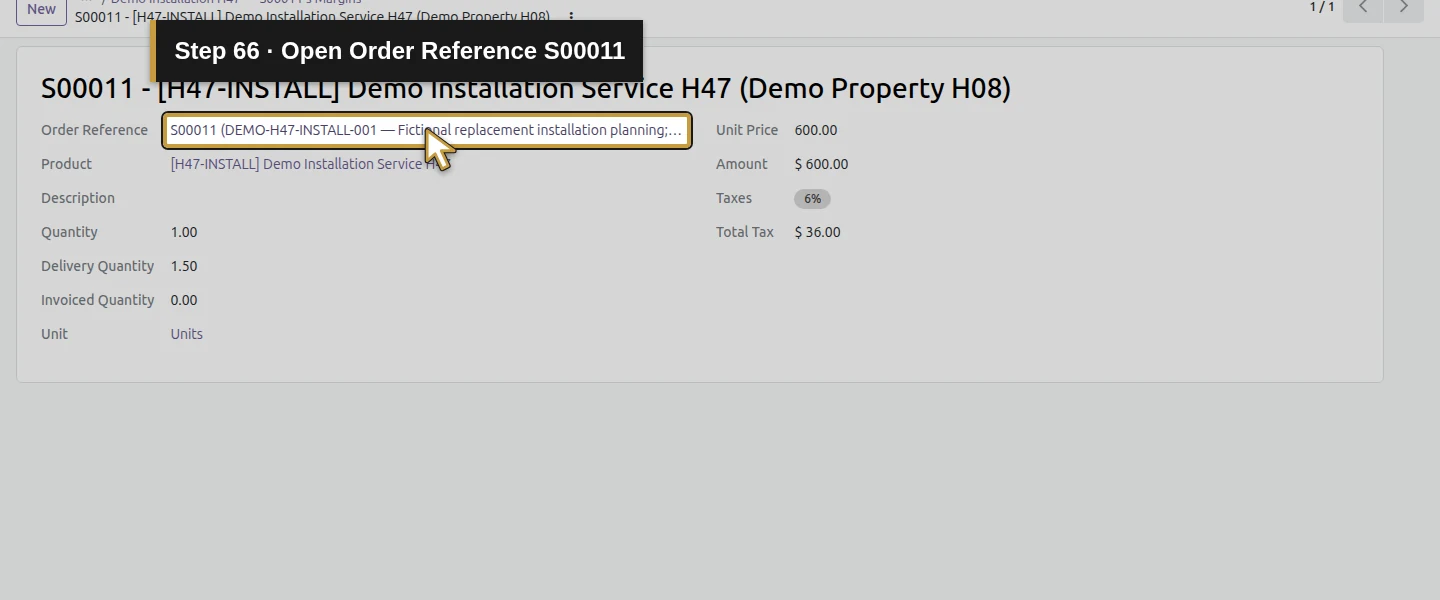
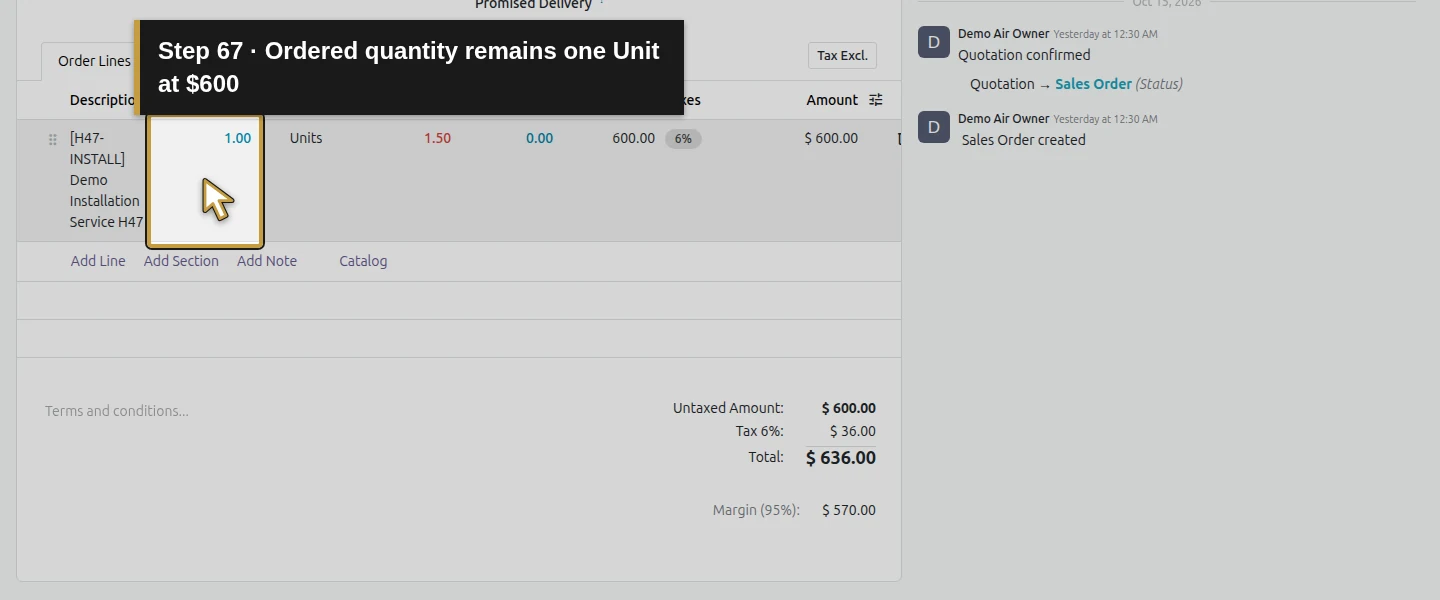
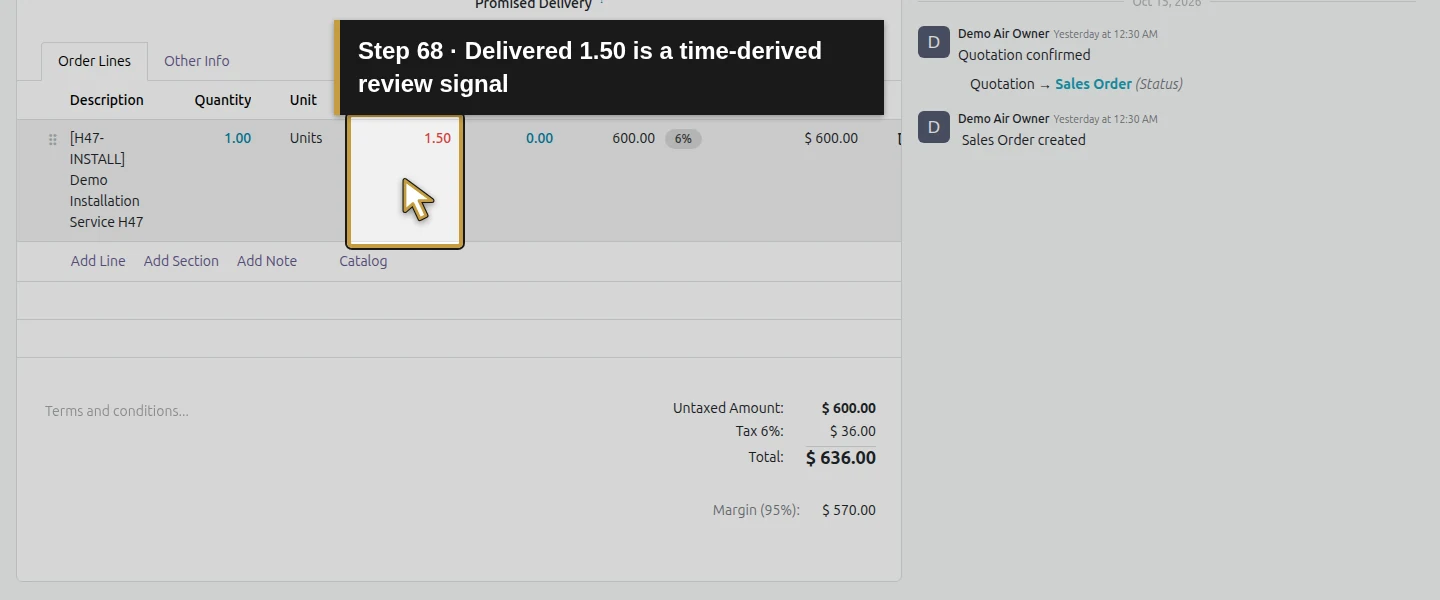
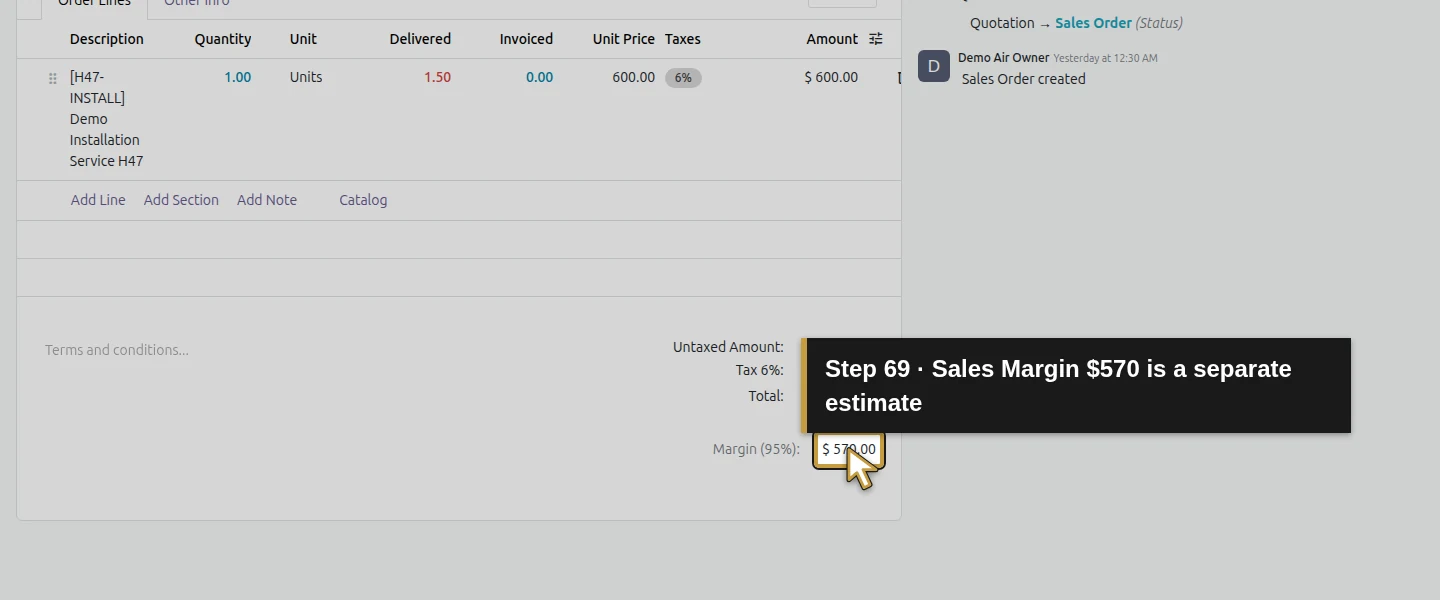
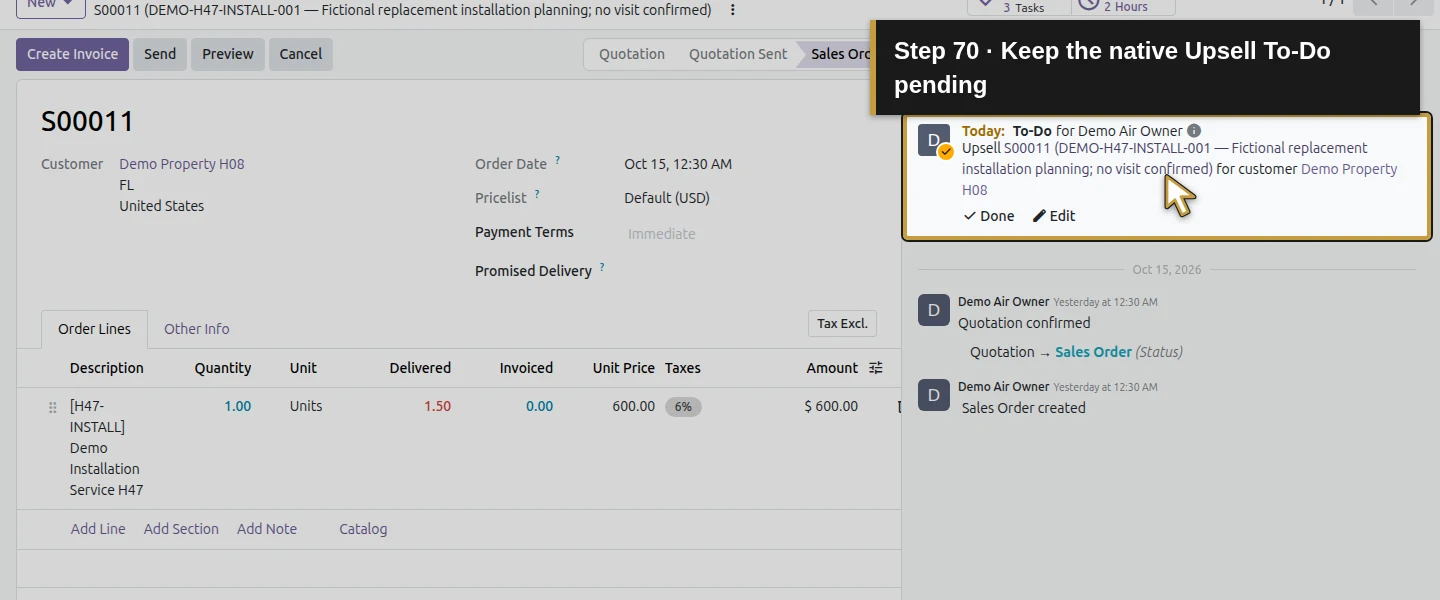
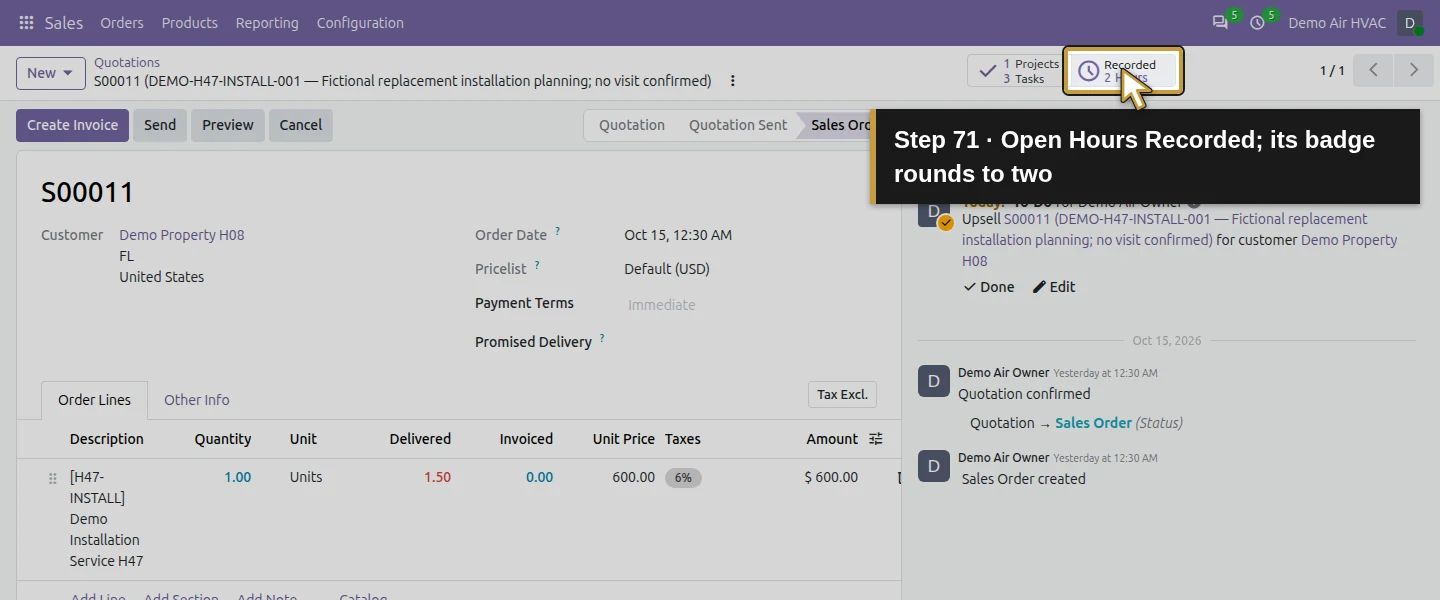
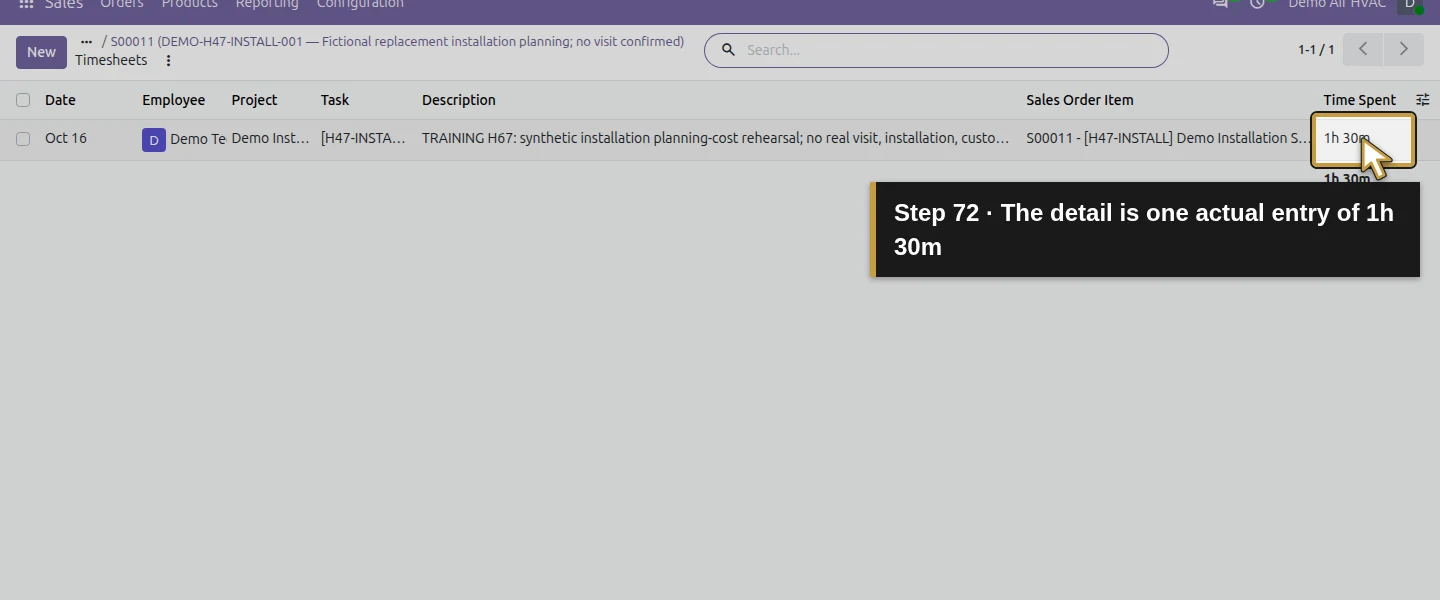
From the labor row’s sales item, open Order Reference S00011. Ordered quantity remains 1 Unit at $600, Invoiced 0 and quantity to invoice 1, with no customer invoice. The native time linkage nevertheless sets Delivered 1.50 and creates an owner To-Do with an Upsell note. These are review signals, not proof of 1.5 completed installations or permission for an extra charge. Leave the decision pending. The sales order’s Margin $570 (95%) uses its $30 line-cost estimate; it is not the reconciled $195 project cost. Hours Recorded opens the single detailed 1h 30m entry; the badge rounds to 2.
Step 12. Record the remaining gaps and reopen the same result
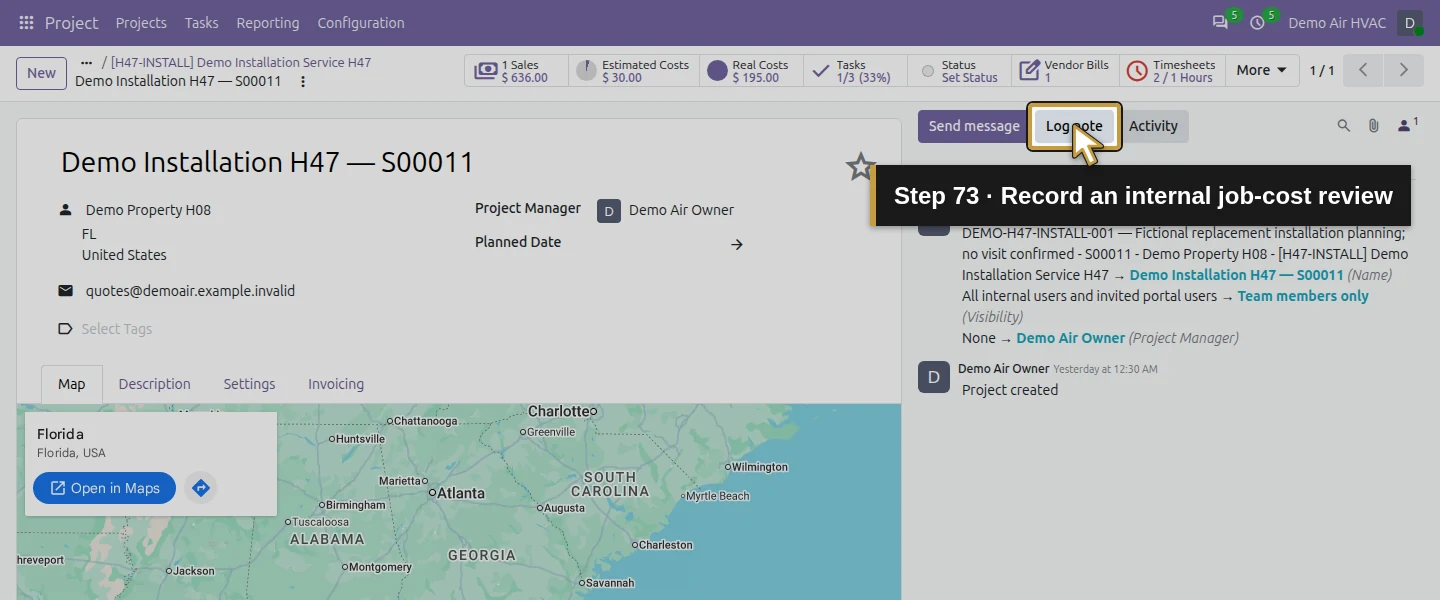
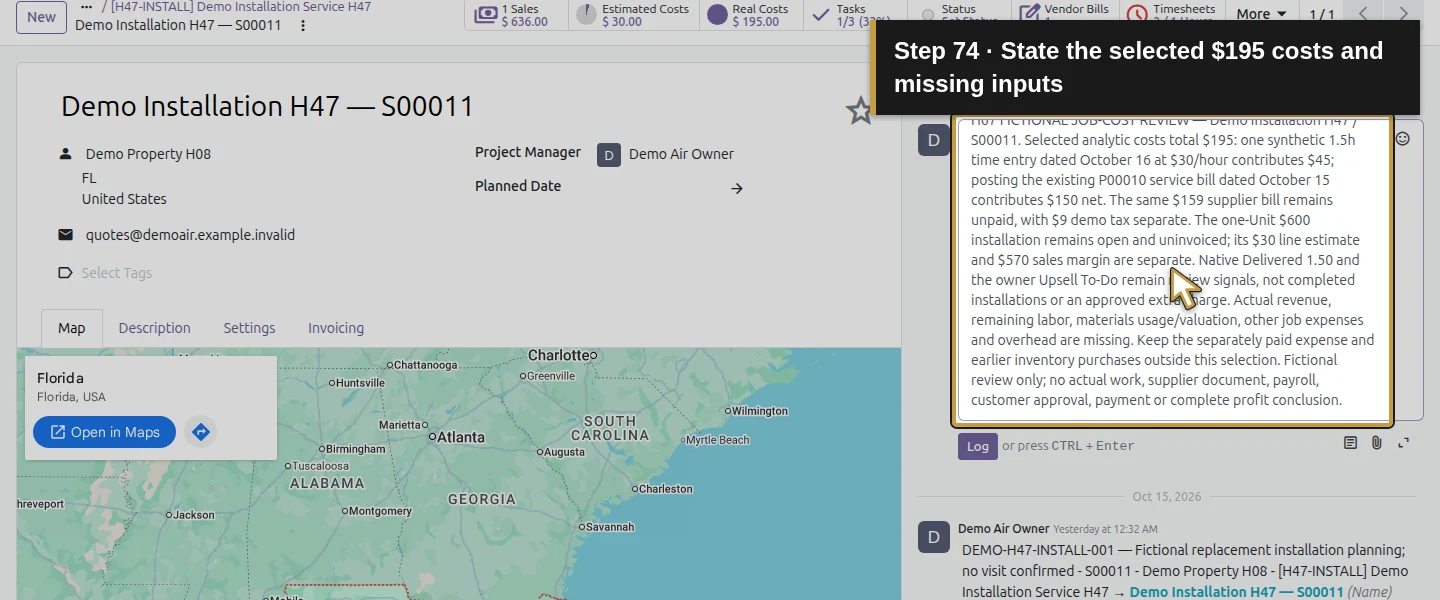
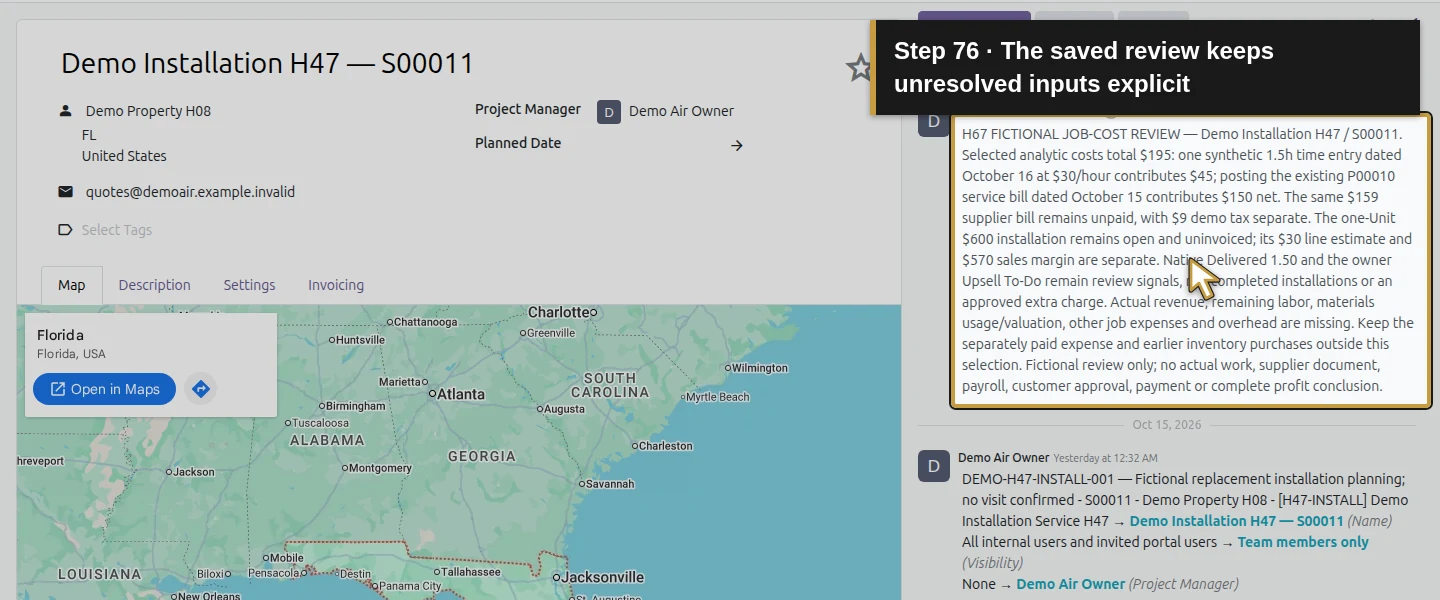
Return to the project and use Log note once for H67 FICTIONAL JOB-COST REVIEW. Record the two cost sources, $195 selected total, unpaid bill, uninvoiced $600 service, separate estimate/margin and pending Upsell review. List missing actual revenue, remaining labor, material usage/valuation, other job expenses and overhead. Keep the separate paid expense and inventory purchases outside this selection to avoid double counting. Reload the project and open Real Costs through its button again: the same two costs remain. Reopening creates no extra entry, bill, invoice or payment. A complete profit conclusion remains pending those missing inputs.
Check the result
One saved synthetic October 16 timesheet contributes $45 at the employee’s $30 hourly cost. Posting the existing H48 bill contributes one $150 net analytic cost to the same Project Account, giving Real Costs $195 and an analytic balance of −$195. The native project pivot and two-row list reconcile to those records. The $159 supplier bill remains unpaid; its $9 illustrative tax is separate. S00011 remains one ordered $600 service Unit, uninvoiced, while its time-derived Delivered counter reads 1.50 and one native owner Upsell To-Do awaits review. Sales Margin $570 is a separate estimate, not actual job profit. Two internal review notes retain the scope and missing inputs without recipients or notifications. Reopening retains exactly these two cost rows. The preservation check kept all 13 other tasks, 21 other accounting entries, the other employee and all three earlier analytic entries exact in the original fields checked. Stock, payments, recurrence ends and pending renewal records also remained unchanged in the selected checks. The local mail sink receives no new message.
If your screen differs
Only the owner role and these selected synthetic costs were tested. This stock Community runtime exposes a project Real Costs/Margins report; its availability is demonstrated here, without a claim about every installation or the Enterprise financial-report bundle. The bill’s Analytic Distribution column was not exposed in this owner screen; native Project selection on P00010 supplies the allocation, and saved results plus the project/source drill-down verify the copied 100%. A generic report URL lost the job-specific action context and showed other accounts; return through the project’s Real Costs button and check date/account filters. Changing Hourly Cost left earlier zero-cost time untouched. A timesheet’s cost is separate from billing policy: this fixed-price Units line still has invoiceable quantity 1 despite Delivered 1.50 and its native Upsell reminder. Estimated Costs, the tax-inclusive Sales button and sales-line Margin are different measures. No complete profit, payroll posting, real acceptance, extra customer charge, expense reallocation, inventory-cost allocation, forced timesheet approval or historical cost recalculation is established.
Frequently asked questions
How do I track HVAC job costs in Odoo?
Use the existing job project and Project Account, set a reviewed employee Hourly Cost before entering new time, and allocate reviewed supplier costs through the native project/purchase link. Here one 1.5-hour timesheet contributes $45 and posting the existing allocated service bill contributes $150, reconciled in the project’s Real Costs report to $195. The job remains open and uninvoiced, so this selected cost total is not complete profit.Do Odoo timesheets automatically calculate labor cost?
In this tested stock Odoo 20 Community setup, the new task timesheet uses the employee’s saved Hourly Cost: 1.5 hours at $30 produces −$45 in the Project Account. That is an analytic cost, not a payroll posting or customer billing rate. Setting $30 did not reprice the older zero-cost H44 and time-off entries in this test; review historical rows separately rather than assuming a retrospective update.Why is Odoo project profitability missing some costs?
Check the exact Project Account, date filter, source allocation, posted bill state and employee cost basis. The H48 draft contributed no posted analytic cost until Confirm; the project then showed its $150 net service cost alongside $45 time. Unallocated expenses, stock/material costs, remaining labor and overhead still need review. Open Real Costs from the project because a generic report URL can lose its job filter. The sales order’s estimated Margin is not this reconciled cost total.Continue building the business
Continue with How do I review sales results in Odoo CRM?. Keep this project’s selected actual costs separate from sales forecasts, expected contract value and any eventual reviewed profit calculation.
Talk about your Odoo setup
Bring your current process and the result you need to Onward to plan your Odoo workflow. Talk about your Odoo setup.