Running an HVAC business with Odoo

How do I require manager approval for purchase orders in Odoo?
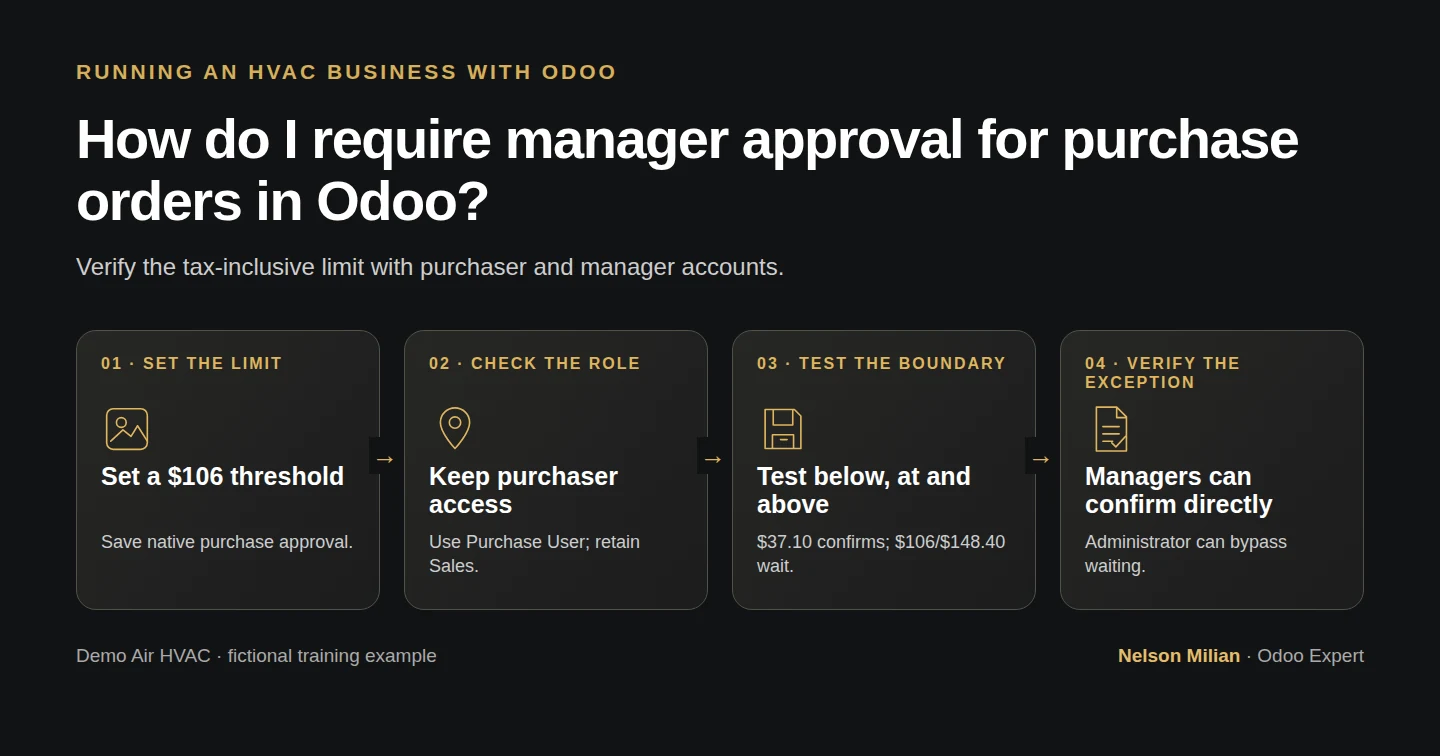
Workflow overview: How do I require manager approval for purchase orders in Odoo?
Workflow overview. Instructional screenshots show the actual demo interface.

Set a native Odoo purchase approval threshold and verify below, equal and above cases with purchaser and manager roles.

Alex wants larger purchases to reach a manager before confirmation. Odoo's native setting works with the purchaser's role, while a Purchase Administrator can confirm directly. This example checks both the amount boundary and that role exception.

Alex Rivera and Demo Air HVAC are fictional training examples. Prices, dates, quantities and business situations in this guide are illustrative.

Before you begin

Tested in stock Odoo 20.0-20260926 Community as the demo owner administrator, with official modules and standard configuration. Complete purchase orders and user access. Reuse Demo Supply H10 and H12-FILTER. In this fixture, Demo Office H03 receives Purchase User access while retaining the earlier Sales access; Demo Air Owner already has Purchase Administrator. Use a restorable training database. All four test orders are synthetic; none is sent to the supplier or received.

Step-by-step workflow

Step 1. Save the native approval threshold

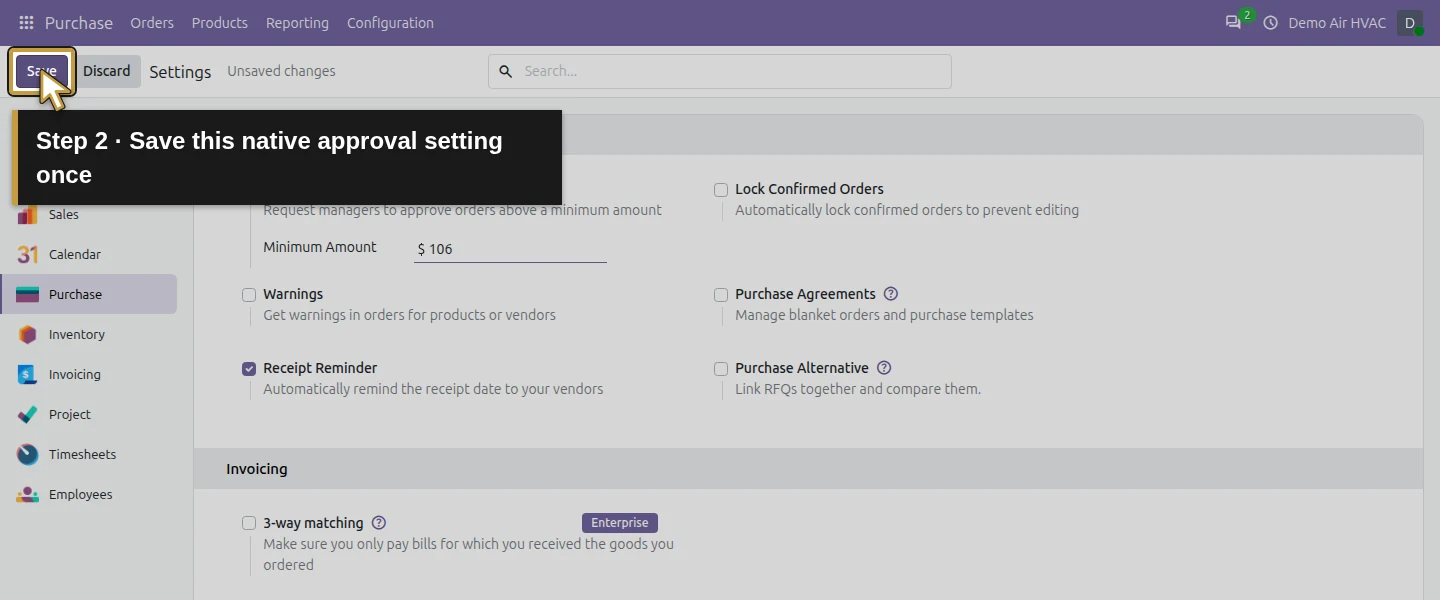
As the administrator, open Purchase → Configuration → Settings, enable Purchase Order Approval, set Minimum Amount 106 USD and choose Save. Reopen and check both the setting and amount. The $106 threshold is chosen only to demonstrate exact-limit behavior with the fictional 6% tax.
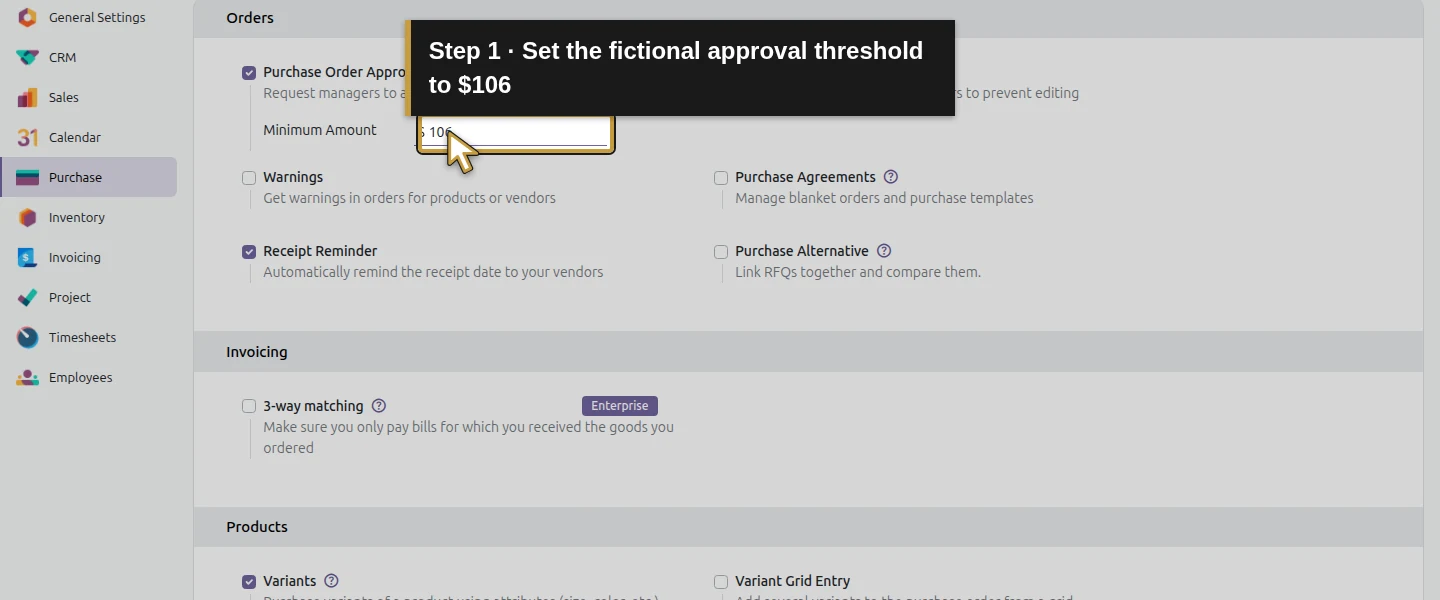
Action 1: Set the fictional approval threshold to $106. The actual target is highlighted in gold.
Set the fictional approval threshold to $106.
Action 2: Save this native approval setting once. The actual target is highlighted in gold.
Save this native approval setting once.
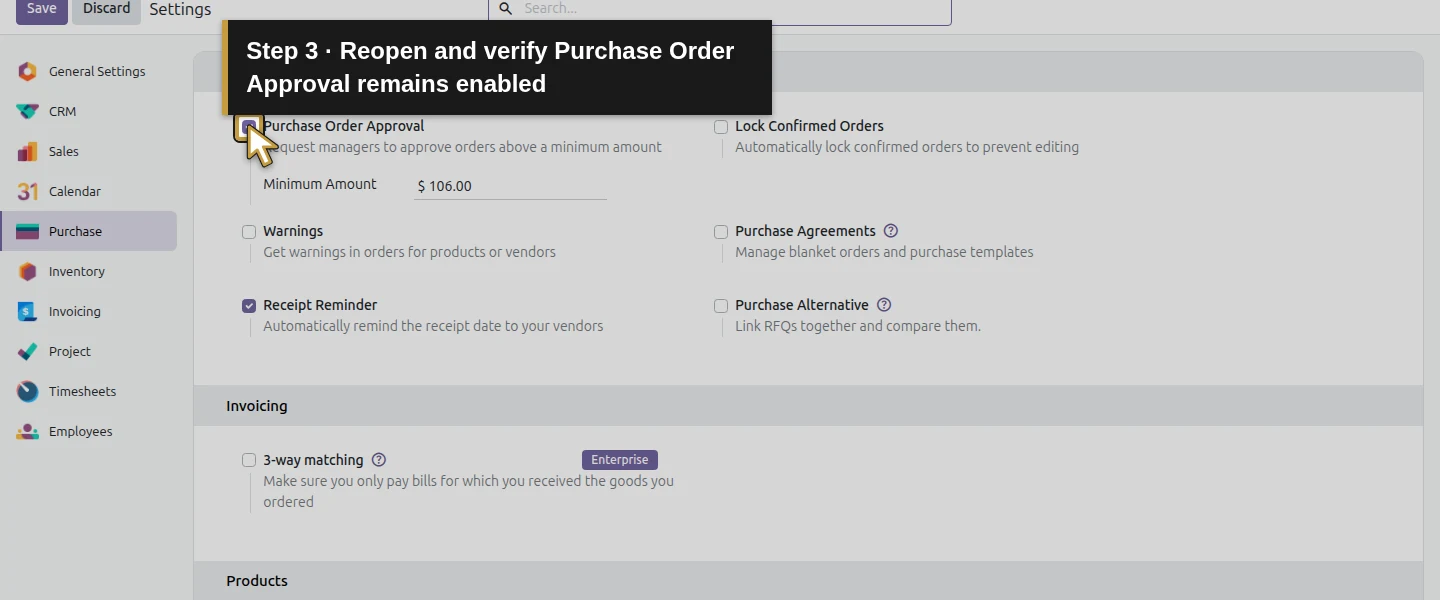
Action 3: Reopen and verify Purchase Order Approval remains enabled. The actual target is highlighted in gold.
Reopen and verify Purchase Order Approval remains enabled.
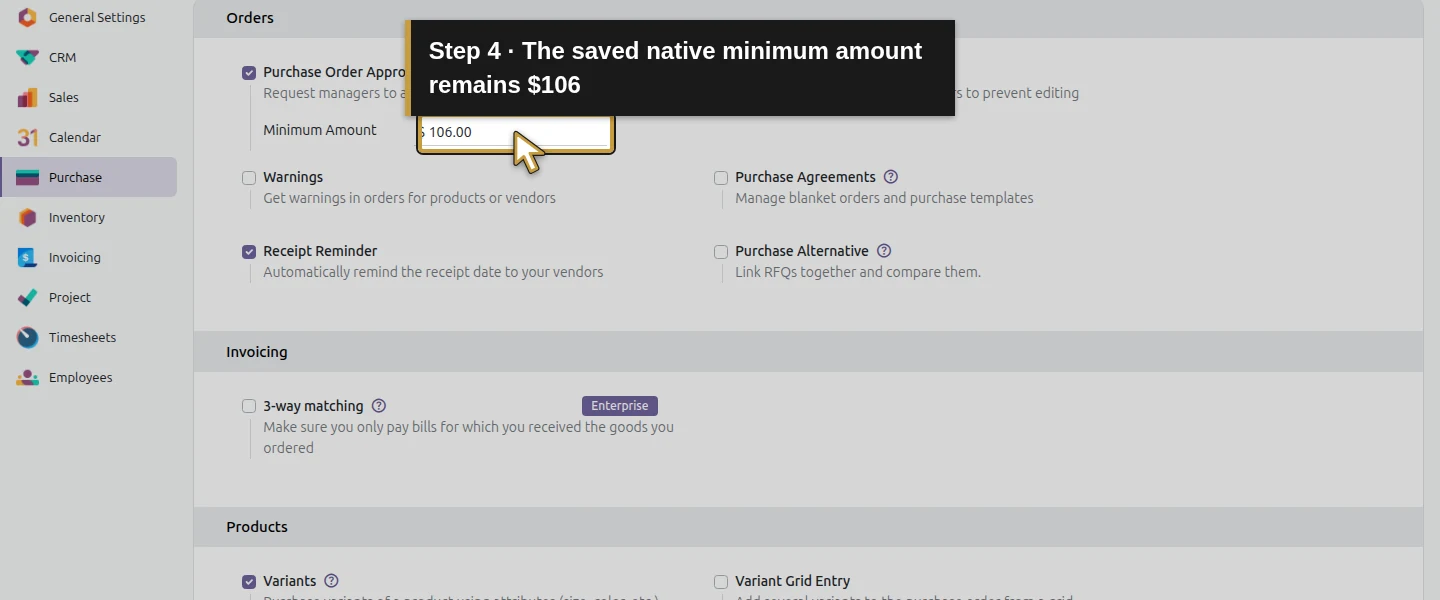
Action 4: The saved native minimum amount remains $106. The actual target is highlighted in gold.
The saved native minimum amount remains $106.

Step 2. Give the purchaser the intended role

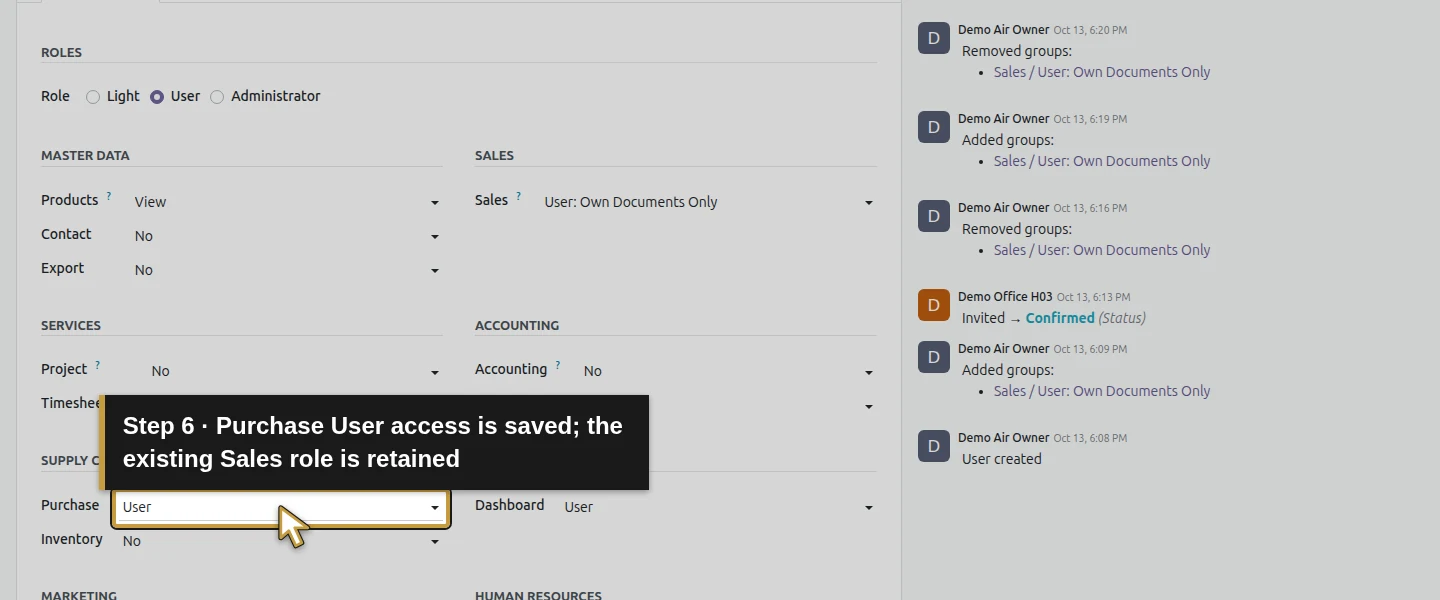
Open Settings → Users & Companies → Users → Demo Office H03 → Access Rights. Keep Role User and the existing Sales access. Choose Purchase → User, then Save manually and reopen. Do not choose Purchase Administrator for the purchaser. Test in that account's separate browser session; an administrator-only demonstration would miss the approval boundary.
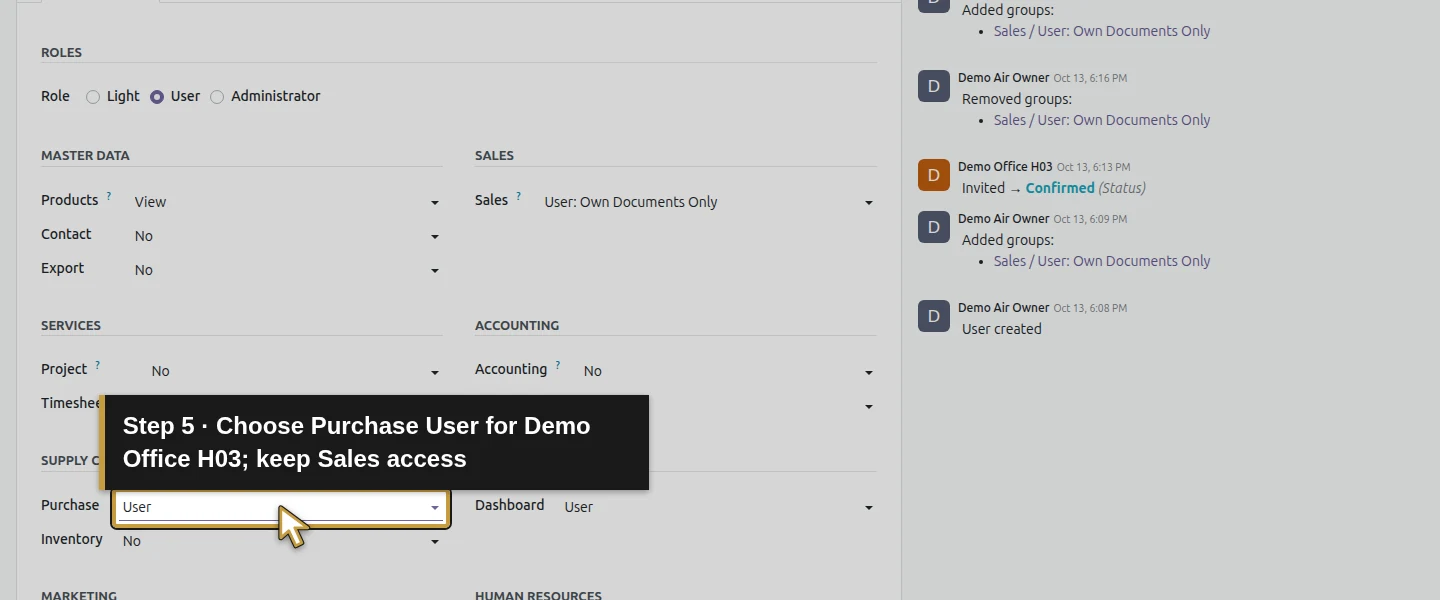
Action 5: Choose Purchase User for Demo Office H03; keep Sales access. The actual target is highlighted in gold.
Choose Purchase User for Demo Office H03; keep Sales access.
Action 6: Purchase User access is saved; the existing Sales role is retained. The actual target is highlighted in gold.
Purchase User access is saved; the existing Sales role is retained.
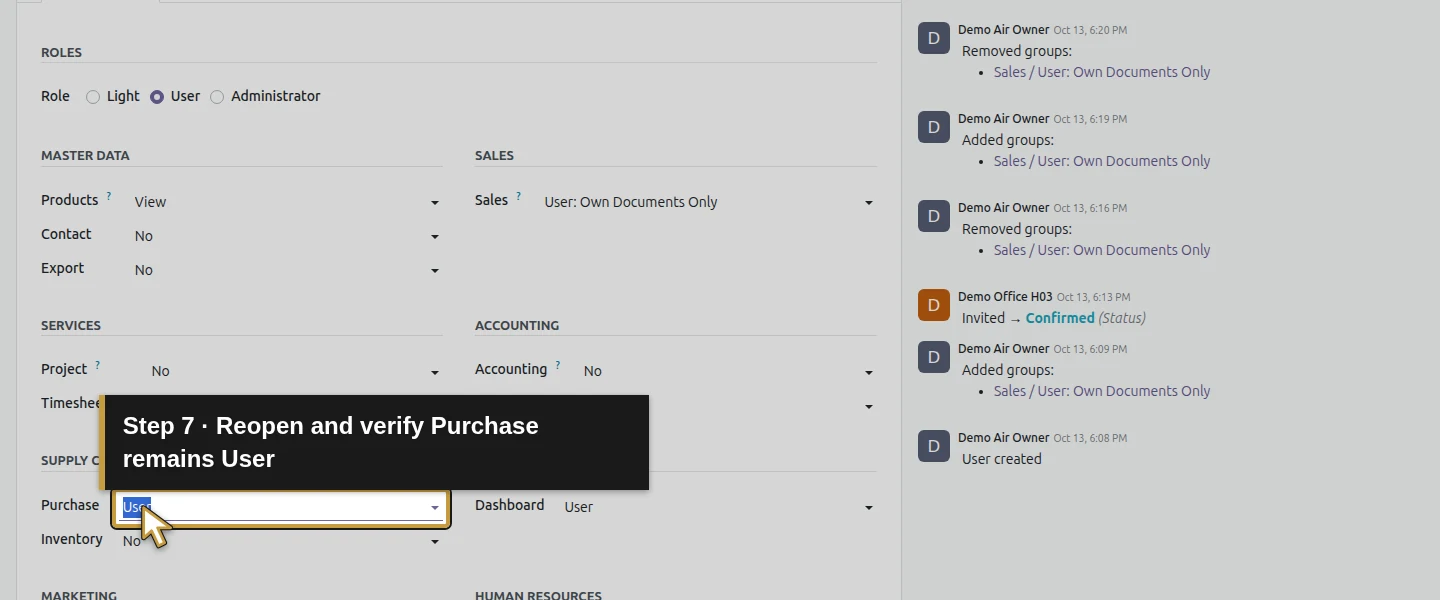
Action 7: Reopen and verify Purchase remains User. The actual target is highlighted in gold.
Reopen and verify Purchase remains User.
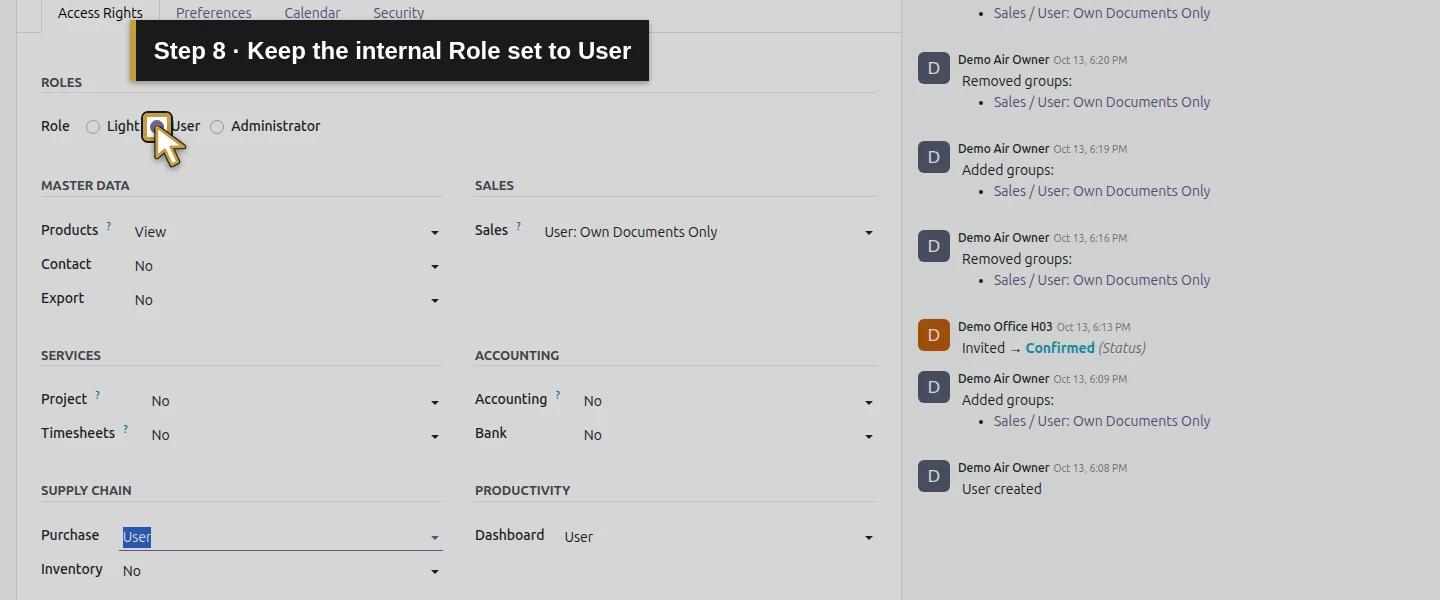
Action 8: Keep the internal Role set to User. The actual target is highlighted in gold.
Keep the internal Role set to User.

Step 3. Confirm a below-limit order as the purchaser

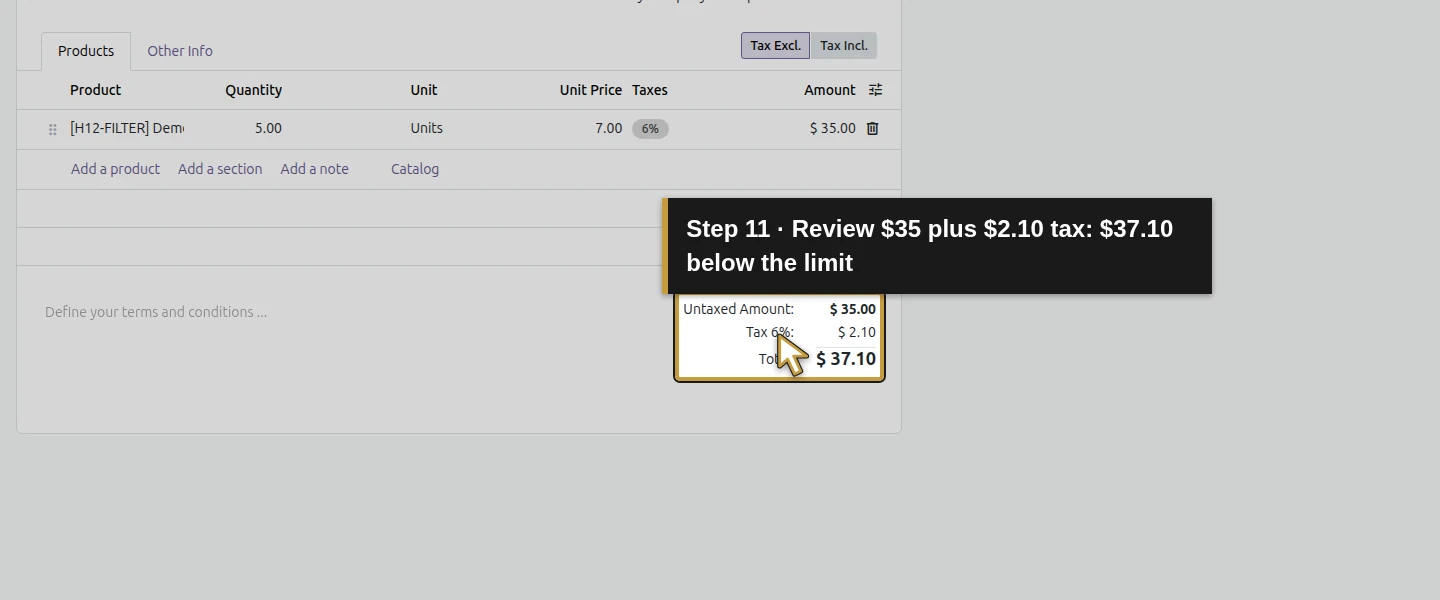
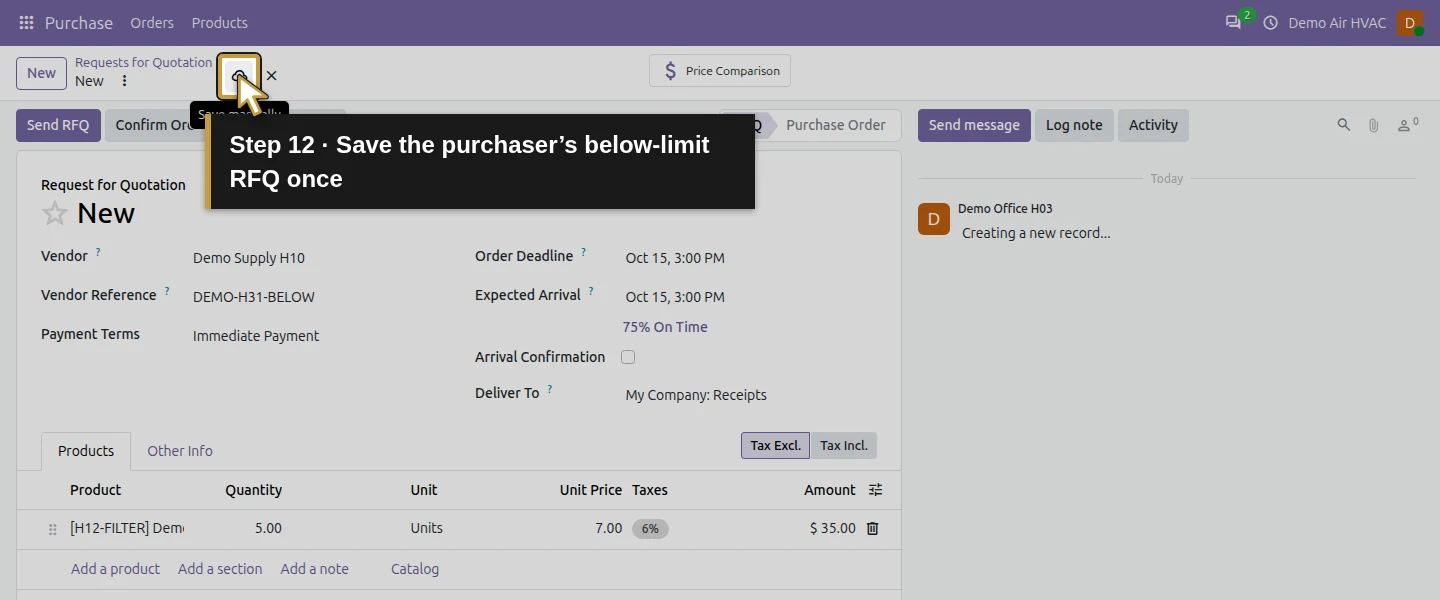
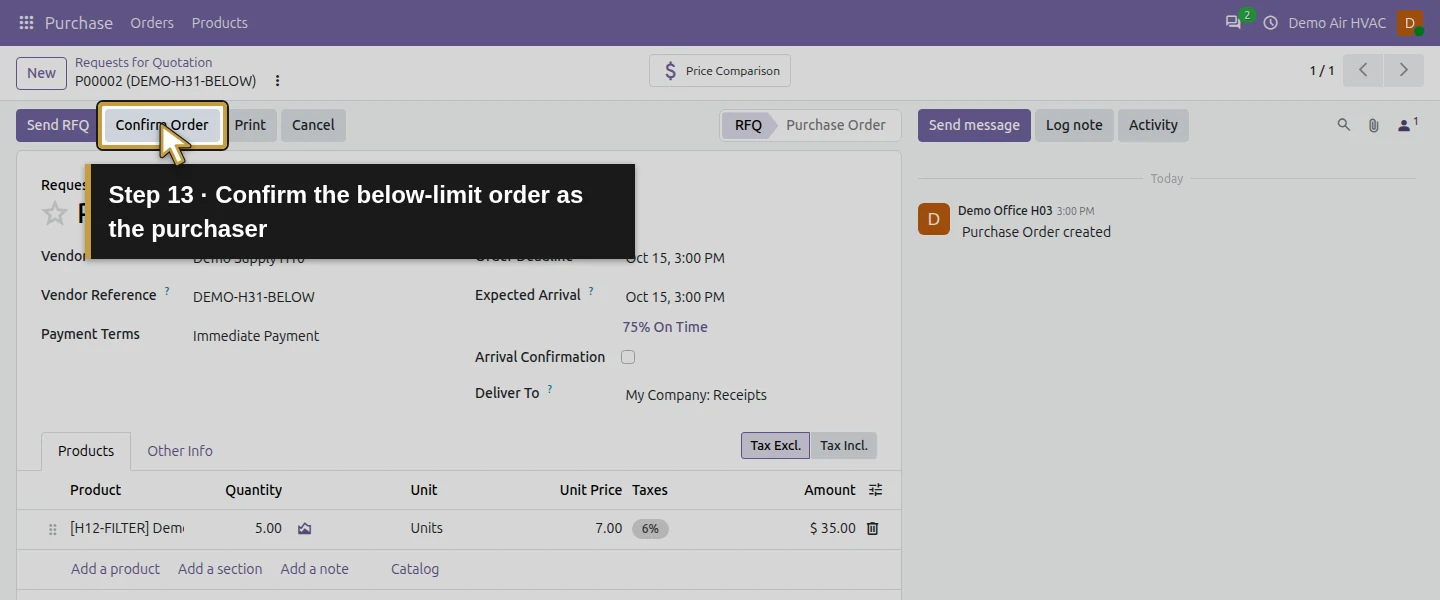
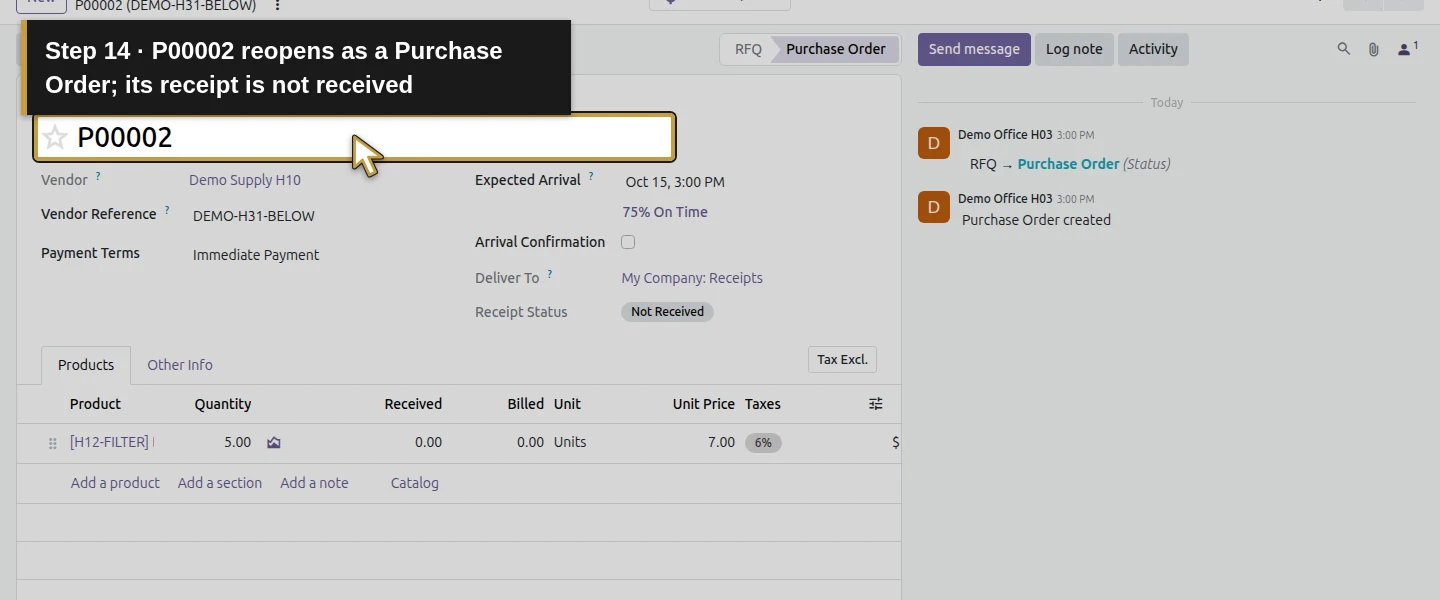
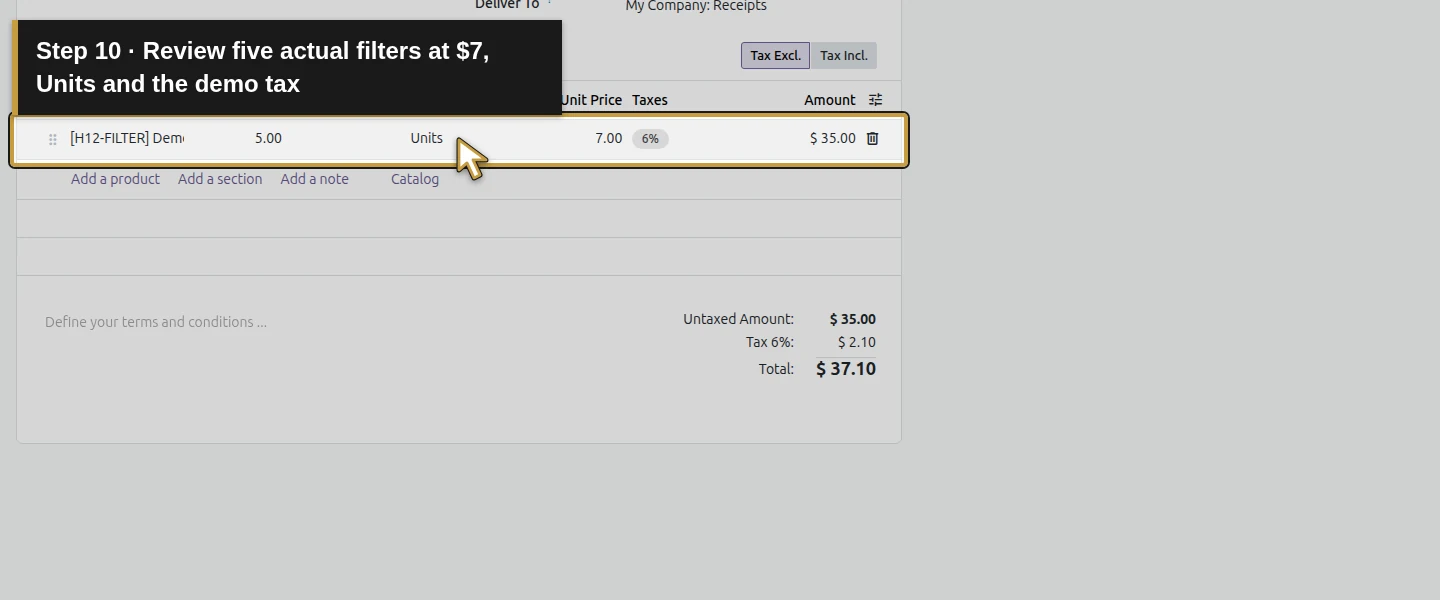
In the purchaser session, open Purchase → New, select Demo Supply H10 and set Vendor Reference DEMO-H31-BELOW. Add actual product H12-FILTER, Quantity 5, Unit Price 7, Units and the existing 6% demo tax. Leave the price field and review $35 + $2.10 = $37.10. Save, wait for P00002, then choose Confirm Order. It becomes Purchase Order and prepares a receipt; stock is not received.
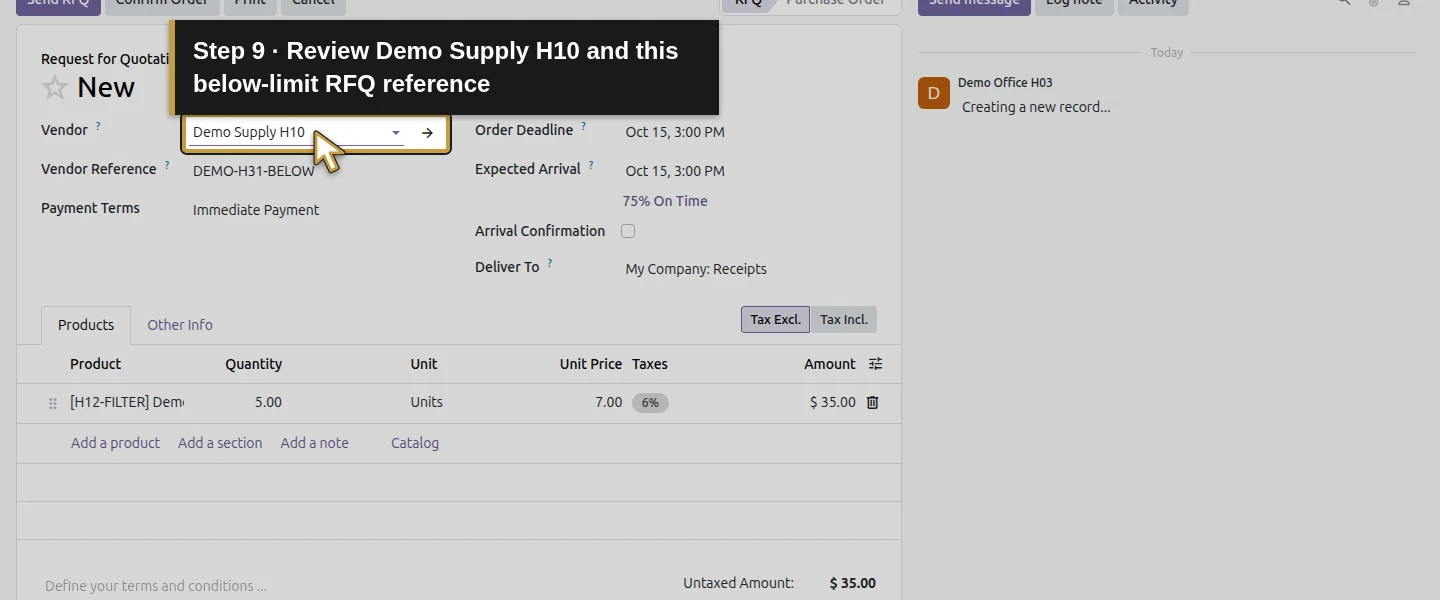
Action 9: Review Demo Supply H10 and this below-limit RFQ reference. The actual target is highlighted in gold.
Review Demo Supply H10 and this below-limit RFQ reference.
Action 10: Review five actual filters at $7, Units and the demo tax. The actual target is highlighted in gold.
Review five actual filters at $7, Units and the demo tax.
Action 11: Review $35 plus $2.10 tax: $37.10 below the limit. The actual target is highlighted in gold.
Review $35 plus $2.10 tax: $37.10 below the limit.
Action 12: Save the purchaser’s below-limit RFQ once. The actual target is highlighted in gold.
Save the purchaser’s below-limit RFQ once.
Action 13: Confirm the below-limit order as the purchaser. The actual target is highlighted in gold.
Confirm the below-limit order as the purchaser.
Action 14: P00002 reopens as a Purchase Order; its receipt is not received. The actual target is highlighted in gold.
P00002 reopens as a Purchase Order; its receipt is not received.

Step 4. Check an above-limit order

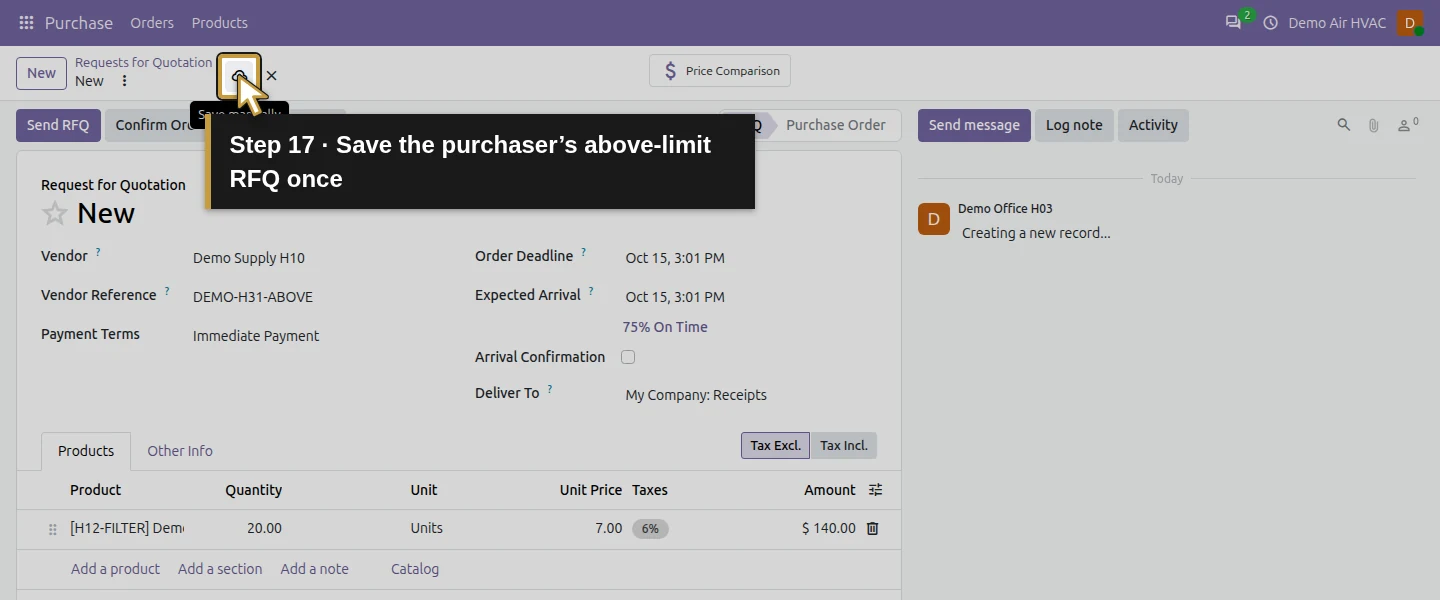
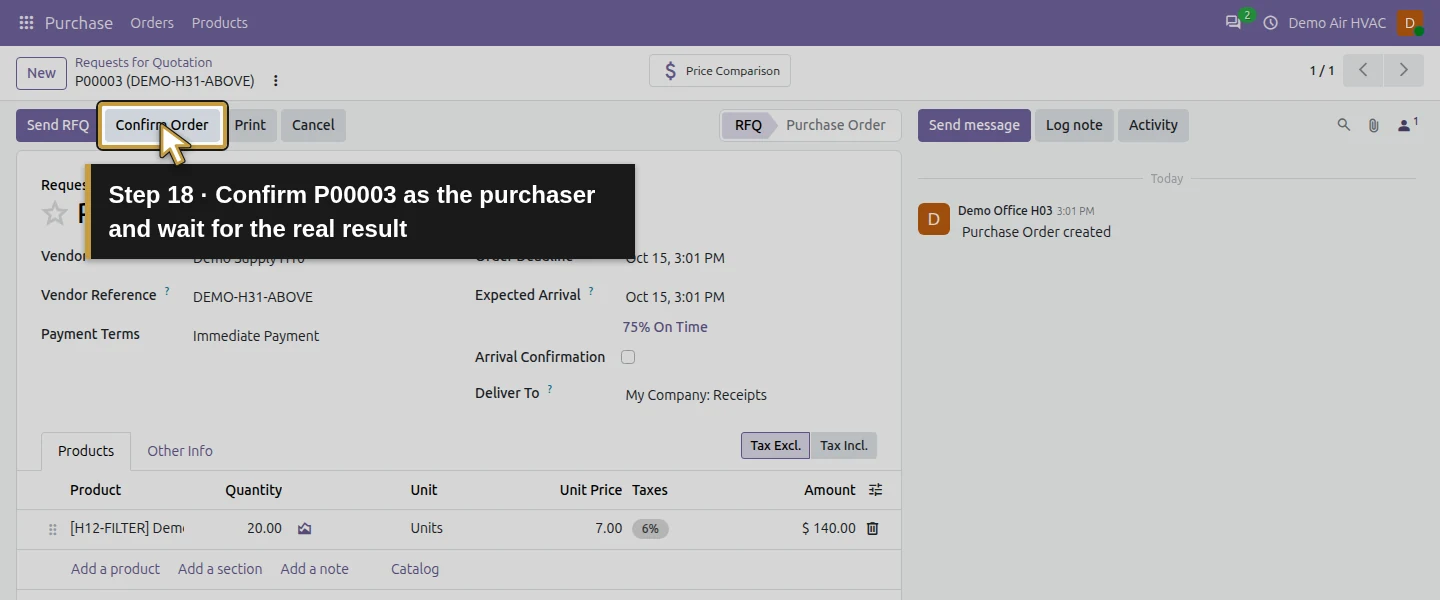
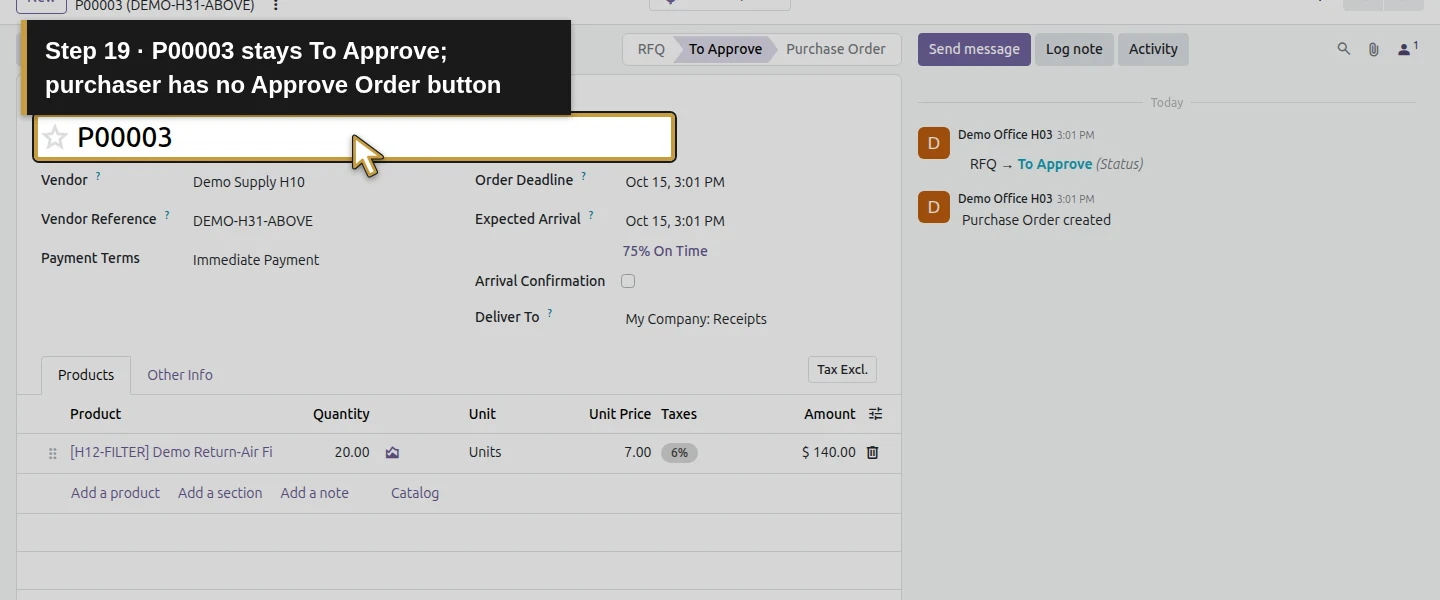
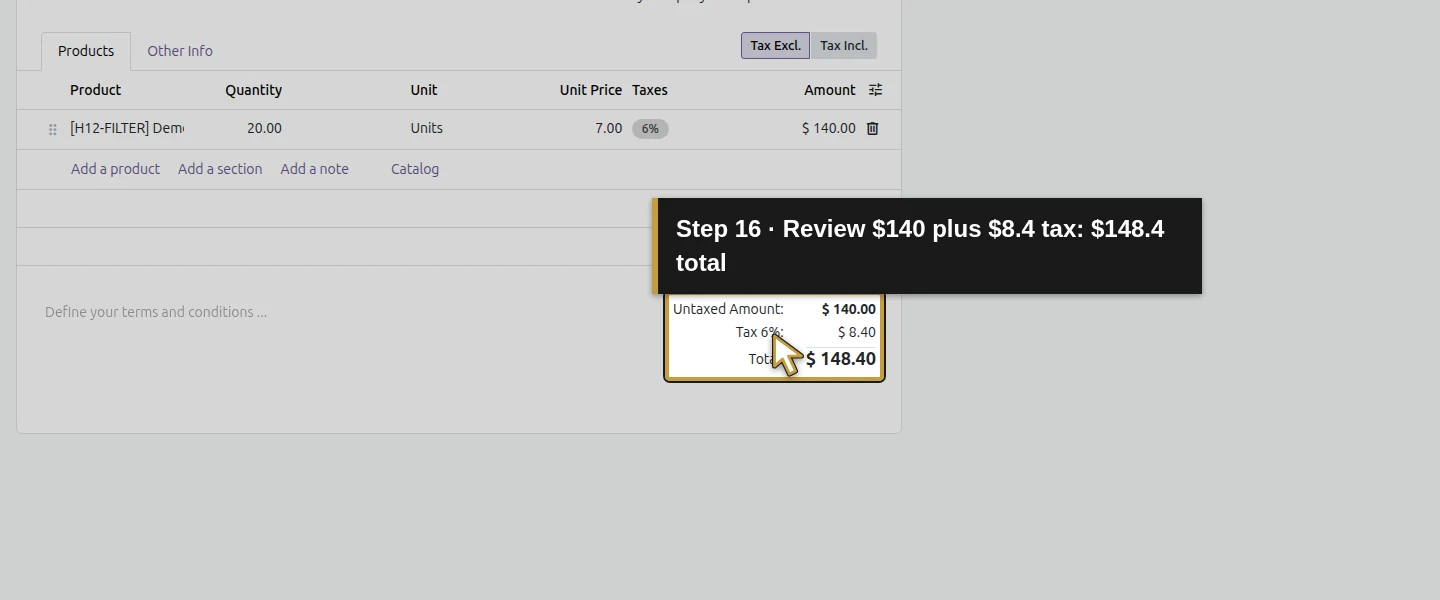
As the same purchaser, create DEMO-H31-ABOVE with 20 filters at $7, total $148.40. Save P00003 and choose Confirm Order. Reopen it: the status is To Approve, with no receipt yet. The purchaser's form has no Approve Order button. Review the visible state; this test does not claim coverage of every possible API or edited-order case.
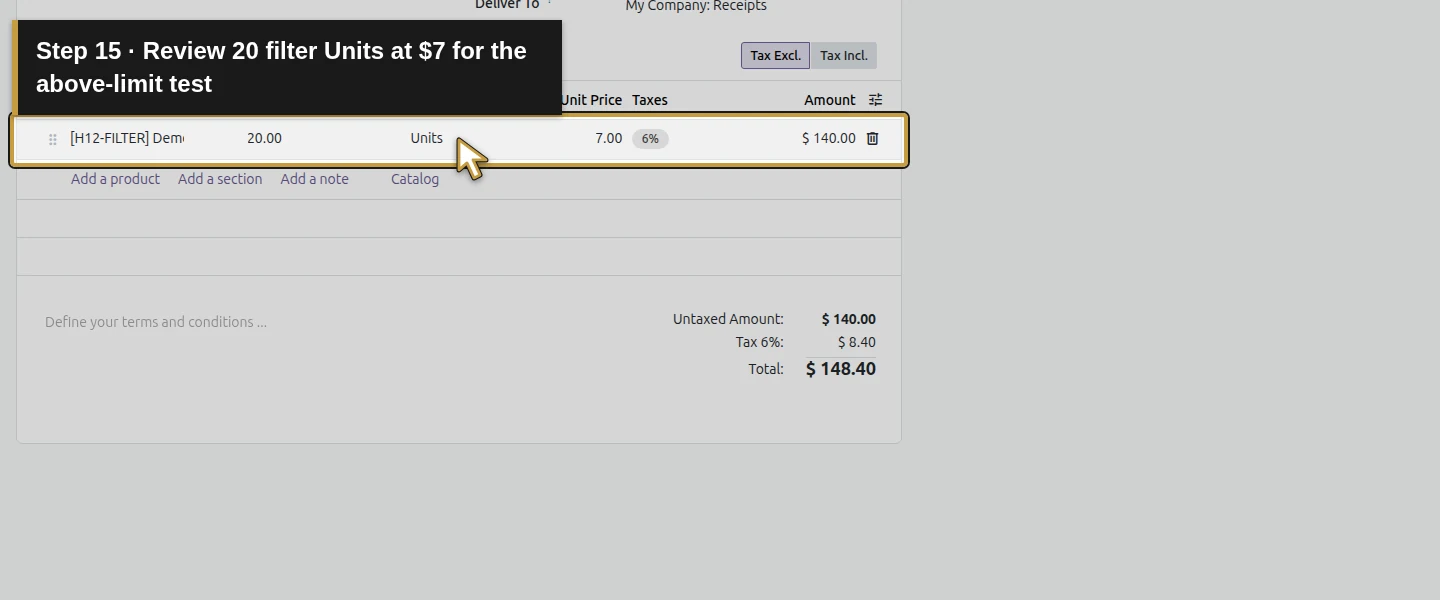
Action 15: Review 20 filter Units at $7 for the above-limit test. The actual target is highlighted in gold.
Review 20 filter Units at $7 for the above-limit test.
Action 16: Review $140 plus $8.4 tax: $148.4 total. The actual target is highlighted in gold.
Review $140 plus $8.4 tax: $148.4 total.
Action 17: Save the purchaser’s above-limit RFQ once. The actual target is highlighted in gold.
Save the purchaser’s above-limit RFQ once.
Action 18: Confirm P00003 as the purchaser and wait for the real result. The actual target is highlighted in gold.
Confirm P00003 as the purchaser and wait for the real result.
Action 19: P00003 stays To Approve; purchaser has no Approve Order button. The actual target is highlighted in gold.
P00003 stays To Approve; purchaser has no Approve Order button.

Step 5. Test exactly the threshold

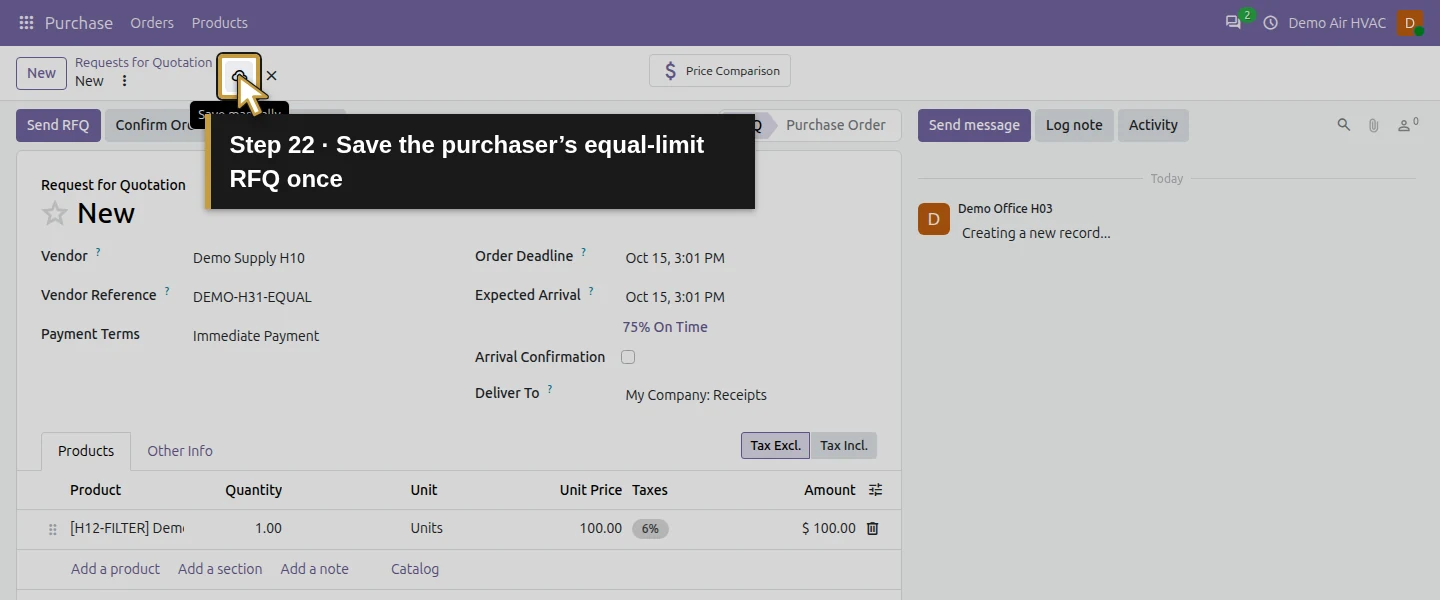
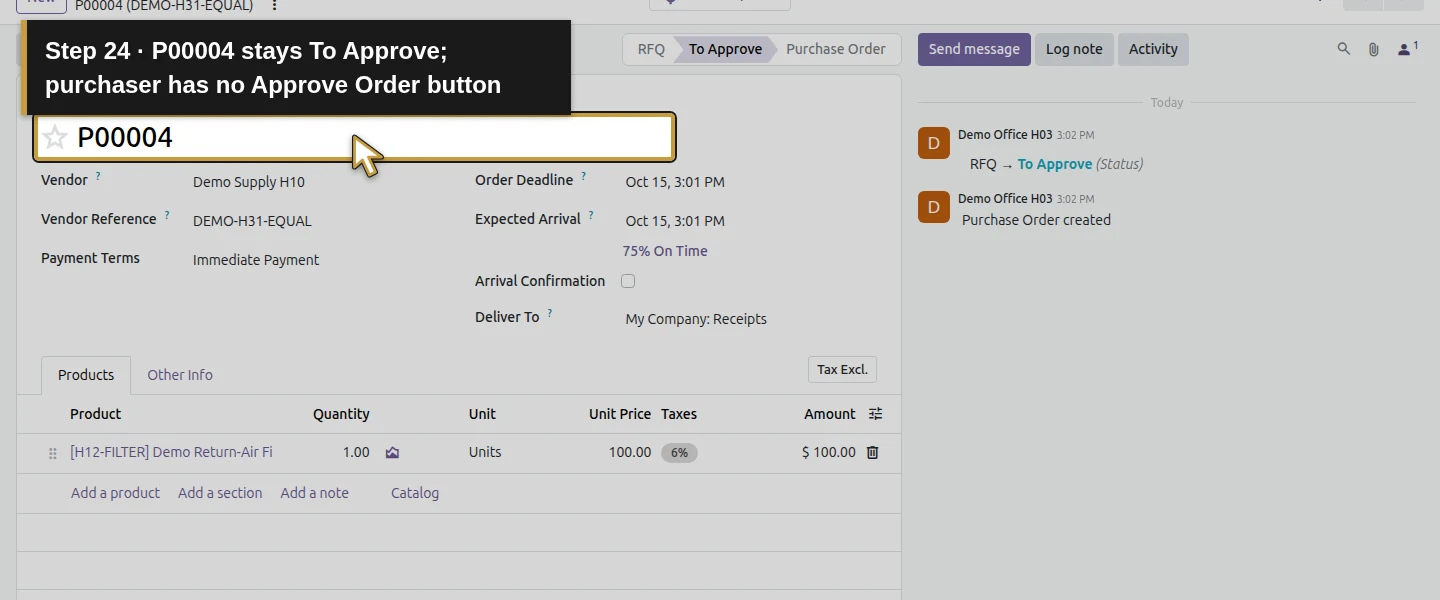
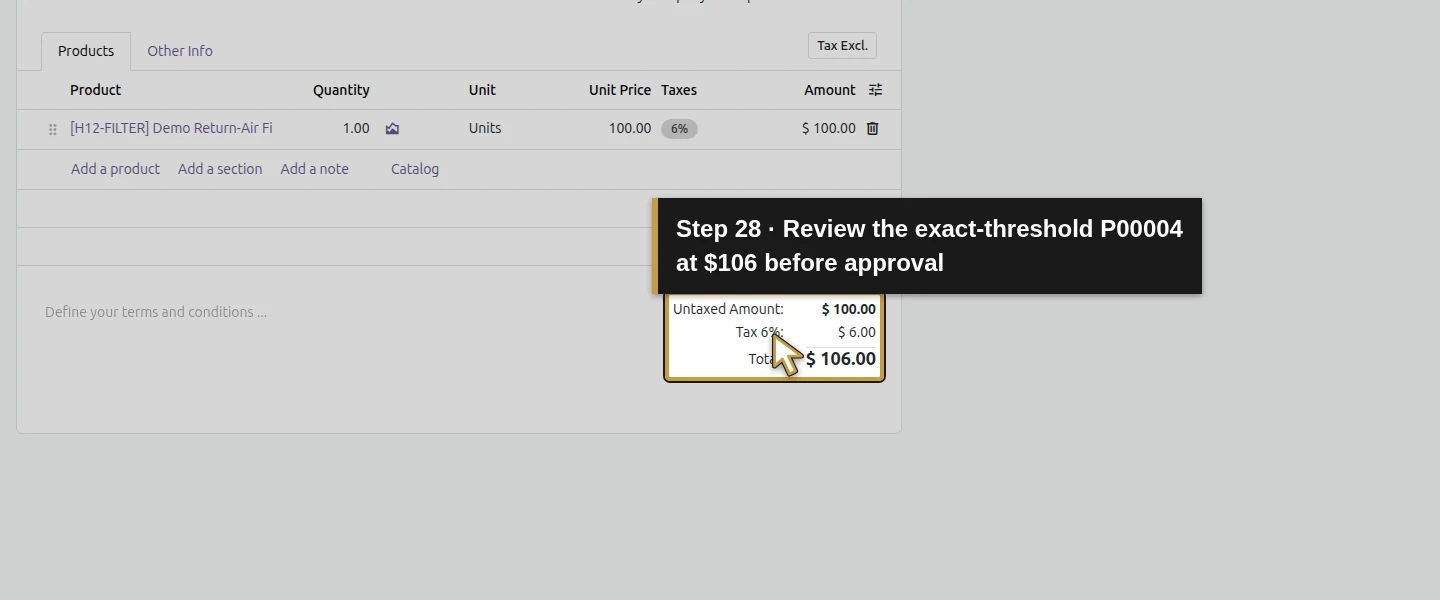
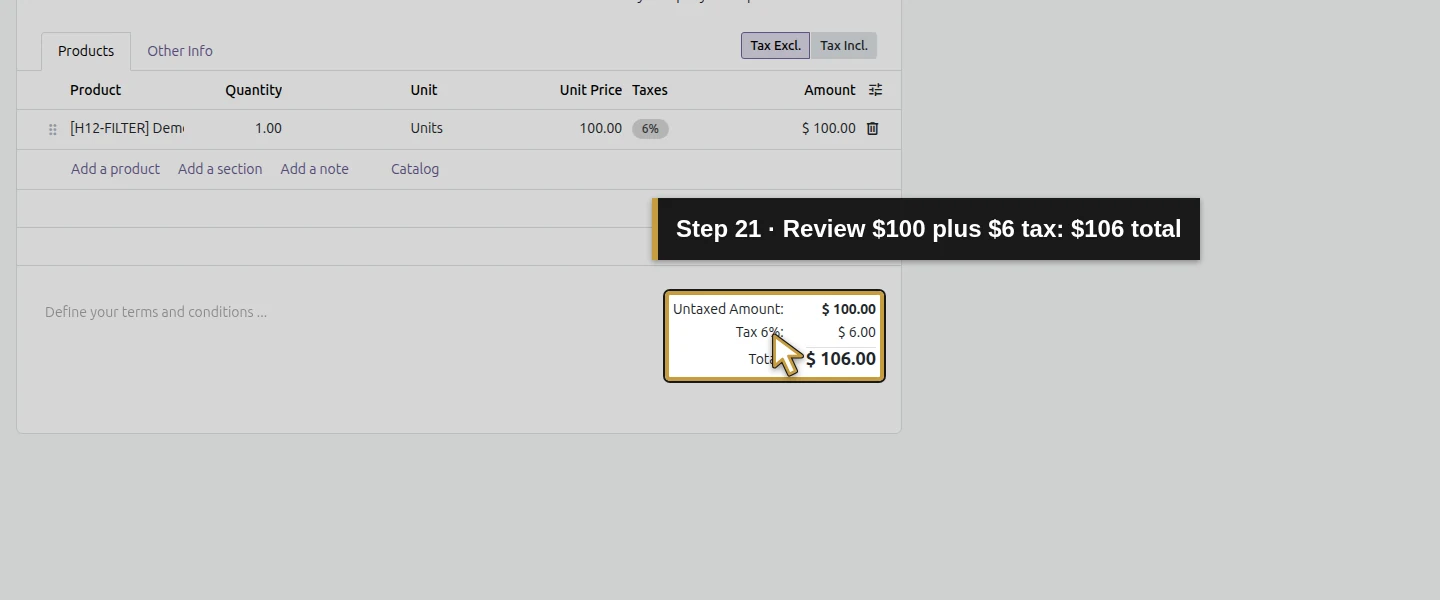
Create DEMO-H31-EQUAL as the purchaser, using one filter at the illustrative $100 price, total $100 + $6 = $106. Save P00004 and confirm. It also stays To Approve with no receipt. In this test, the limit compares the total including tax and includes equality.
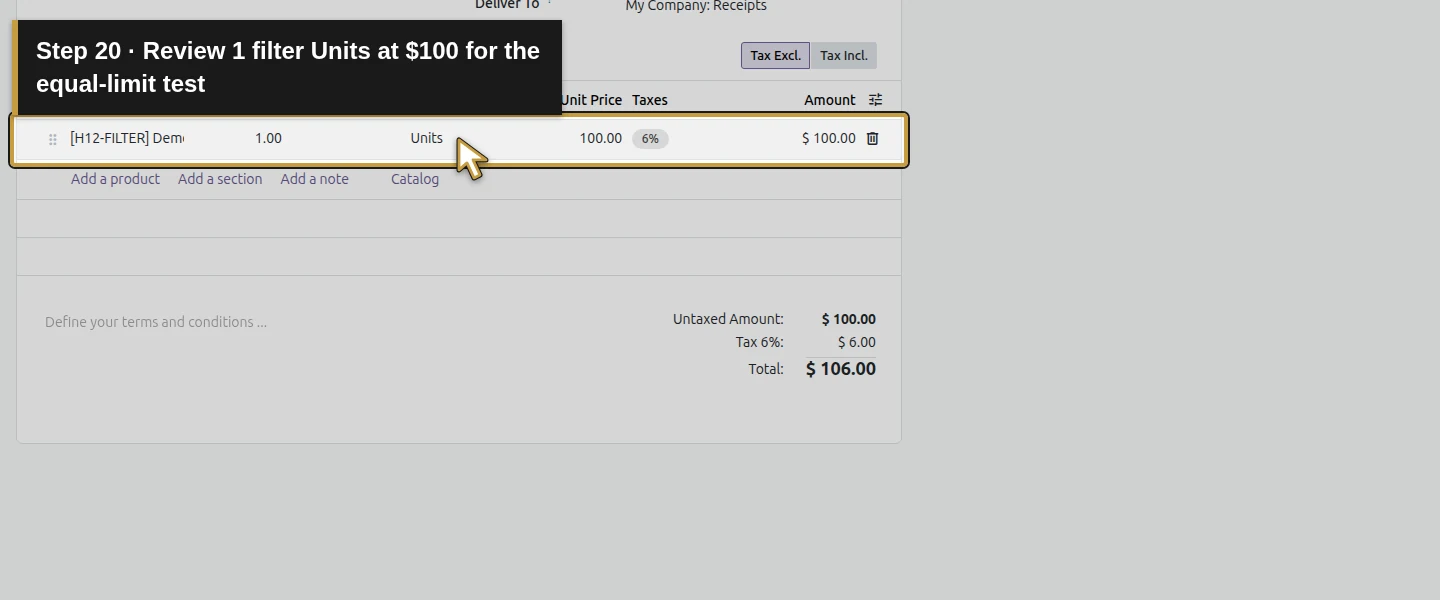
Action 20: Review 1 filter Units at $100 for the equal-limit test. The actual target is highlighted in gold.
Review 1 filter Units at $100 for the equal-limit test.
Action 21: Review $100 plus $6 tax: $106 total. The actual target is highlighted in gold.
Review $100 plus $6 tax: $106 total.
Action 22: Save the purchaser’s equal-limit RFQ once. The actual target is highlighted in gold.
Save the purchaser’s equal-limit RFQ once.
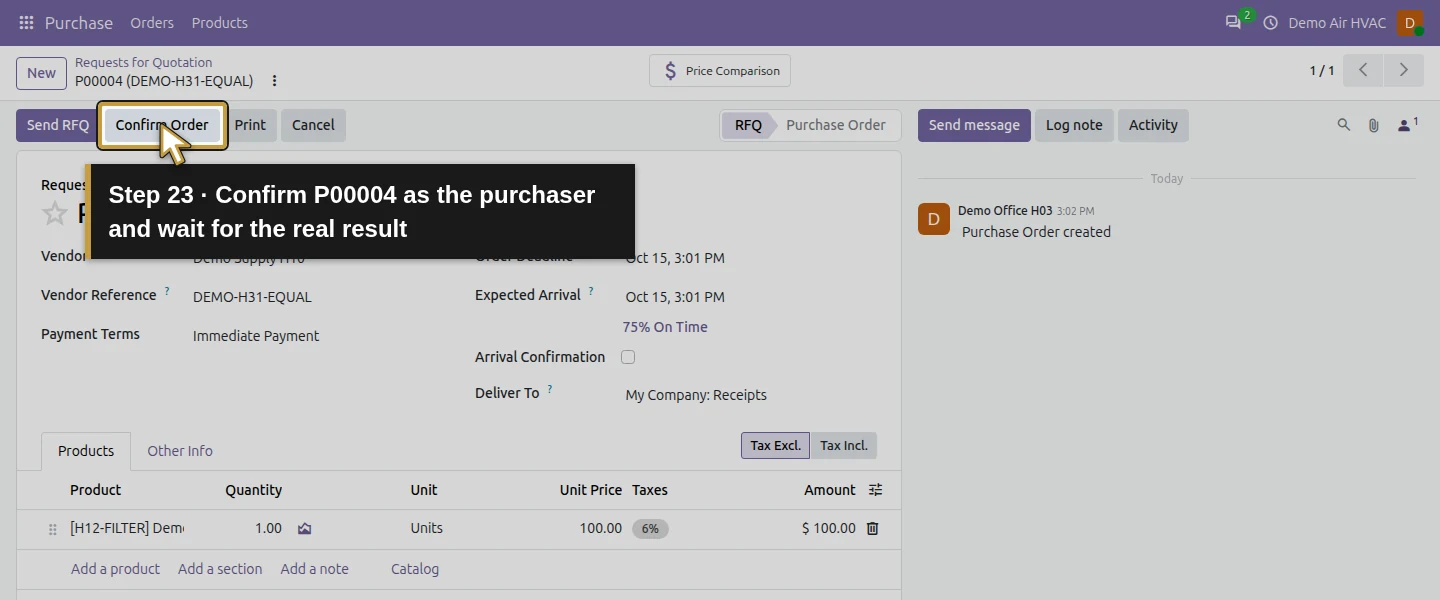
Action 23: Confirm P00004 as the purchaser and wait for the real result. The actual target is highlighted in gold.
Confirm P00004 as the purchaser and wait for the real result.
Action 24: P00004 stays To Approve; purchaser has no Approve Order button. The actual target is highlighted in gold.
P00004 stays To Approve; purchaser has no Approve Order button.

Step 6. Approve the waiting orders as the manager

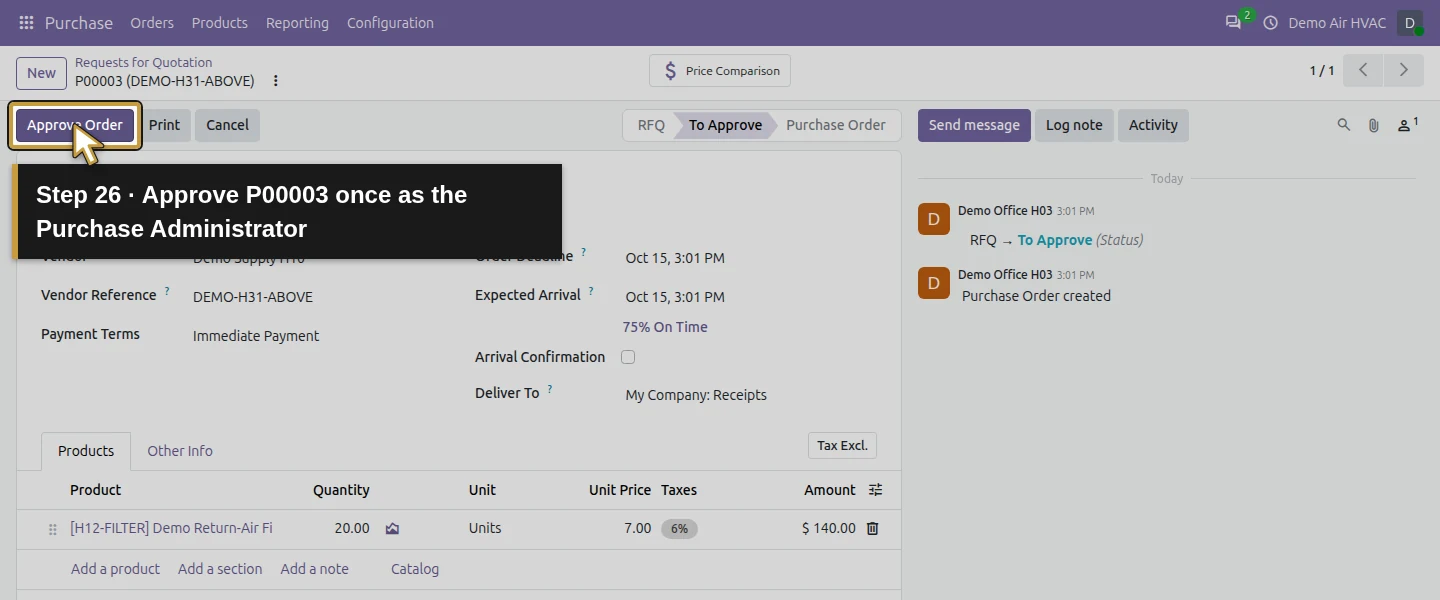
In the Demo Air Owner session, open P00003 and review supplier, quantities, costs and total. Choose Approve Order. Repeat for P00004, then reopen both. Each becomes Purchase Order and gains one pending receipt. Do not validate receipts in this approval lesson.
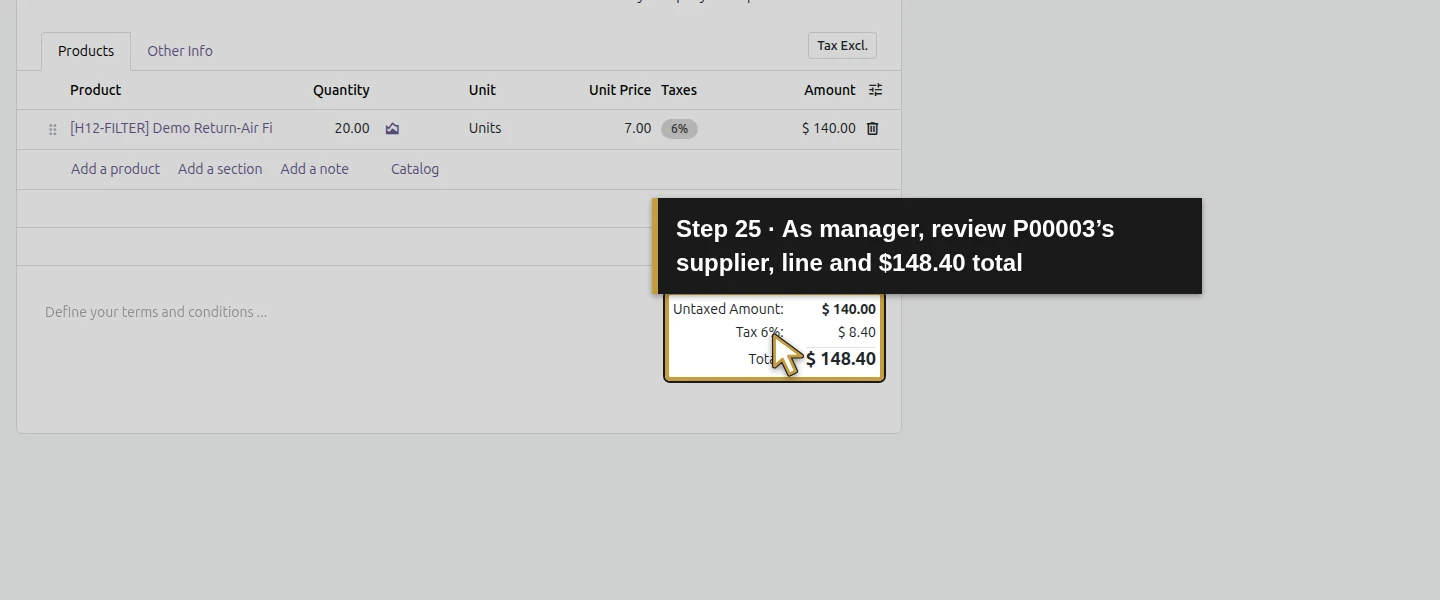
Action 25: As manager, review P00003’s supplier, line and $148.40 total. The actual target is highlighted in gold.
As manager, review P00003’s supplier, line and $148.40 total.
Action 26: Approve P00003 once as the Purchase Administrator. The actual target is highlighted in gold.
Approve P00003 once as the Purchase Administrator.
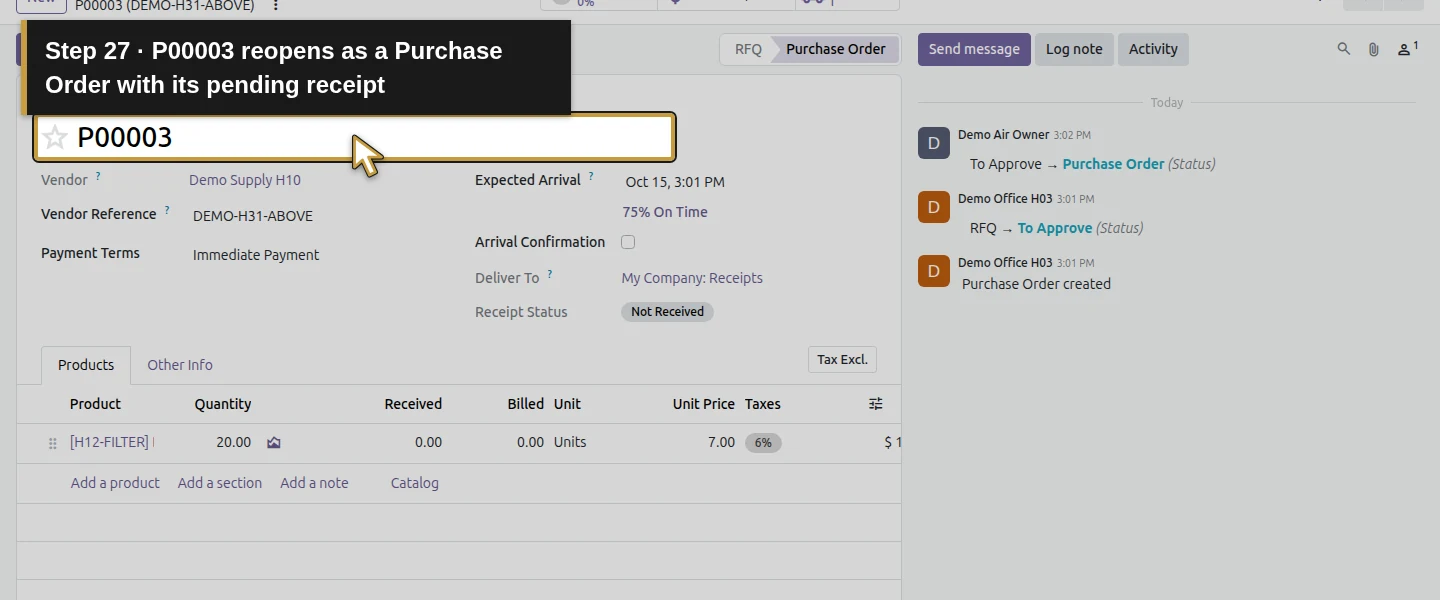
Action 27: P00003 reopens as a Purchase Order with its pending receipt. The actual target is highlighted in gold.
P00003 reopens as a Purchase Order with its pending receipt.
Action 28: Review the exact-threshold P00004 at $106 before approval. The actual target is highlighted in gold.
Review the exact-threshold P00004 at $106 before approval.
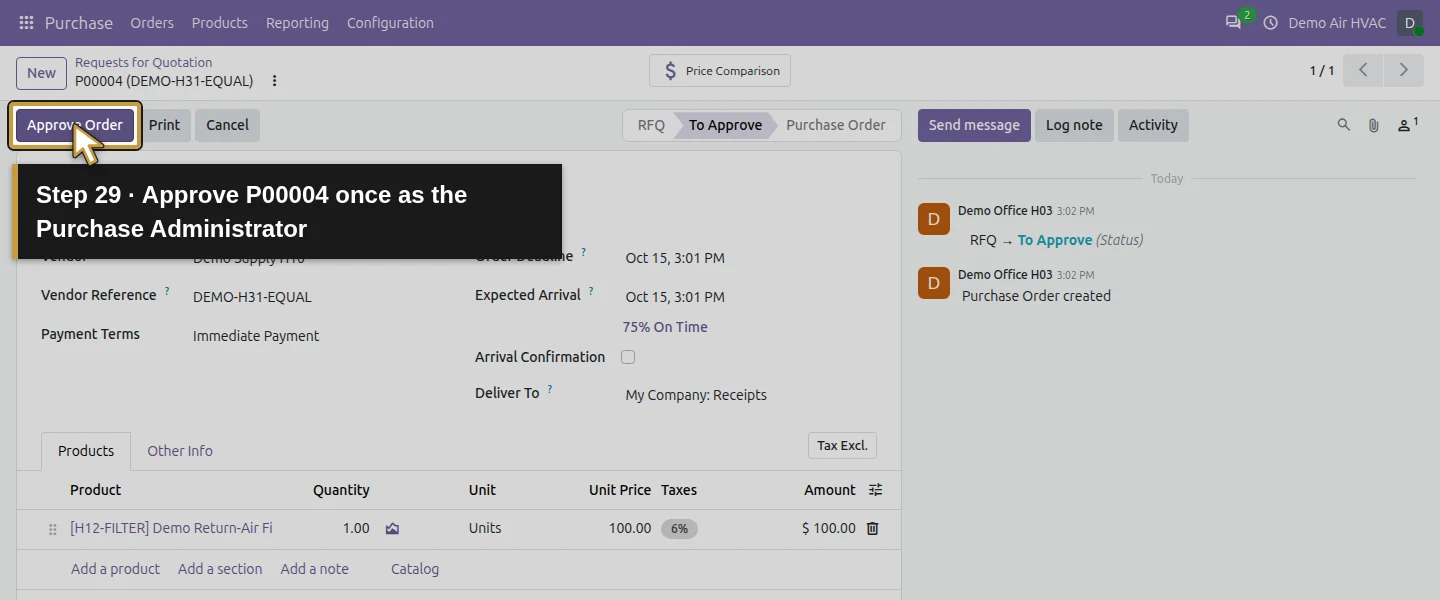
Action 29: Approve P00004 once as the Purchase Administrator. The actual target is highlighted in gold.
Approve P00004 once as the Purchase Administrator.
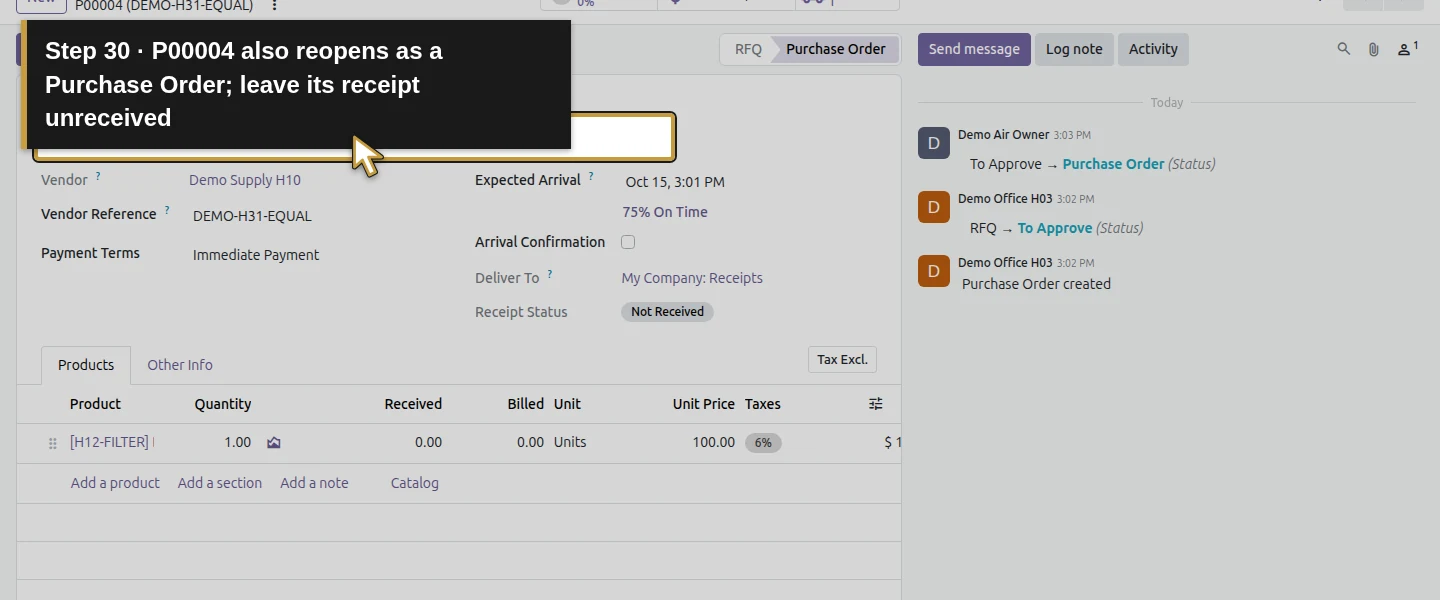
Action 30: P00004 also reopens as a Purchase Order; leave its receipt unreceived. The actual target is highlighted in gold.
P00004 also reopens as a Purchase Order; leave its receipt unreceived.

Step 7. Check the manager exception

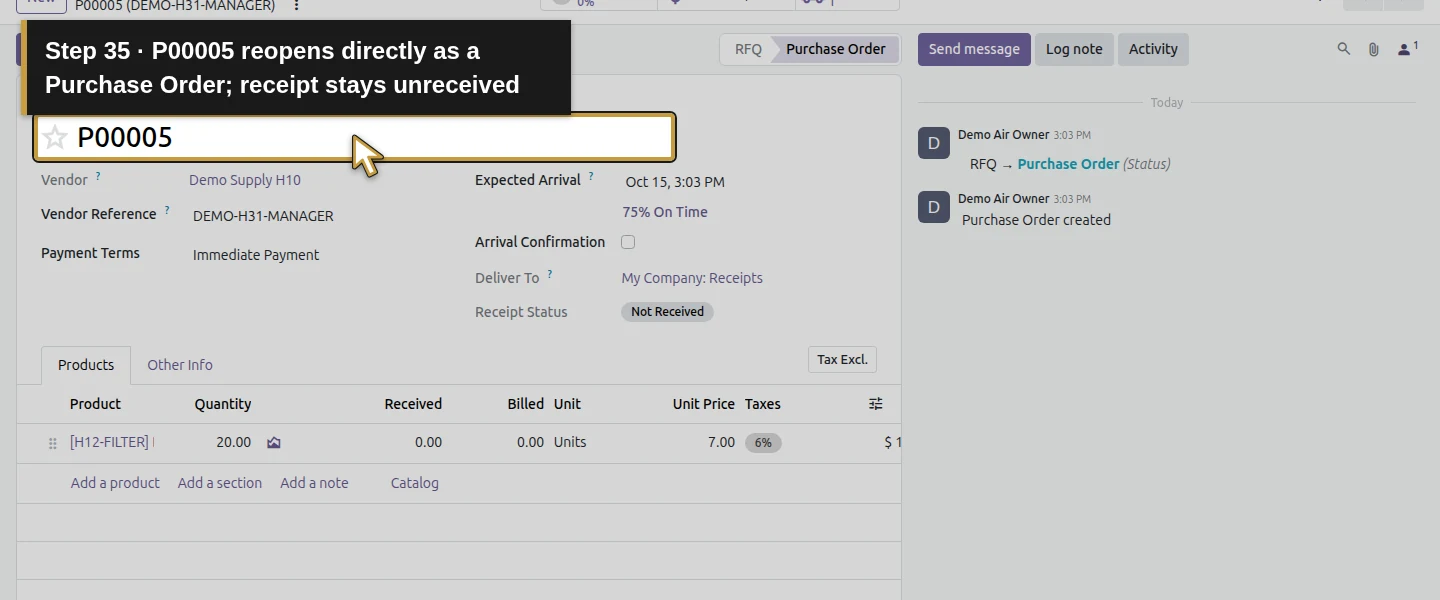
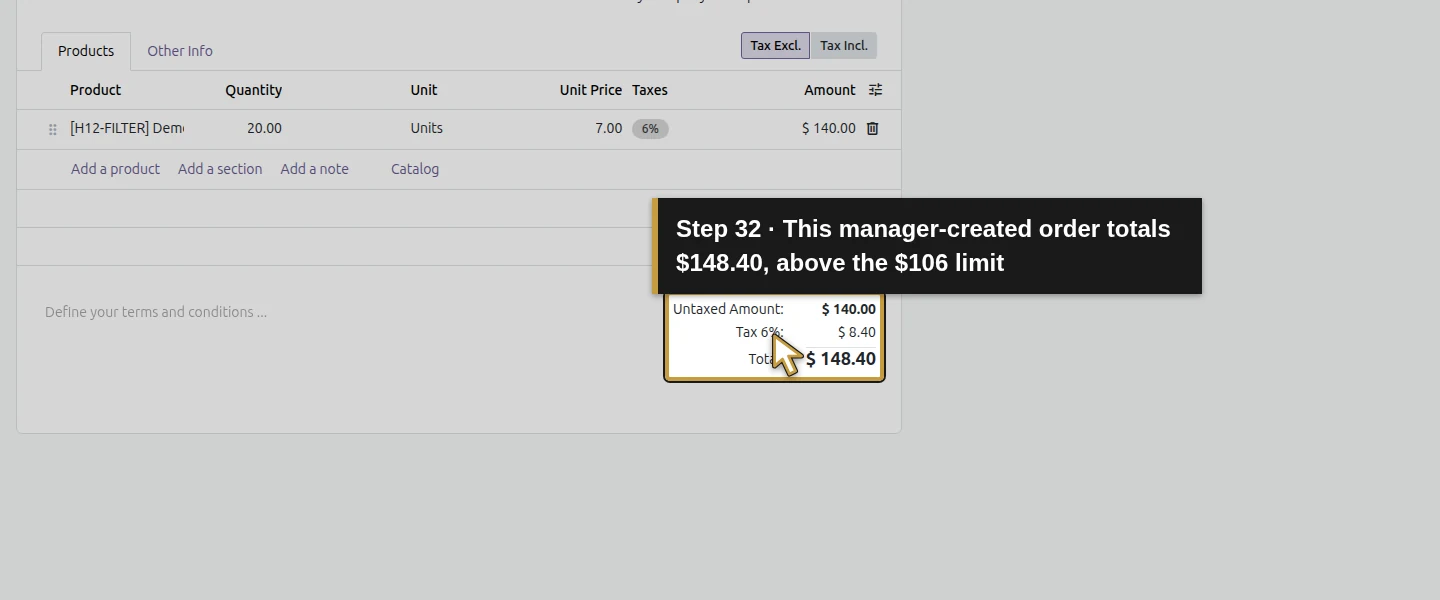
The training test also creates DEMO-H31-MANAGER/P00005 as Demo Air Owner with 20 filters at $7 and a $148.40 total. Confirm Order takes it straight to Purchase Order despite exceeding the limit. This verifies the Purchase Administrator exception: the native setting does not guarantee that every purchase has a second person's approval.
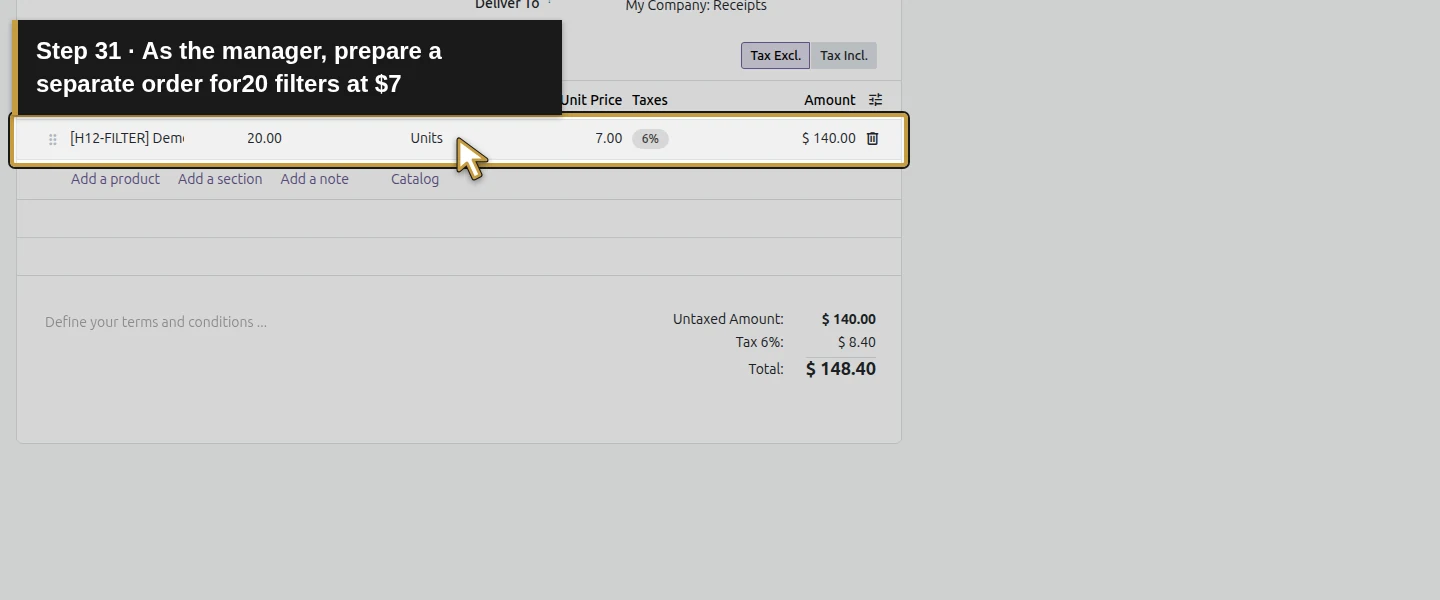
Action 31: As the manager, prepare a separate order for20 filters at $7. The actual target is highlighted in gold.
As the manager, prepare a separate order for20 filters at $7.
Action 32: This manager-created order totals $148.40, above the $106 limit. The actual target is highlighted in gold.
This manager-created order totals $148.40, above the $106 limit.
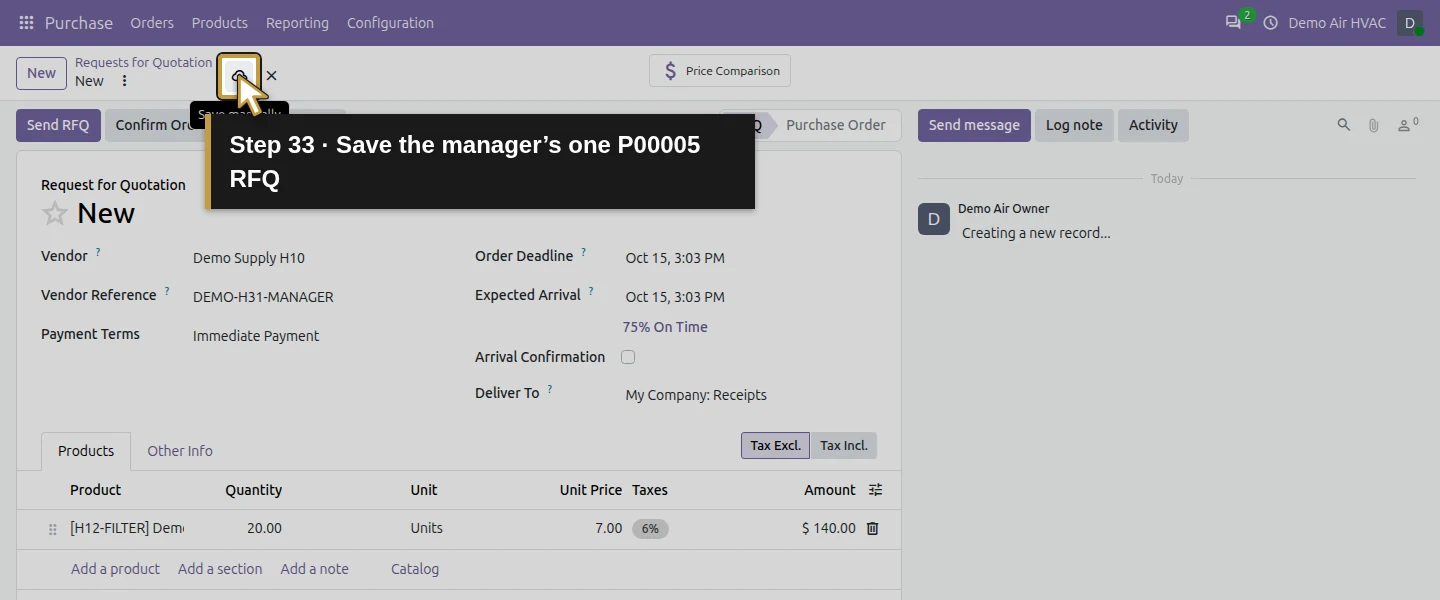
Action 33: Save the manager’s one P00005 RFQ. The actual target is highlighted in gold.
Save the manager’s one P00005 RFQ.
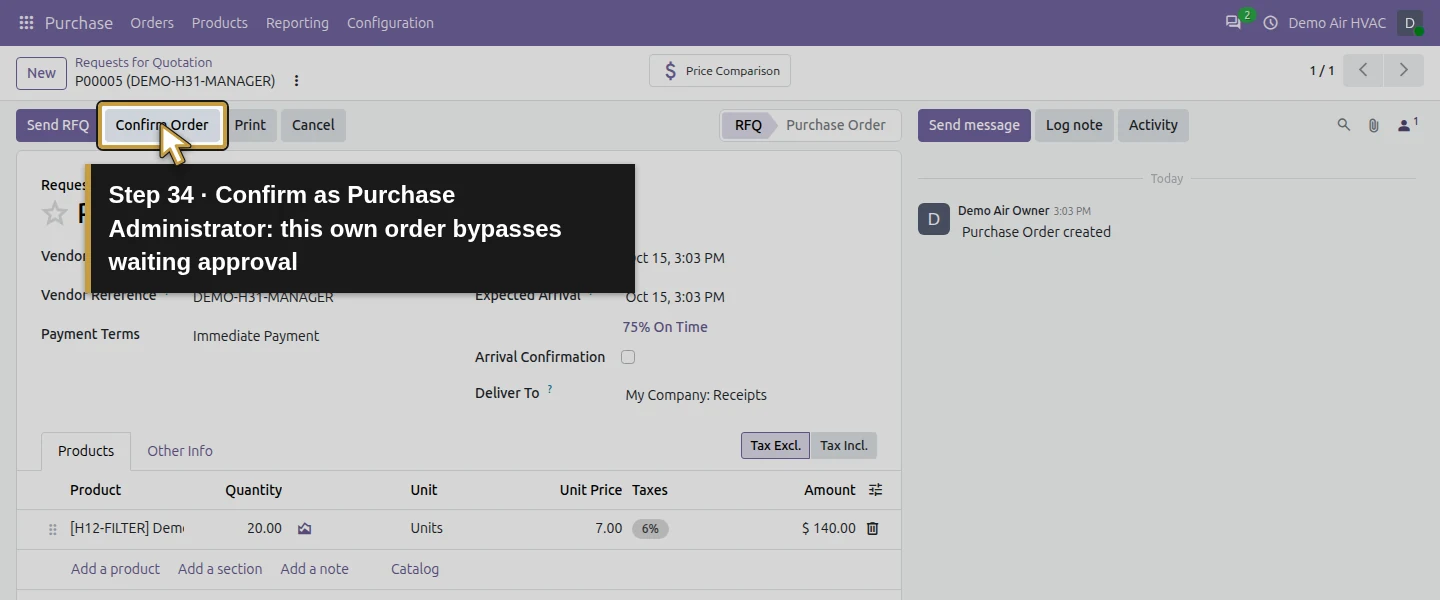
Action 34: Confirm as Purchase Administrator: this own order bypasses waiting approval. The actual target is highlighted in gold.
Confirm as Purchase Administrator: this own order bypasses waiting approval.
Action 35: P00005 reopens directly as a Purchase Order; receipt stays unreceived. The actual target is highlighted in gold.
P00005 reopens directly as a Purchase Order; receipt stays unreceived.

Check the result

The purchaser's $37.10 P00002 confirmed directly. Purchaser-created P00003 at $148.40 and P00004 at exactly $106 waited To Approve without receipts; the purchaser had no Approve Order button. The manager approved both, creating pending receipts. Manager-created P00005 at $148.40 confirmed directly. All four are now Purchase Orders with unreceived receipts and no new bill; H12 stock remains five filters, one capacitor and zero condensers.

If your screen differs

Purchase Administrator can confirm above the limit, including a manager's own order. This is a native threshold and role workflow, not a guarantee of two different approvers for every purchase. The tested comparison includes total tax and equality in USD; other currencies, later edits, cancellation/reconfirmation and direct API authorization were not tested. Receipt Quantity can already be filled while its state is Ready; only a validated receipt establishes received stock.

Frequently asked questions

How do I require approval for large Odoo purchase orders? Enable Purchase Order Approval, save the minimum amount and give ordinary purchasers Purchase User access. In this test, their orders at or above $106 including tax waited To Approve until a Purchase Administrator used Approve Order.
Why can my Odoo user approve their own purchase order? The tested Purchase Administrator confirmed a $148.40 order directly despite the $106 limit. The Purchase User's above-limit order waited and its form had no Approve Order button. Review the actual role; this setting does not enforce a second person for every order.
Does Odoo purchase approval need Studio? This tested workflow uses the shipped Purchase Order Approval setting and native Purchase User/Administrator roles in the stated edition. No Studio, custom field or custom approval rule was used.

Continue building the business

Continue with serial-number tracking or the verified partial receipt.

Talk to an Odoo partner

Bring your current process and the result you need to Onward to plan your Odoo workflow. Talk to an Odoo partner.