
Running an HVAC business with Odoo
How do I set different customer prices in Odoo?
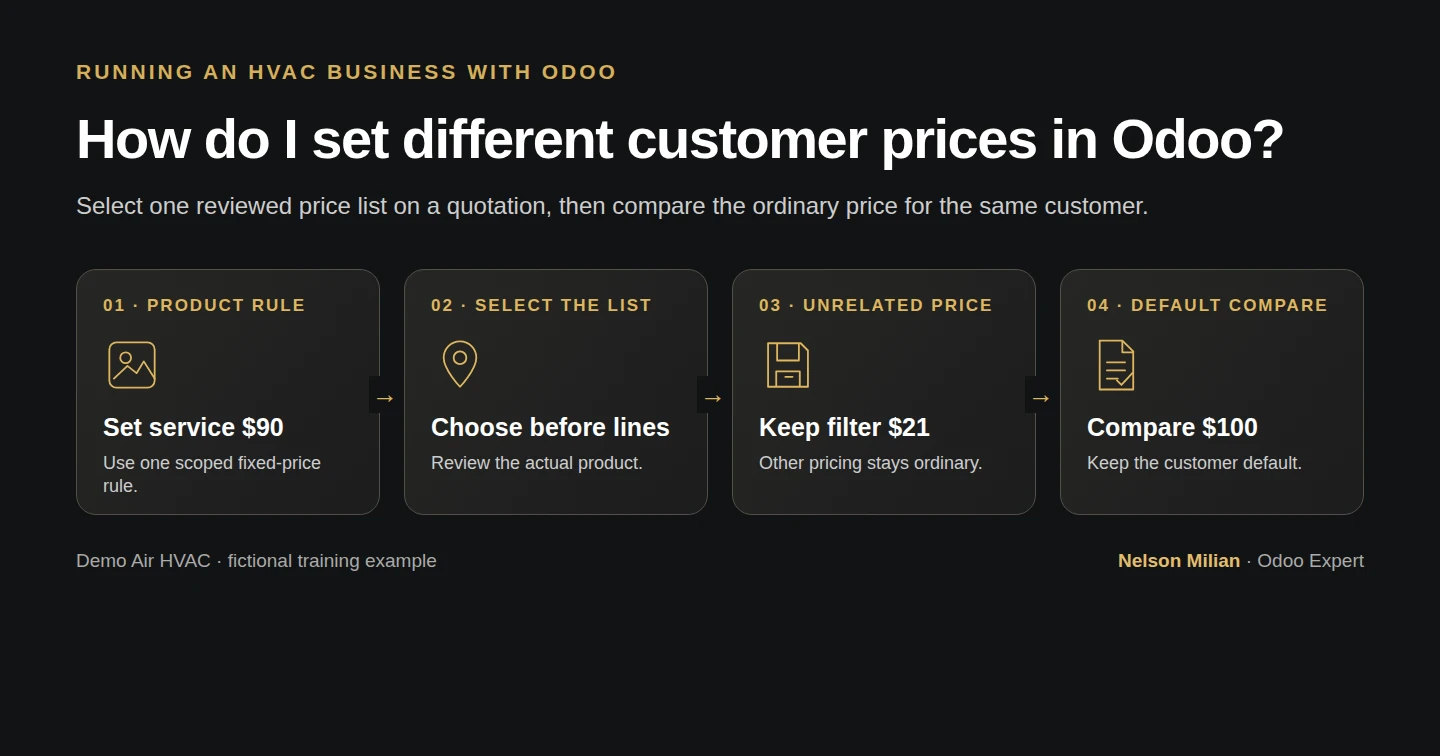
Create a product-specific Odoo pricelist and compare its saved quotation price with the ordinary customer price.
Alex offers a reviewed service-call price to one customer on a specific quotation. A native pricelist sets that price while unrelated products retain their ordinary rate. A second draft checks that the special price does not become the customer's default.
Alex Rivera and Demo Air HVAC are fictional training examples. Prices, dates, quantities and business situations in this guide are illustrative.
Before you begin
Tested in stock Odoo 20.0-20260926 Community as the demo owner administrator, with official modules and standard configuration. Complete service products, product import and the service quotation. Reuse Demo Property H08 and Demo Net 30 H06. Keep S00001/S00002/S00003 intact. This example selects a pricelist on the quotation; it does not change the customer's saved Default pricelist. Prices and 6% tax are fictional.
Step-by-step workflow
Stock Odoo 20 Community, owner role, one manually selected product-specific USD pricelist. Verify the $90 service-call price while the unrelated filter retains $21, then compare a separate Default quotation at $100. Both quotes stay drafts. Native product links, taxes and customer terms are checked. The example does not test customer-tag rules, expiry, currency conversion or repricing existing lines.
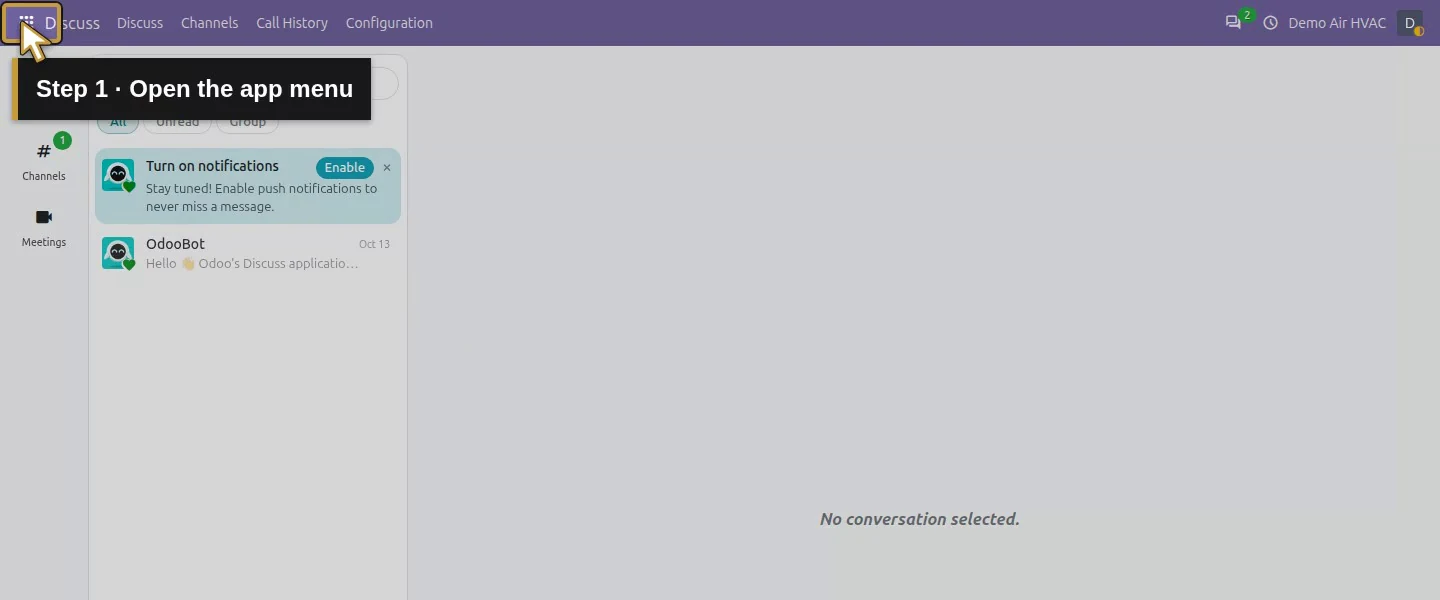
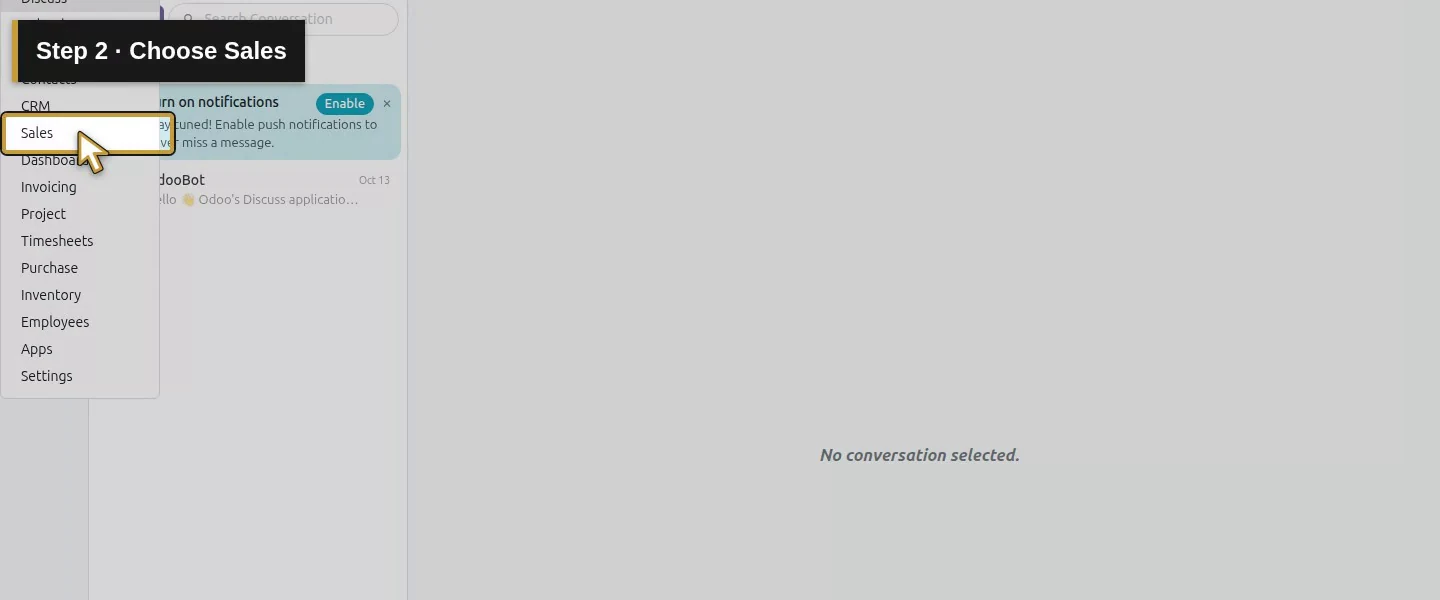
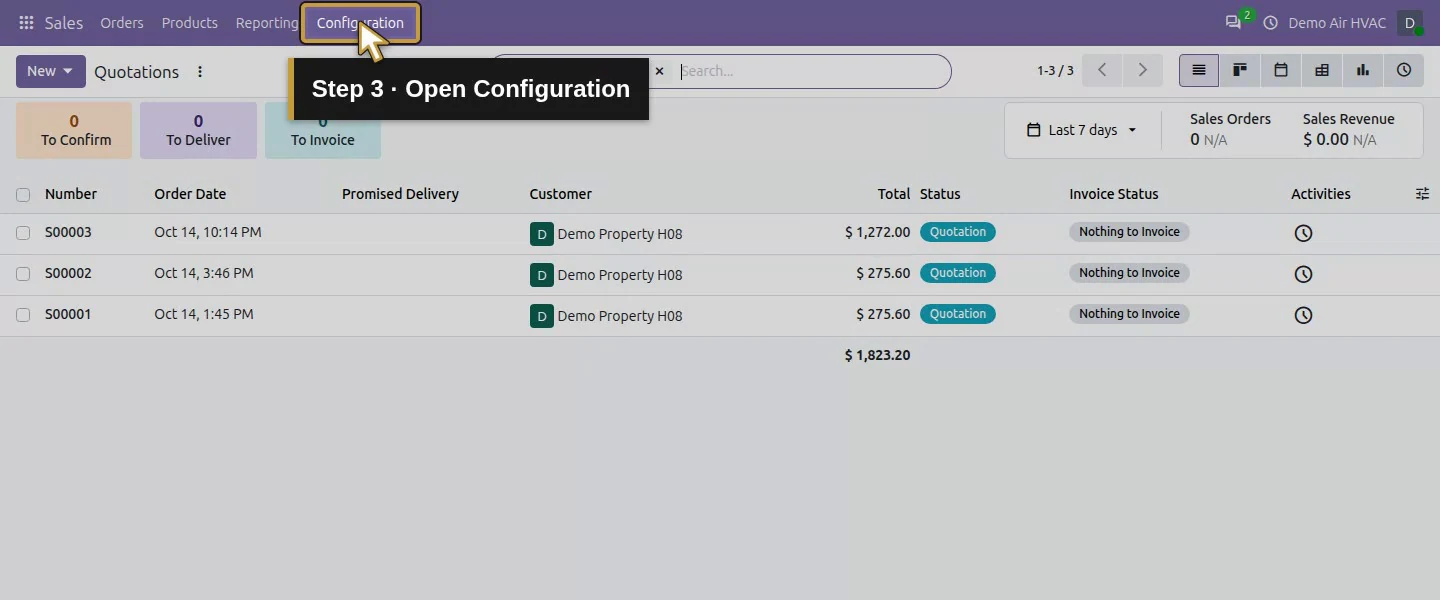
Step 1. Enable the native pricing feature
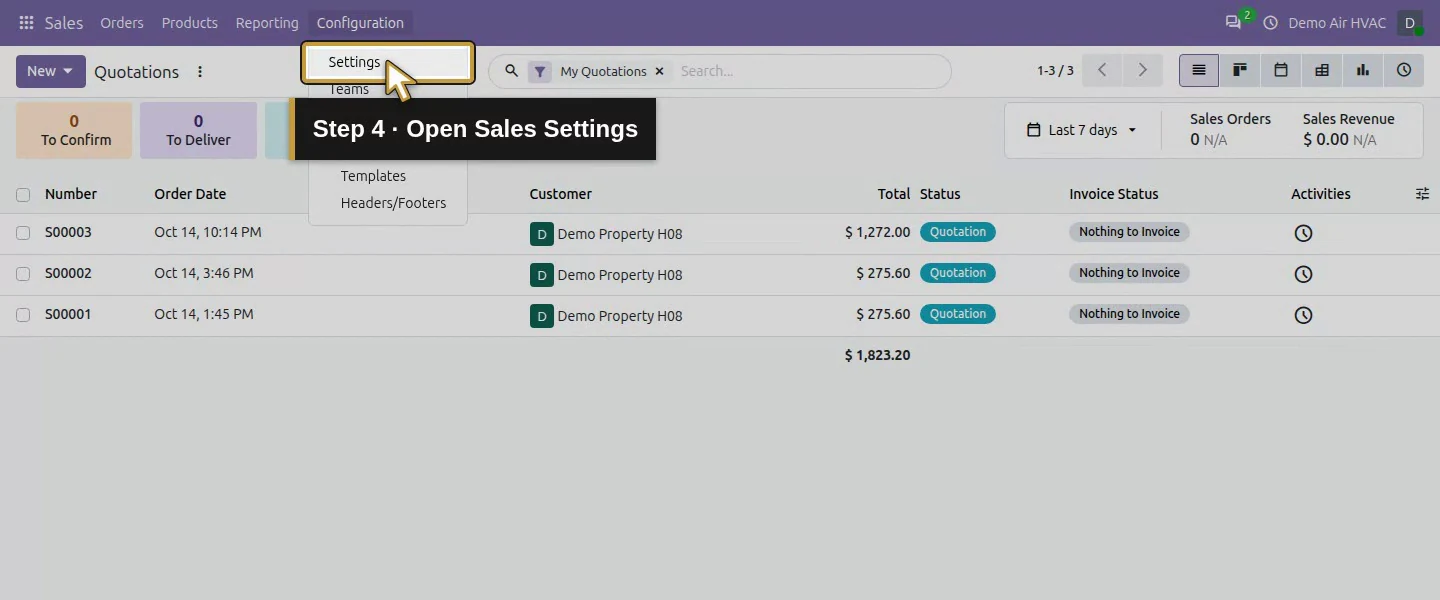
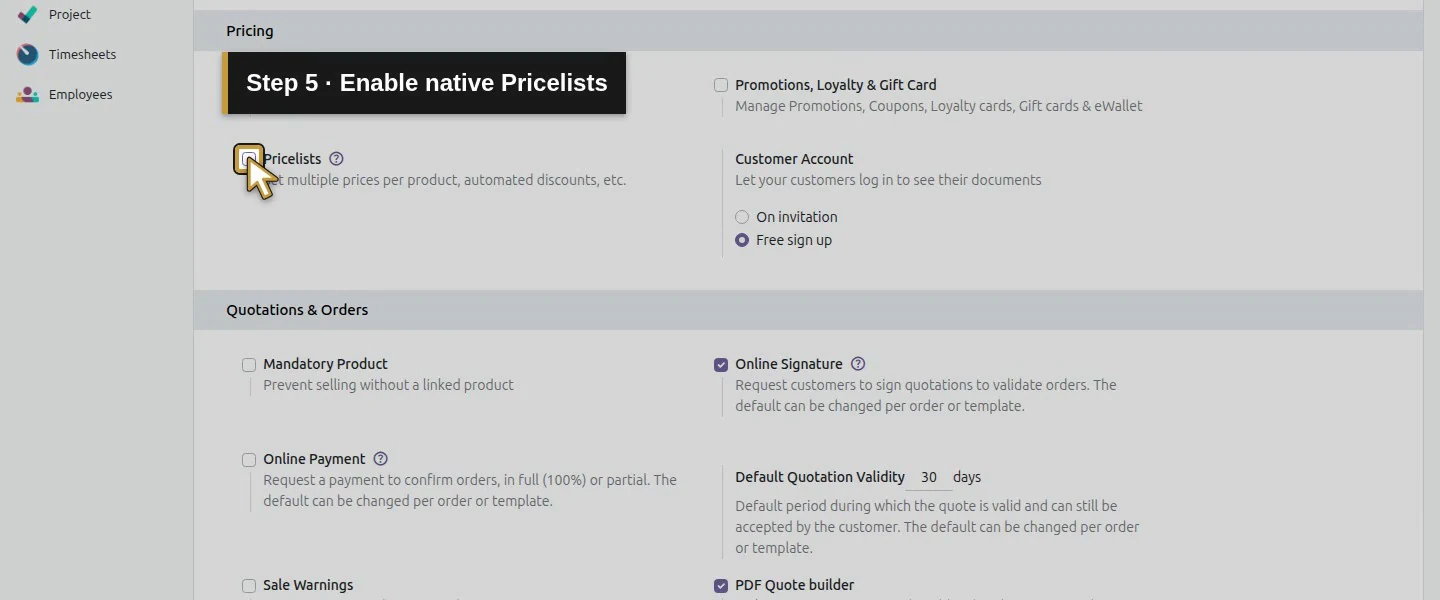
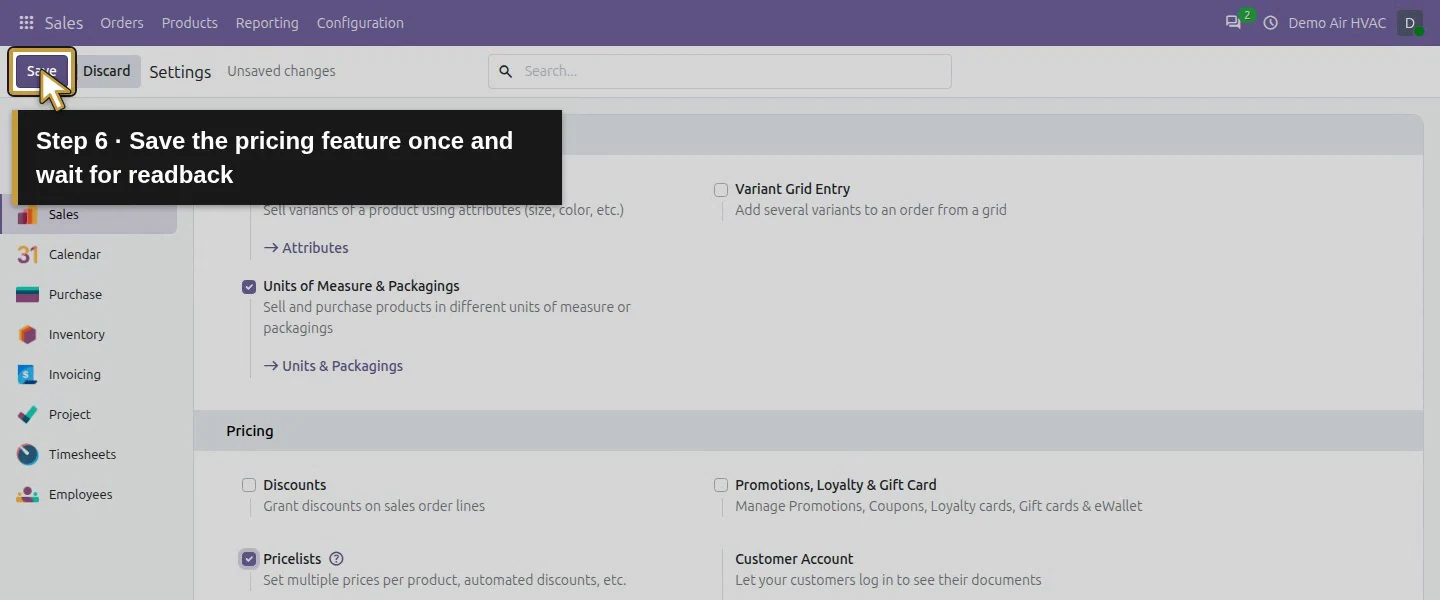
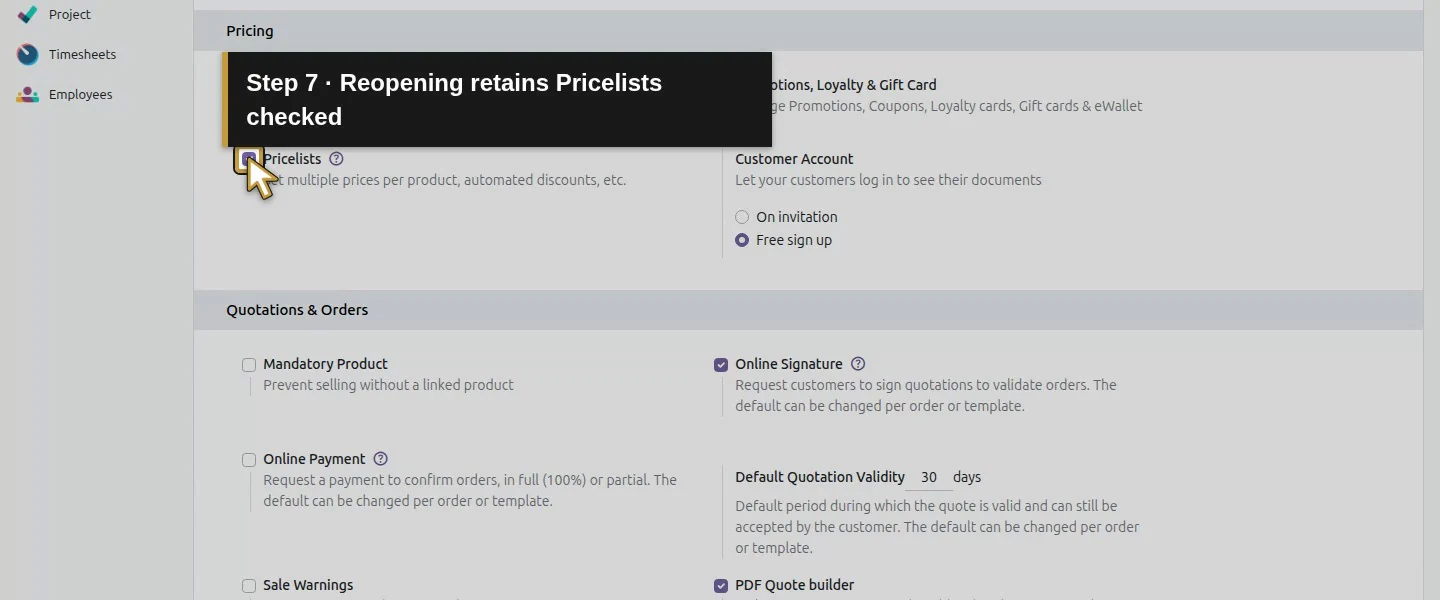
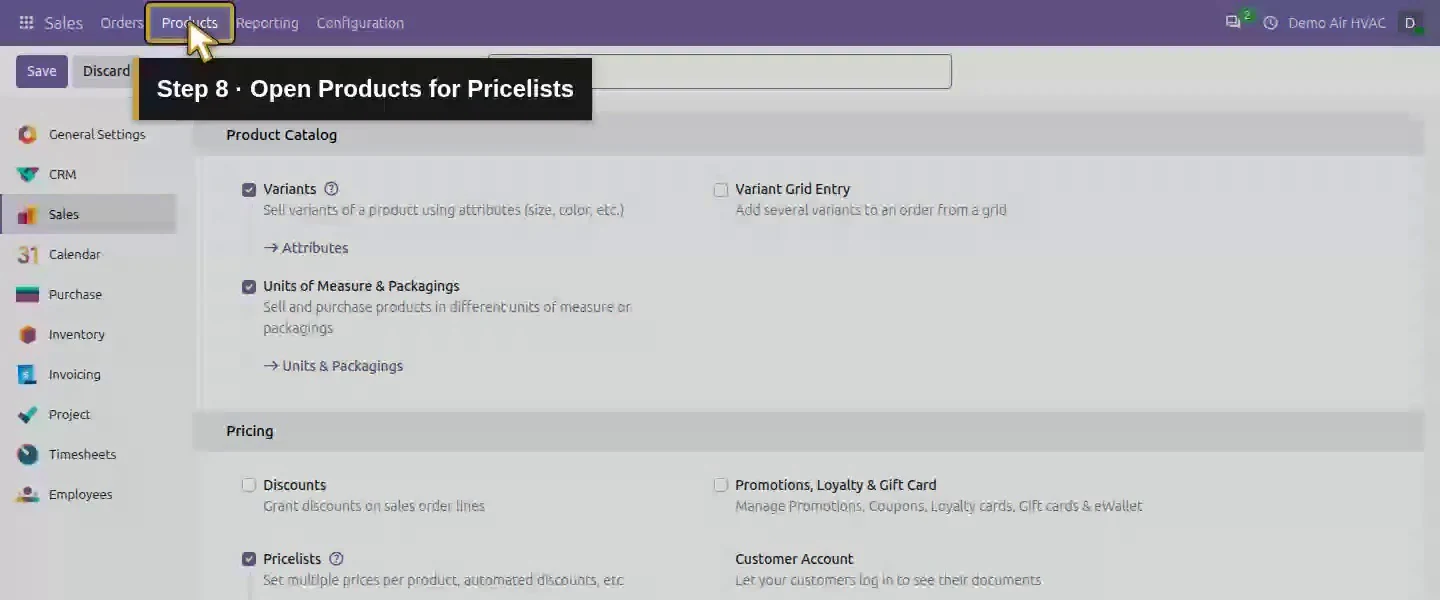
Open Sales → Configuration → Settings, check Pricelists and choose Save. The saved setting exposes Sales → Products → Pricelists and the Pricelist selector on new quotations.
Step 2. Create a rule for one product
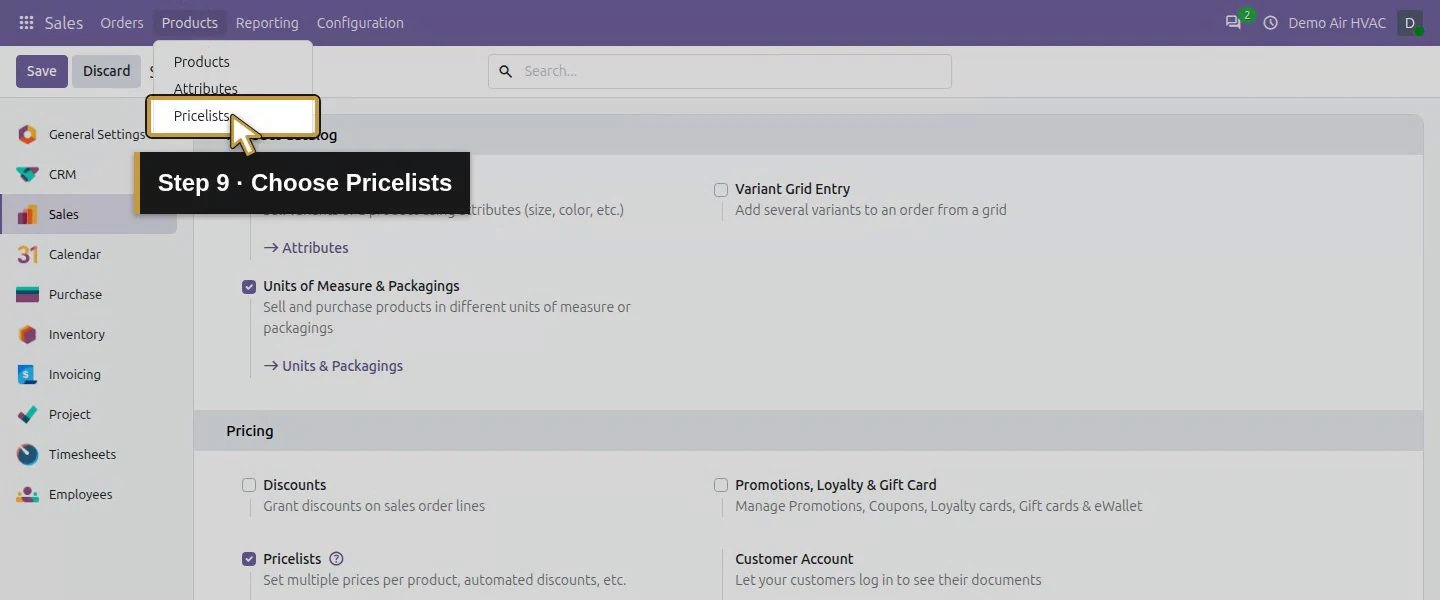
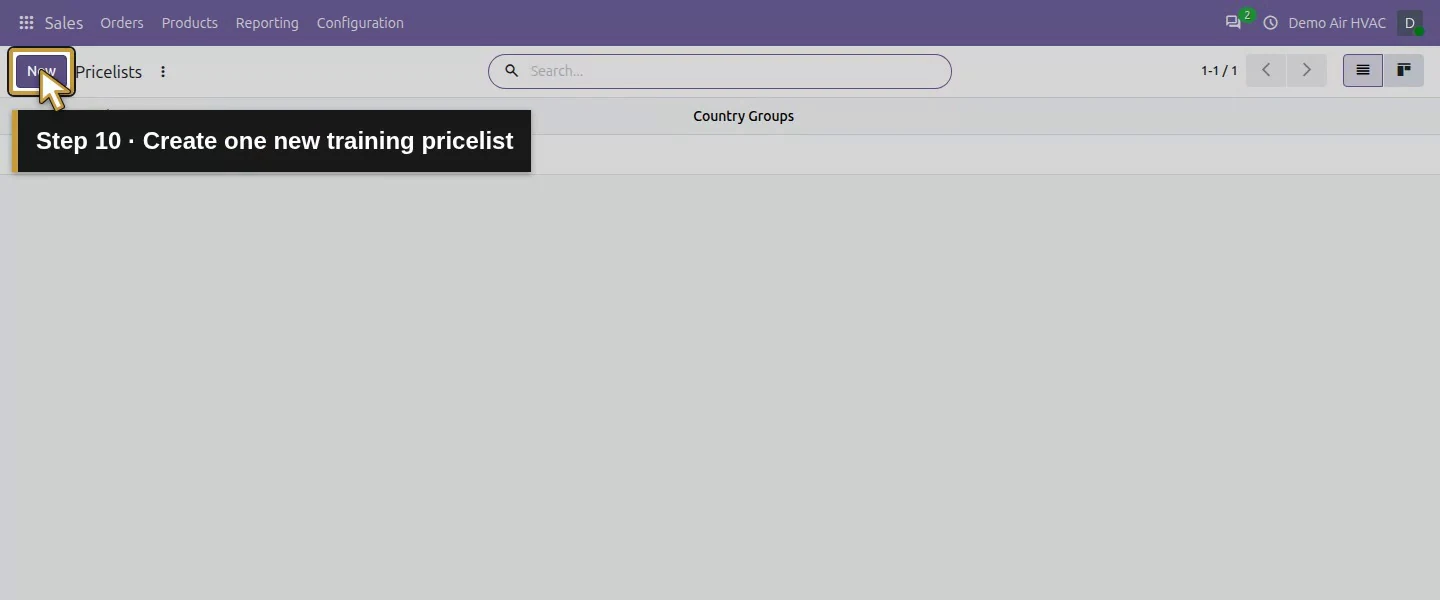
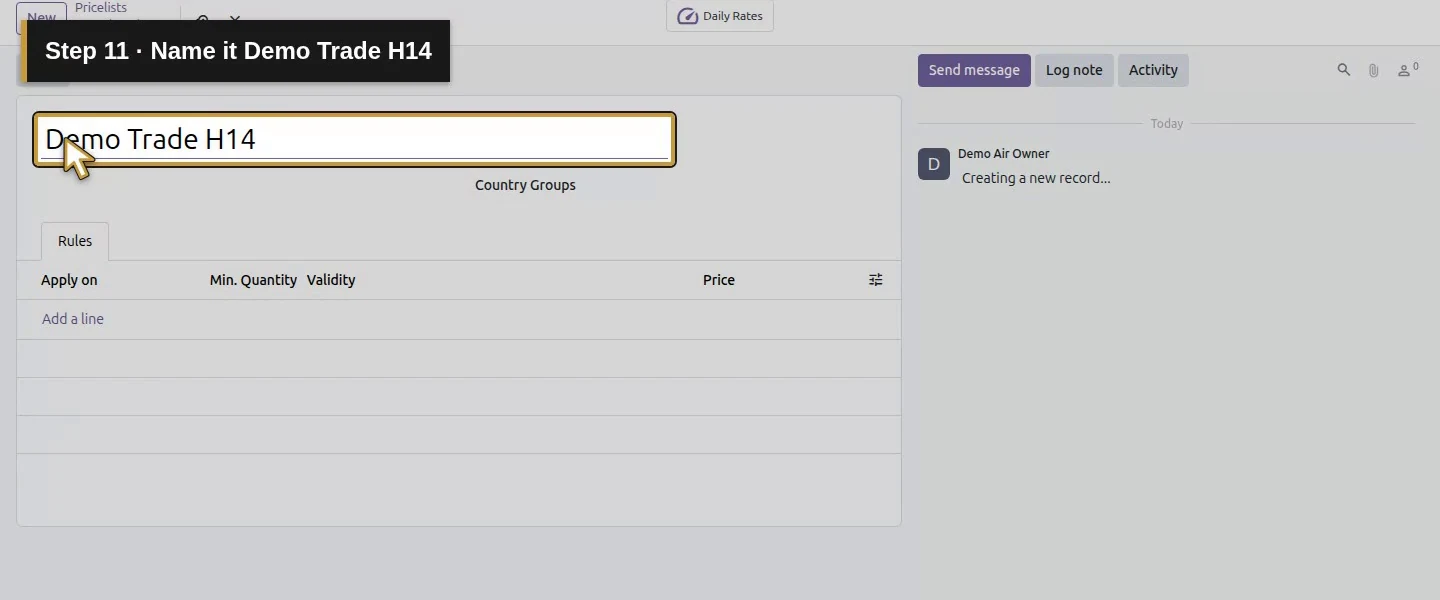
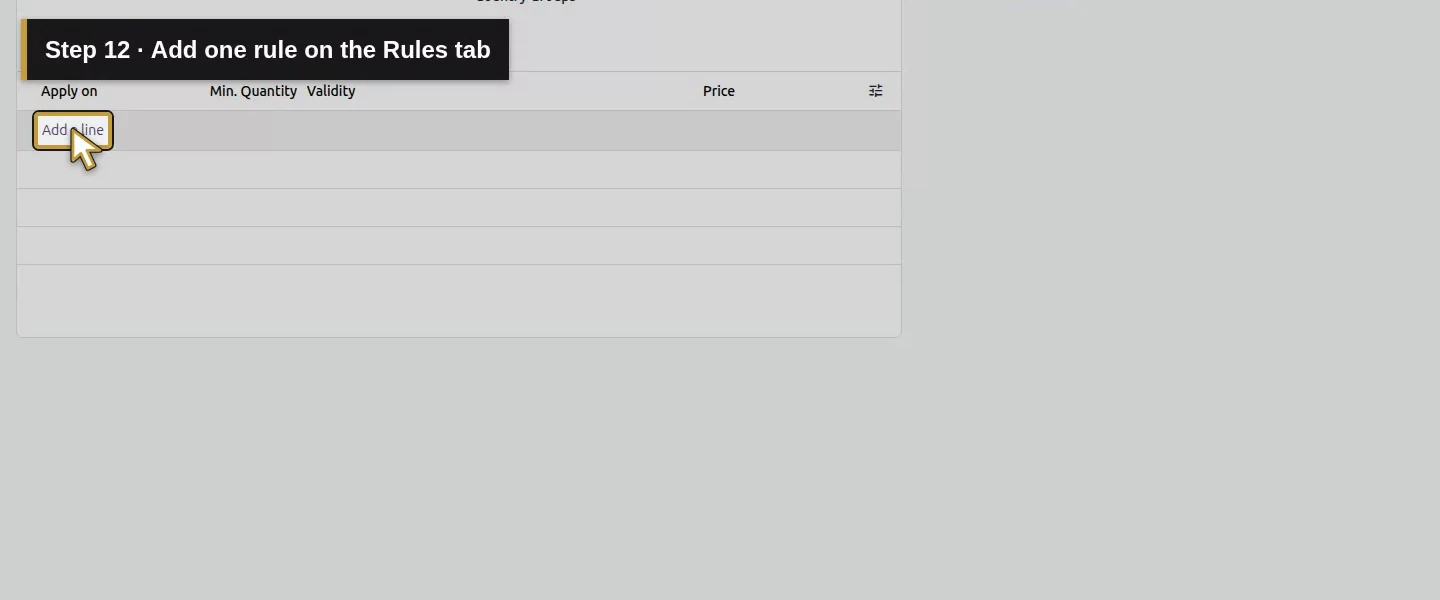
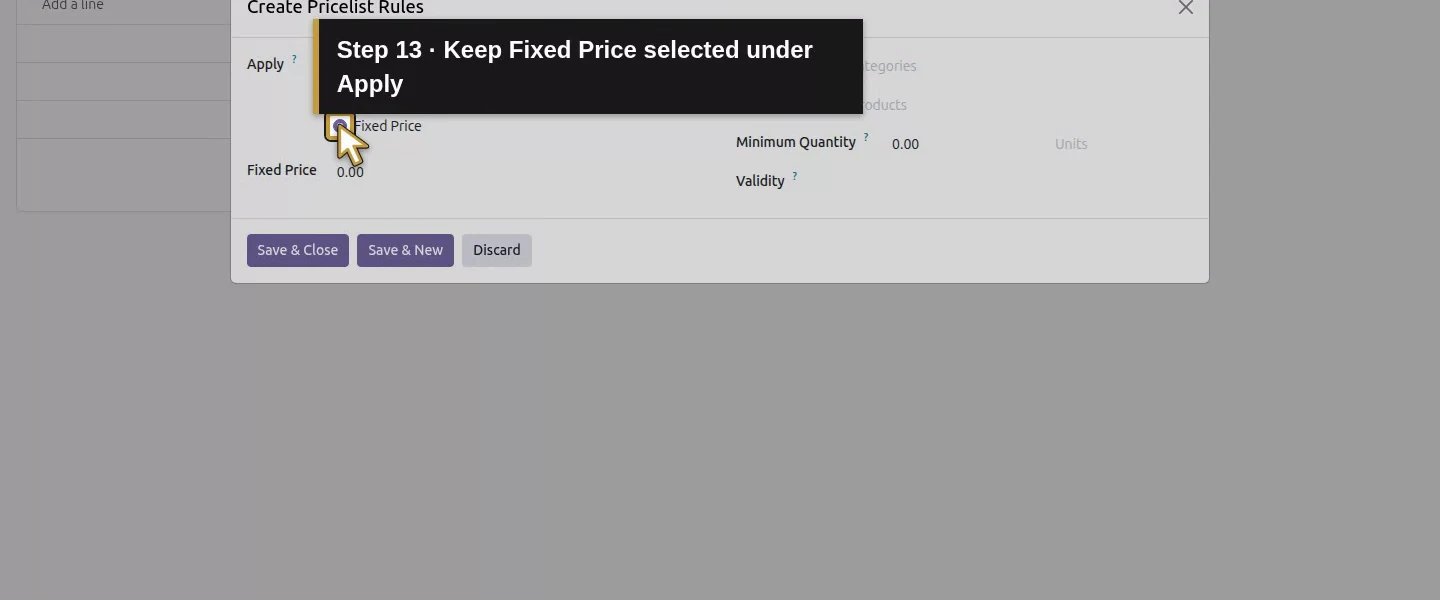
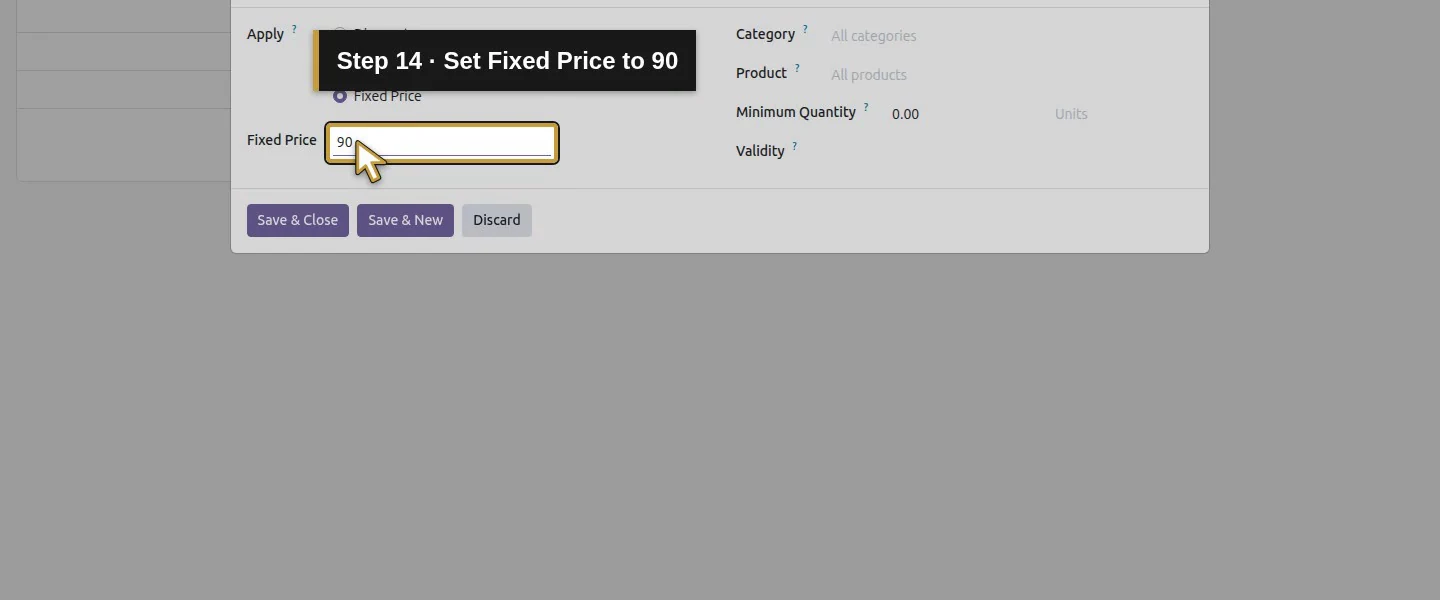
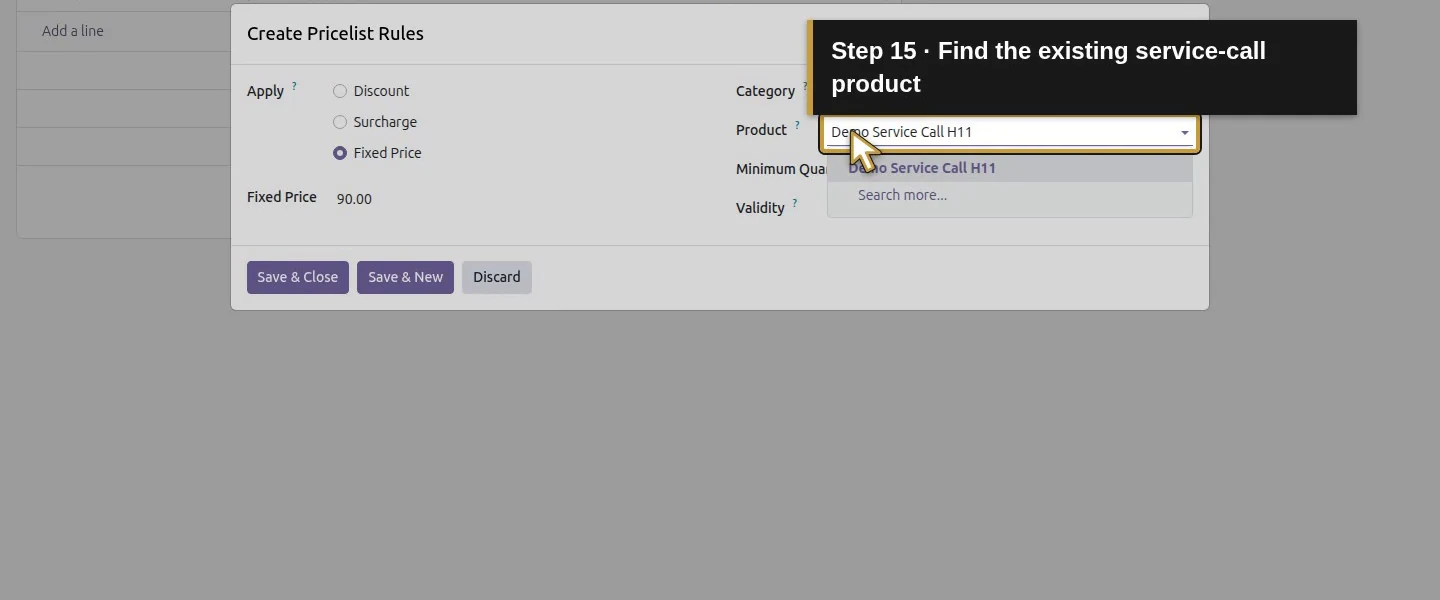
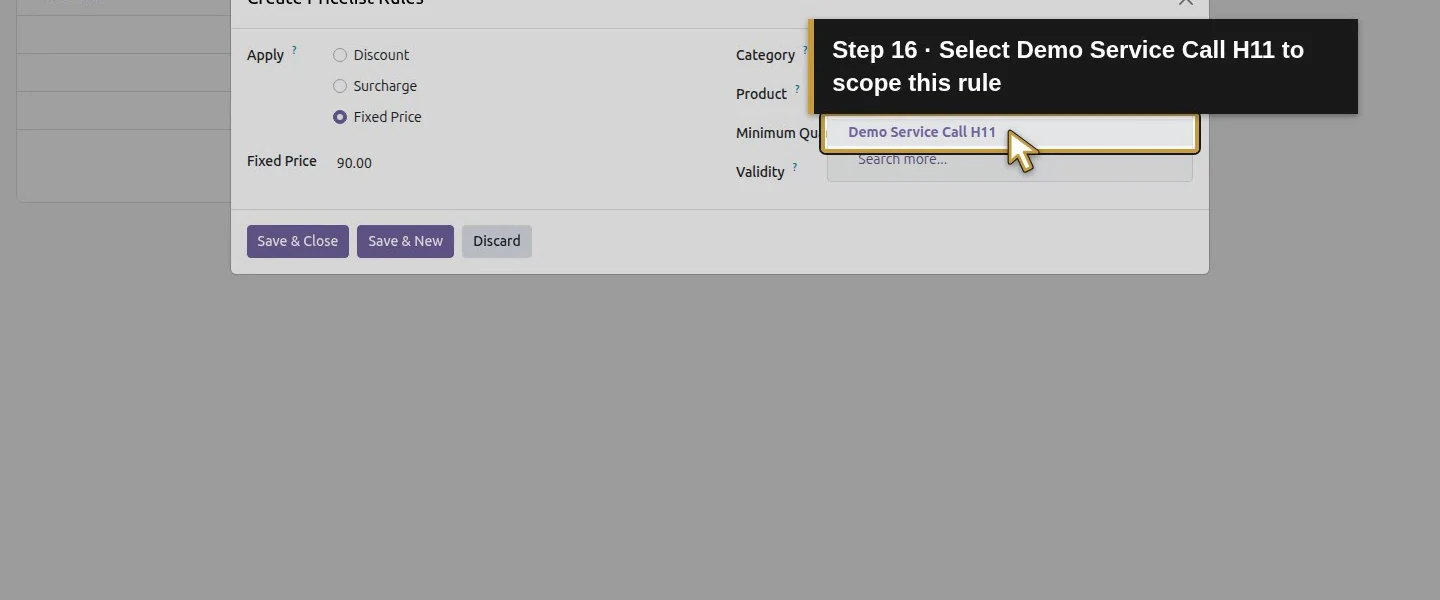
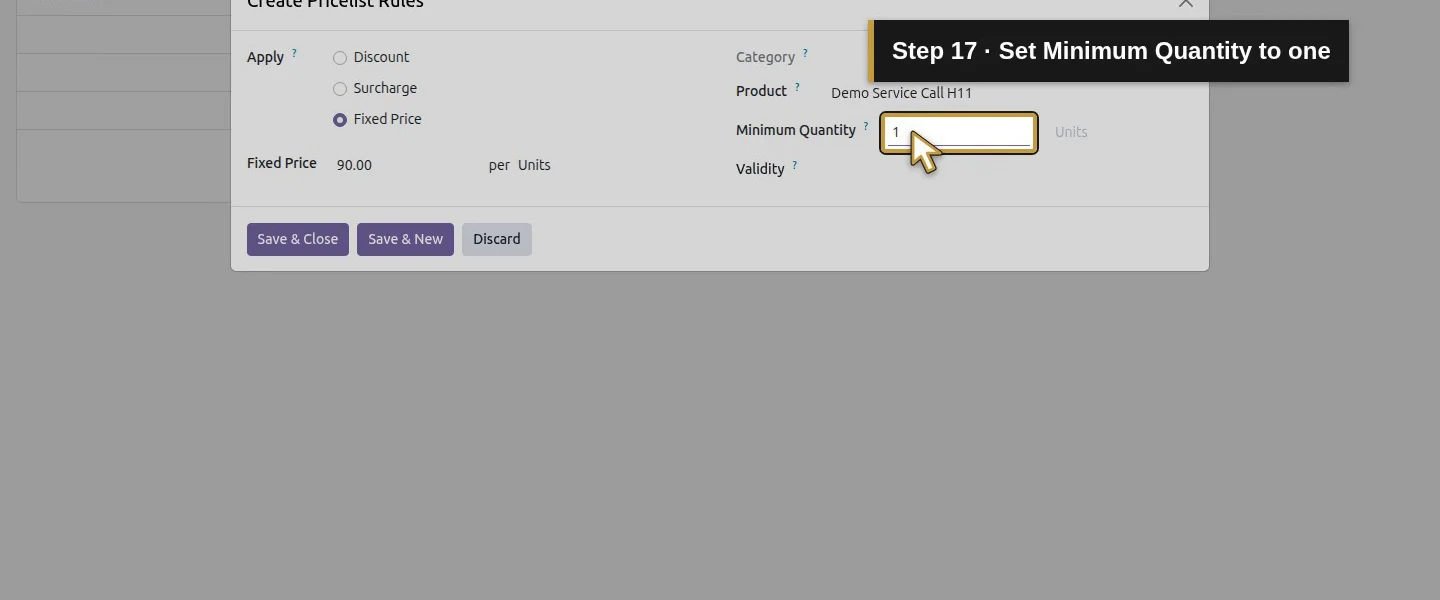
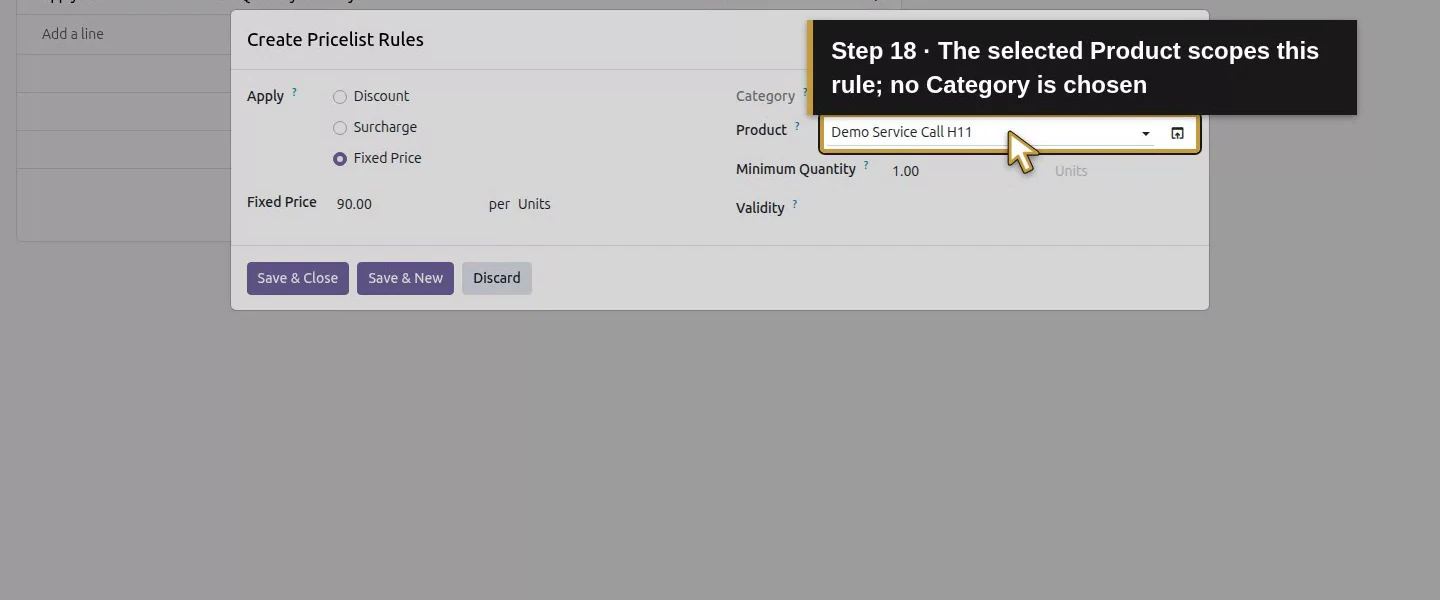
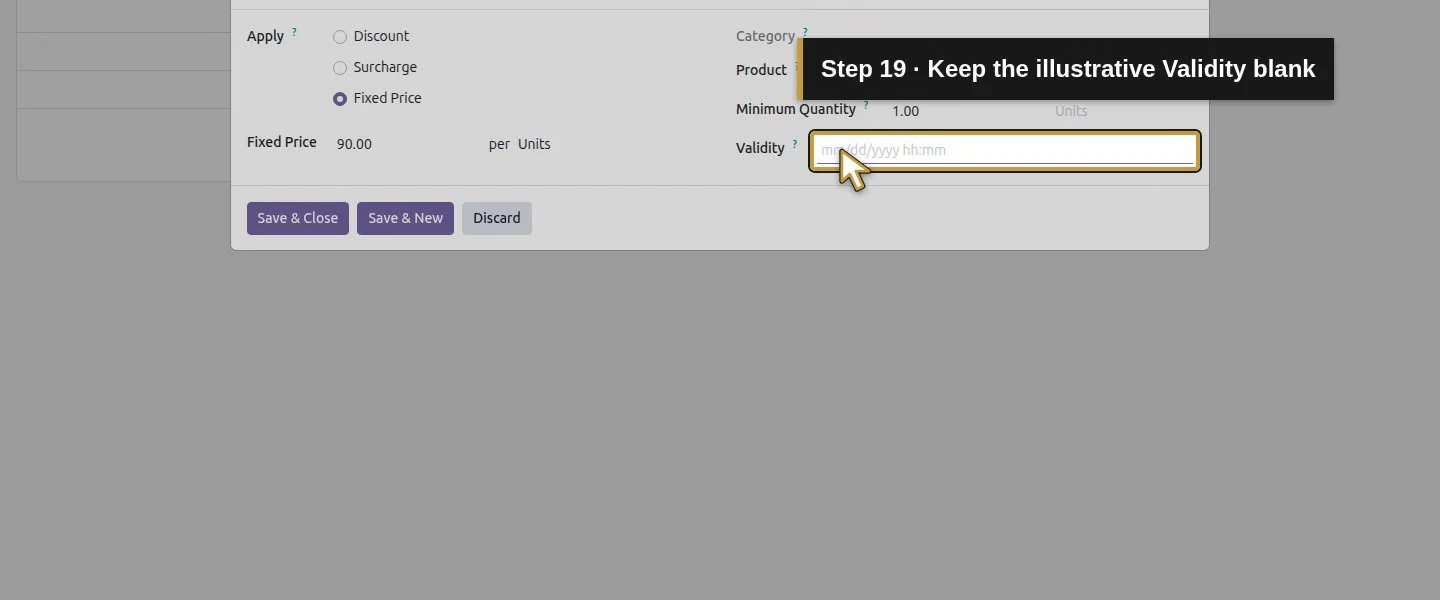
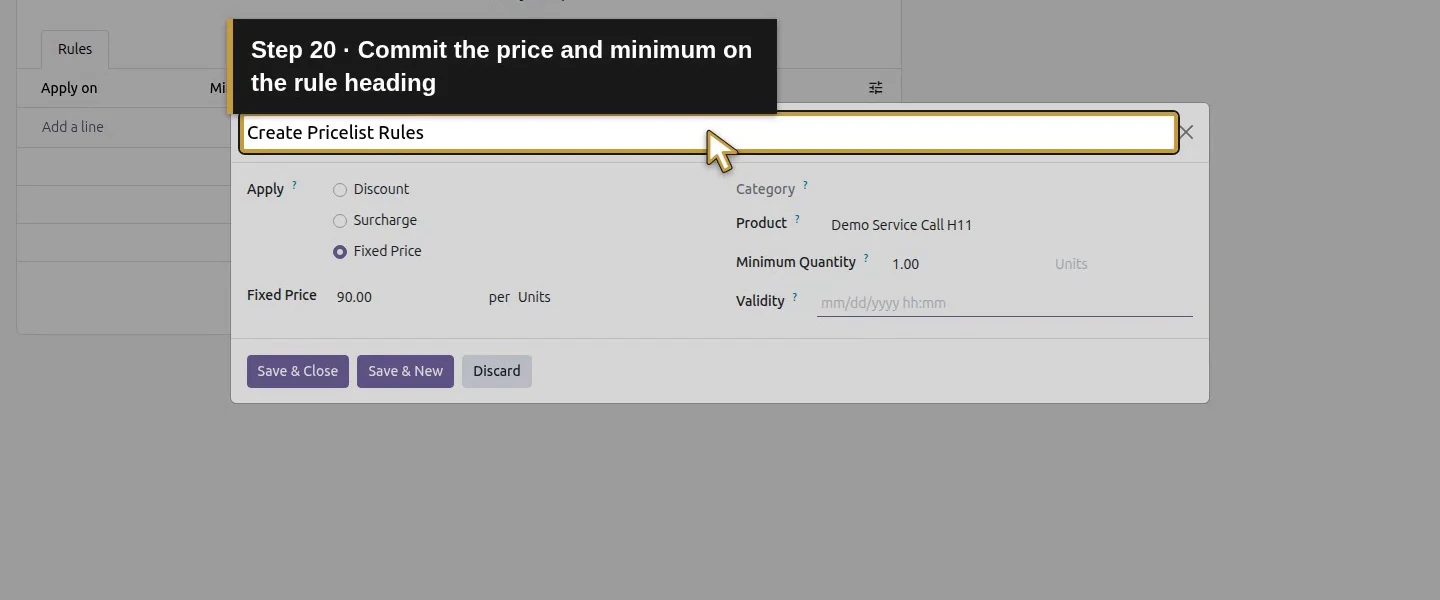
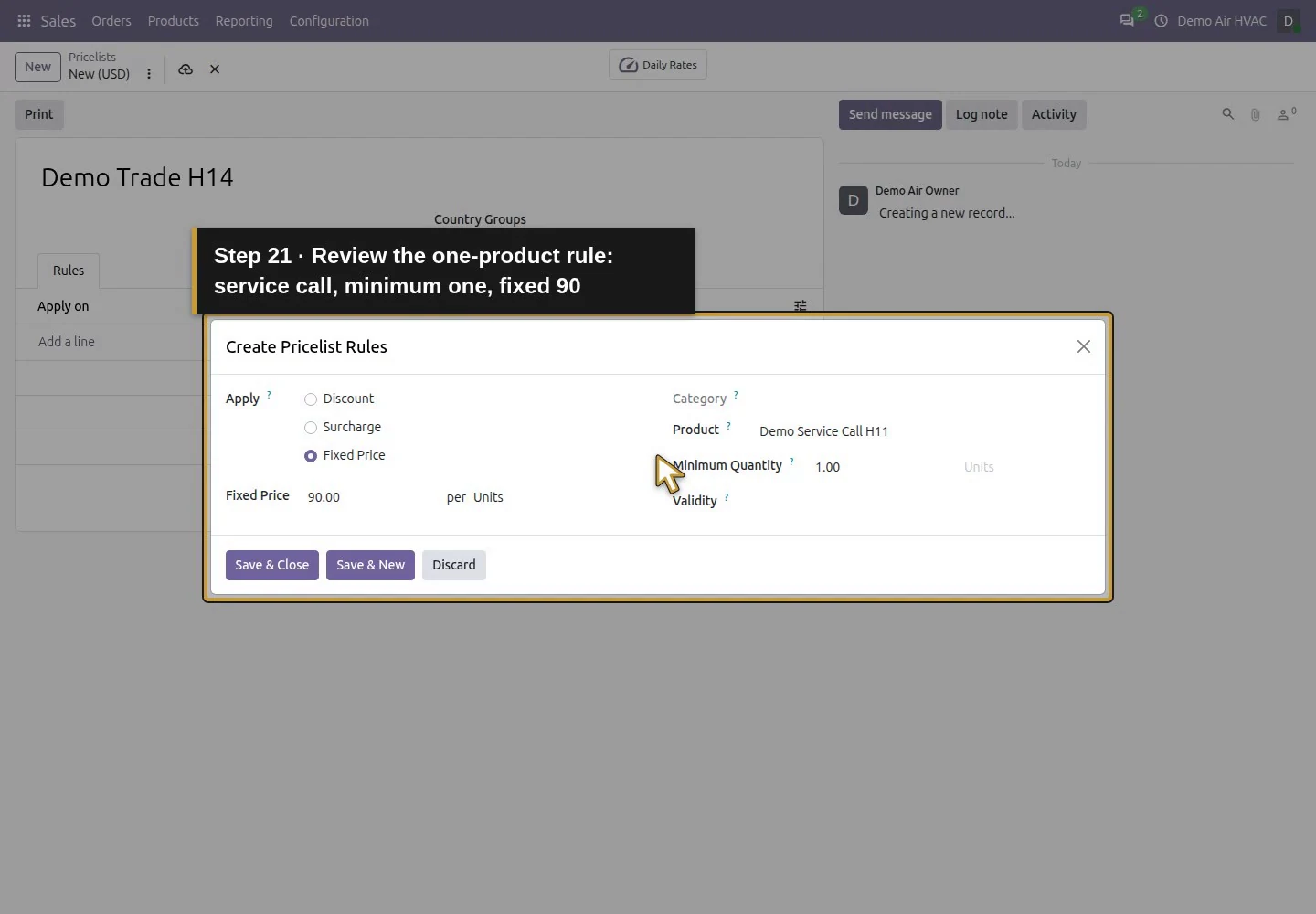
Open Sales → Products → Pricelists → New and enter Demo Trade H14. It uses USD in this single-company fixture. On Rules → Add a line, keep Apply Fixed Price, set Fixed Price 90, choose existing Demo Service Call H11 in Product and set Minimum Quantity 1. Leave Category and Validity blank for this training example. Product selection scopes the rule to that product, rather than every sale.
Step 3. Save and reopen the pricelist
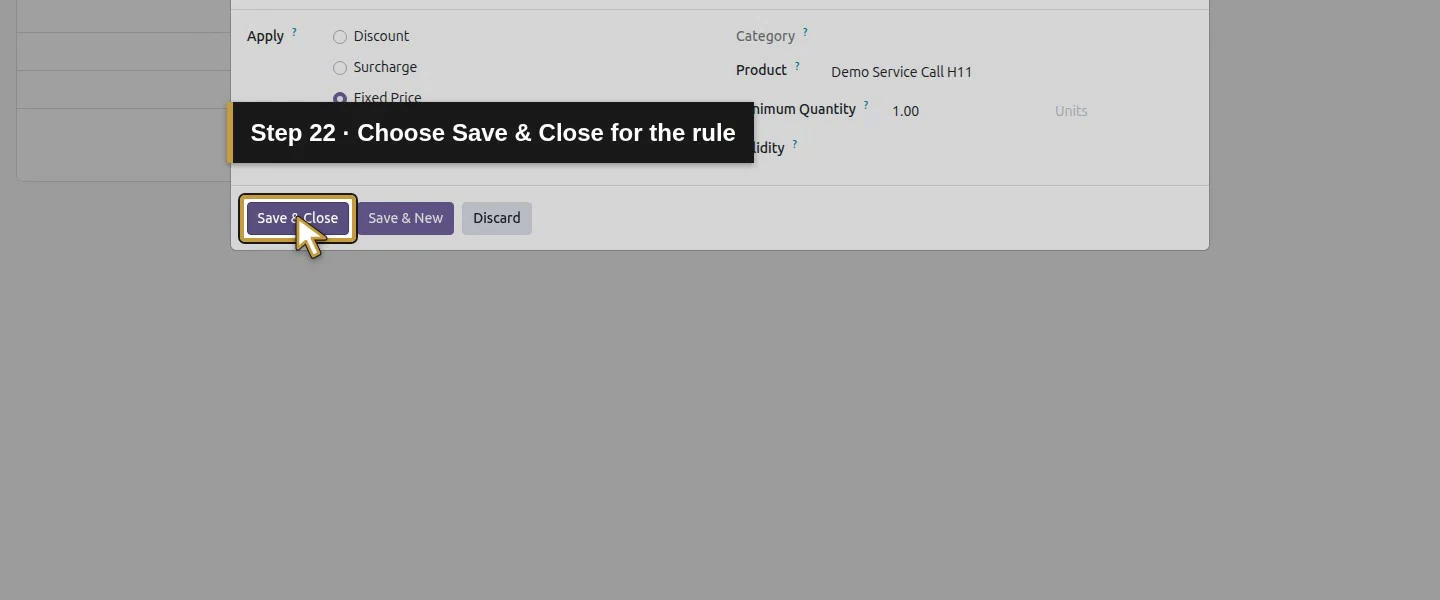
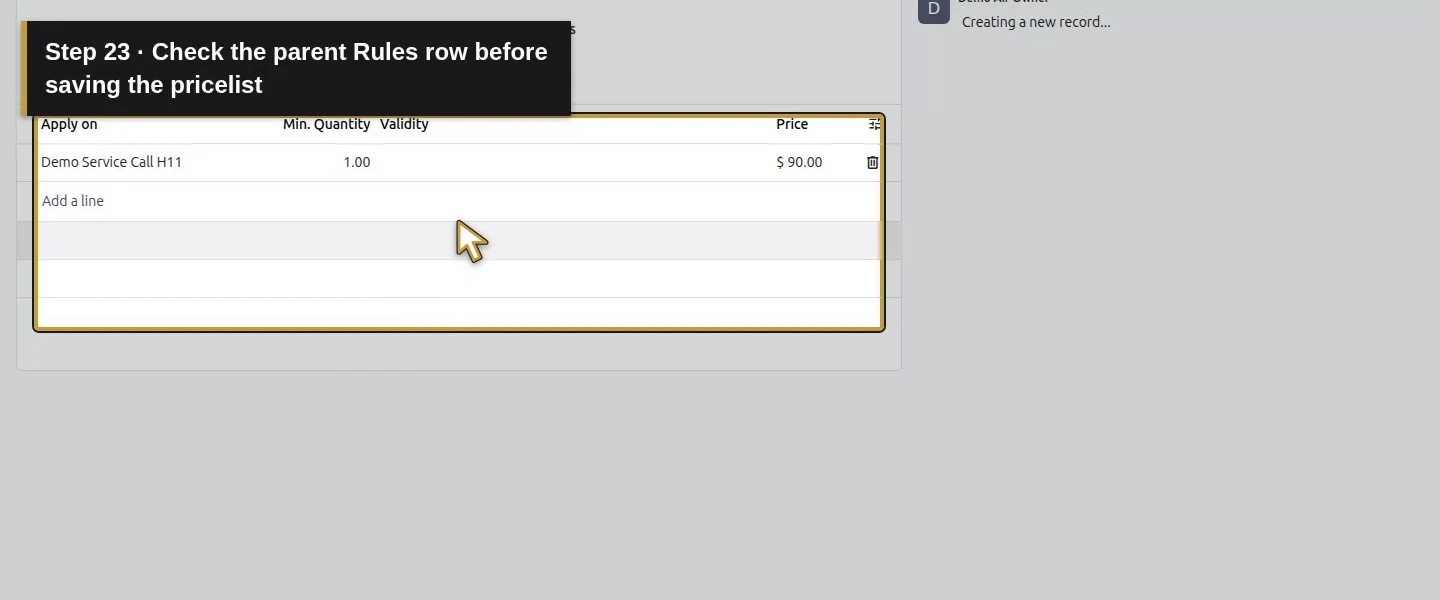
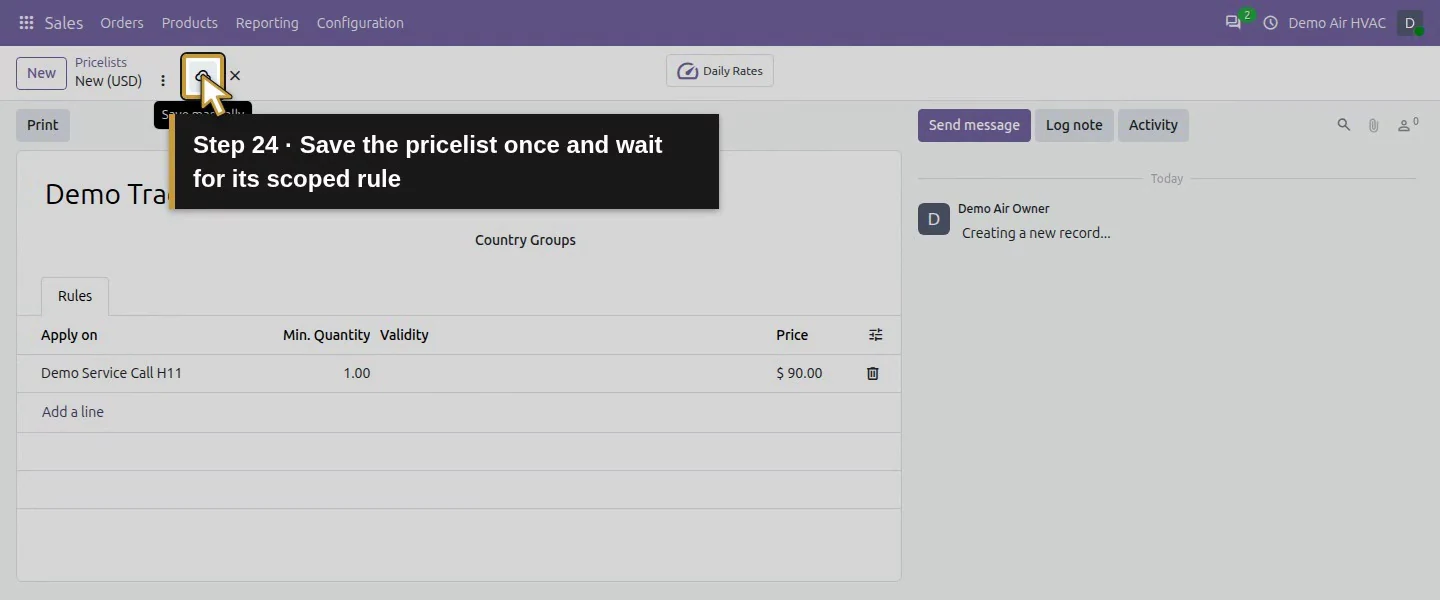
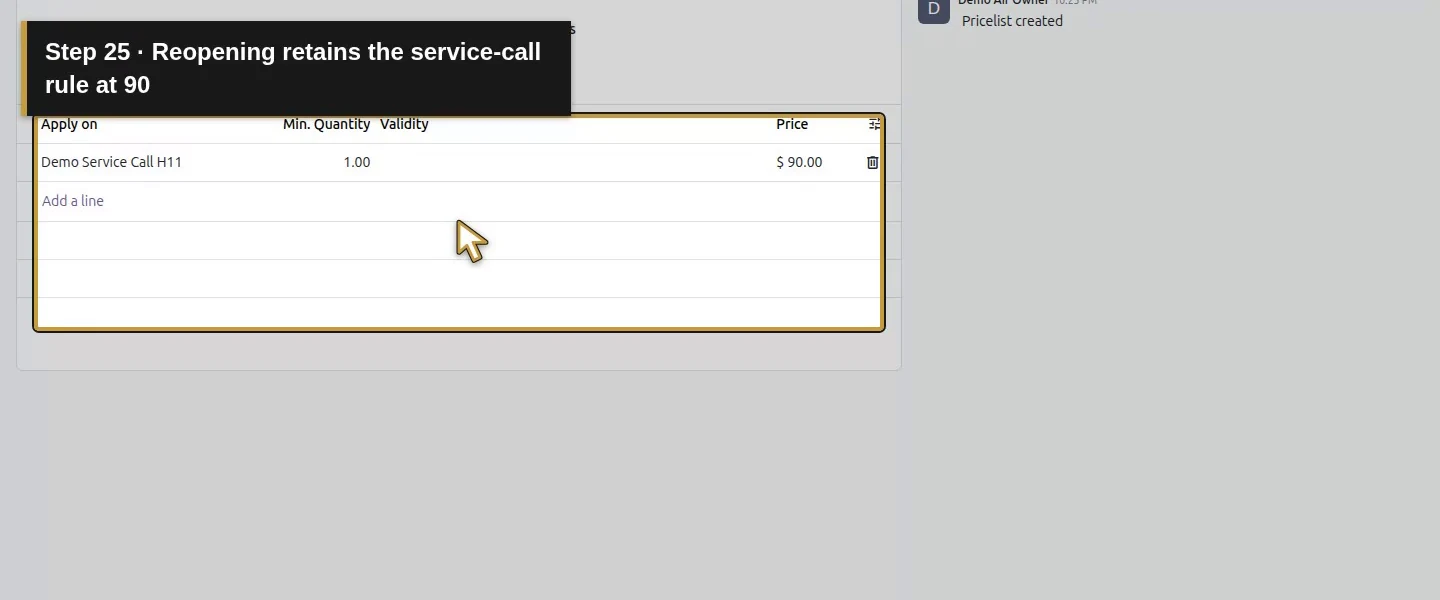
Choose Save & Close in the rule dialog, then Save manually on the pricelist. Wait for the saved record and reopen it. Check the Rules row shows Demo Service Call H11, minimum quantity 1 and $90. The rule has no start/end date; real promotional dates need their own review.
Step 4. Select the list before adding quote lines
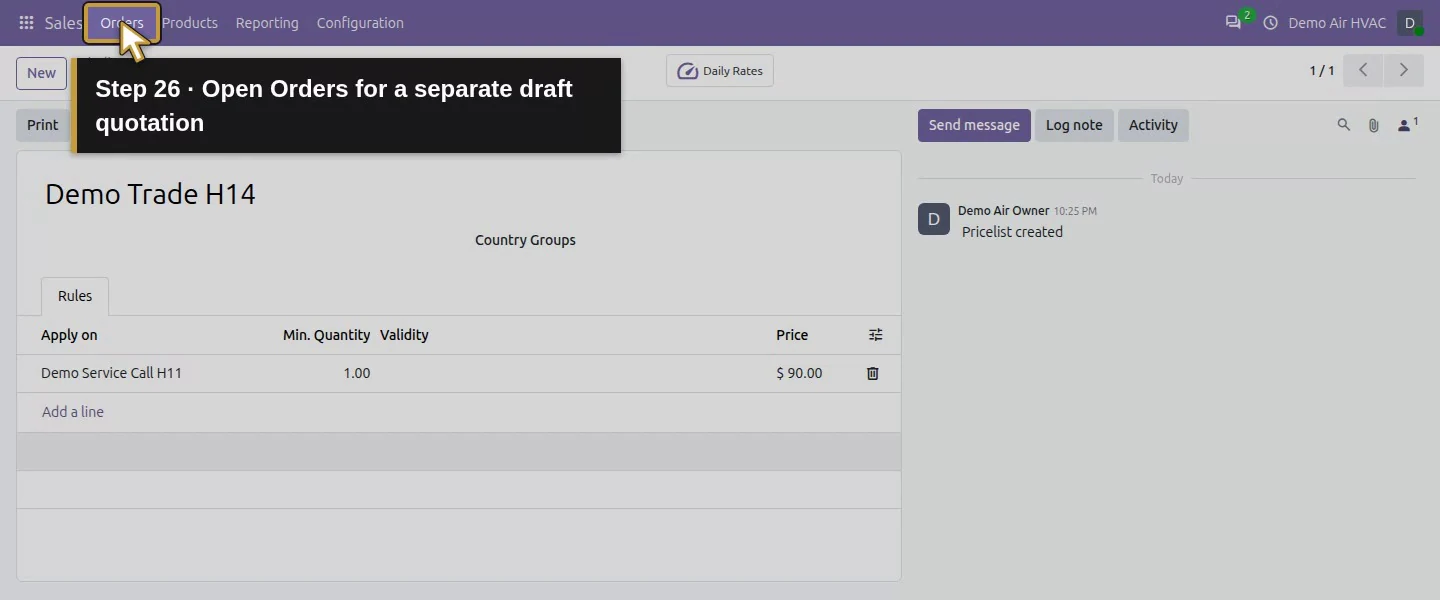
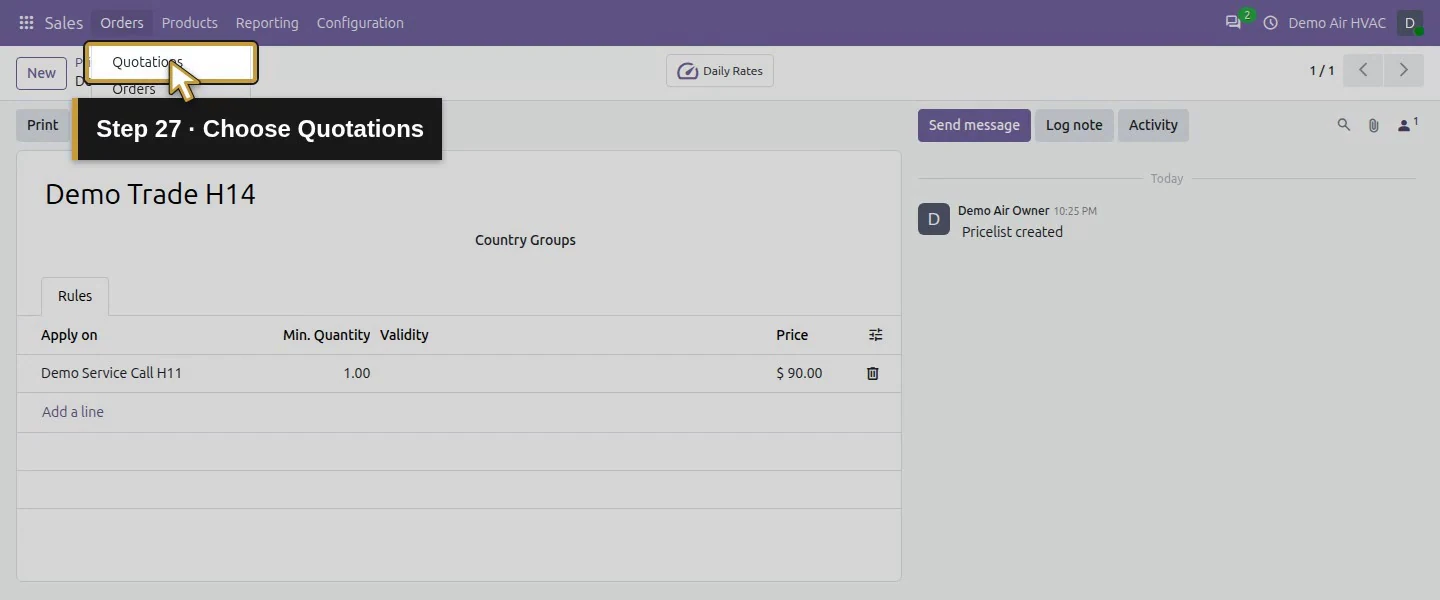
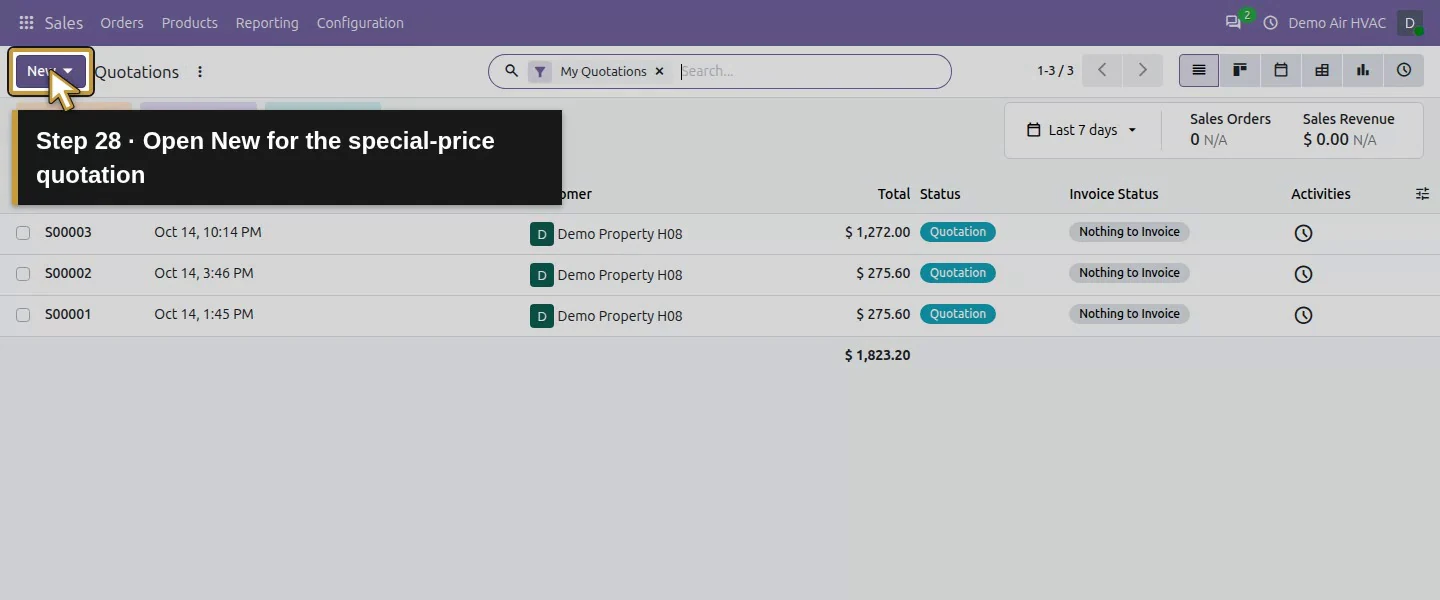
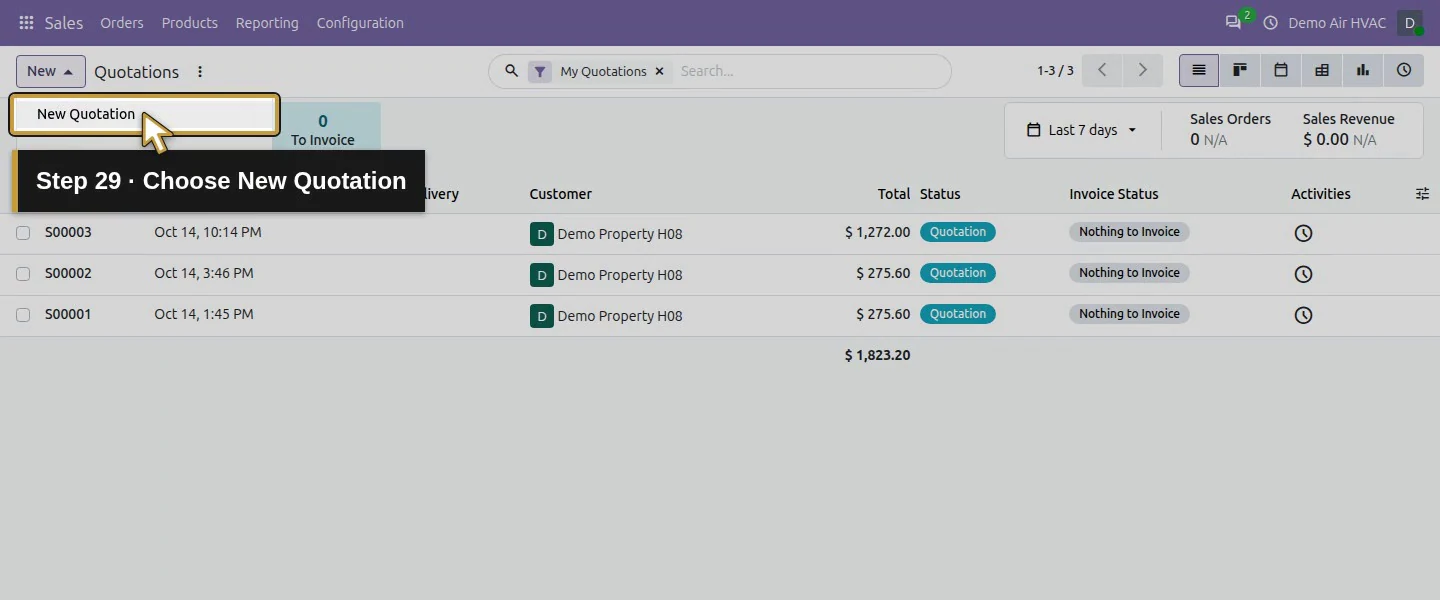
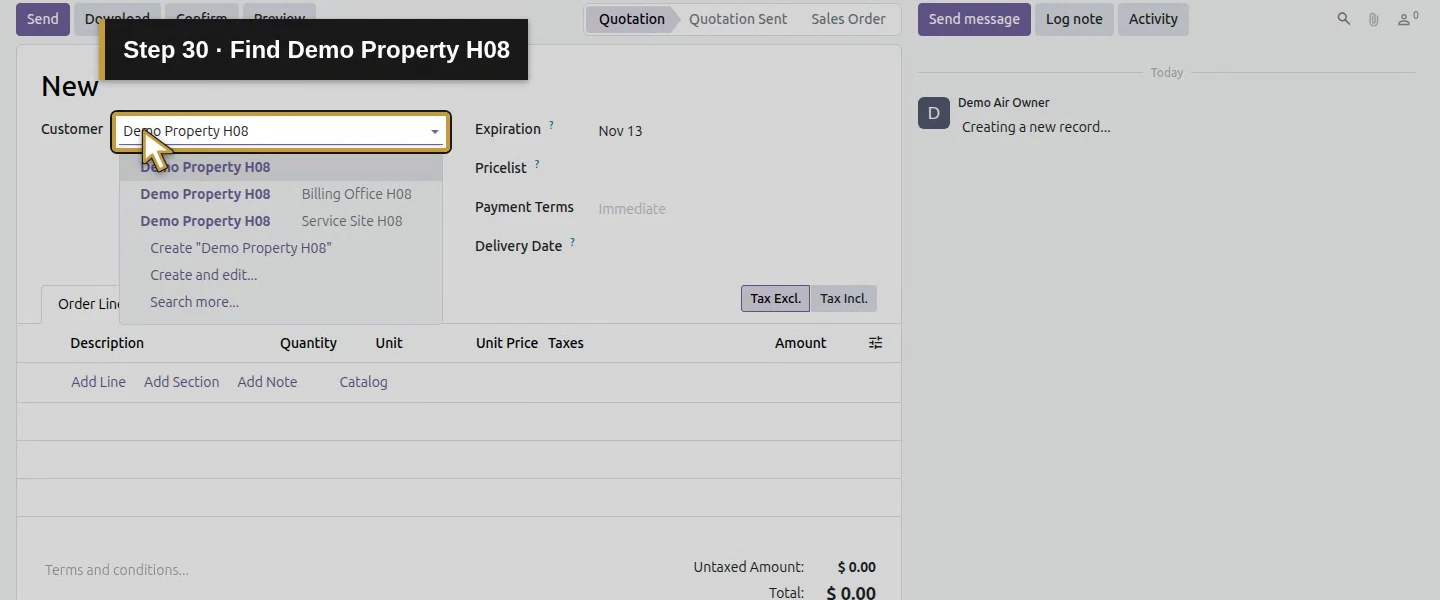
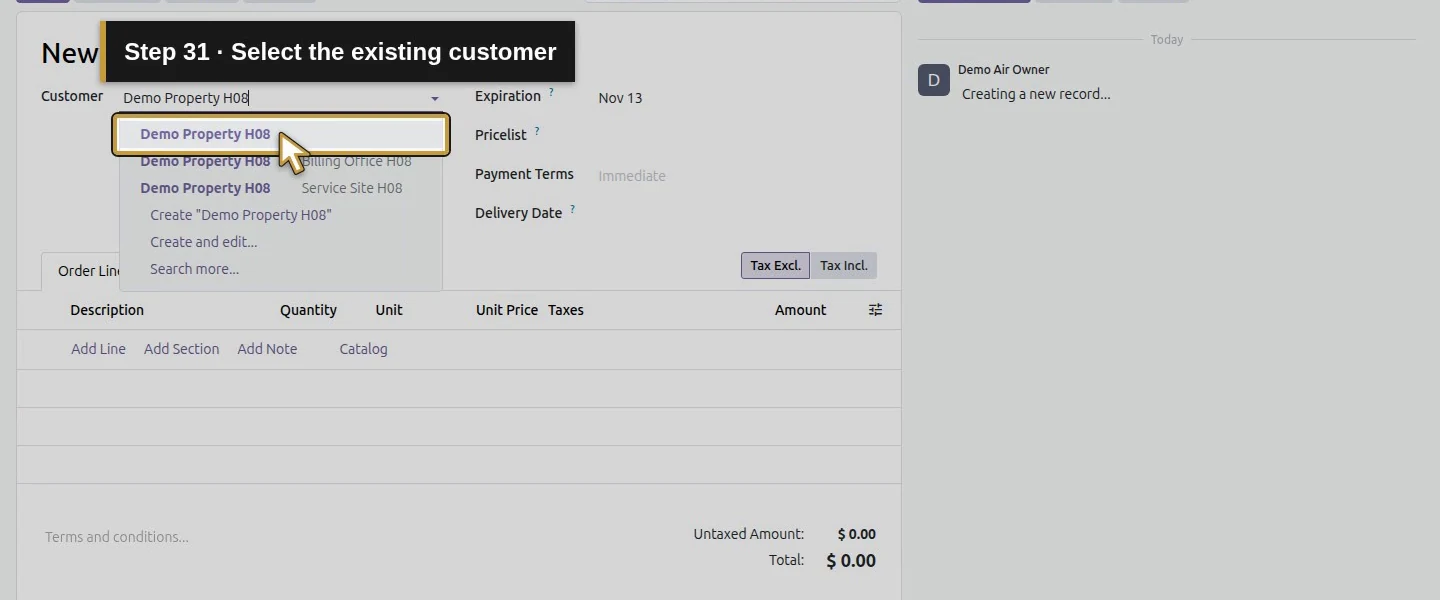
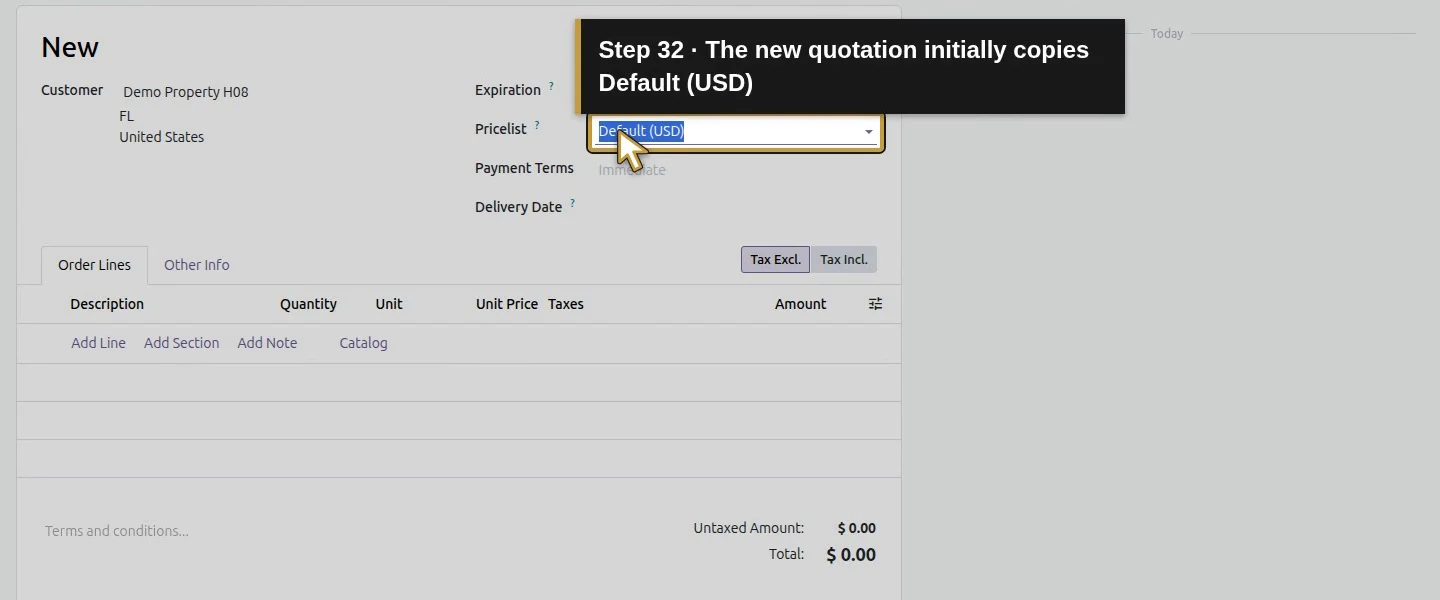
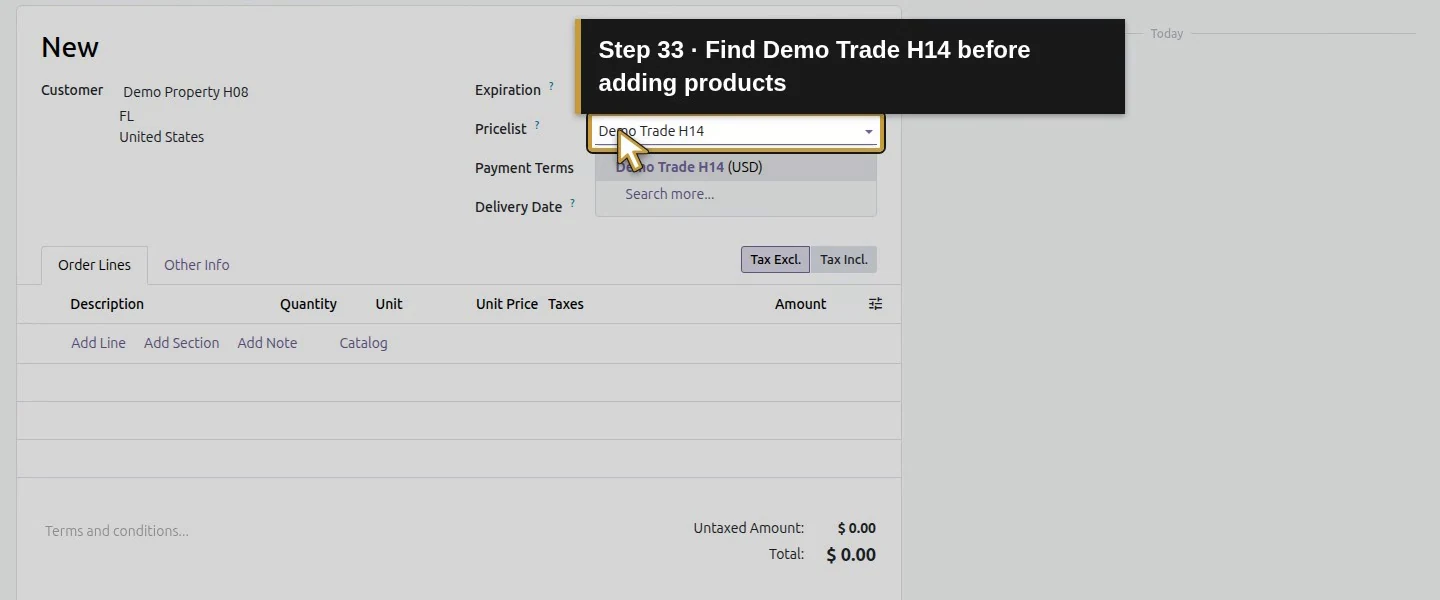
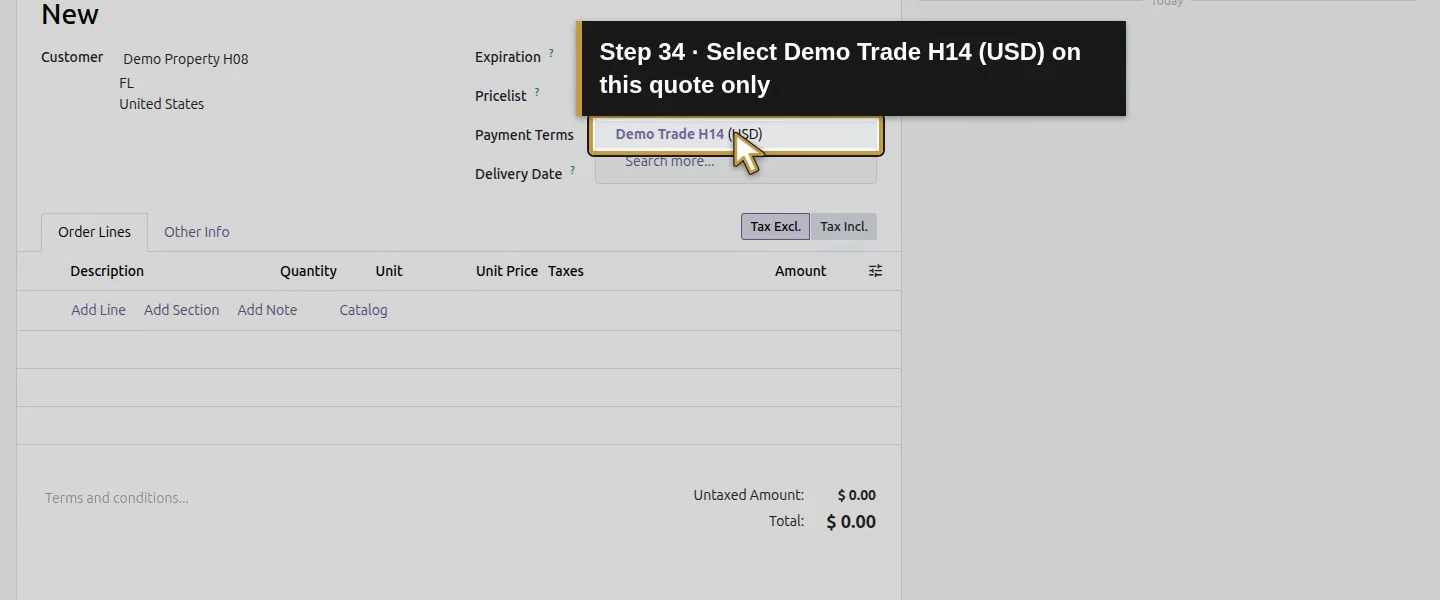
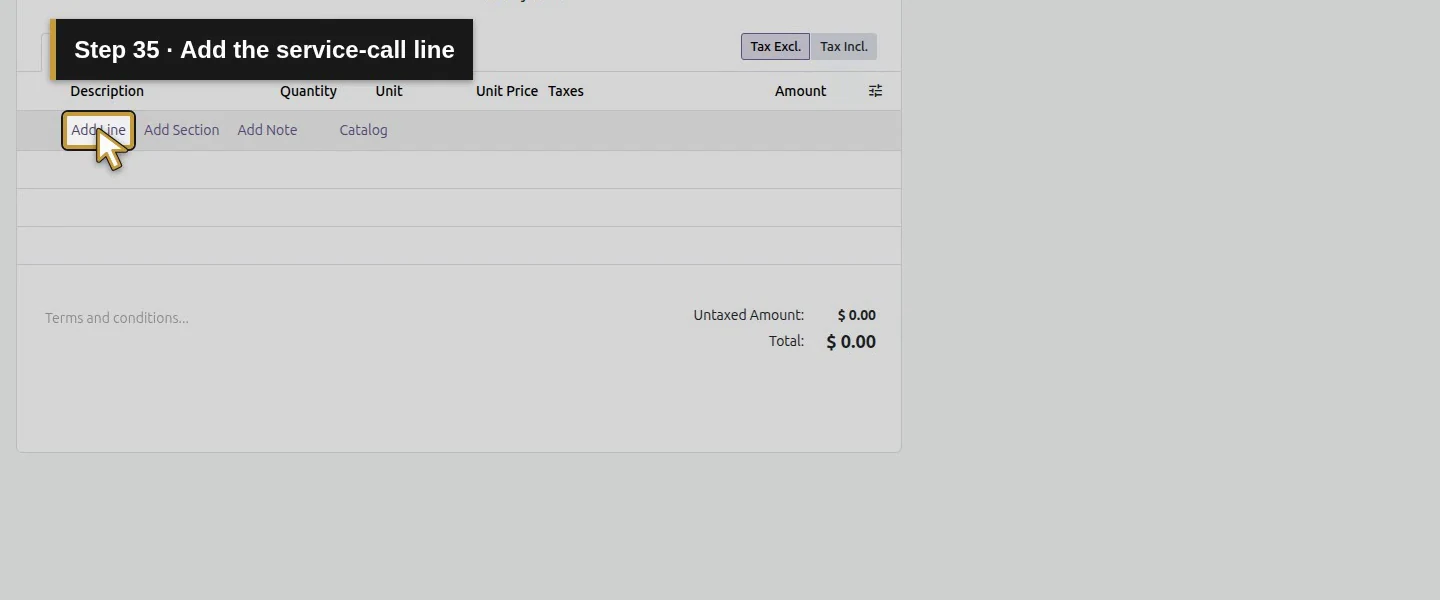
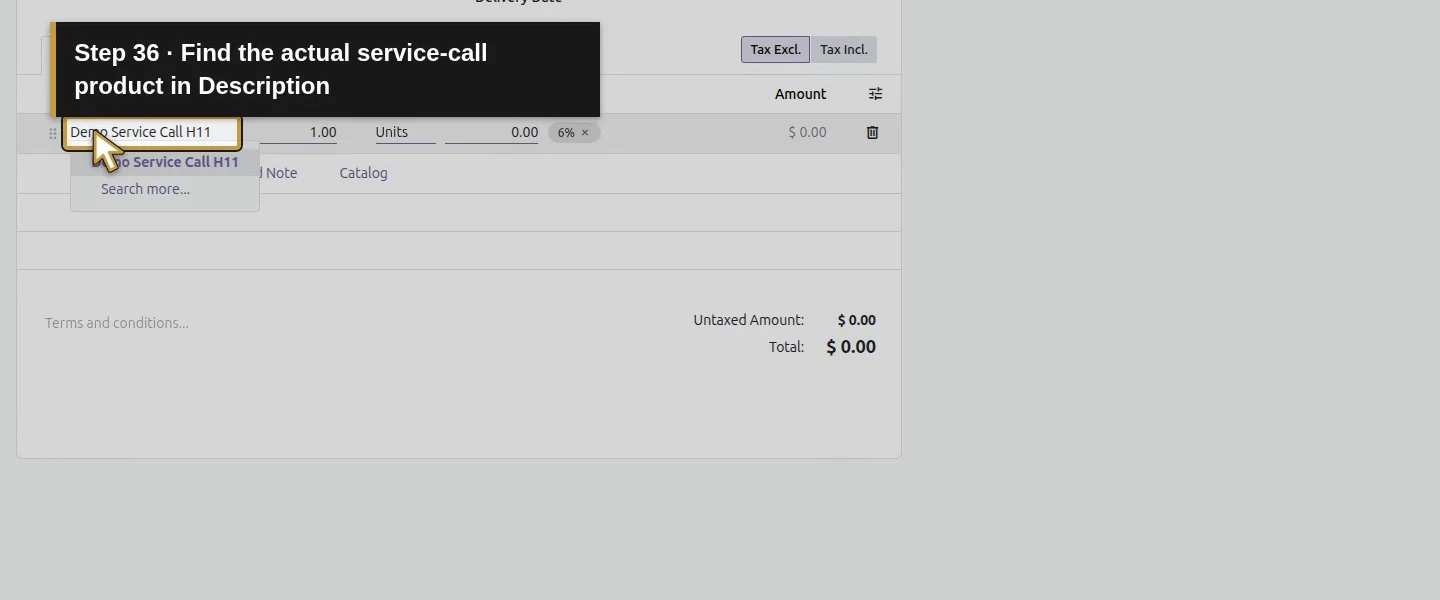
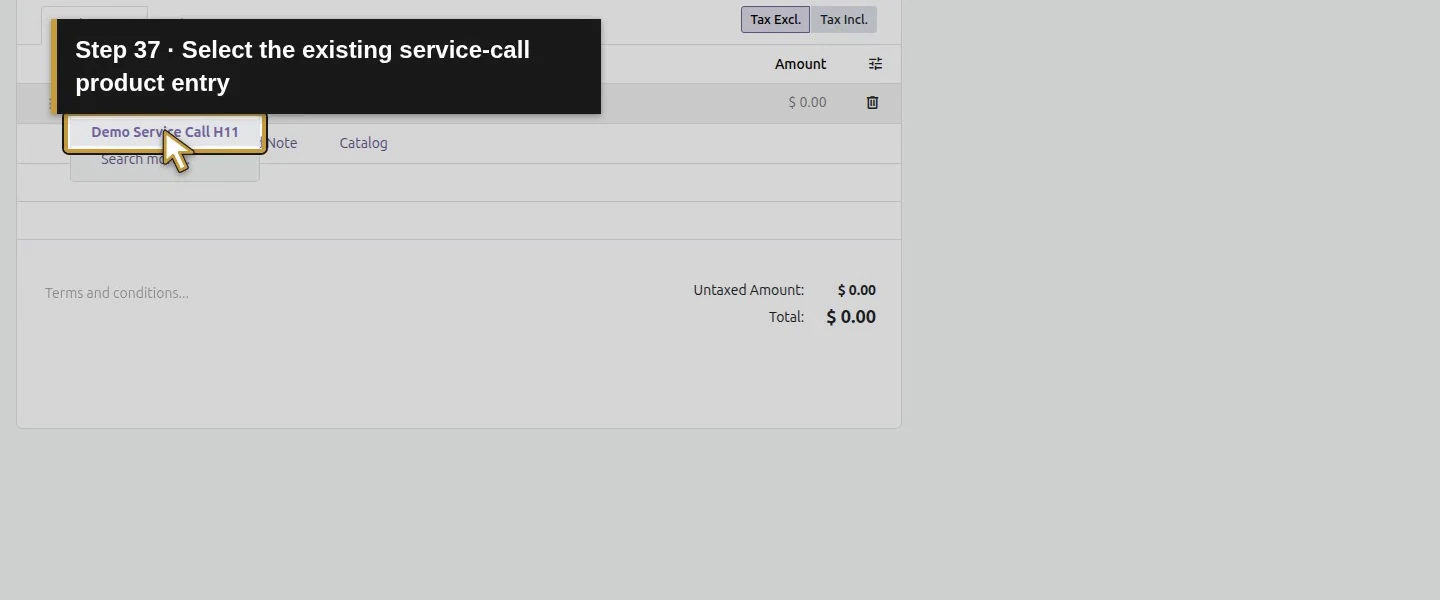
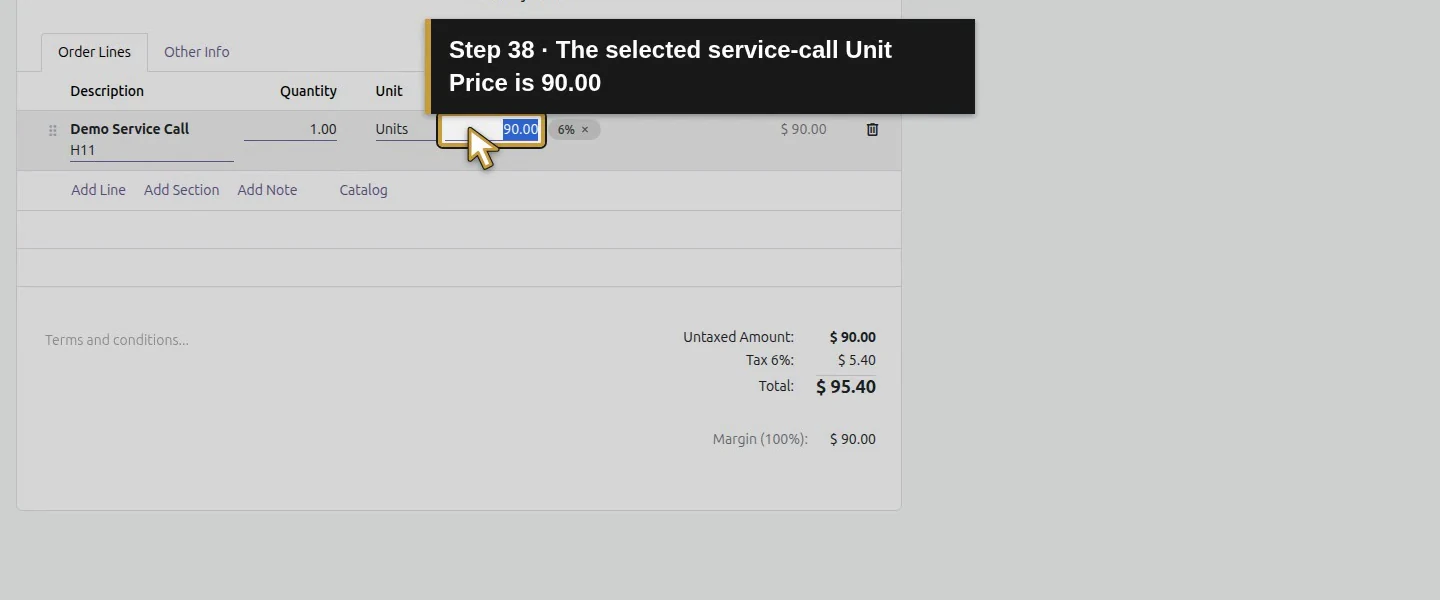
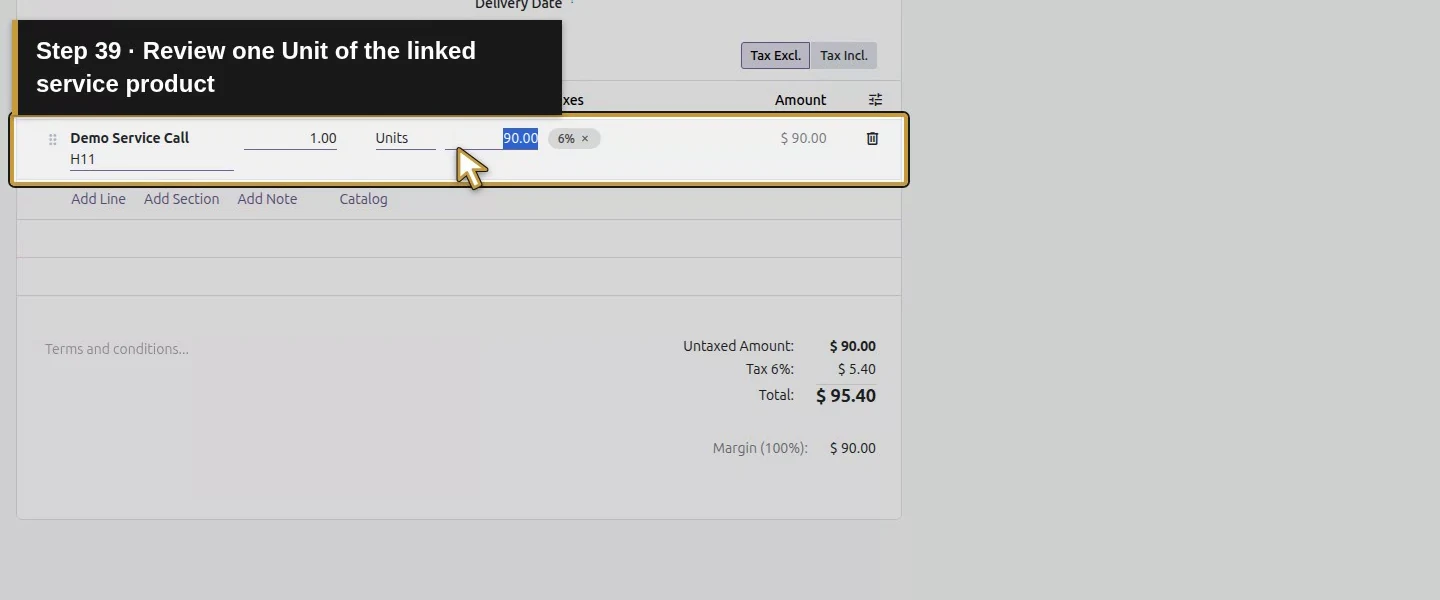
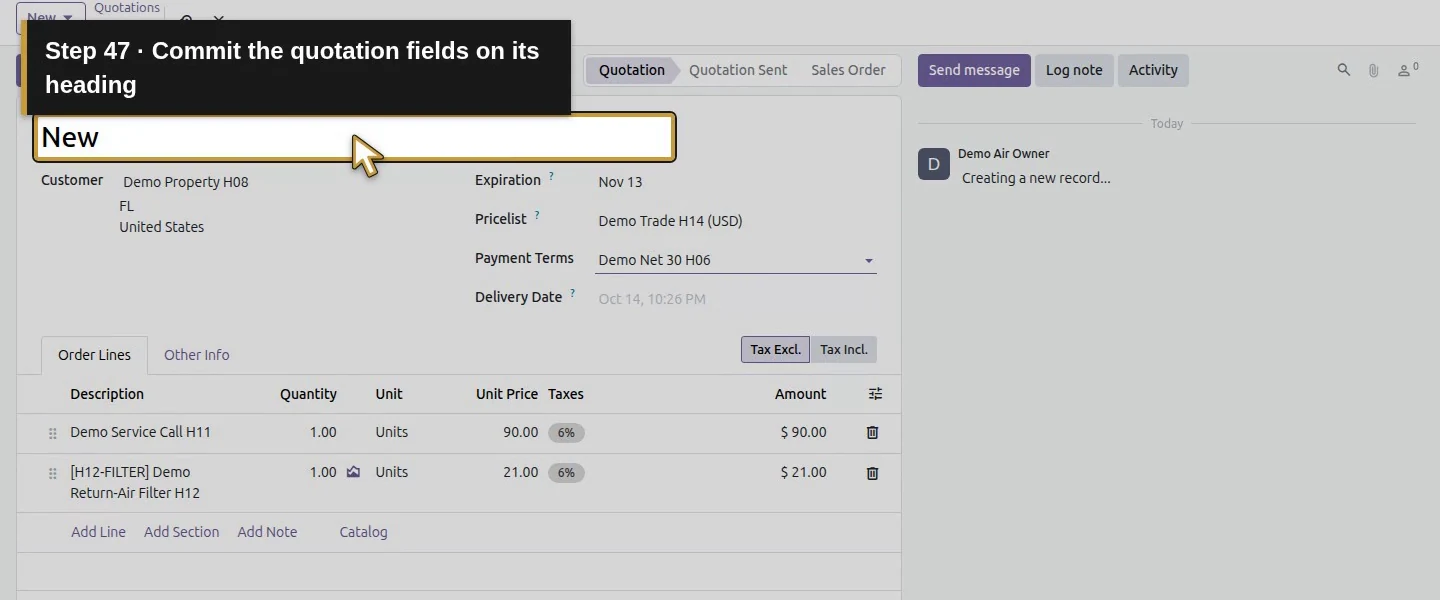
Open Sales → Orders → Quotations → New → New Quotation and choose Demo Property H08. Its initial Pricelist is Default (USD). Change Pricelist to Demo Trade H14 (USD) before adding products. Choose Add Line, select existing Demo Service Call H11 from the Description product picker, and verify quantity one, Units and Unit Price 90.
Step 5. Check an unrelated product and save
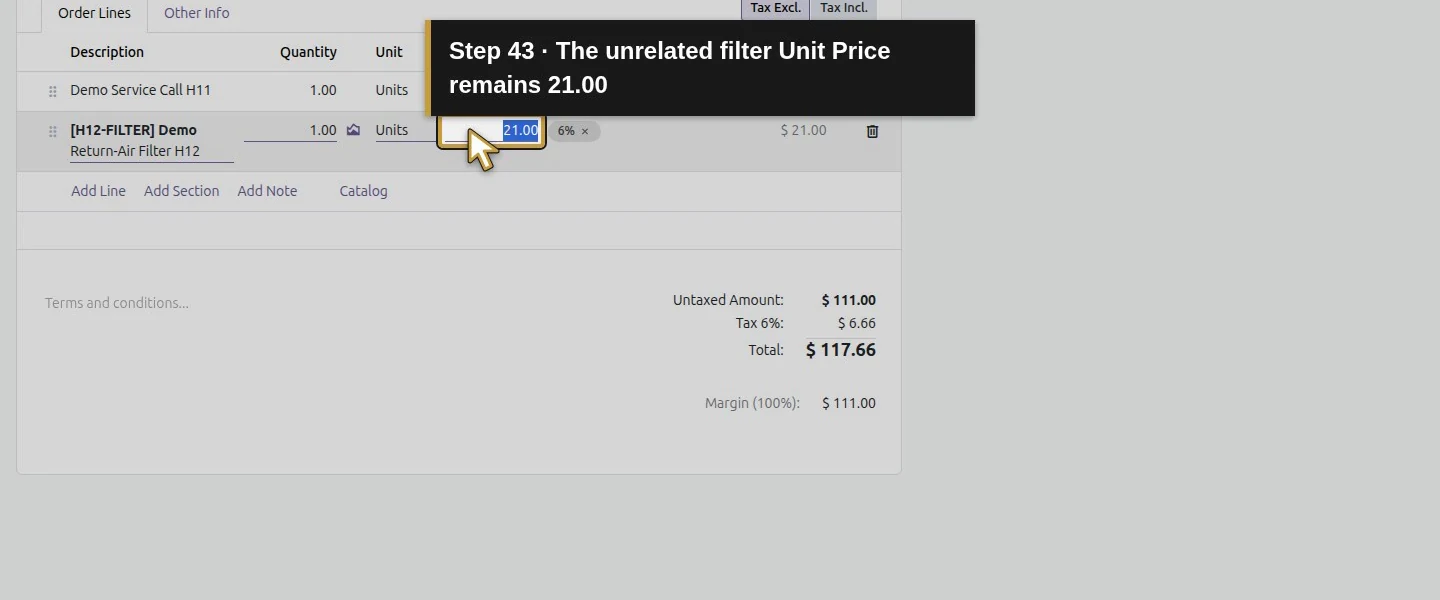
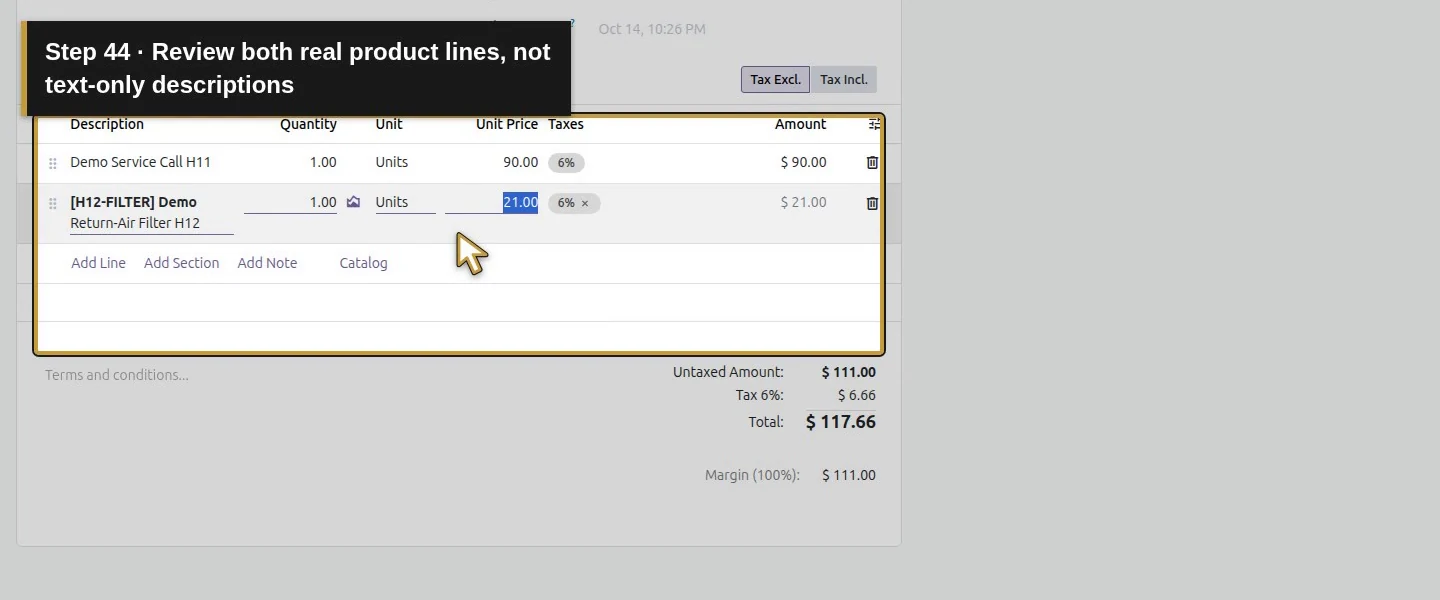
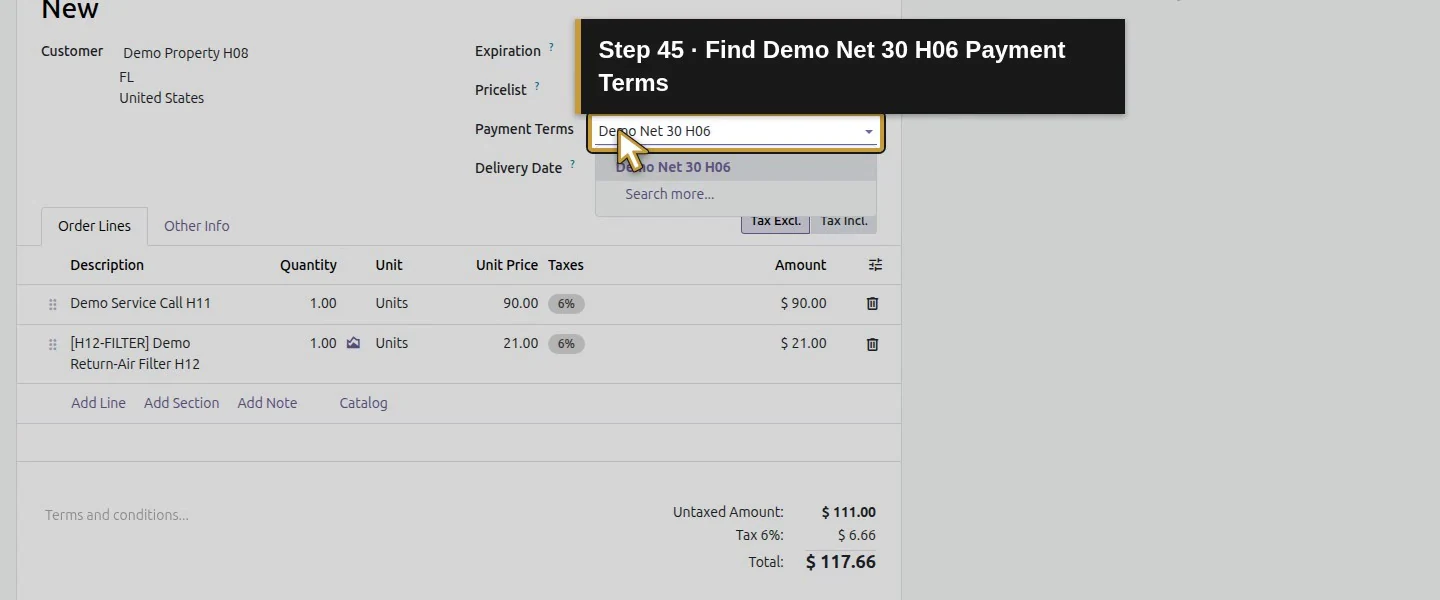
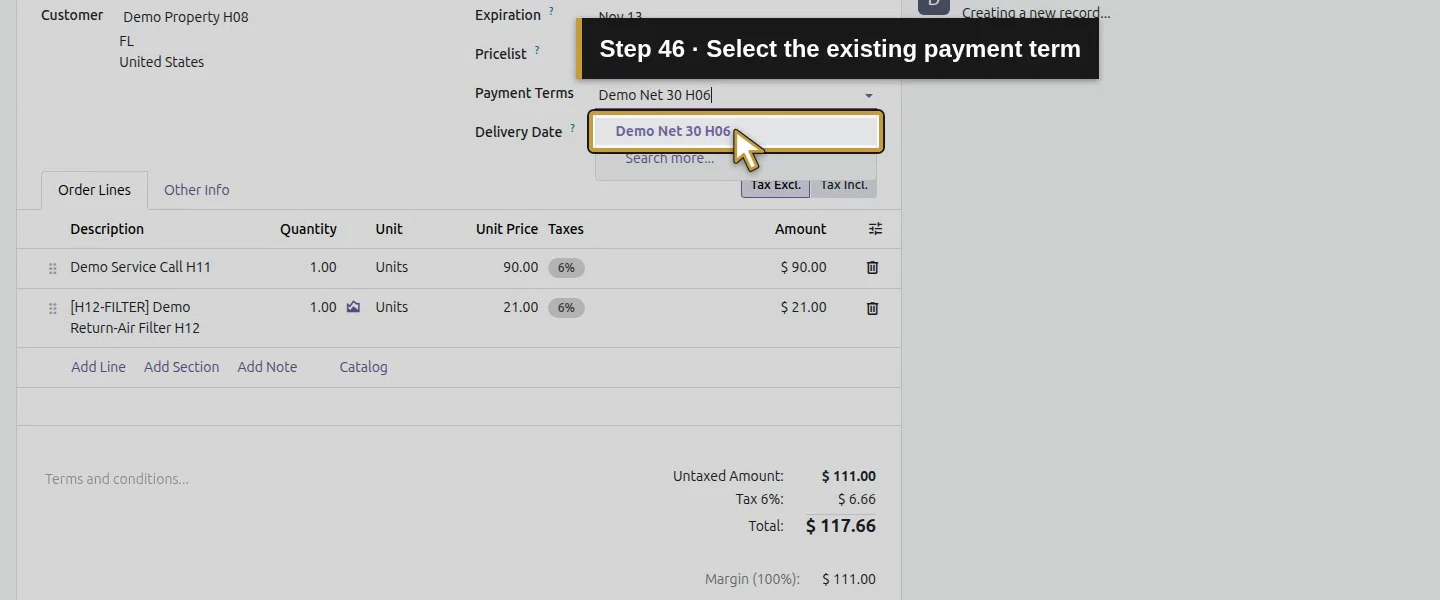
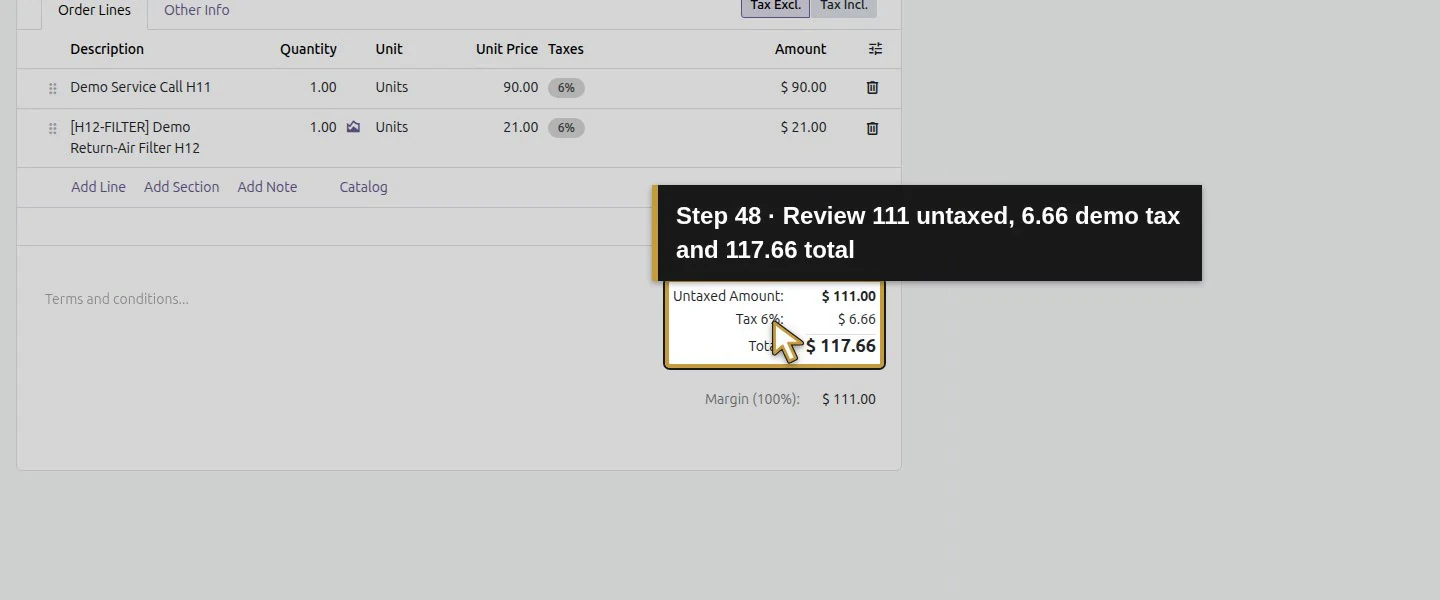
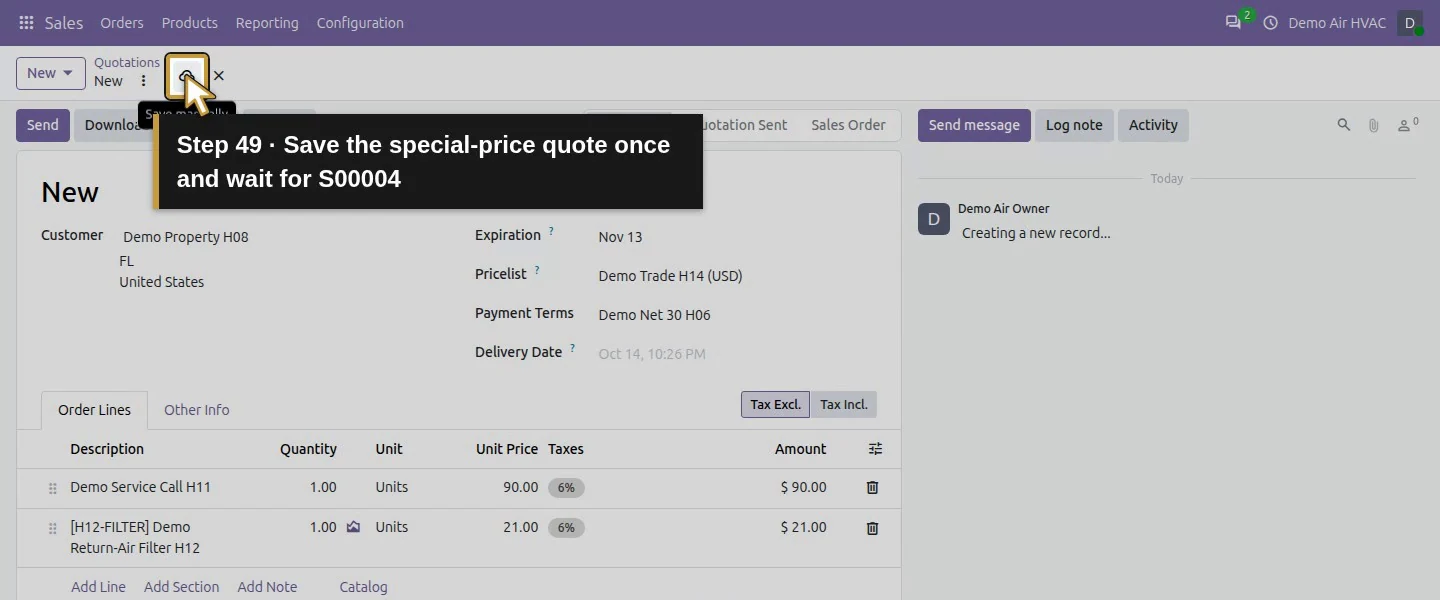
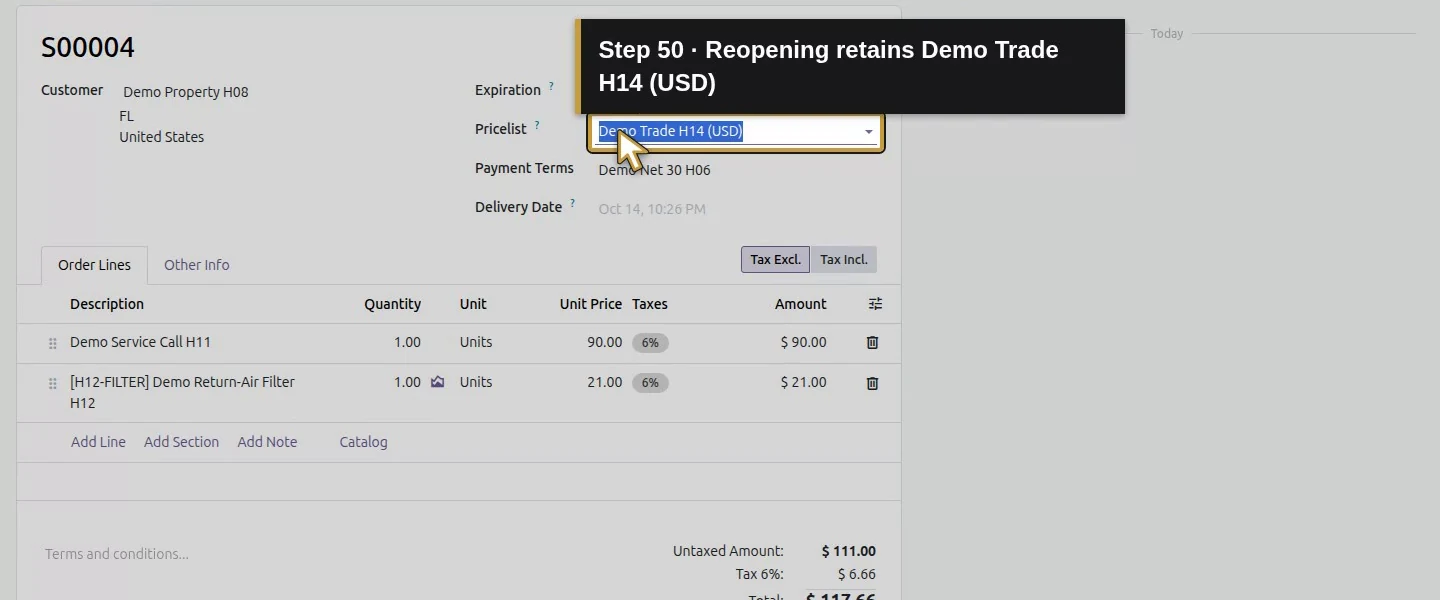
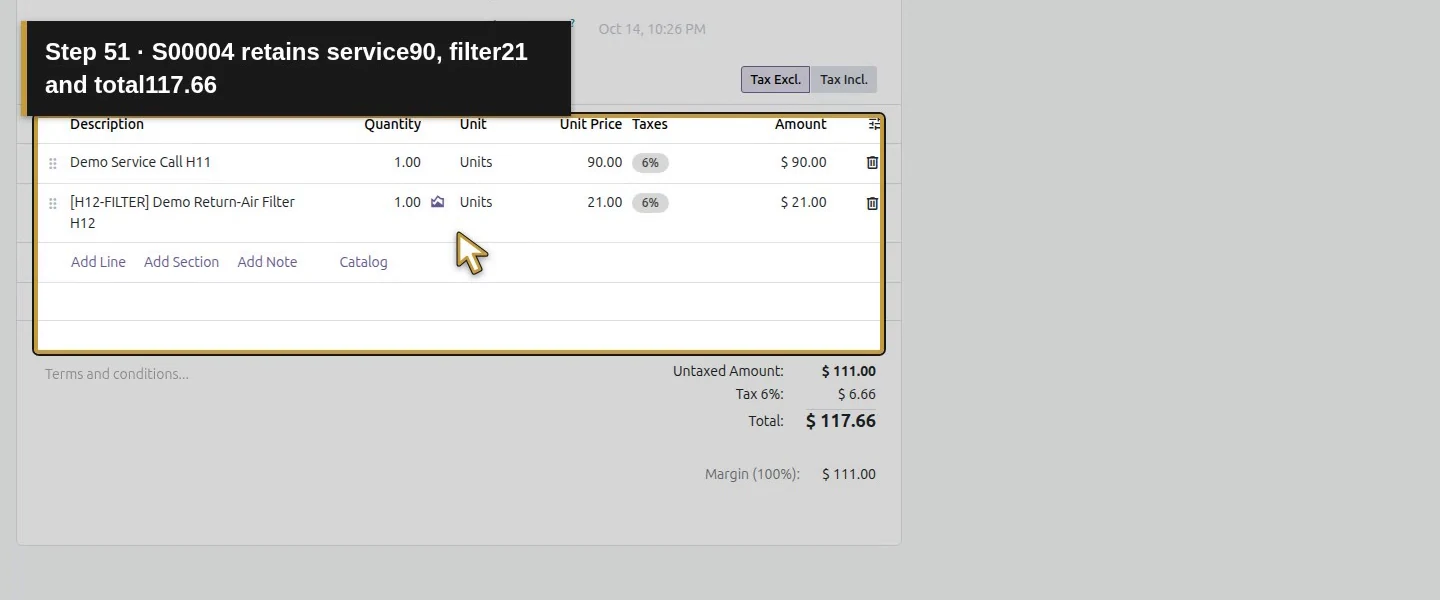
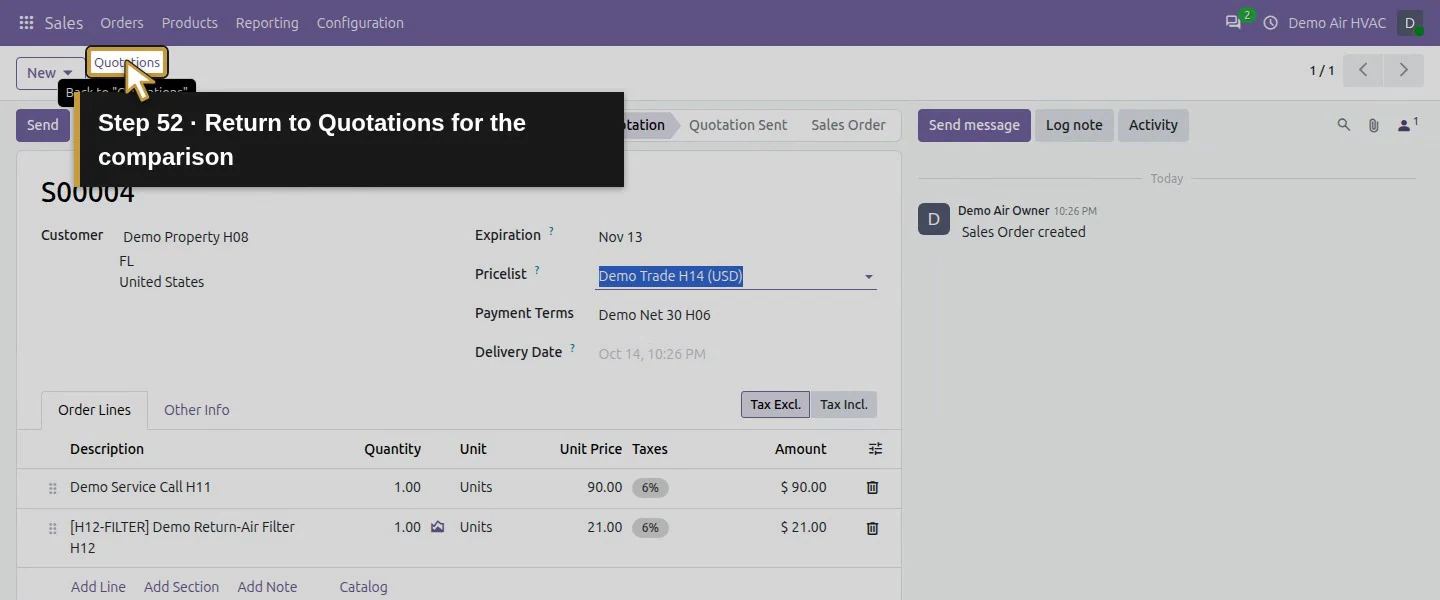
Add another line, search H12-FILTER and select the actual Demo Return-Air Filter H12 product entry. Check its reference and Unit Price 21 before saving: typing a description alone can leave a productless, zero-price line. Choose Demo Net 30 H06, review $111 untaxed + $6.66 demo tax = $117.66, save and reopen S00004. Both native product links and the selected pricelist persist.
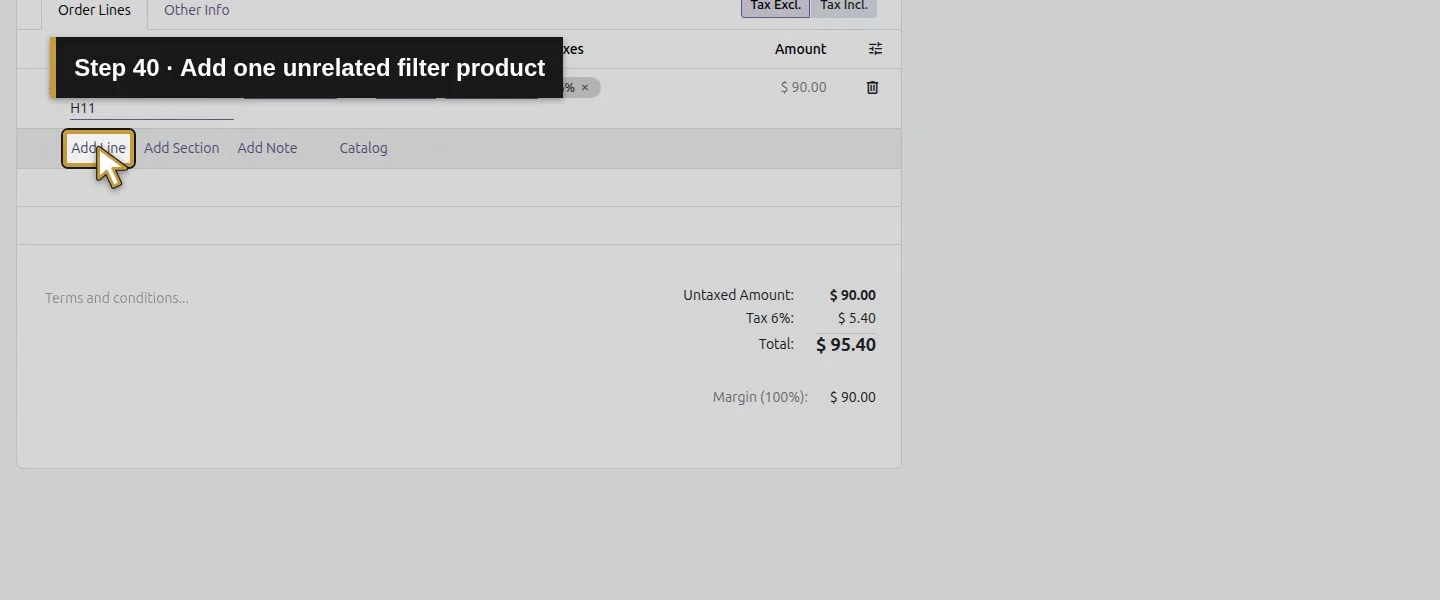
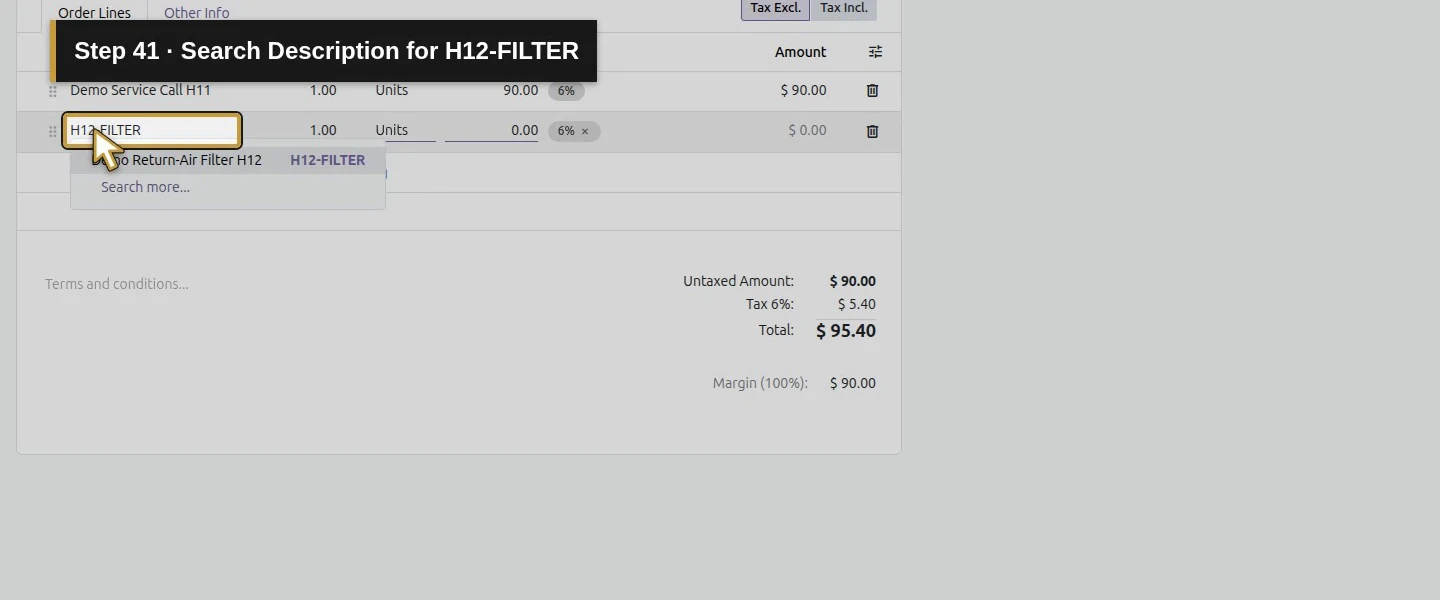
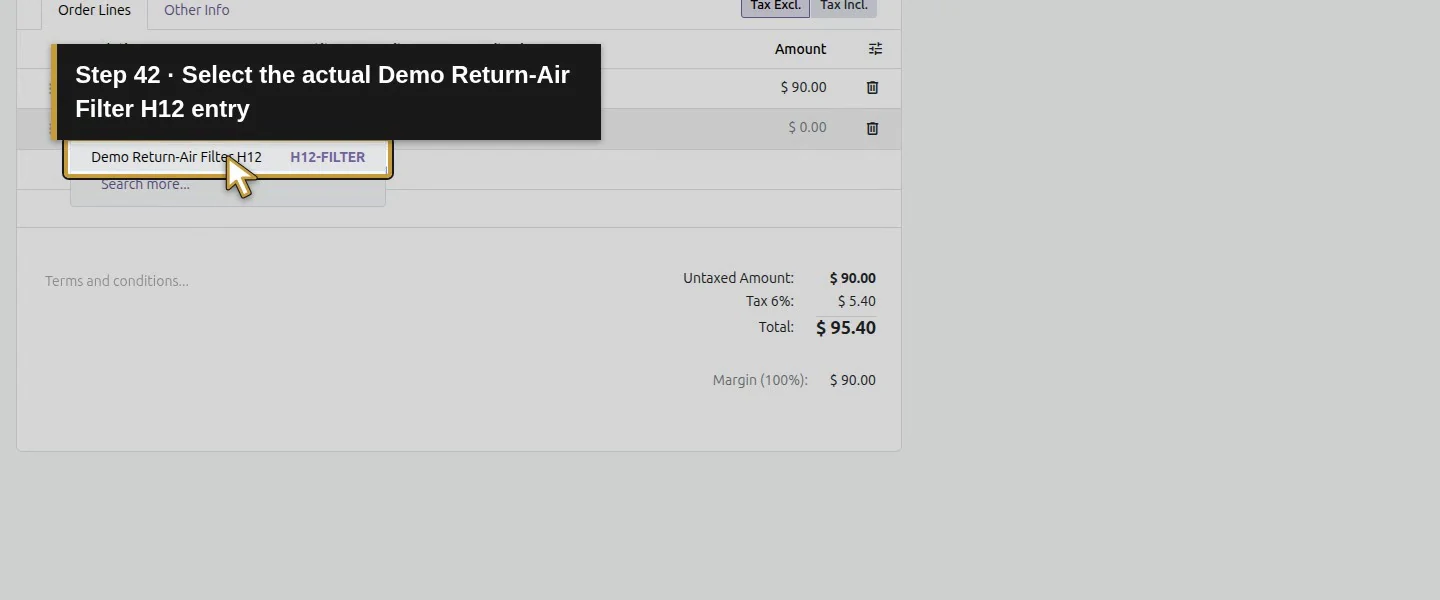
Step 6. Compare a new quote using Default
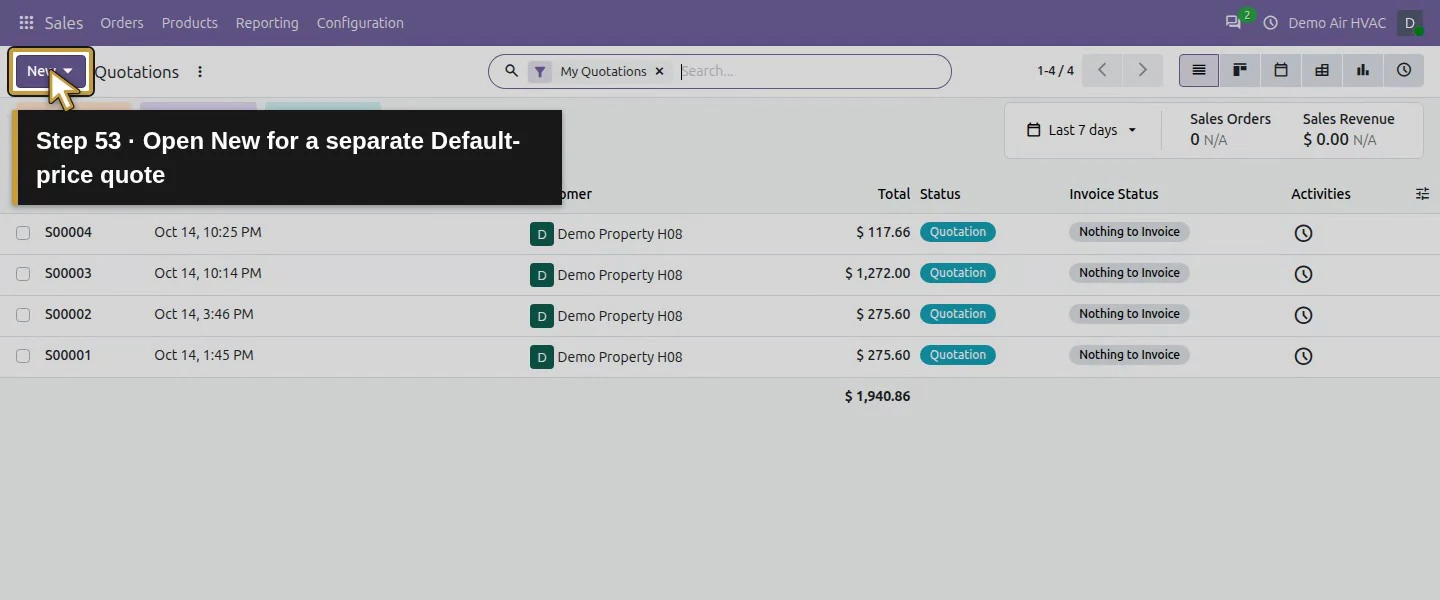
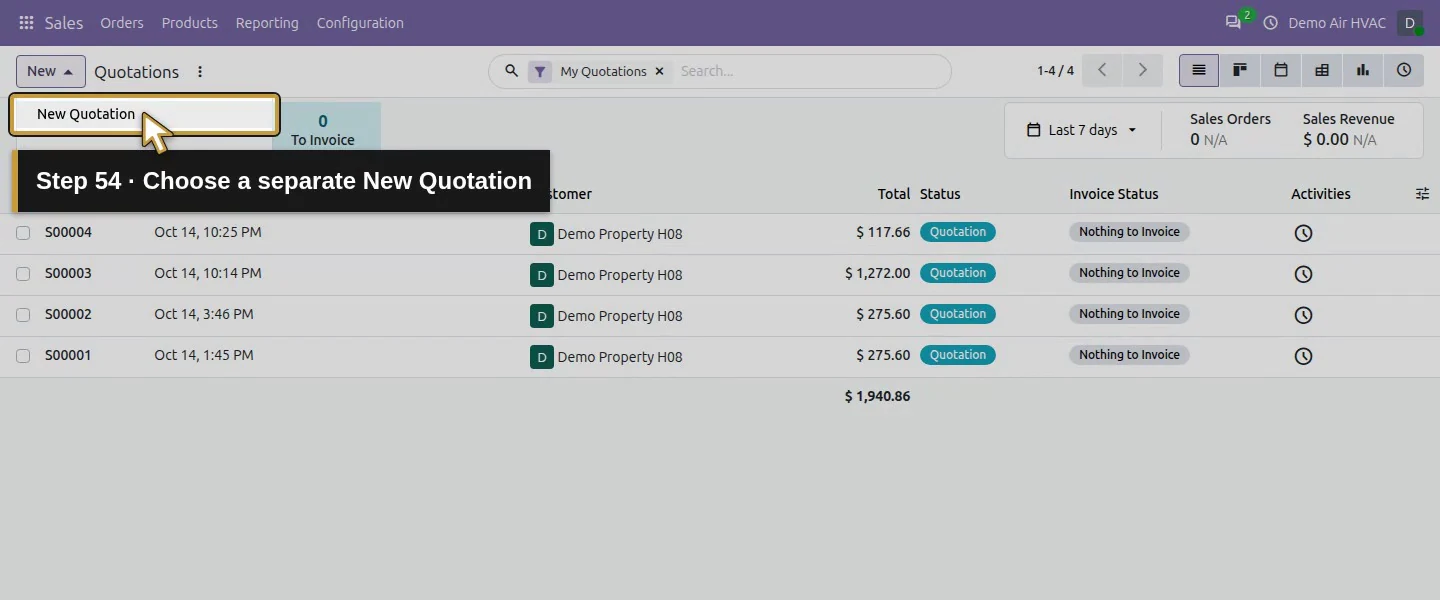
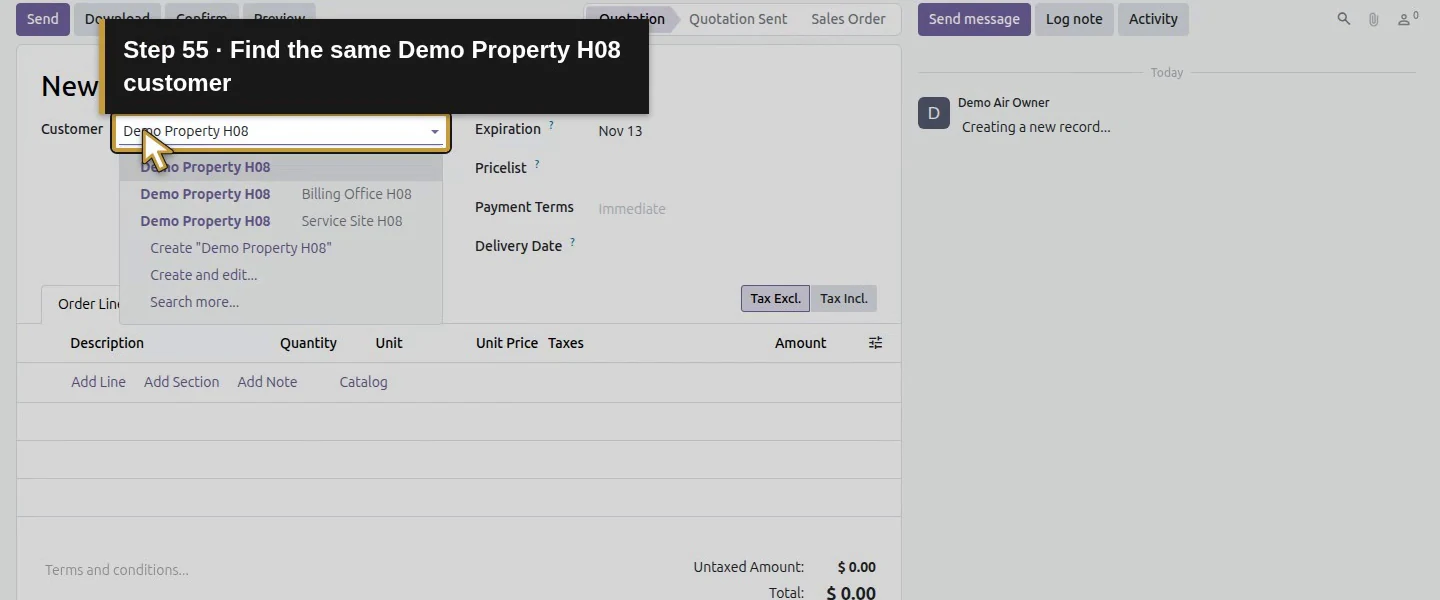
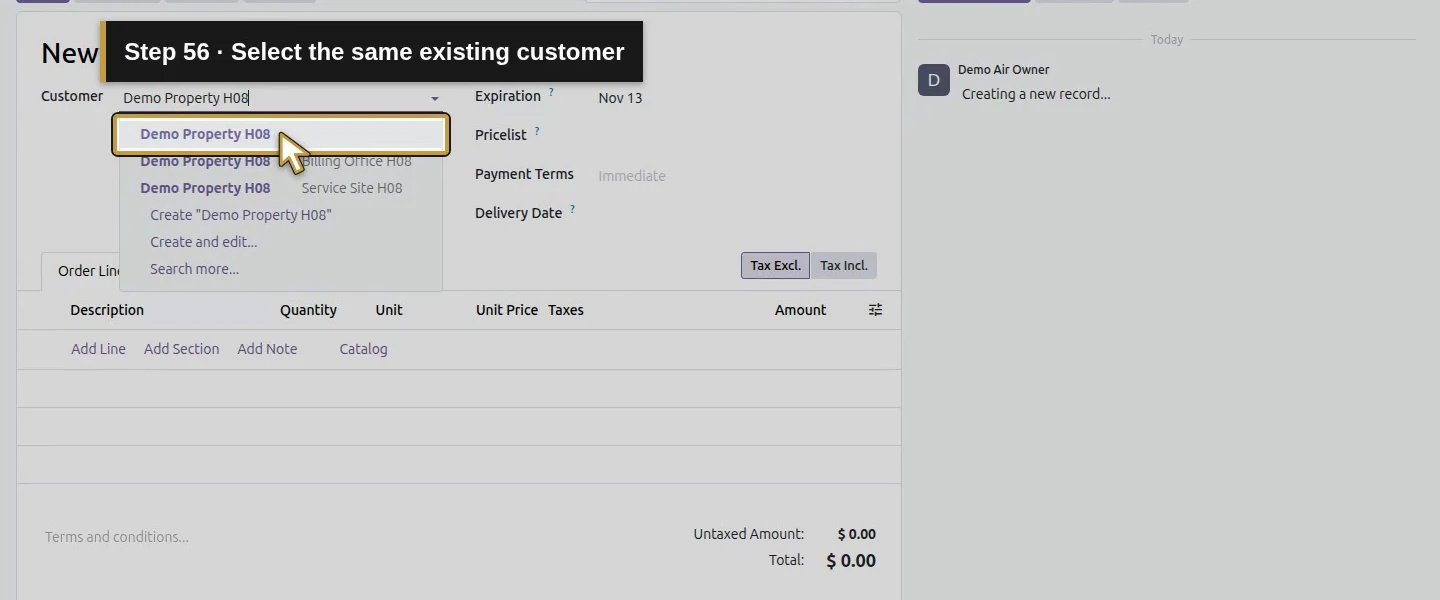
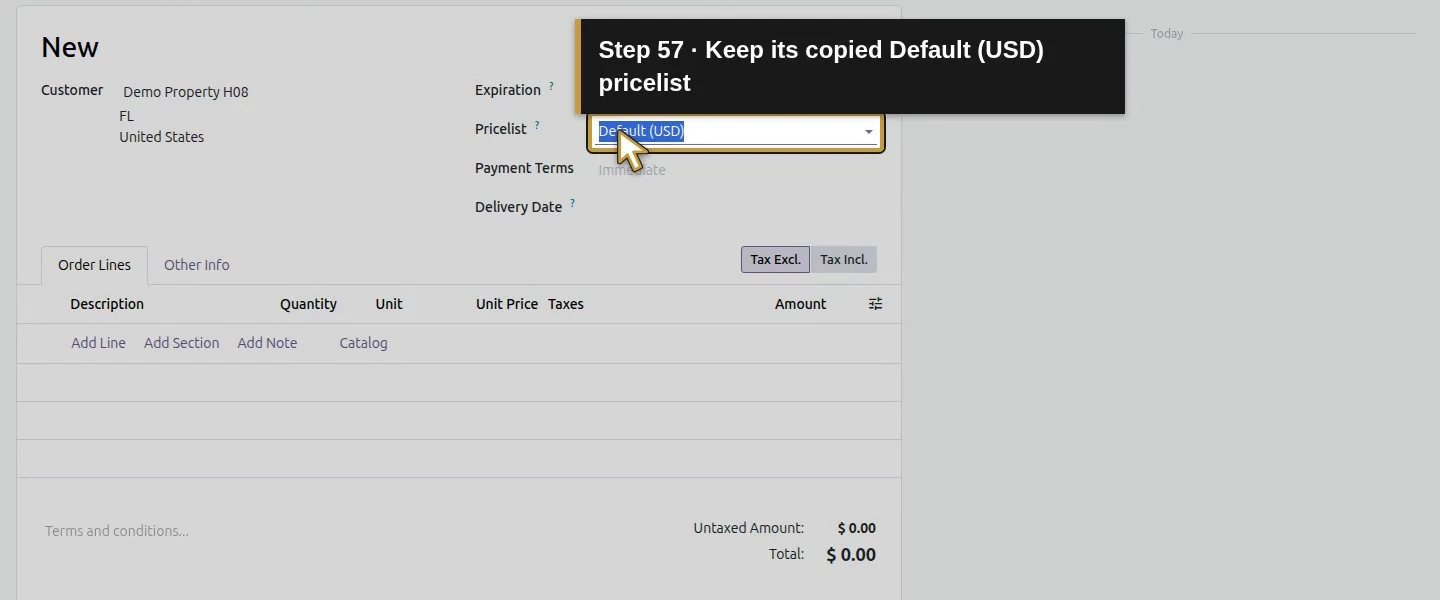
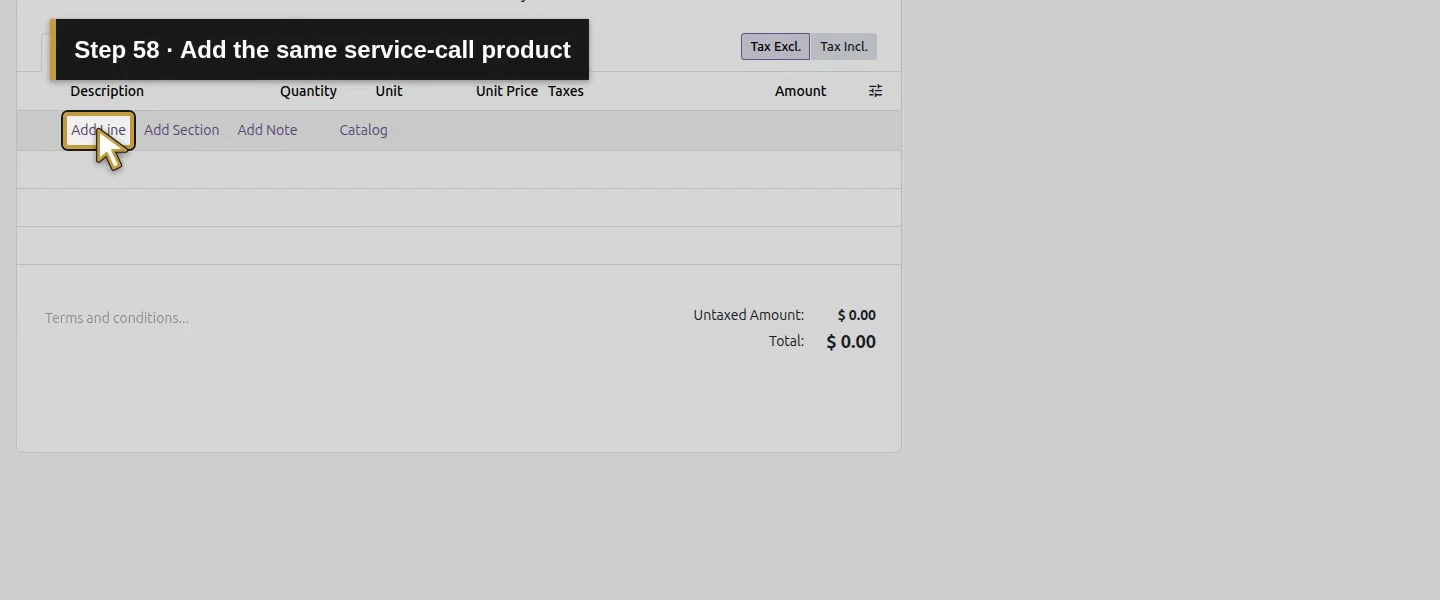
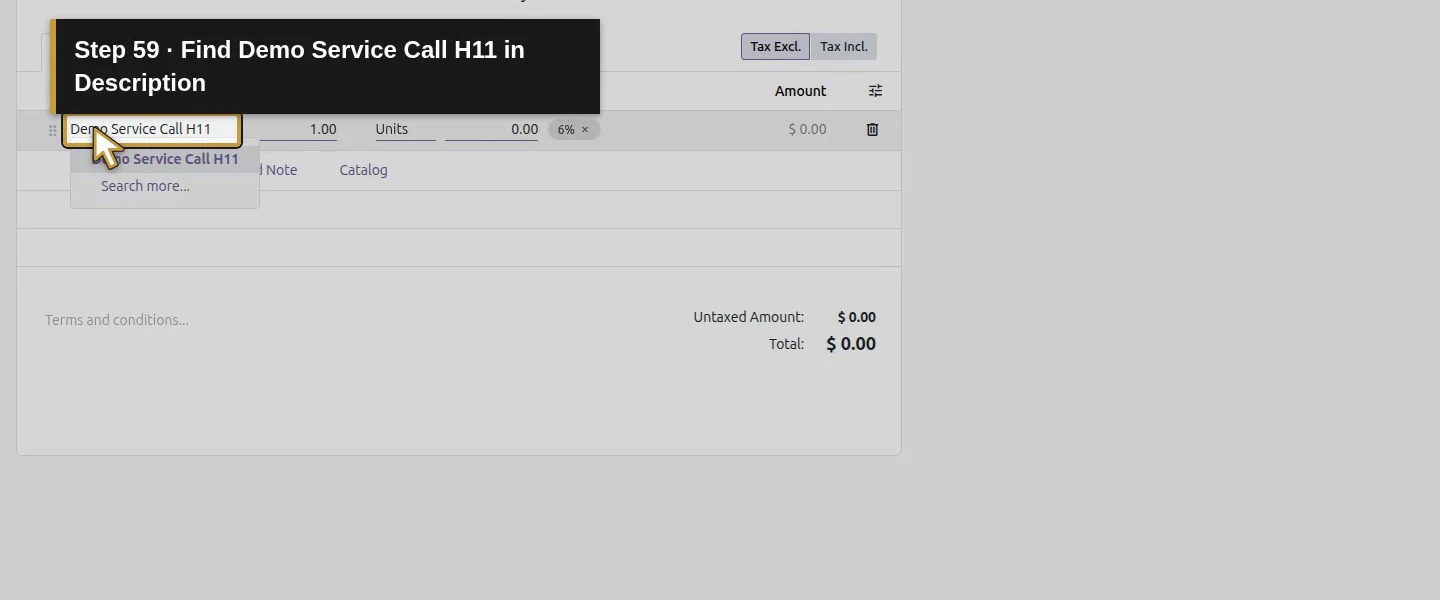
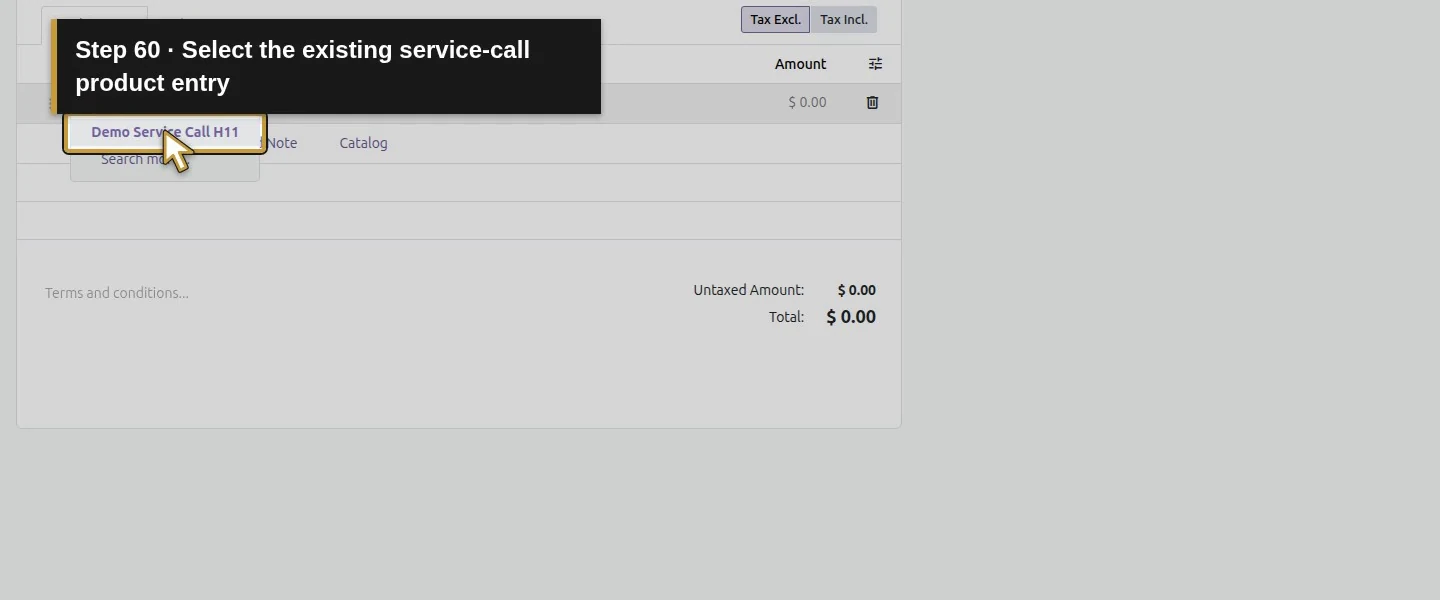
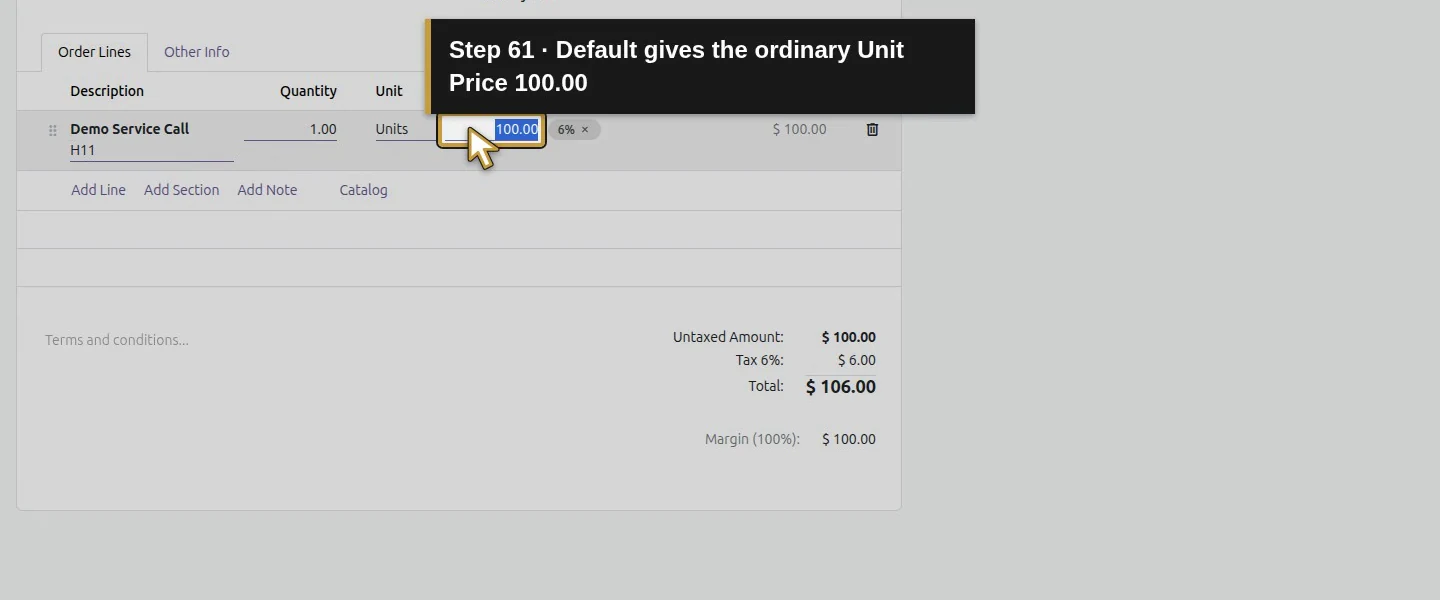
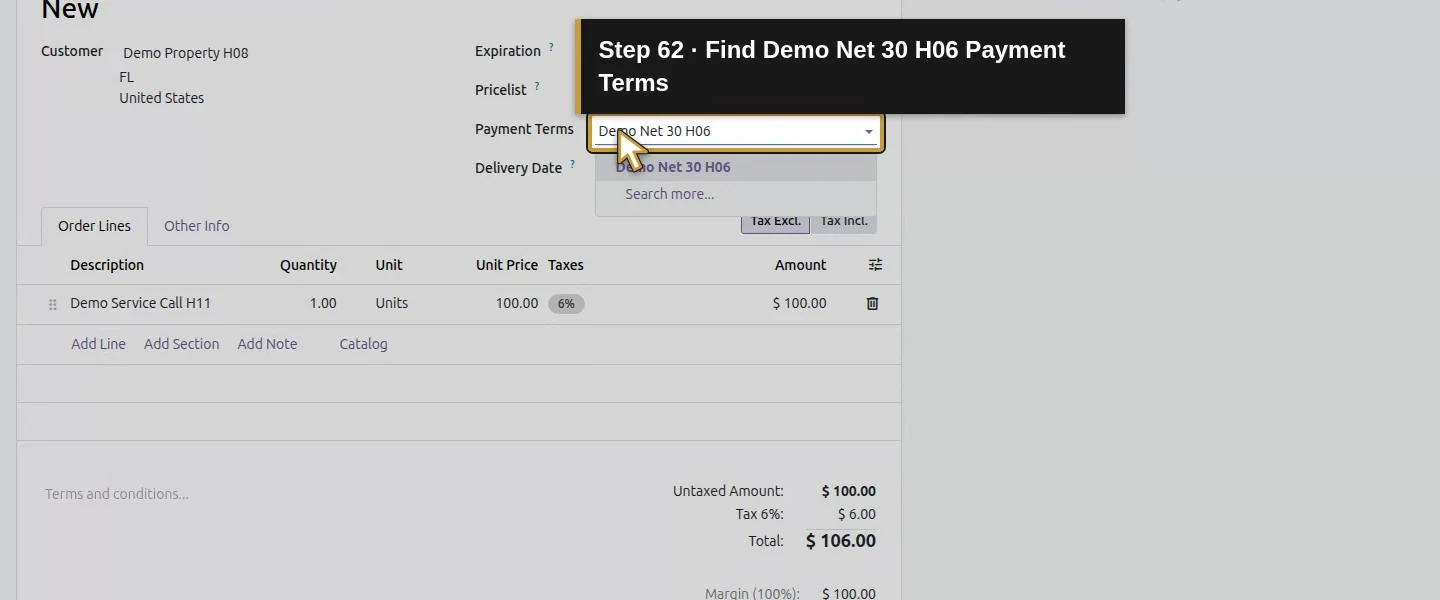
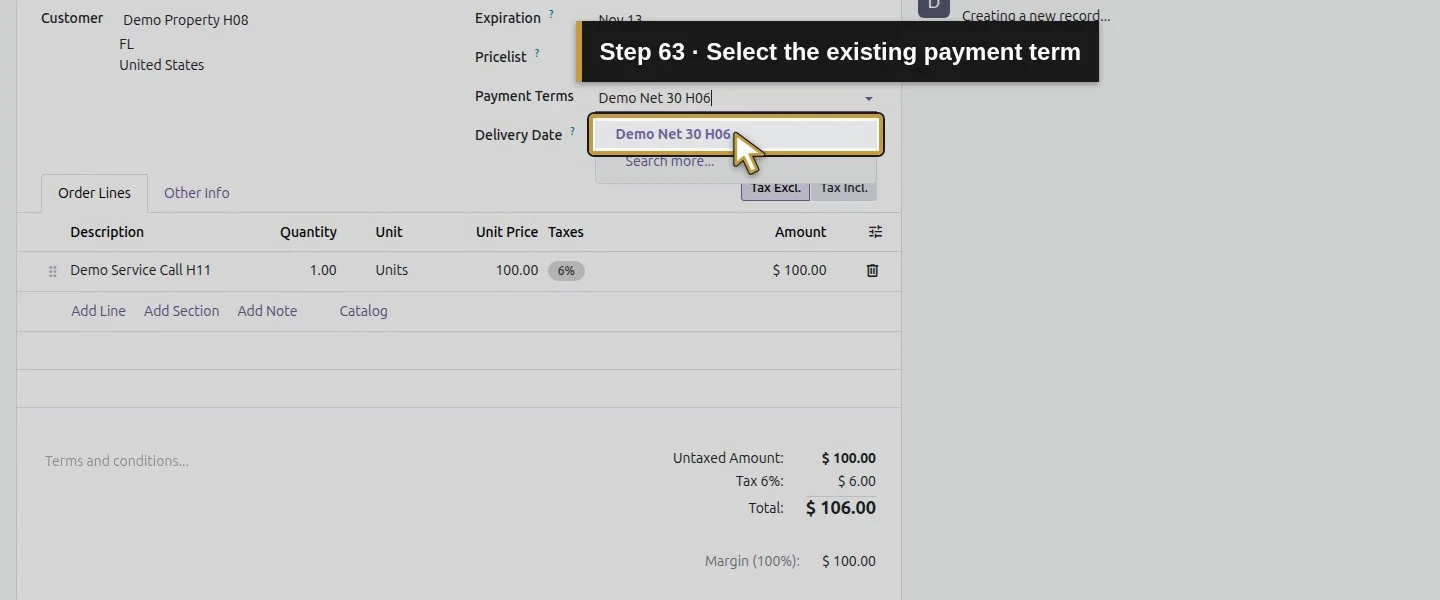
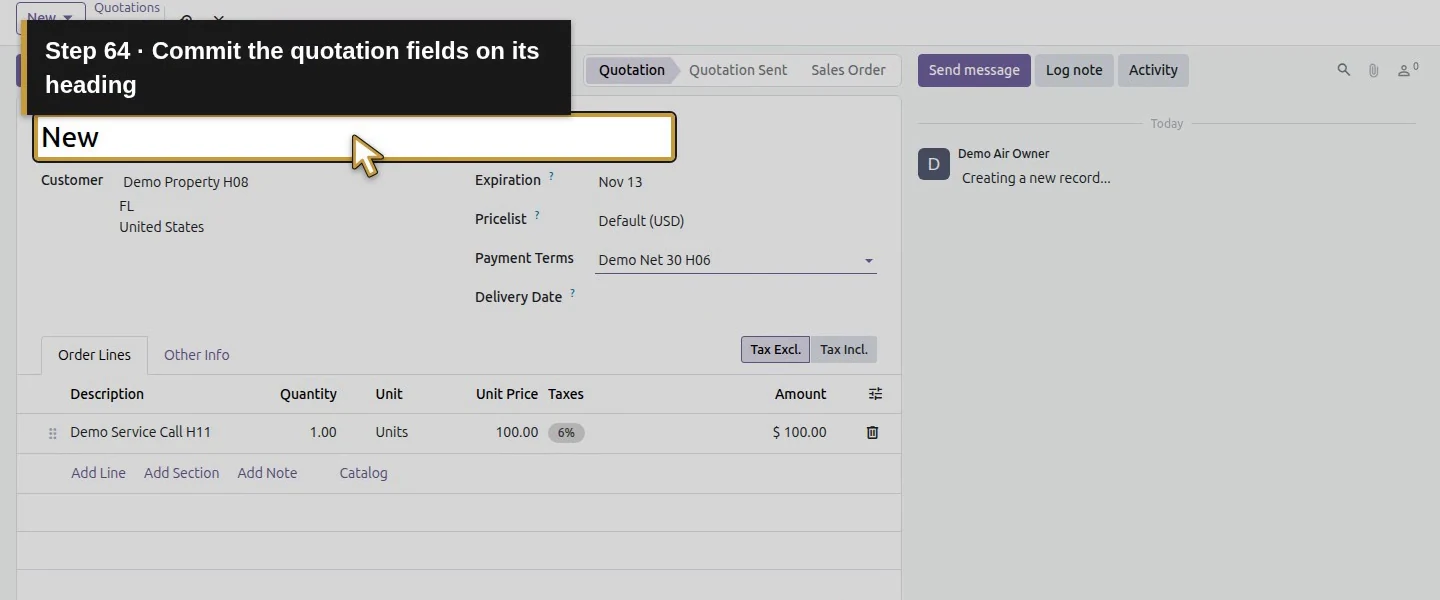
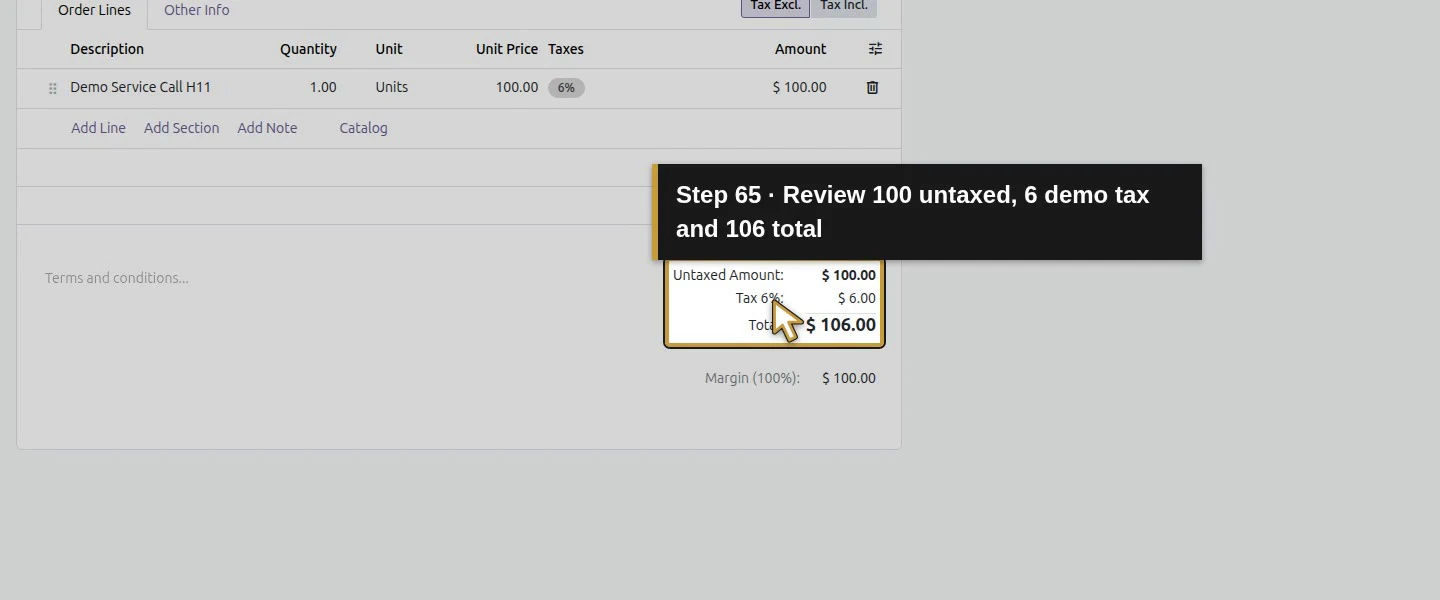
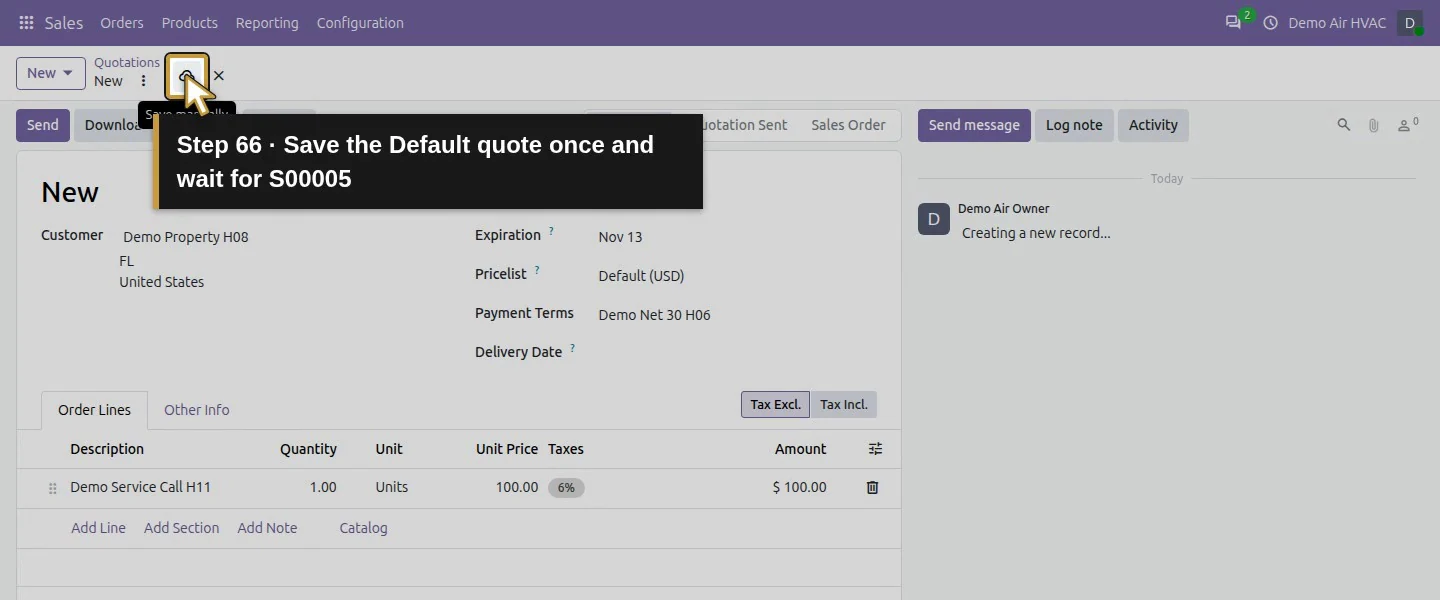
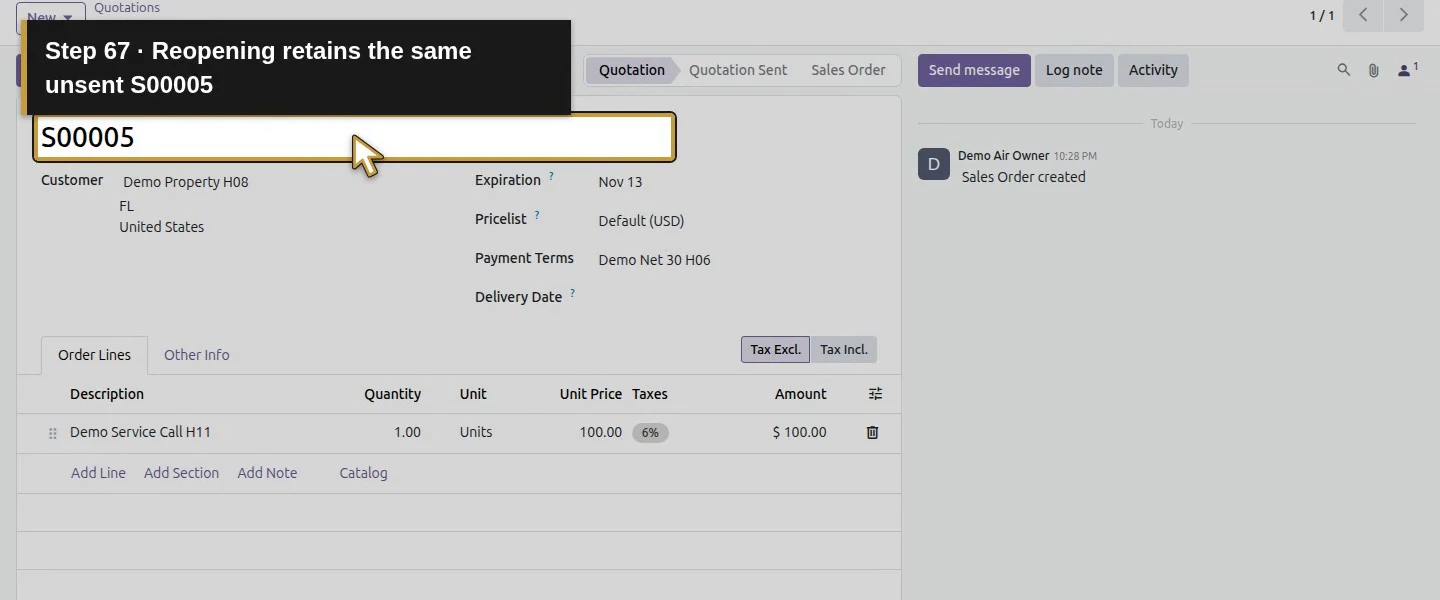
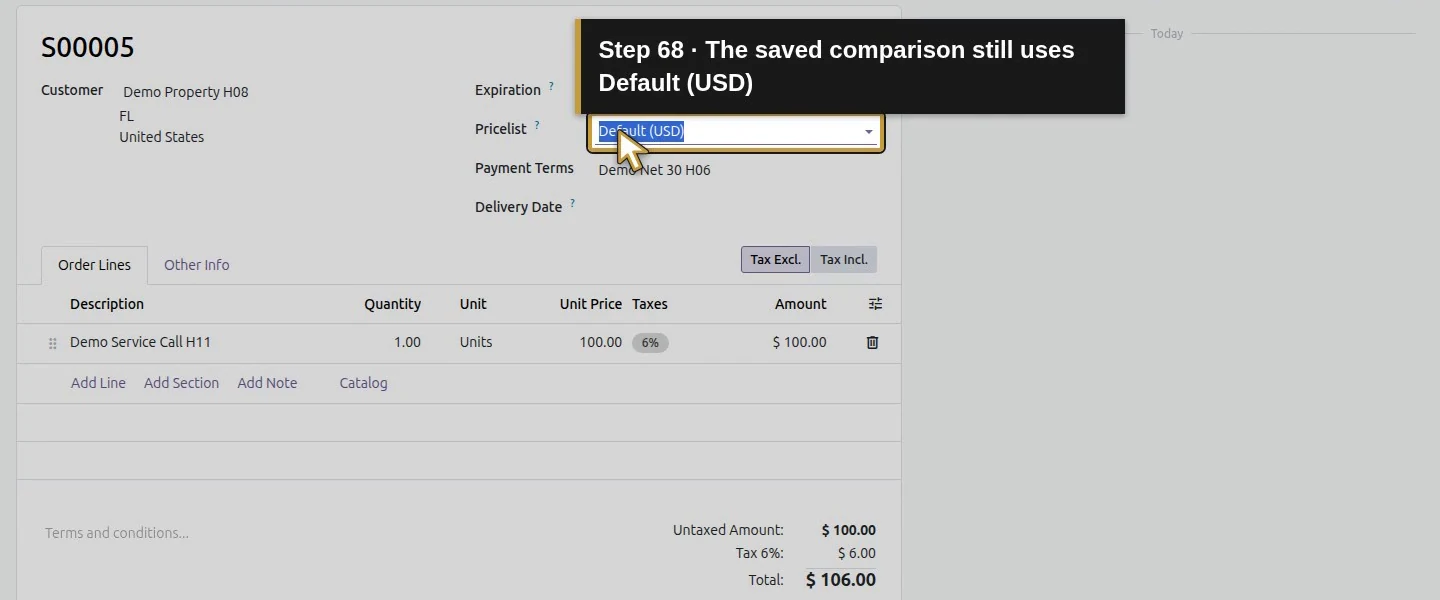
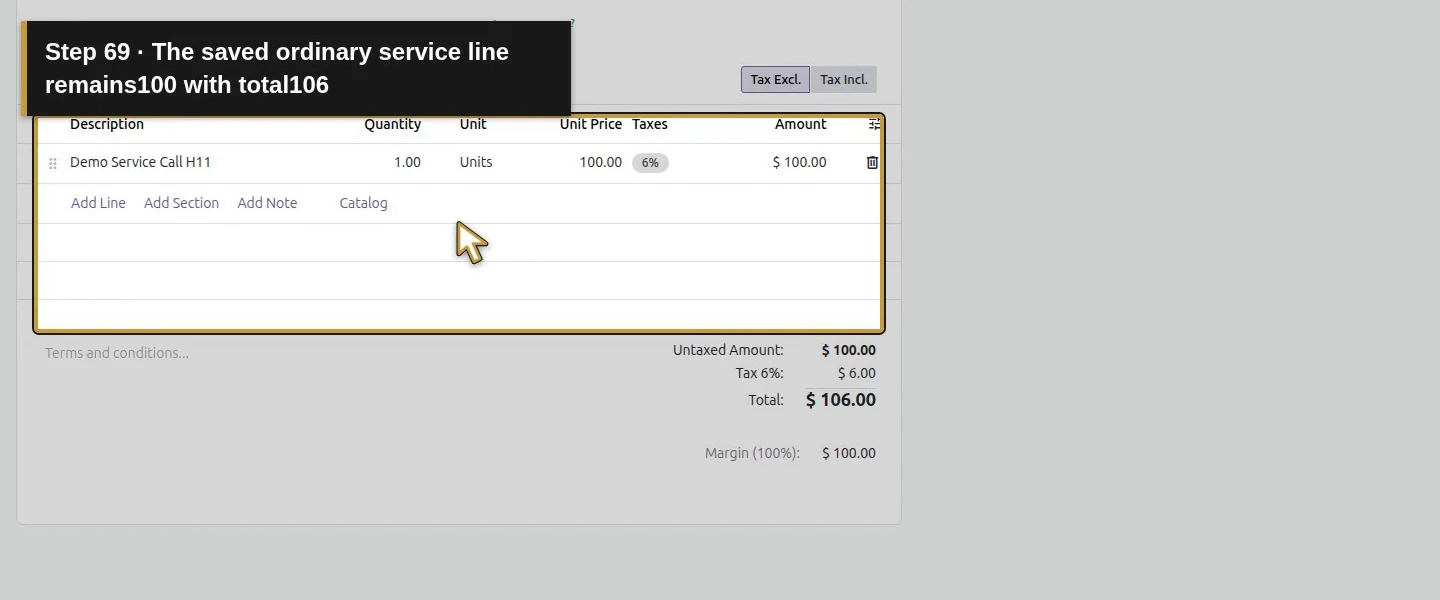
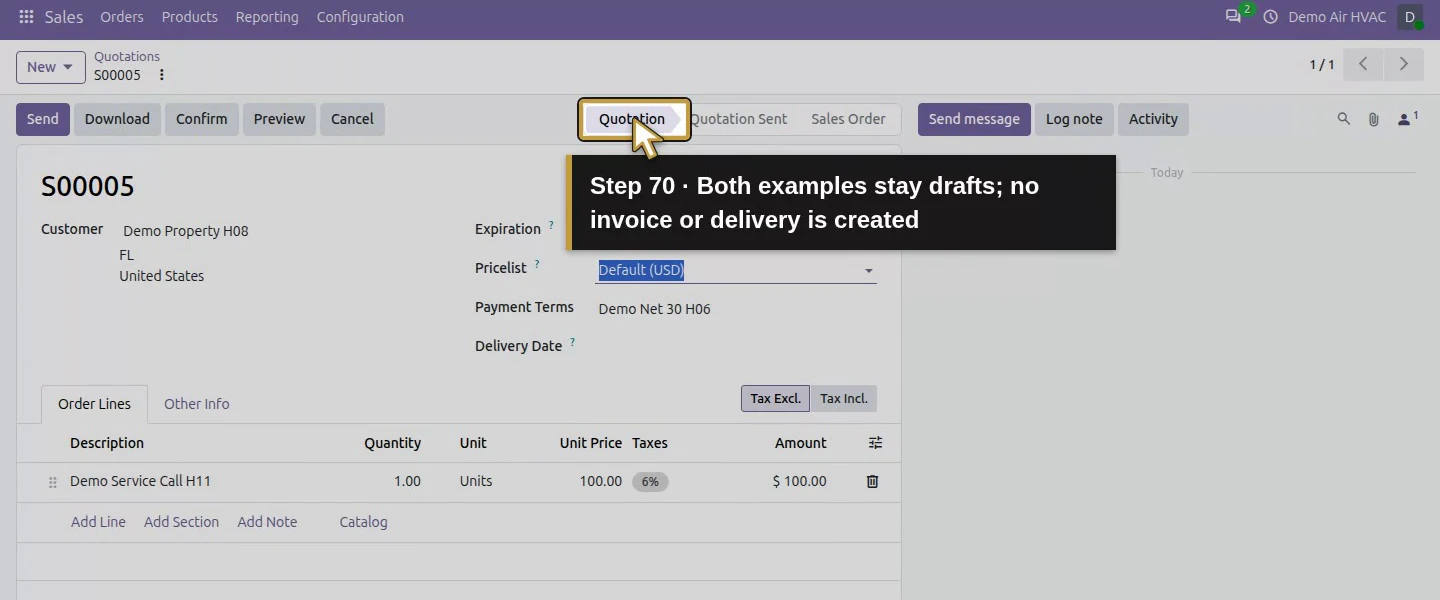
Create a second New Quotation for the same customer. Keep its copied Default (USD) pricelist, add the same service-call product at quantity one, and check Unit Price 100. Set Demo Net 30 H06, save and reopen S00005. Its total is $106 with the fictional tax. Both quotes remain drafts; the customer's saved pricelist remains Default.
Check the result
Demo Trade H14 has one product-specific fixed-price rule: service call $90 at minimum quantity one. Draft S00004 uses it for the service call while the filter remains $21, total $117.66. Draft S00005 uses Default and prices the same service call at $100, total $106. The customer default remains Default; earlier quotations and stock quantities remain intact. Neither new draft has a delivery or invoice.
If your screen differs
This verifies manual per-quotation selection, one product rule and its unrelated-product/default-list boundaries. Customer-default changes, expiry, larger quantity thresholds, currency conversion, competing rules and repricing existing lines were not tested. Select the list before adding products and review the actual price. A tag or description is not proof of pricelist eligibility or a selected product.
Frequently asked questions
How do I give a customer a different price in Odoo?
Enable Pricelists, save a product-specific rule and select its pricelist on a new quotation before adding the product. In this example, Demo Trade H14 gives the service call a $90 price while the customer's Default list still gives $100.Why isn't my Odoo pricelist changing the quotation price?
Check the selected list and actual product first, then the rule's product scope, minimum quantity, dates and currency. This test selected the list before adding lines; changes to existing lines need a separate repricing check.Do Odoo customer tags automatically assign prices?
No tag assignment was used or verified. The office selected Demo Trade H14 manually on one quote; a second quote copied the customer's unchanged Default pricelist.Continue building the business
Continue with purchase-order approval, whose manager boundary still requires native verification.
Talk about your Odoo setup
Bring your current process and the result you need to Onward to plan your Odoo workflow. Talk about your Odoo setup.