
Running an HVAC business with Odoo
How do I track equipment serial numbers in Odoo?
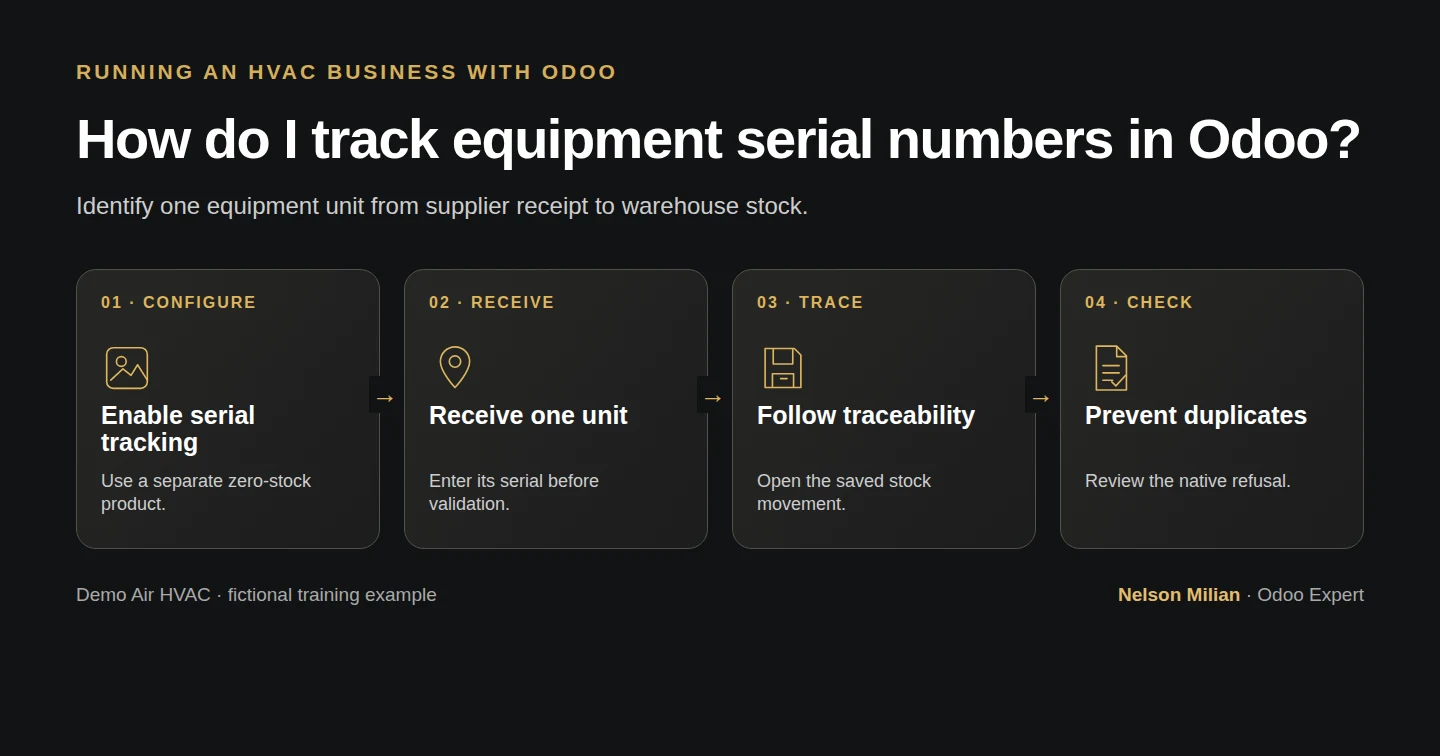
Configure serial tracking before receiving equipment, assign one serial on the native receipt, and inspect the saved stock traceability.
Alex needs to identify one received equipment unit. A native serial record connects the unit to its supplier receipt and warehouse location. This guide records that stock traceability; it does not establish an installed customer's service or warranty history.
Alex Rivera and Demo Air HVAC are fictional training examples. Prices, dates, quantities and business situations in this guide are illustrative.
Before you begin
Tested in stock Odoo 20.0-20260926 Community as the demo owner administrator, with official modules and standard configuration. Complete the partial receipt and purchase approval lessons. Use the owner administrator with Purchase Administrator access and existing Demo Supply H10. Keep the H12 goods and H13 variants intact. This creates a separate zero-stock equipment product and a fresh one-unit purchase receipt with fictional prices.
Step-by-step workflow
Step 1. Enable lots and serial numbers
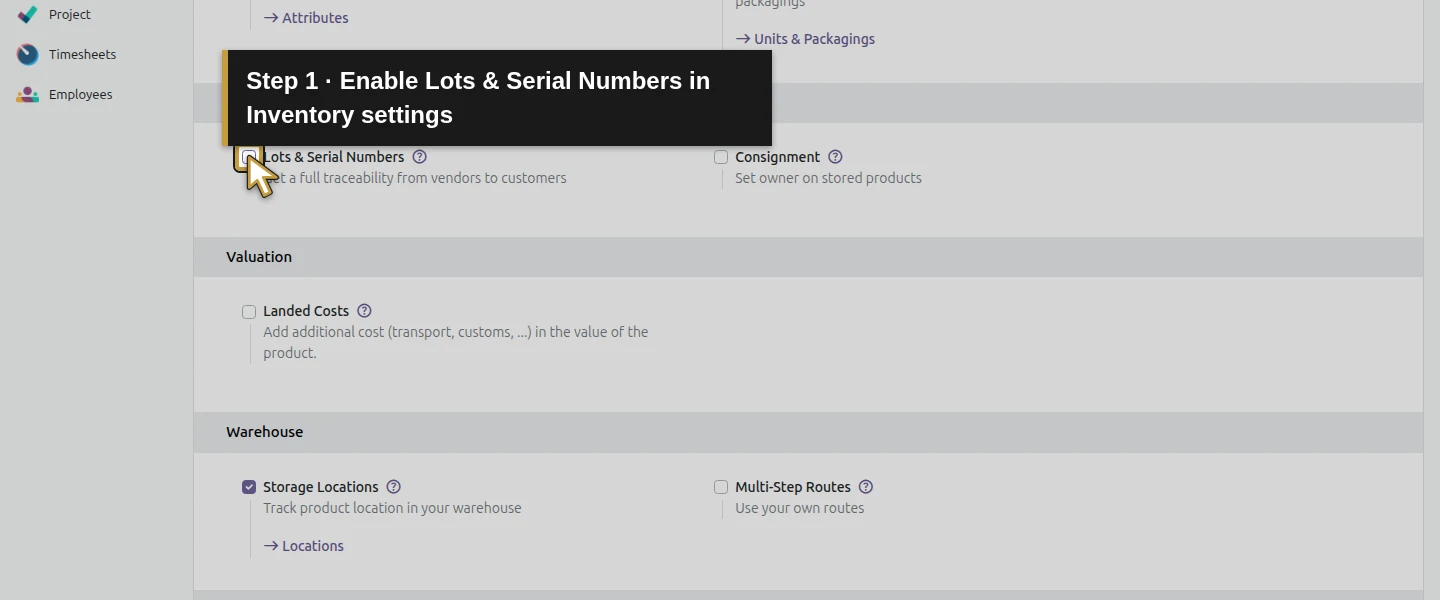
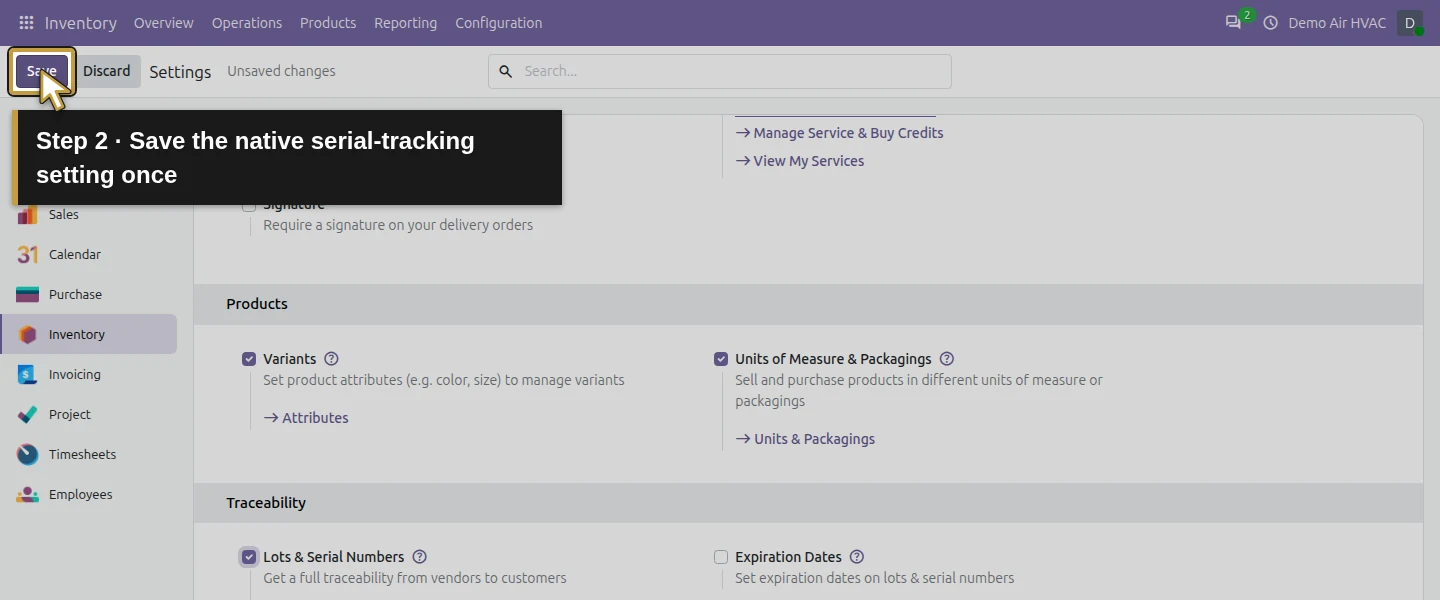
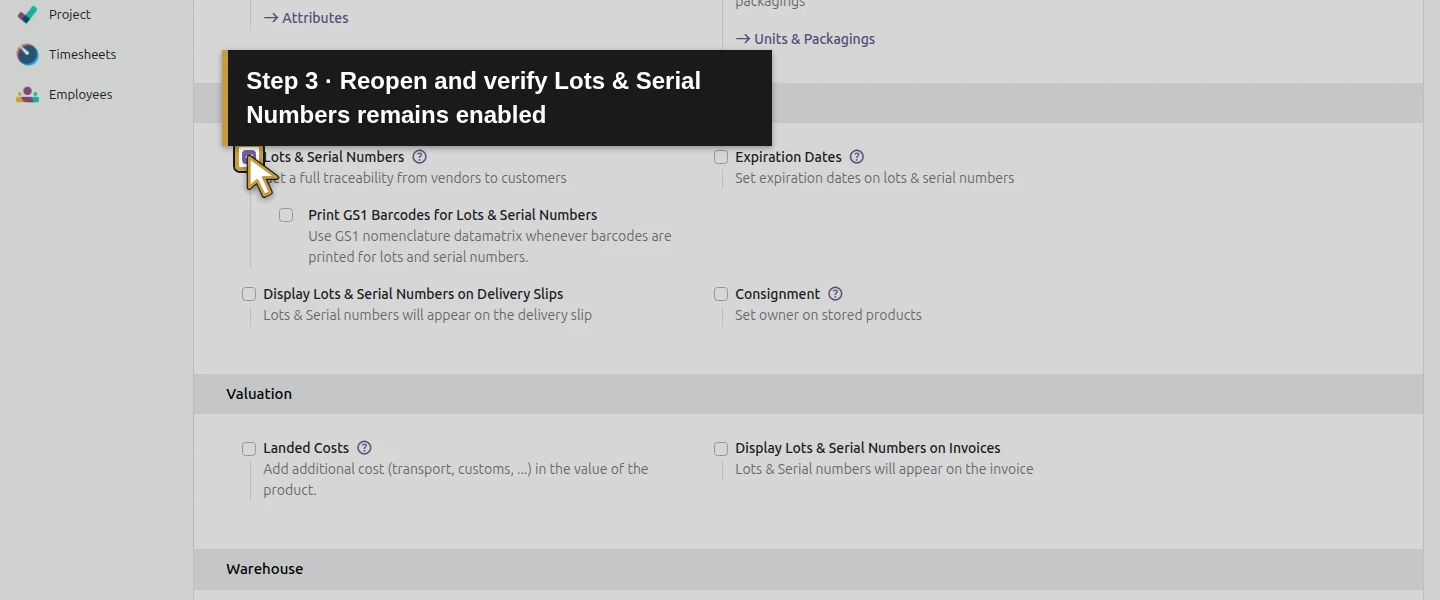
Open Inventory → Configuration → Settings, check Lots & Serial Numbers and choose Save. Reopen and confirm it remains enabled. Inventory → Products → Lots / Serial Numbers becomes available.
Step 2. Create a separate tracked product
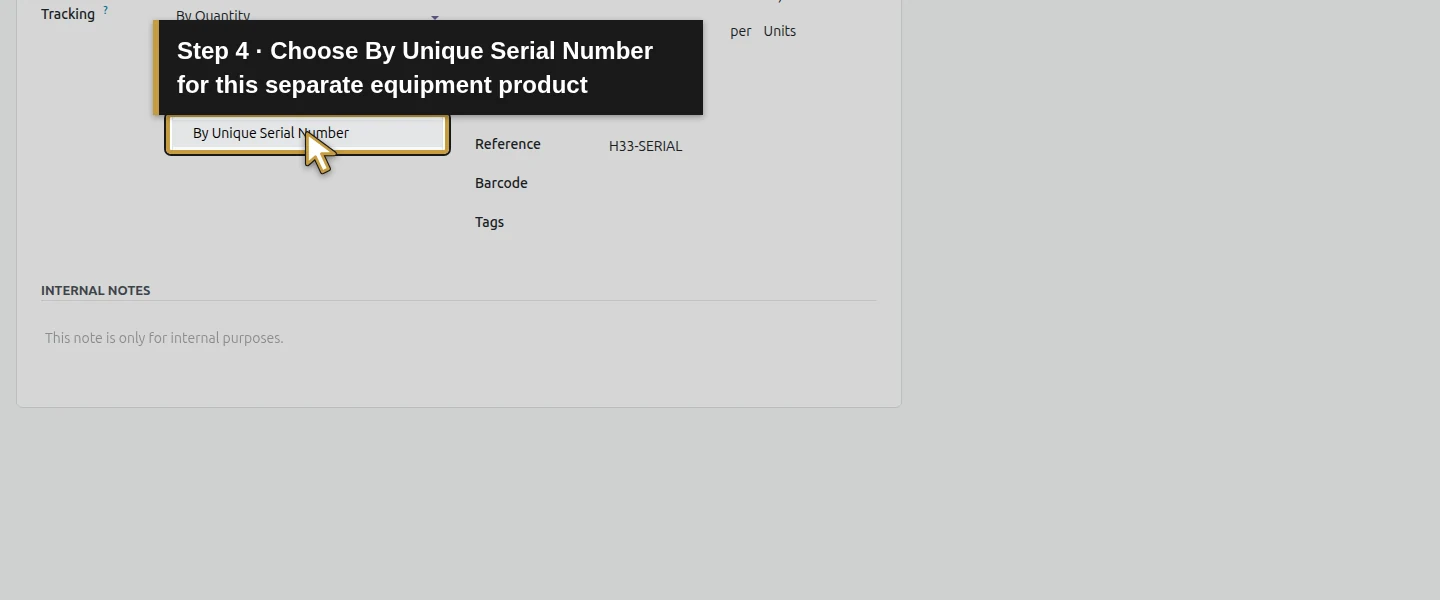
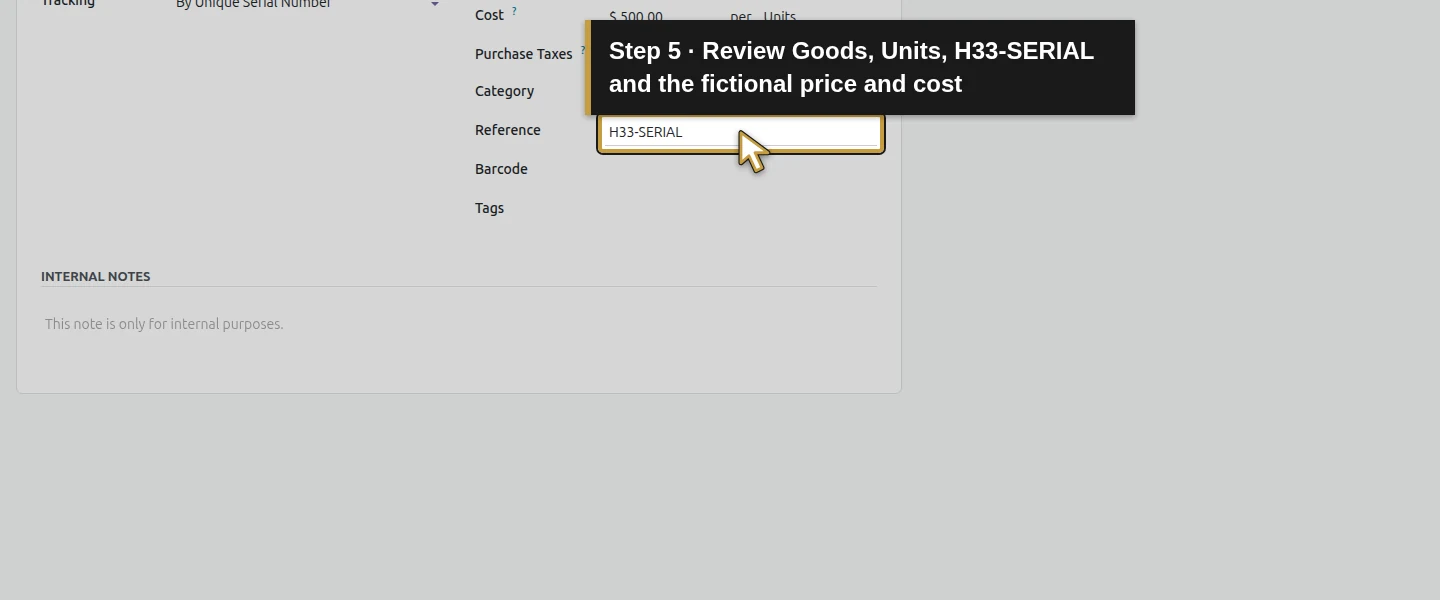
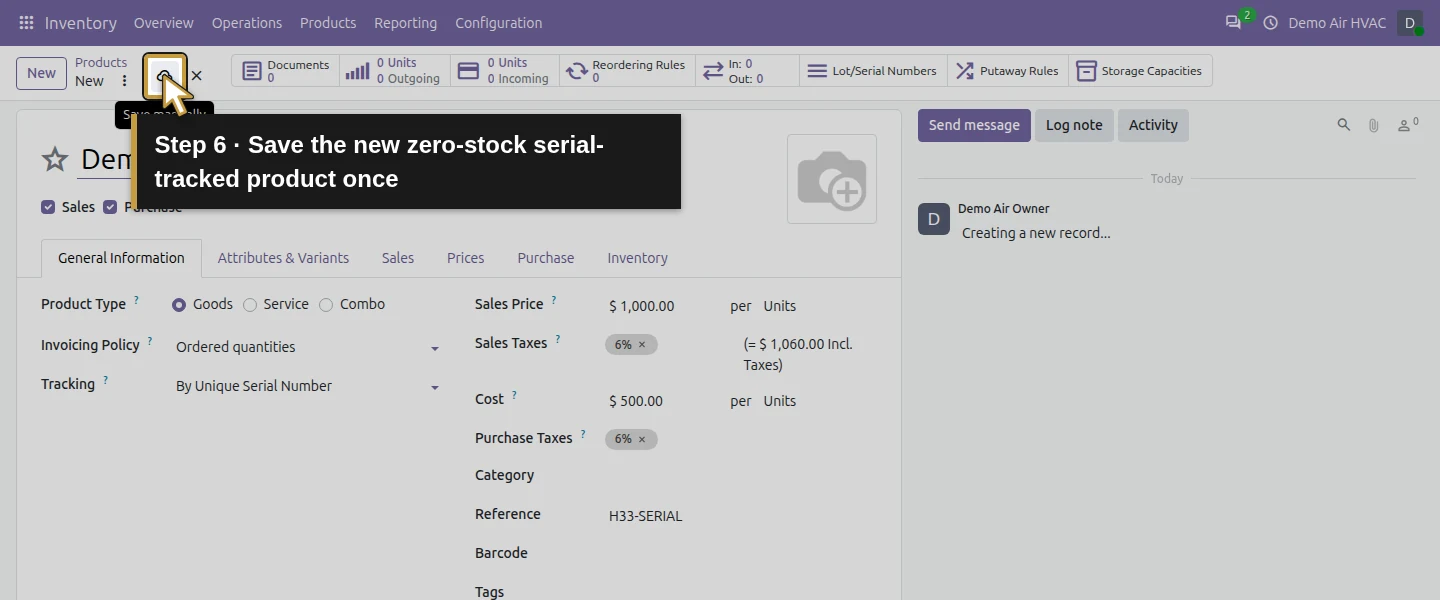
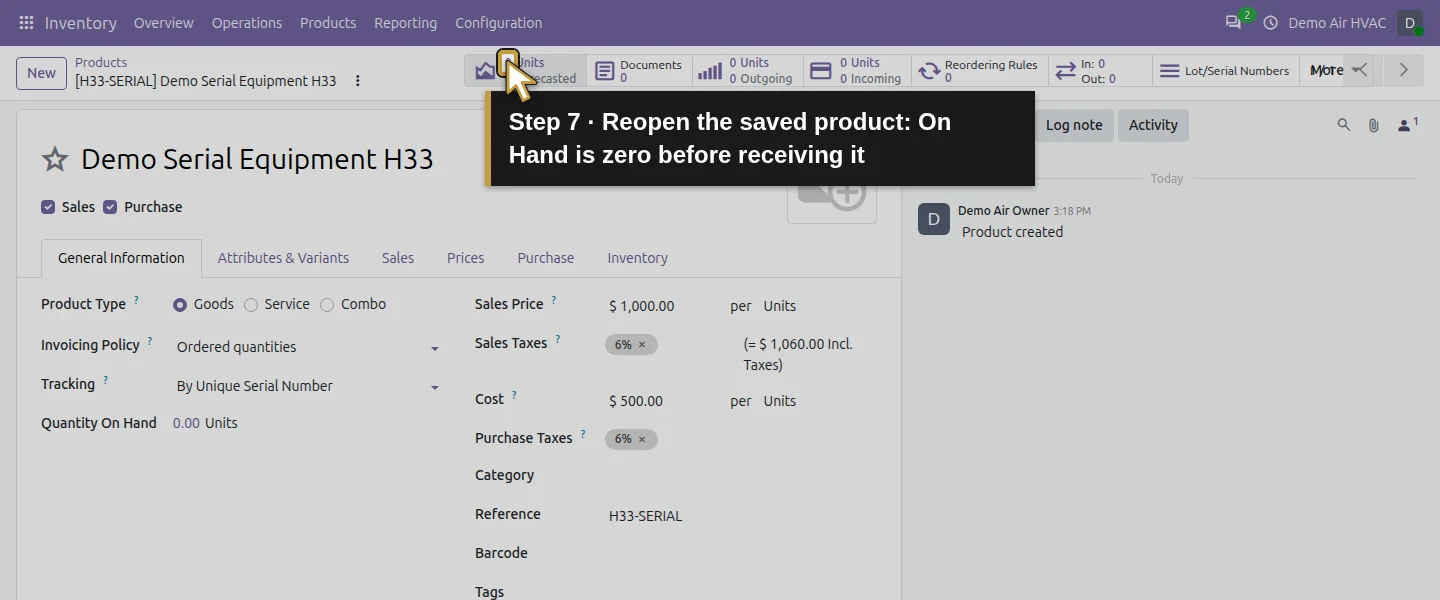
Open Inventory → Products → Products → New, enter Demo Serial Equipment H33, keep Product Type Goods, and choose Tracking → By Unique Serial Number. Set Reference H33-SERIAL, Units, Sales Price 1,000 and Cost 500 for the training example. Save, wait for the saved product and reopen. On Hand is zero. Do not change the tracking method of the established H12 goods for this test.
Step 3. Review the receipt's serial controls
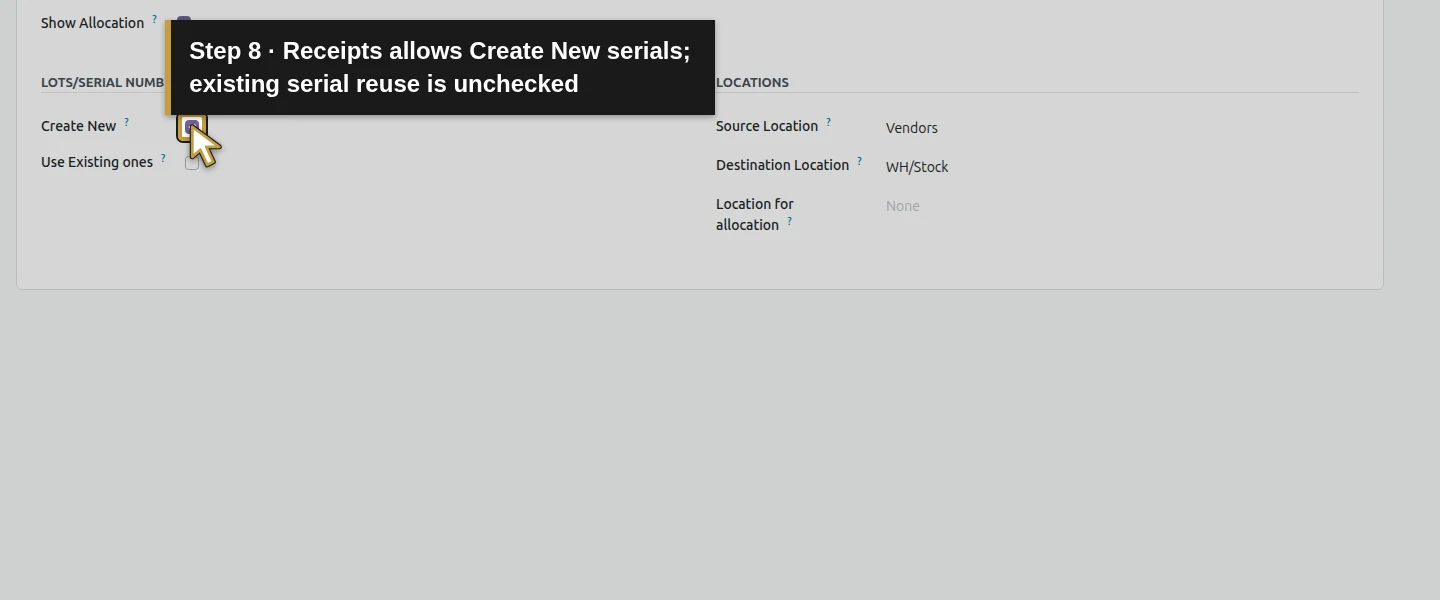
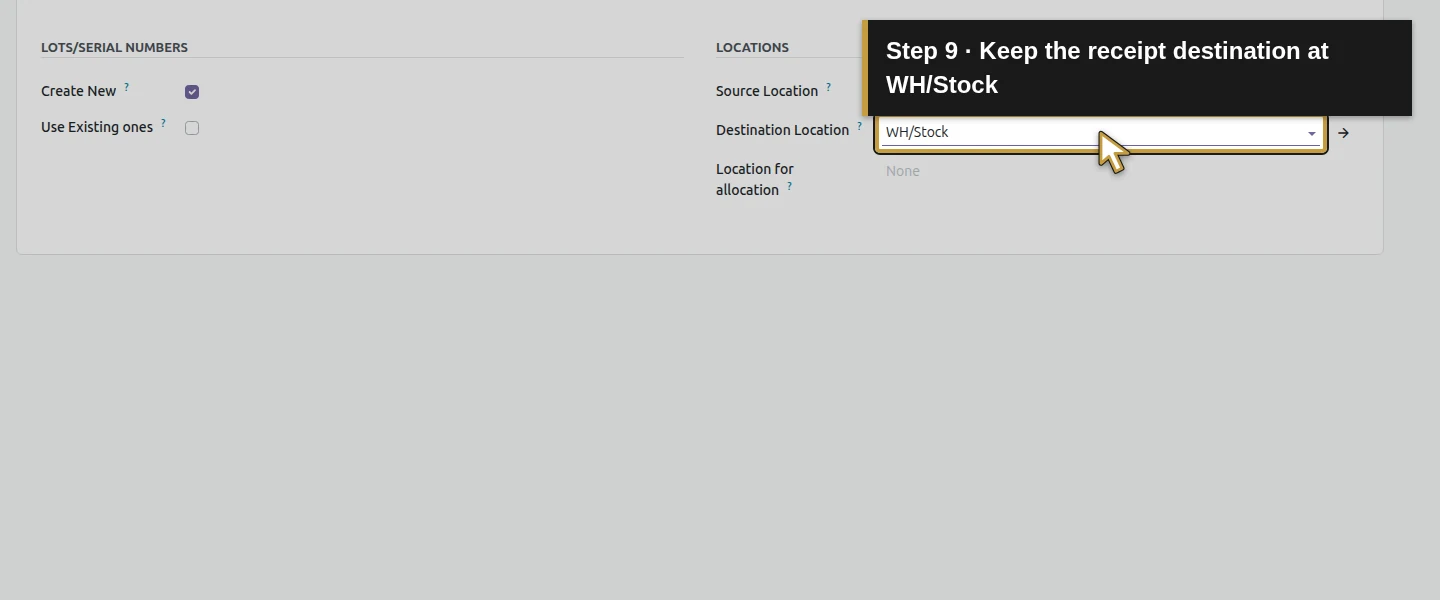
Open Inventory → Configuration → Operations Types → Receipts. Under Lots/Serial Numbers, the tested Create New is checked and Use Existing ones is unchecked. Source Location is Vendors and Destination is WH/Stock. These existing settings allow a newly received serial to be entered; no change was needed.
Step 4. Prepare the fresh purchase receipt
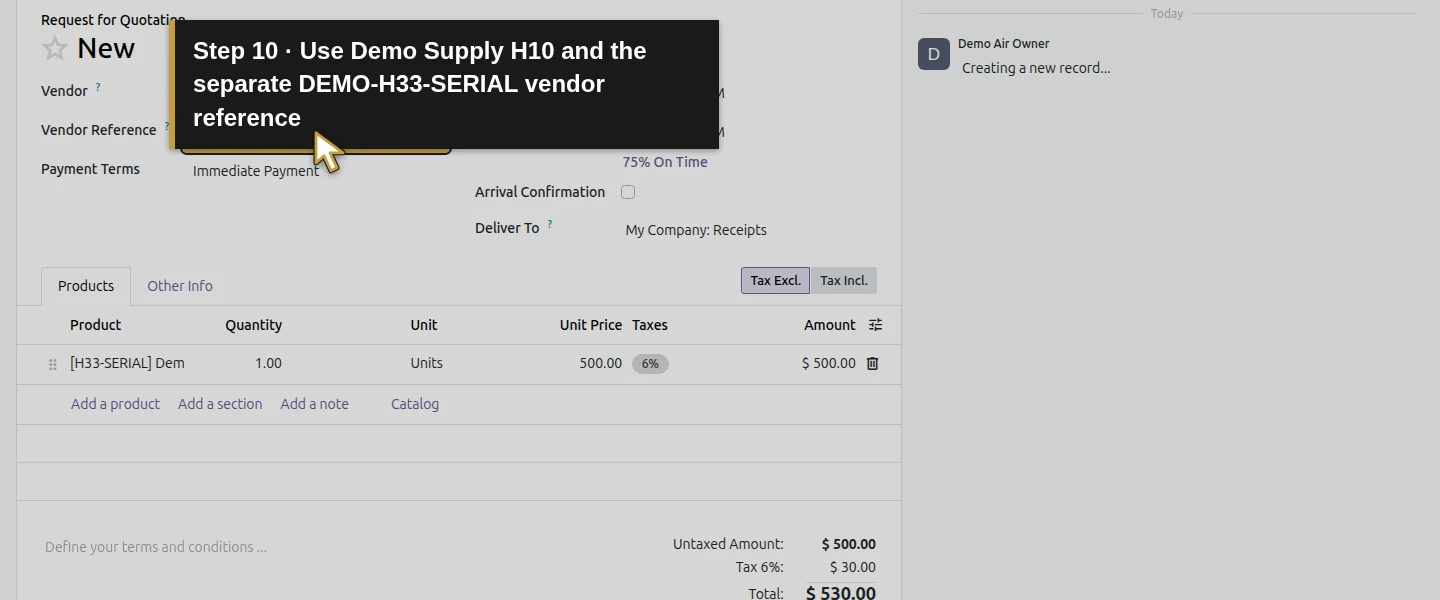
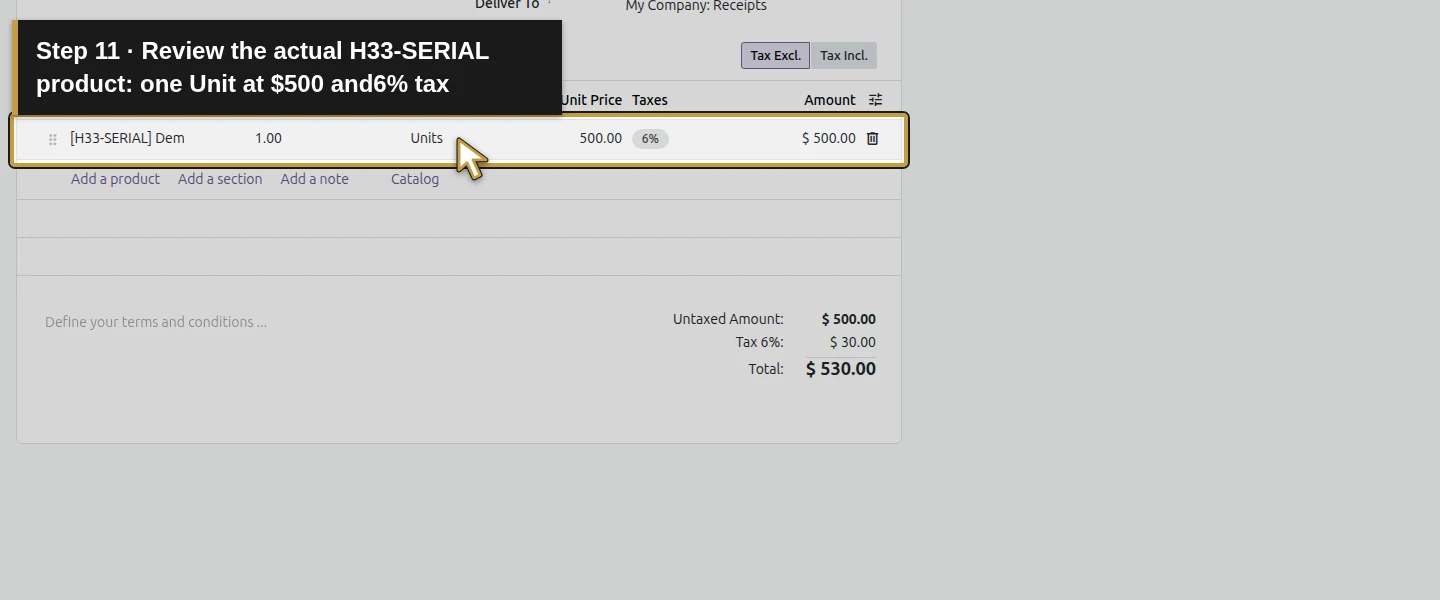
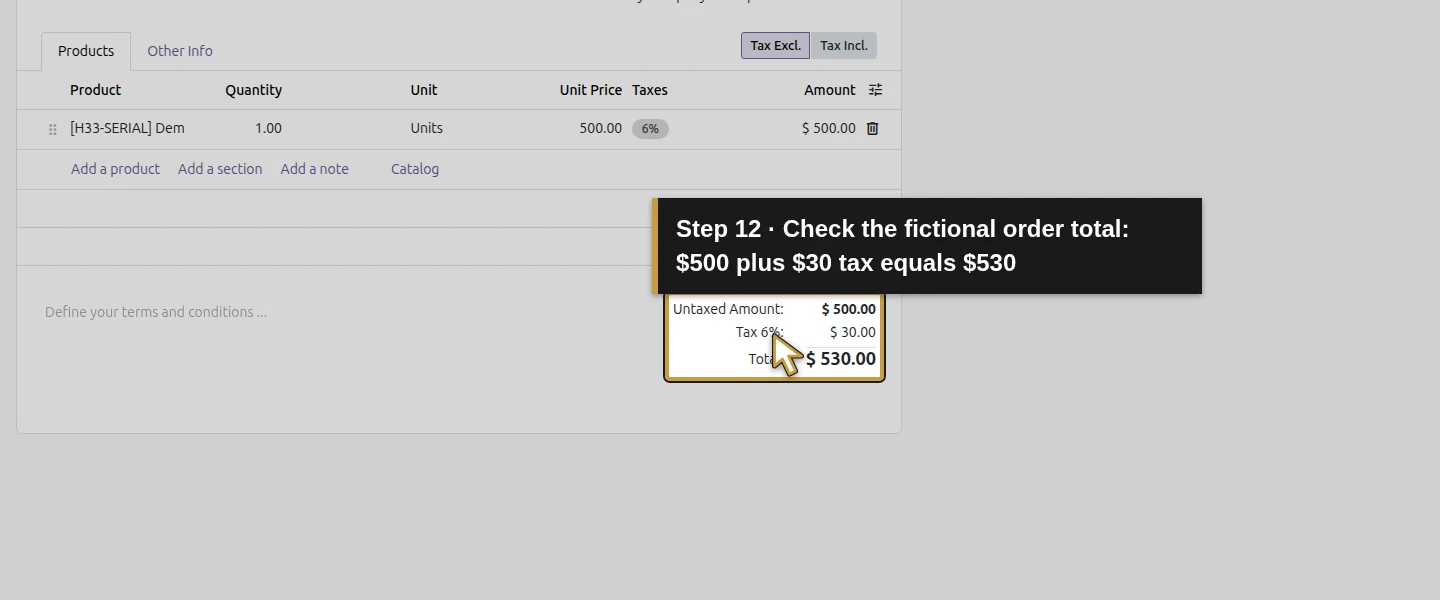
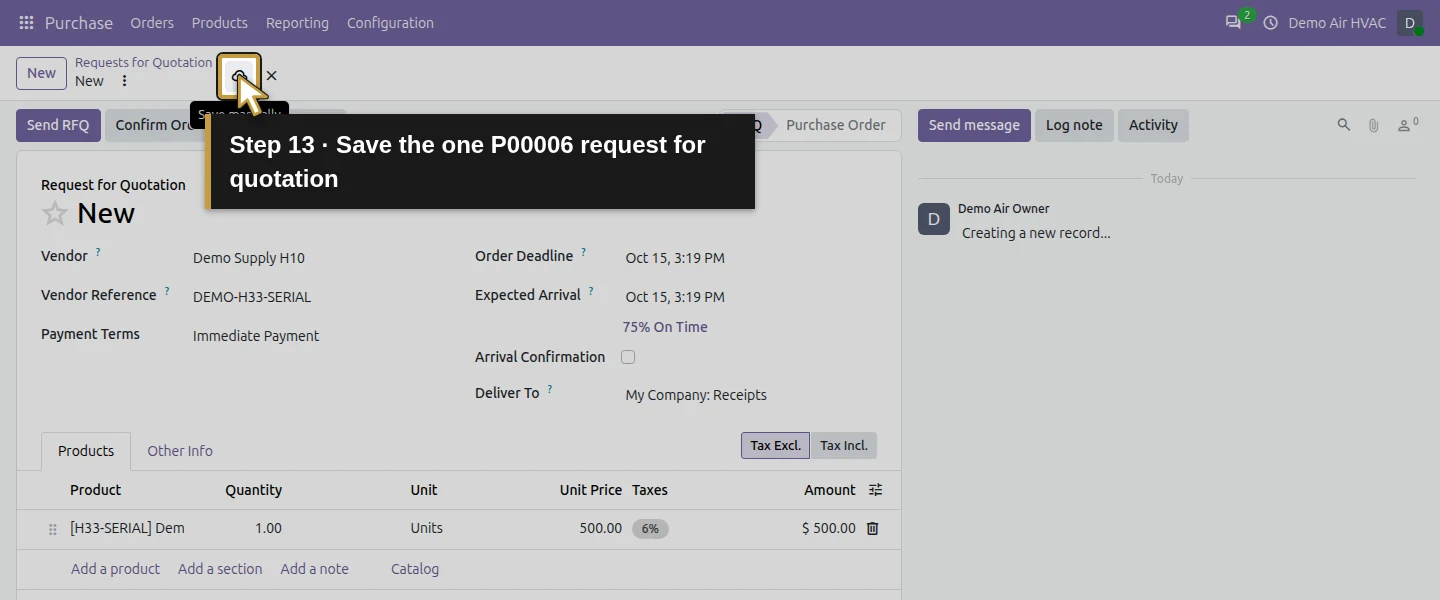
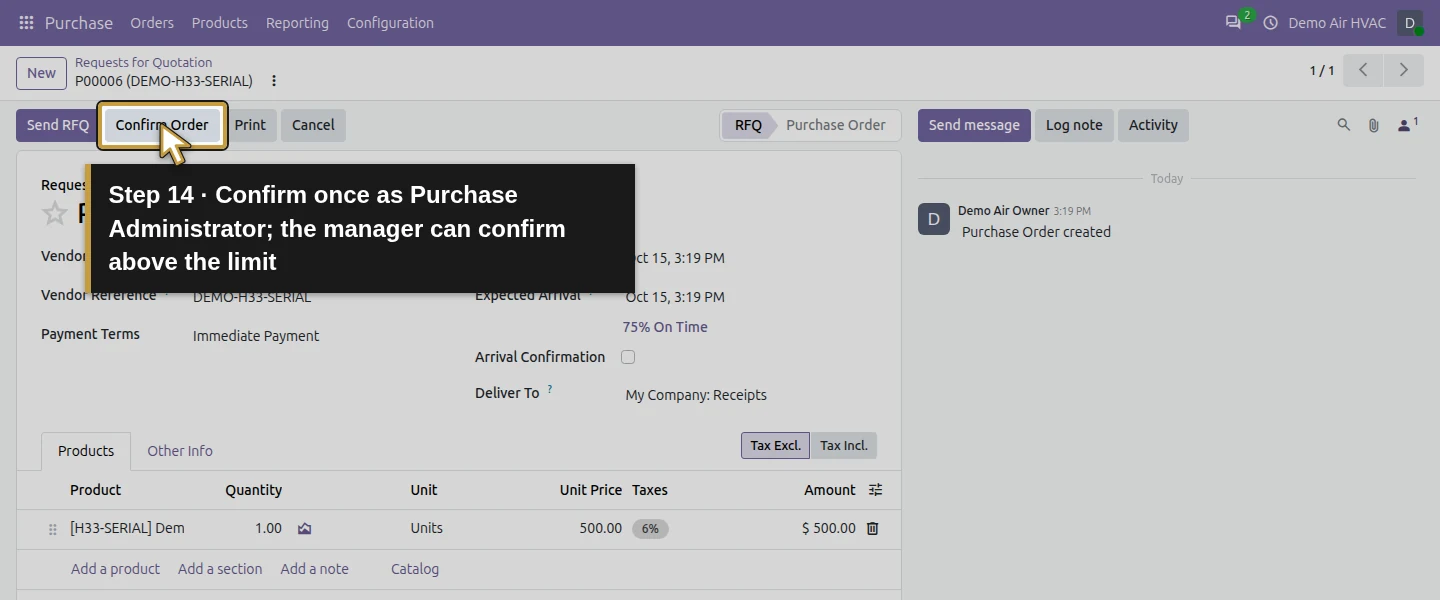
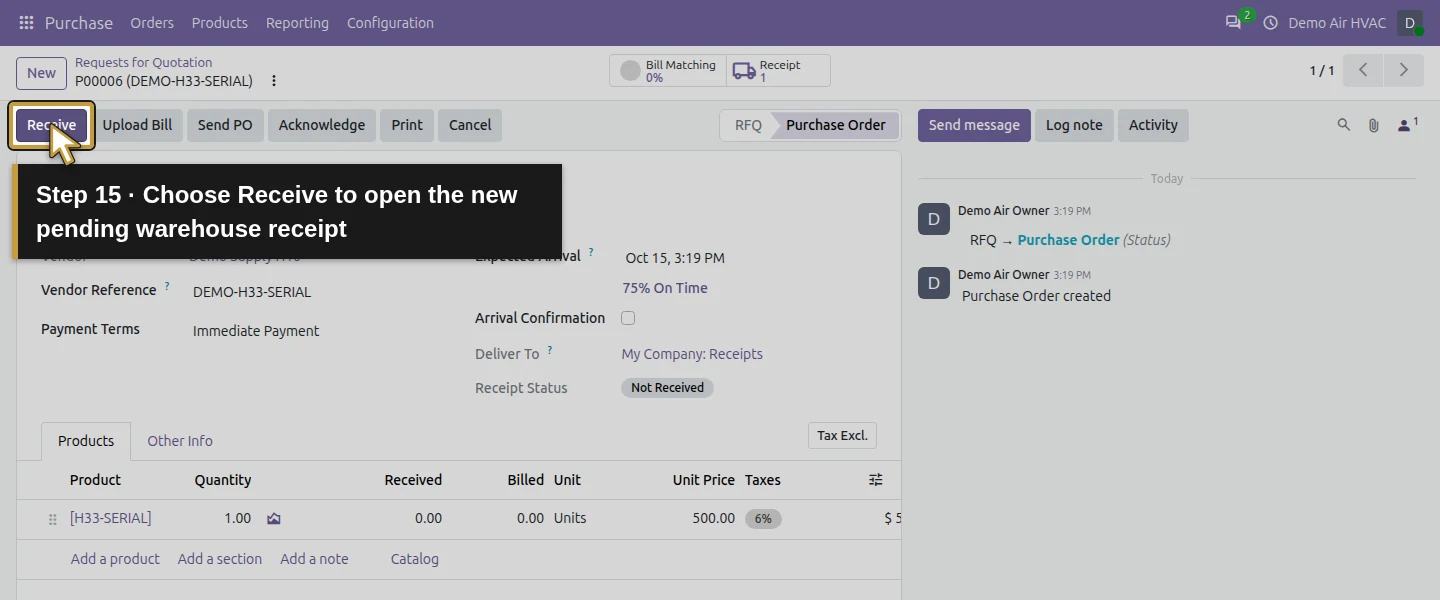
Open Purchase → New, select Demo Supply H10 and Vendor Reference DEMO-H33-SERIAL. Add the actual H33-SERIAL product, Quantity 1 Unit, Unit Price 500, and review the fictional 6% tax and $530 total. Save P00006, then Confirm Order as the tested Purchase Administrator. Choose Receive to open WH/IN/00007. Check the product, one-unit demand and WH/Stock destination; the receipt is Ready.
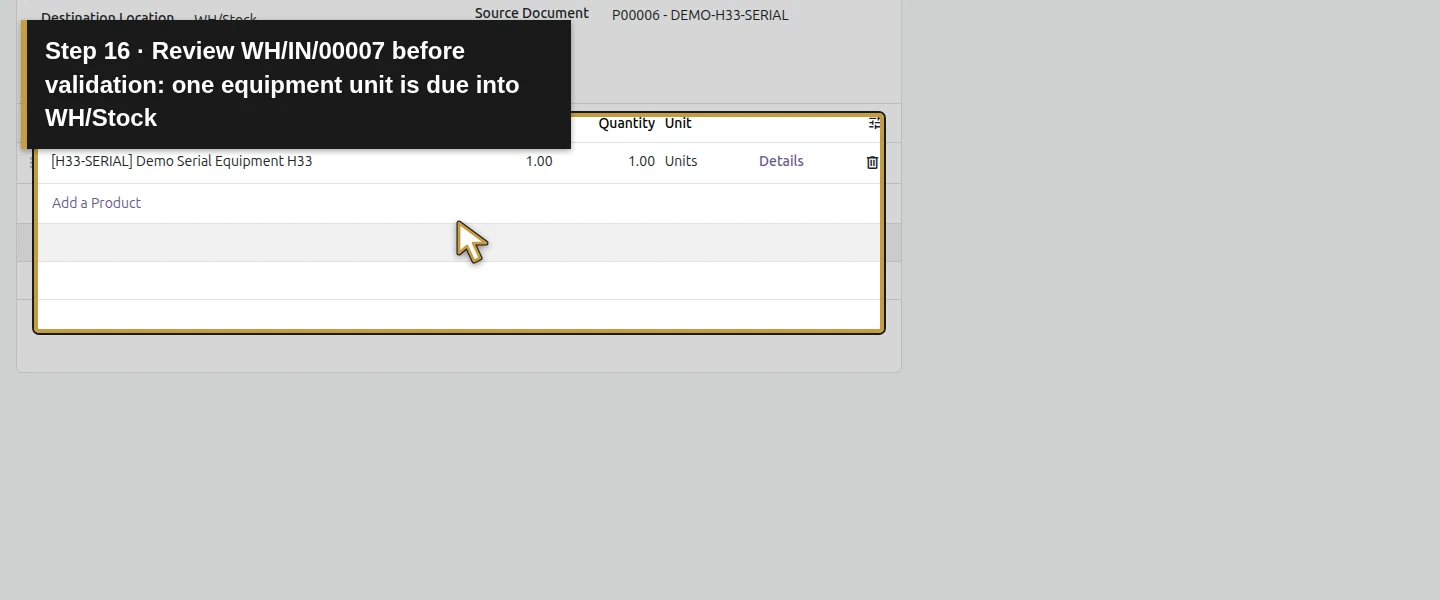
Step 5. Enter the unit's serial in Details
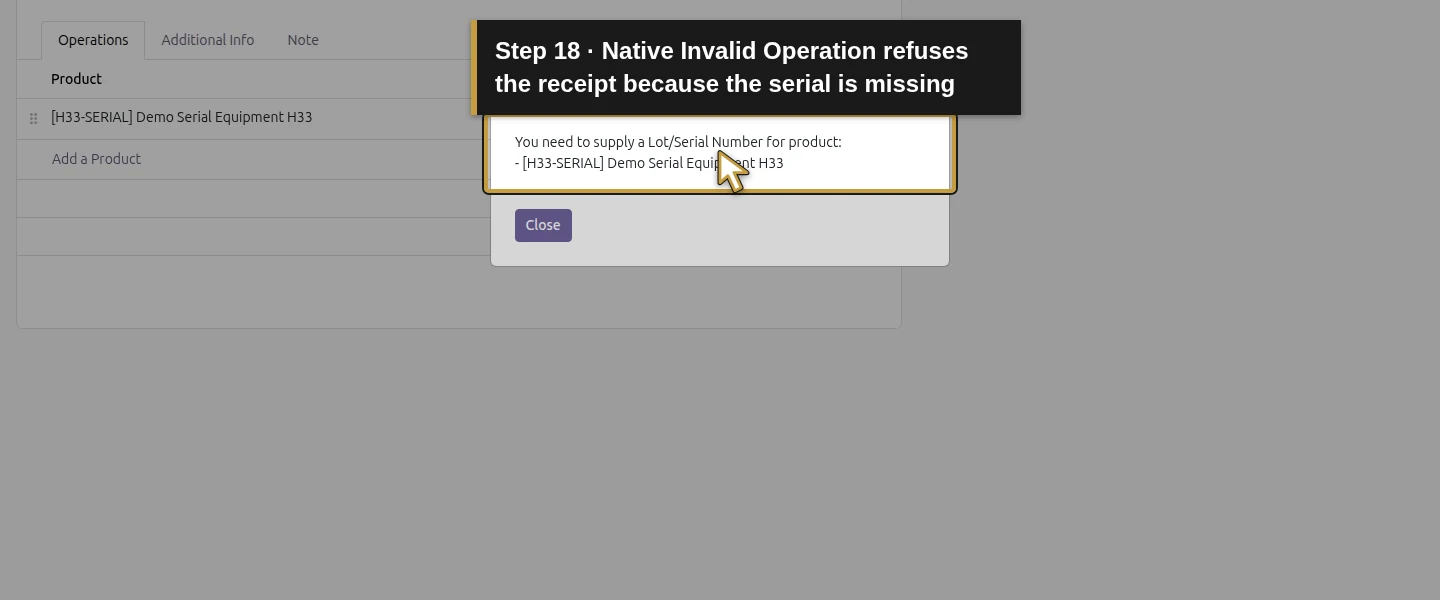
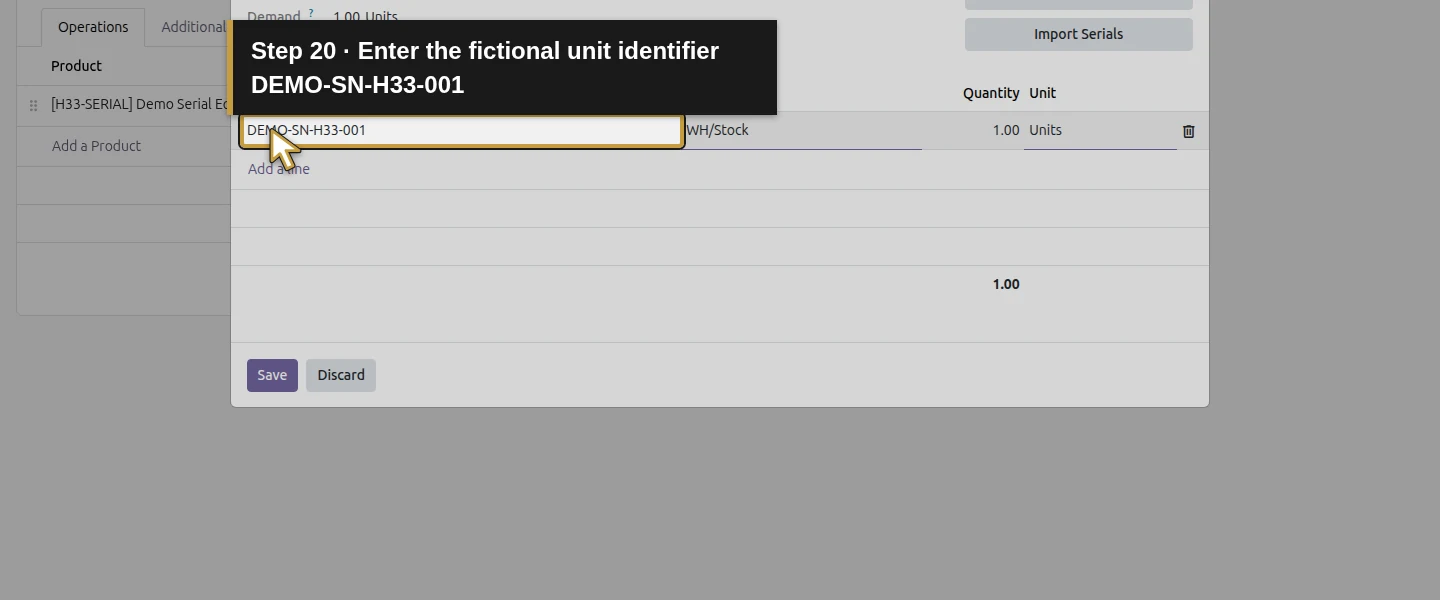
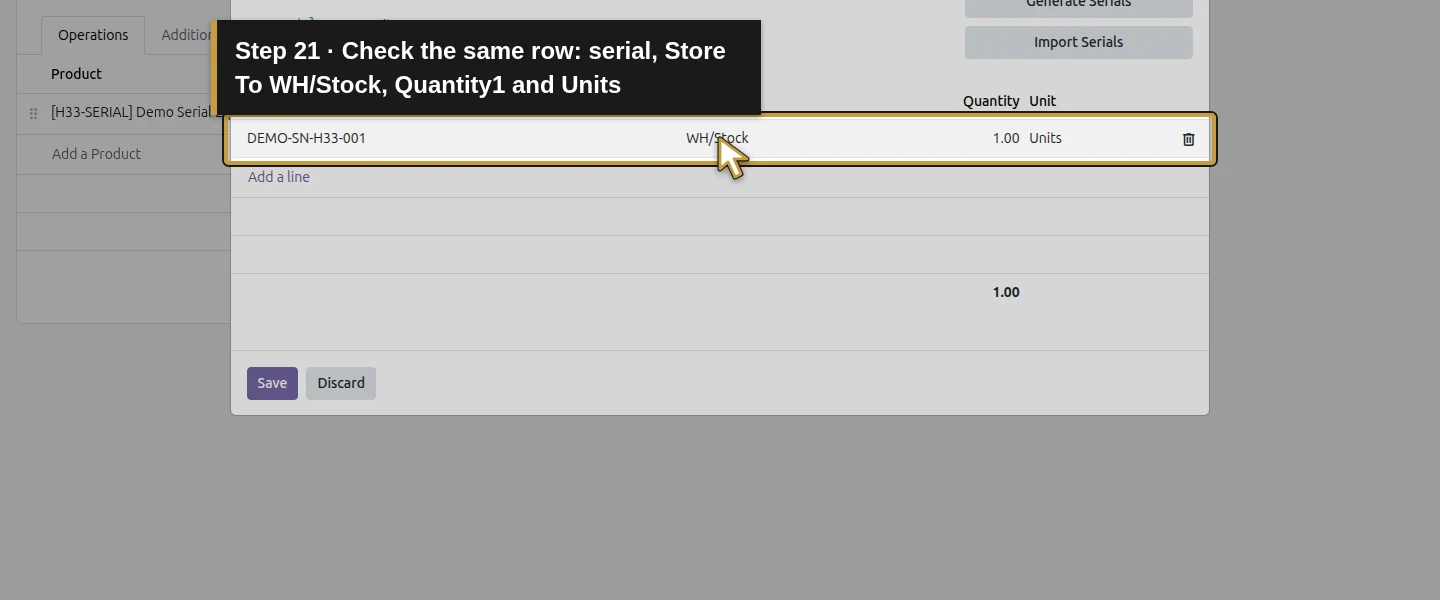
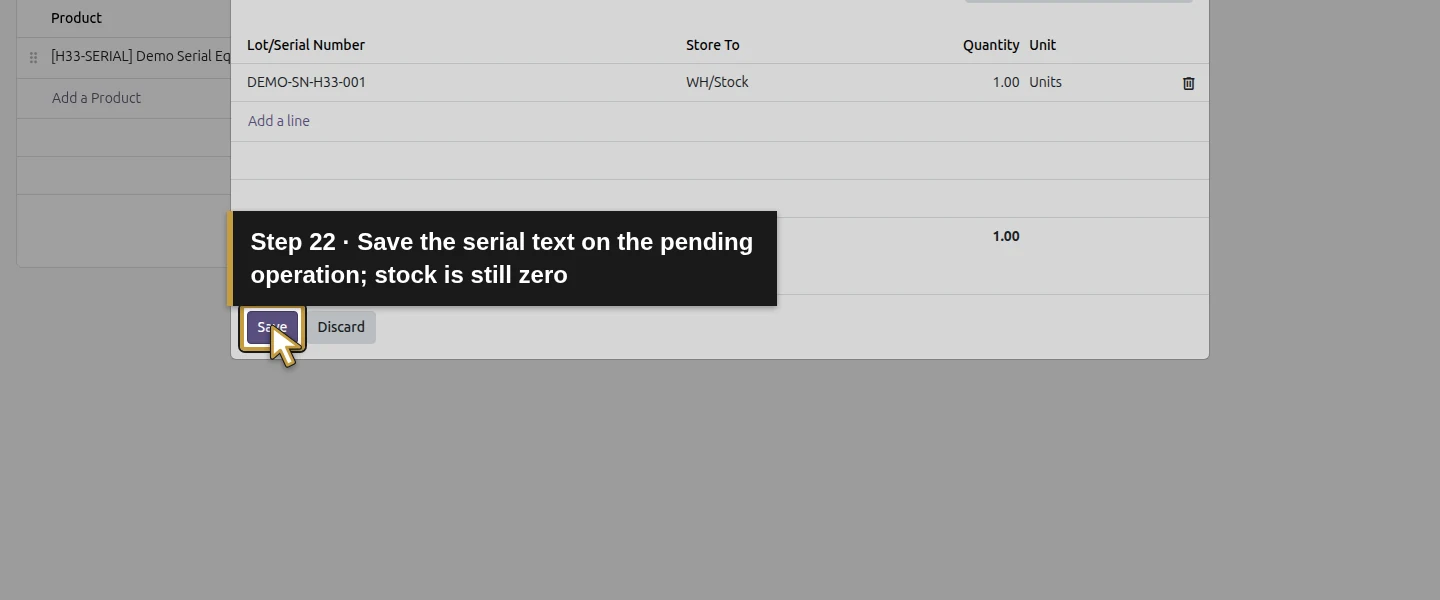
On the receipt row, choose Details to open Detailed Operations. Select the existing one-unit row, enter DEMO-SN-H33-001 in Lot/Serial Number, and check Store To WH/Stock, Quantity 1 and Units. Choose Save. The serial text is saved on the pending operation, but stock remains zero until validation. In the training check, trying Validate before supplying it produced an Invalid Operation message and left the receipt Ready.
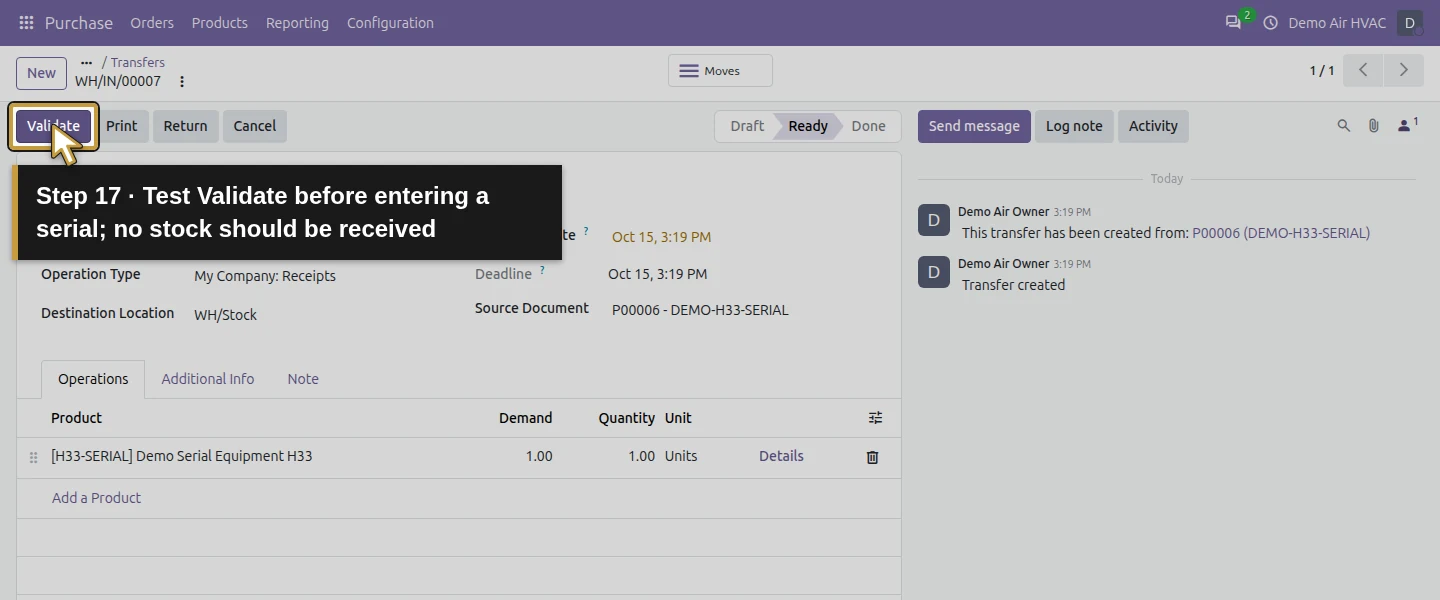
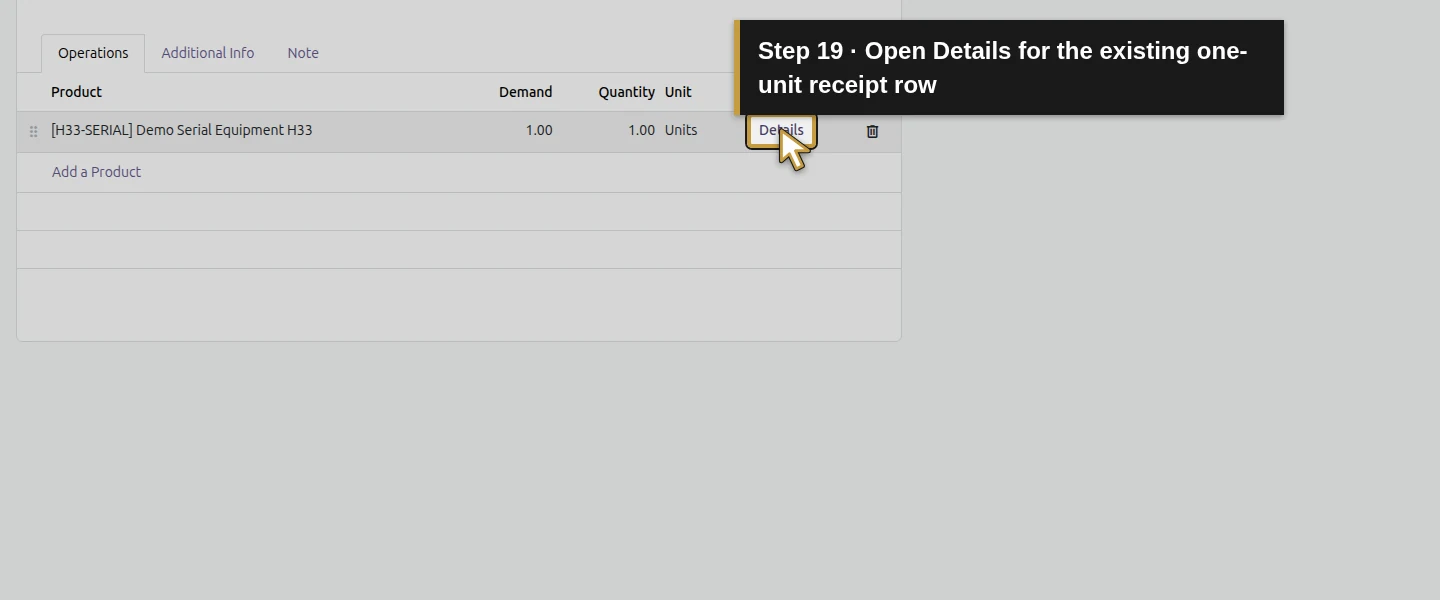
Step 6. Validate and follow traceability
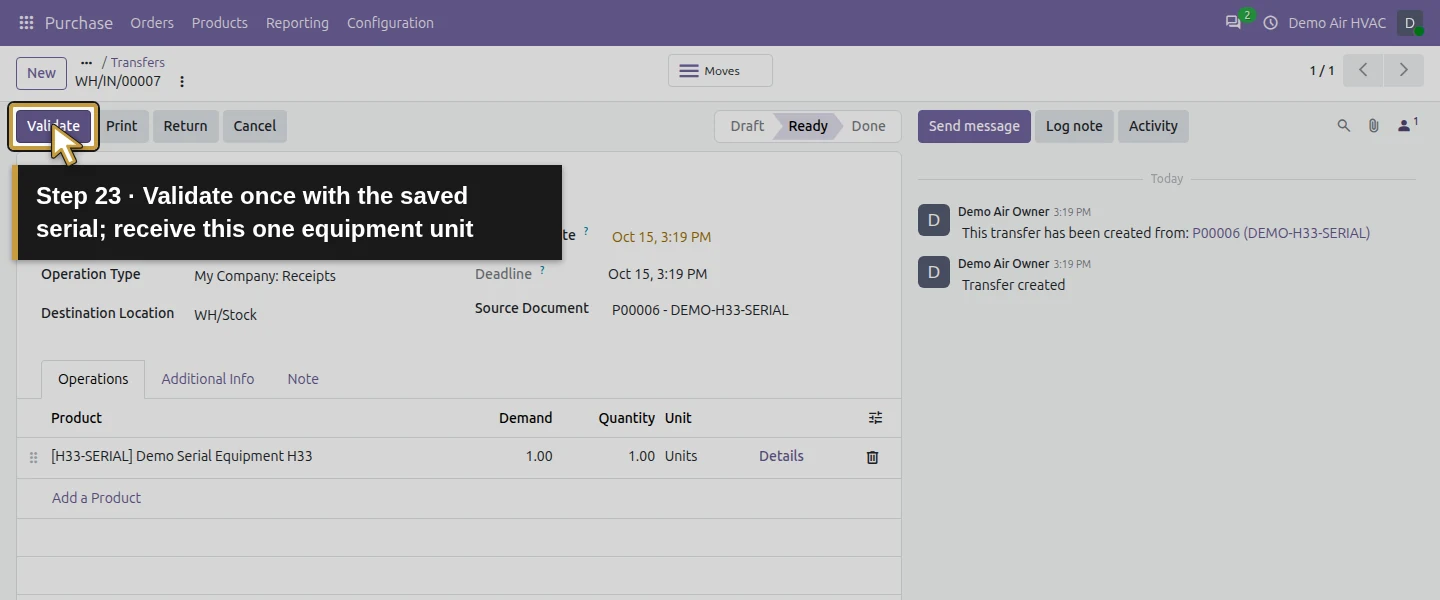
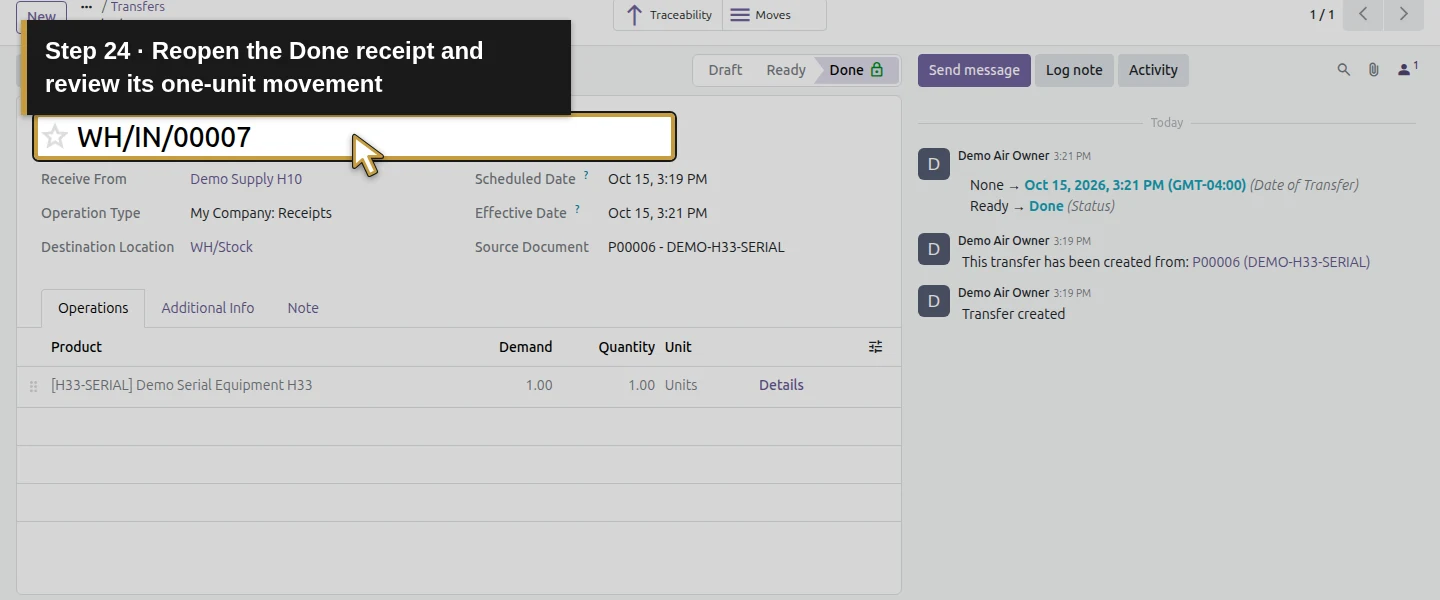
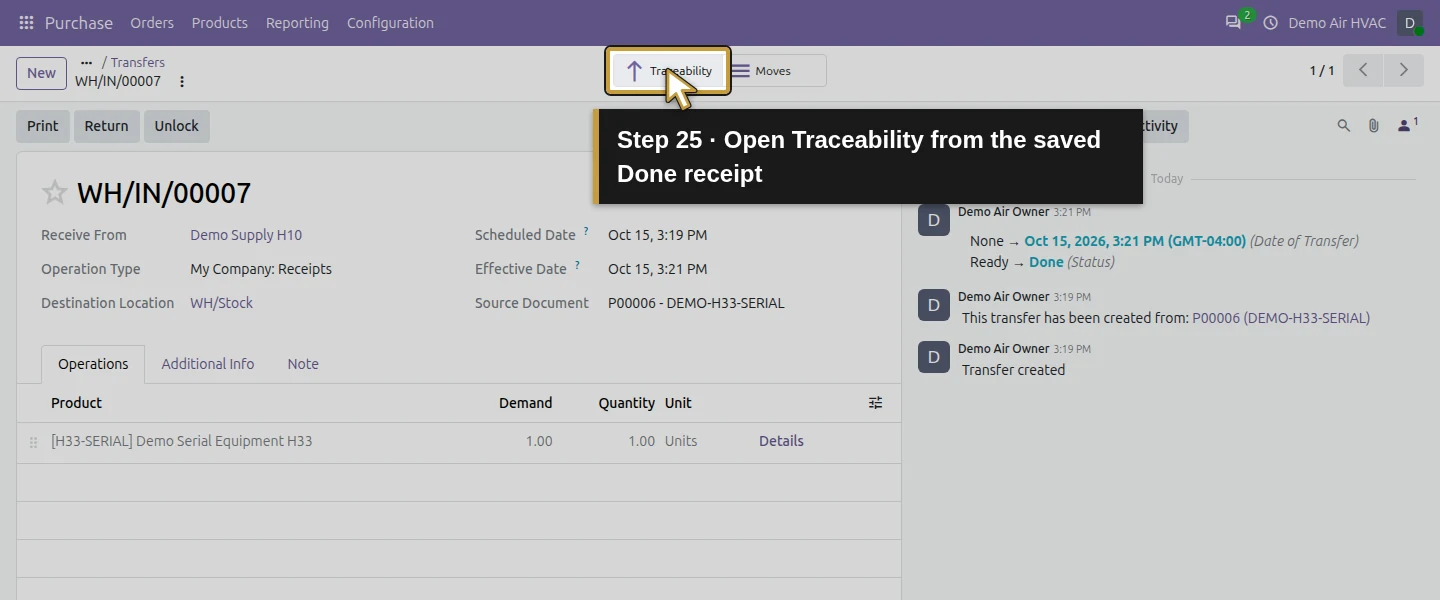
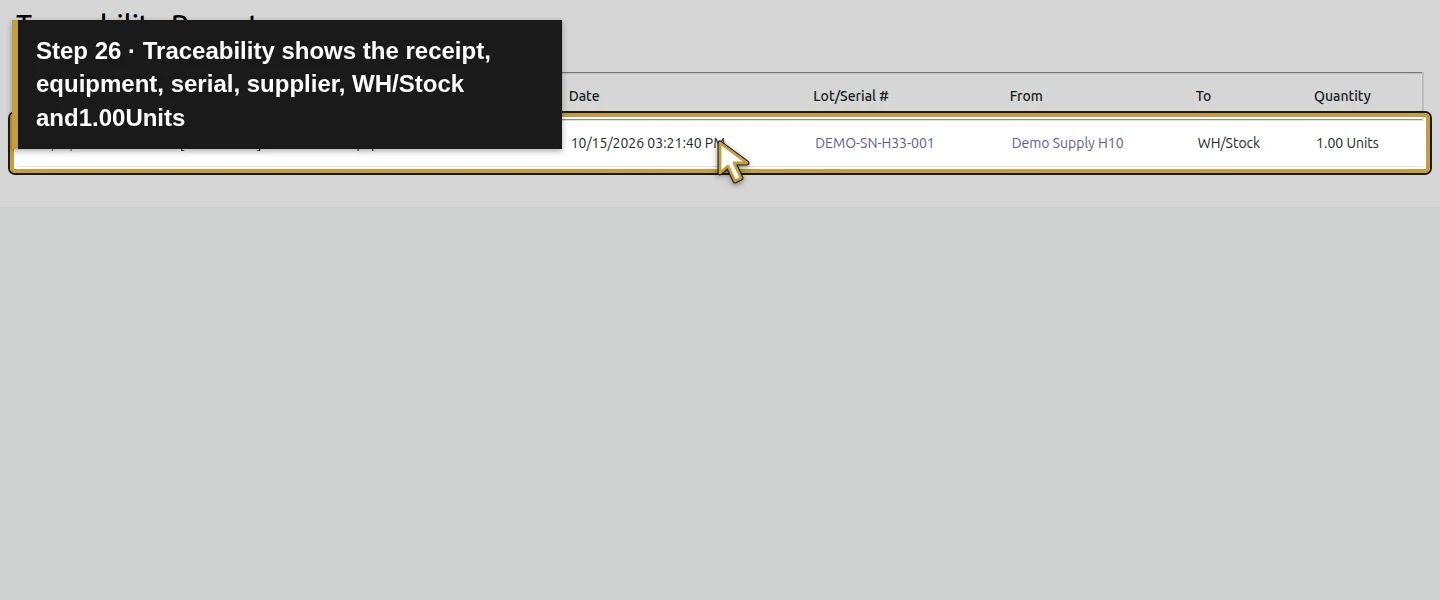
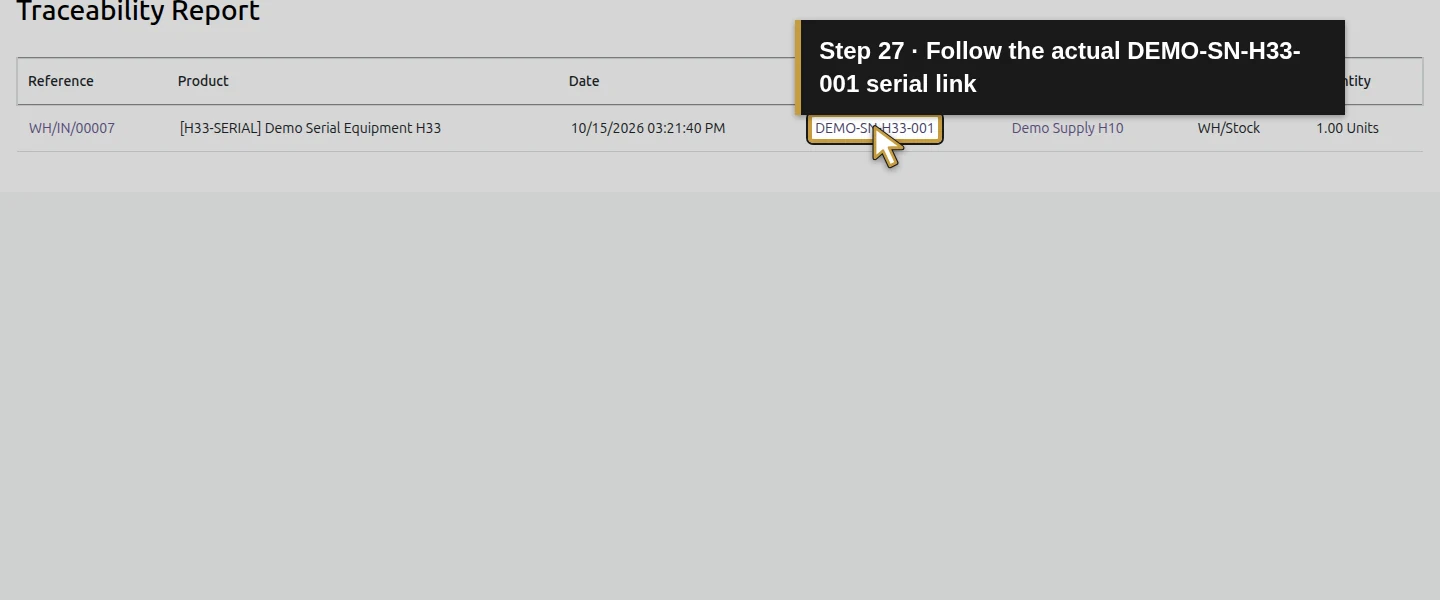
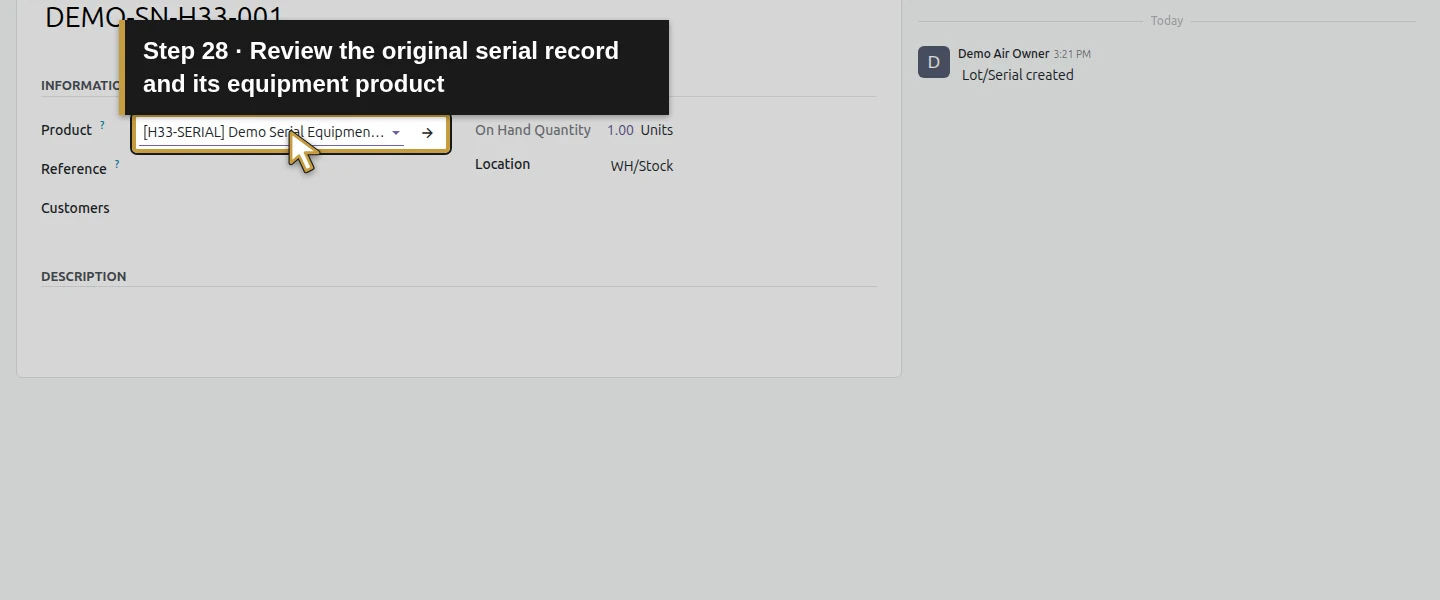
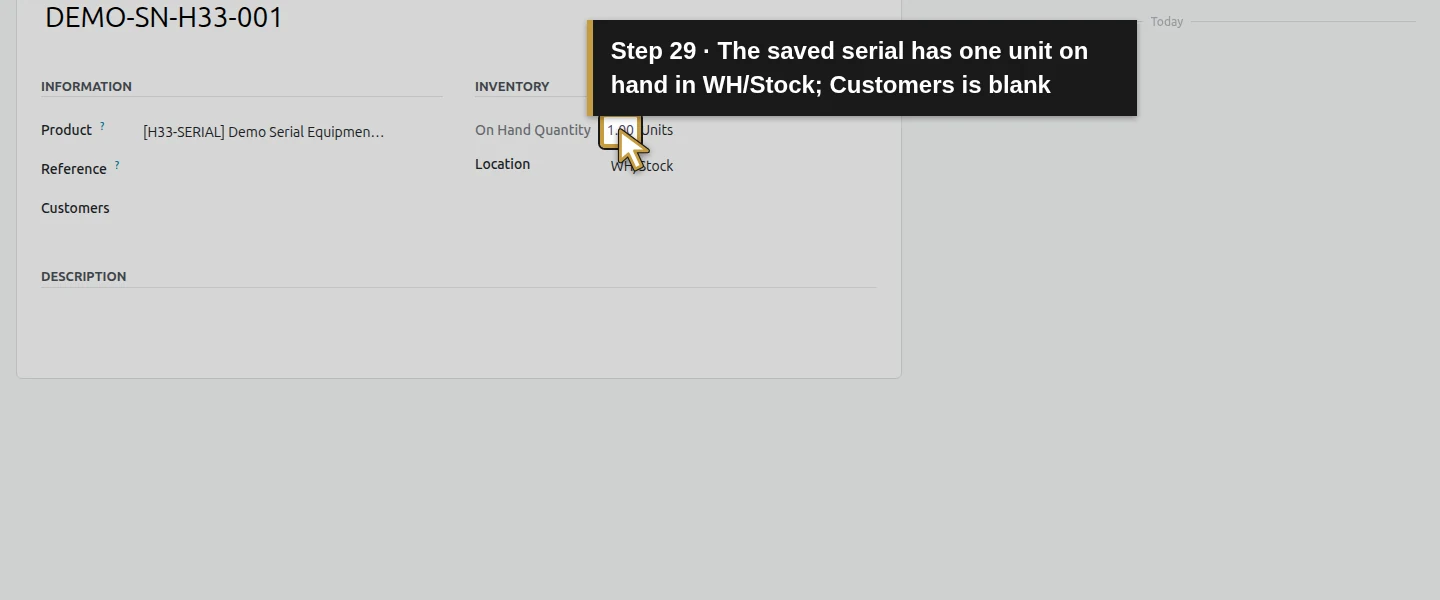
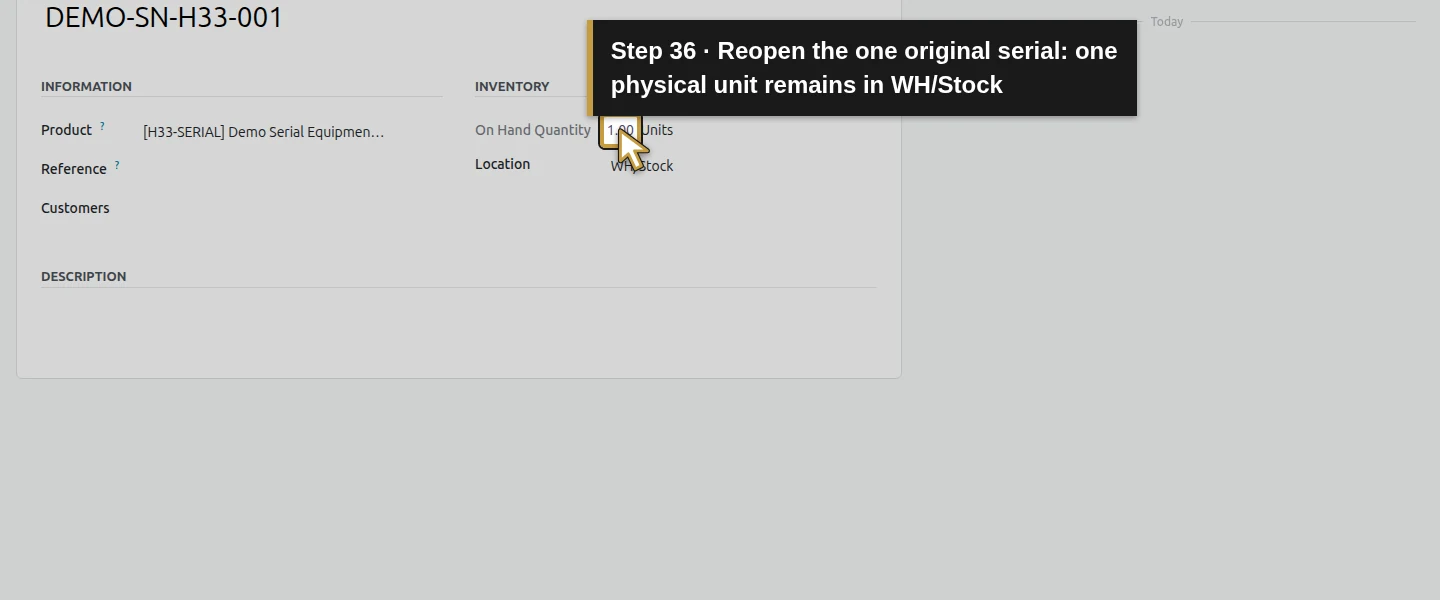
Choose Validate, wait for Done, then reopen the receipt. Click Traceability. The report shows WH/IN/00007, H33-SERIAL, DEMO-SN-H33-001, Demo Supply H10, WH/Stock and 1.00 Units. Select the serial link to open its form: Product is the training equipment, On Hand is 1 and Location is WH/Stock.
Step 7. Check uniqueness before creating another record
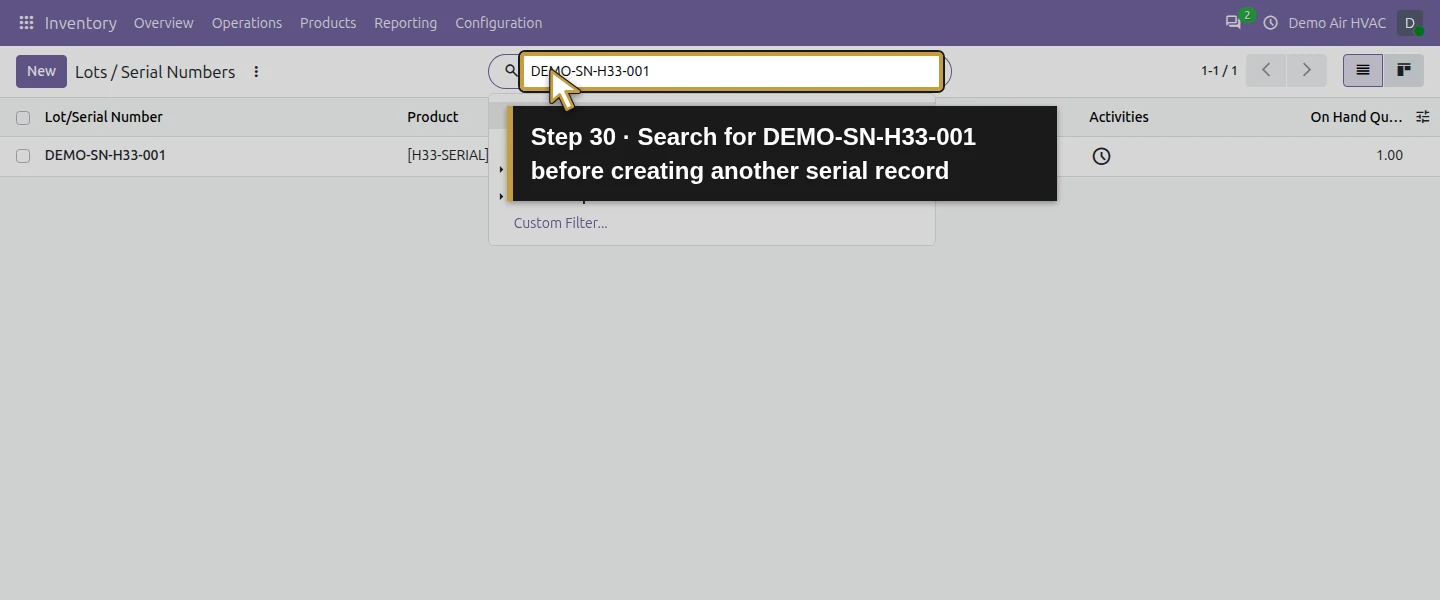
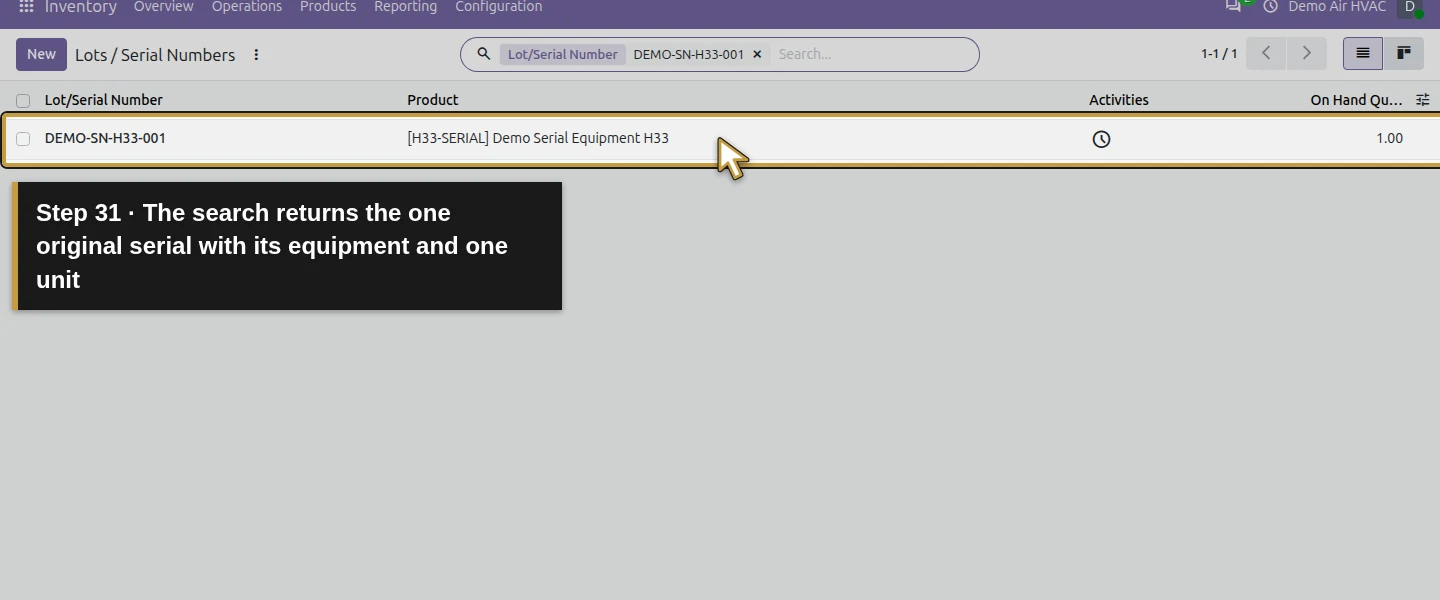
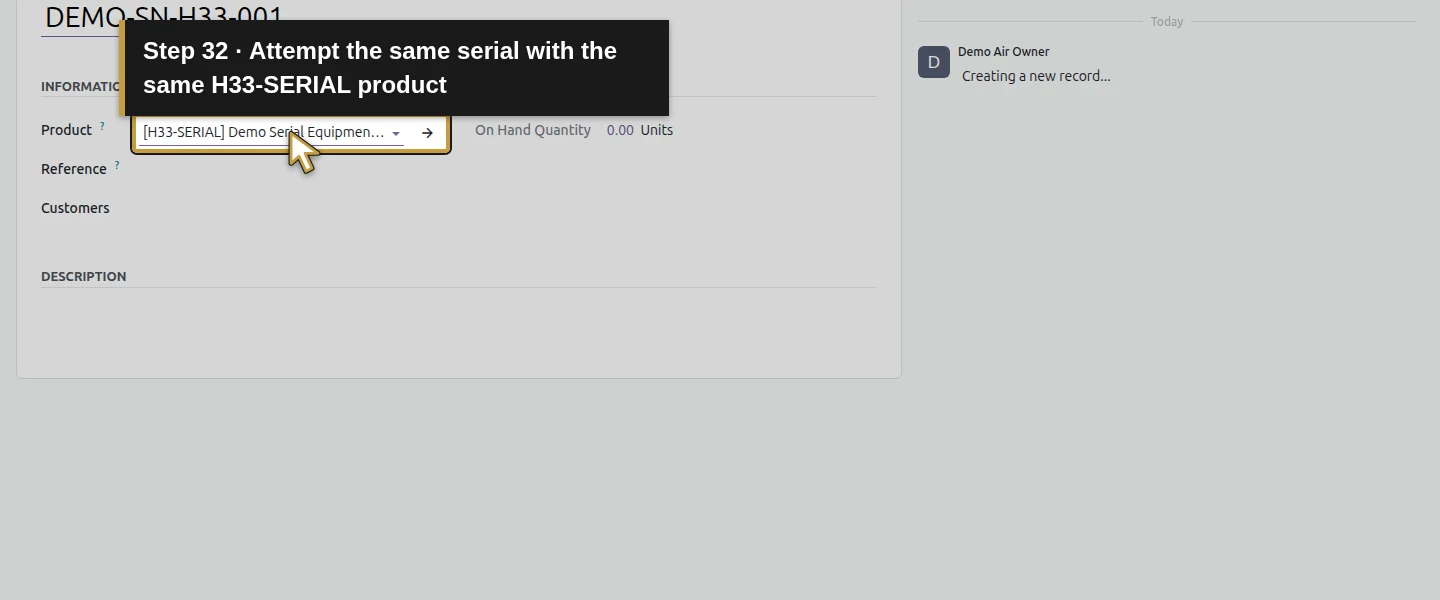
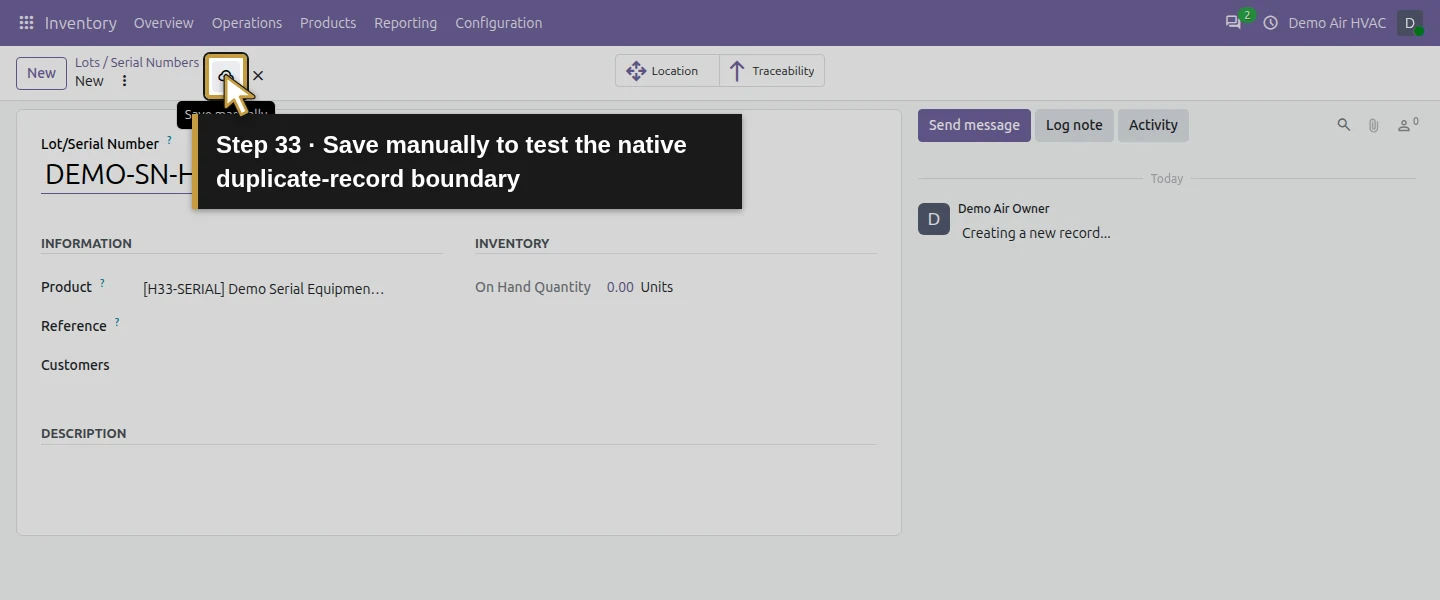
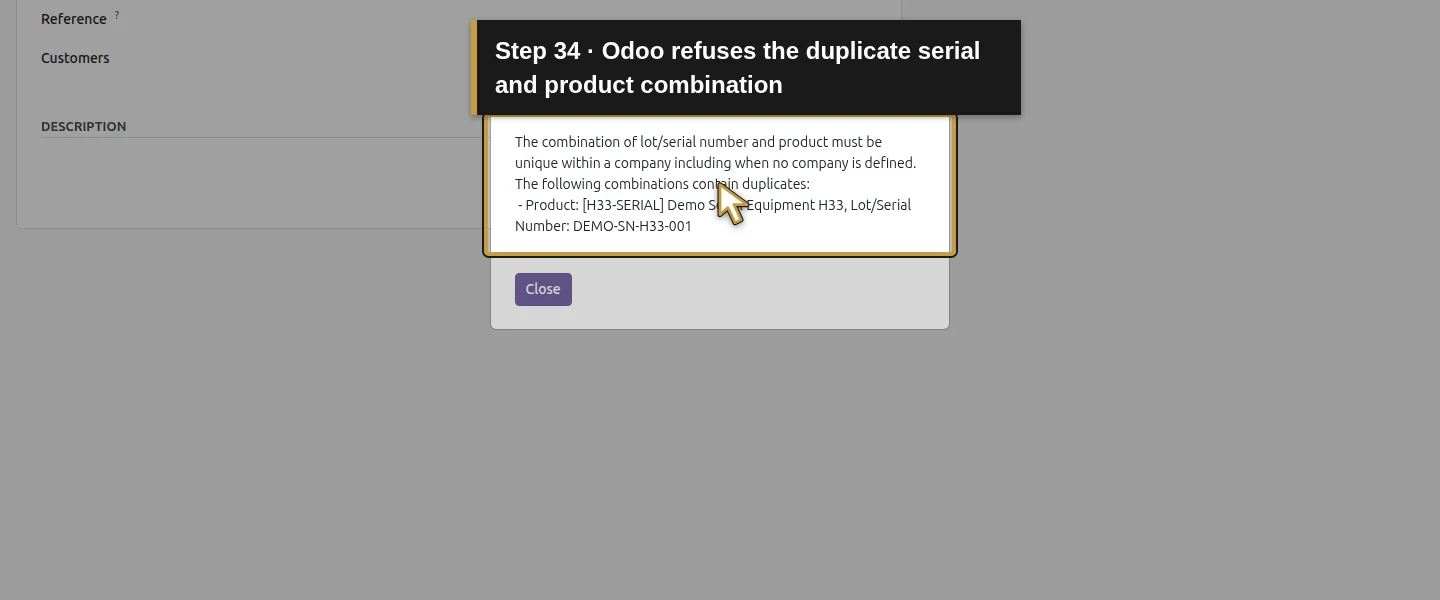
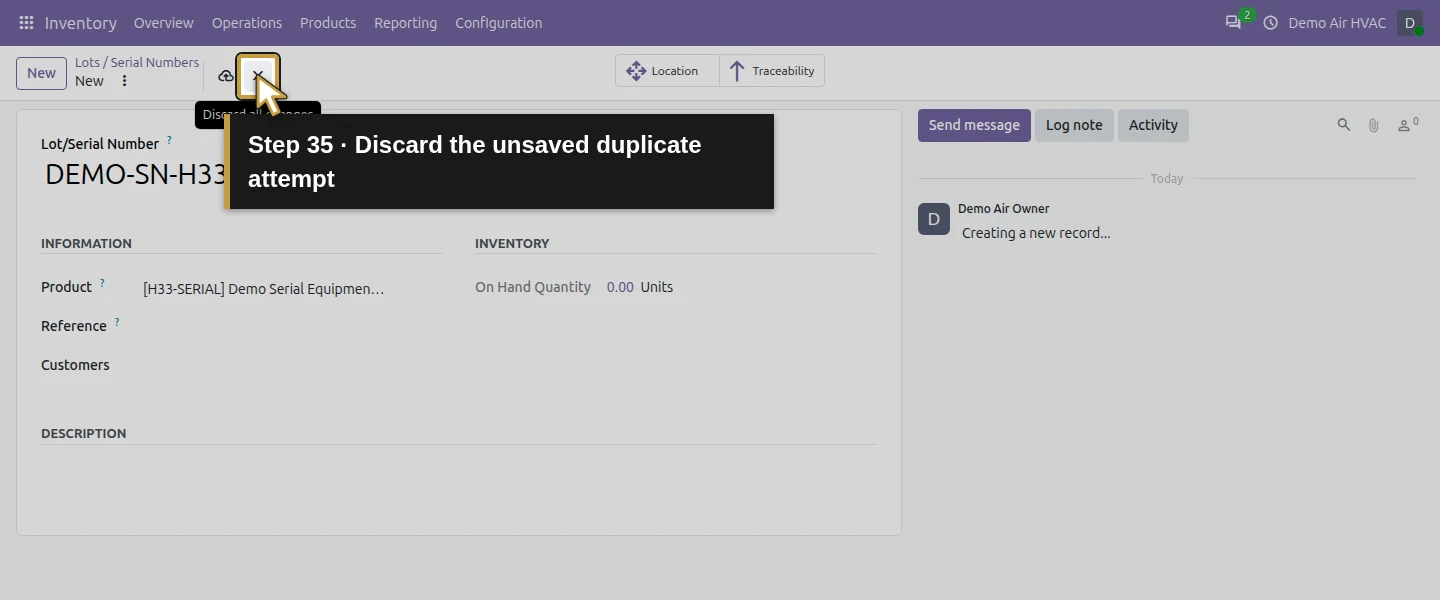
Search the existing serial before entering a new one. The training verification attempted New, the same serial and the same product, then Save manually. Odoo refused it with a duplicate-combination validation error. Close the message and discard that unsaved attempt; the original serial and one physical unit remain. This is a tested duplicate-record case, not proof of every return or multi-company scenario.
Check the result
WH/IN/00007 is Done for one H33-SERIAL unit with DEMO-SN-H33-001. Serial record 1 links to product 23; the warehouse has one unreserved unit with that serial. Traceability shows the supplier-to-WH/Stock receipt. Missing-serial validation left stock zero; attempting a duplicate serial/product record was refused and did not add a second serial or unit. P00006 shows Received 1 and no bill. H12 quantities and the zero-stock H13 variants remain intact.
If your screen differs
Configure tracking before the fresh receipt and record the unit's actual identifier in real use. This guide does not retrofit serials onto existing stock or verify that correction procedure. The duplicate test covers this same product/serial fixture; cross-company reuse and returned-unit behavior were not executed. The serial's Customers field is blank and no installation, warranty, maintenance visit or customer equipment history was created.
Frequently asked questions
How do I track equipment serial numbers in Odoo?
Enable Lots & Serial Numbers, create the product with By Unique Serial Number tracking, and enter the unit's serial in the receipt's Detailed Operations before Validate. Reopen the Done receipt and use Traceability to inspect its saved movement.Why can't I validate an Odoo receipt without a serial number?
The tested tracked product required a Lot/Serial Number. Validate without it produced Invalid Operation and left the receipt Ready with zero on hand. Adding the serial to the one-unit detailed operation allowed the receipt to complete.Does Odoo serial tracking include HVAC service history?
This lesson verifies one stock unit, its receipt and warehouse location. It creates no customer installation, warranty record or service visit; those workflows need separate evidence.Continue building the business
Continue with the verified warehouse-to-van transfer. Workshop repairs is a separate workflow.
Talk about your Odoo setup
Bring your current process and the result you need to Onward to plan your Odoo workflow. Talk about your Odoo setup.