
Running an HVAC business with Odoo
How do I sell an HVAC maintenance agreement in Odoo?
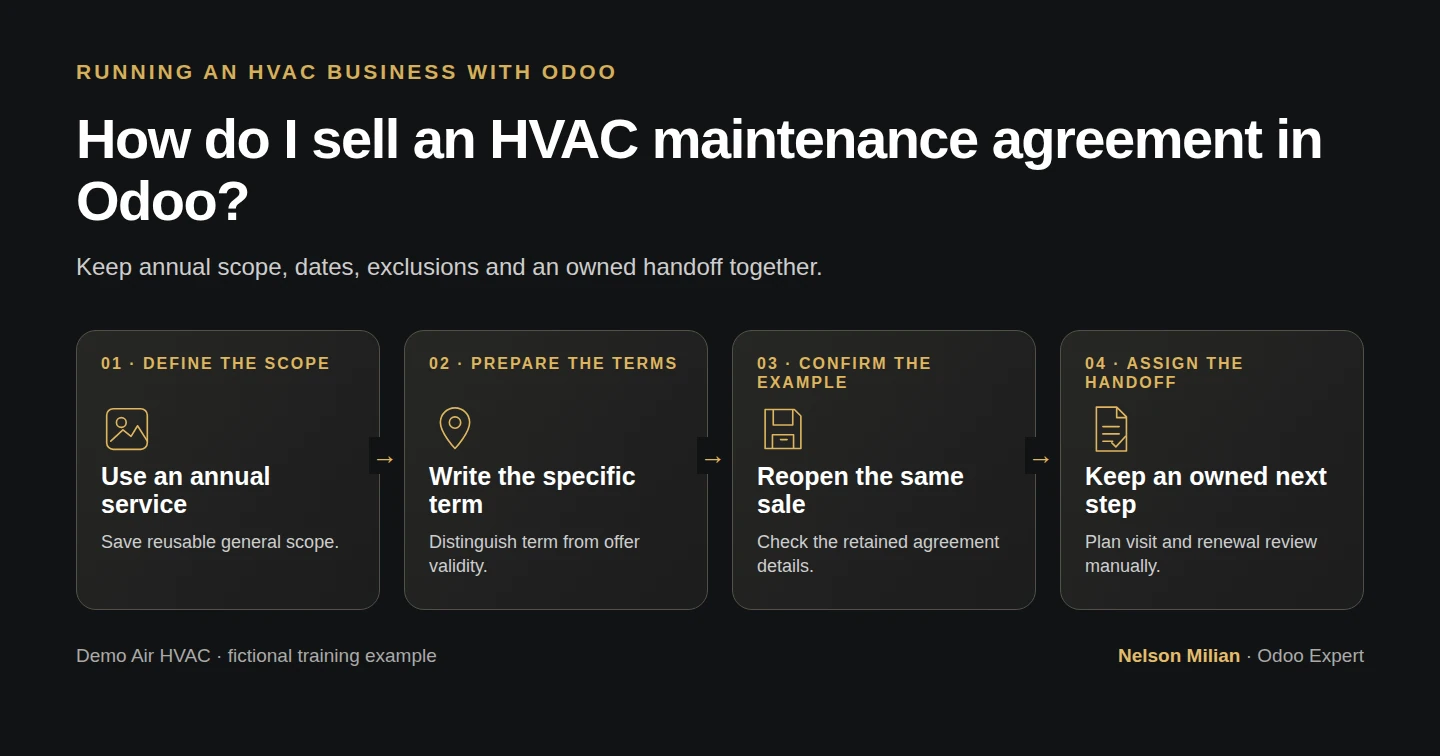
Sell an HVAC maintenance agreement in Odoo with a clear annual fee, two-visit scope, saved coverage term and assigned office handoff.
Alex wants one clear record of the maintenance plan he is selling. This HVAC maintenance agreement in Odoo uses a standard service product and sales order. The reusable product description supplies the general scope; the quotation records the specific term, site, two planned visits and responsibilities. Confirmation and an assigned follow-up give the office a starting point for the later visit, billing and renewal workflows.
Alex Rivera and Demo Air HVAC are fictional training examples. Prices, dates, quantities and business situations in this guide are illustrative.
Before you begin
Tested in stock Odoo 20.0-20260926 Community as the demo owner administrator, with official modules and standard configuration. Complete H23 service quotations and H14 customer pricing. Use official Sales and the existing Demo Property H08 customer, Billing Office H08, Service Site H08, Default USD pricelist and Demo Net 30 H06 term. This lesson creates one separate fictional annual agreement, October 15, 2026 through October 14, 2027, at $240 before demo tax. It includes two planned visits, with dates still requiring confirmation. The owner’s Confirm action is a local training trigger; it is not evidence of actual customer approval or signature. Keep messages local. No invoice, payment, appointment or real service is created here.
Step-by-step workflow
Step 1. Create one annual-agreement service
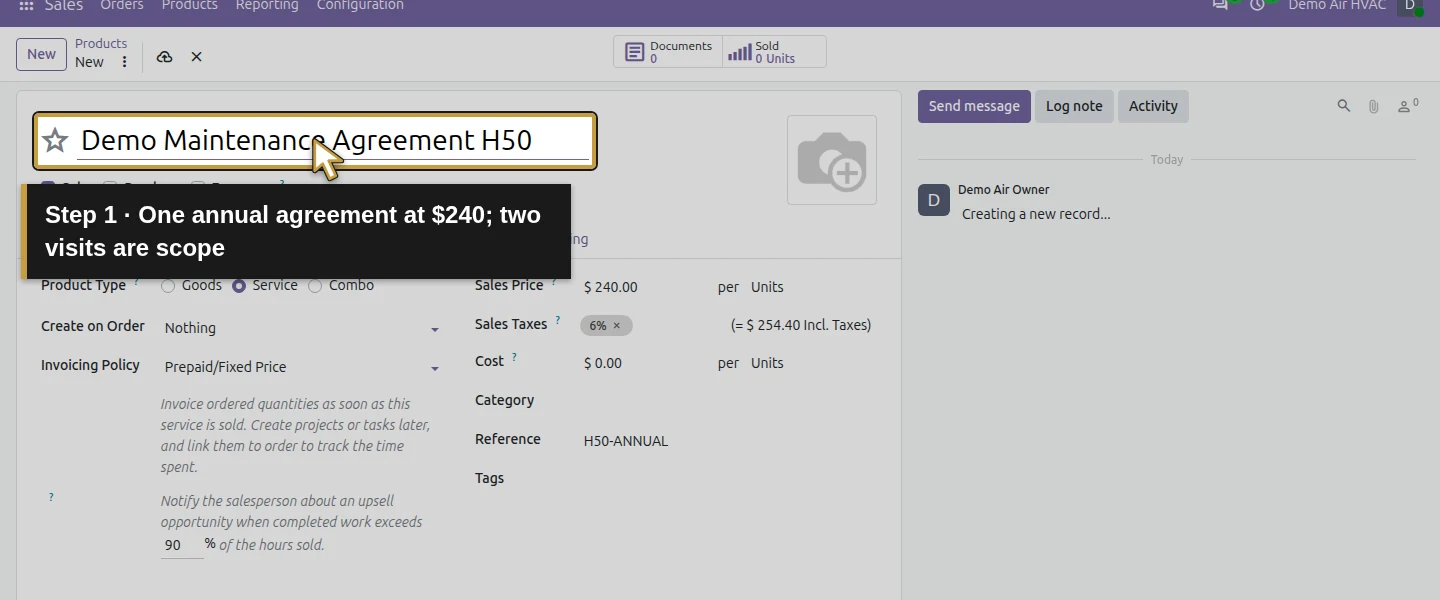
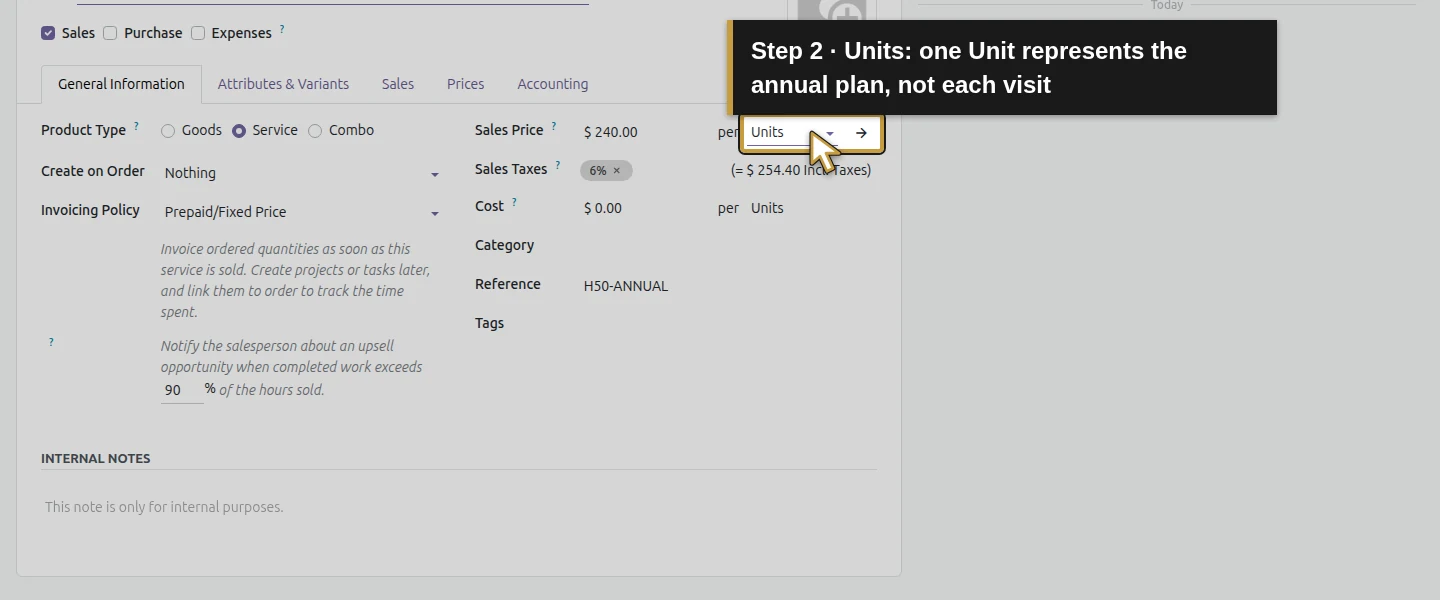
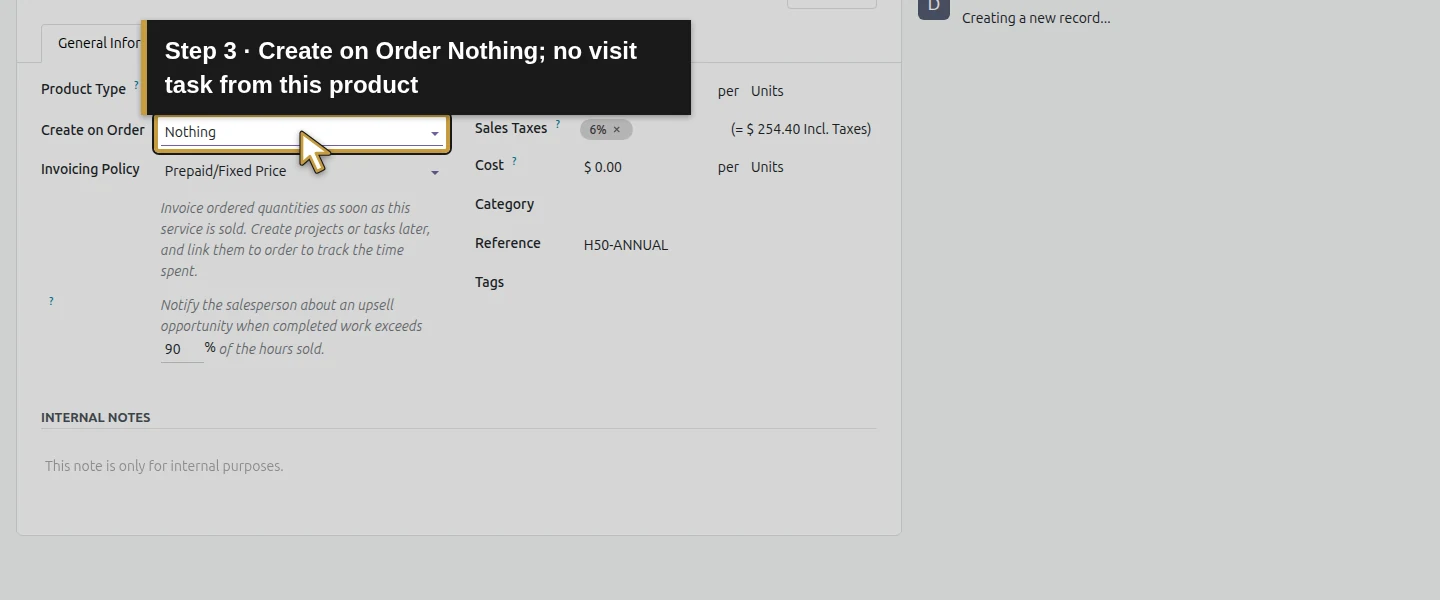
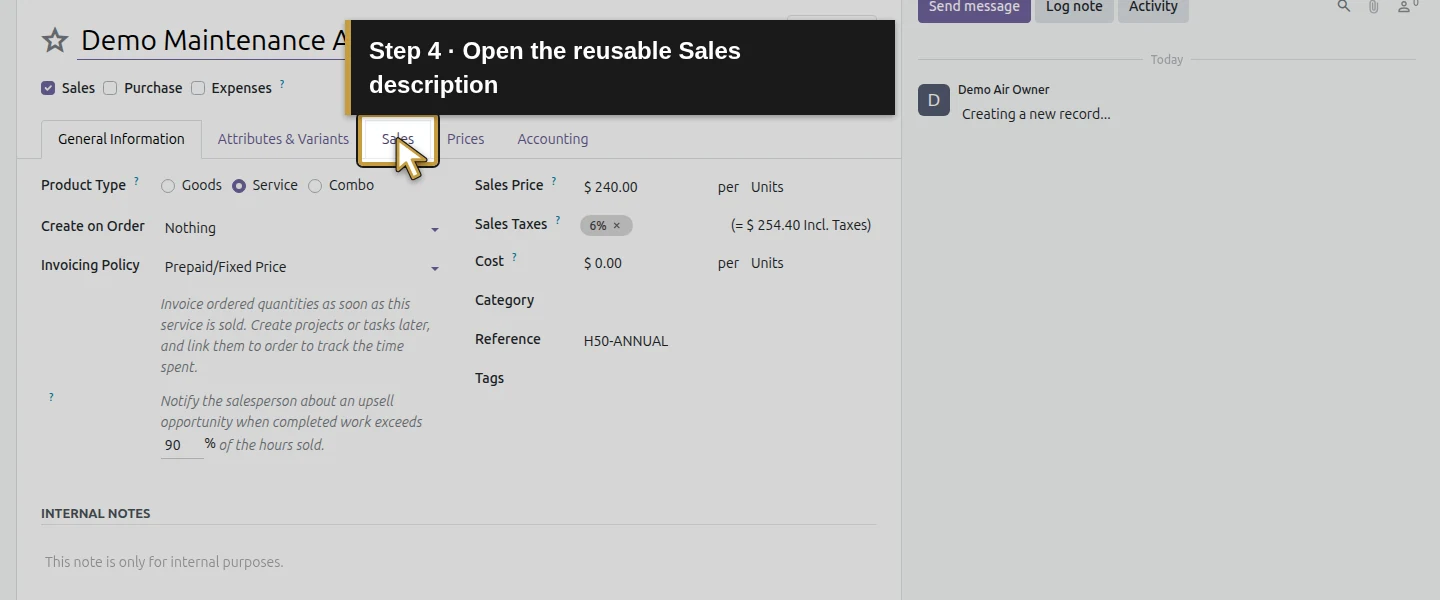
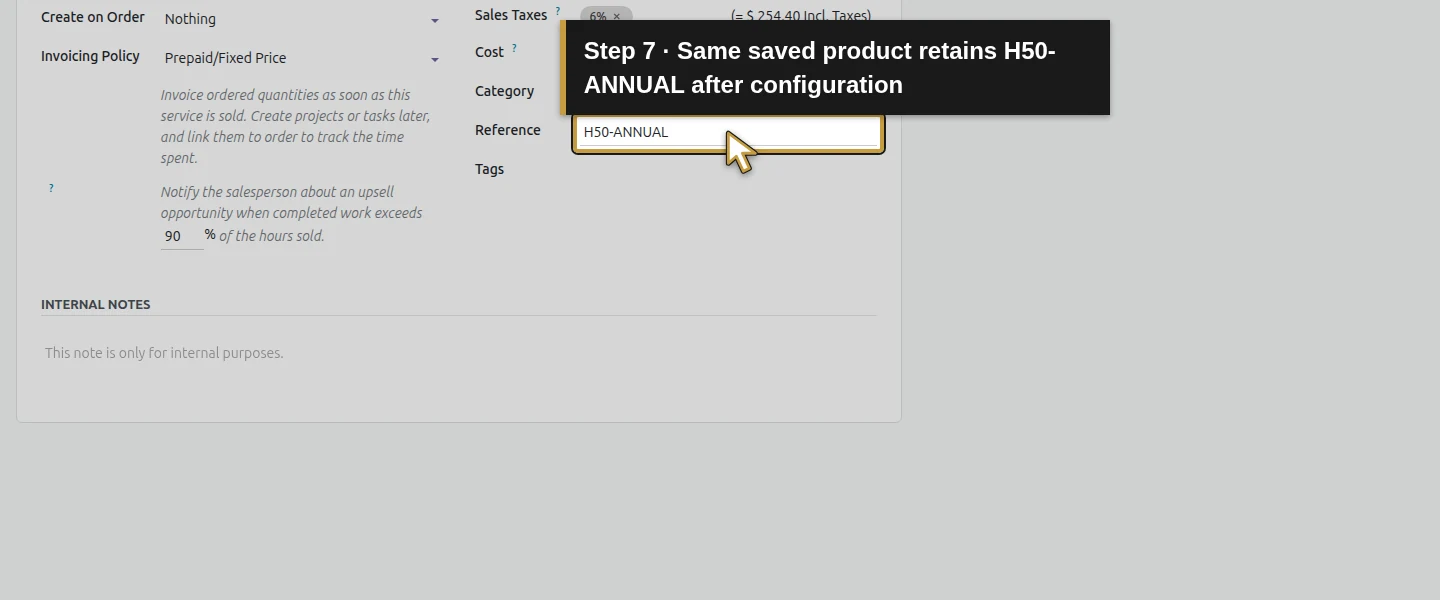
Open Sales → Products → Products → New. Enter Demo Maintenance Agreement H50, select Service, keep Sales checked and clear Purchase. Set Reference H50-ANNUAL and Sales Price $240. Explicitly select Units, because Service initially defaults to Hours in this build. Keep Create on Order → Nothing and Invoicing Policy → Prepaid/Fixed Price. One Unit will represent the annual agreement; the two visits belong in its scope, rather than changing the sold quantity to two annual fees.
Step 2. Save reusable scope on the product
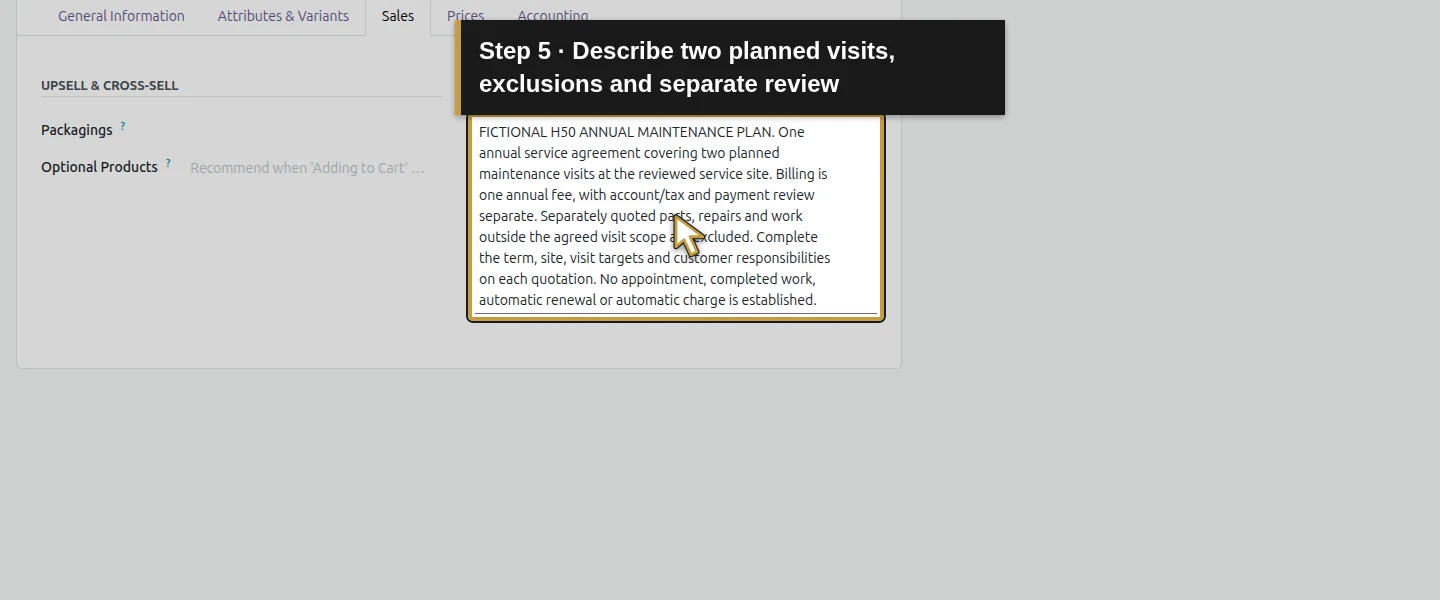
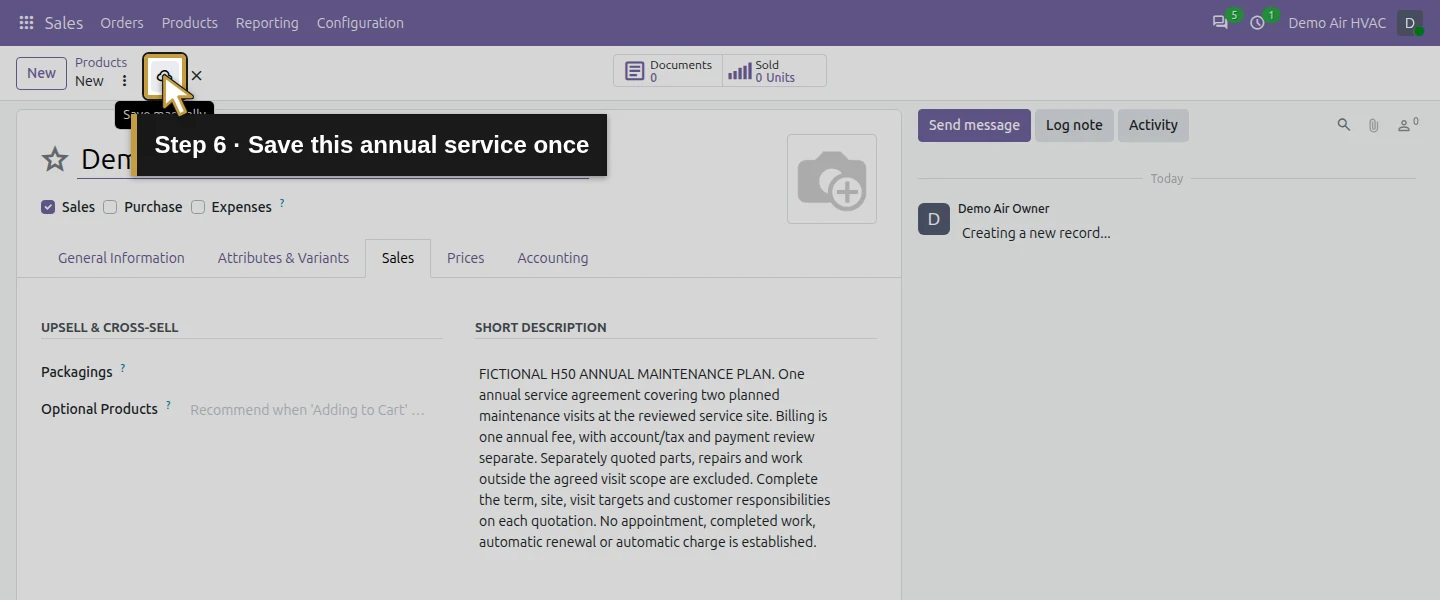
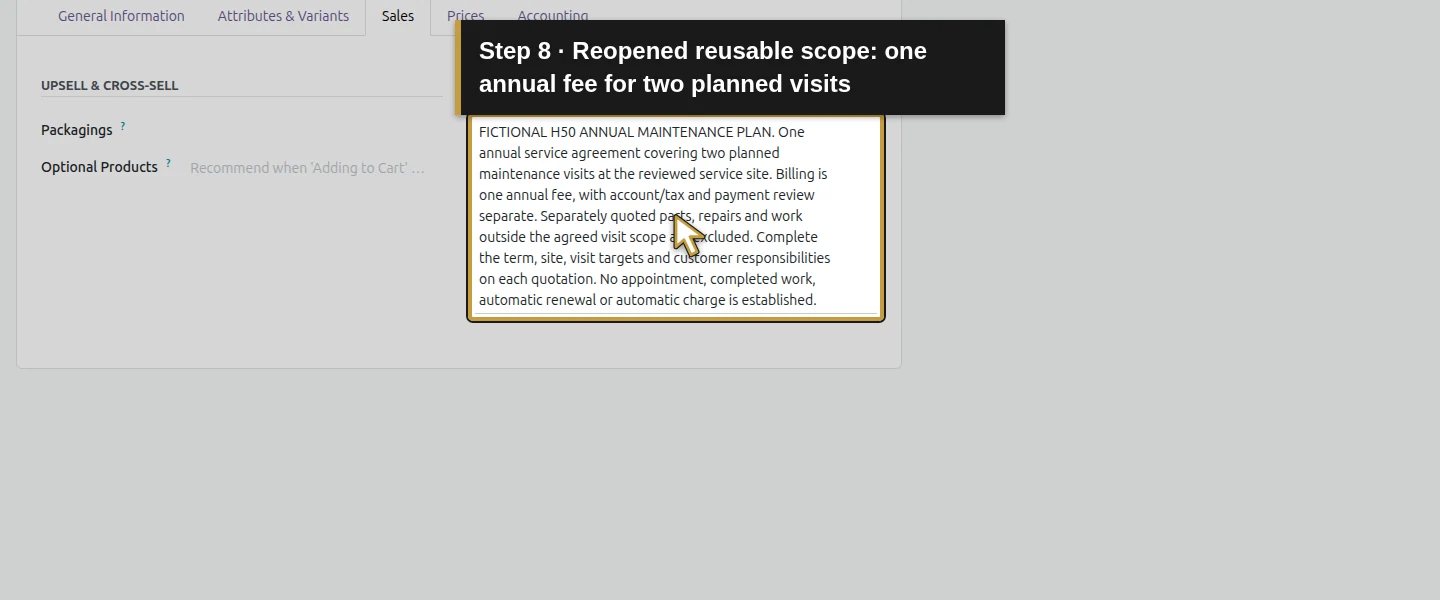
Open the product’s Sales tab. In This note is added to sales orders and invoices, describe the fictional annual plan: two planned maintenance visits at the reviewed site, one annual fee, and separately quoted parts, repairs and work outside the agreed scope. State that each quotation still needs its term, site, visit targets and customer responsibilities. Keep appointments, actual work, renewal and payment decisions explicit. Save and reopen. This native product description is copied when the service is selected on the quotation.
Step 3. Prepare the agreement quotation
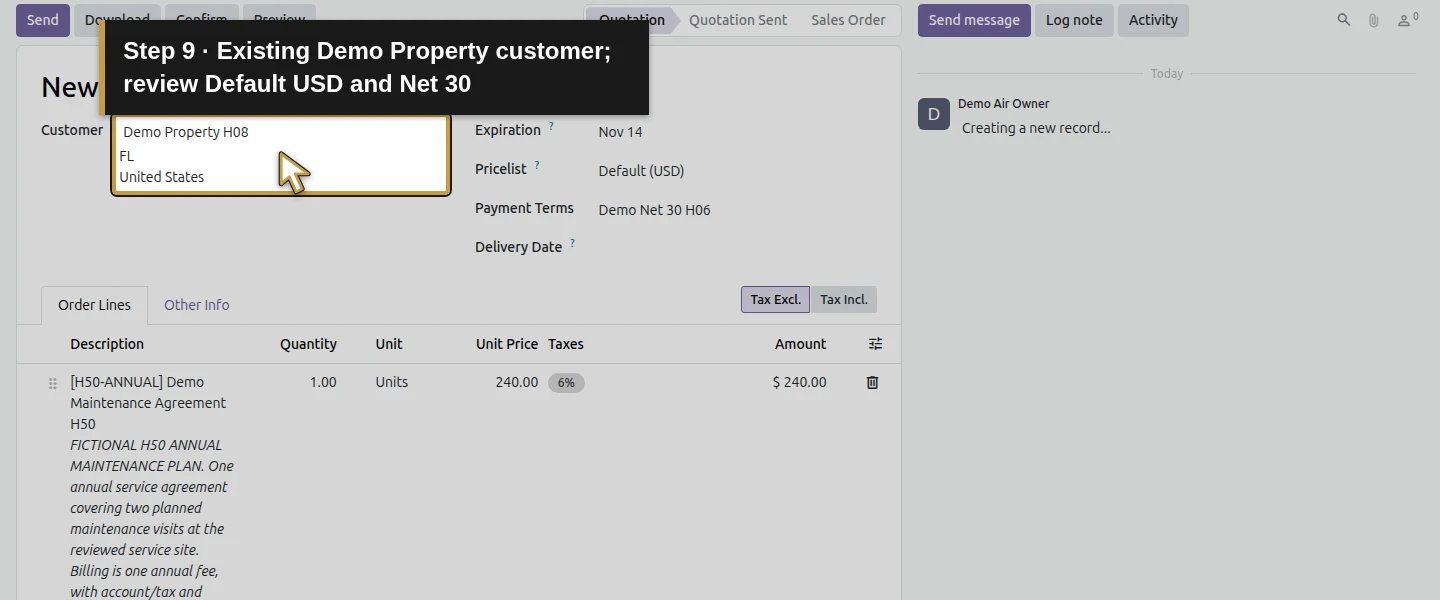
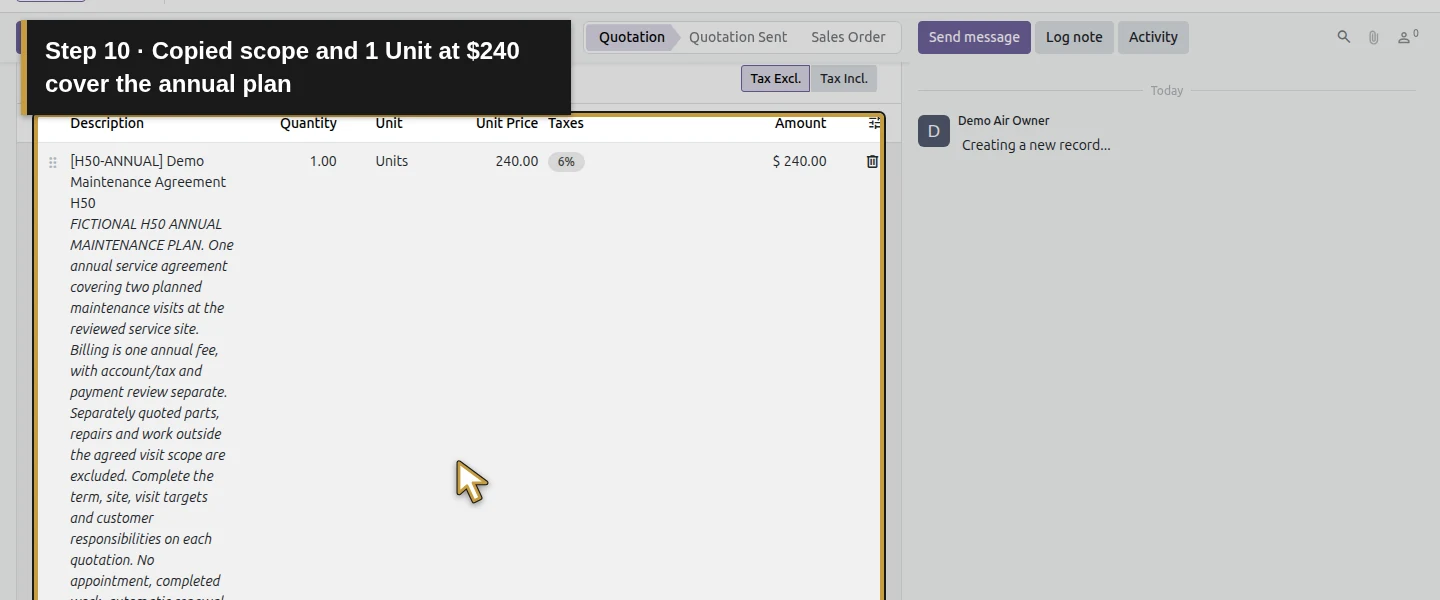
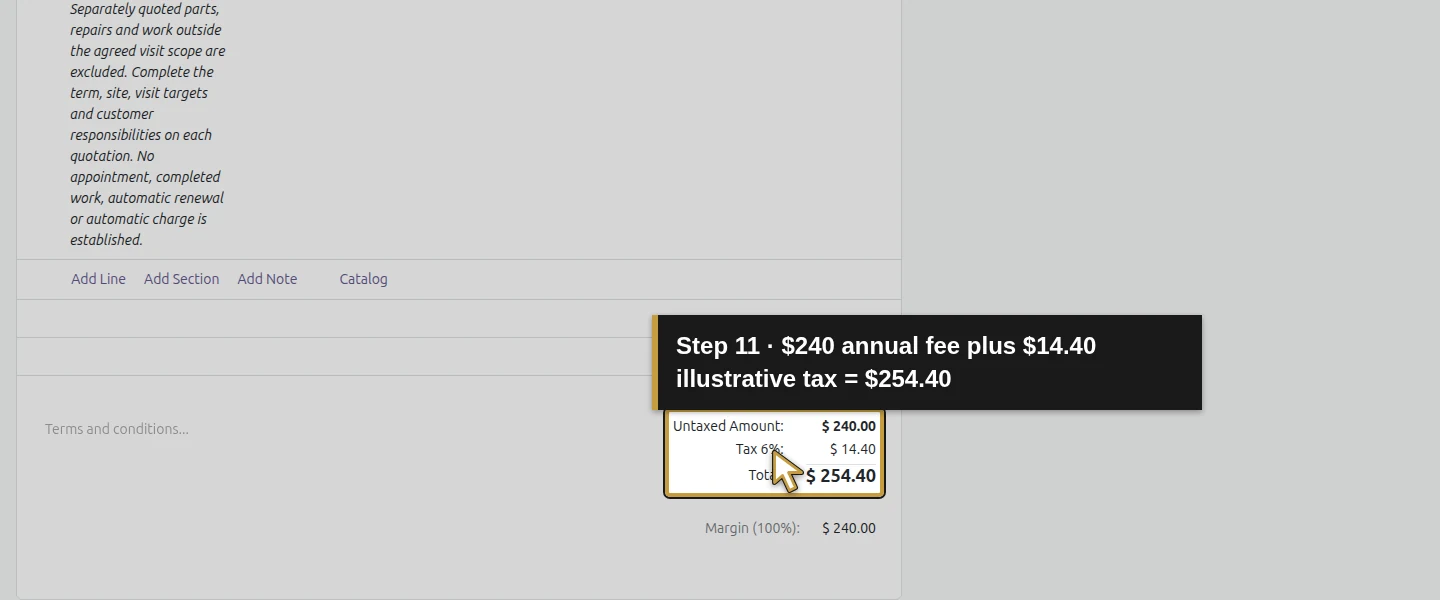
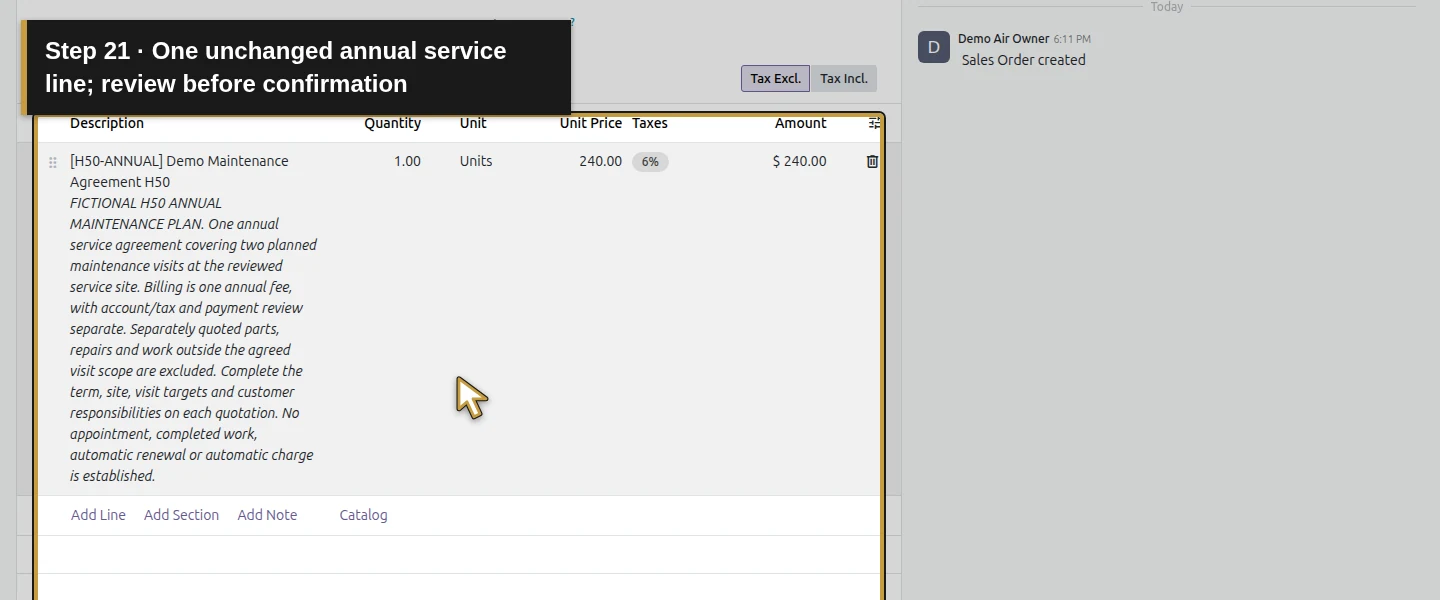
Open Sales → Orders → Quotations, then New → New Quotation. Select existing Demo Property H08 and Demo Net 30 H06. Check Default (USD) and the existing Billing Office H08/Service Site H08 addresses. Add H50-ANNUAL at 1 Unit × $240. Review the copied product scope and the illustrative total: $240 + $14.40 demo tax = $254.40. The 6% value is a training default; review the actual agreement’s price, account and tax before billing.
Step 4. Identify the agreement and offer-validity date
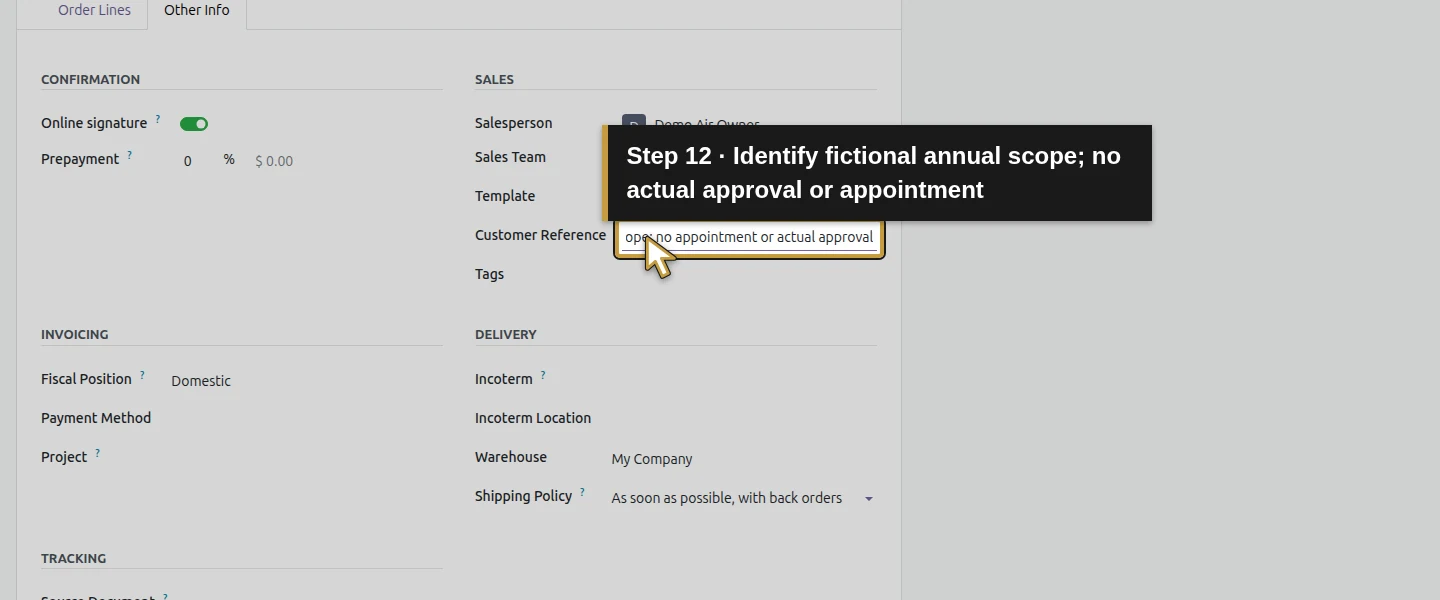
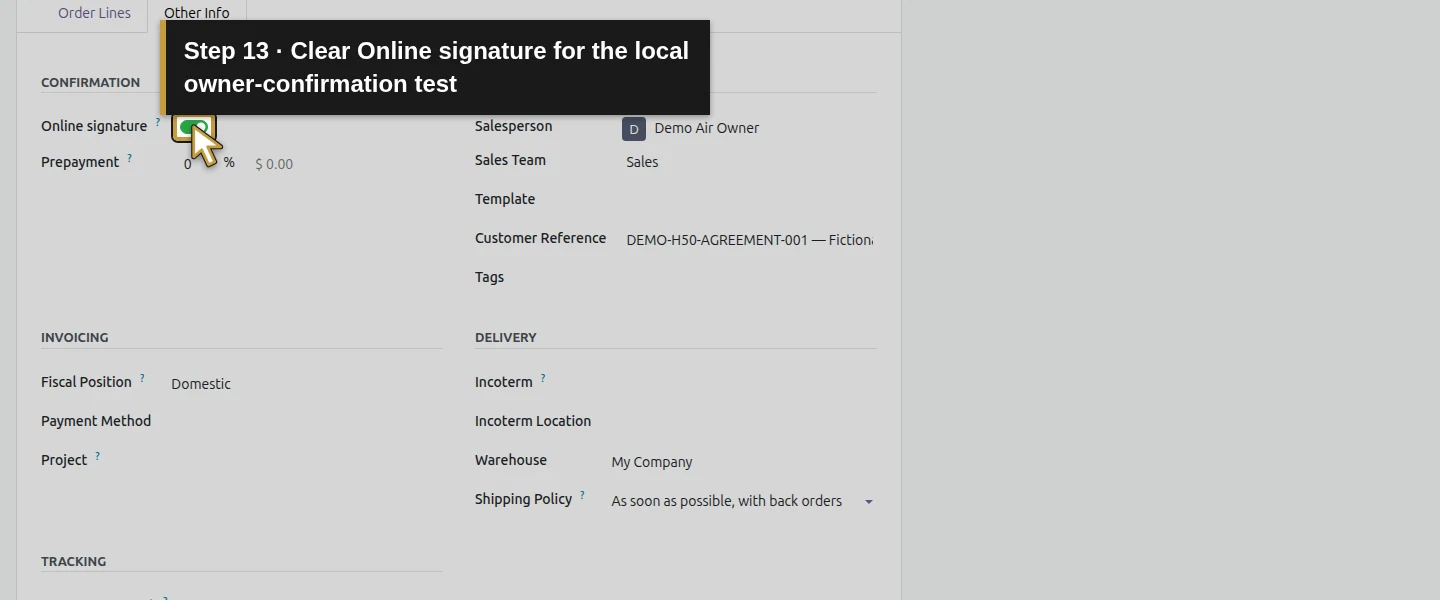
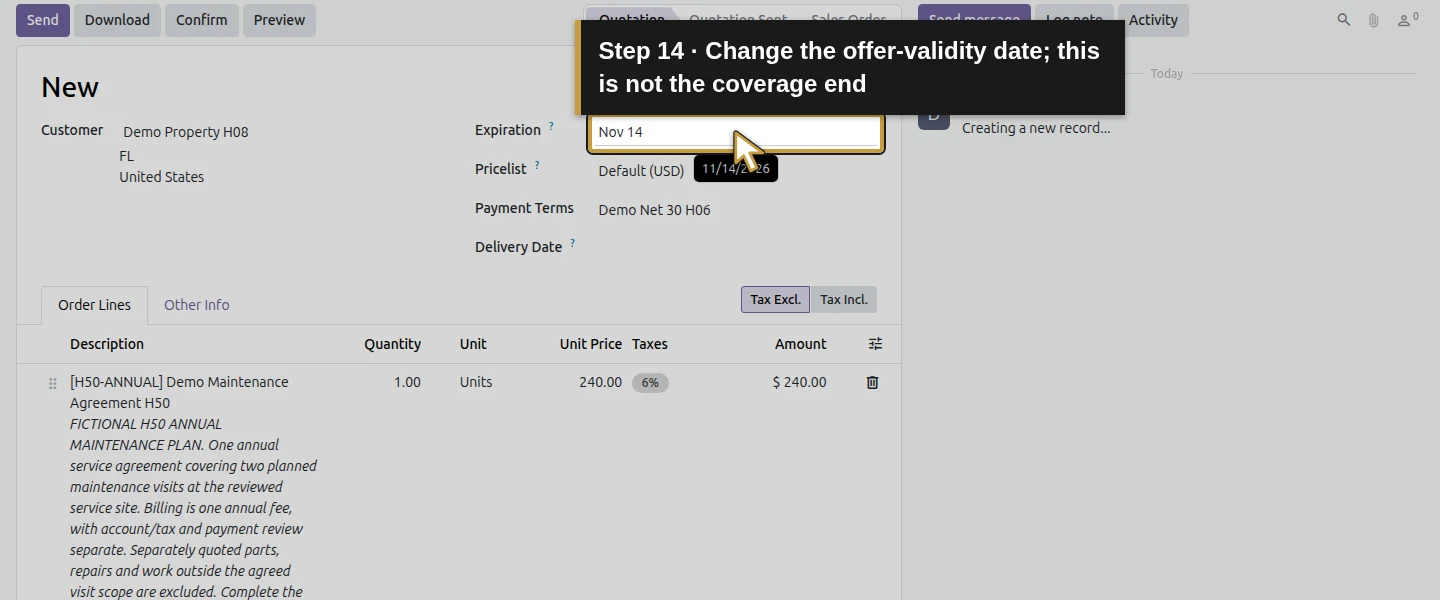
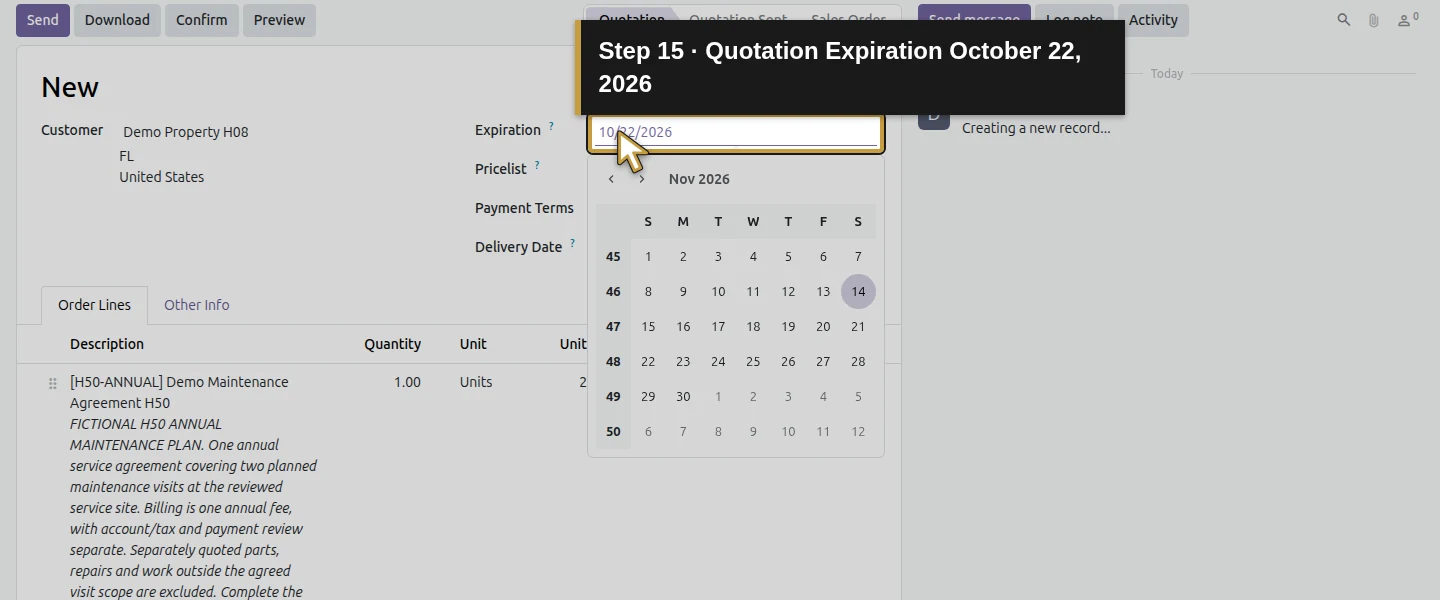
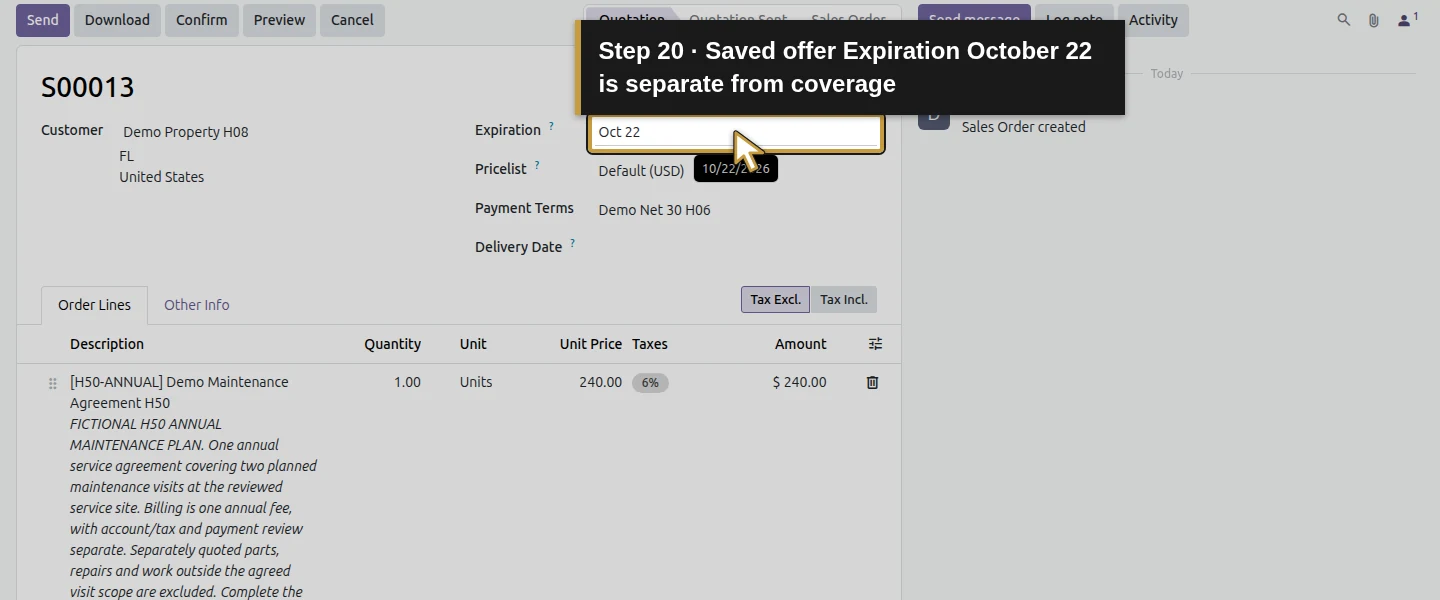
In Other Info, enter Customer Reference DEMO-H50-AGREEMENT-001 — Fictional annual scope; no appointment or actual approval. Clear Online signature for this owner-confirmed training test. Return to Order Lines and set Expiration October 22, 2026 using the native date control. Expiration is the quotation’s offer-validity date. The separate coverage end will be written in the agreement terms; these dates have different purposes.
Step 5. Complete the specific agreement terms
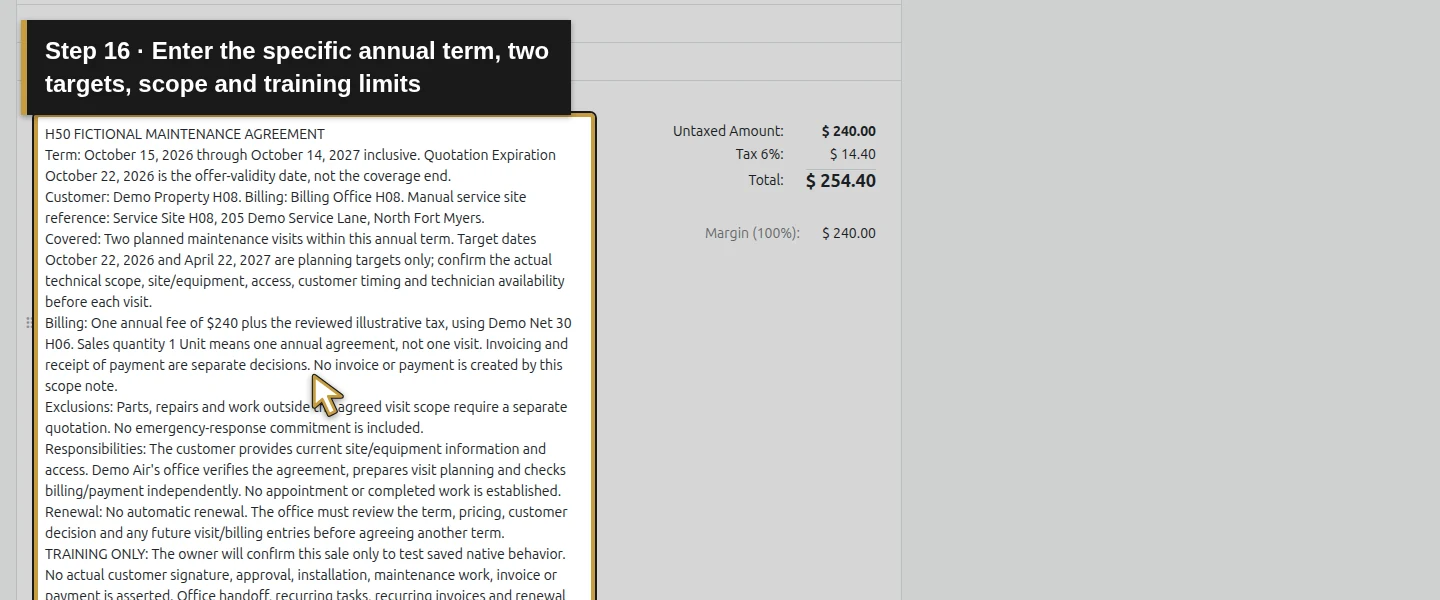
In Terms and conditions below the order lines, record the actual training scope:
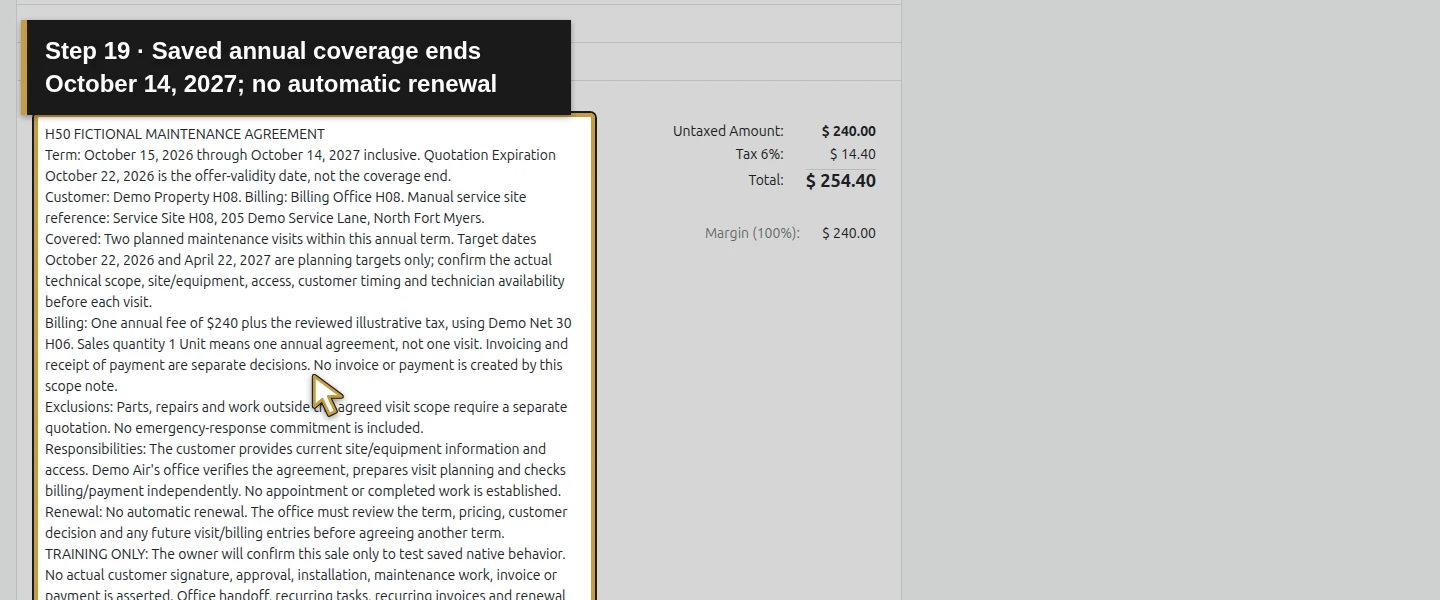
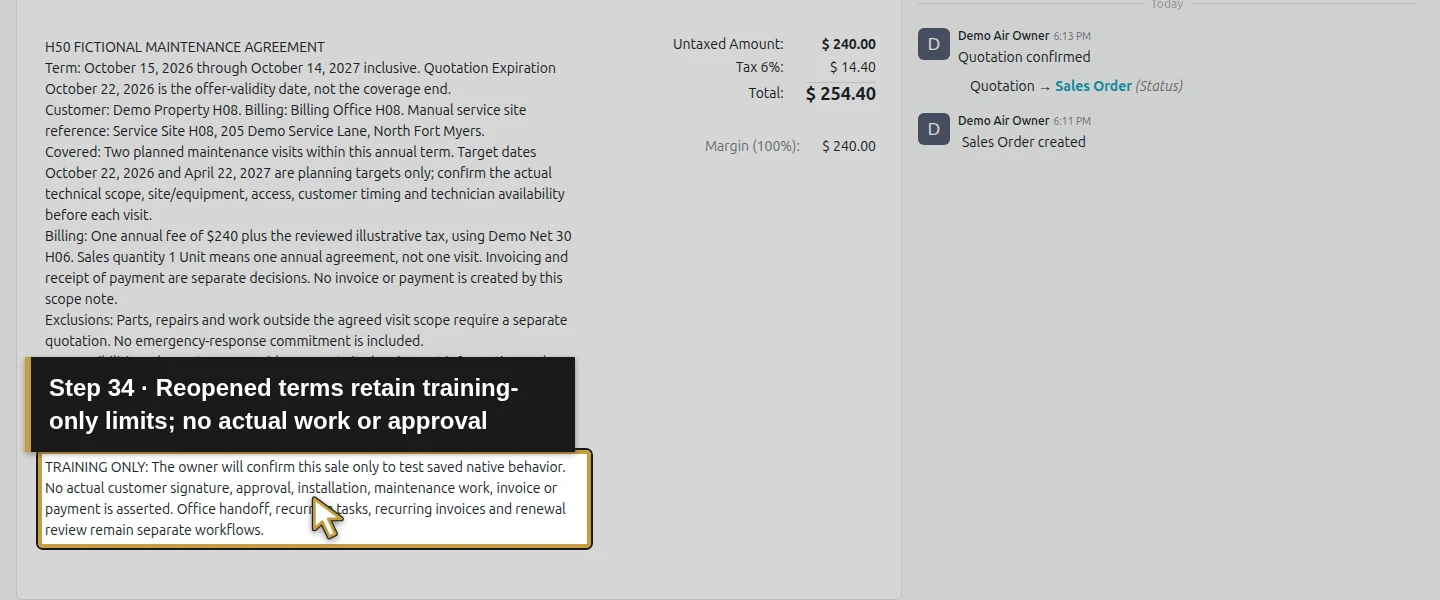
- Term: October 15, 2026 through October 14, 2027 inclusive.
- Customer/site: Demo Property H08; billing at Billing Office H08; manual service-site reference Service Site H08, 205 Demo Service Lane, North Fort Myers.
- Covered visits: two planned maintenance visits, with target dates October 22, 2026 and April 22, 2027. Confirm the technical scope, equipment, access, customer timing and technician availability before each visit.
- Billing: one annual $240 fee plus reviewed tax, using Demo Net 30 H06. Quantity 1 means one annual agreement. Billing and actual receipt remain separate.
- Exclusions/responsibilities: separately quote parts, repairs and outside-scope work; the customer supplies current site/equipment information and access, and the office arranges the reviewed visits. No emergency-response commitment is included in this fictional example.
- Renewal: no automatic renewal; review the term, price, customer decision and any future visit/billing entries before another term.
Label the agreement TRAINING ONLY, with no actual customer signature, approval, work, invoice or payment asserted. These are manually entered commercial terms in the existing field, rather than a structured subscription record.
Step 6. Save and reopen the same quotation
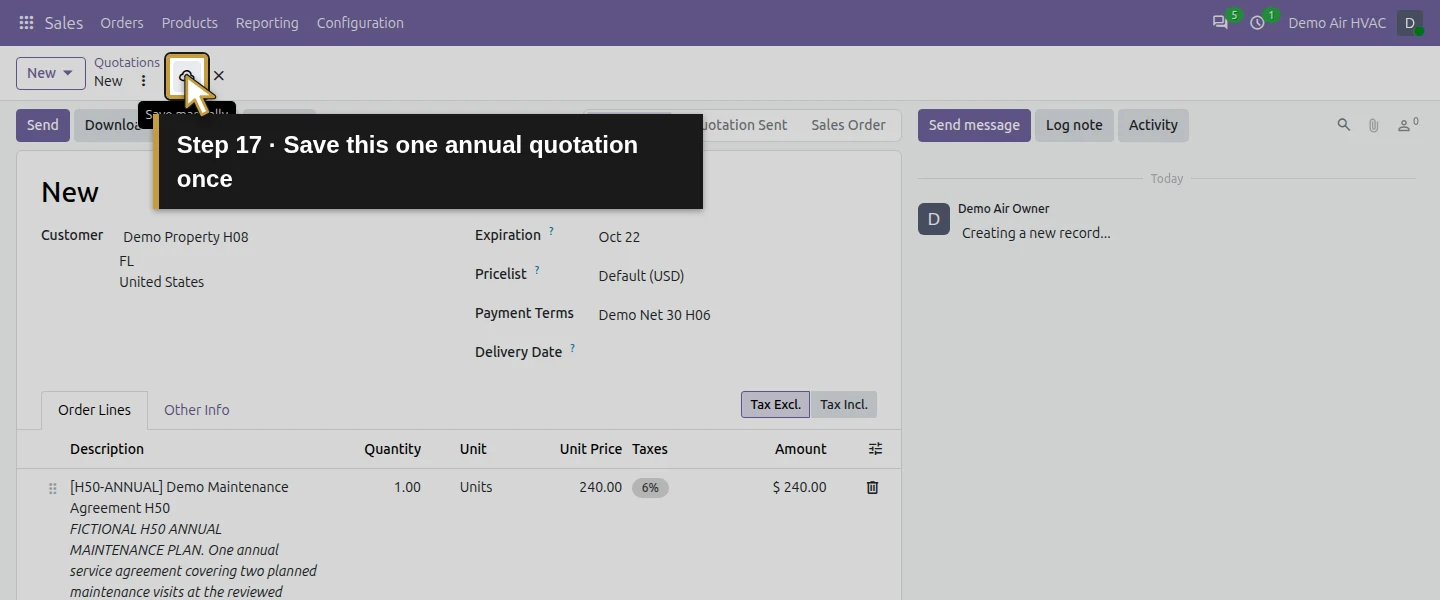
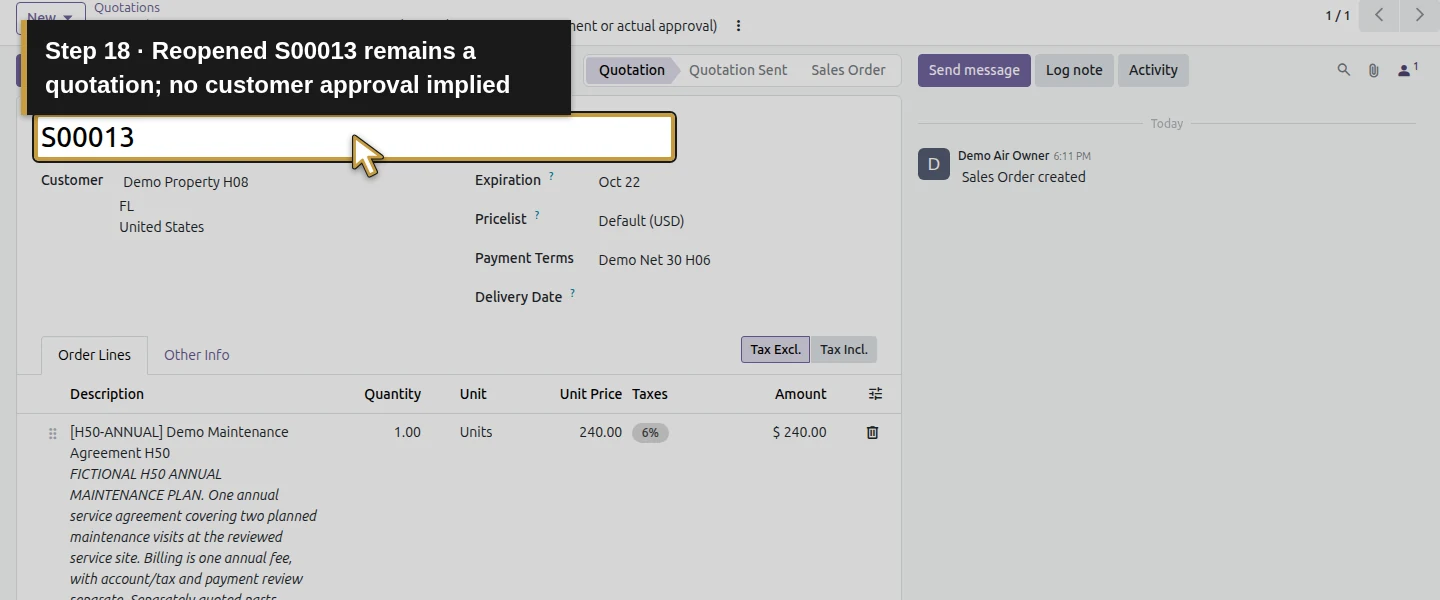
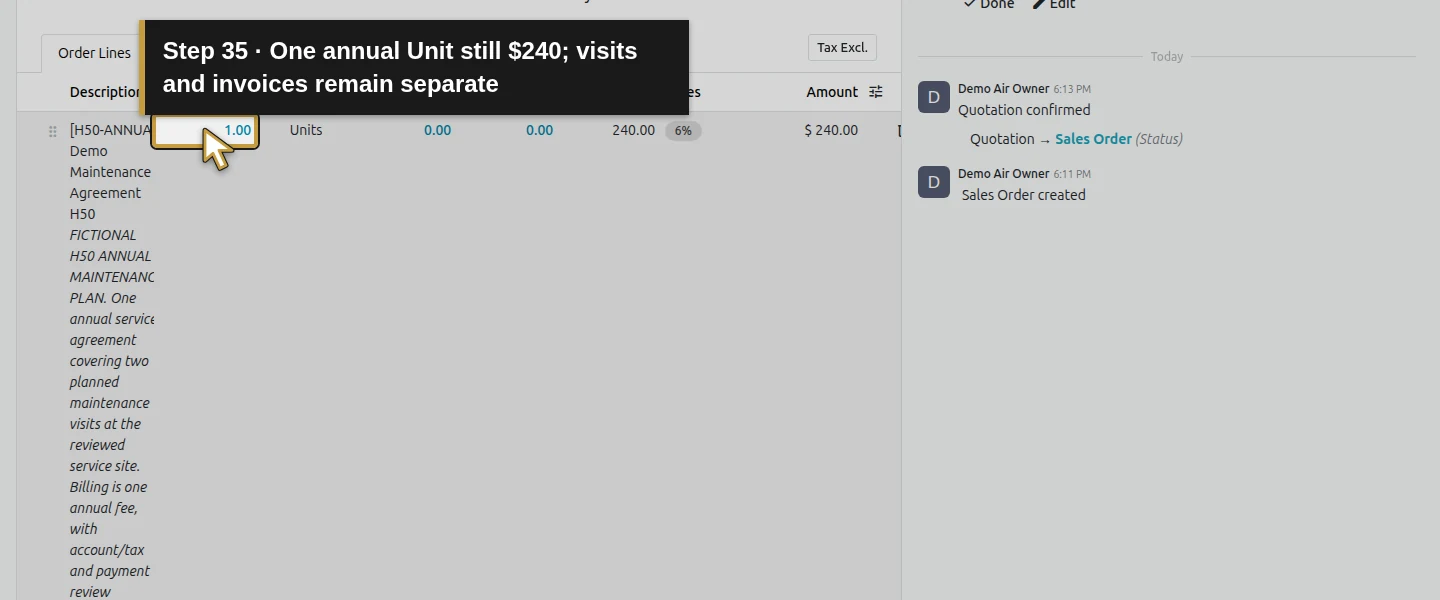
Click Save manually, wait for the saved order number and reopen S00013. Check one H50 line, Units, $254.40 total, the copied general scope and the specific Terms and conditions. Verify both the October 22 quotation expiration and October 14, 2027 coverage end. Review the original customer agreement before a real confirmation; the training reference and owner action do not supply customer consent.
Step 7. Confirm once and inspect the actual result
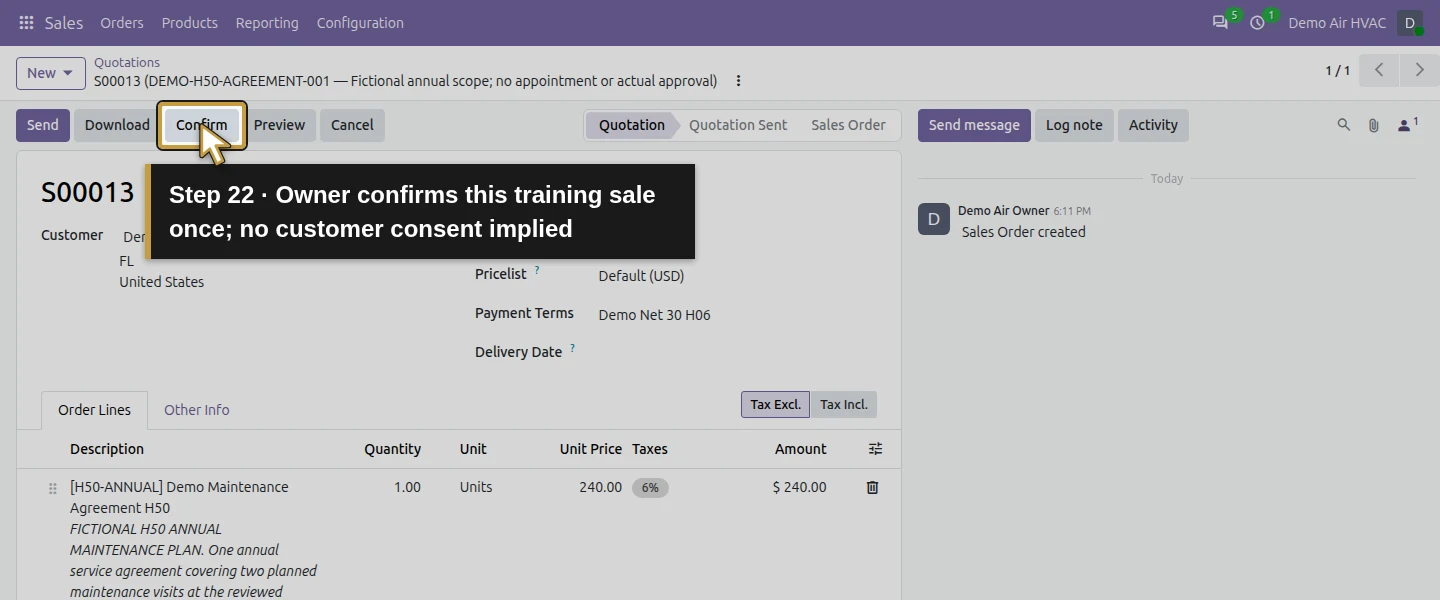
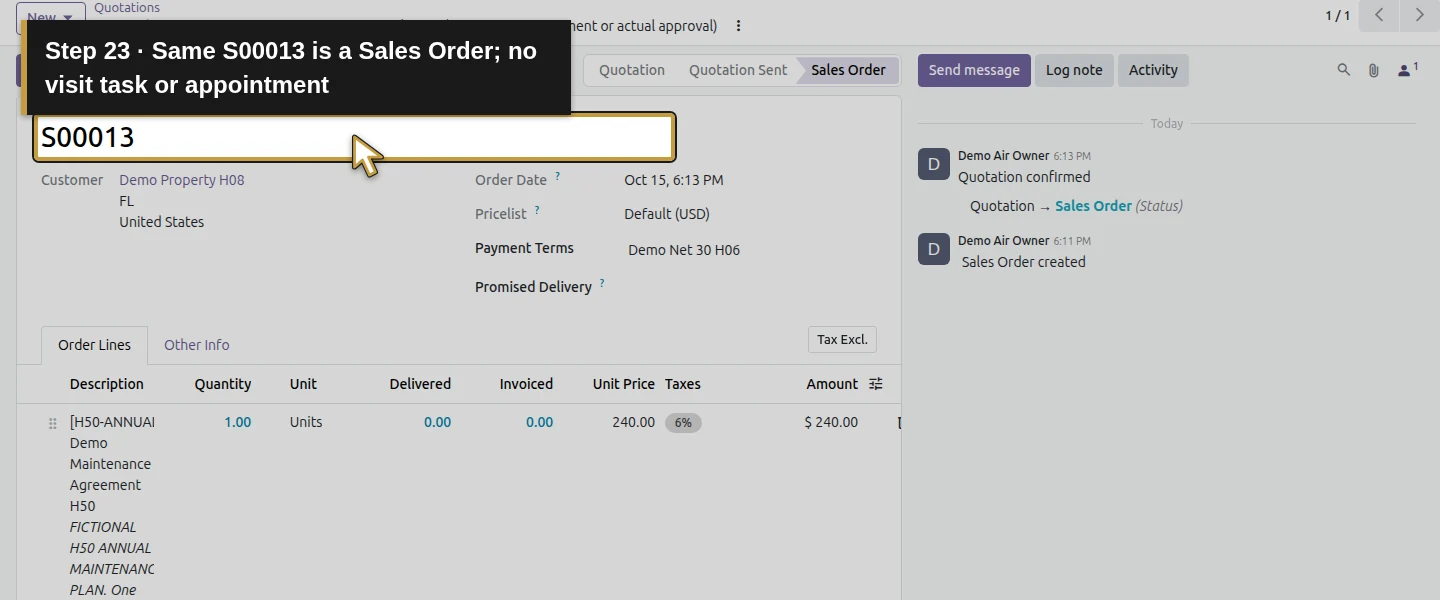
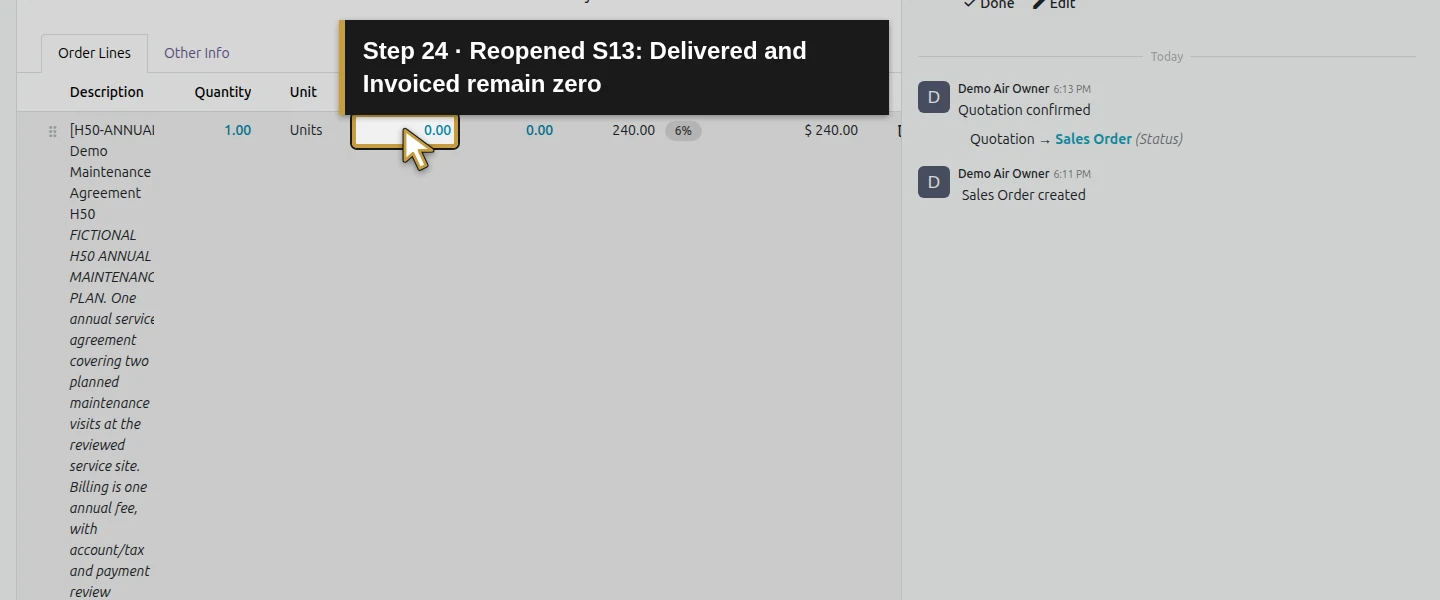
Click Confirm once as the owner. S00013 becomes Sales Order, retaining its one line and terms. In this Create on Order Nothing configuration, confirmation creates no project, visit task, calendar appointment, invoice or payment. The fixed-price ordered-quantity policy makes 1 Unit invoiceable even while Delivered and Invoiced remain zero. That billing eligibility does not establish a visit, an active entitlement check or money received. Preserve the agreement for the separate operational and finance lessons.
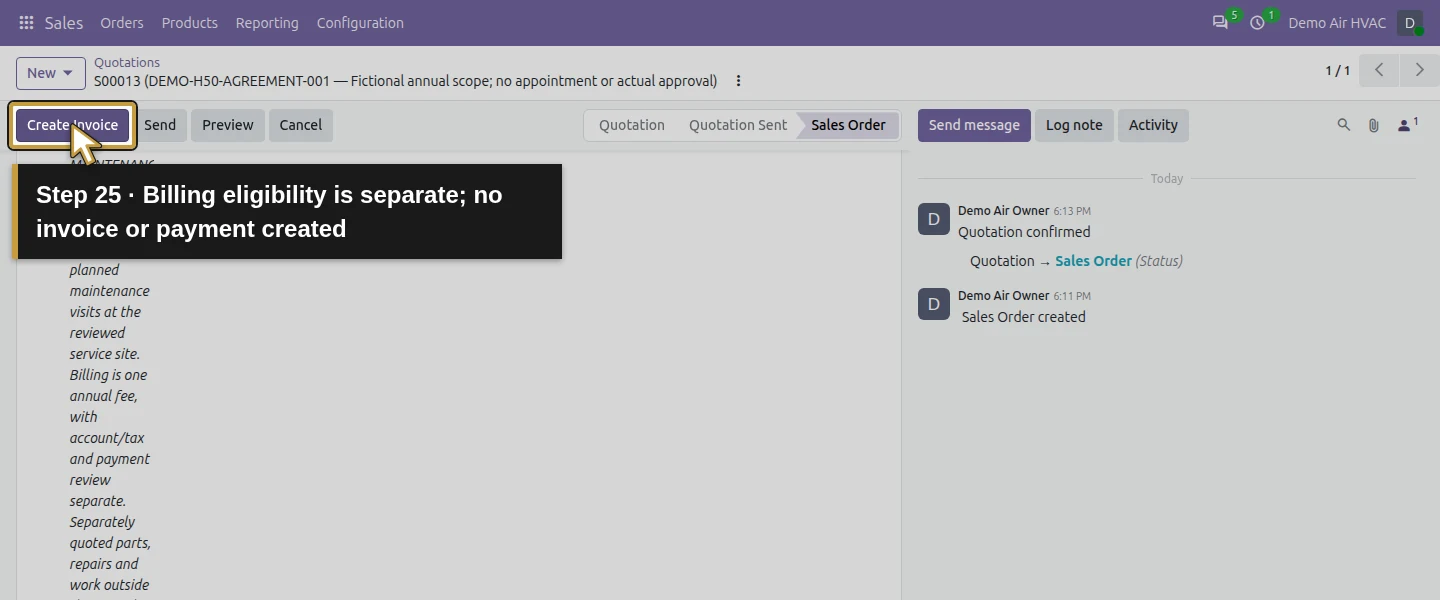
Step 8. Assign an office handoff instead of leaving the next step in prose
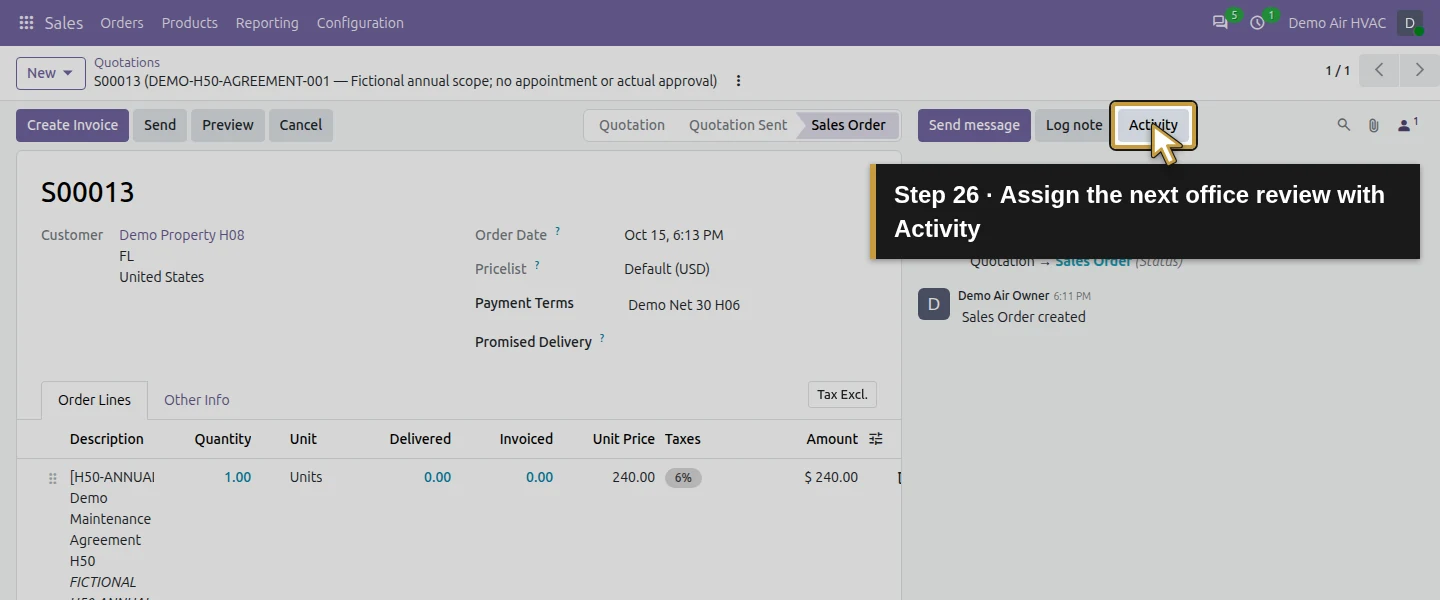
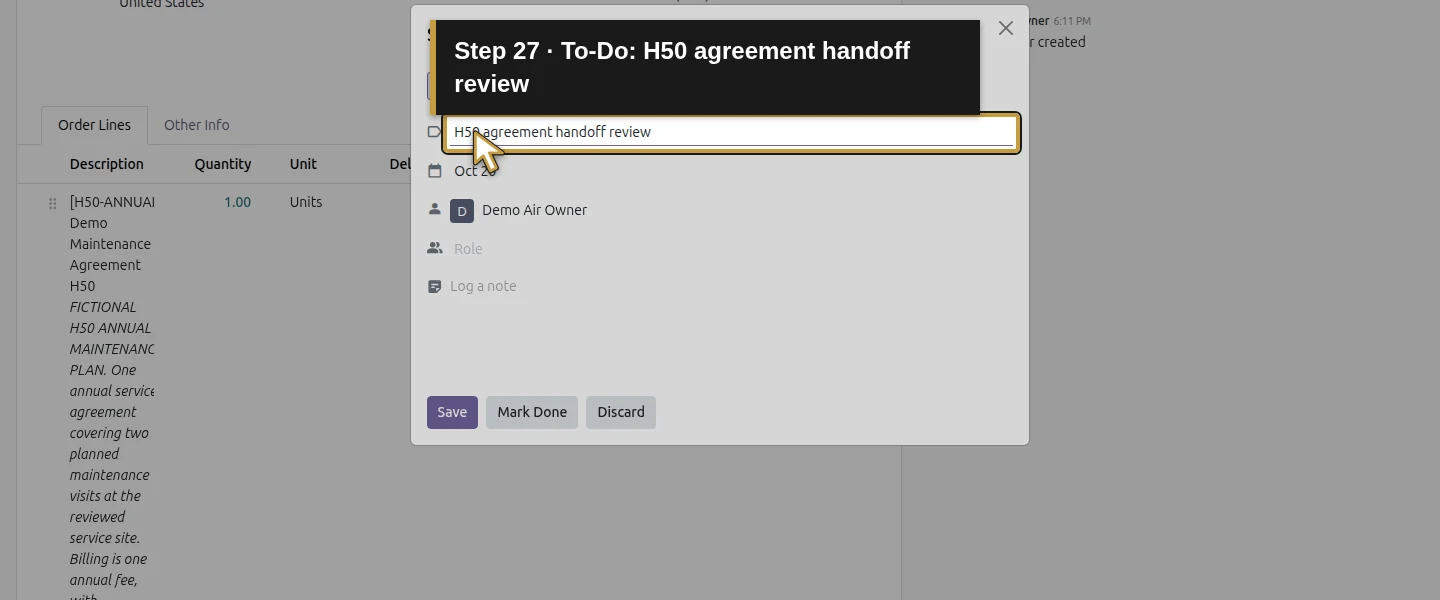
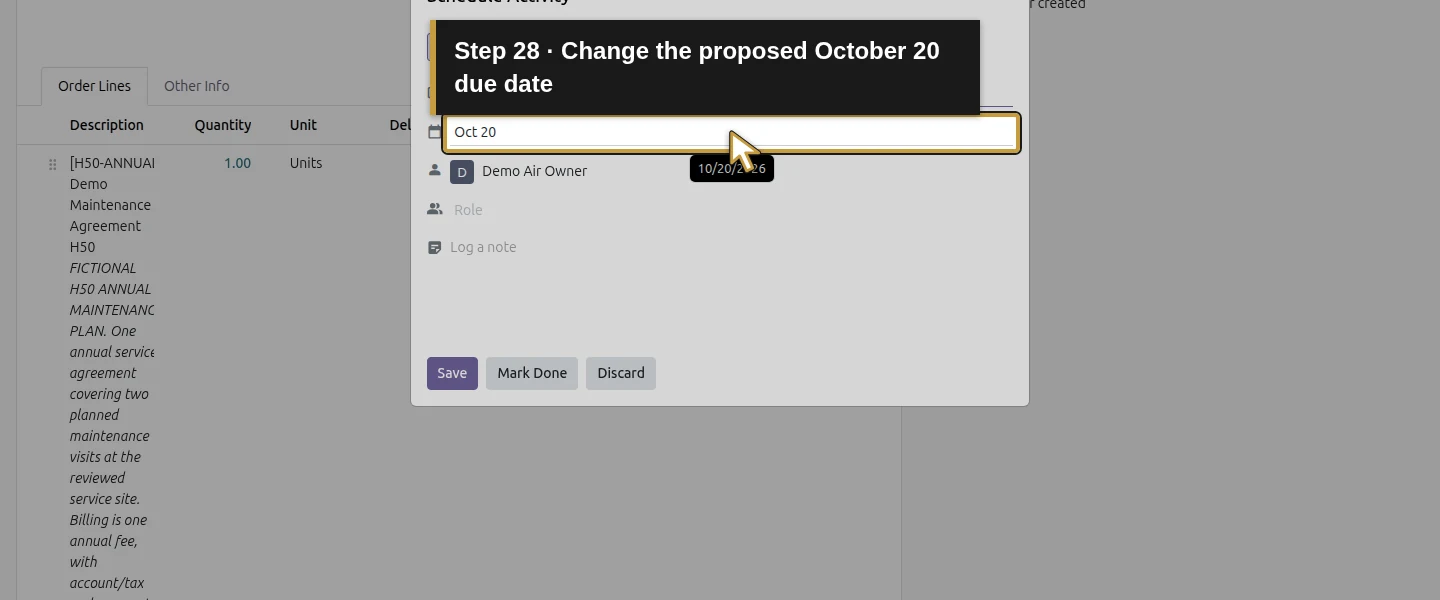
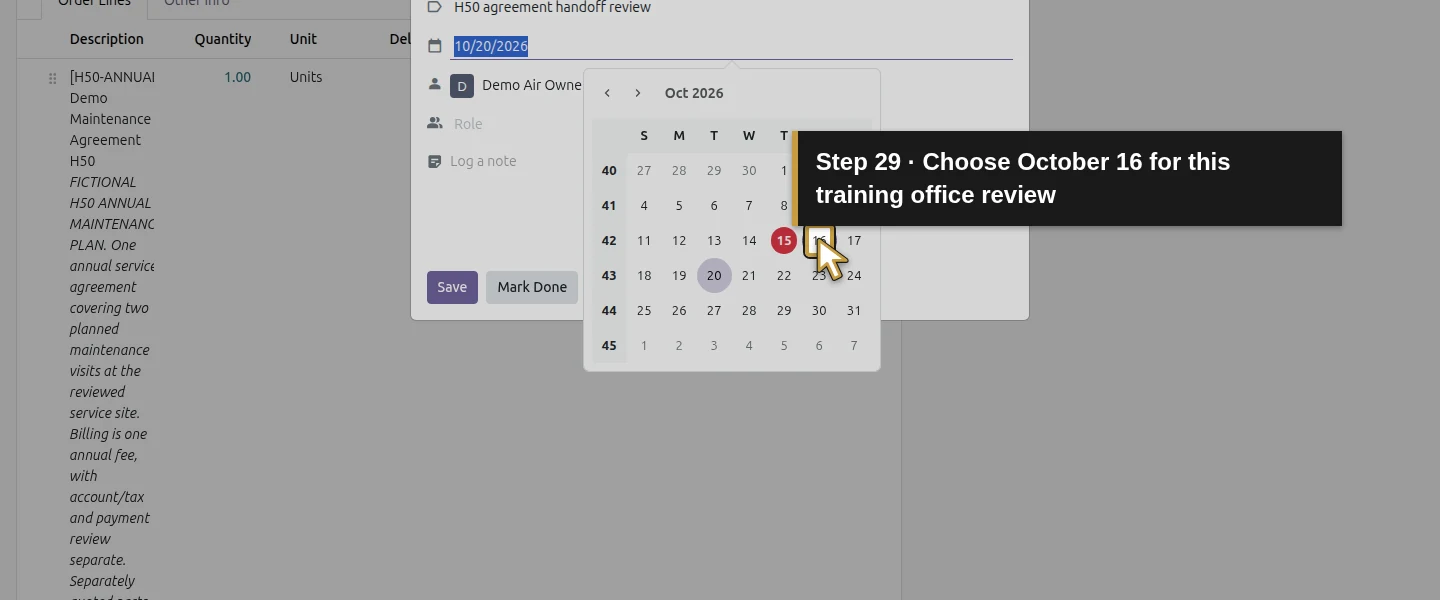
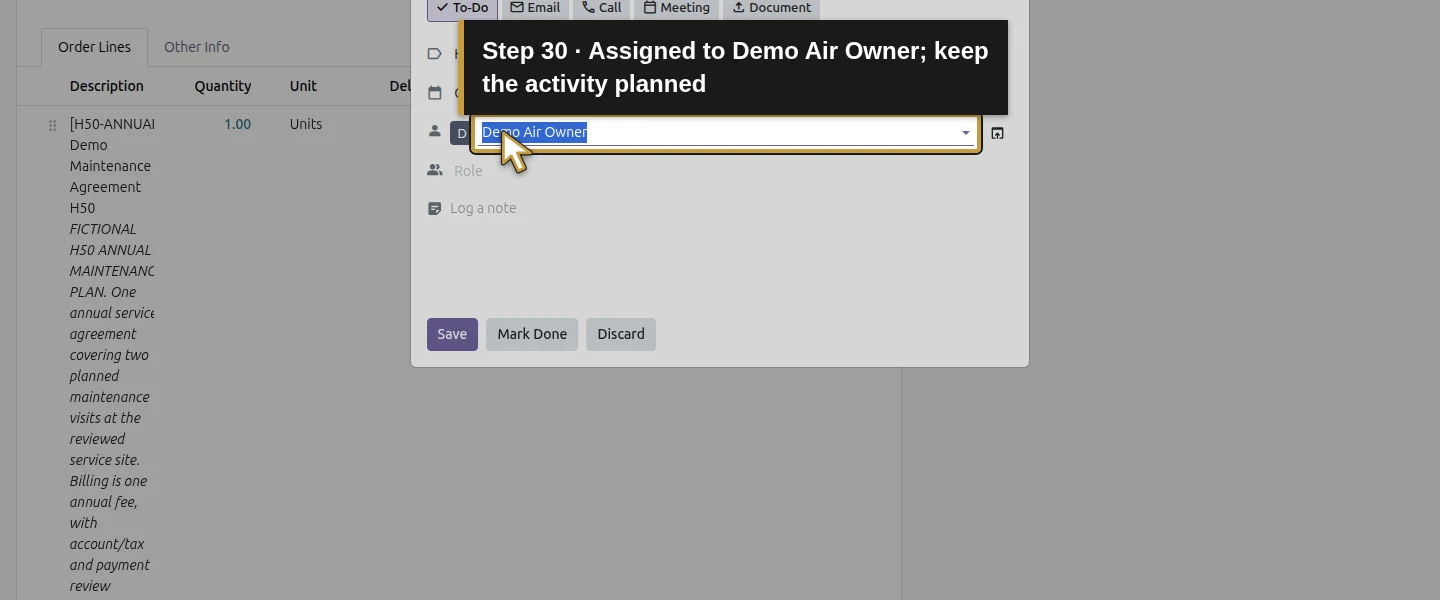
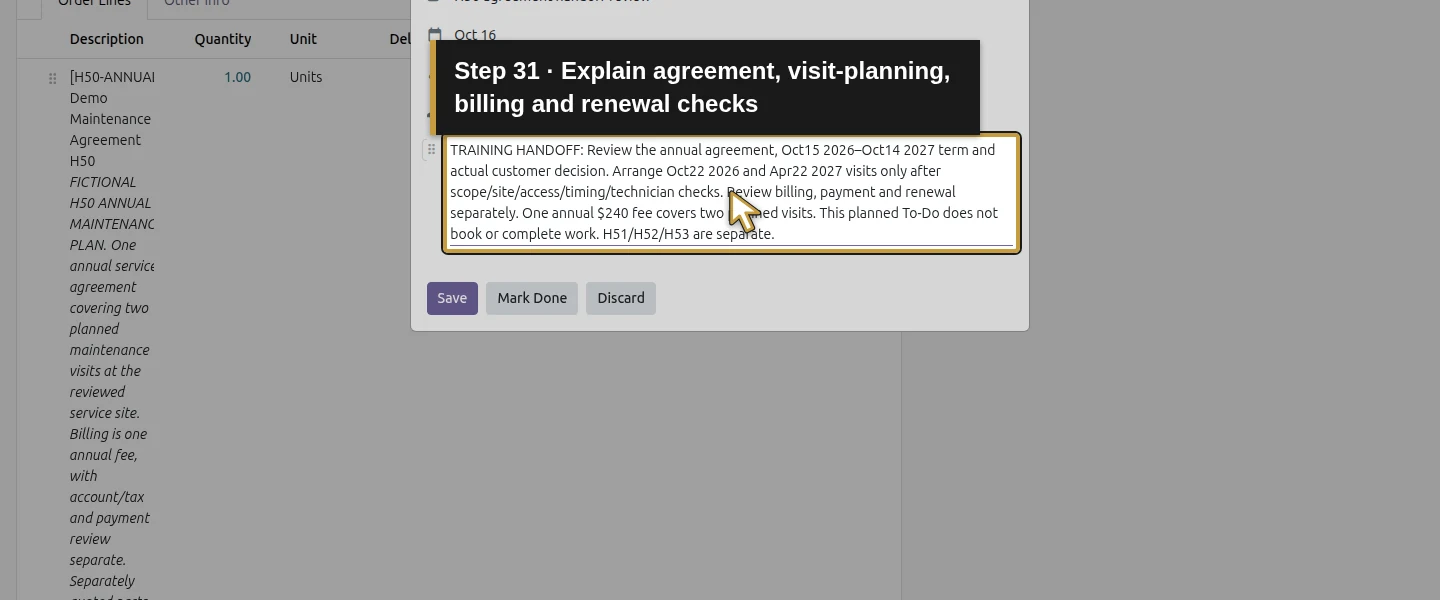
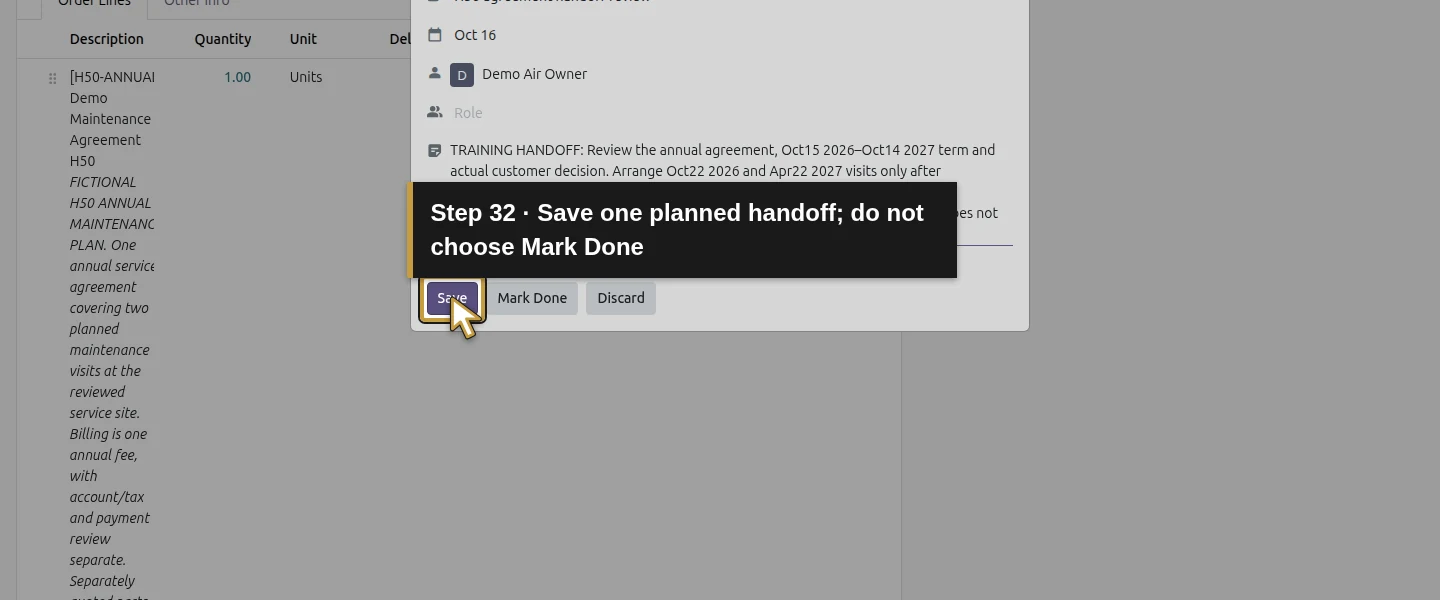
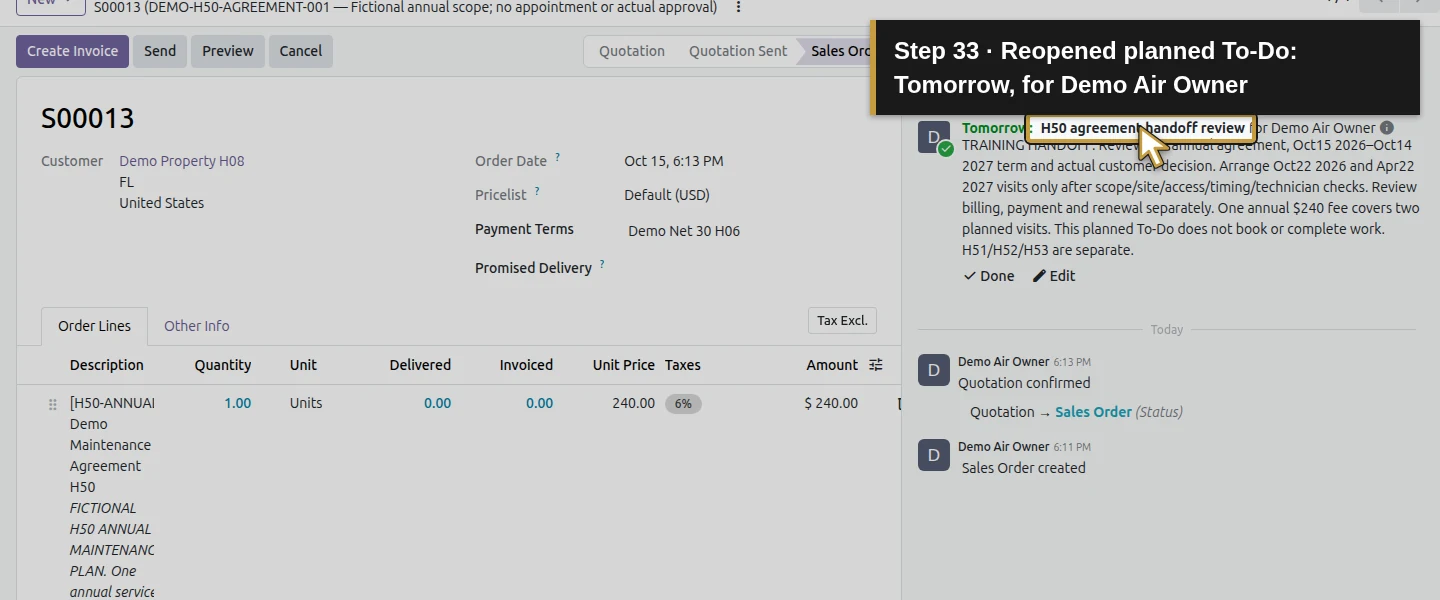
On S00013, click Activity. Keep To-Do, set Summary H50 agreement handoff review, change the due date from its proposed October 20 to October 16, 2026, and verify Assigned to Demo Air Owner. In the note, ask the office to review the agreement/term/customer decision, arrange both visit targets after timing/access/availability checks, and review billing/payment and renewal separately. Click Save, leaving the activity planned. Mark Done would record completion and is not the action used here.
Step 9. Reopen the agreement and handoff
Reload S00013. Its planned activity reads Tomorrow: H50 agreement handoff review for Demo Air Owner, with the saved note and due date. Check the same annual terms and one service line. Reopening retains one sale and one follow-up, without generating visits or invoices. Use the upcoming recurring-task, recurring-invoice and renewal guides to verify those separate procedures; a product name and a date in Terms and conditions do not configure them.
Check the result
S00013 is one confirmed $254.40 training sale for one annual maintenance-agreement Unit. The product’s general Sales description is copied exactly to its line. Saved Terms and conditions specify the October 15, 2026–October 14, 2027 term, service-site reference, two planned visit targets, annual fee, exclusions, responsibilities and manual renewal review. Quotation Expiration remains October 22, 2026. One assigned To-Do, H50 agreement handoff review, stays planned for the owner on October 16. Native confirmation and reload retain the same sale, scope and activity. The service is invoiceable under its ordered-quantity policy, with zero delivered/invoiced and no new invoice, payment, project, task, stock movement or appointment. Earlier contracts, milestone and supplier drafts, CRM, portal access and the open supplier exception are preserved. No new email reaches the local sink.
If your screen differs
This example records agreement scope with standard Sales; it does not use the Subscriptions app. The annual term and visit targets are manually entered Terms and conditions, not verified automatic coverage-start/end controls. Quotation Expiration is offer validity, not a contract-end field. Create on Order Nothing creates no operational job, and Prepaid/Fixed Price permits invoicing before any visit is recorded. Review actual customer agreement, billing basis and payment separately. A planned activity assigns work; it is not a completed visit, confirmed booking or automated renewal. Only the owner-confirmation and handoff case was exercised here; online customer acceptance, other roles, amendments, expiry enforcement and later lifecycle automation remain separate. The product has zero Cost in this training example, so the displayed 100% sales margin is not actual agreement profitability.
Frequently asked questions
Can I sell an HVAC maintenance agreement in Odoo?
Yes. This tested stock Odoo 20 Community example uses a standard Service product, copied Sales description and a quotation with a specific annual term, site and two-visit scope. One owner confirmation saves the sale, and a planned To-Do assigns the office handoff. It does not create a subscription lifecycle or prove customer acceptance, payment or completed visits.How do I record a maintenance contract start and end date in Odoo?
Here the coverage term is written explicitly in the quotation’s existing Terms and conditions: October 15, 2026 through October 14, 2027. Quotation Expiration is separately October 22, 2026 and controls offer validity. These manually recorded terms do not establish automatic coverage enforcement or renewal; those decisions stay under office review.Does an Odoo maintenance agreement create recurring visits or invoices?
This product uses Create on Order Nothing and Prepaid/Fixed Price. Confirmation created no visit tasks, calendar appointments, invoices or payments, although one Unit became invoiceable. The planned office activity is a manual handoff. Recurring visit generation, invoice recurrence and renewal/stop behavior require their own verified configuration.Continue building the business
Continue with H51: How do I schedule recurring HVAC maintenance visits in Odoo? to configure recurring tasks for the planned visits. Keep S00013’s one annual fee and coverage term intact while planning its two visits. Billing and renewal are separate later checks.
Talk about your Odoo setup
Bring your current process and the result you need to Onward to plan your Odoo workflow. Talk about your Odoo setup.