By Nelson Milian, Odoo Expert & Agentic AI Developer
Published
Running an HVAC business with Odoo
How do I create a job task automatically from an Odoo sales order?
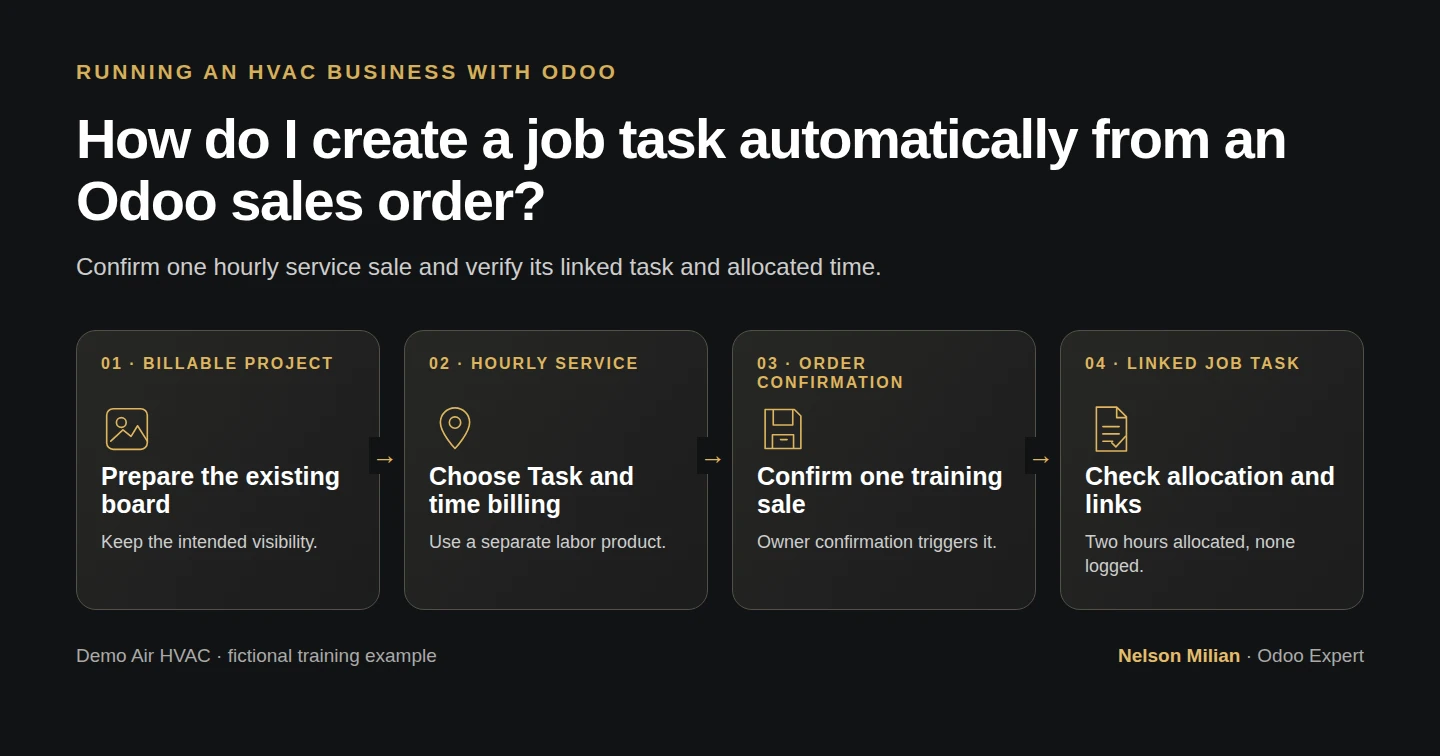
Workflow overview. Instructional screenshots show the actual demo interface.
Configure an Odoo service product to create one linked task on sales-order confirmation, with a separate timesheet billing policy.
Alex wants each confirmed hourly service sale to create its own job task in the existing service project. This guide configures a dedicated labor product, confirms one training sale and checks the task's customer, sales-line link and allocated time.
Alex Rivera and Demo Air HVAC are fictional training examples. Prices, dates, quantities and business situations in this guide are illustrative.
Before you begin
Tested in stock Odoo 20.0-20260926 Community as the demo owner administrator, with official modules and standard configuration. Use the existing project from H40, the service-product concepts from H11 and the confirmation distinction from H26. Official Project, Timesheets, Sales–Project and Sales–Timesheets integrations are installed in this runtime. H11's fixed-price service call and labor products remain unchanged. This lesson adds Demo Time-Billed Labor H41 and enables Billable on the existing project for the hourly workflow. It tests owner confirmation and automatic task creation; actual-time invoicing is a later check.
Step-by-step workflow
89 highlighted video actions with a white pointer, gold border and English captions, without narration. Each written step groups its smaller video actions. Stock Odoo20 Community owner; enable Billable on existing timesheet-enabled team-only project, create a separate Task/Based-on-Timesheets hourly product, confirm once and verify one generated linked task with allocation2h/recorded0. No signature, time entry, invoice or payment.
Step 1. Prepare the existing project for billable time
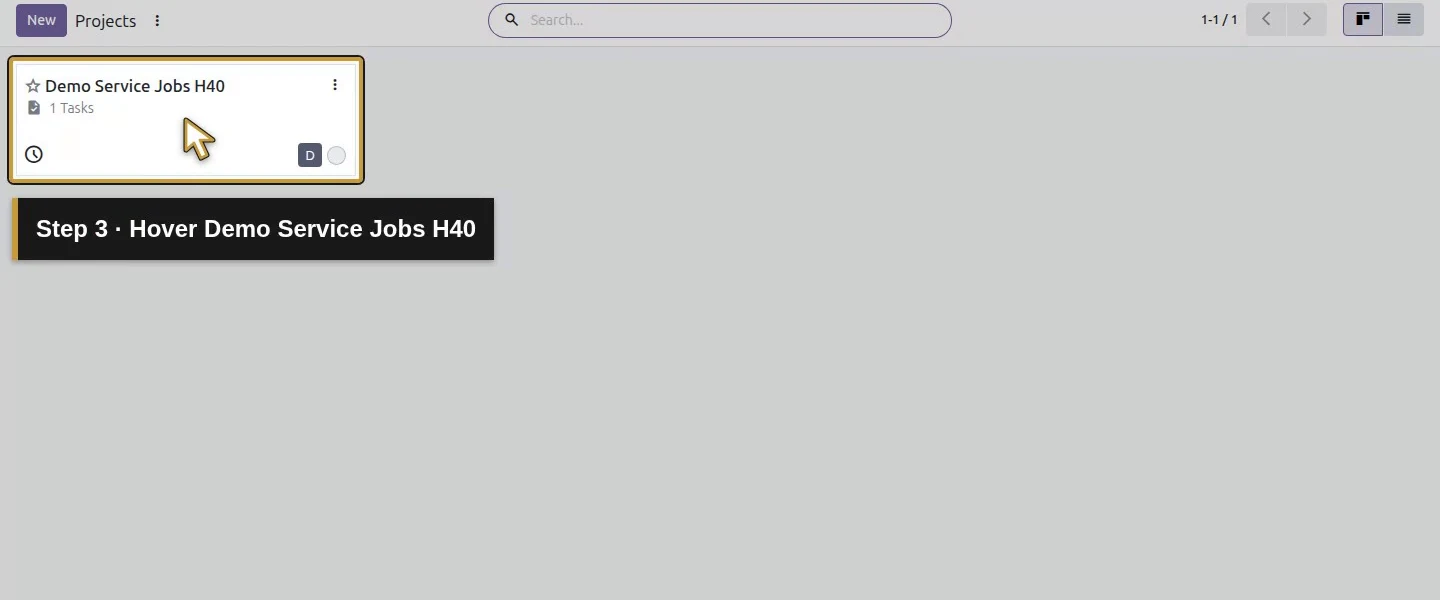
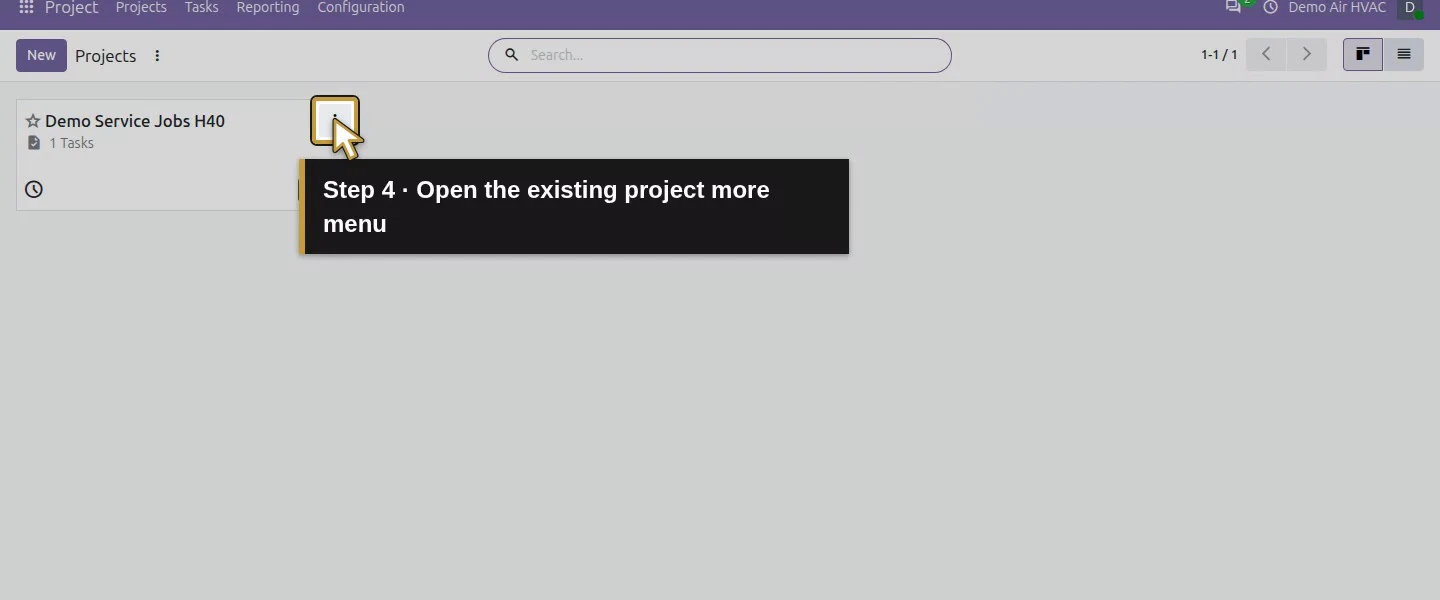
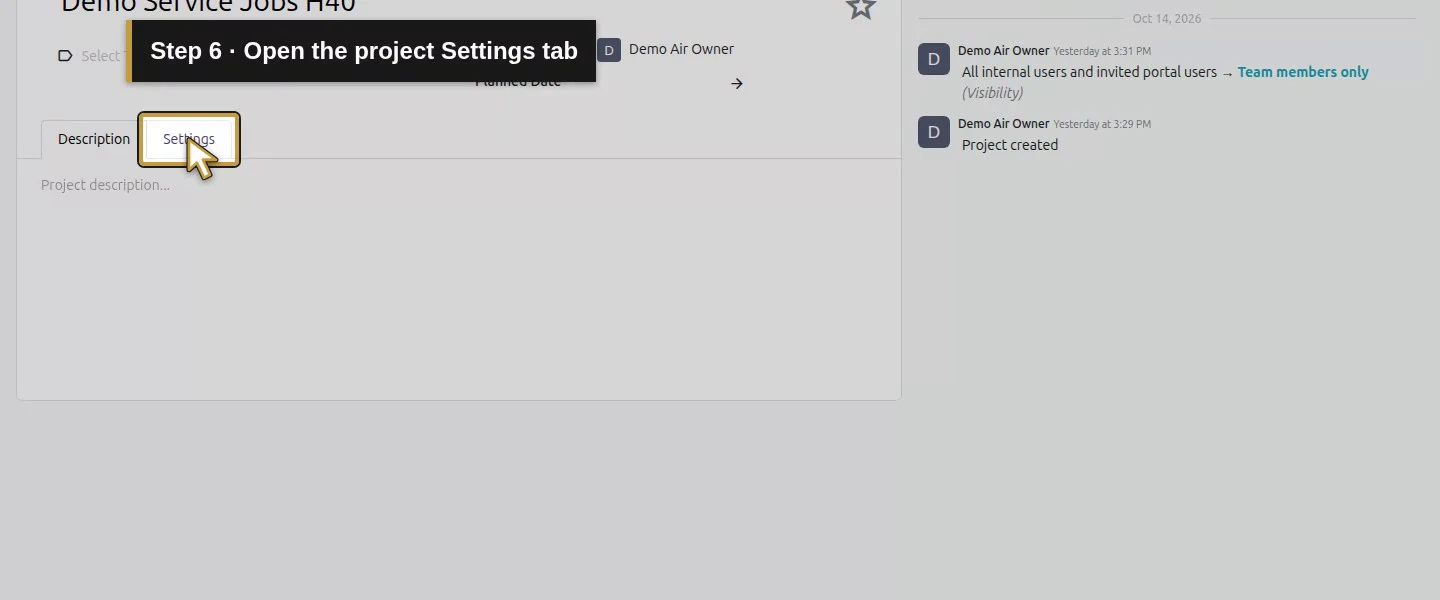
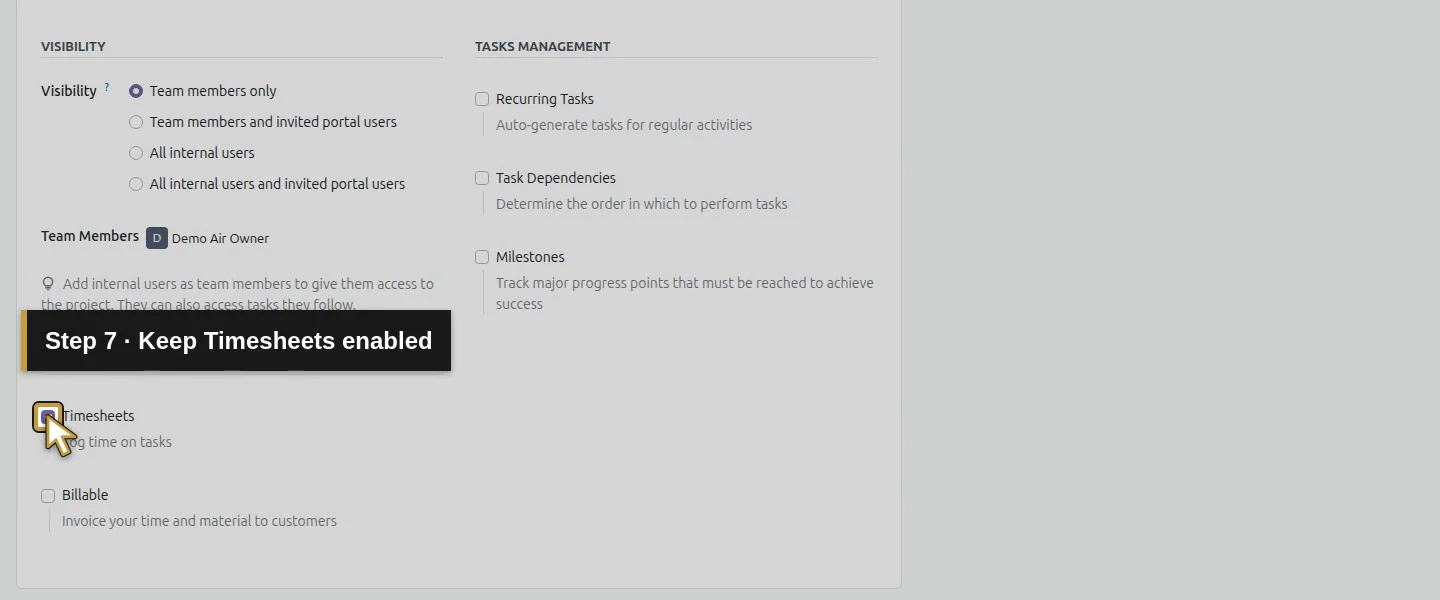
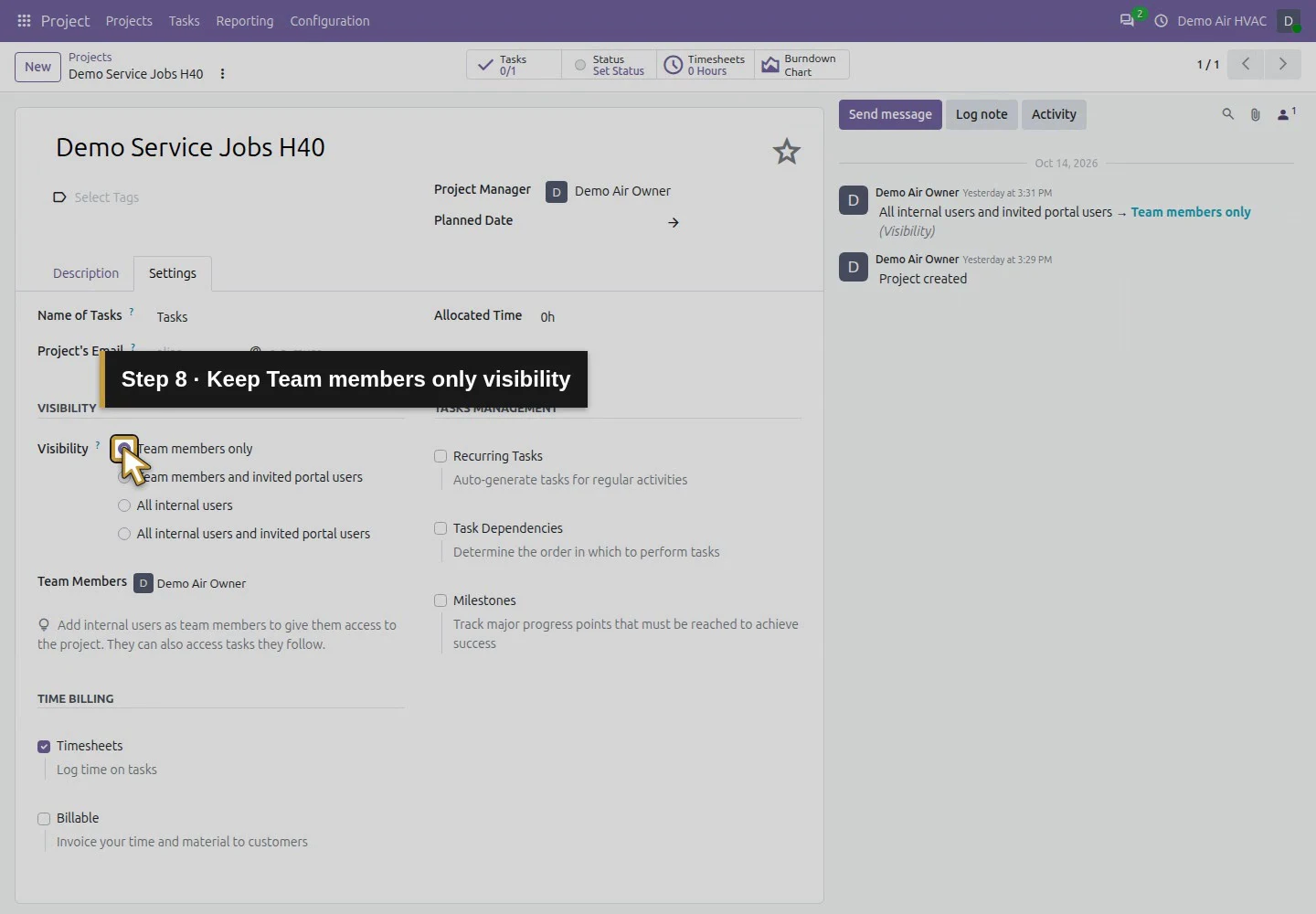
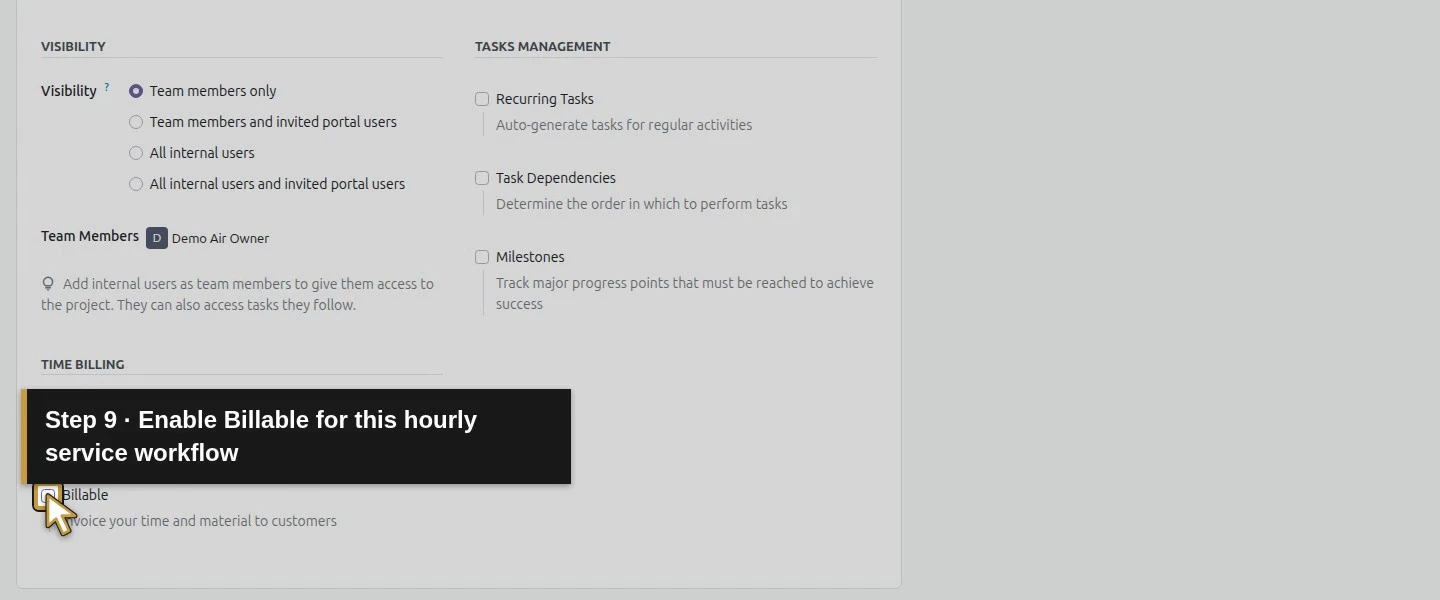
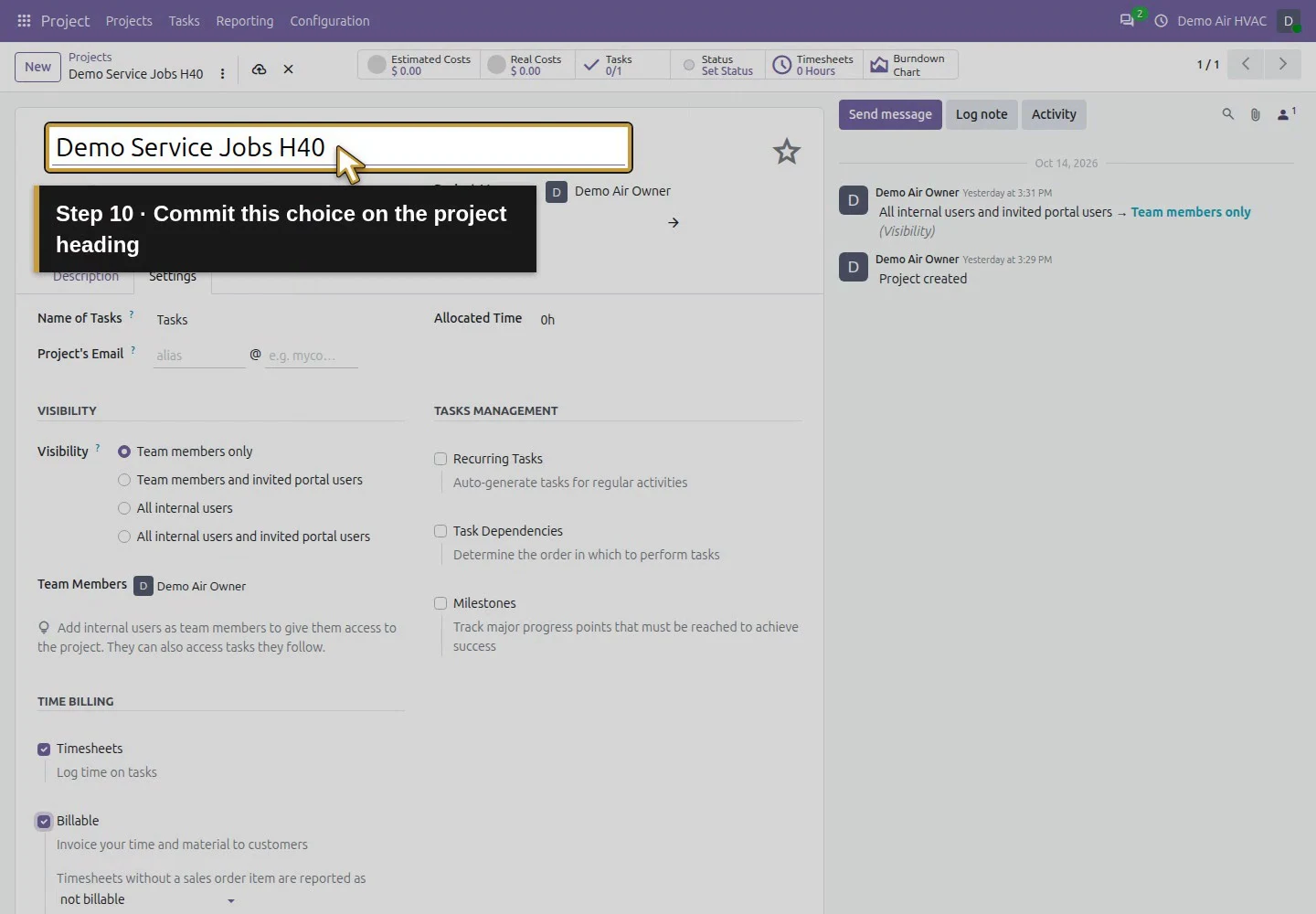
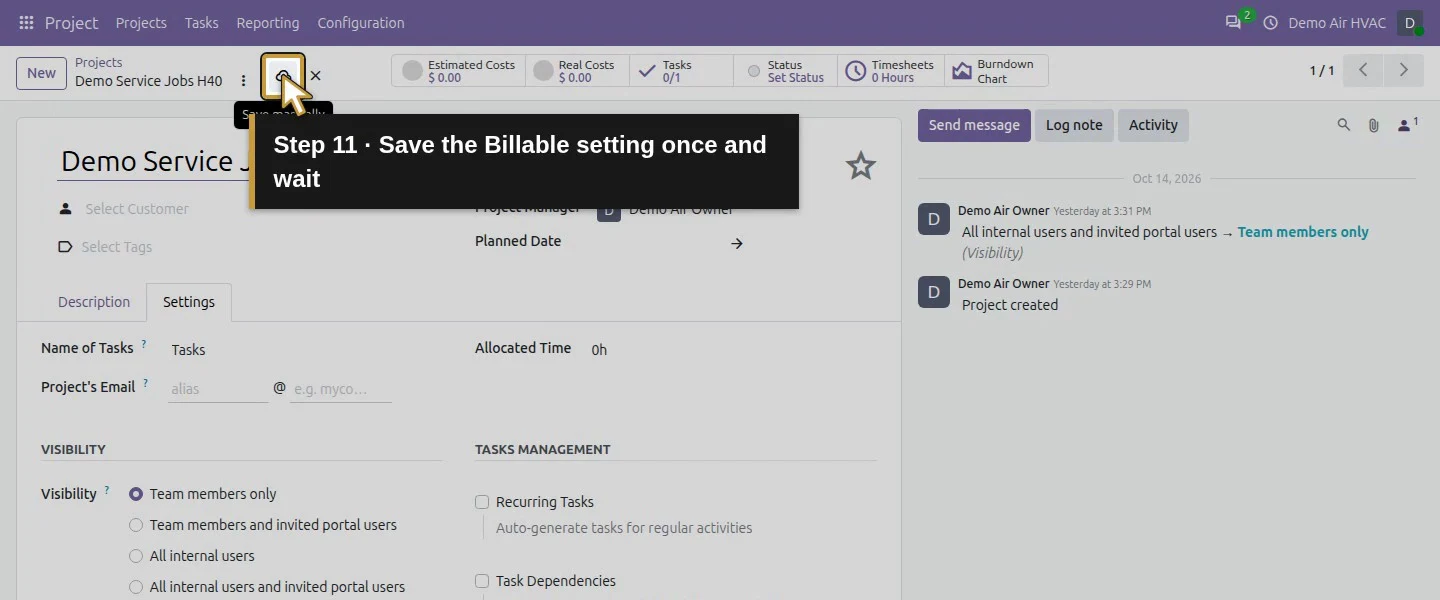
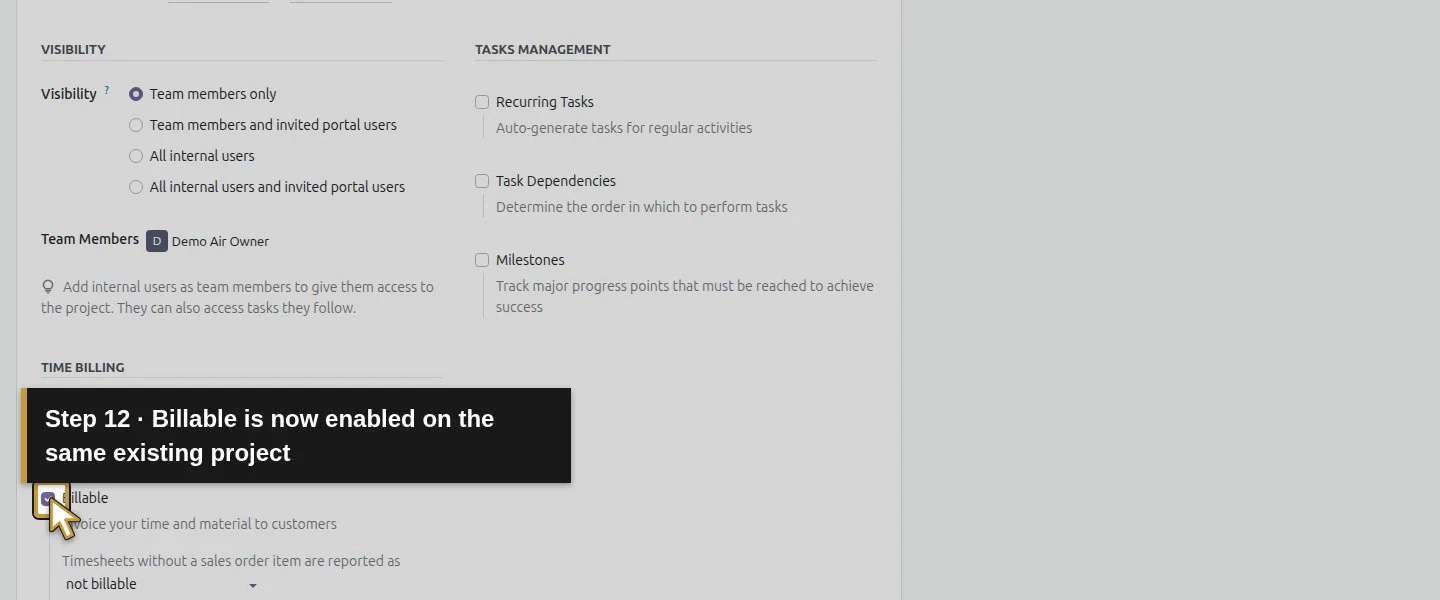
Open Project → Projects. On Demo Service Jobs H40, open the card's more_vert menu and choose Settings, then select the form's Settings tab. Keep Timesheets checked and enable Billable under Time Billing. Keep Team members only visibility and the current team unchanged. Click Save manually. In our first product-selector check, this project was absent while Billable was off; after enabling it, the same existing project became selectable.
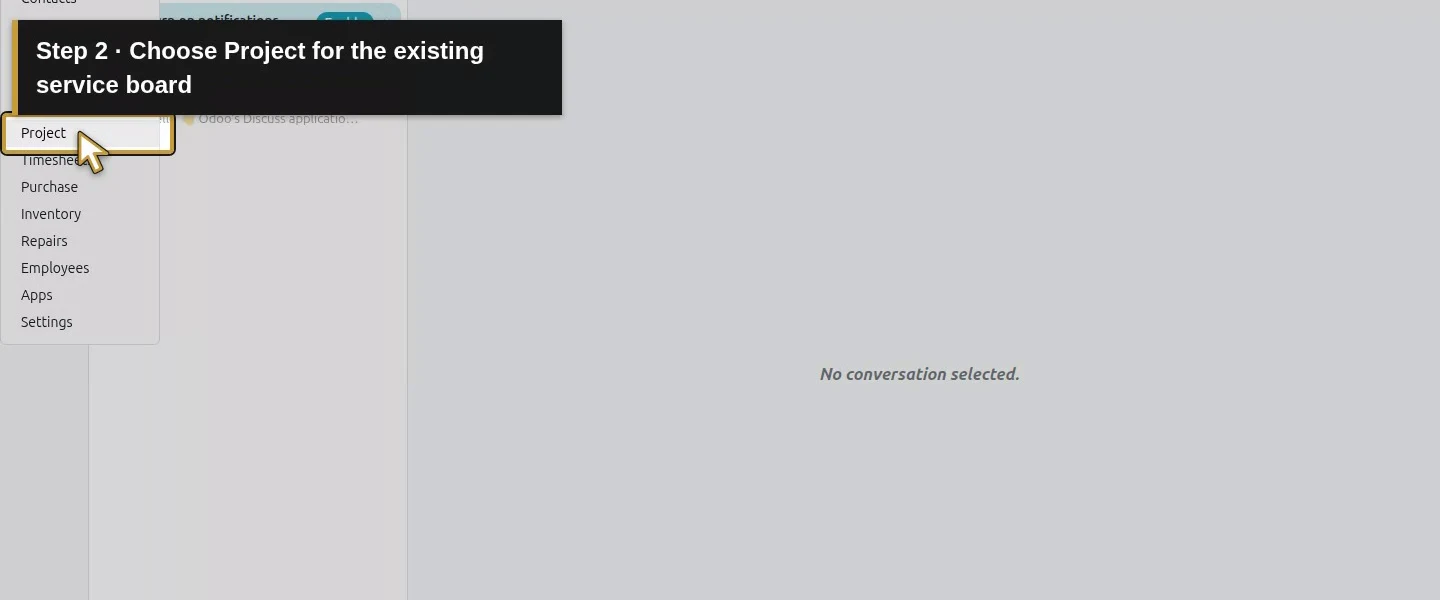
Open the app menu.Choose Project for the existing service board.Hover Demo Service Jobs H40.Open the existing project more menu.Choose Settings for this same project.Open the project Settings tab.Keep Timesheets enabled.Keep Team members only visibility.Enable Billable for this hourly service workflow.Commit this choice on the project heading.Save the Billable setting once and wait.Billable is now enabled on the same existing project.
Step 2. Create a separate hourly labor product
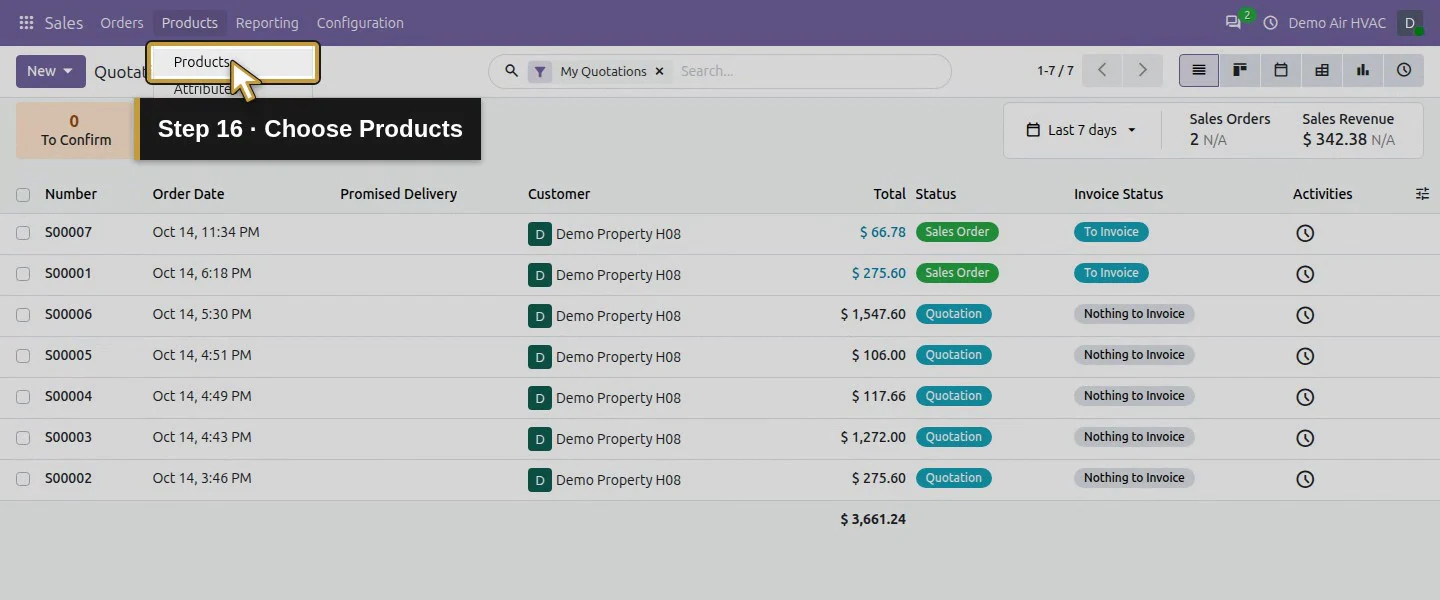
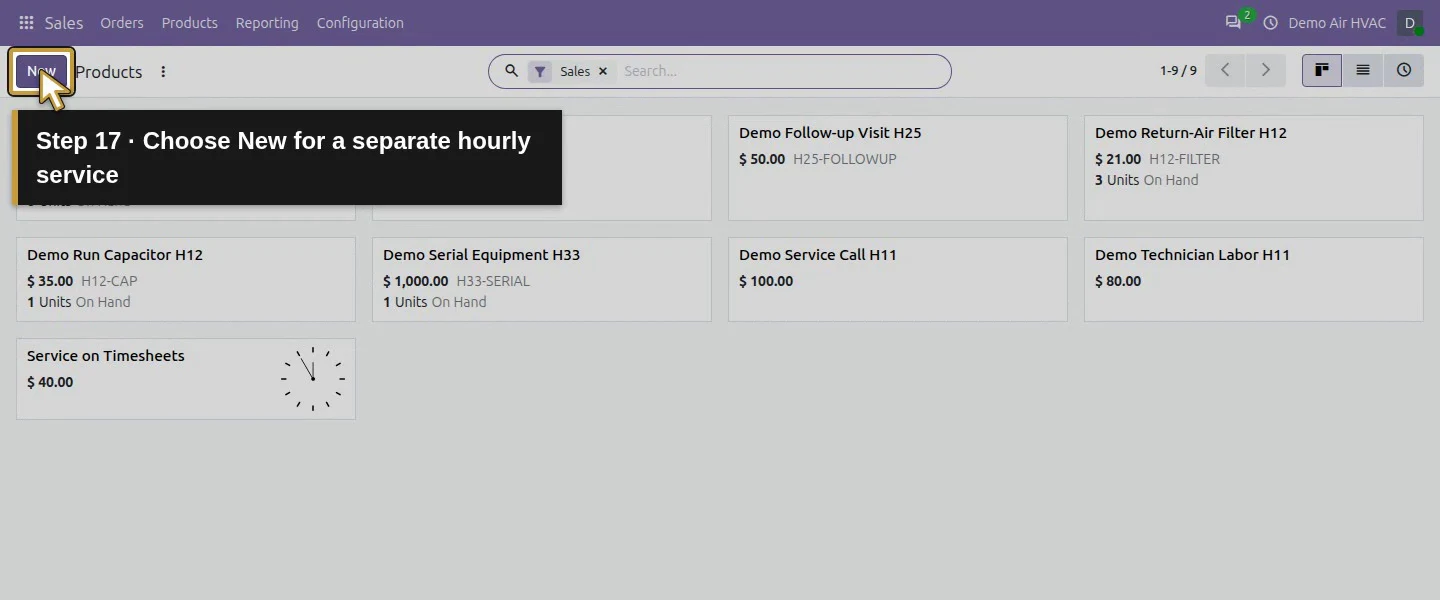
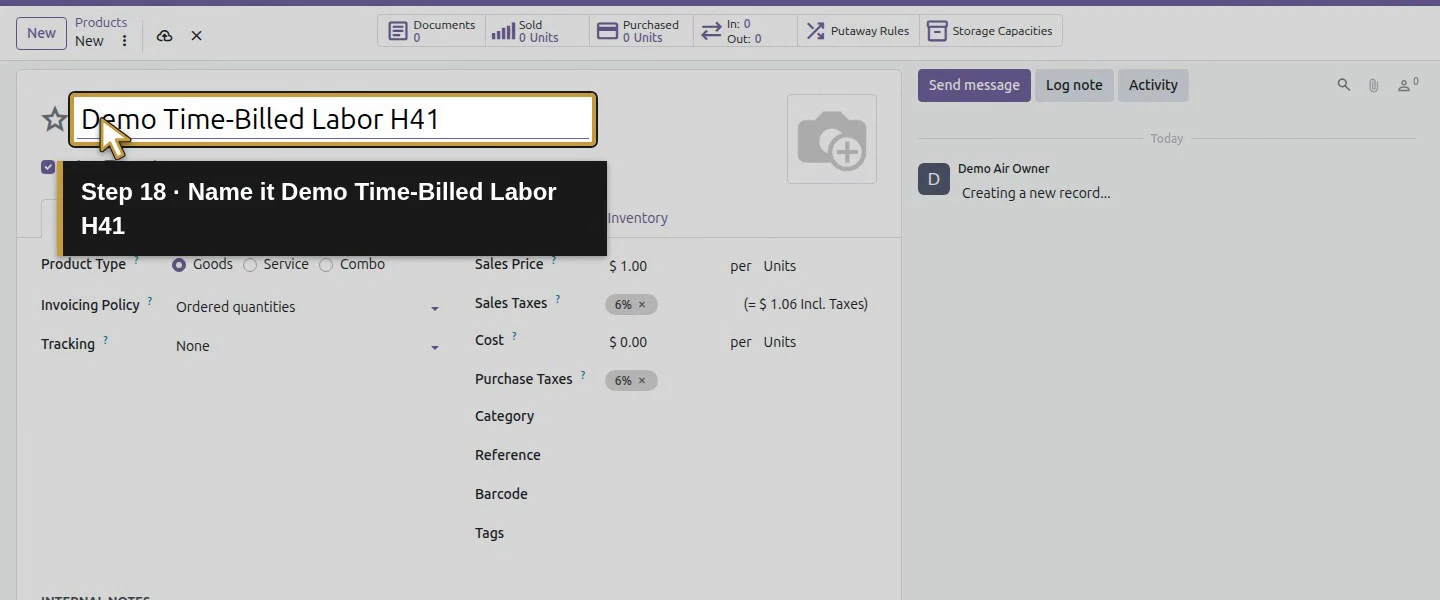
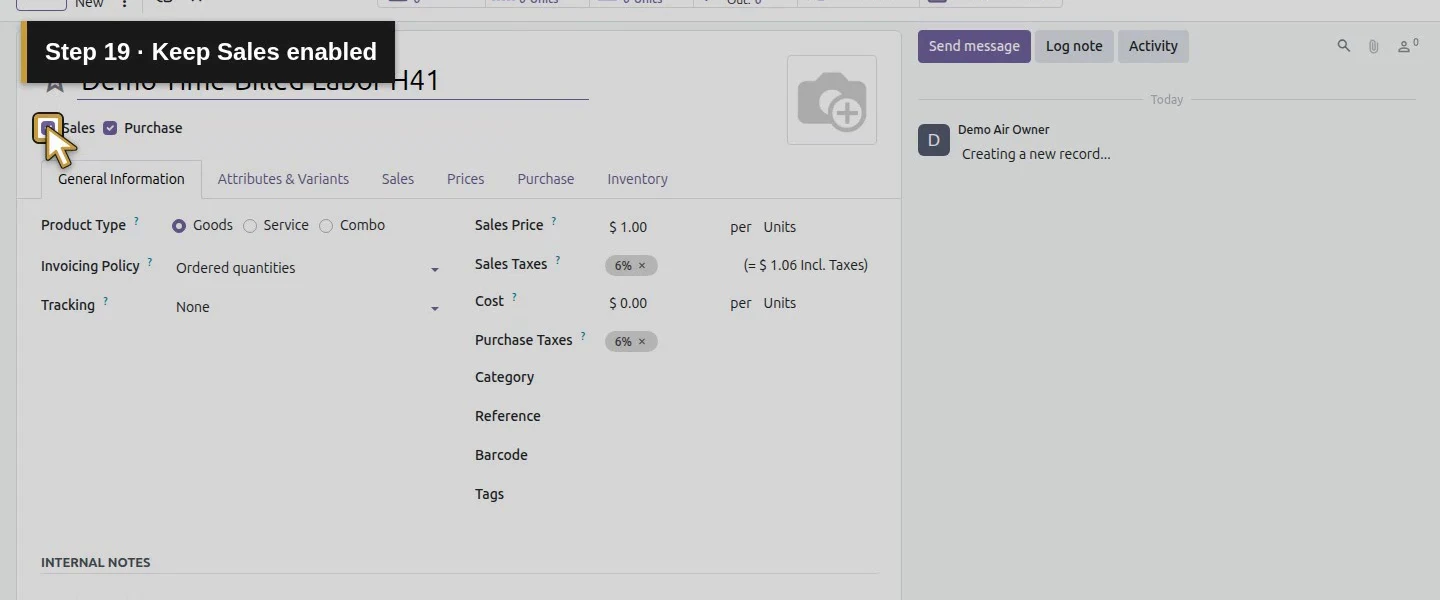
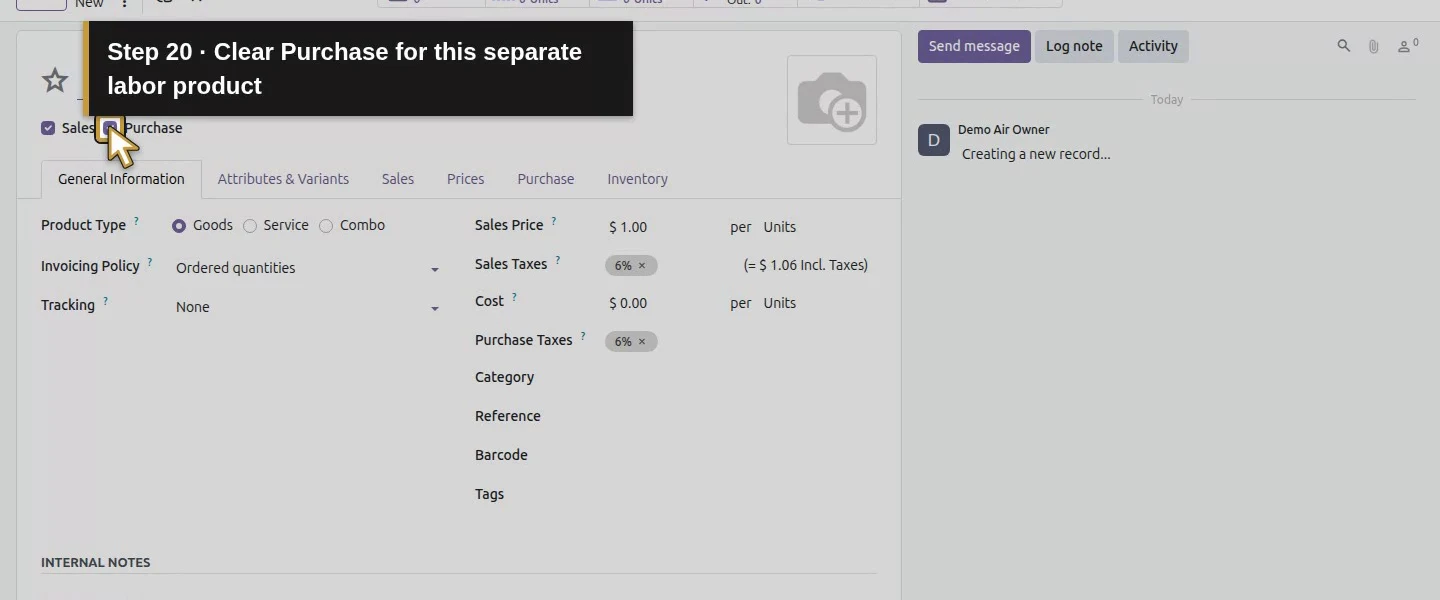
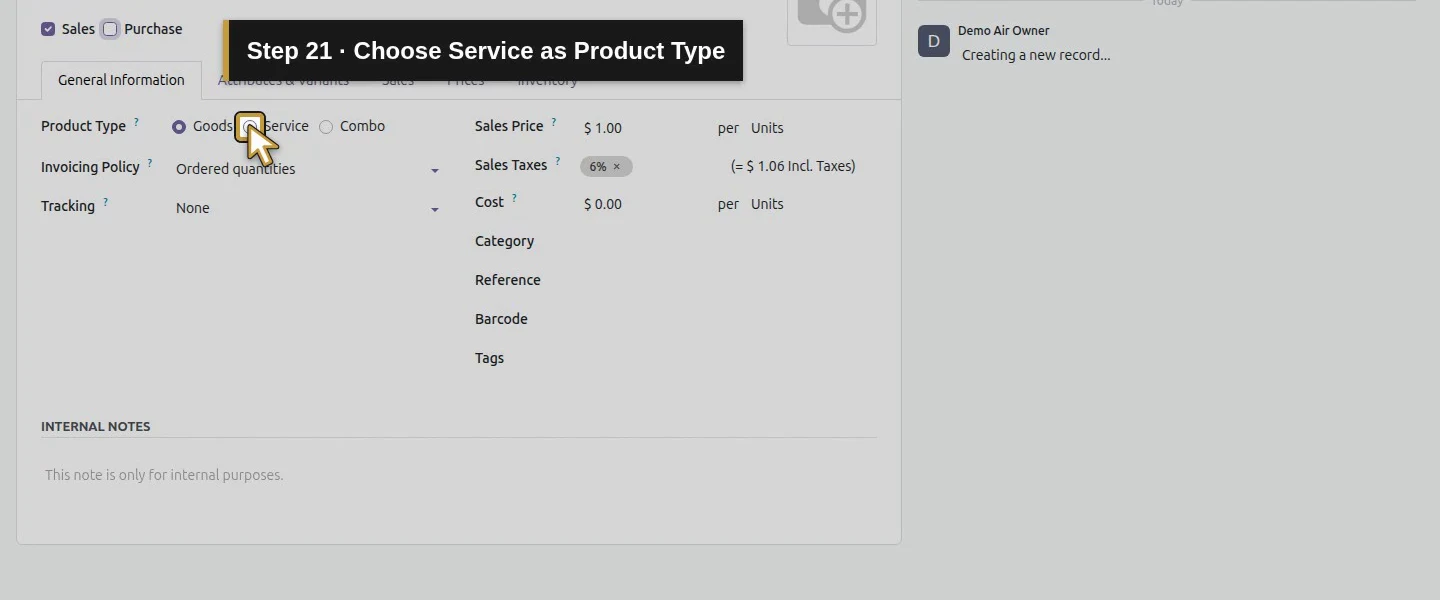
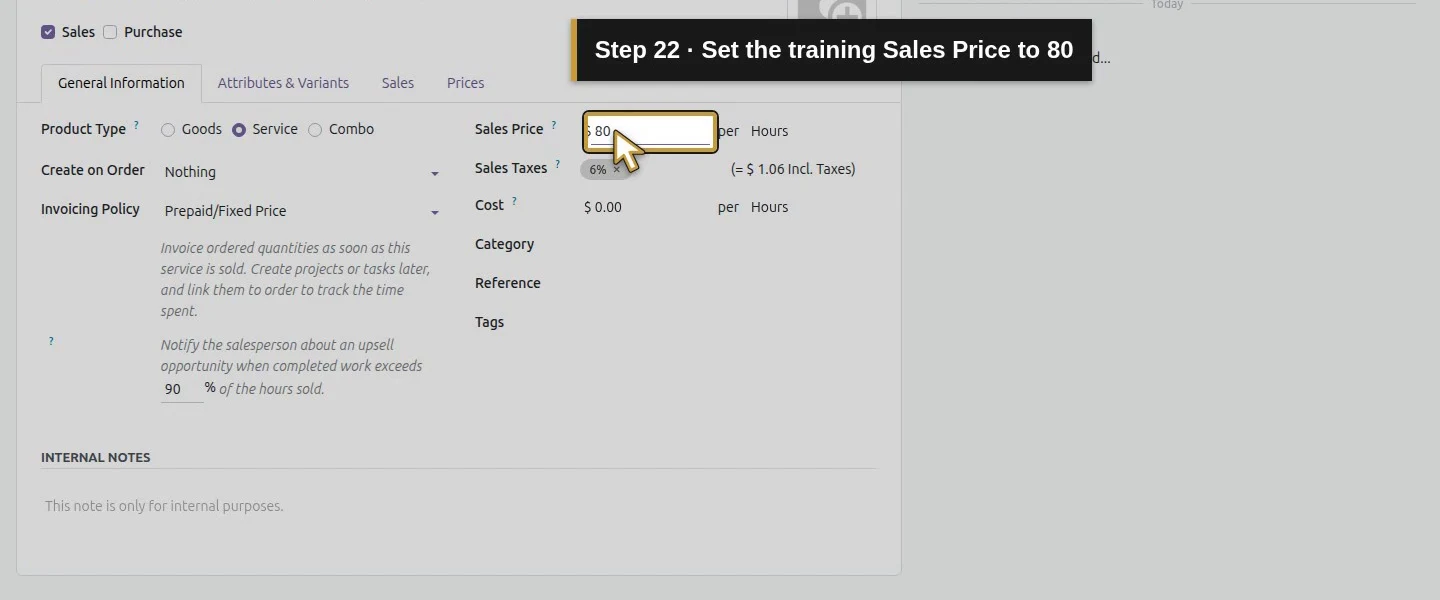
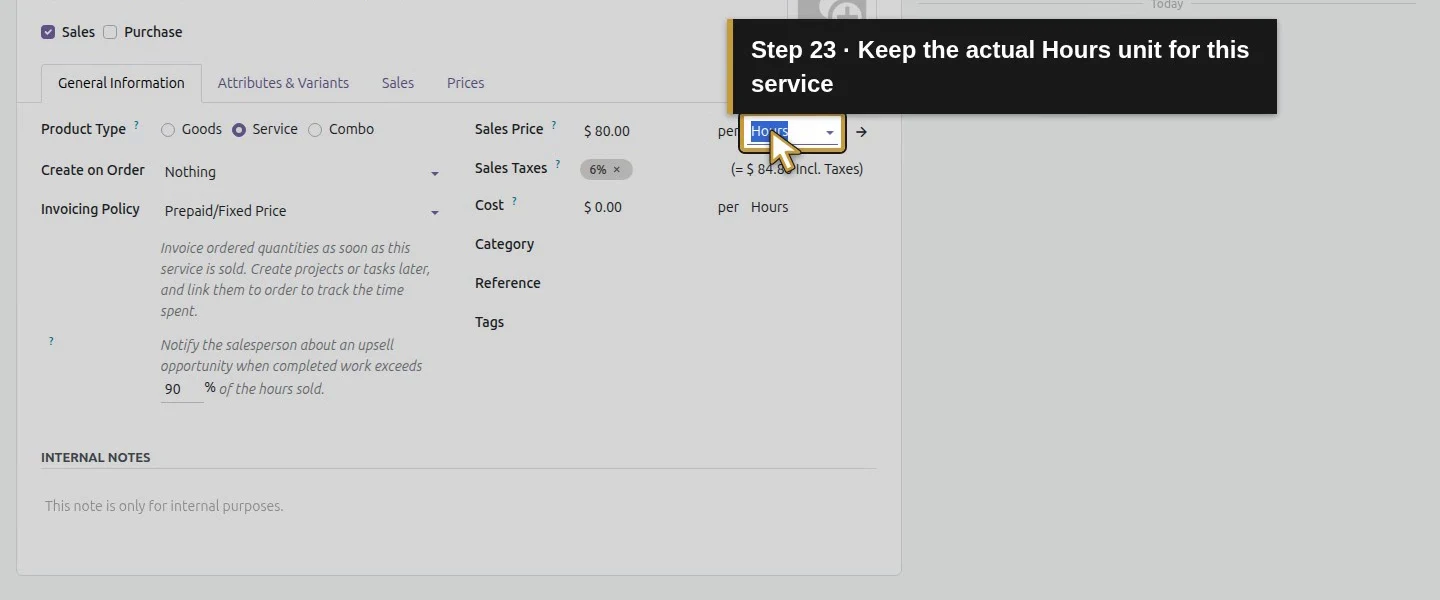
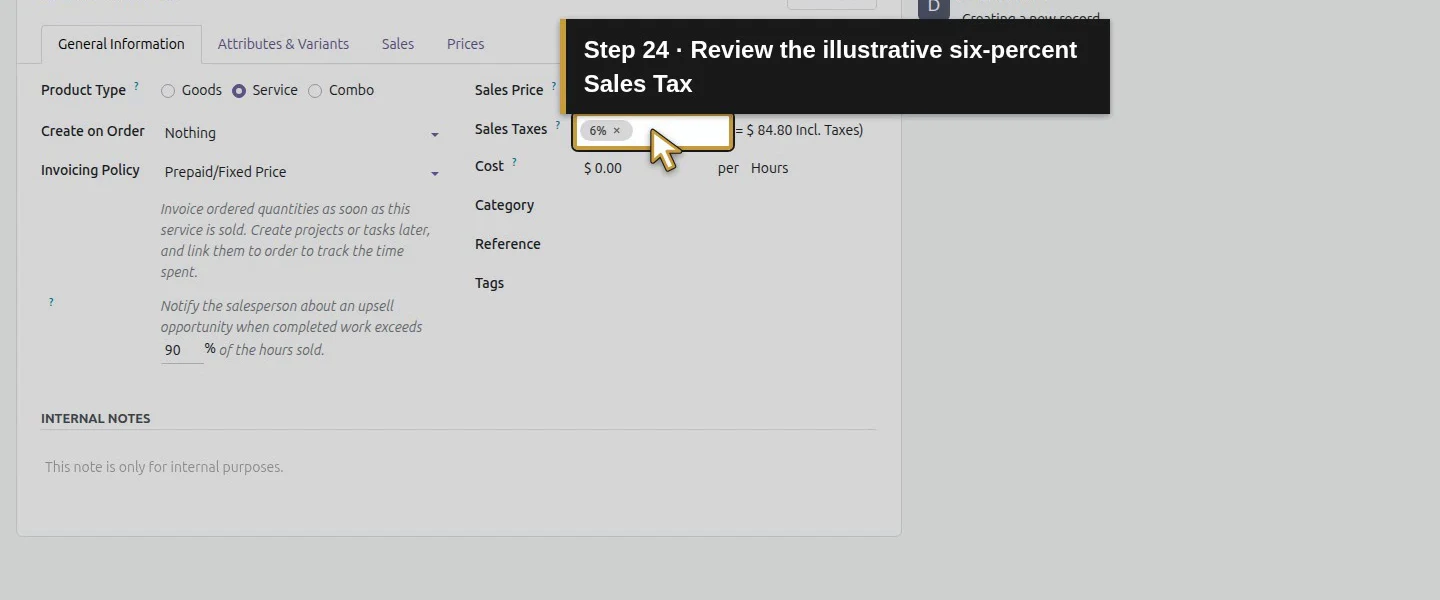
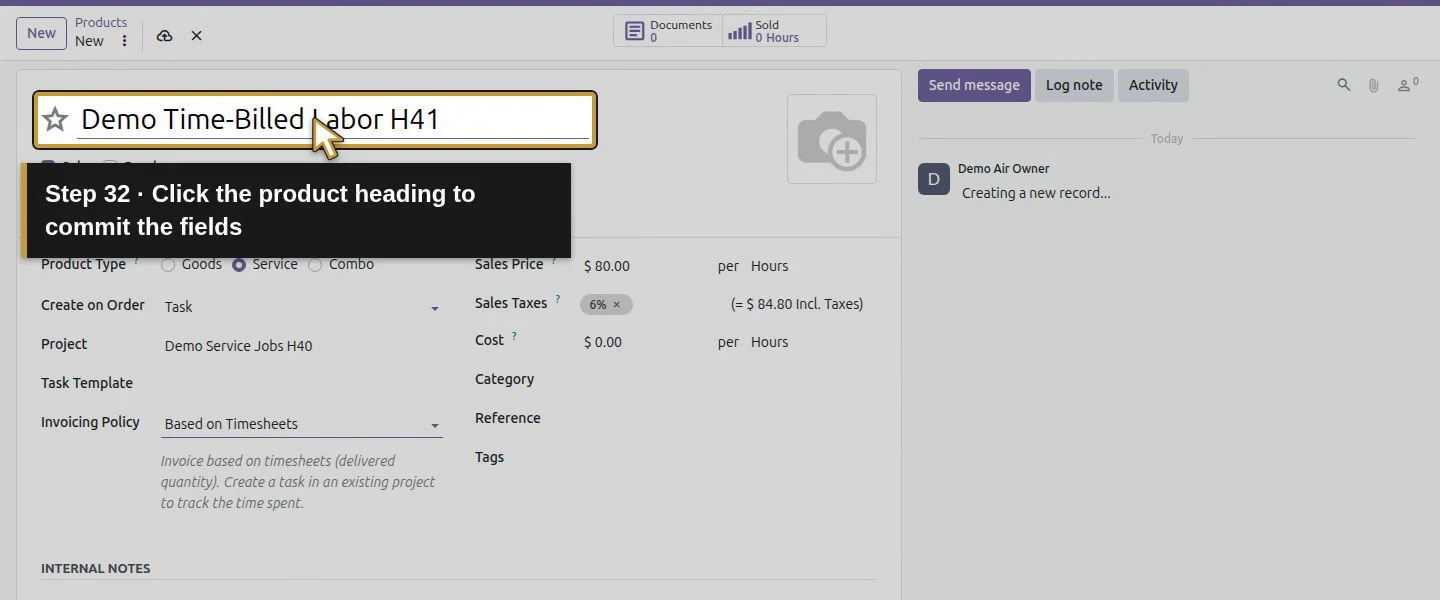
Open Sales → Products → Products → New. Name it Demo Time-Billed Labor H41, keep Sales checked, clear Purchase, and choose Service. Set Sales Price to $80 per Hours using the actual Hours unit. The illustrative 6% sales tax remains on this training product. Do not change H11's service definitions to retrofit their already confirmed sales.
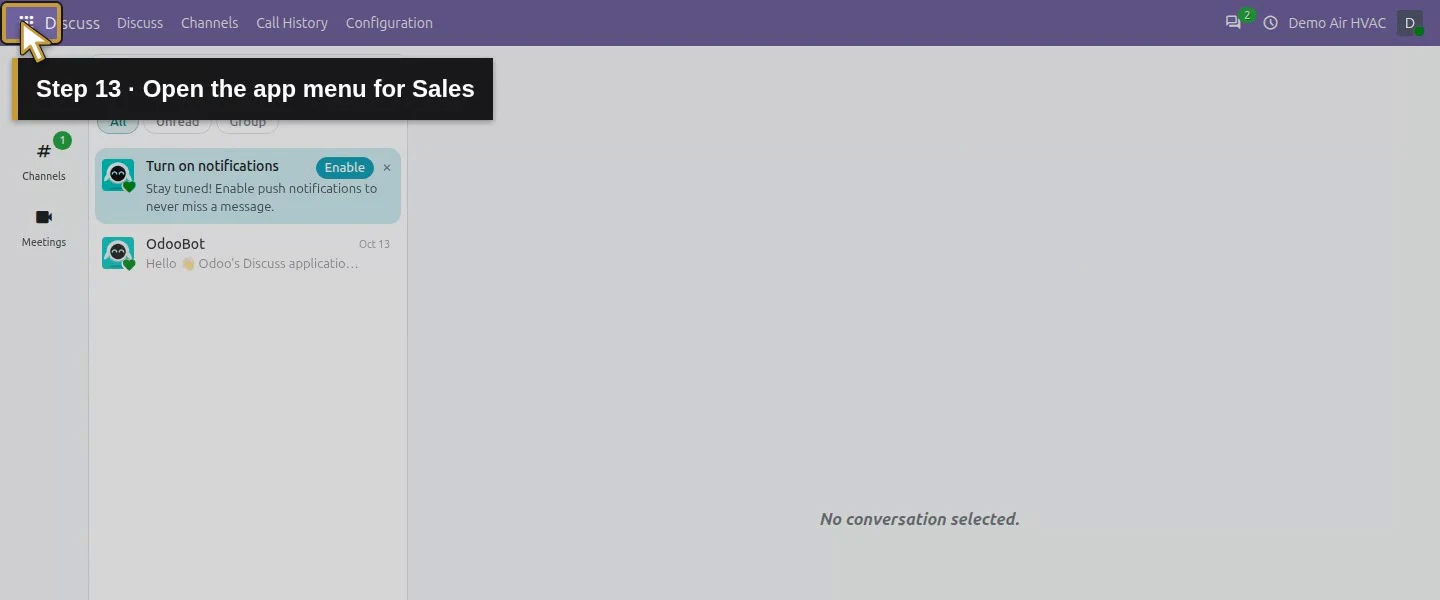
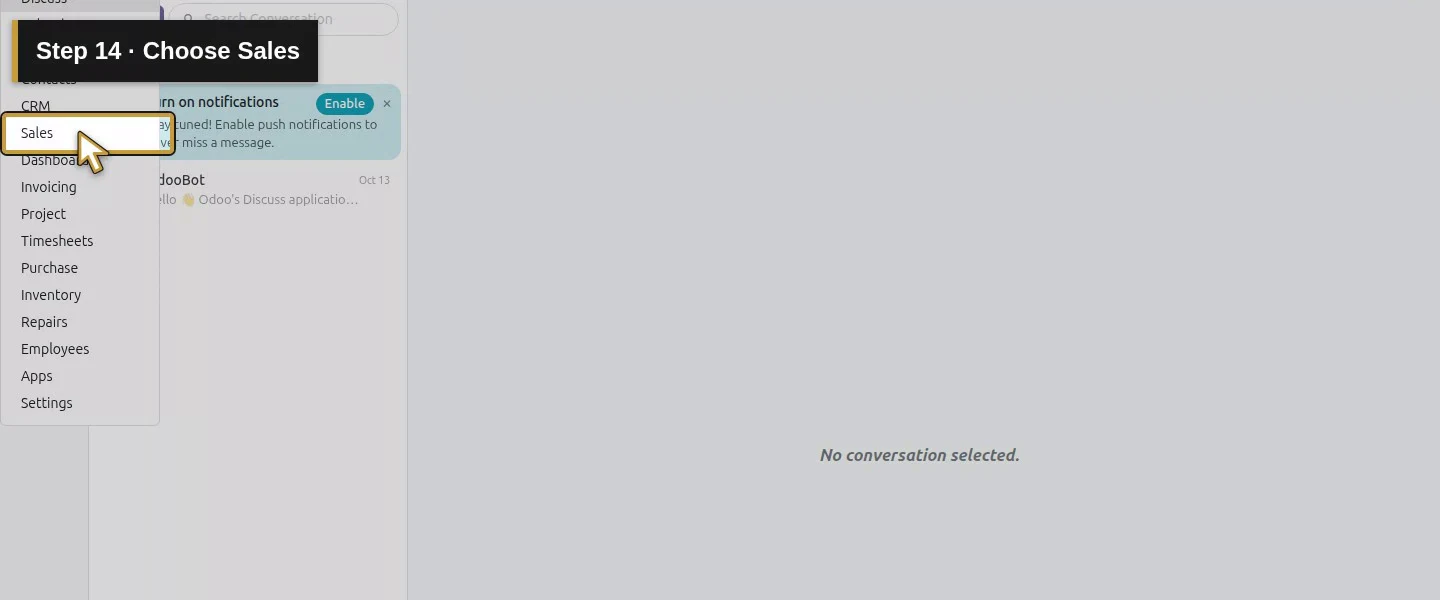
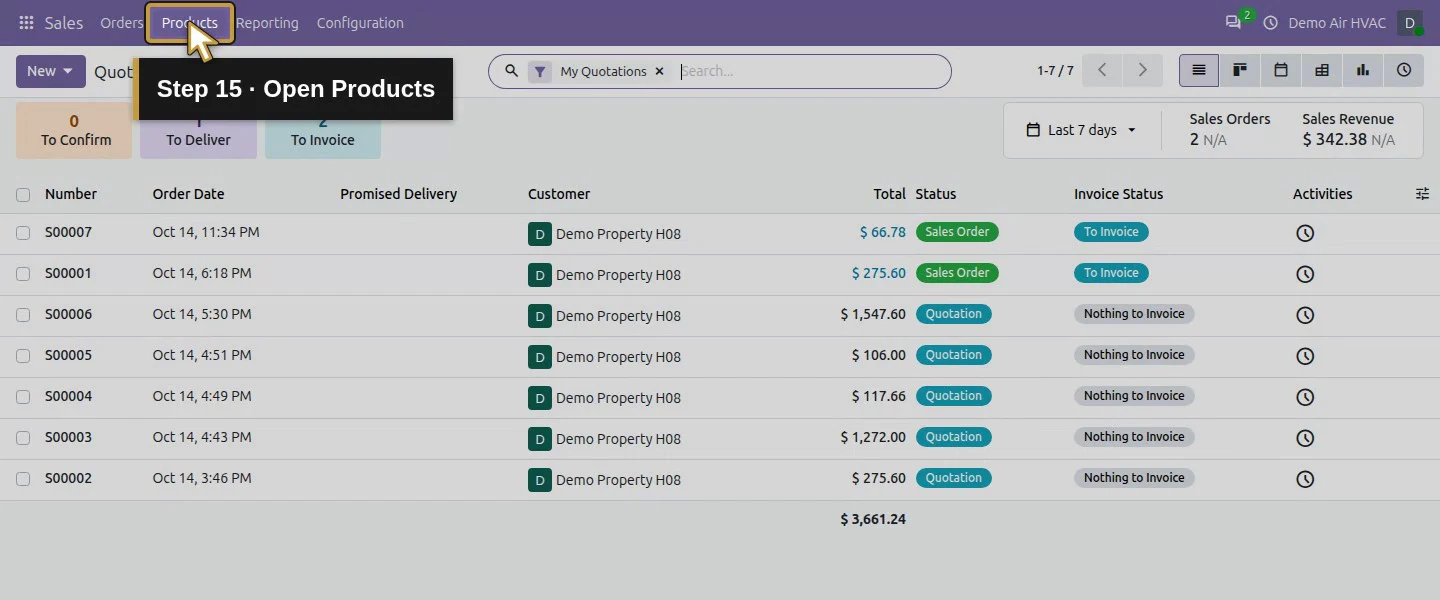
Open the app menu for Sales.Choose Sales.Open Products.Choose Products.Choose New for a separate hourly service.Name it Demo Time-Billed Labor H41.Keep Sales enabled.Clear Purchase for this separate labor product.Choose Service as Product Type.Set the training Sales Price to 80.Keep the actual Hours unit for this service.Review the illustrative six-percent Sales Tax.
Step 3. Choose Task and the existing project
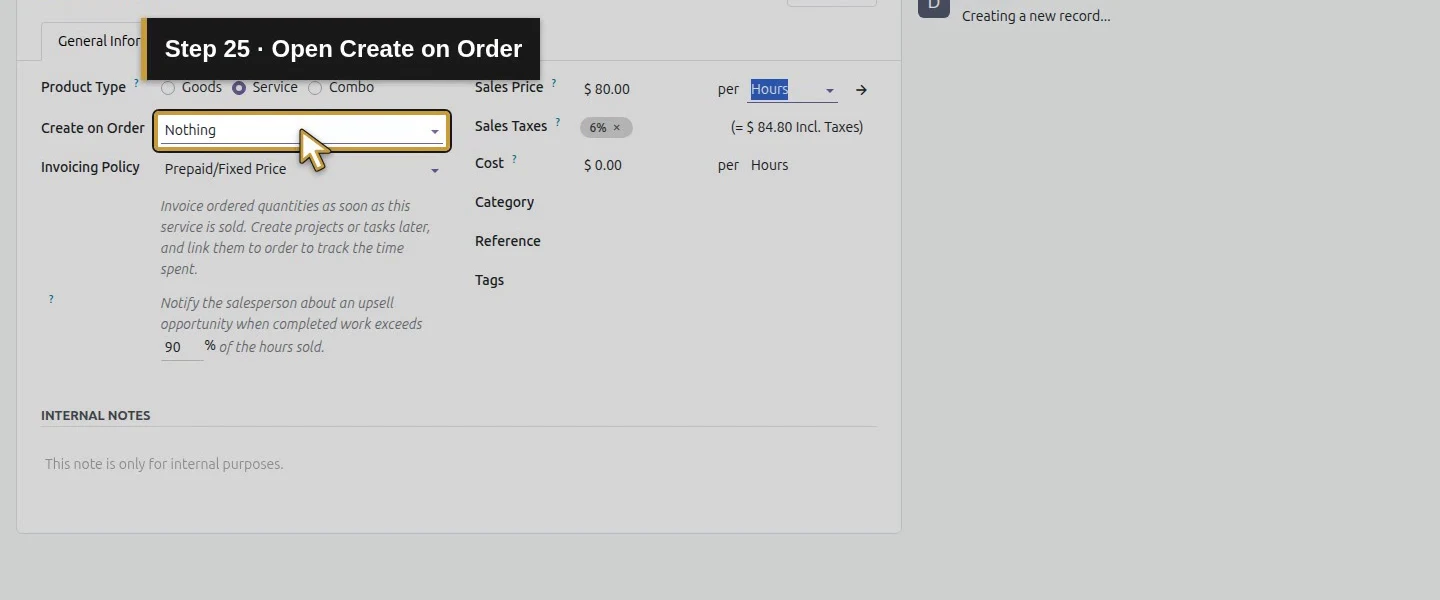
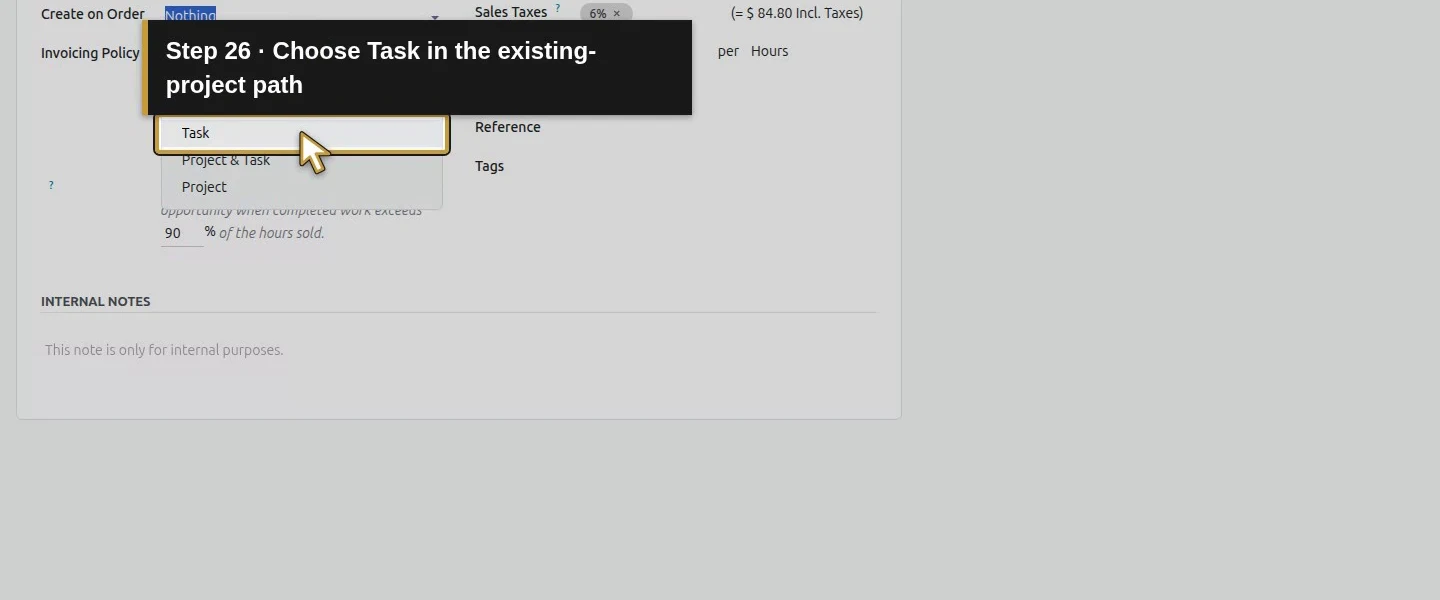
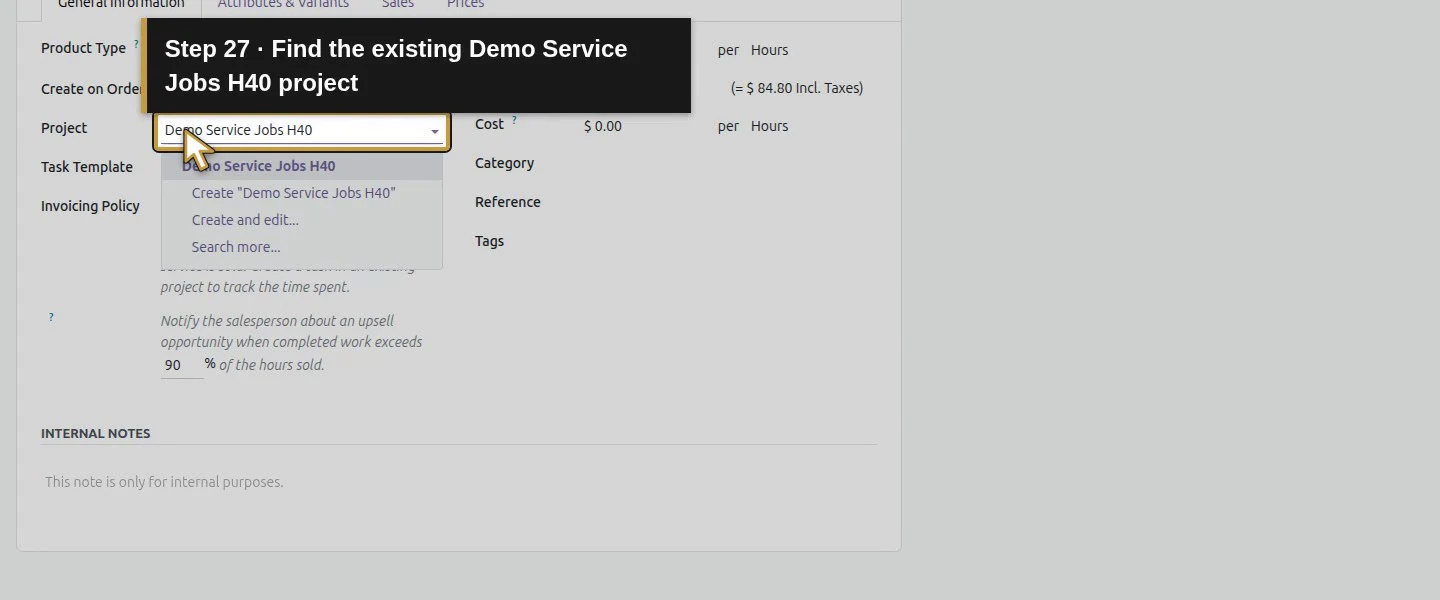
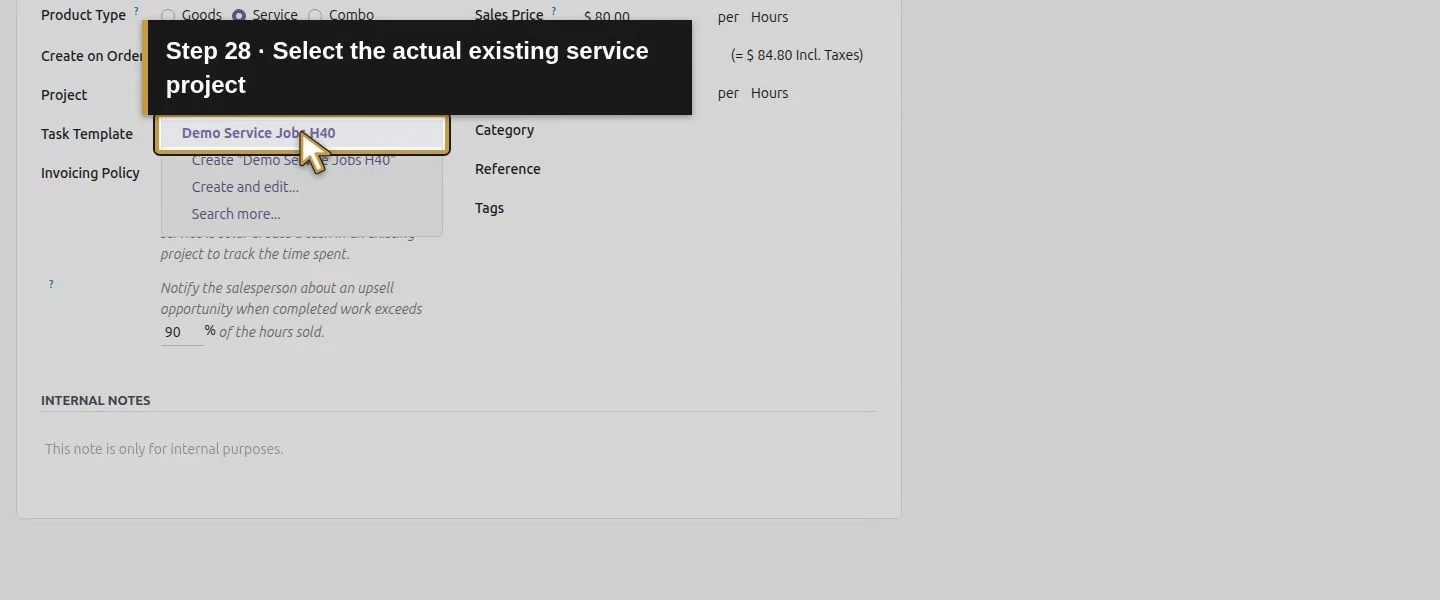
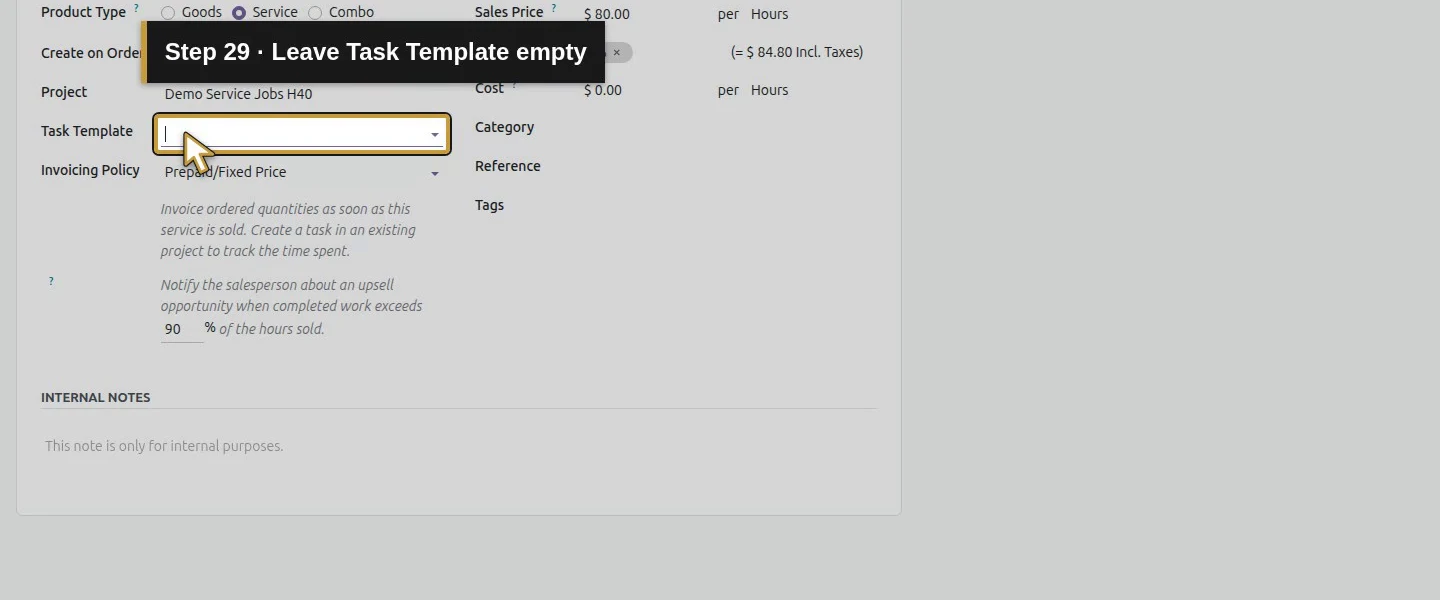
In General Information, open Create on Order and select Task. Choose Demo Service Jobs H40 in Project and leave Task Template empty. The same menu also offers Project and Project & Task, but those paths were not exercised here. This setting creates a task in the selected existing project; it does not create a new project for each sale.
Open Create on Order.Choose Task in the existing-project path.Find the existing Demo Service Jobs H40 project.Select the actual existing service project.Leave Task Template empty.
Step 4. Set the billing policy separately
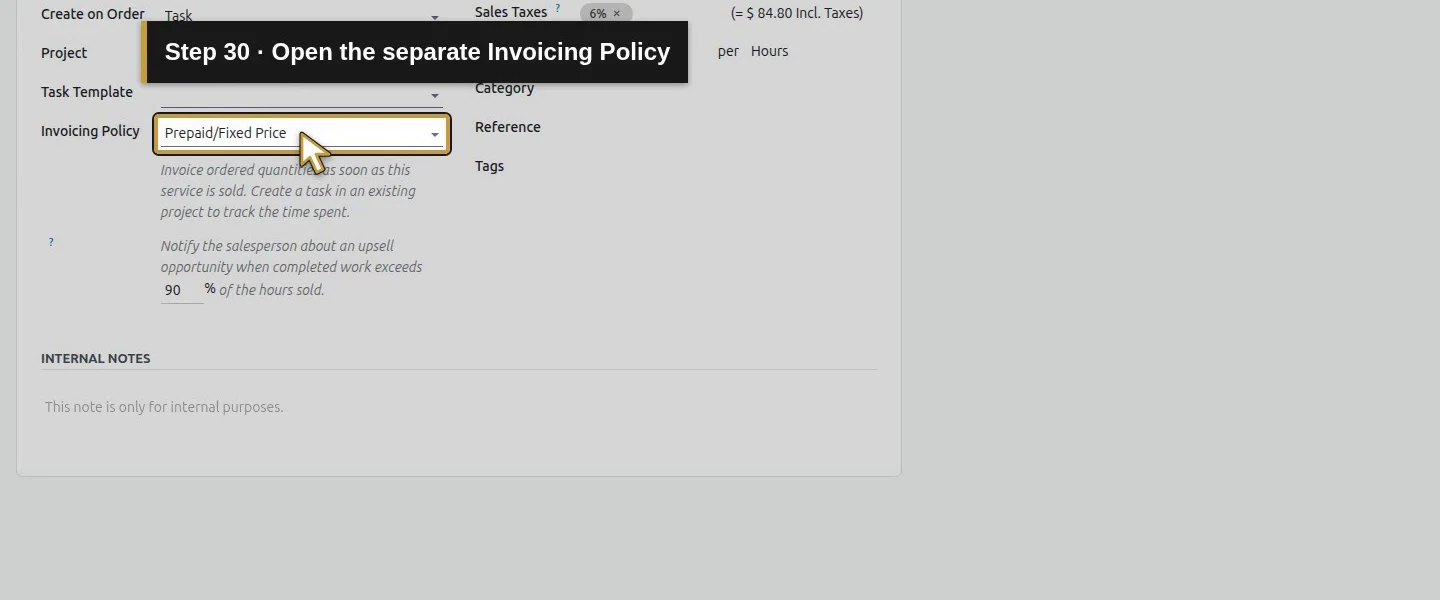
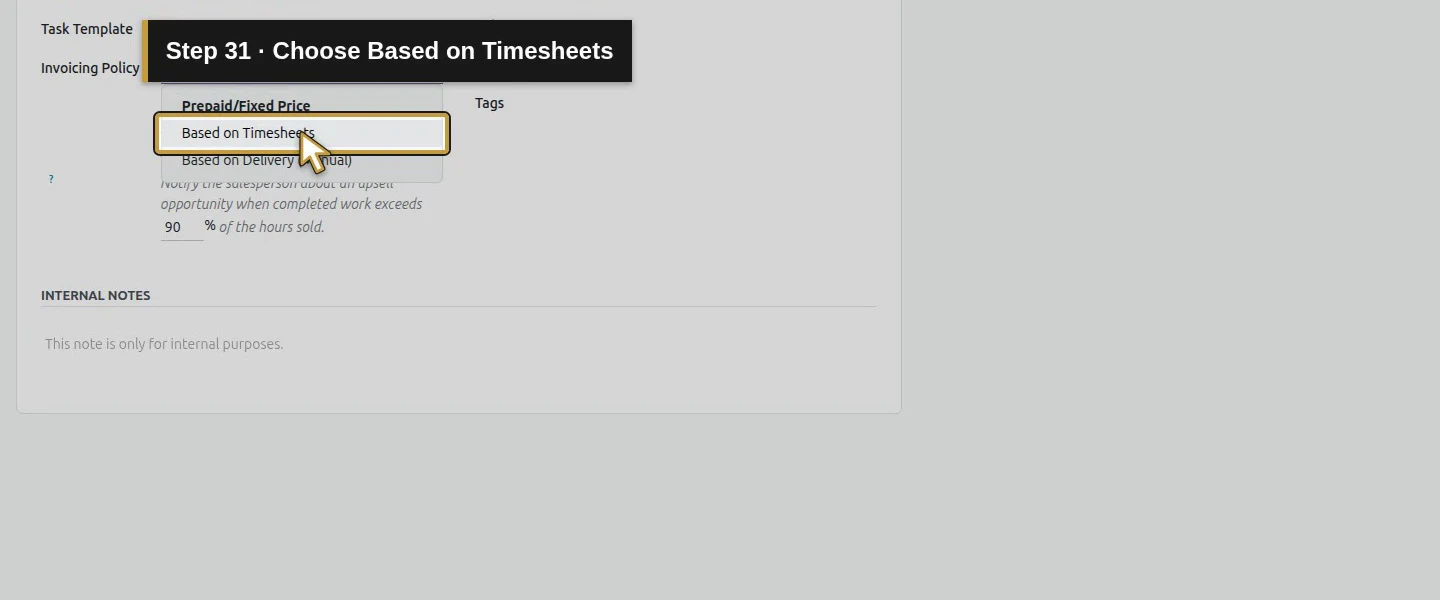
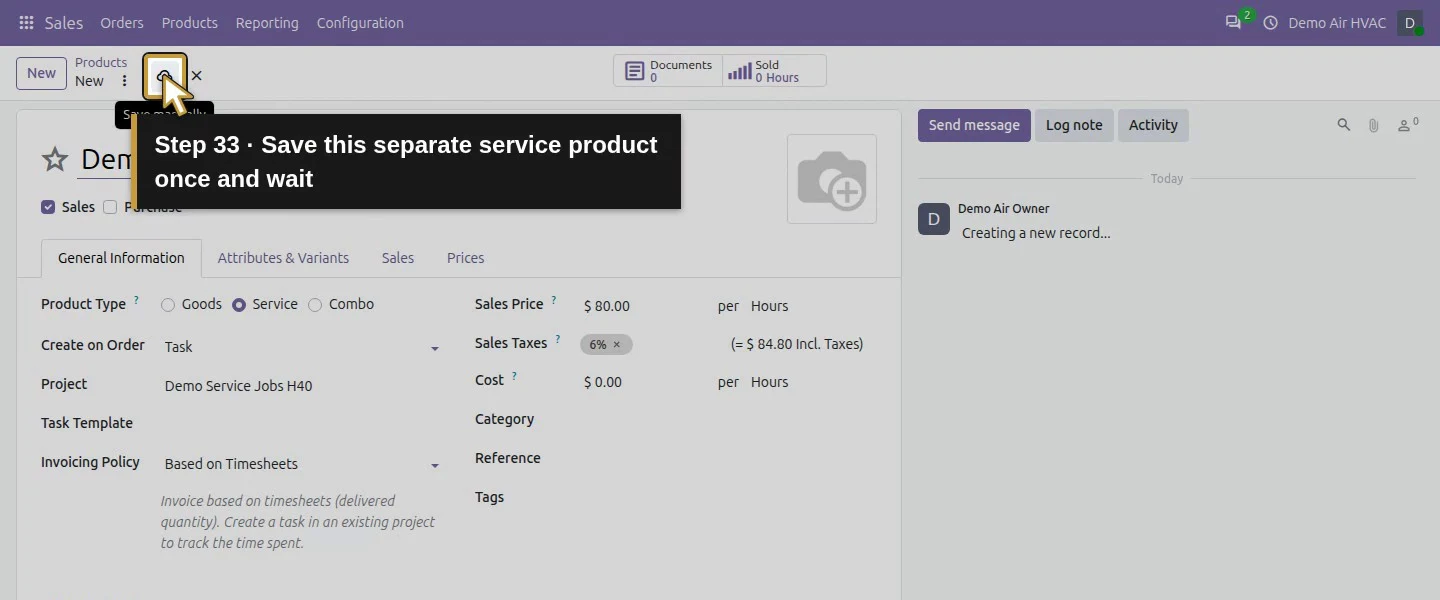
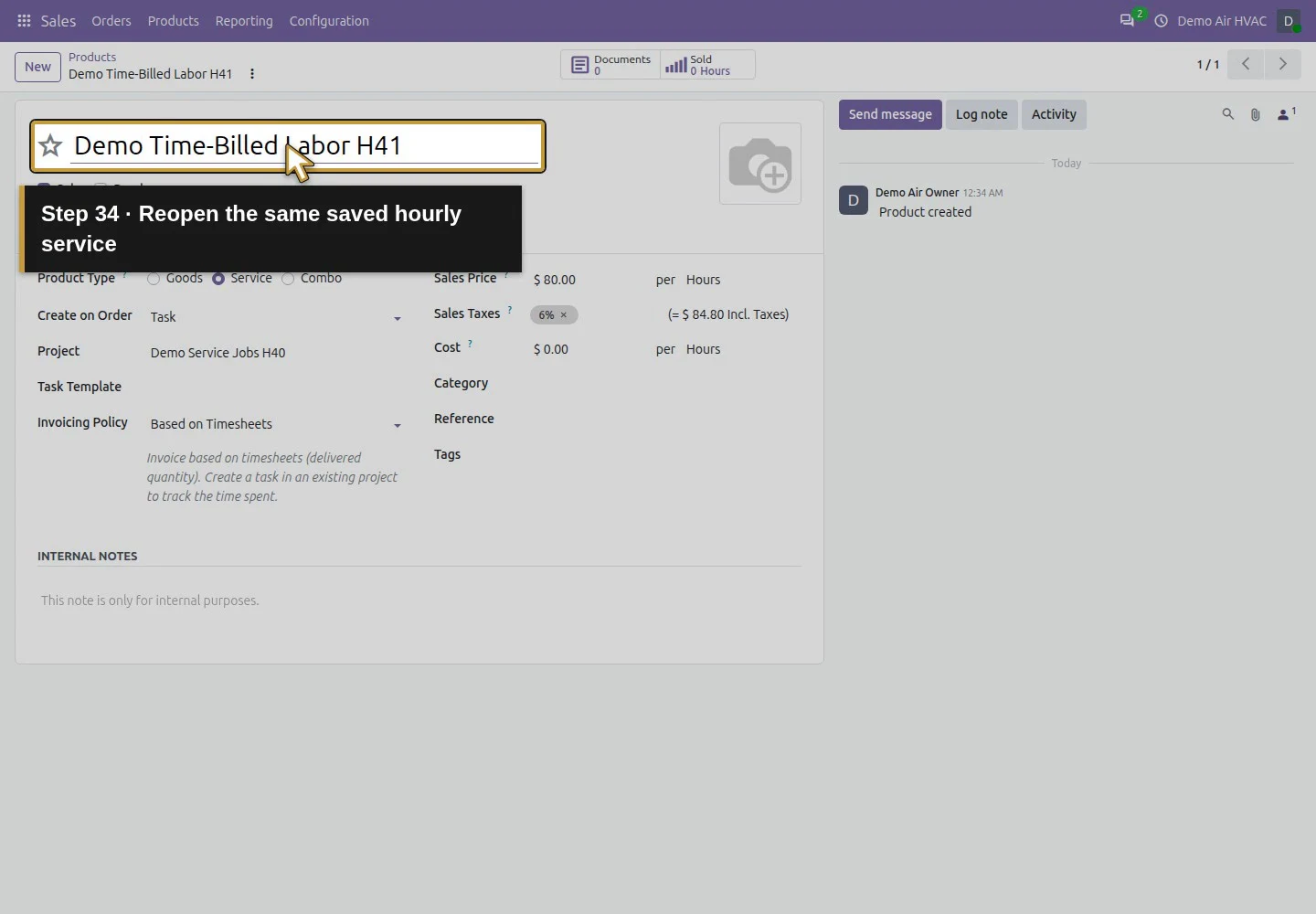
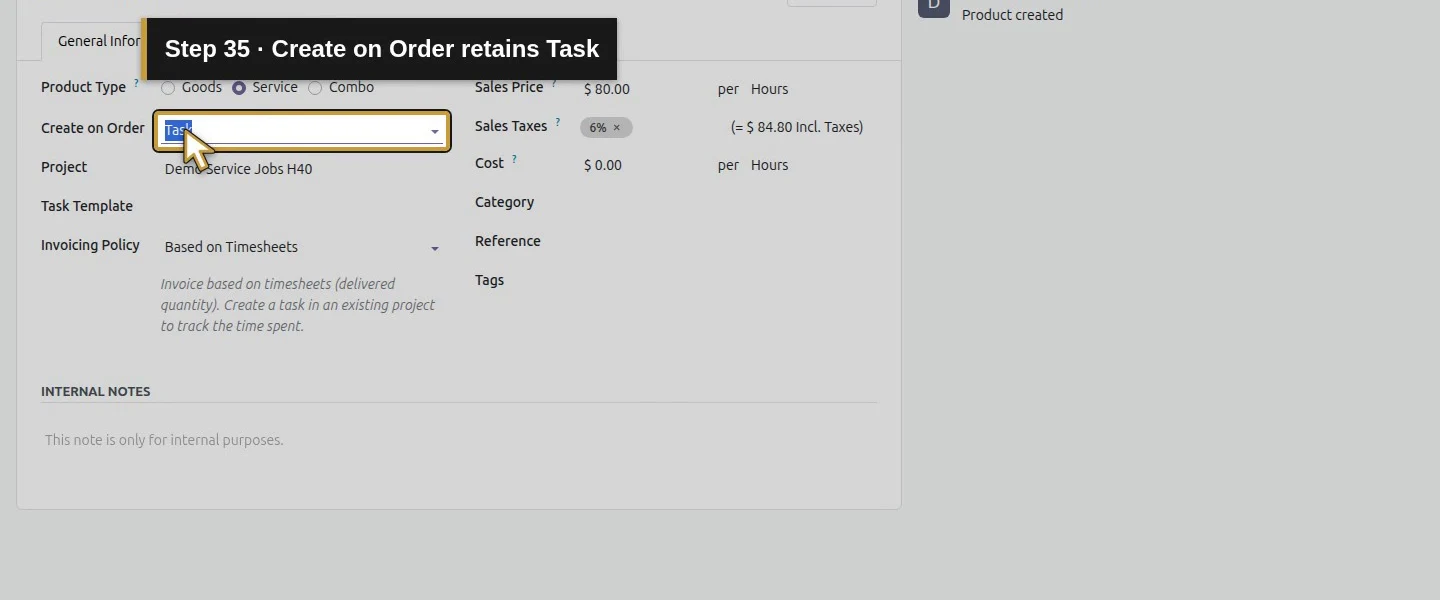
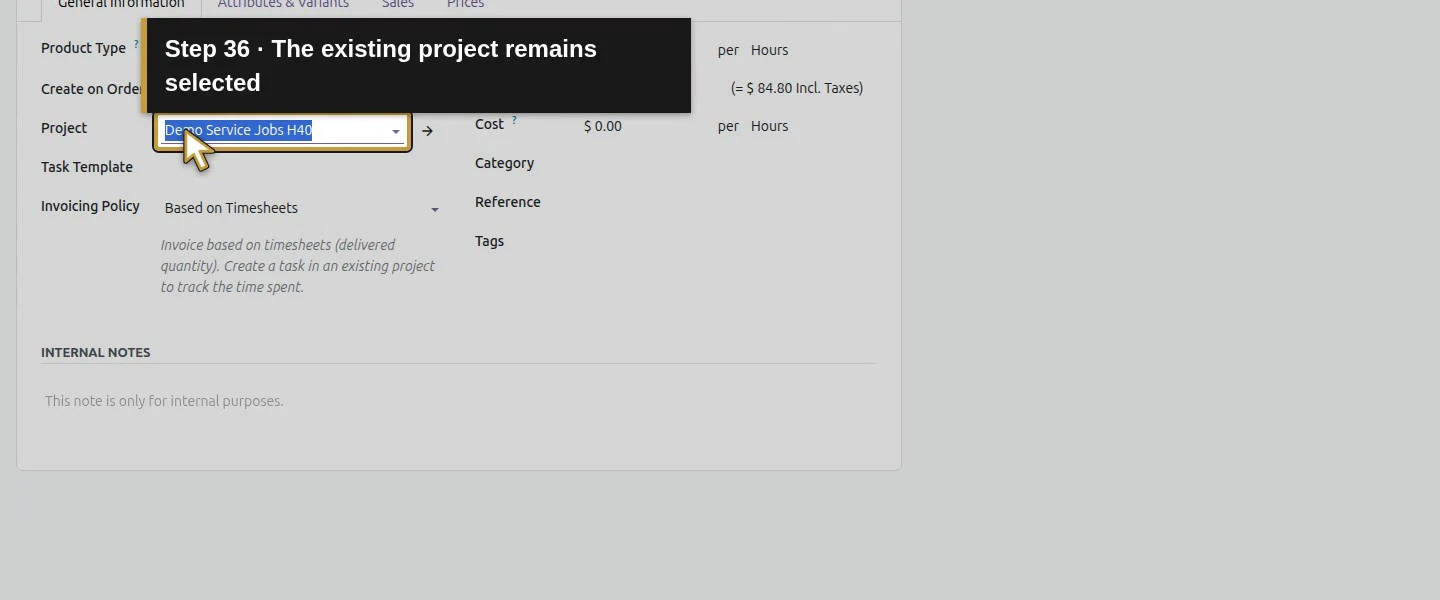
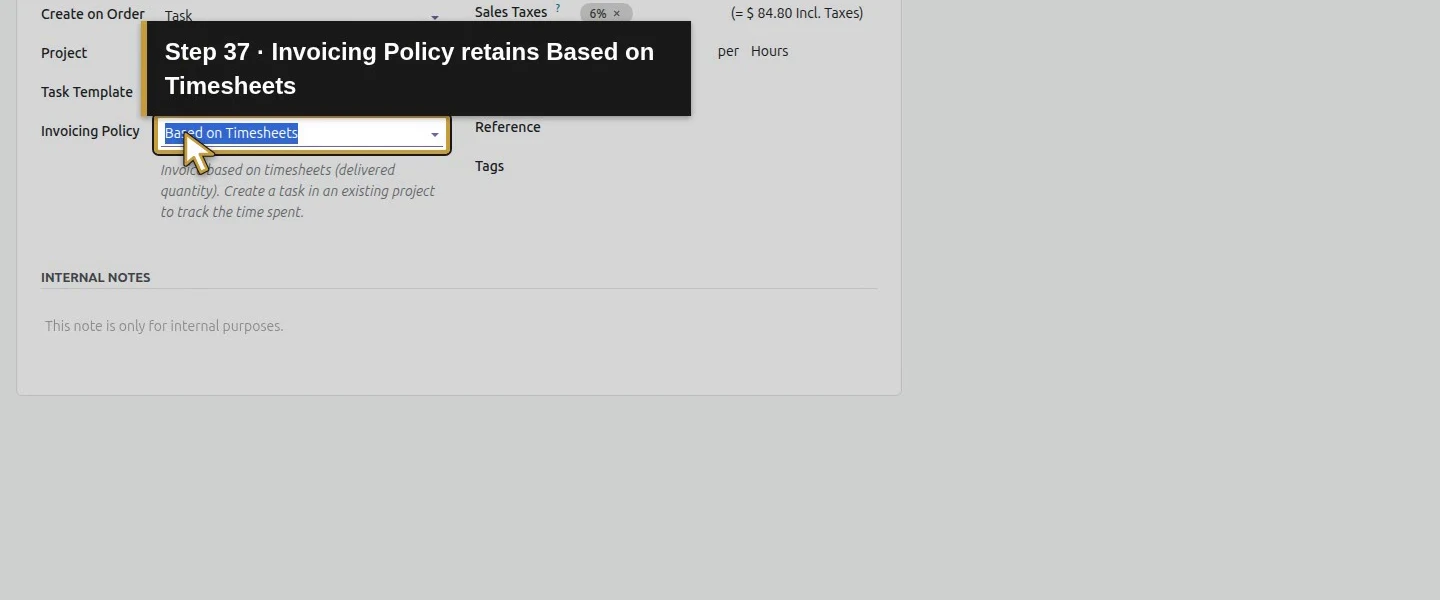
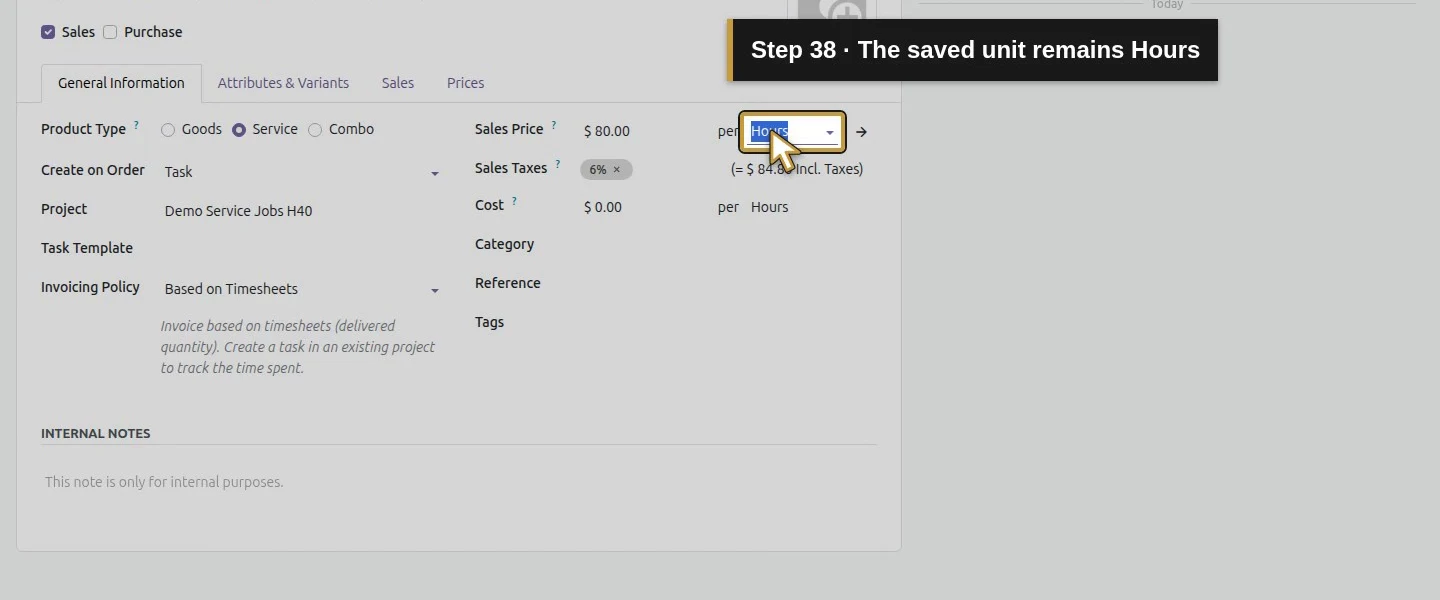
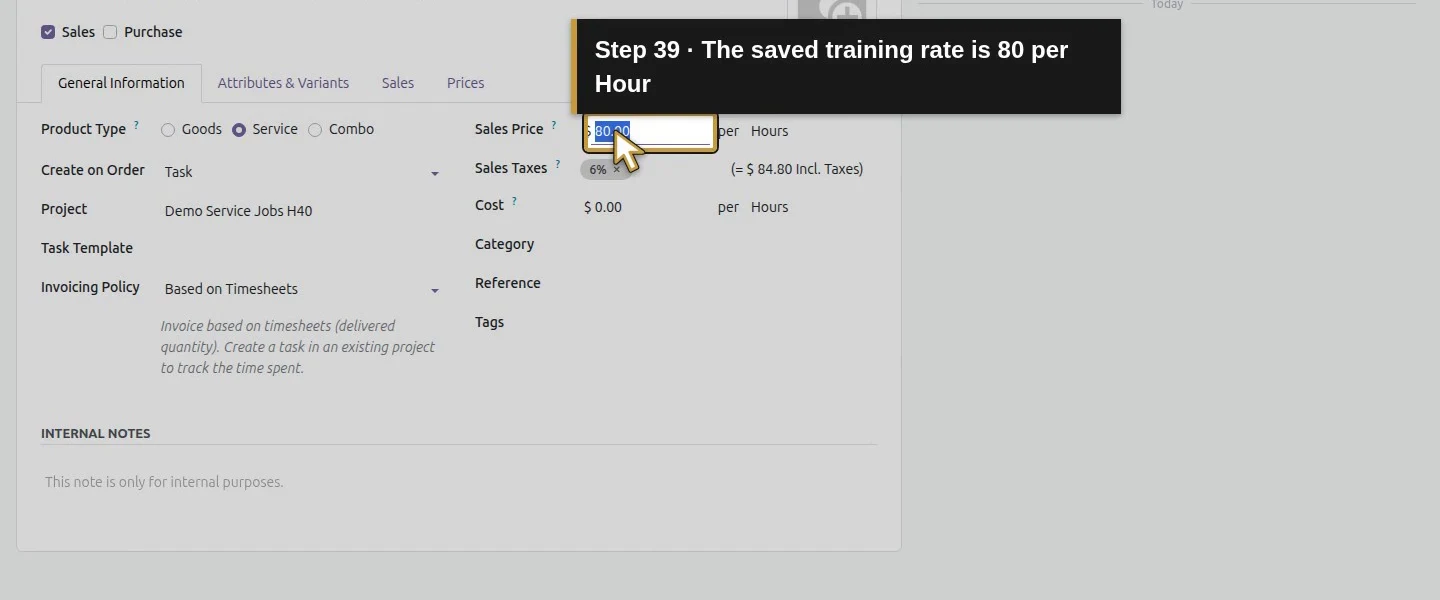
Open Invoicing Policy and select Based on Timesheets. Save and reopen the product. Verify Create on Order: Task, the intended Project, Based on Timesheets, and $80 per Hours. Hours describes the unit; this separate billing policy identifies the time-based setup. Selecting Hours alone would not establish it. No timesheet or customer invoice is created by saving this product.
Open the separate Invoicing Policy.Choose Based on Timesheets.Click the product heading to commit the fields.Save this separate service product once and wait.Reopen the same saved hourly service.Create on Order retains Task.The existing project remains selected.Invoicing Policy retains Based on Timesheets.The saved unit remains Hours.The saved training rate is 80 per Hour.
Step 5. Create and confirm one new training quotation
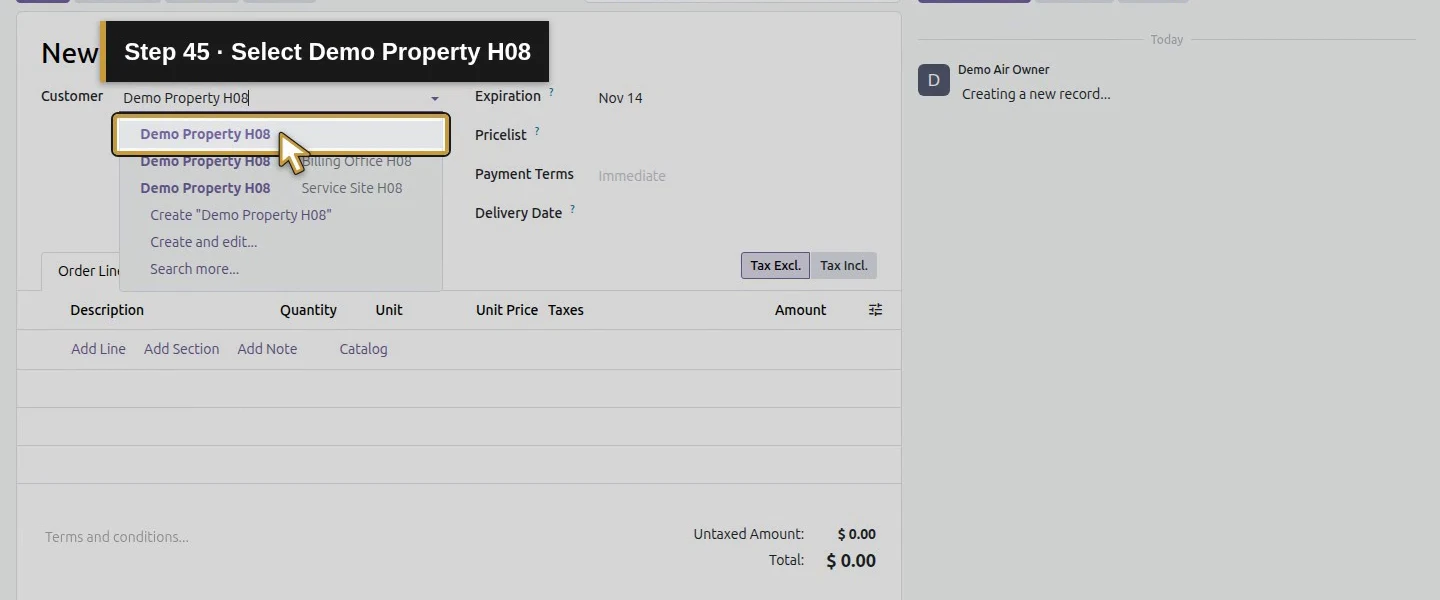
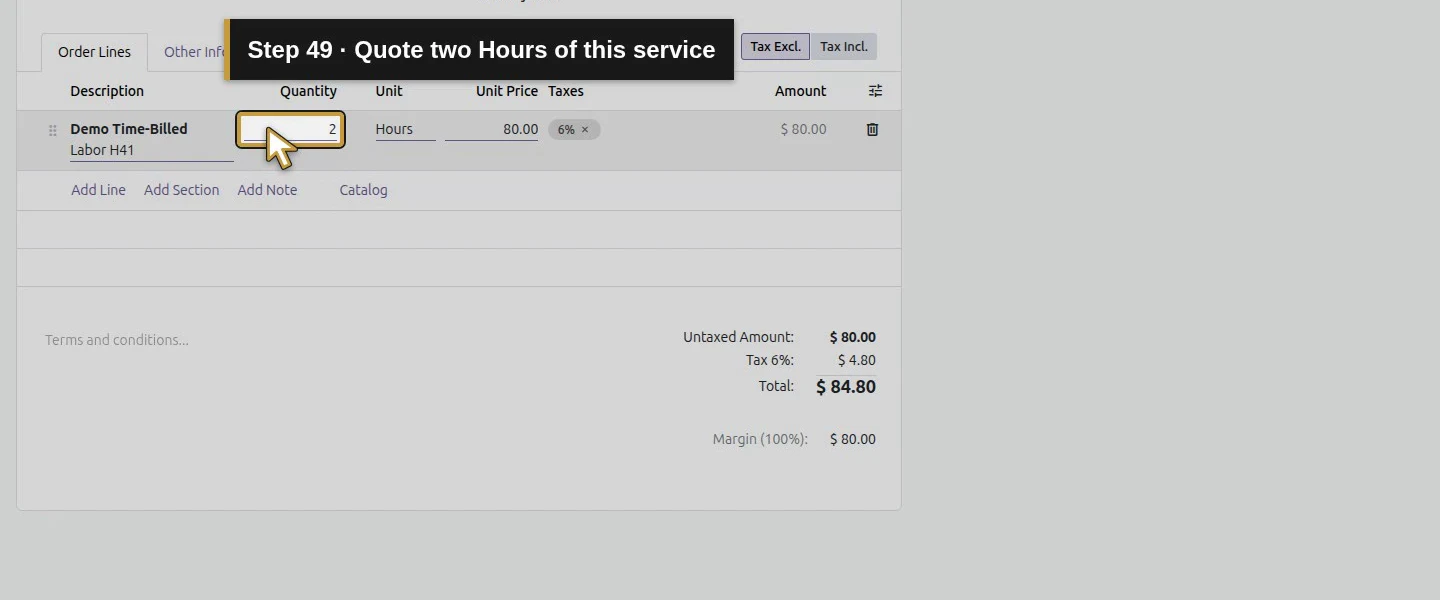
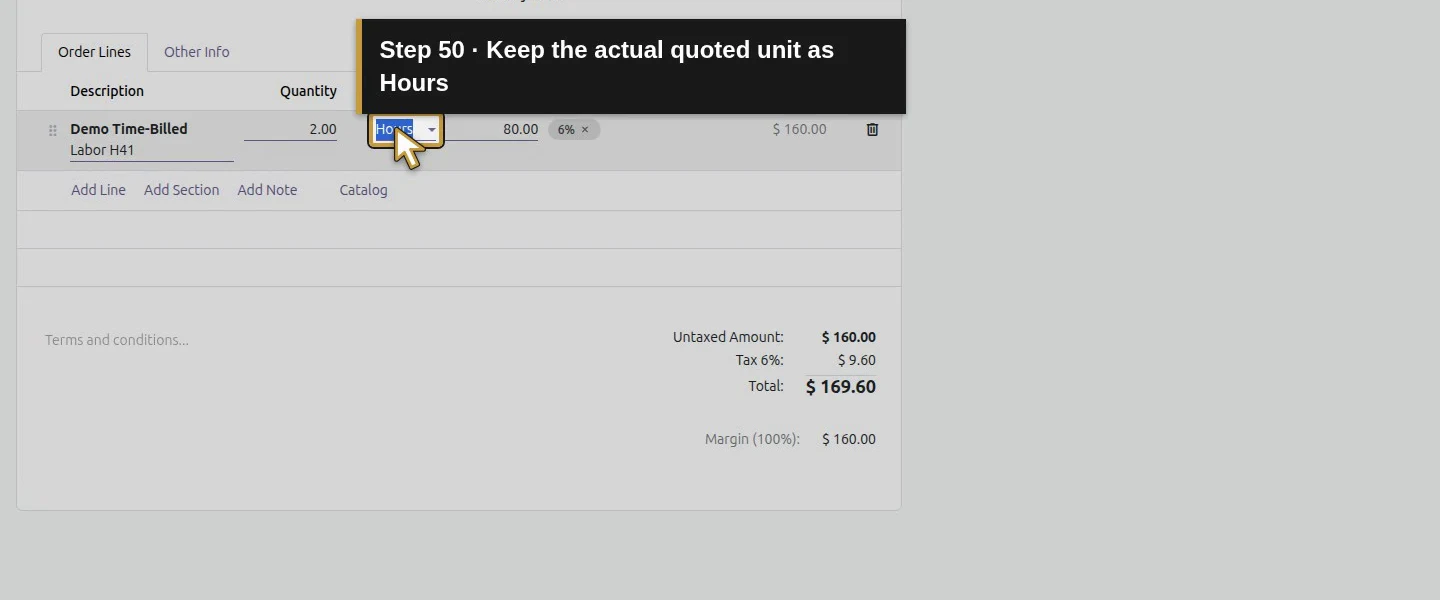
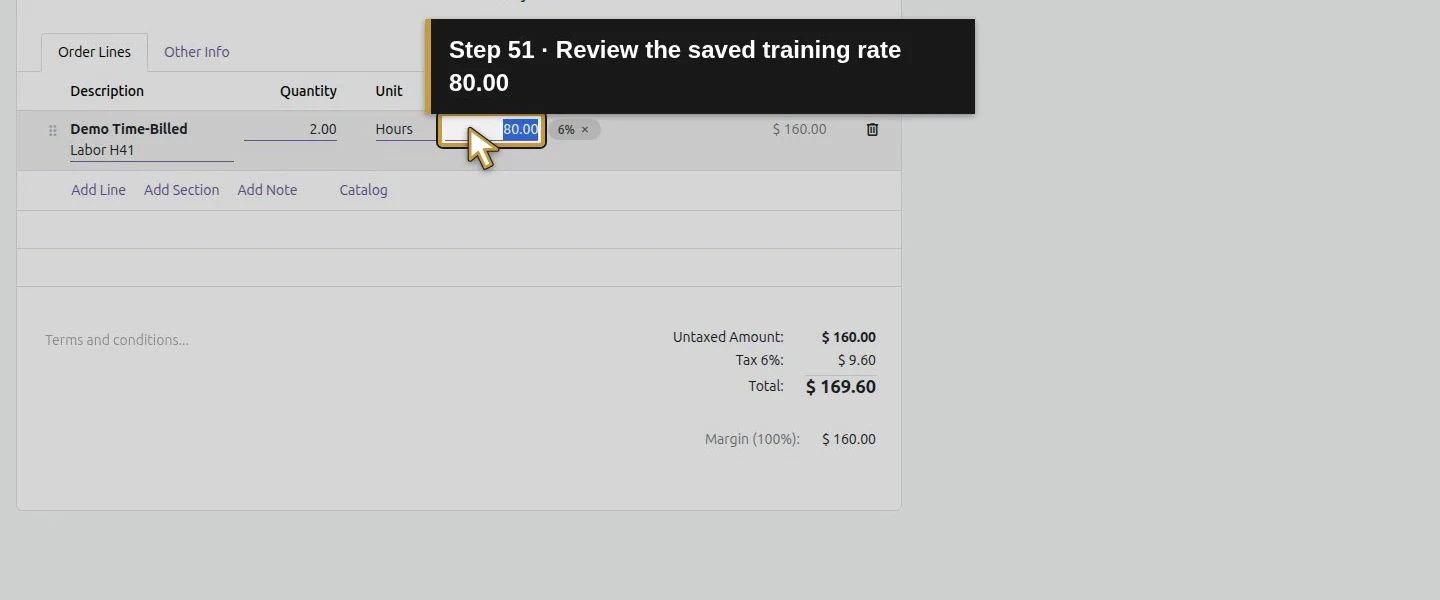
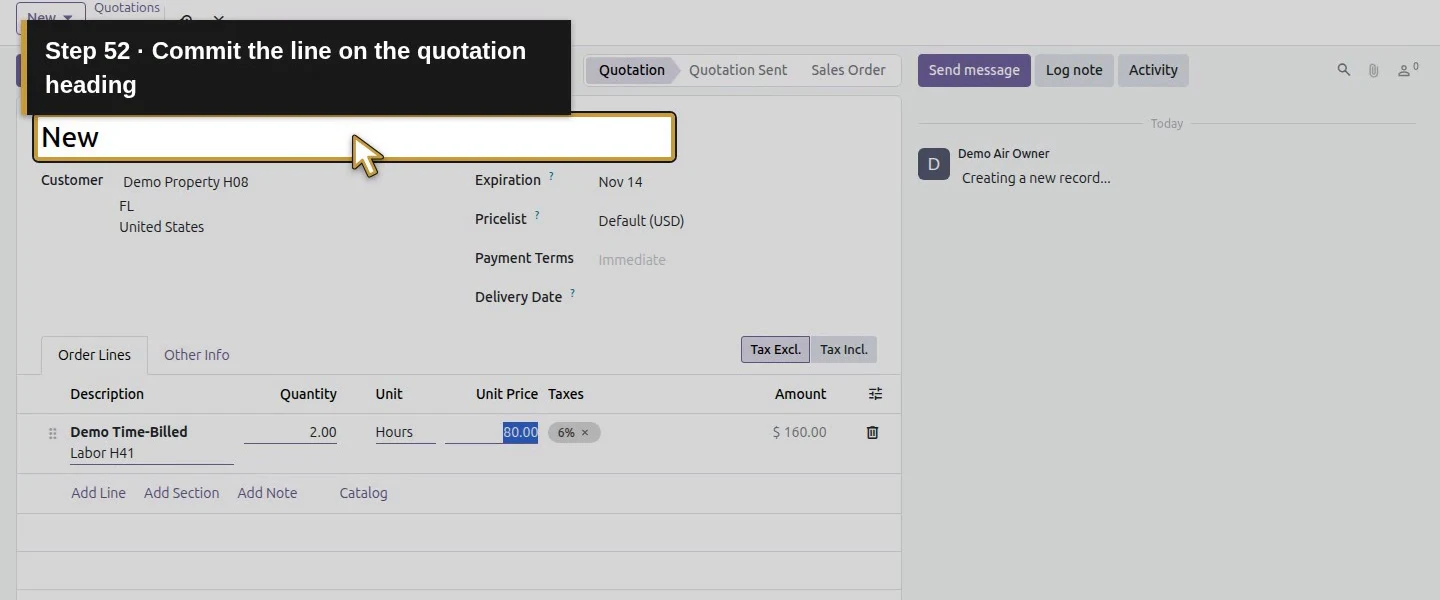
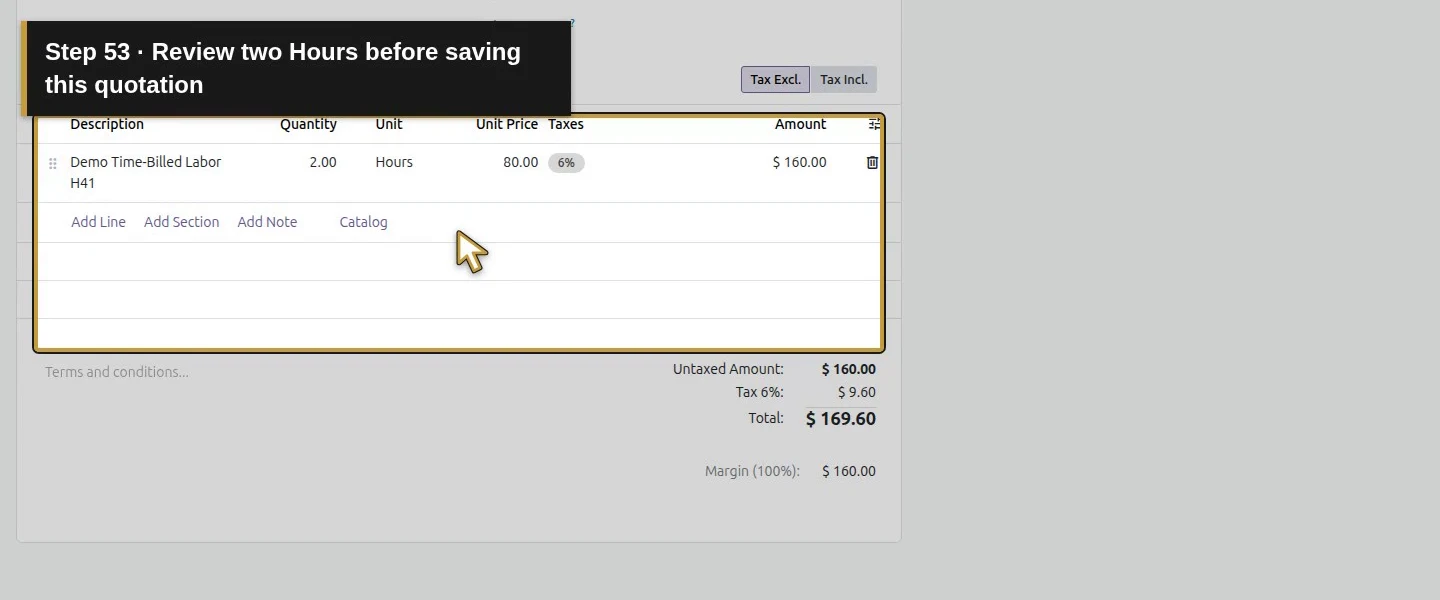
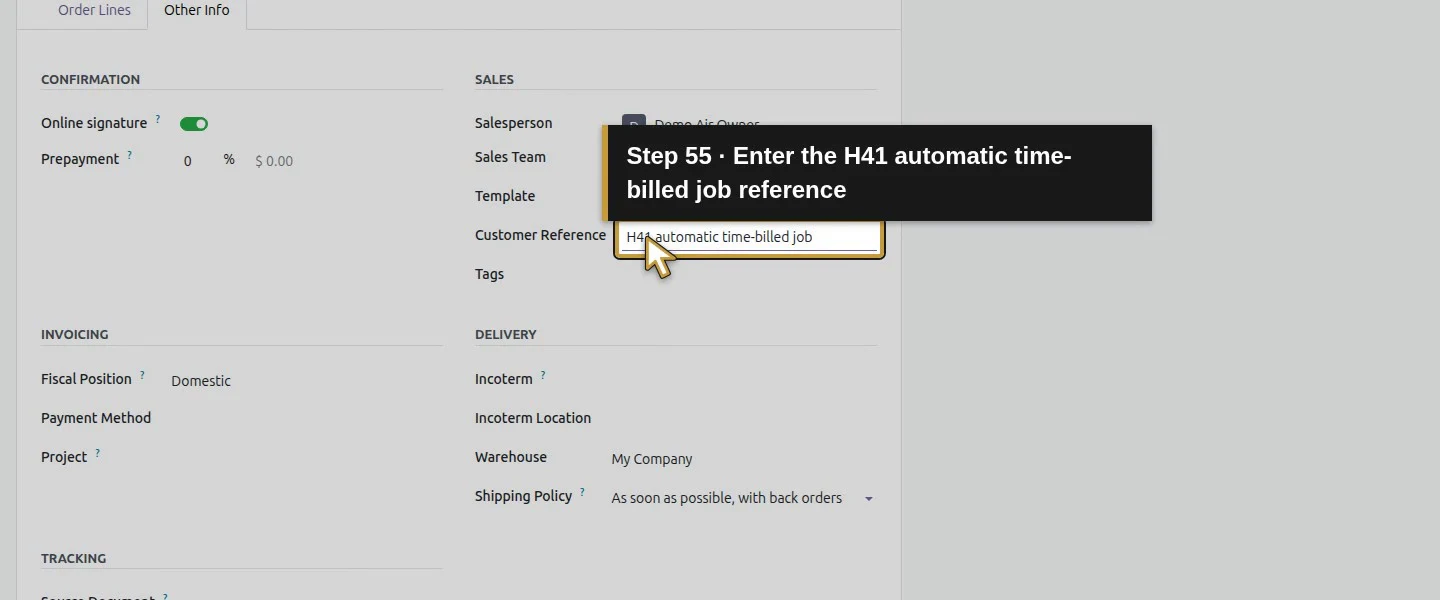
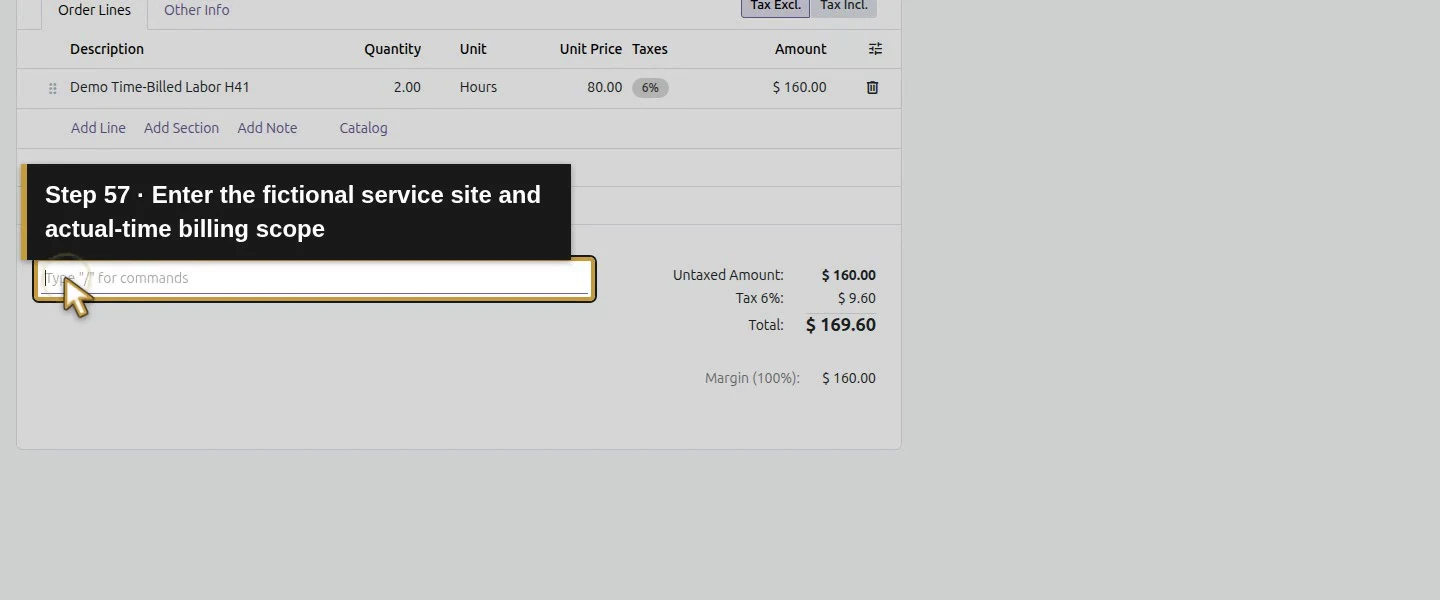
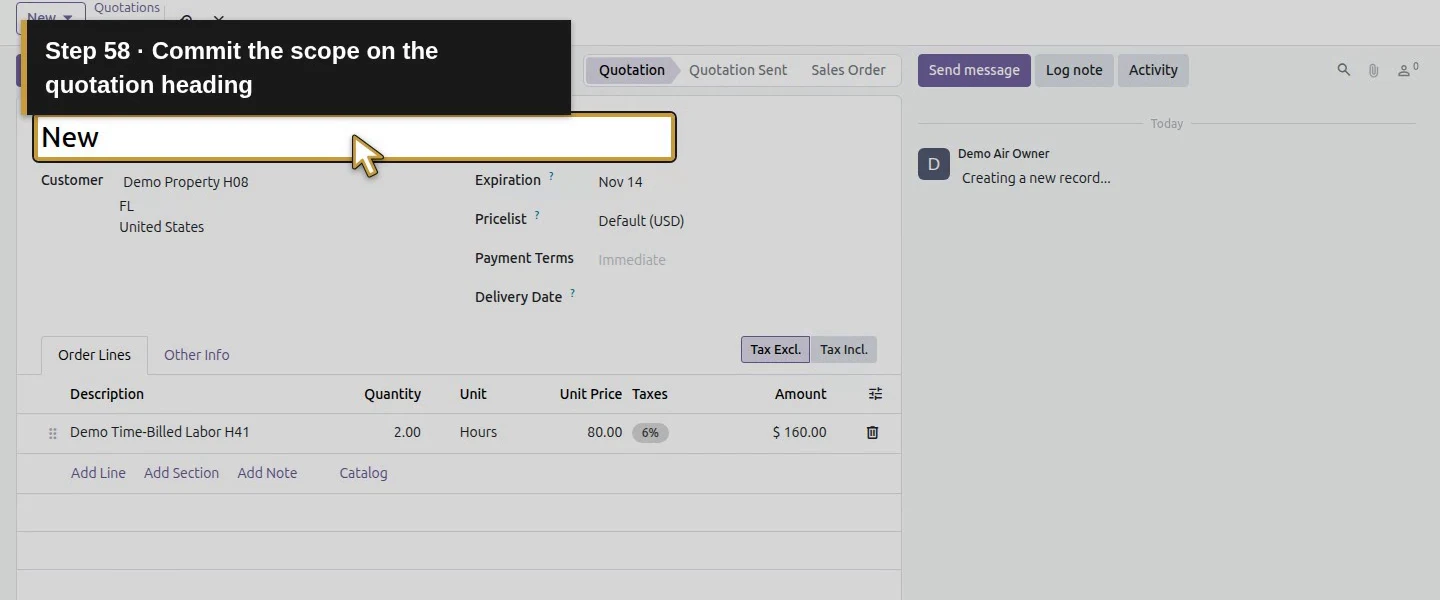
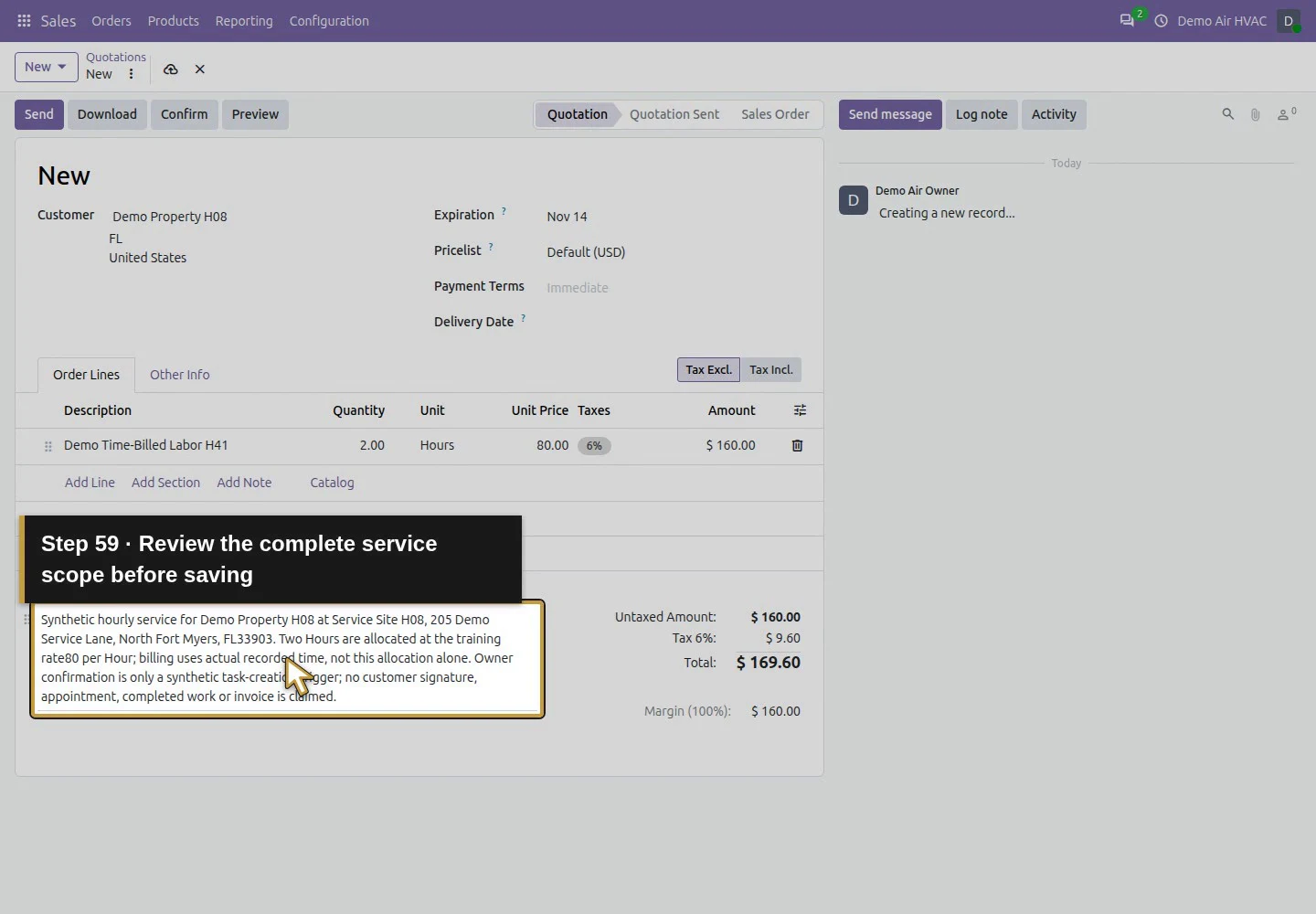
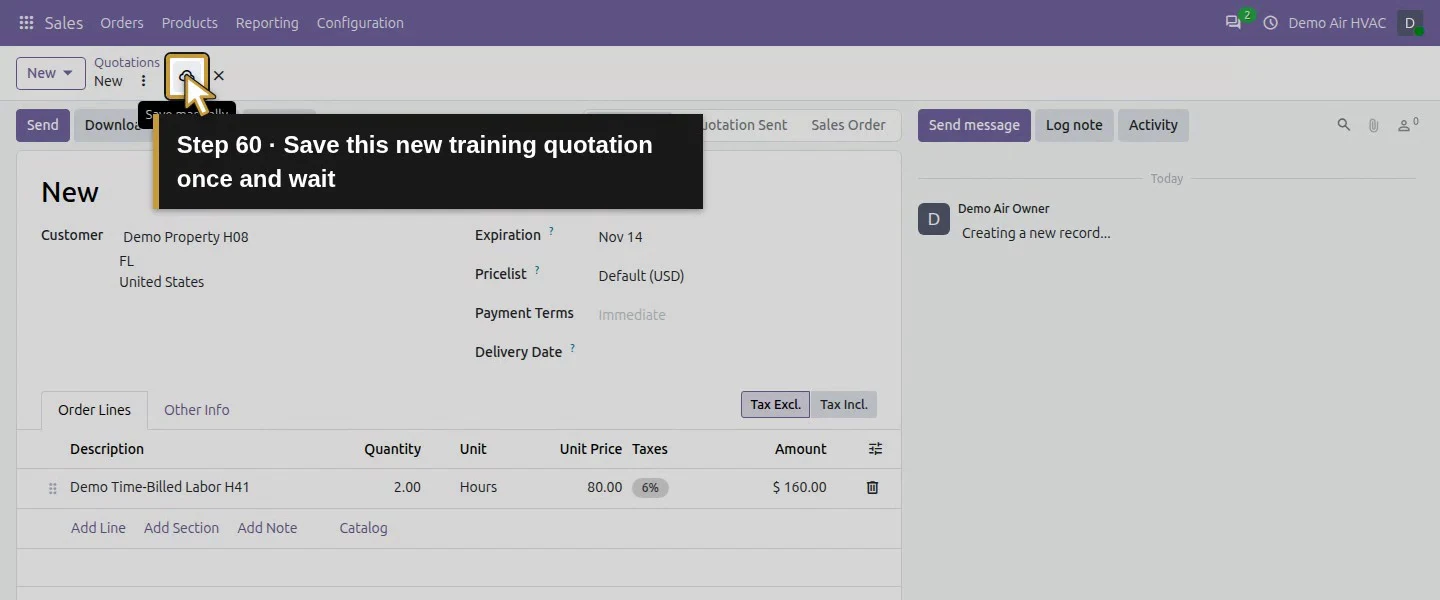
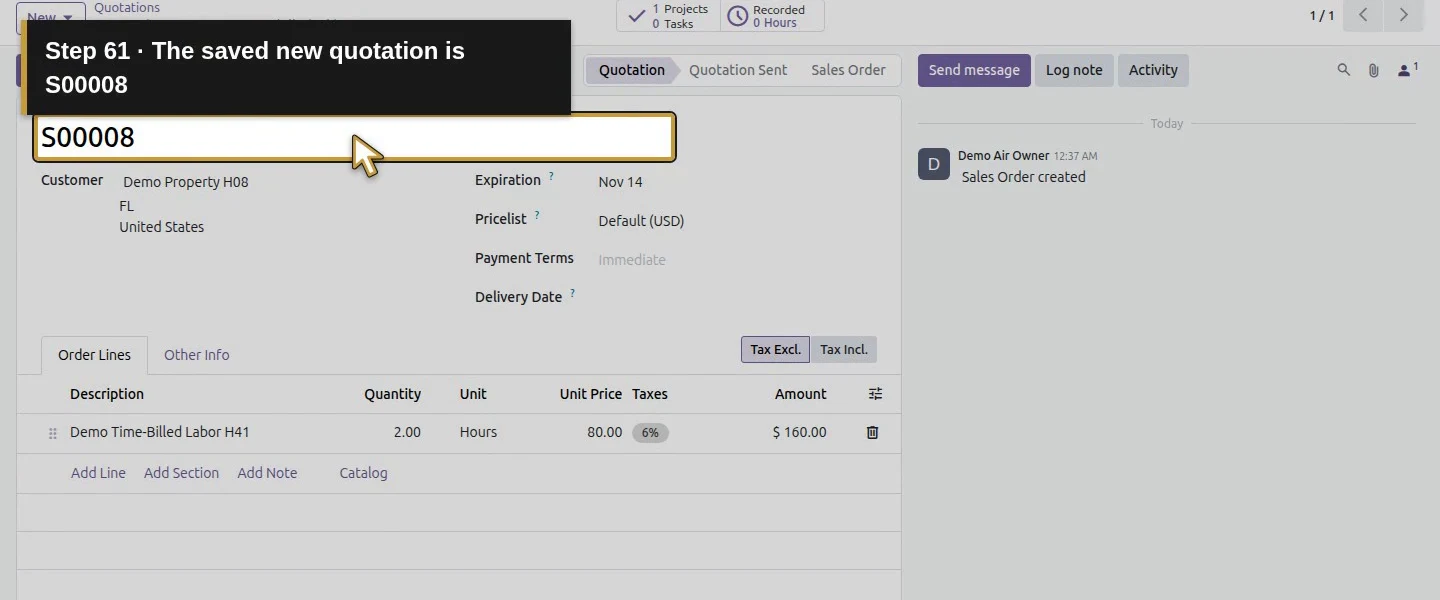
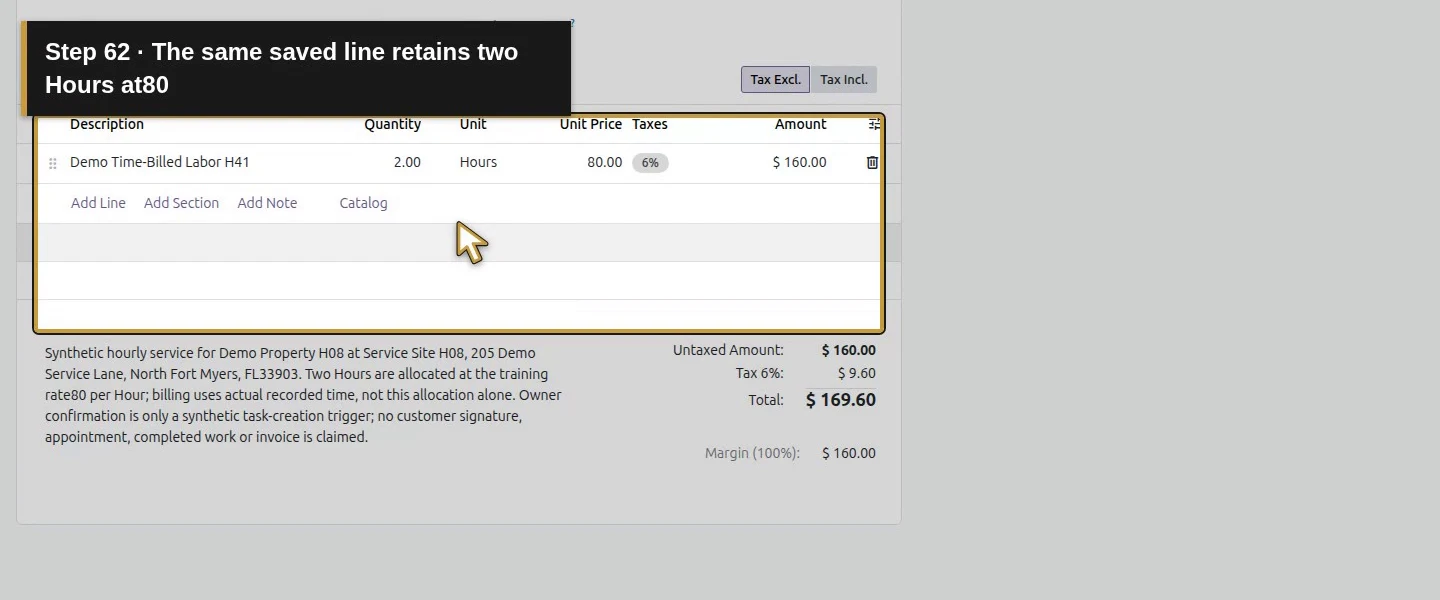
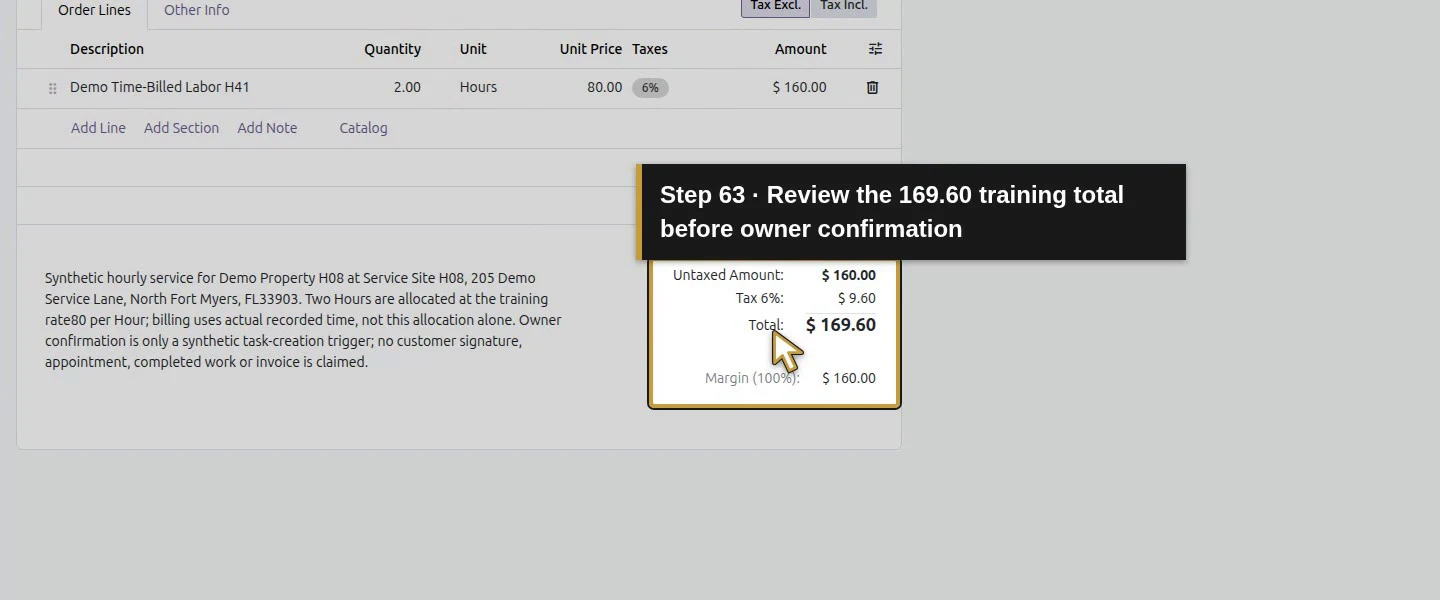
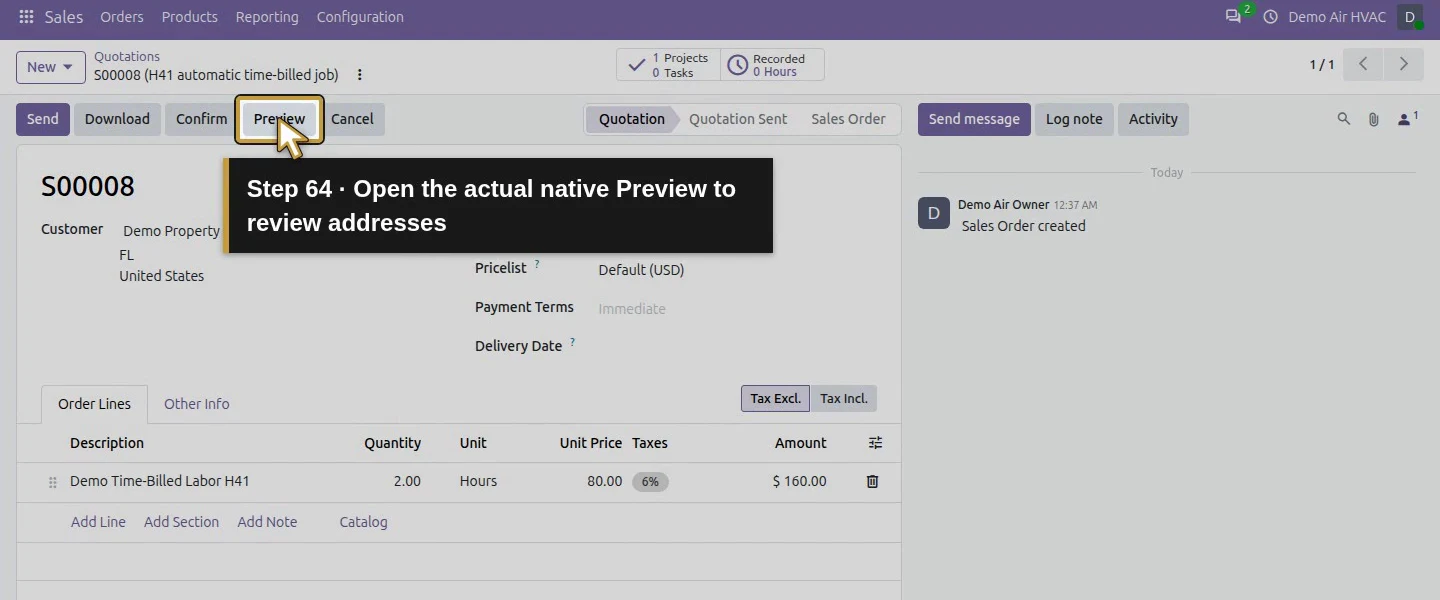
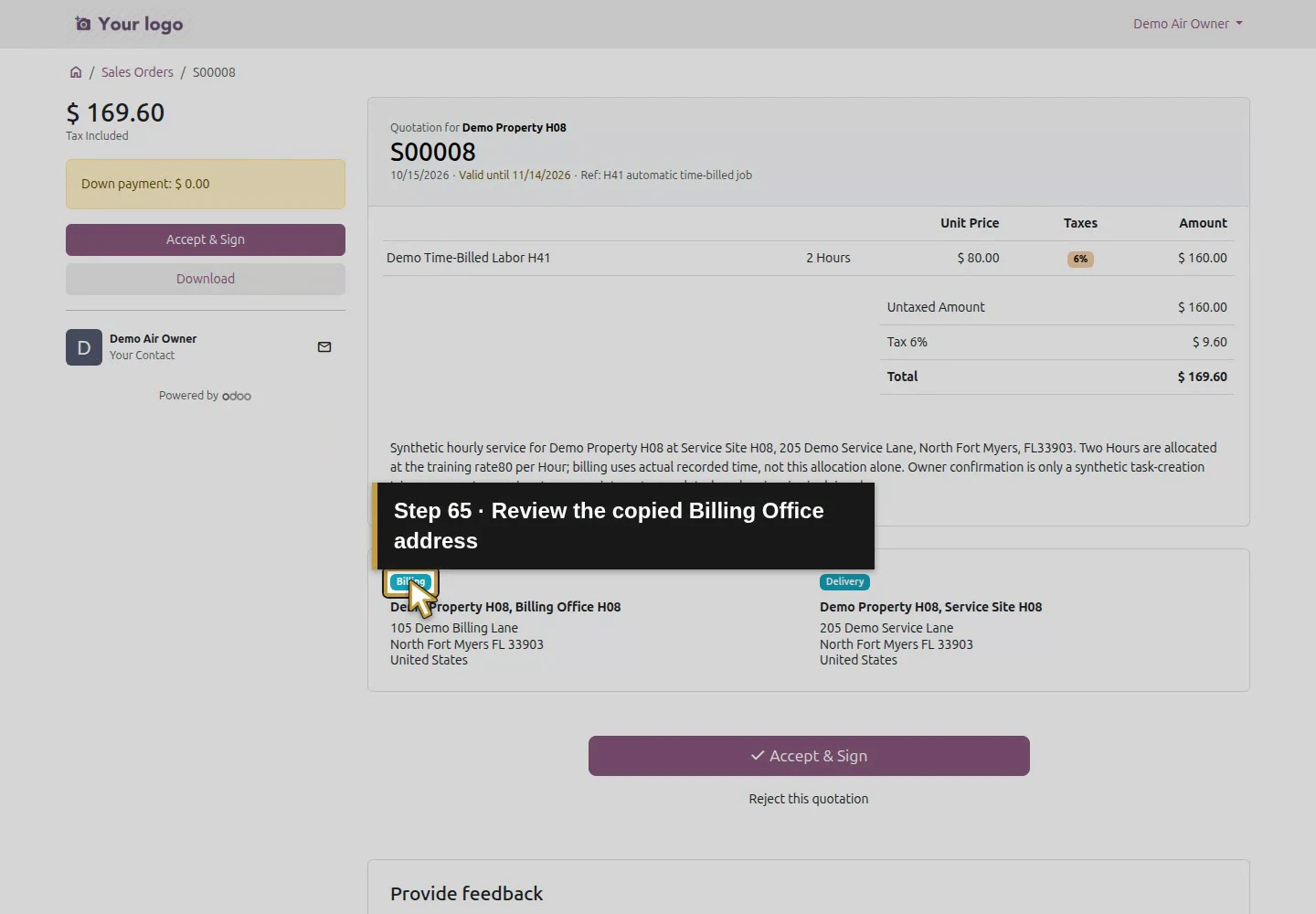
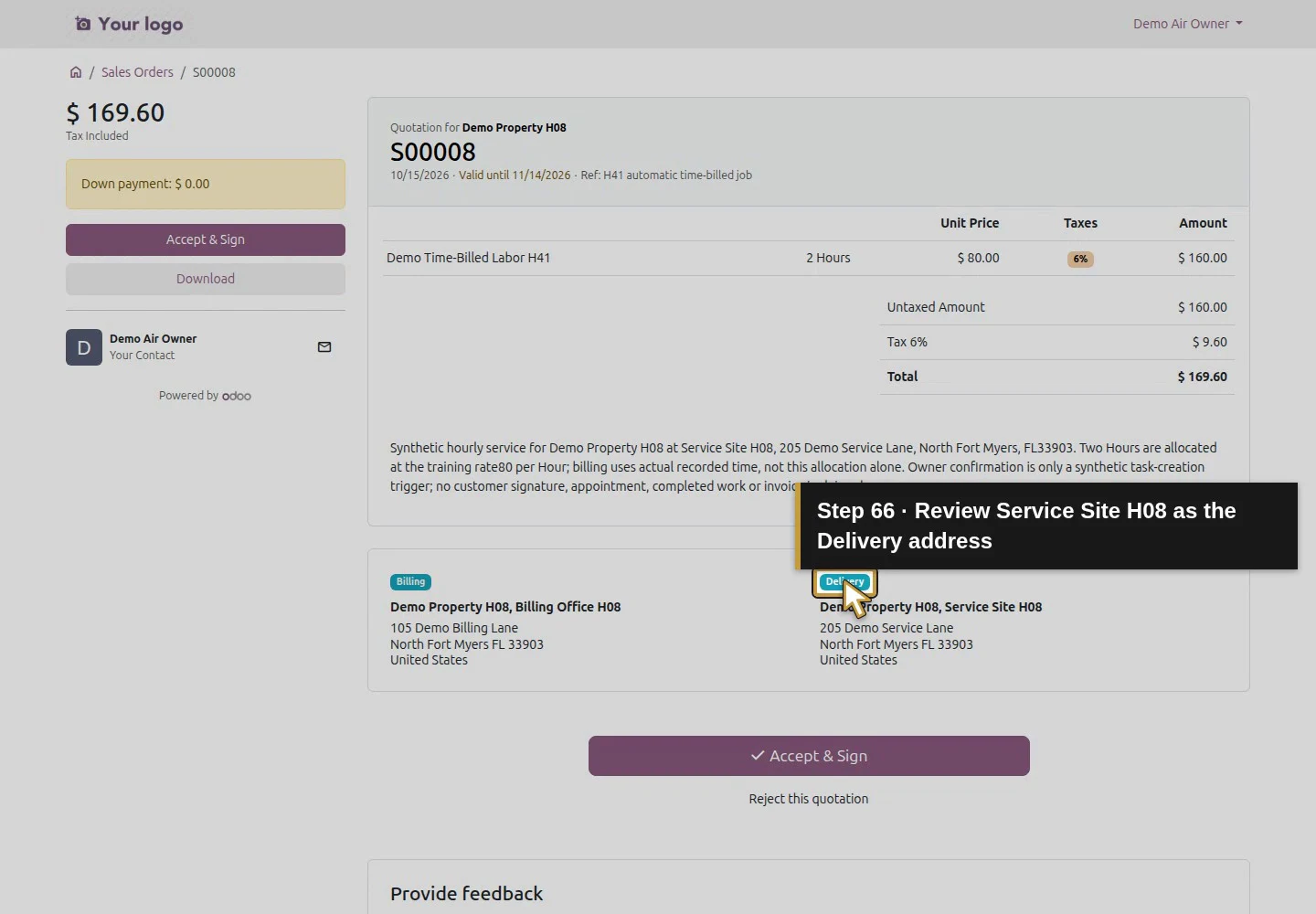
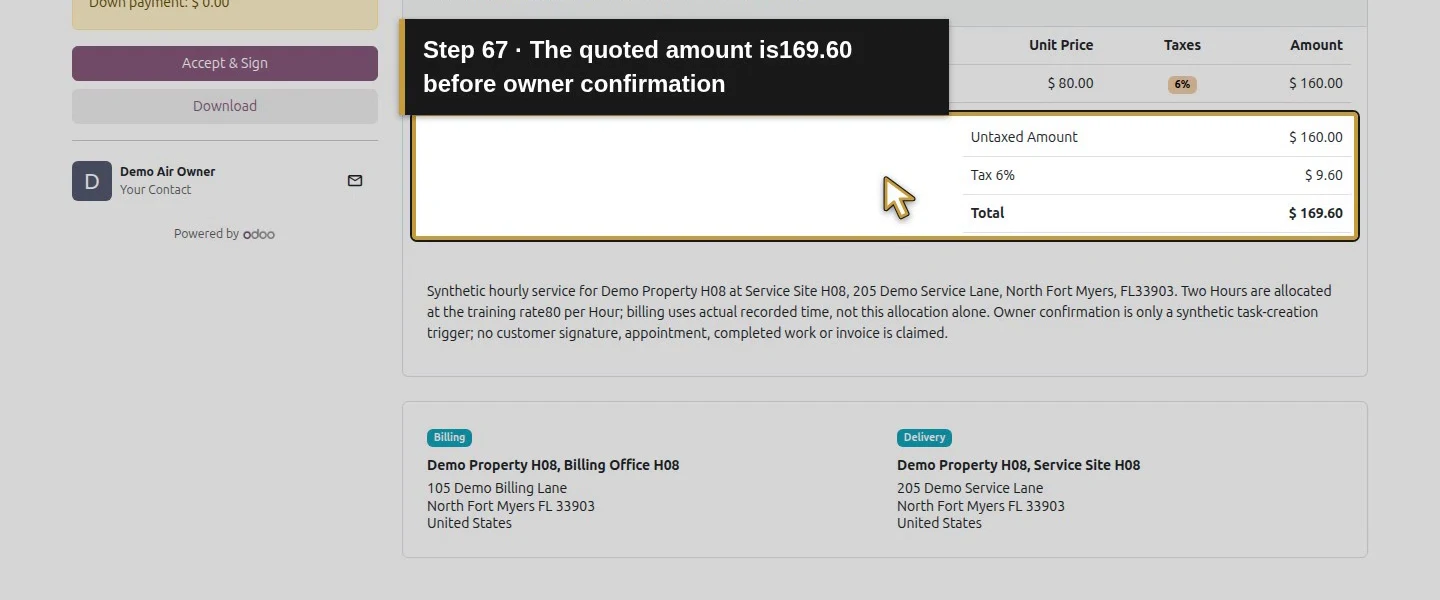
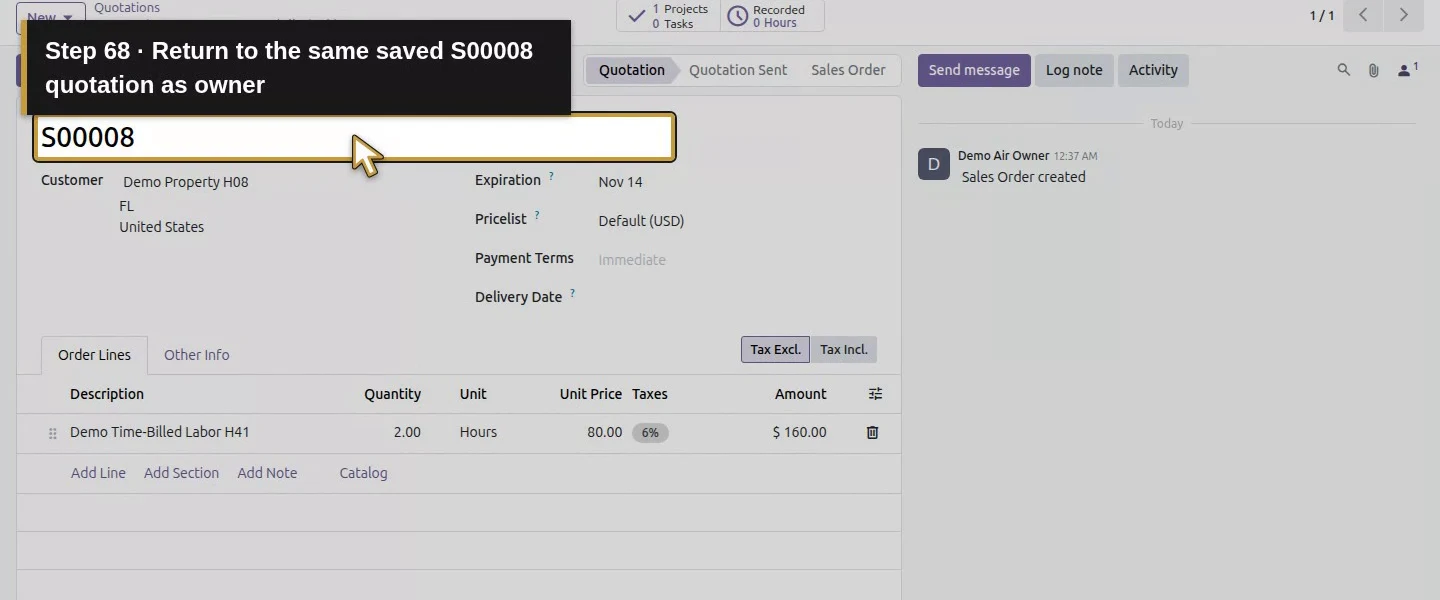
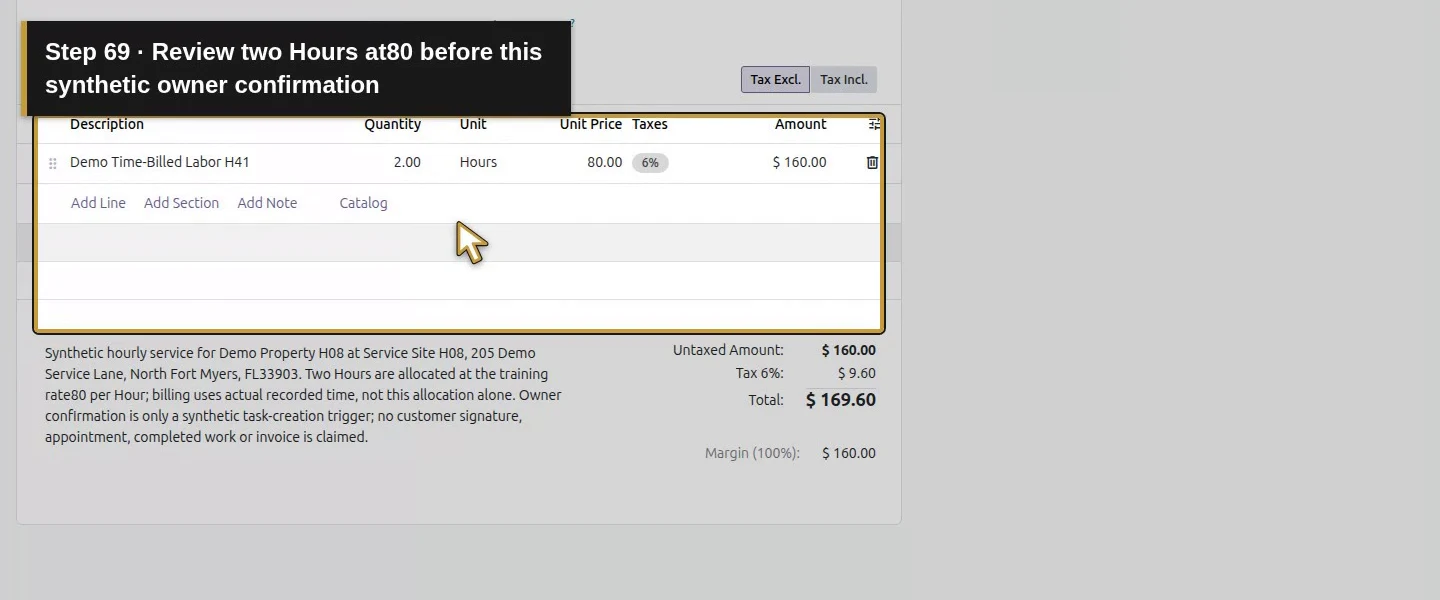
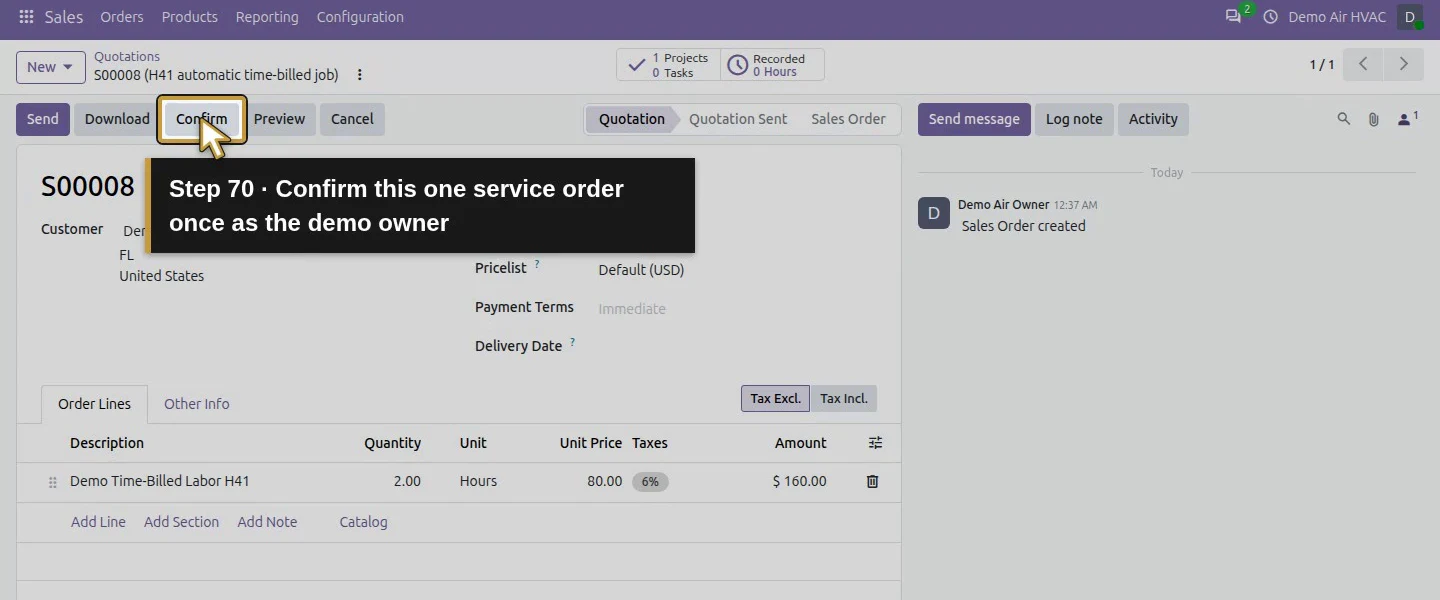
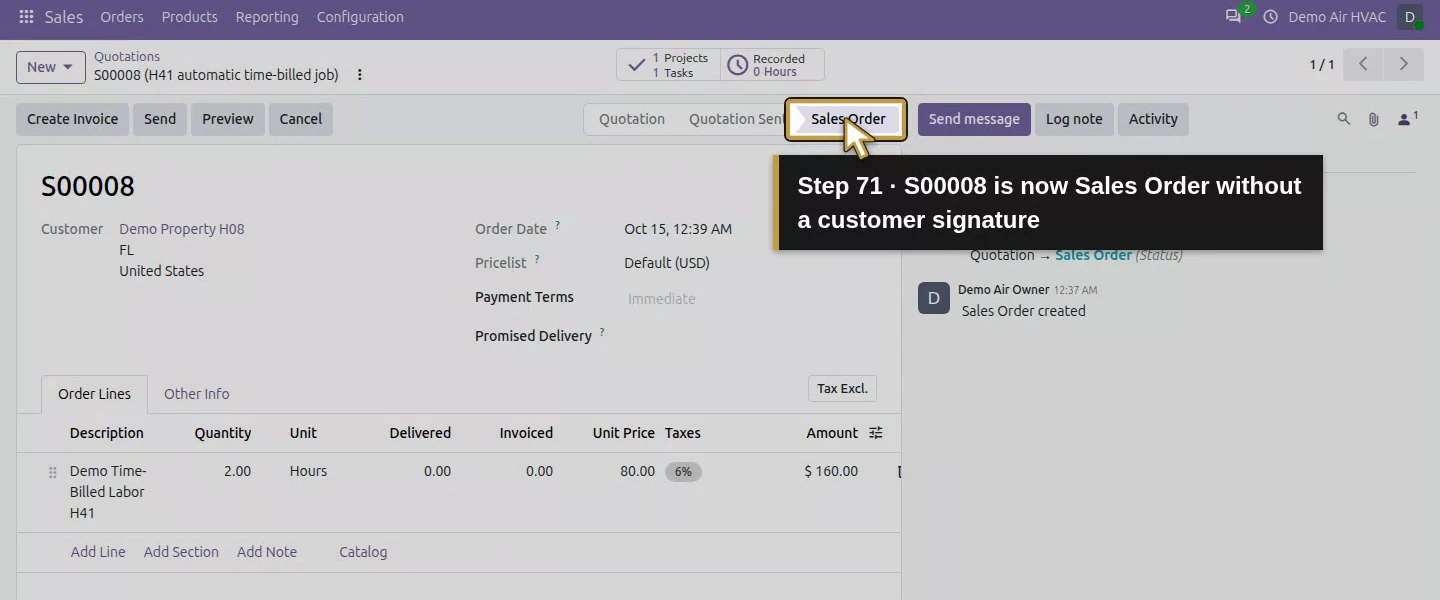
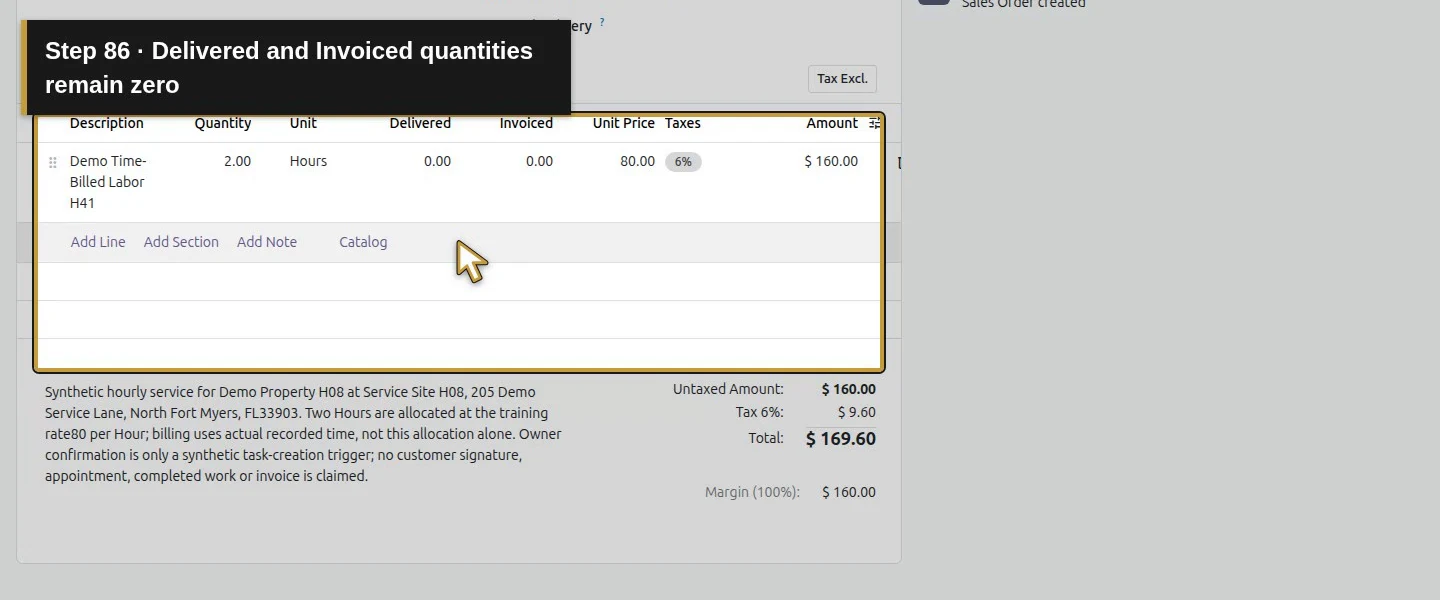
In Sales, use New → New Quotation and select Demo Property H08. Add the actual Demo Time-Billed Labor H41 product and enter 2 Hours at $80 per Hour. Our S00008 totals $169.60 including the illustrative tax. Set Customer Reference to H41 automatic time-billed job and add a scope note naming Service Site H08 and actual-time billing. Save and review the order and addresses. For this synthetic trigger test, the owner clicked Confirm once. Customer online signing remains the separate H26 procedure; no customer signature is claimed for S00008.
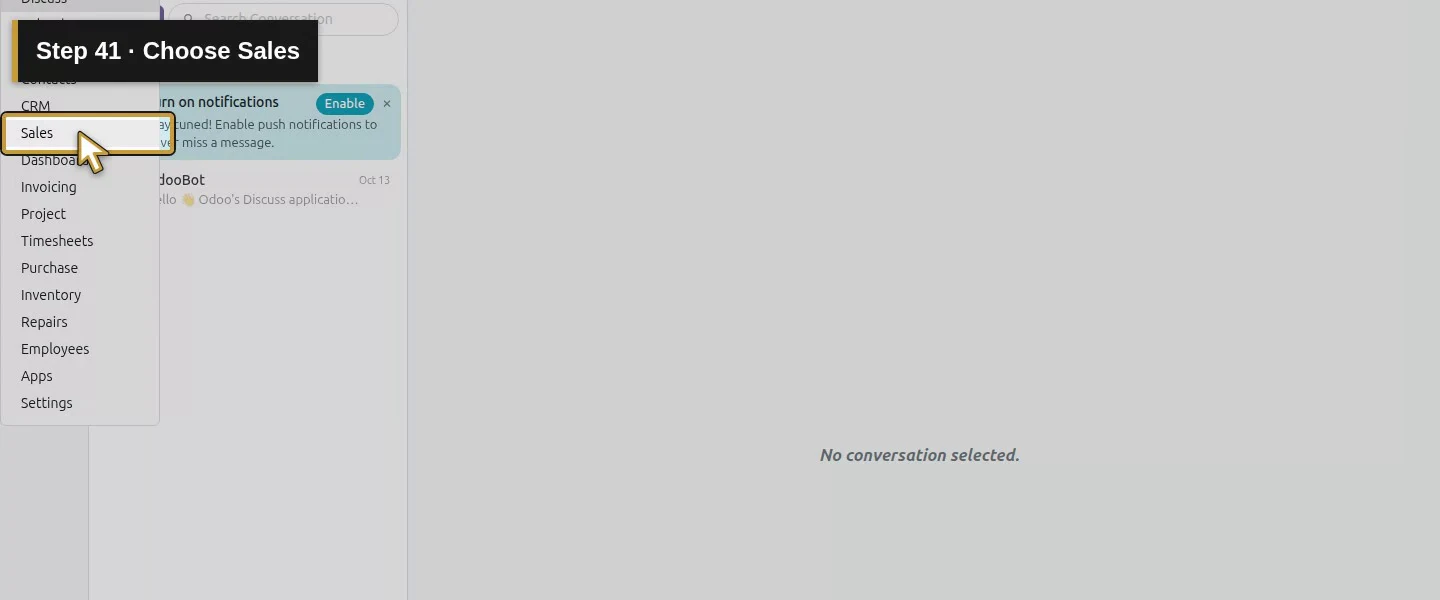
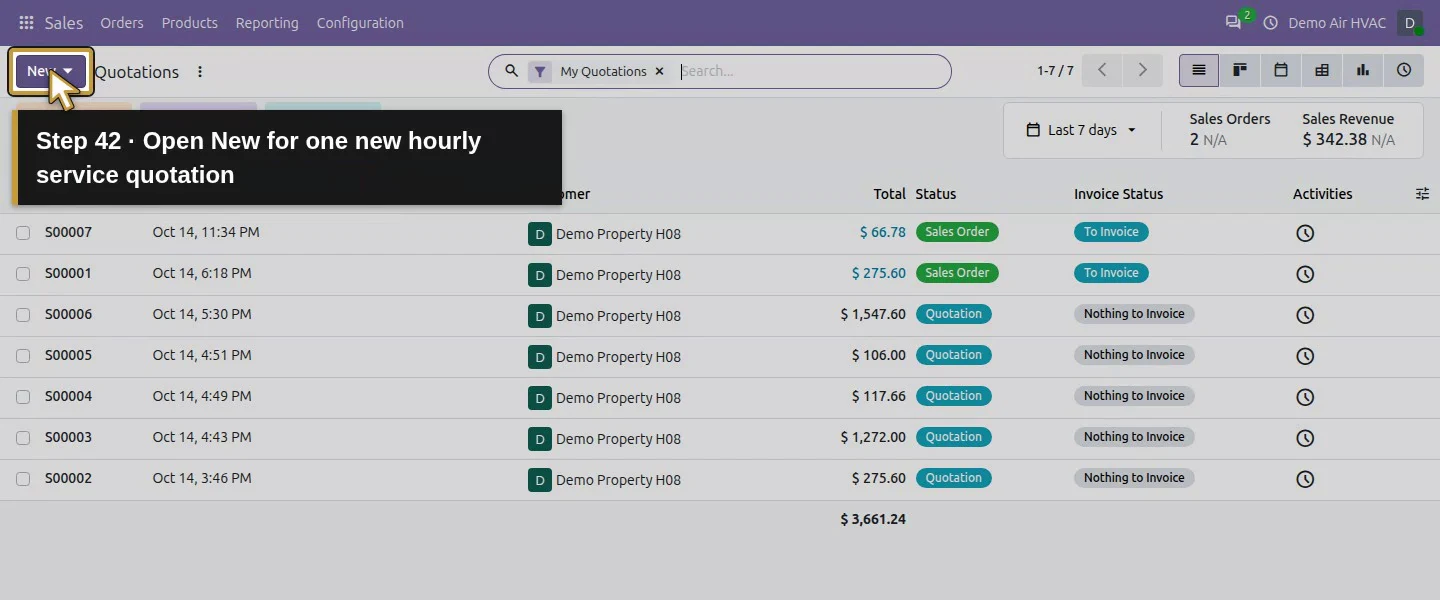
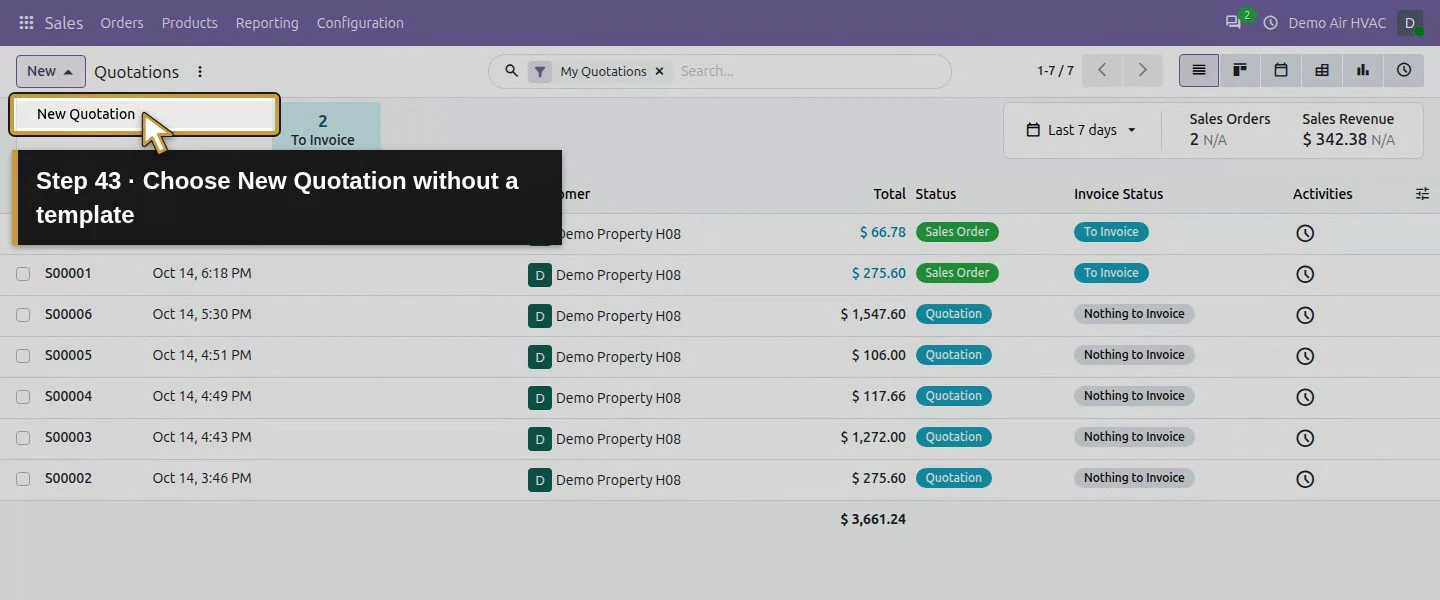
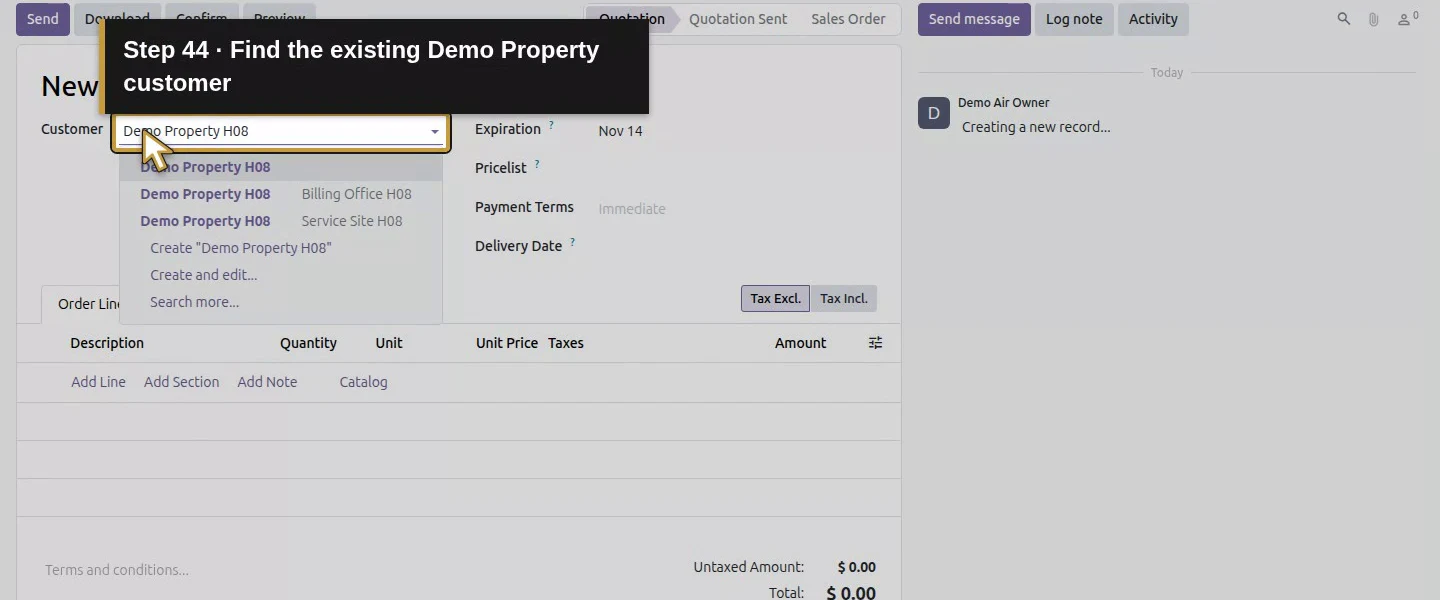
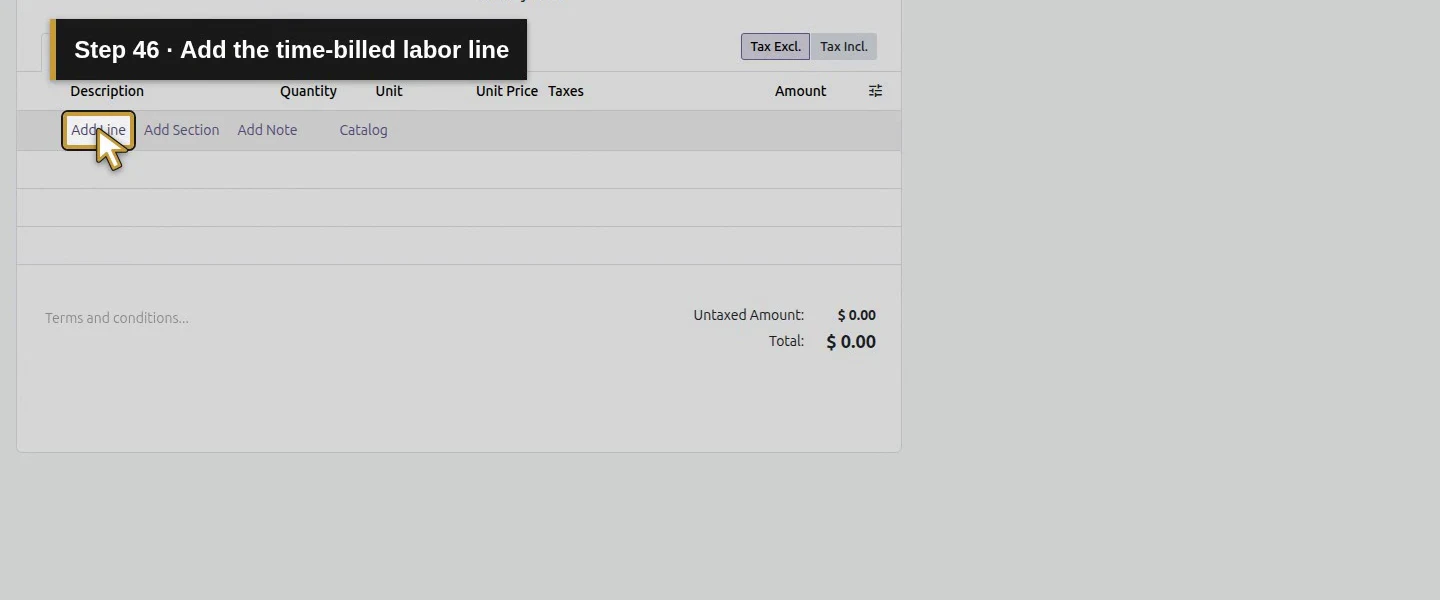
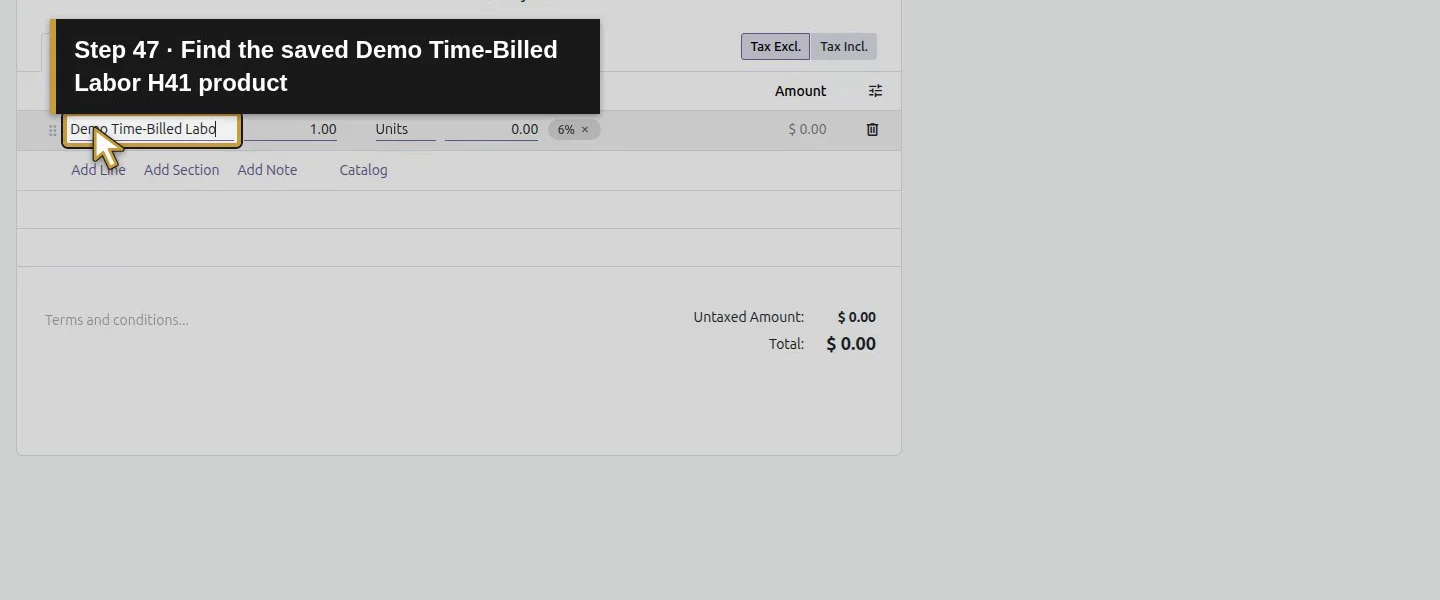
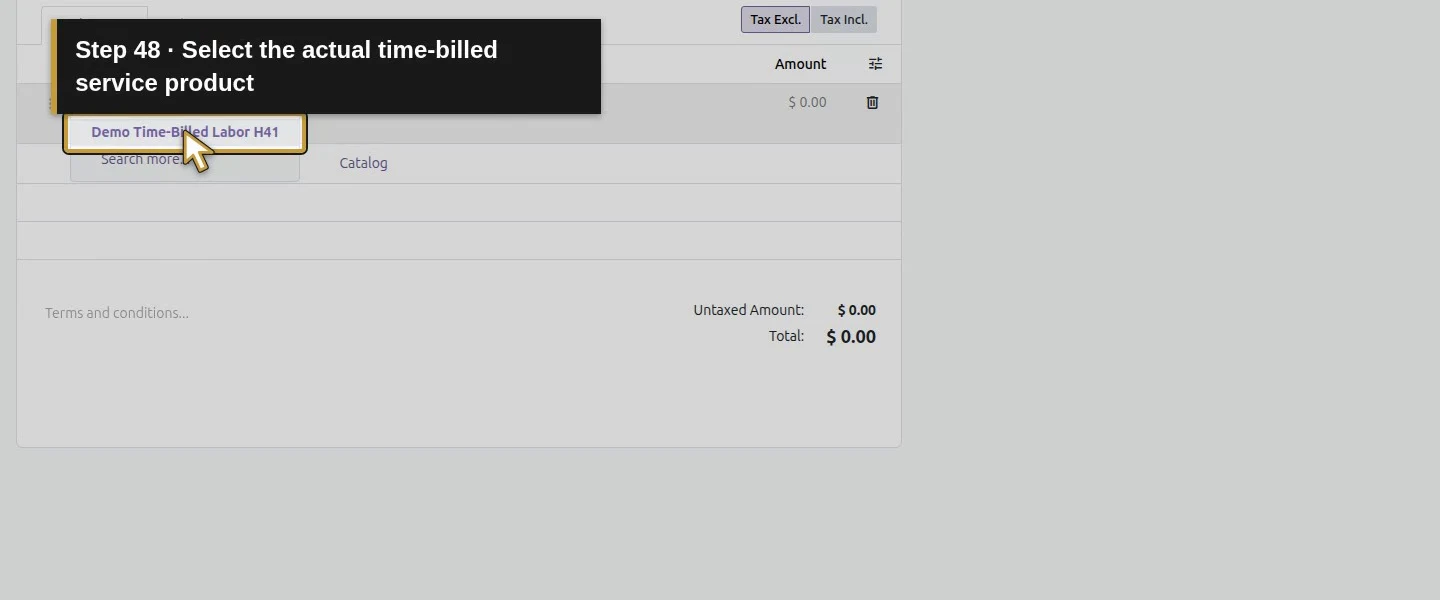
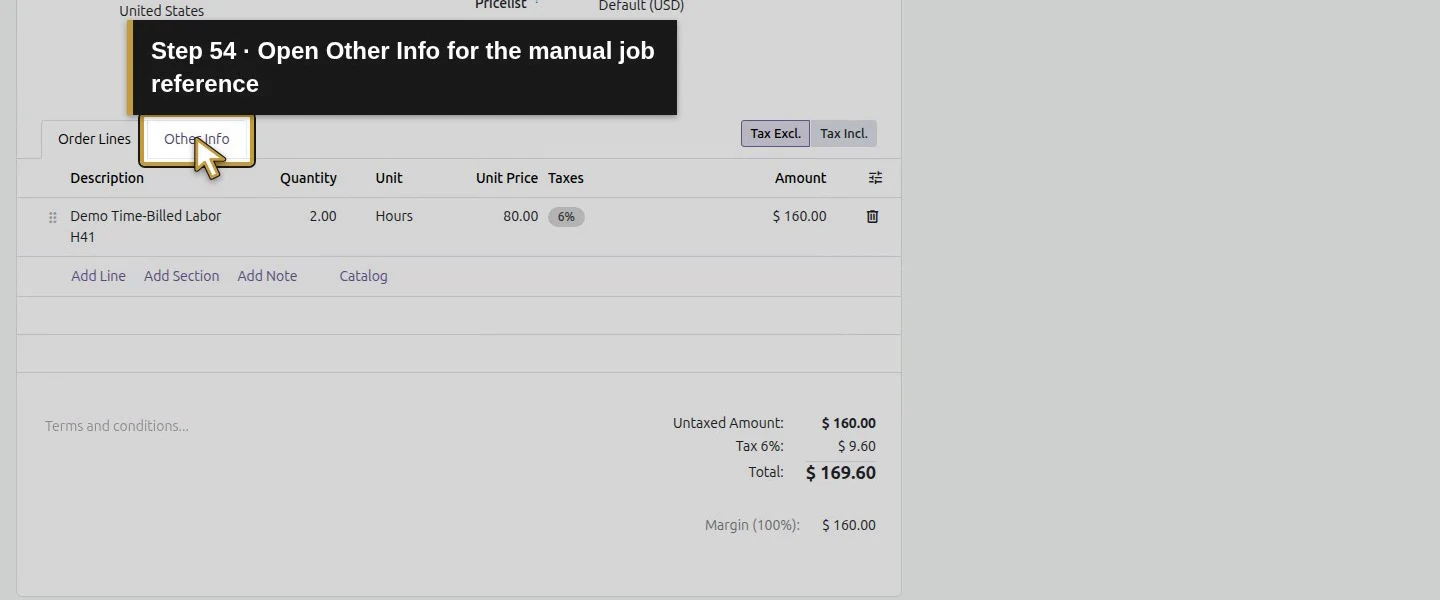
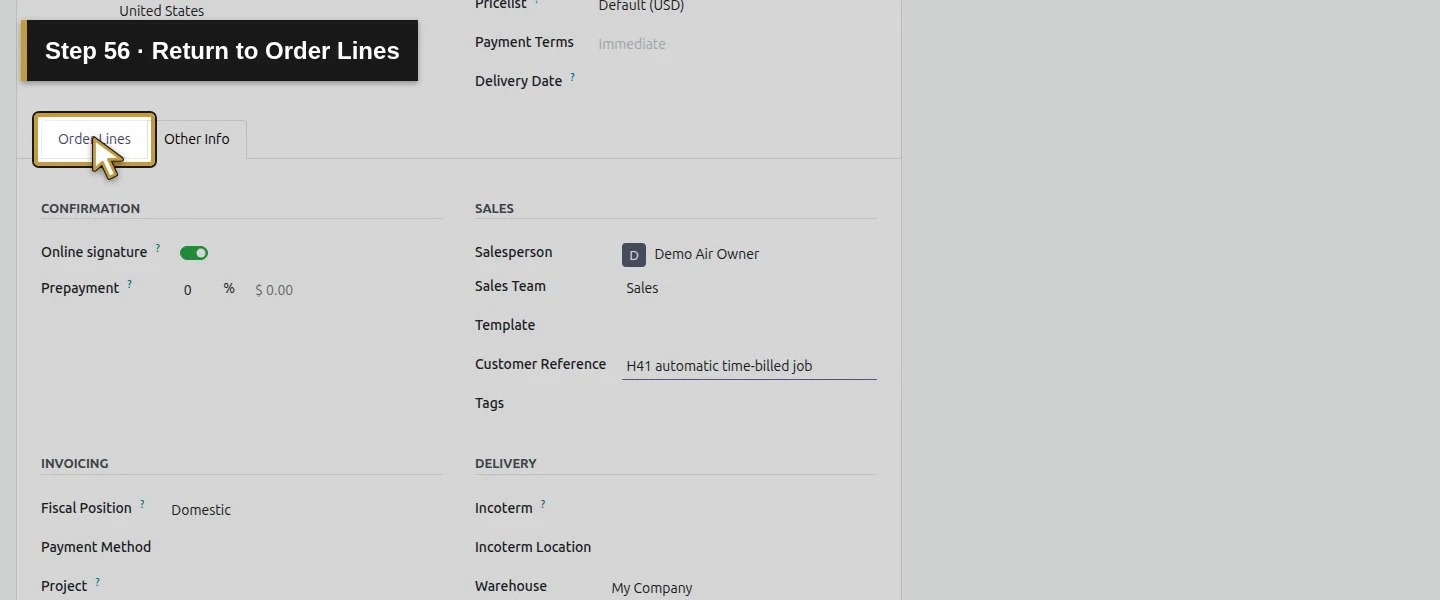
Open the app menu.Choose Sales.Open New for one new hourly service quotation.Choose New Quotation without a template.Find the existing Demo Property customer.Select Demo Property H08.Add the time-billed labor line.Find the saved Demo Time-Billed Labor H41 product.Select the actual time-billed service product.Quote two Hours of this service.Keep the actual quoted unit as Hours.Review the saved training rate 80.00.Commit the line on the quotation heading.Review two Hours before saving this quotation.Open Other Info for the manual job reference.Enter the H41 automatic time-billed job reference.Return to Order Lines.Enter the fictional service site and actual-time billing scope.Commit the scope on the quotation heading.Review the complete service scope before saving.Save this new training quotation once and wait.The saved new quotation is S00008.The same saved line retains two Hours at80.Review the 169.60 training total before owner confirmation.Open the actual native Preview to review addresses.Review the copied Billing Office address.Review Service Site H08 as the Delivery address.The quoted amount is169.60 before owner confirmation.Return to the same saved S00008 quotation as owner.Review two Hours at80 before this synthetic owner confirmation.Confirm this one service order once as the demo owner.S00008 is now Sales Order without a customer signature.
Step 6. Open the generated task through the sales order
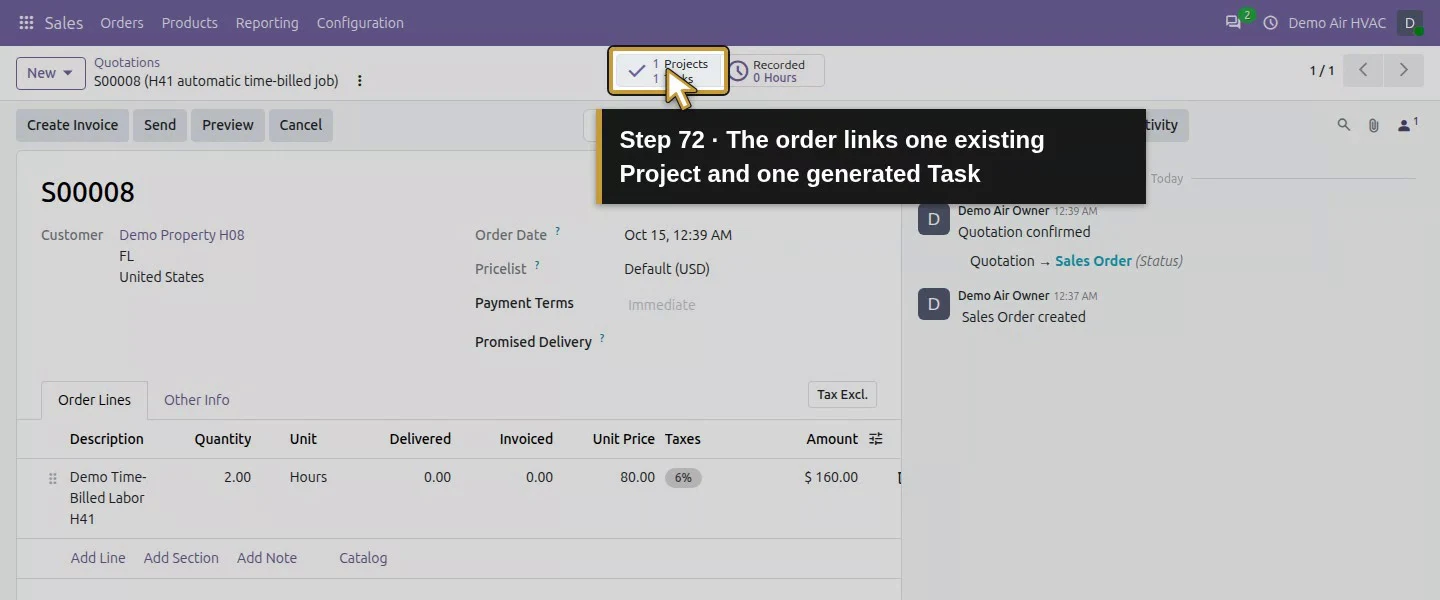
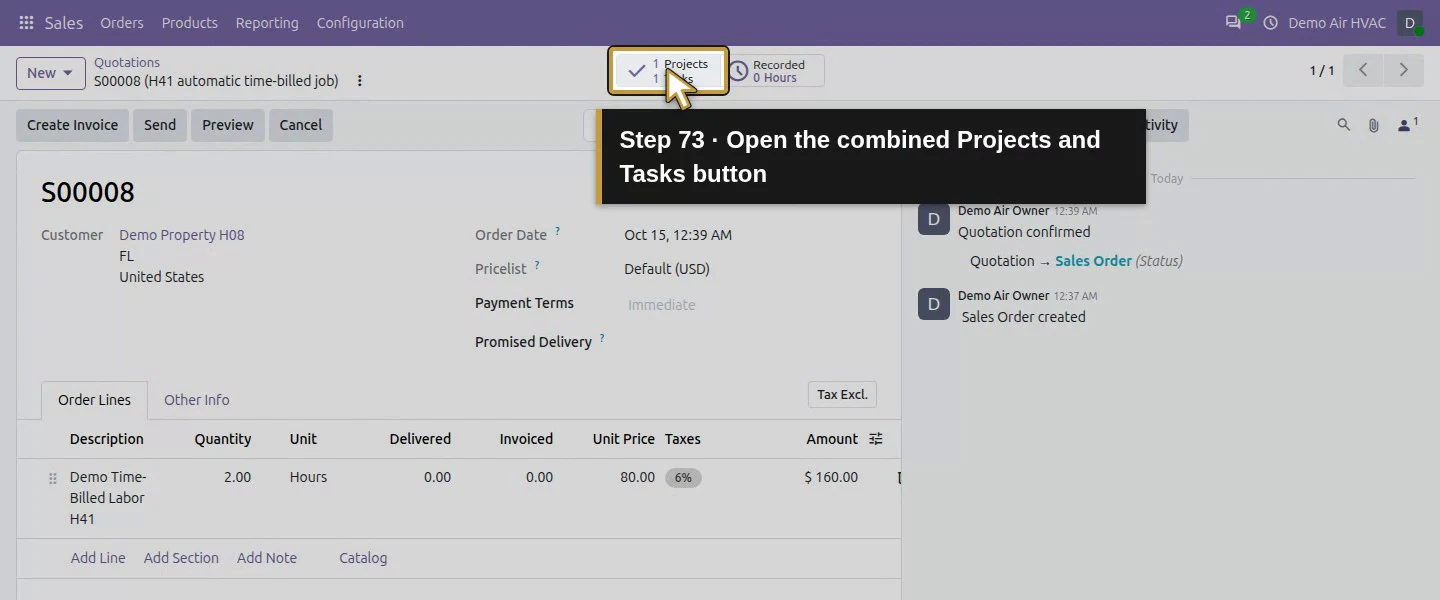
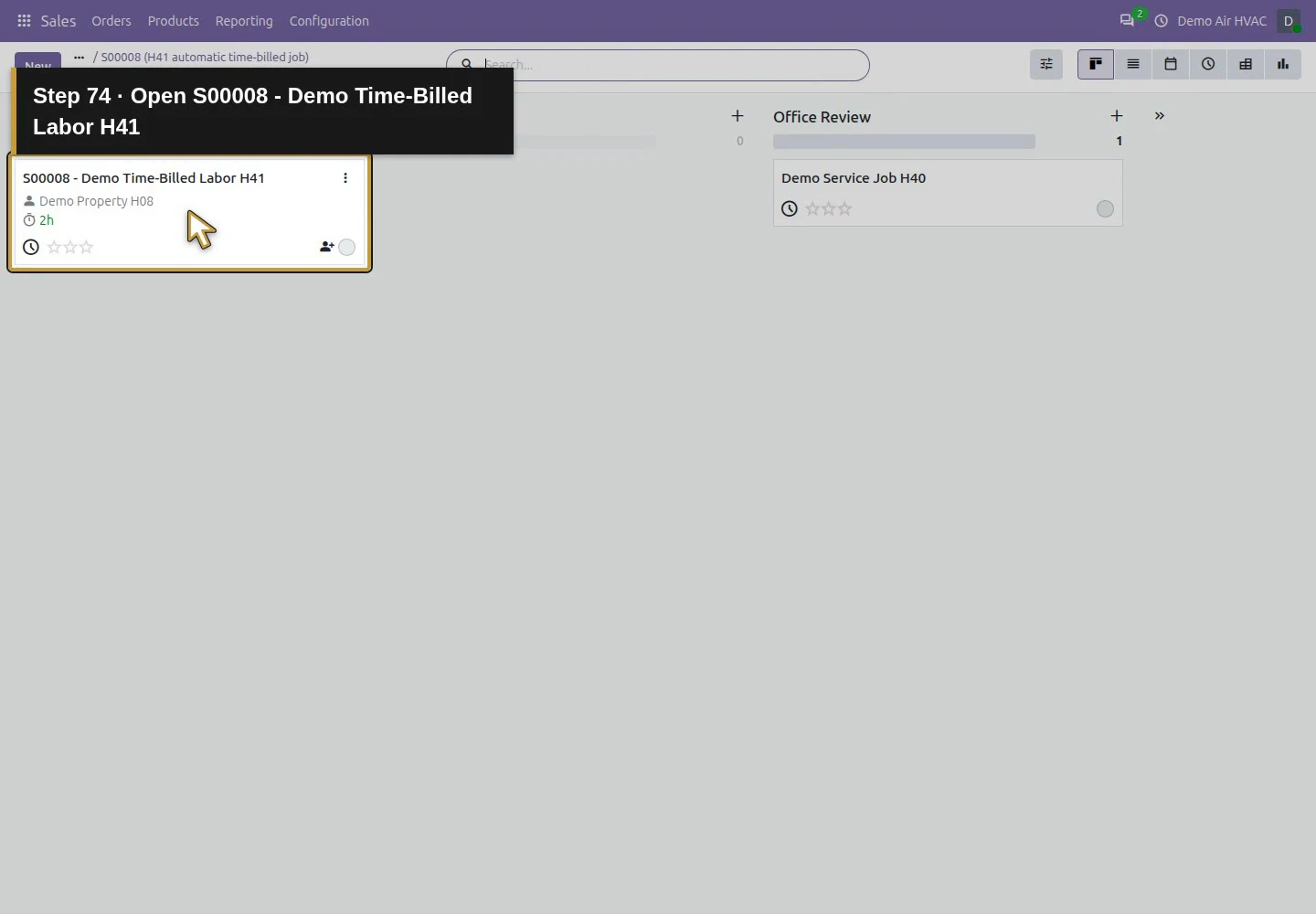
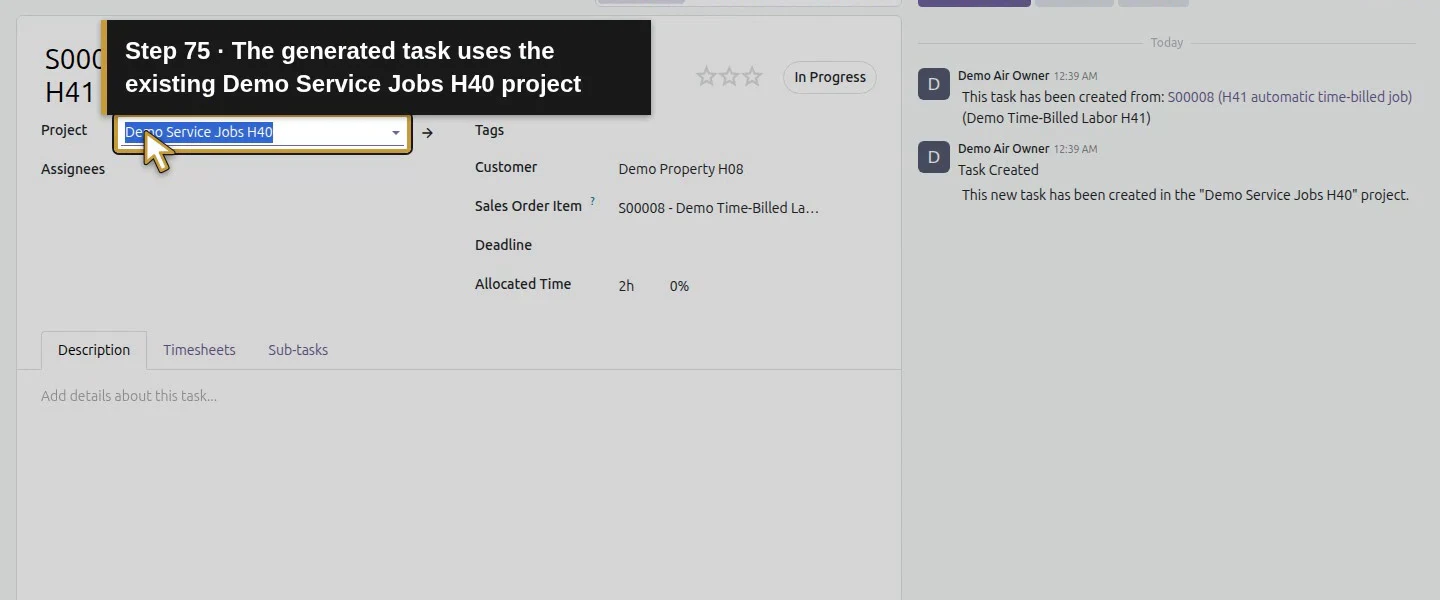
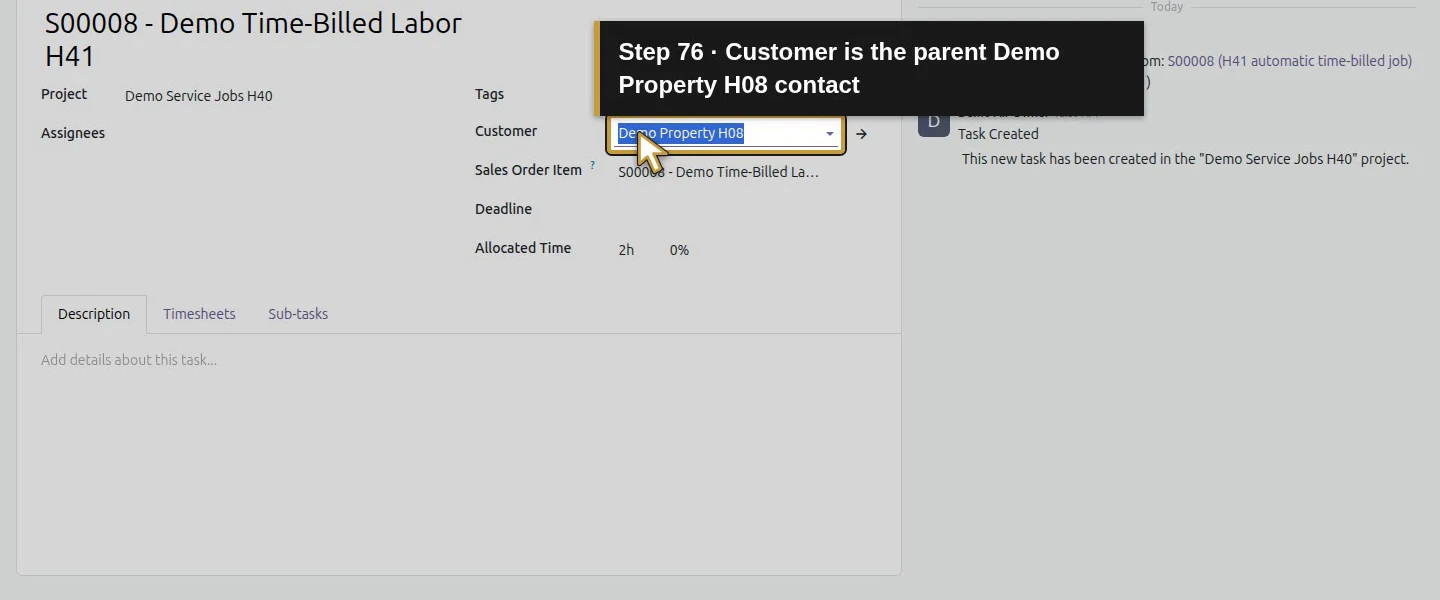
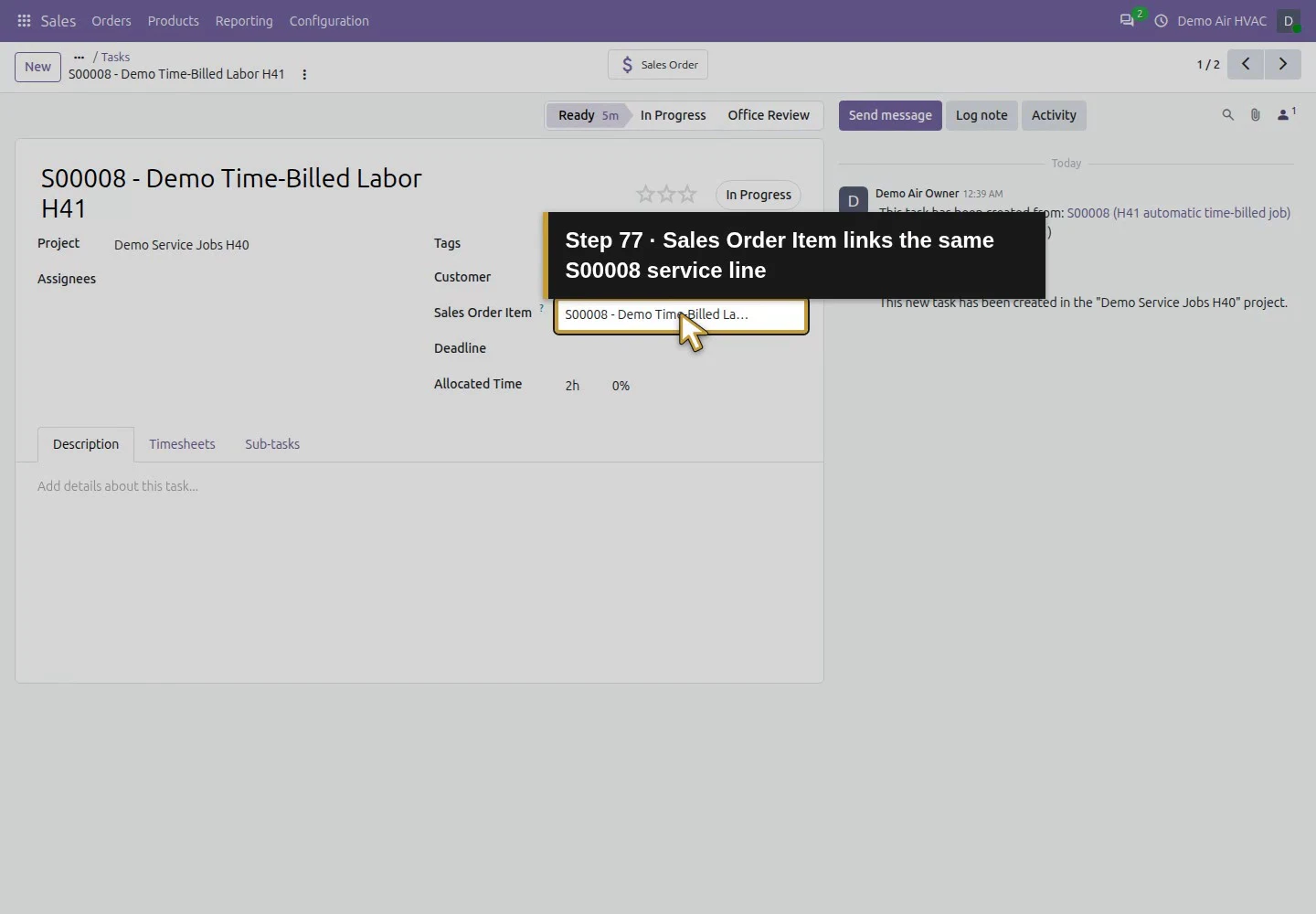
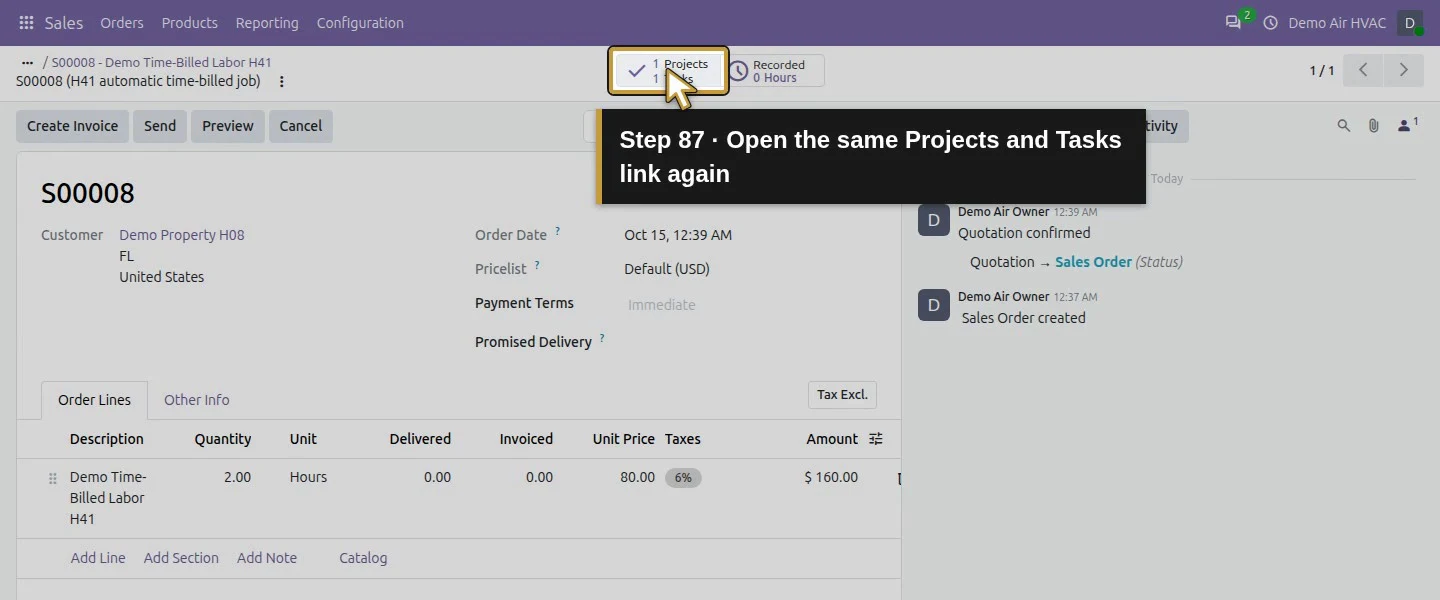
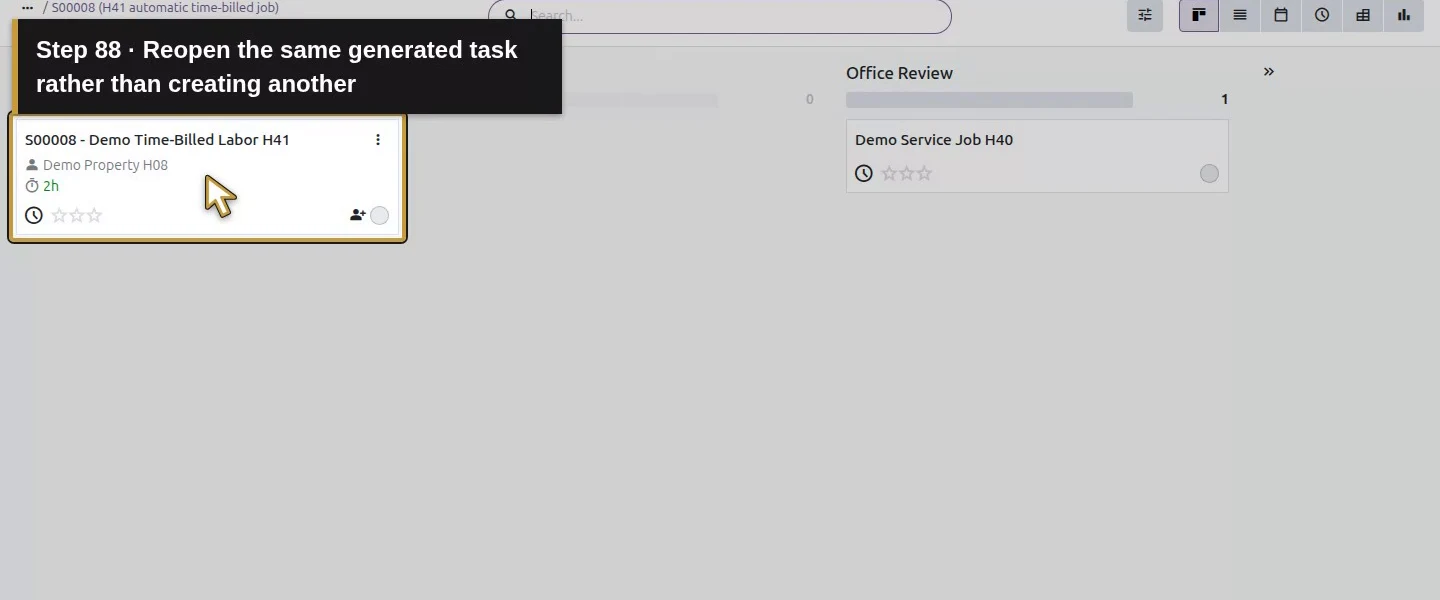
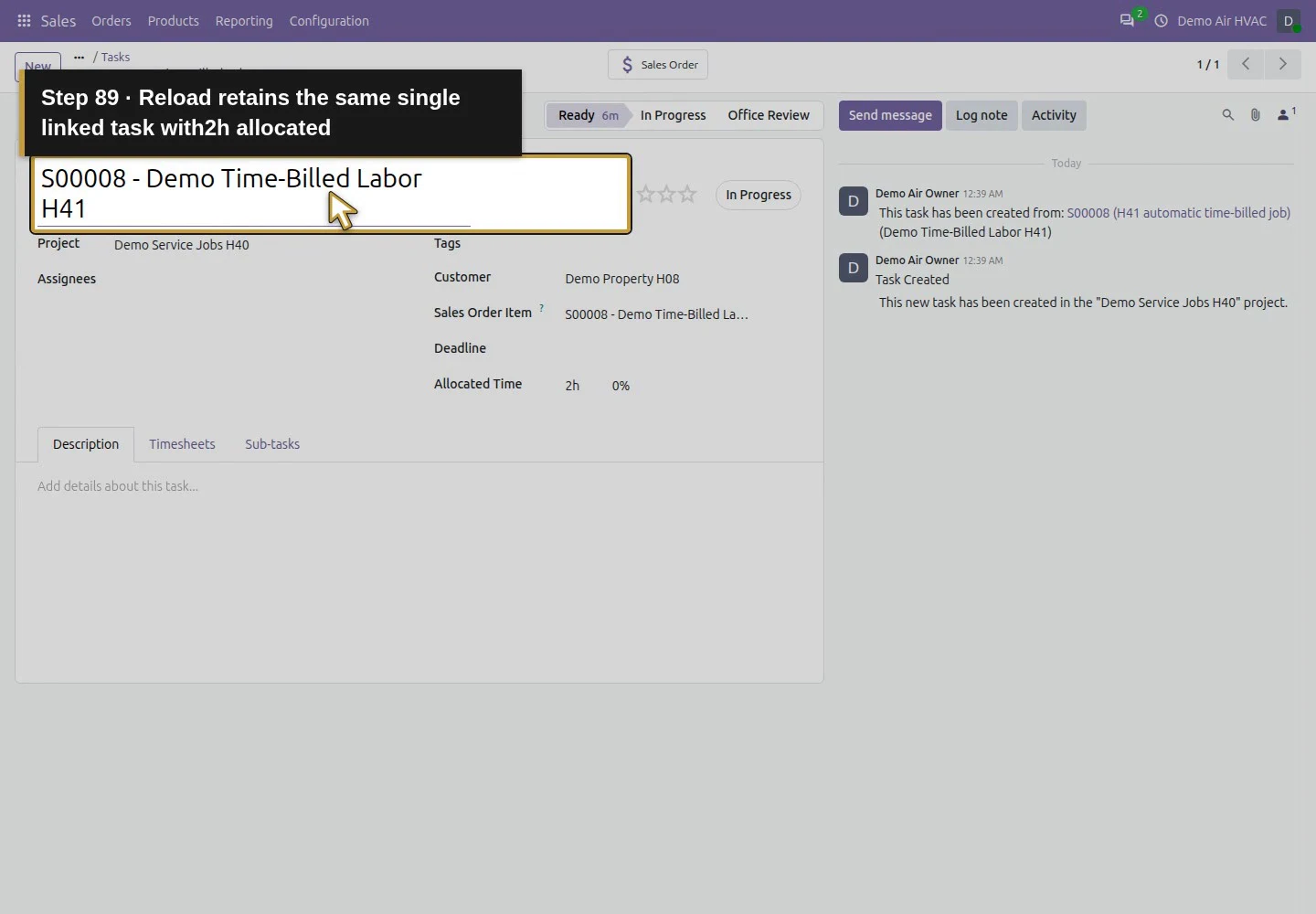
After confirmation, S00008 shows Sales Order and the combined 1 Projects / 1 Tasks button. Click it to open the existing project's task board, then open S00008 - Demo Time-Billed Labor H41. The board also contains the earlier manual job; choose the task with this order reference rather than creating another task. Verify Project: Demo Service Jobs H40, Customer: Demo Property H08, and Sales Order Item: S00008 - Demo Time-Billed Labor H41.
The order links one existing Project and one generated Task.Open the combined Projects and Tasks button.Open S00008 - Demo Time-Billed Labor H41.The generated task uses the existing Demo Service Jobs H40 project.Customer is the parent Demo Property H08 contact.Sales Order Item links the same S00008 service line.
Step 7. Check allocation, missing handoff details and repeat access
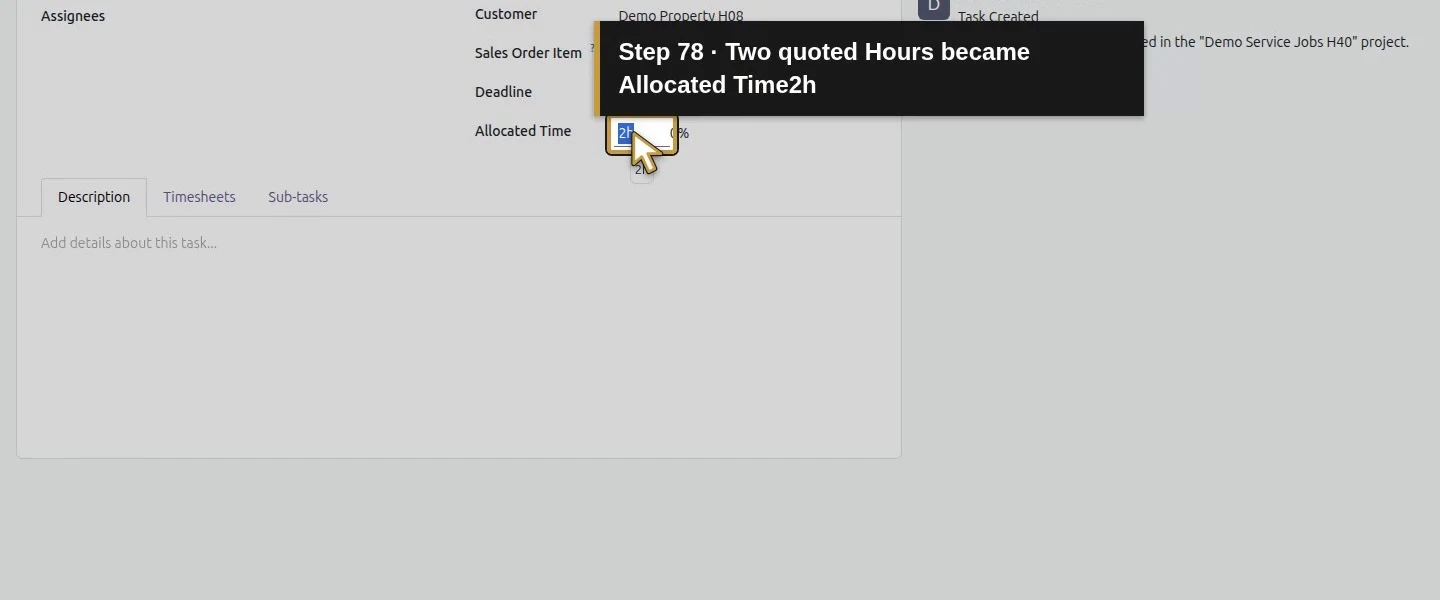
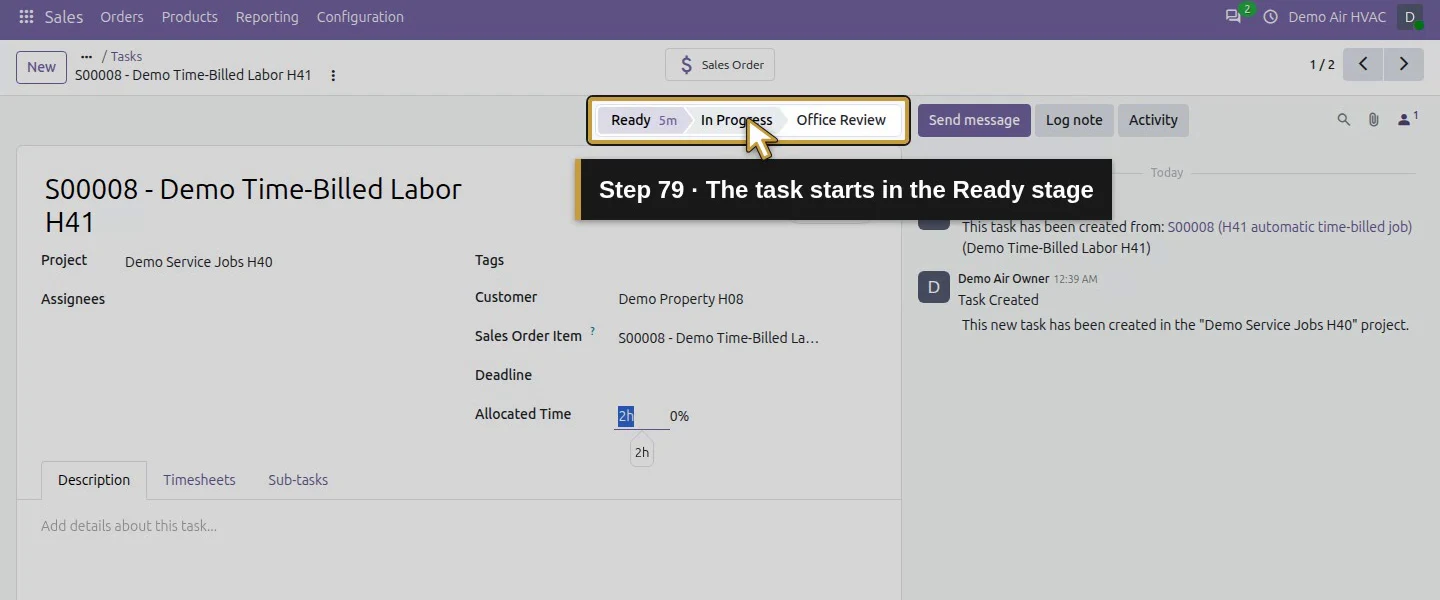
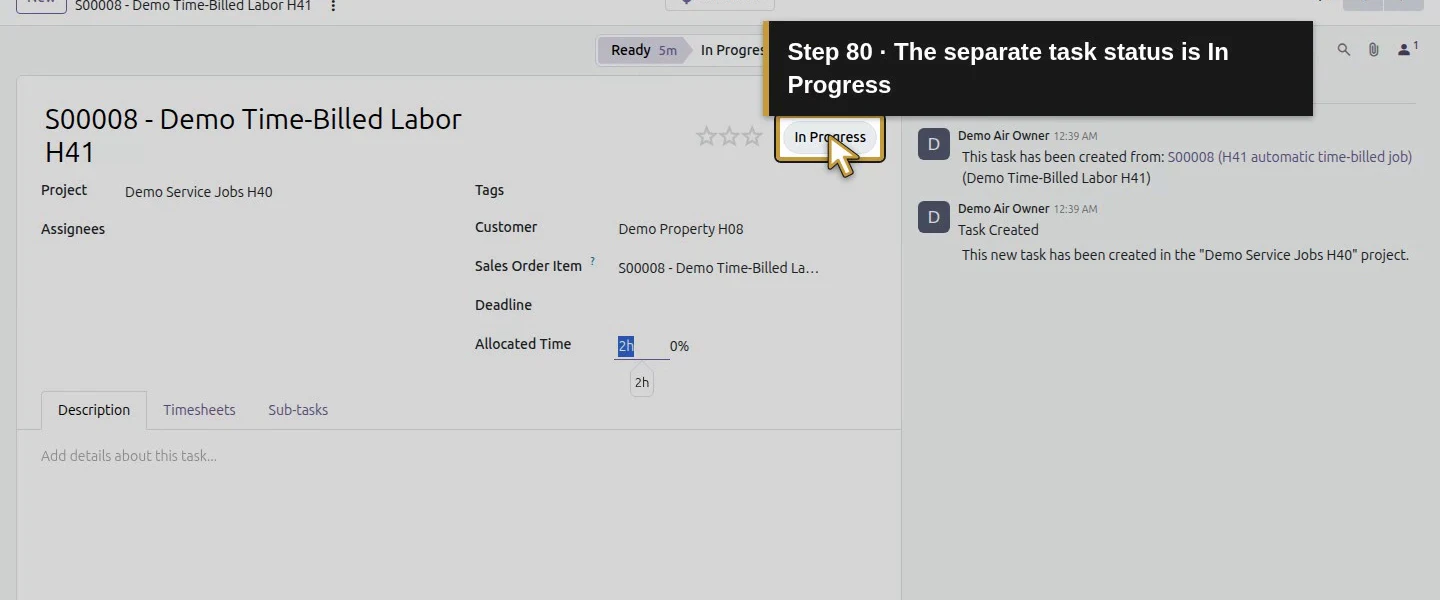
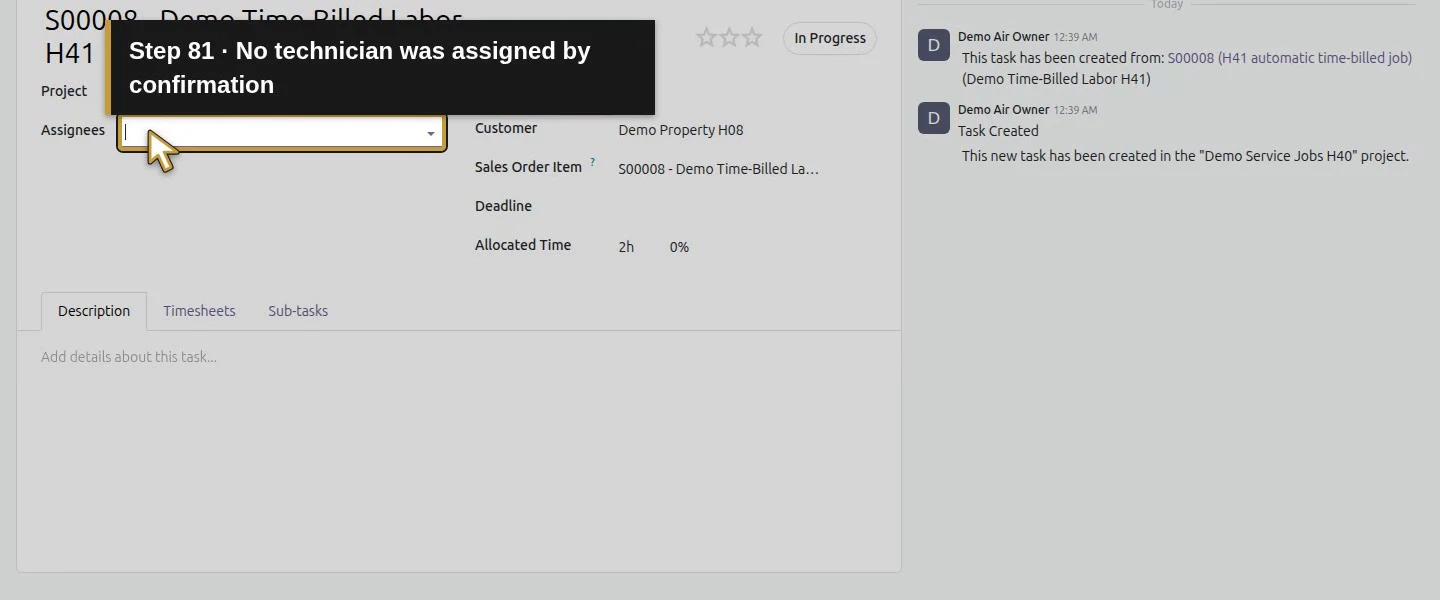
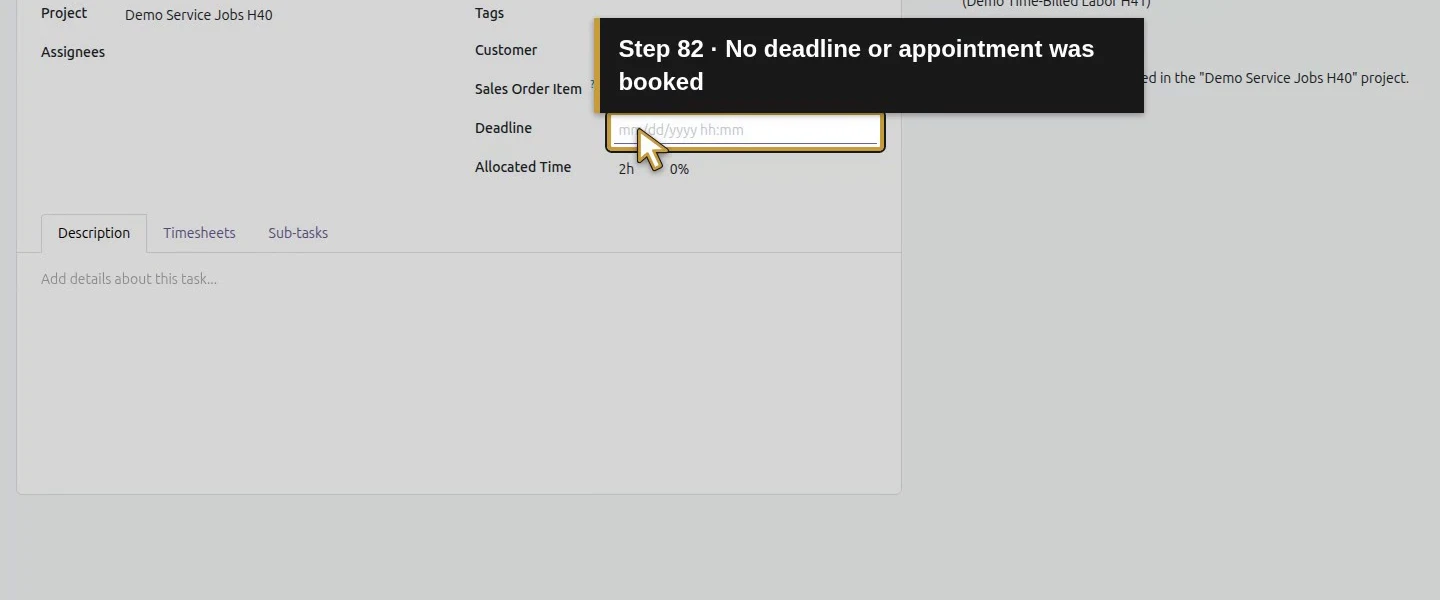
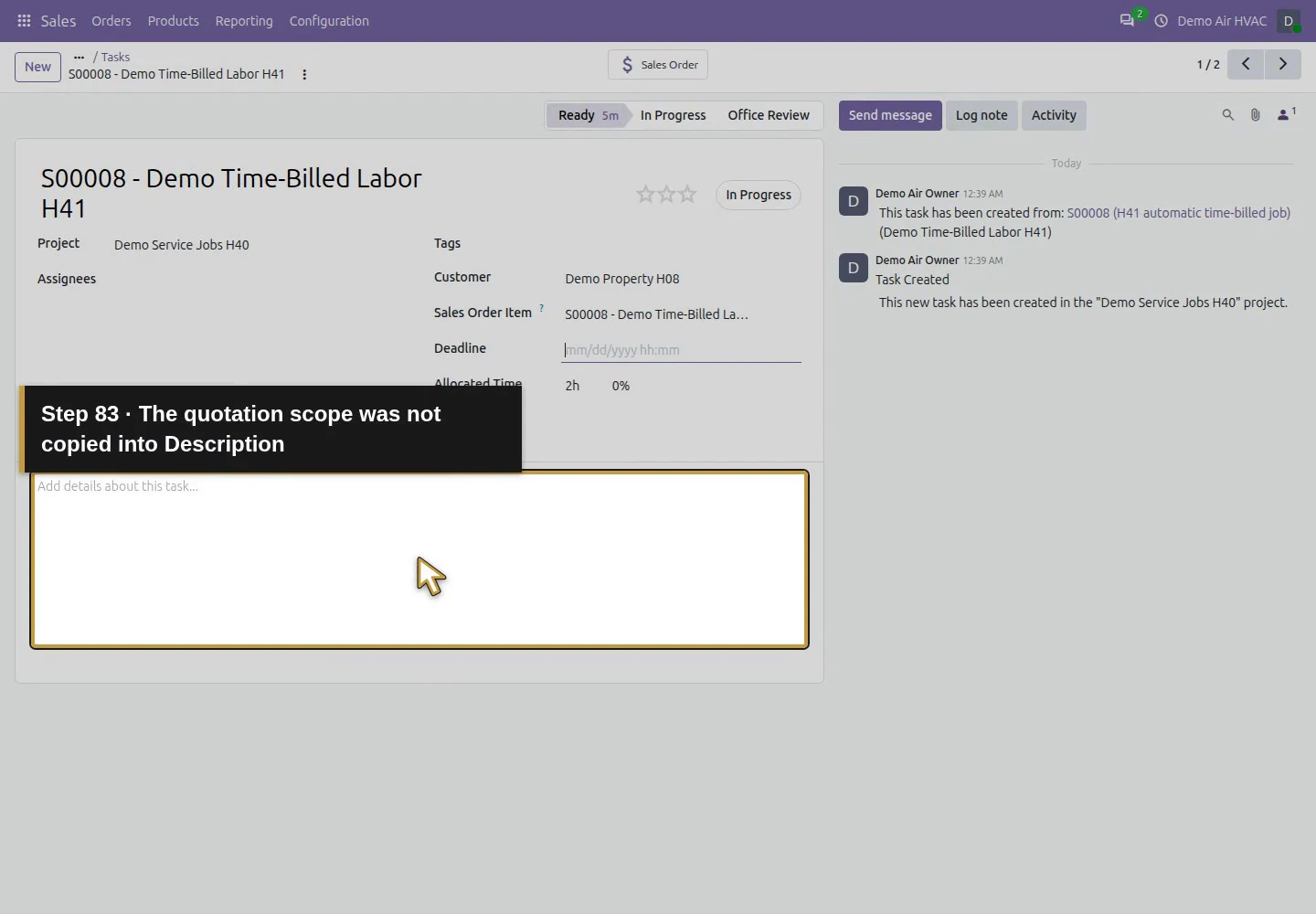
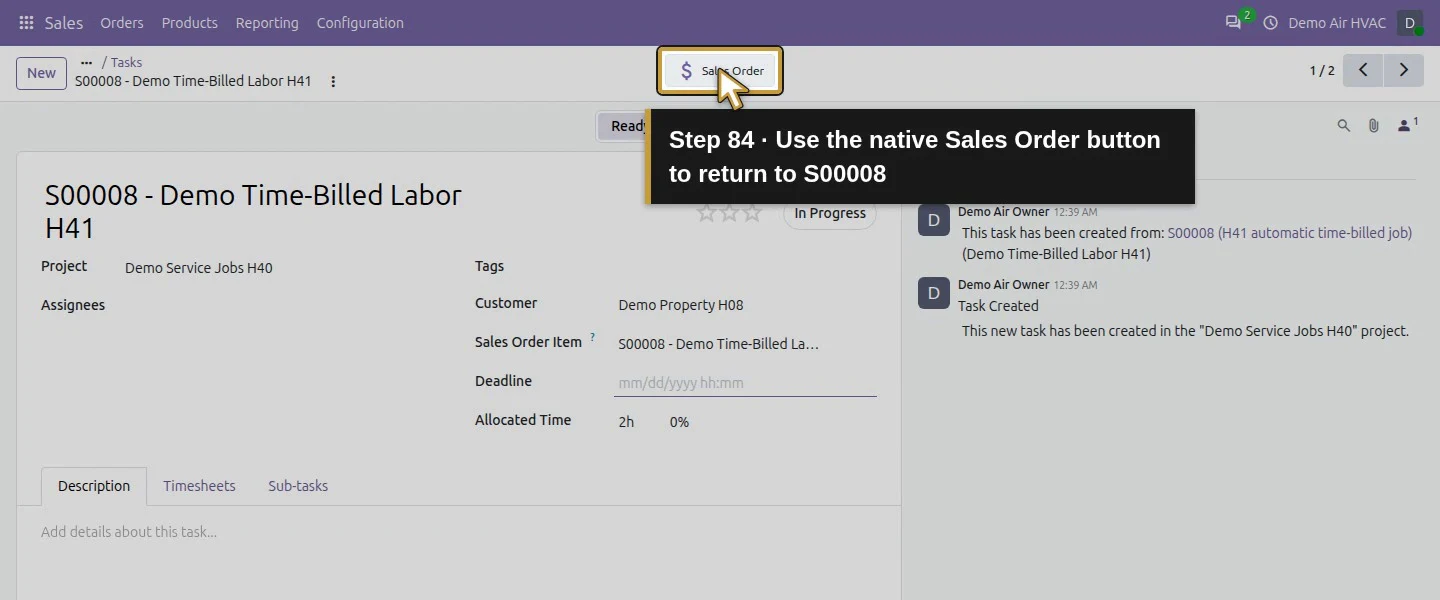
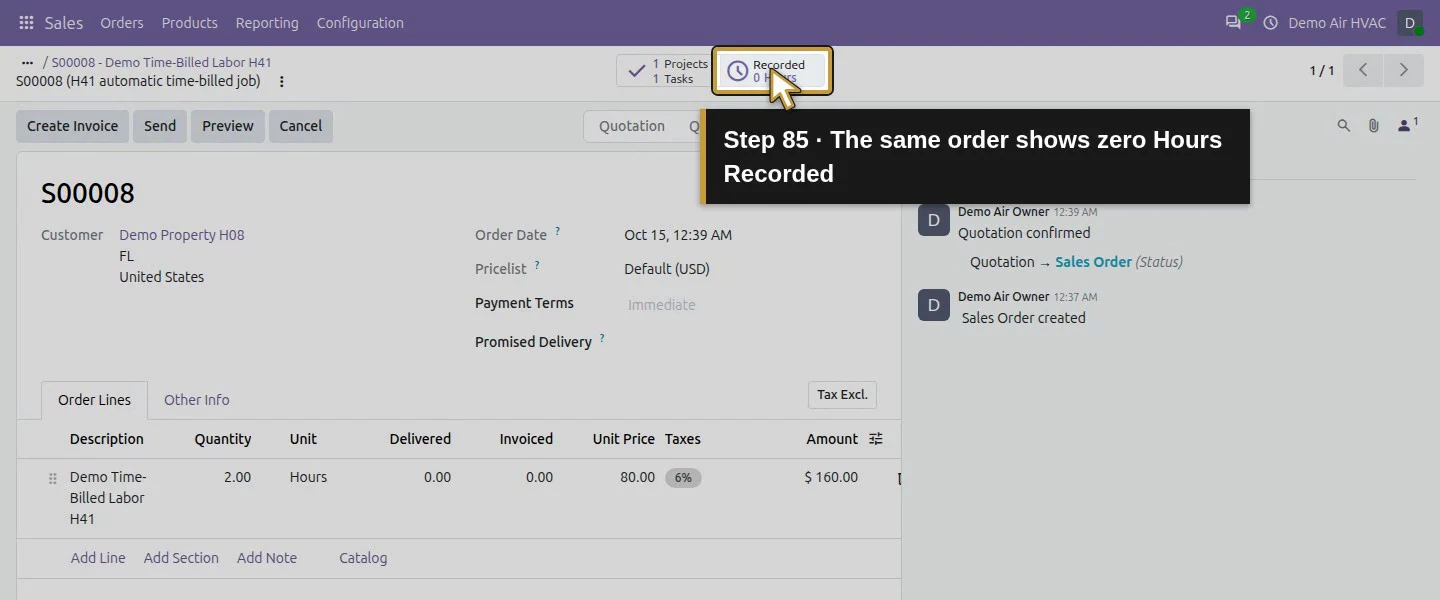
The generated task has Allocated Time: 2h, stage Ready, status In Progress, and empty Assignees, Deadline and Description. The quotation's scope note was not copied into Description, and the task's Customer is the parent contact rather than the service-address record. Use Sales Order on the task to return to S00008. It shows 0 Hours Recorded; Delivered, Invoiced and quantity to invoice remain zero. Reopen the generated task and reload it: the same task remains linked, with no second task created by browsing.
Two quoted Hours became Allocated Time2h.The task starts in the Ready stage.The separate task status is In Progress.No technician was assigned by confirmation.No deadline or appointment was booked.The quotation scope was not copied into Description.Use the native Sales Order button to return to S00008.The same order shows zero Hours Recorded.Delivered and Invoiced quantities remain zero.Open the same Projects and Tasks link again.Reopen the same generated task rather than creating another.Reload retains the same single linked task with2h allocated.
Check the result
One owner confirmation of S00008 created task 6 in the existing Demo Service Jobs H40 project, linked to the same order and sales line. The two quoted Hours became allocated time; recorded/delivered/invoiced time remains zero. Reopening retained the same task. The existing manual task, H11 fixed-price products, signed service order and partial parts delivery are preserved. No new project, customer invoice, payment or stock picking was created by this service confirmation.
If your screen differs
If the project is missing from the product selector, check its native Billable setting; in this test enabling it made the existing project available. Check the actual sold product and saved Create on Order setting before confirming a new sale. H11's Nothing setting did not generate tasks even for its Hours-based labor line. This test does not establish retroactive task creation after editing a product, cancellation/reconfirmation behavior, task templates or the Project & Task path. A created task still needs instructions, assignment, deadline and appropriate user access. Based on Timesheets is saved configuration here; recording time, invoice quantities and financial results require their own later verification.
Frequently asked questions
How do I create an Odoo task automatically from a sales order?
Configure a Service product with Create on Order: Task and choose the intended existing Project, then save before confirming a new quotation. Our billable project became selectable after its Billable setting was enabled. One owner confirmation created one task with the customer and Sales Order Item link; reopening retained that same task.
Why did confirming my Odoo quotation not create a task?
Check the actual service product sold, its saved Create on Order choice, target project and installed official integration. The earlier H11 products used Nothing and generated no task, including the labor sold in Hours. The dedicated H41 product was configured before its new quotation was confirmed. This test did not establish a retroactive creation procedure for old orders.
Does setting an Odoo product to Hours enable timesheet billing?
Hours is the unit. H11's hourly labor kept a fixed-price/ordered-quantity policy. For H41 we separately selected Based on Timesheets and a billable timesheet-enabled project. Confirmation allocated two Hours but recorded none, with zero delivered and invoiceable quantity. Actual-time recording and invoicing remain later checks.