
Running an HVAC business with Odoo
How do I back up my HVAC business files and email?
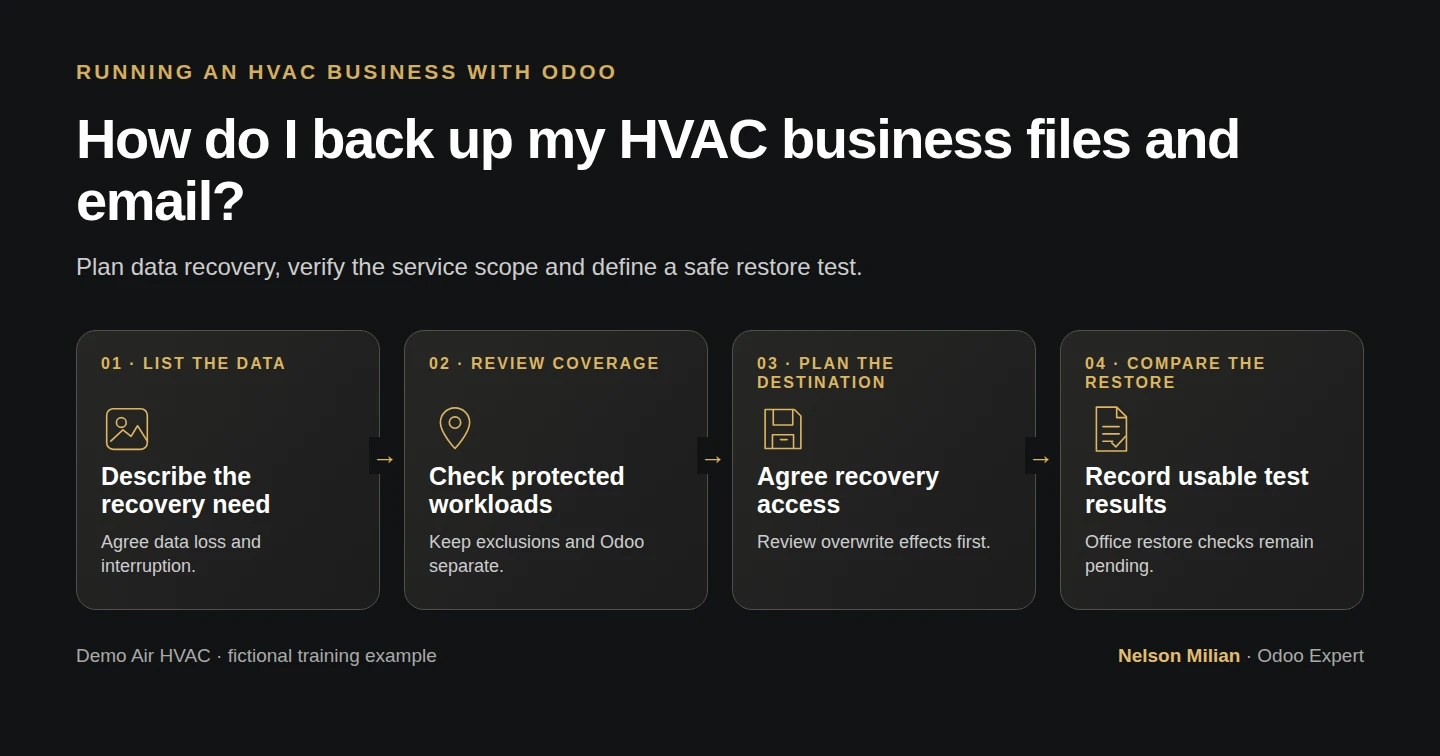
Plan backups for HVAC job files, email, device data and Odoo, with coverage questions, recovery responsibilities and safe restore checks.
Planning document checked on October 15, 2026. The supplied worksheets, source passages and cited H72 evidence have been checked. Office backup coverage, service configuration and new restore tests remain pending.
Start business data backup planning with the work you need to recover. Job documents, billing files, service email and information stored only on a device can need different coverage. A successful backup-job report does not tell you whether the required item can be restored in usable form.
Alex Rivera and Demo Air HVAC are fictional training examples. Alex is planning recovery for the office and field team. No backup provider, subscription, storage location, policy or recovery promise is selected by this lesson.
The output is a workload and recovery-check worksheet. H72's separate Odoo guide already demonstrated one manual database-and-filestore copy restore; it did not configure ongoing office/cloud backup or independent offsite storage. This lesson preserves that distinction and performs no new restore.
Before you begin
Have the office-opening requirements, device plan, mail/file plan (guide coming later) and security responsibilities available. The business platform, actual data locations and responsible people still need decisions.
Download the blank recovery worksheet and filled Demo Air example. Both have eight matching requirement IDs and 17 columns. Open the CSV in your preferred spreadsheet application and save a private working copy. Keep backup archives, credentials, recovery keys and real company/customer data outside the tutorial.
The document checks do not test spreadsheet controls or a backup console. No live service, policy, scheduled backup or restore is configured here. Odoo references retain their stock Odoo 20 Community scope, without Enterprise or customization.
Prepare the backup and recovery plan
Step 1. List the data and the work it supports
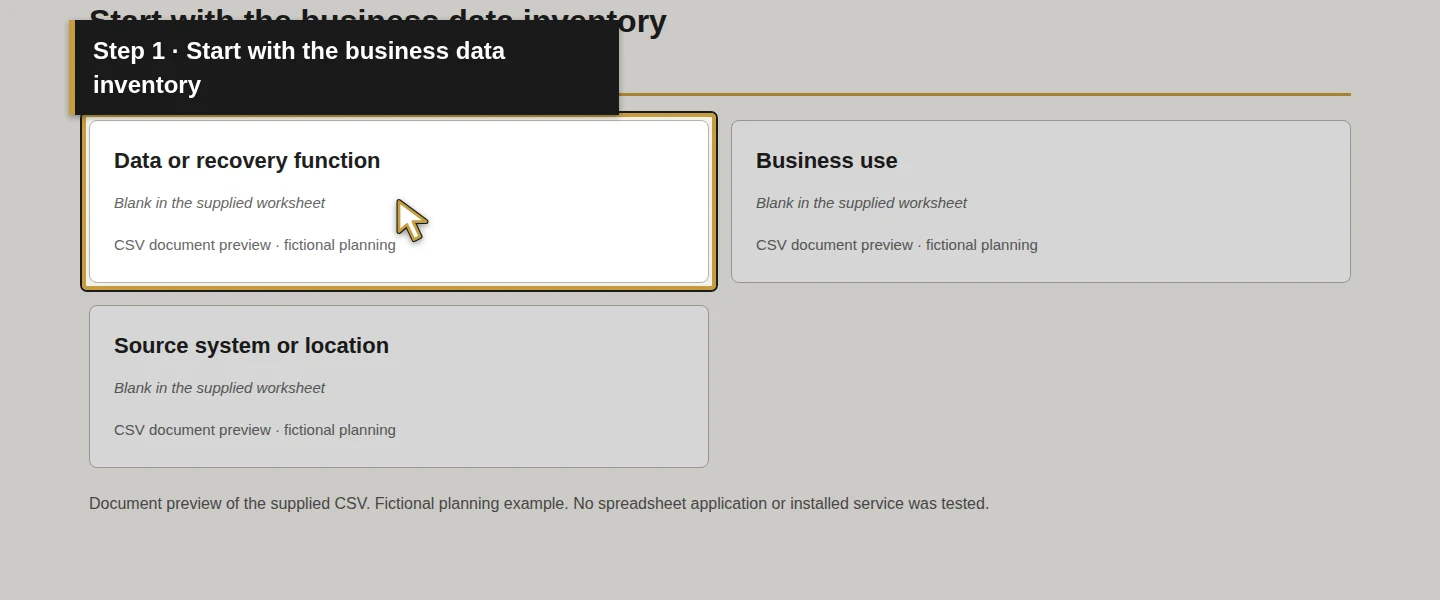
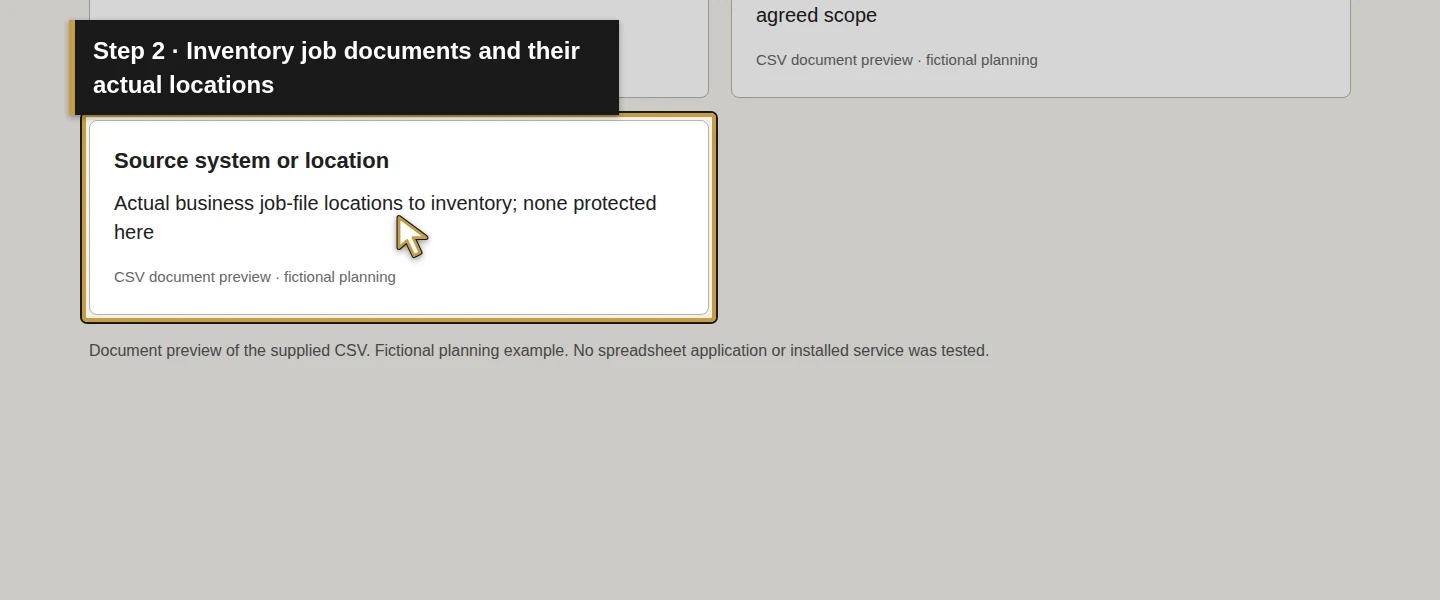
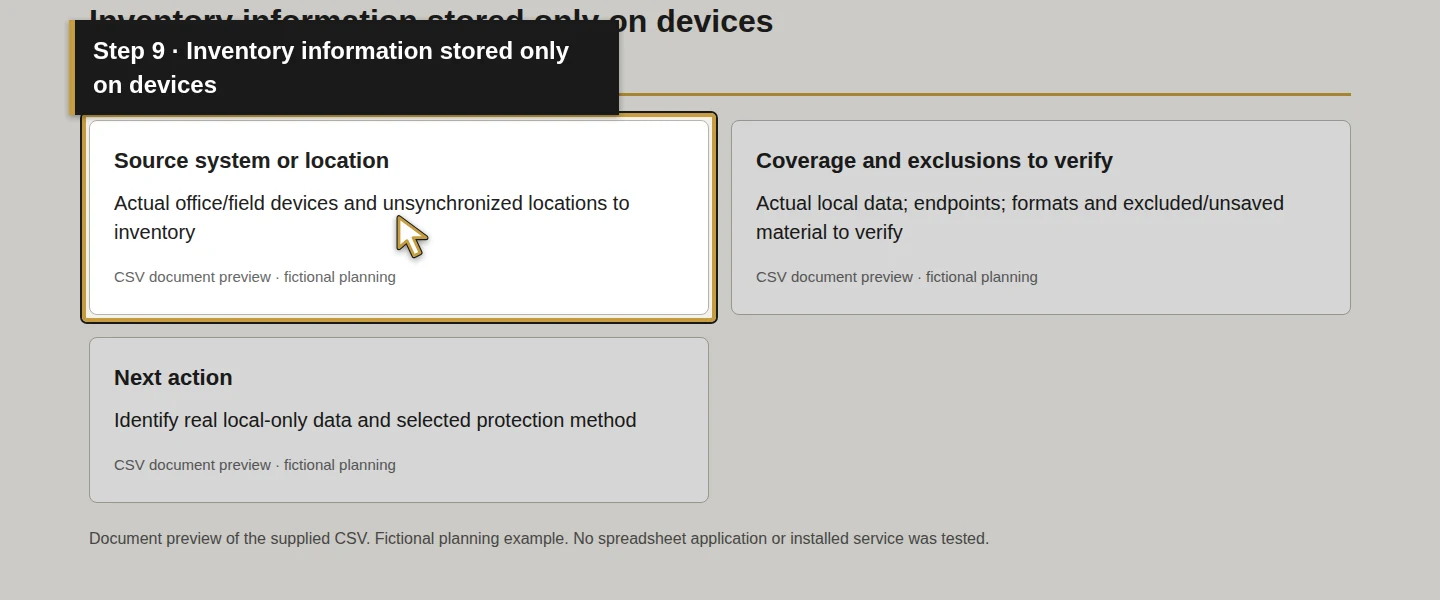
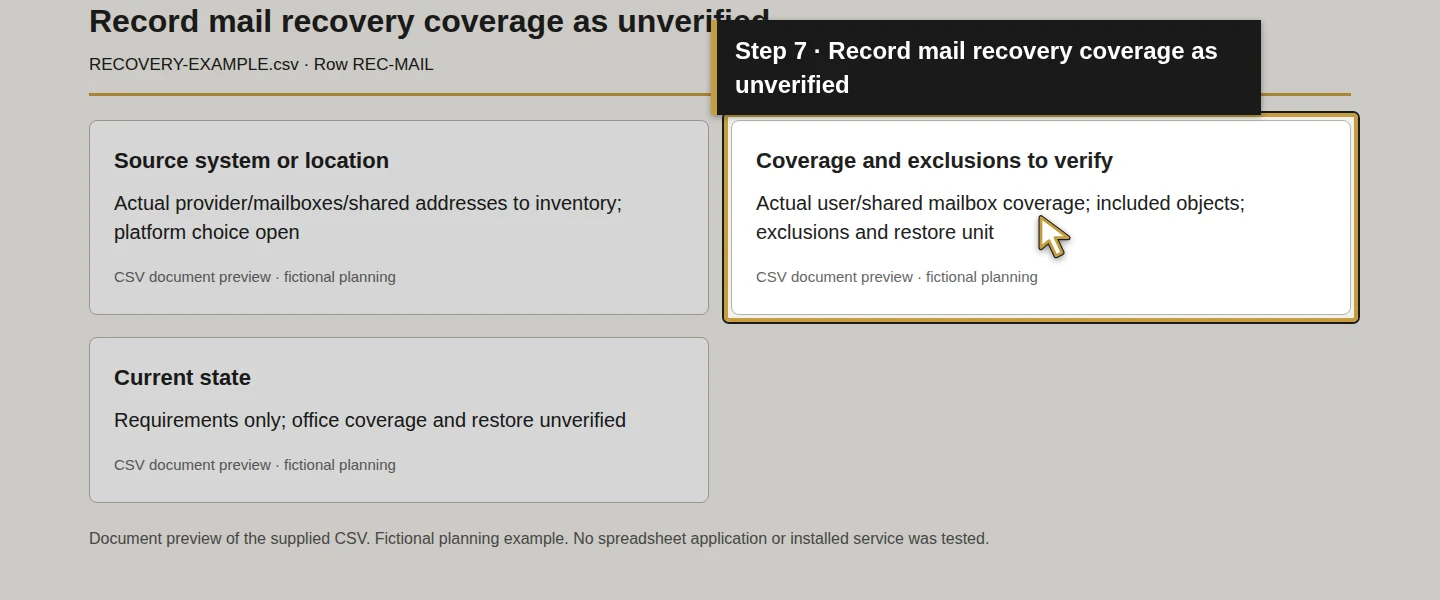
Use Requirement ID, Data or recovery function, Business use and Source system or location to identify the recovery scope. The example has REC-JOBS, REC-FINANCE, REC-MAIL, REC-DEVICE, REC-ODOO, REC-ACCESS, REC-INTERRUPTION and REC-TEST. Rows are requirements, not eight protected systems or purchased services.
Separate job/finance documents, mail and device-only information. Confirm which business accounts and locations actually hold the material. An online folder does not inventory every mailbox, device or local file. NIST's recovery guide connects resource priorities with realistic recovery scenarios.
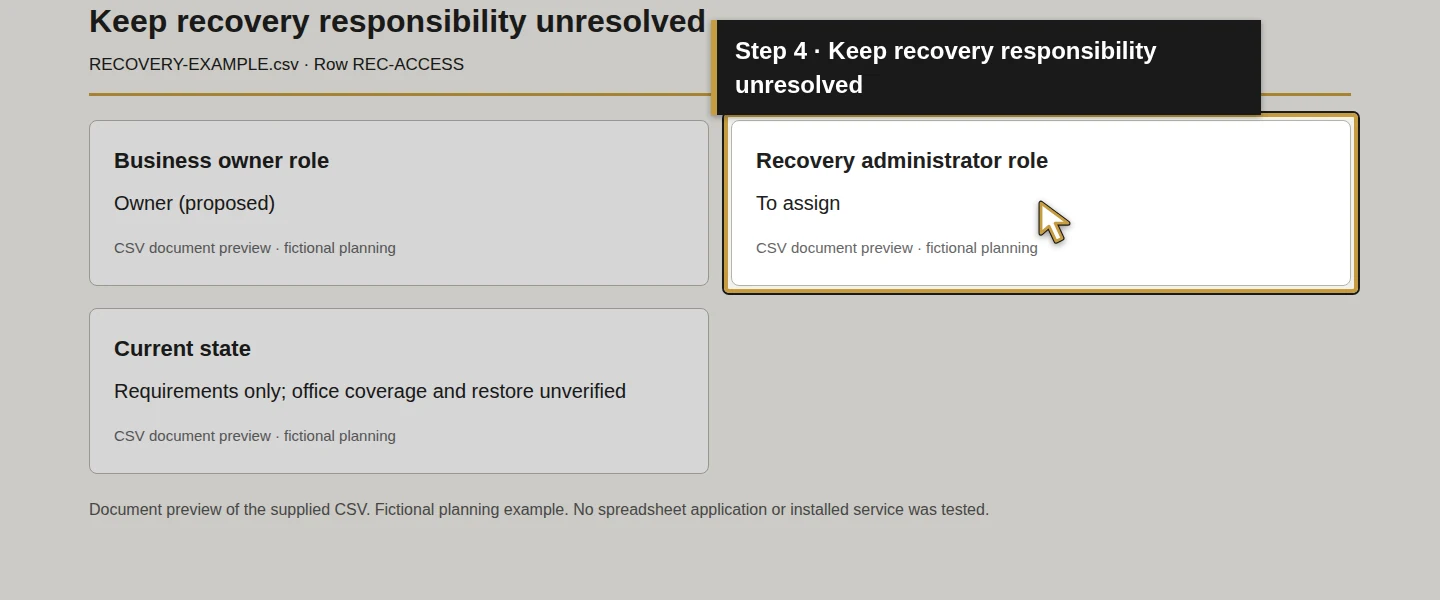
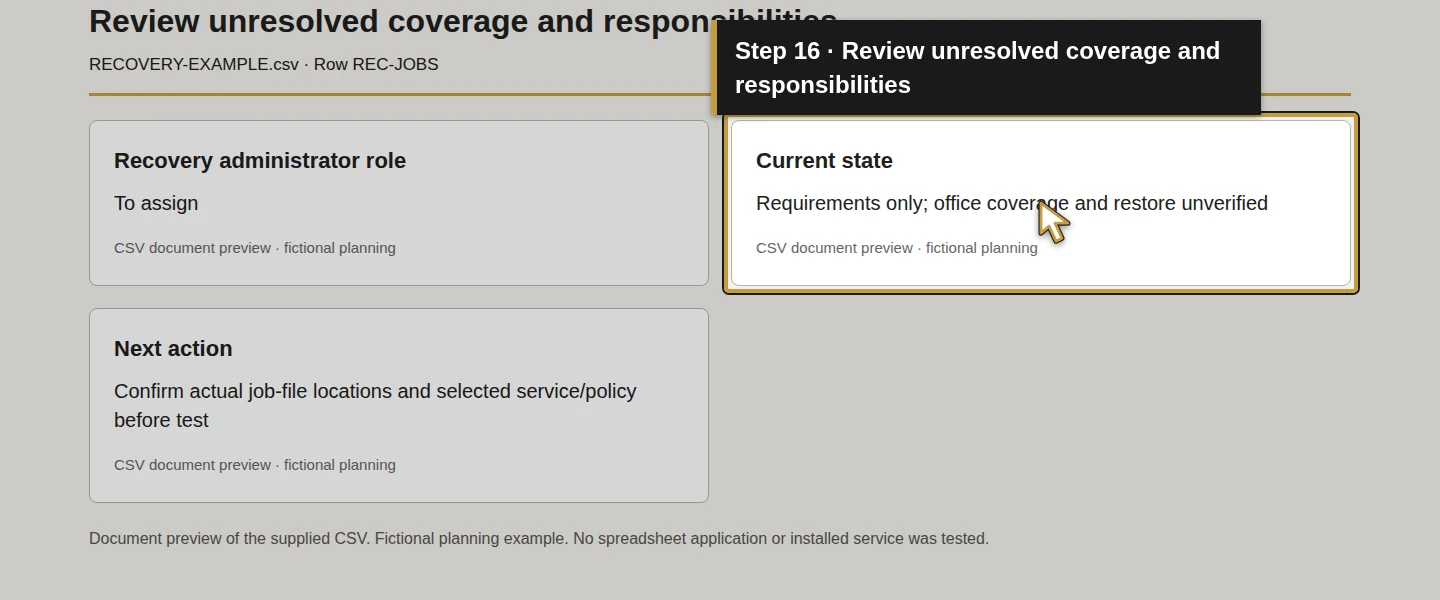
Complete Business owner role and Recovery administrator role. The example proposes an Owner role and leaves every recovery administrator To assign. Actual coverage and responsibility must still be agreed.
Step 2. Agree the acceptable data loss and interruption
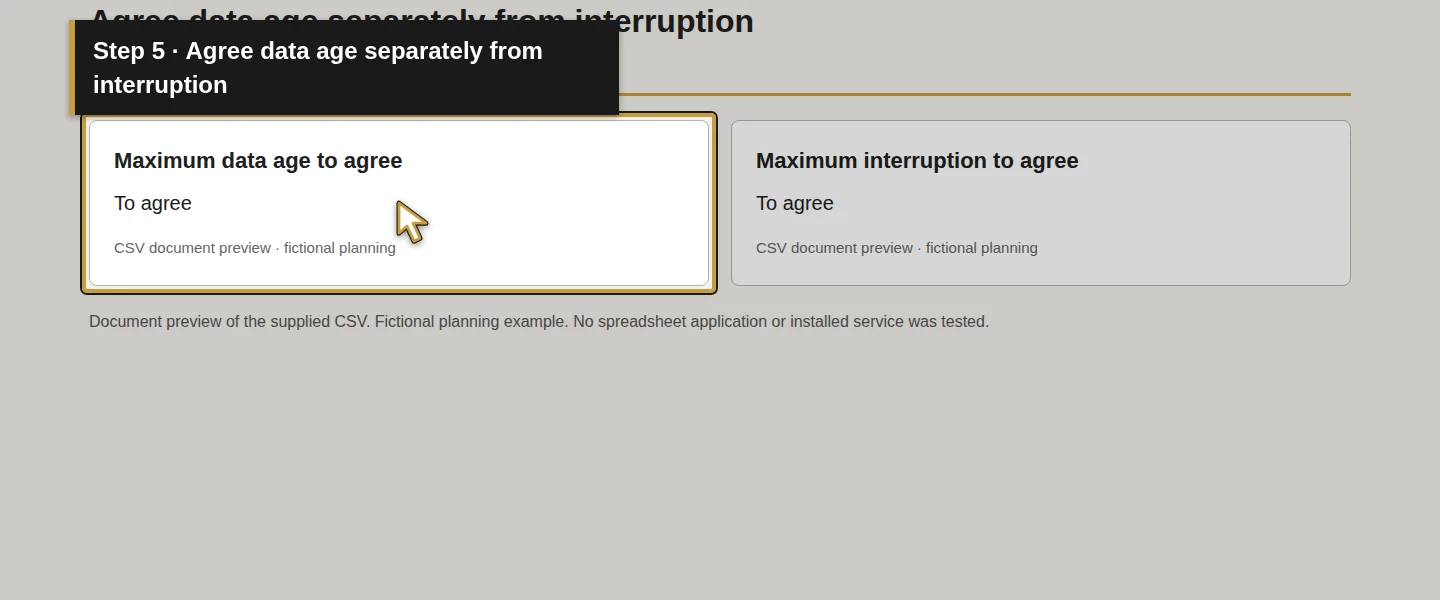
For each workload, complete Maximum data age to agree and Maximum interruption to agree with the business's requirements. Distinguish how old recovered information may be from how long work may be interrupted.
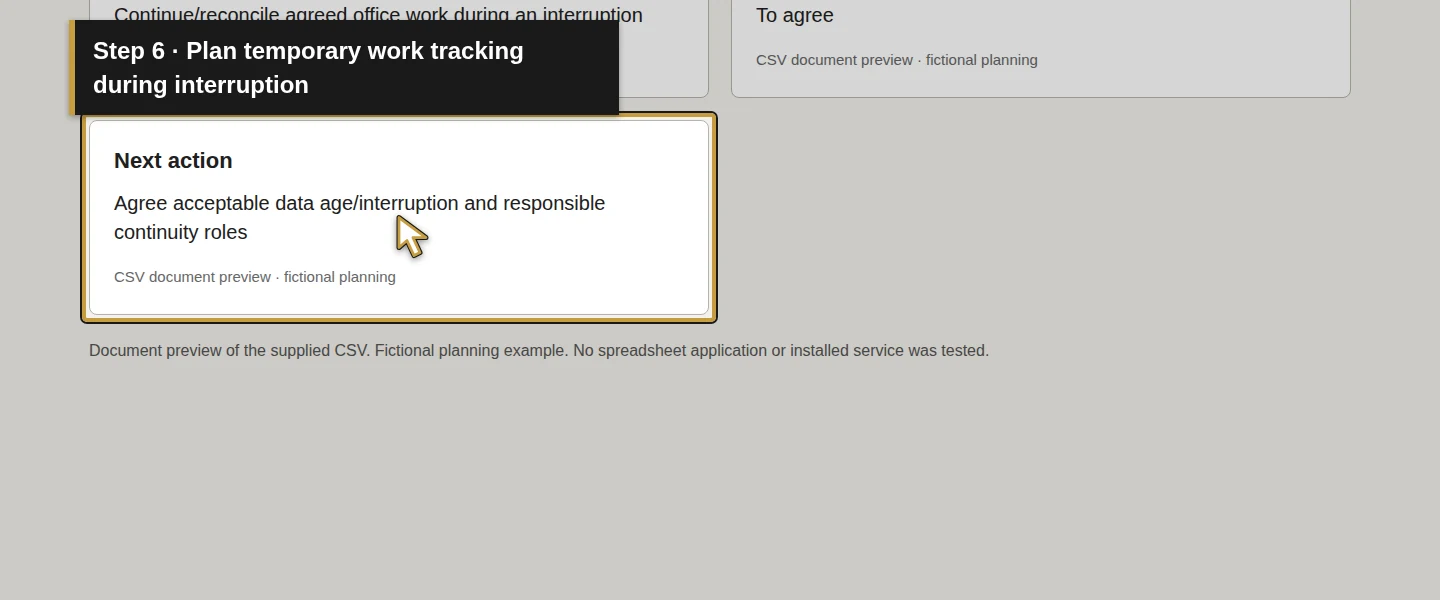
Both example fields say To agree. They are planning inputs, not achieved recovery points, measured recovery times or an Onward service promise. Use REC-INTERRUPTION to record how the office would track urgent work while a system is unavailable and how it would reconcile that temporary record afterward.
Do not apply one arbitrary frequency or recovery target to every data class. Have the responsible people compare their requirements with the selected service's actual capabilities and written scope.
Step 3. Check the actual protected workloads and exclusions
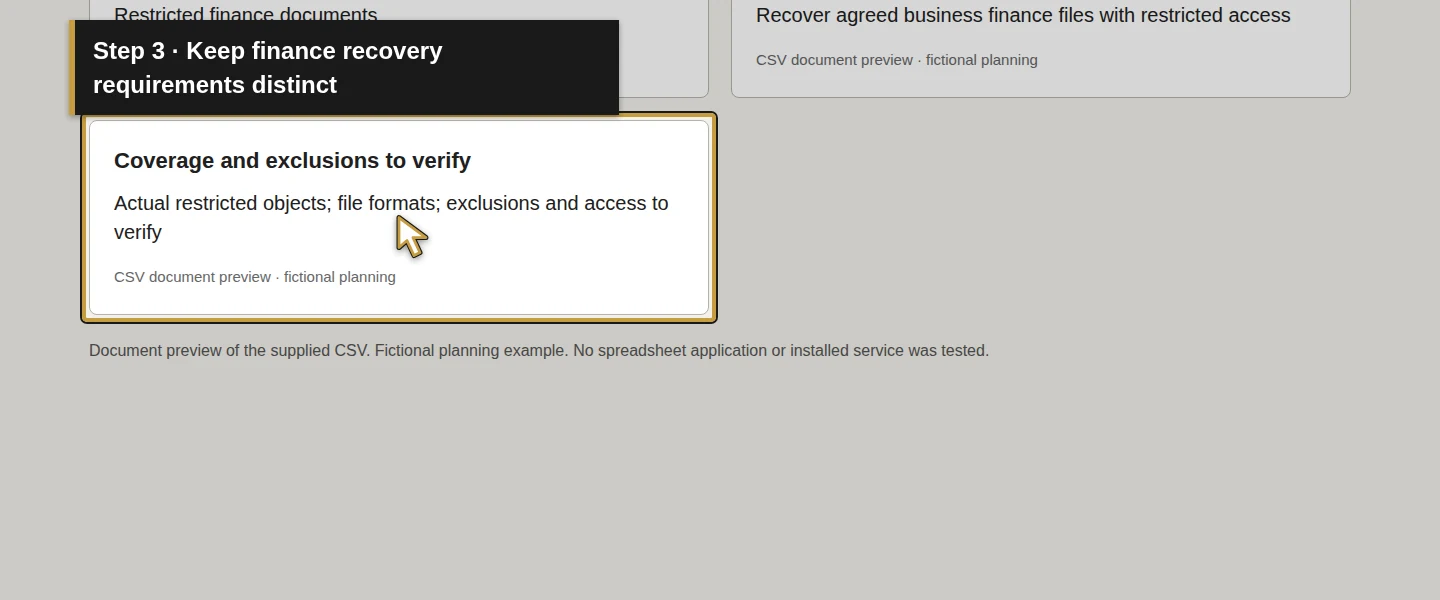
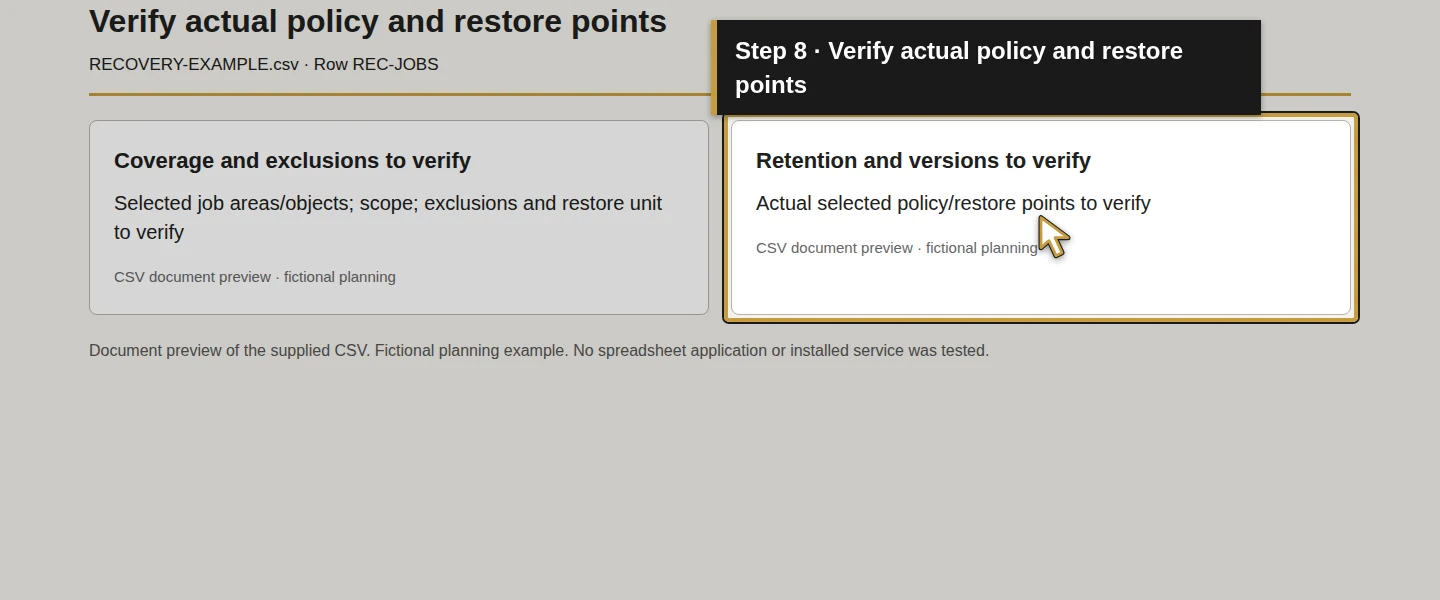
Use Coverage and exclusions to verify and Retention and versions to verify for the selected service, policy, protected objects, available restore points and relevant exclusions. Until those are confirmed, keep coverage unverified.
For a provider-specific example, Microsoft 365 Backup documents distinct SharePoint, OneDrive and Exchange workloads and restore scope. Its documented product scope does not select it for Demo Air, establish that a subscription includes it or prove protection is enabled. Check the actual policy and needed restore granularity; an individual item and a whole account/site are different recovery operations.
Shared availability is also different from recovery after deletion. Microsoft's OneDrive guidance describes a shared-item deletion affecting everyone. Evaluate deletion, overwrite and loss-of-access scenarios against the chosen service. A synchronized folder, prior version or recycle bin should not be assumed to meet the required recovery scope or duration.
Step 4. Define recovery access and a safe destination
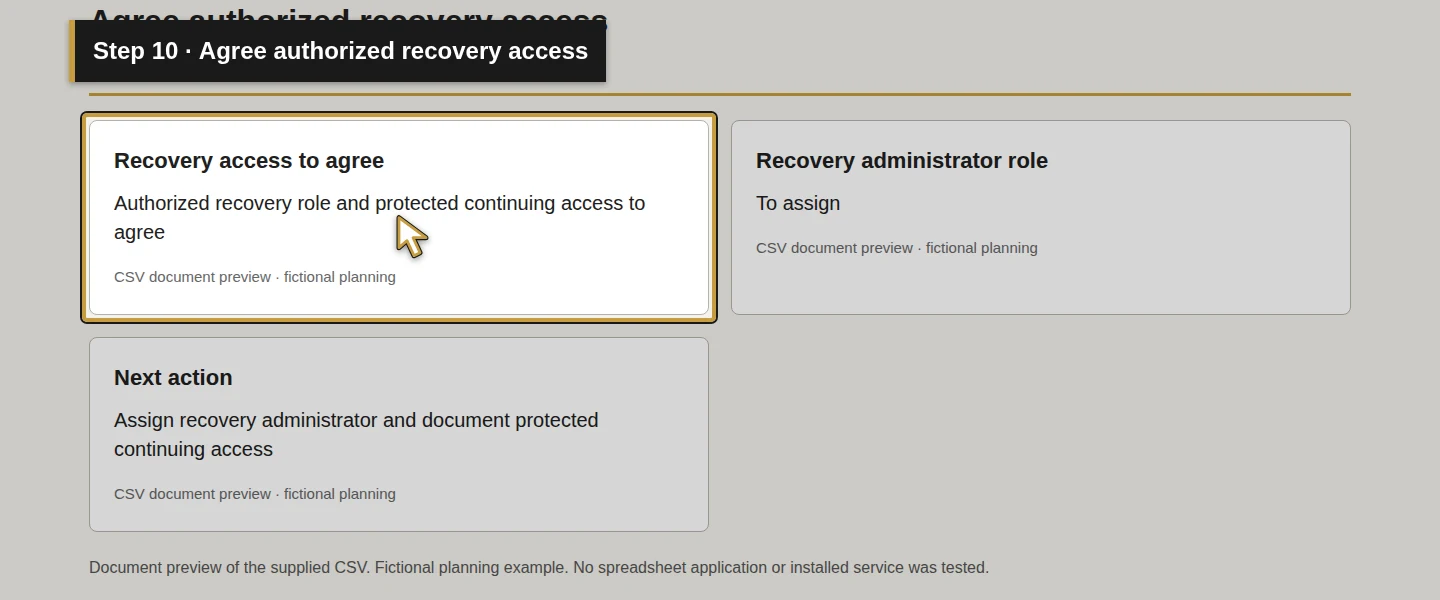
Use REC-ACCESS and Recovery access to agree to specify who may initiate and verify recovery, where protected access information is maintained and how an authorized person retains access if the usual sign-in is unavailable. The security companion handles the separate protection requirements; this row records no account or credential.
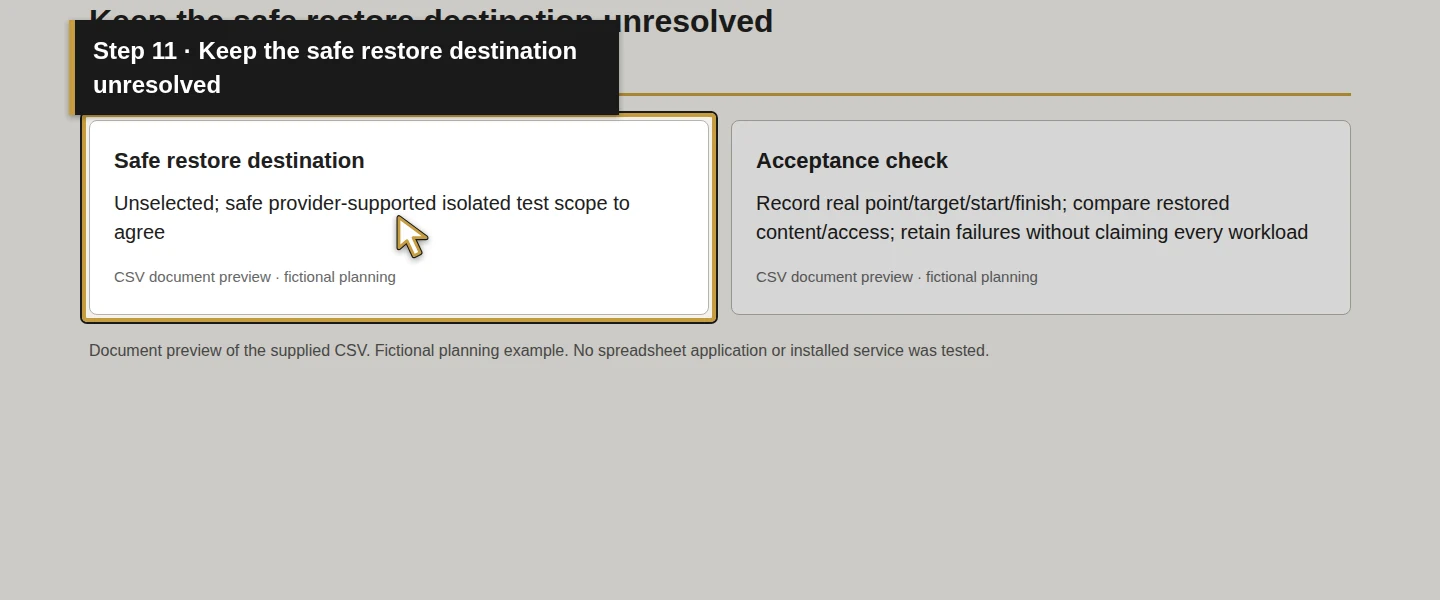
Complete Safe restore destination before the test. Have the administrator verify the chosen service's available target and any overwrite/permission effects. Microsoft's backup documentation includes rollback operations that overwrite newer content; that is a specific reason to inspect the operation before using it.
Use a provider-supported isolated test scope and synthetic data. If a suitable destination or safe procedure is unavailable, leave the test pending. This tutorial does not overwrite a working site, mailbox, device or database to obtain a result.
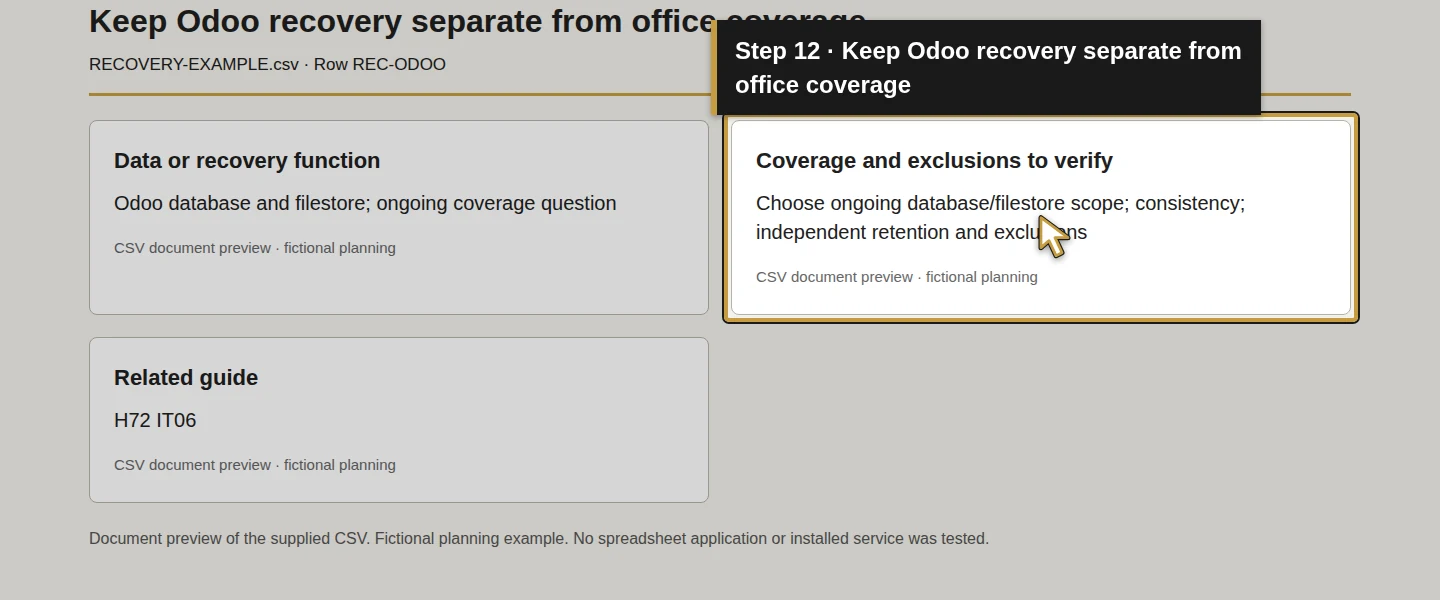
Step 5. Keep Odoo recovery separate from office/cloud coverage
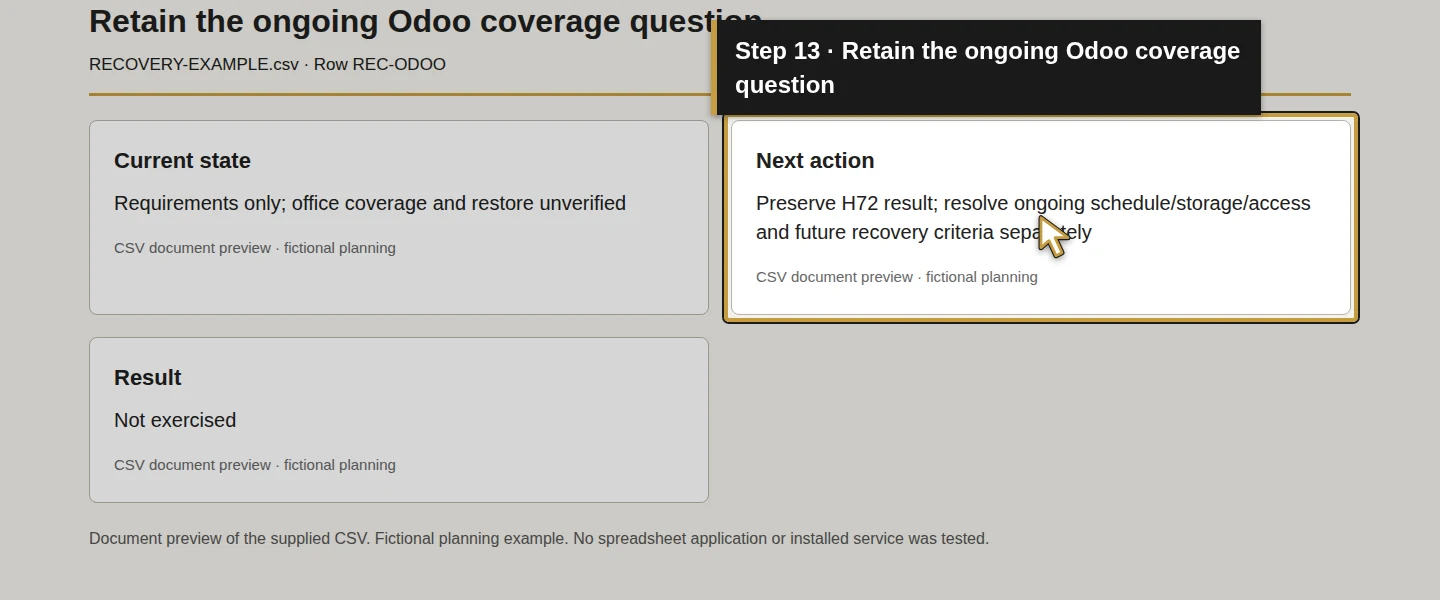
Use REC-ODOO to record the database and filestore requirement and link to H72: Odoo backup and restore (guide coming later). Its retained evidence proves one native ZIP and an isolated, same-version copy restore, including the original attachment and all 510 filestore files. The original business was preserved.
That result is historical evidence from H72, not a restore performed in this lesson. It establishes neither an automatic backup schedule nor independent offsite retention. The REC-ODOO row keeps ongoing coverage, responsible people and future verification open.
The separate record-export guide exports selected business records. That output is not the database-and-filestore package tested in H72 and does not establish a complete application restore. Do not substitute a spreadsheet export for the required recovery artifact.
Step 6. Specify a representative restore and comparison
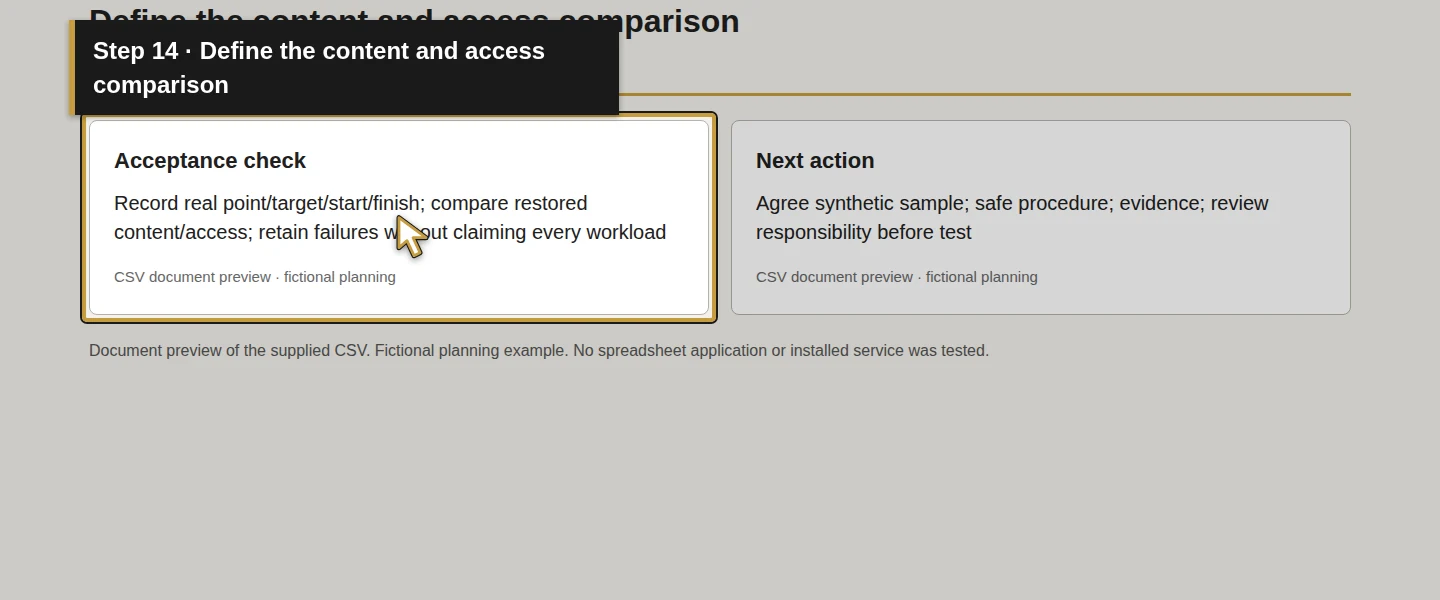
Use REC-TEST and Acceptance check to define a controlled test after the service is selected and configured. Choose a synthetic file or mailbox item at the granularity the actual provider supports. If a whole site/account is the restore unit, prepare a safe isolated scope and confirm the impact before proceeding.
Record the protected source, restore point, destination and actual start/finish evidence. For a file, open it and compare the required content; use a byte/hash comparison where appropriate. For a synthetic email item, compare the expected message and attachments. Check that the intended role can use the restored result. A submitted restore request or a green backup status is not that comparison.
Keep the observed result separate from the business's requested timing. A successful sample does not establish every workload, all data or a contractual recovery target. Record failed checks and the next action.
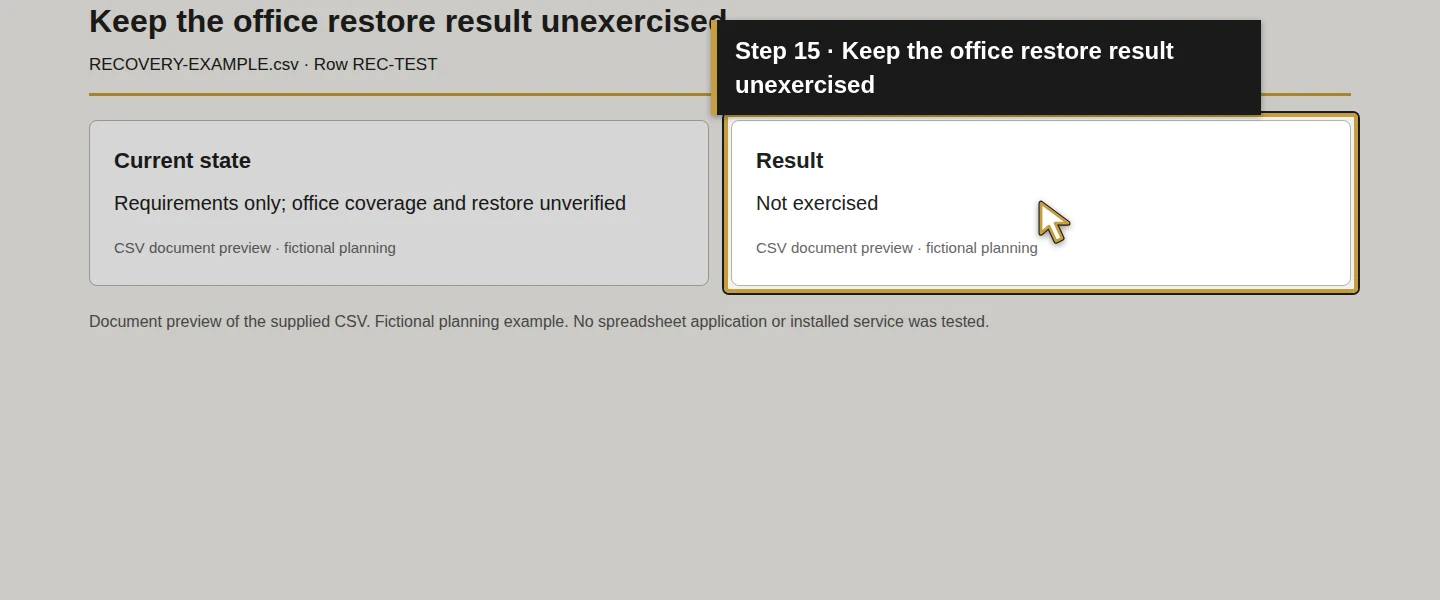
No office file, mailbox, device data or Odoo restore is performed in this lesson. All example Result values remain Not exercised for this plan's acceptance requirements. H72's existing scoped test remains separately passed.
Step 7. Save, reopen and review the outstanding work
Save and reopen the working copy. Review the data locations, requested recovery requirements, verified service scope, responsible roles, access, destination and test evidence together. Use Current state, Next action, Result and Related guide to keep unresolved work visible.
Every filled example Current state is Requirements only; office coverage and restore unverified. The blank download retains only the eight requirement IDs. A completed example row is not an enabled backup policy or a recorded restore outcome.
Before treating implementation as accepted, have the responsible person resolve coverage and access, run the appropriate controlled checks and record their actual outcomes. Arrange ongoing review of failures and changes to systems/data. No automated job or monitoring service is enabled by this document.
Check the result
You have a plan for the data, business recovery needs, service-coverage questions, responsible roles and restore acceptance evidence. Actual protected coverage, retention, access and office restore results remain unverified. The original requirement for a recorded restore when implementation occurs remains open.
If something does not match
If a required workload or restore granularity is missing, keep the coverage gap open rather than accepting an unrelated successful job. If an item restores but cannot be opened by the intended role, record the content/access failure and leave acceptance unresolved.
If a job reports success, compare the actual protected objects and restore points with the plan. A backup stored on the same computer also leaves a separate location/failure question to resolve. H72's native recovery check does not close that wider office/disaster-recovery requirement.
Frequently asked questions
How do I back up an HVAC company's files and email?
Inventory the mailboxes, shared/local files and applications, agree recovery needs and verify the actual service's protected objects, retention, restore scope and access. Then restore synthetic material to a safe supported destination and compare the result. This lesson supplies the plan; it configures no office backup and performs no new restore.Is cloud file synchronization enough for business recovery?
Check the required deletion, overwrite and access-loss scenarios against the selected system's actual recovery behavior. Shared/synchronized availability, version history or a recycle bin does not establish that your required content can be restored for the needed period. Record coverage and a representative restore instead of accepting the cloud icon as proof.Does an Odoo spreadsheet export count as a database backup?
The series' spreadsheet export contains selected records; H72 tests a separate database-and-filestore ZIP restore with an attachment check. An export alone is not that recovery package. H72's one manual test remains valid, while an ongoing backup schedule and independent offsite copy remain separate requirements.Continue building the business
Next, plan IT support responsibilities, including who reviews failed jobs and owns recovery decisions. Support scope and acceptance remain separate work.
Plan your office technology
Bring your data inventory, recovery requirements and coverage gaps to Onward to discuss the backup and recovery work to include in a written scope. Plan your office technology.