
Running an HVAC business with Odoo
How do I record technician skills in Odoo?
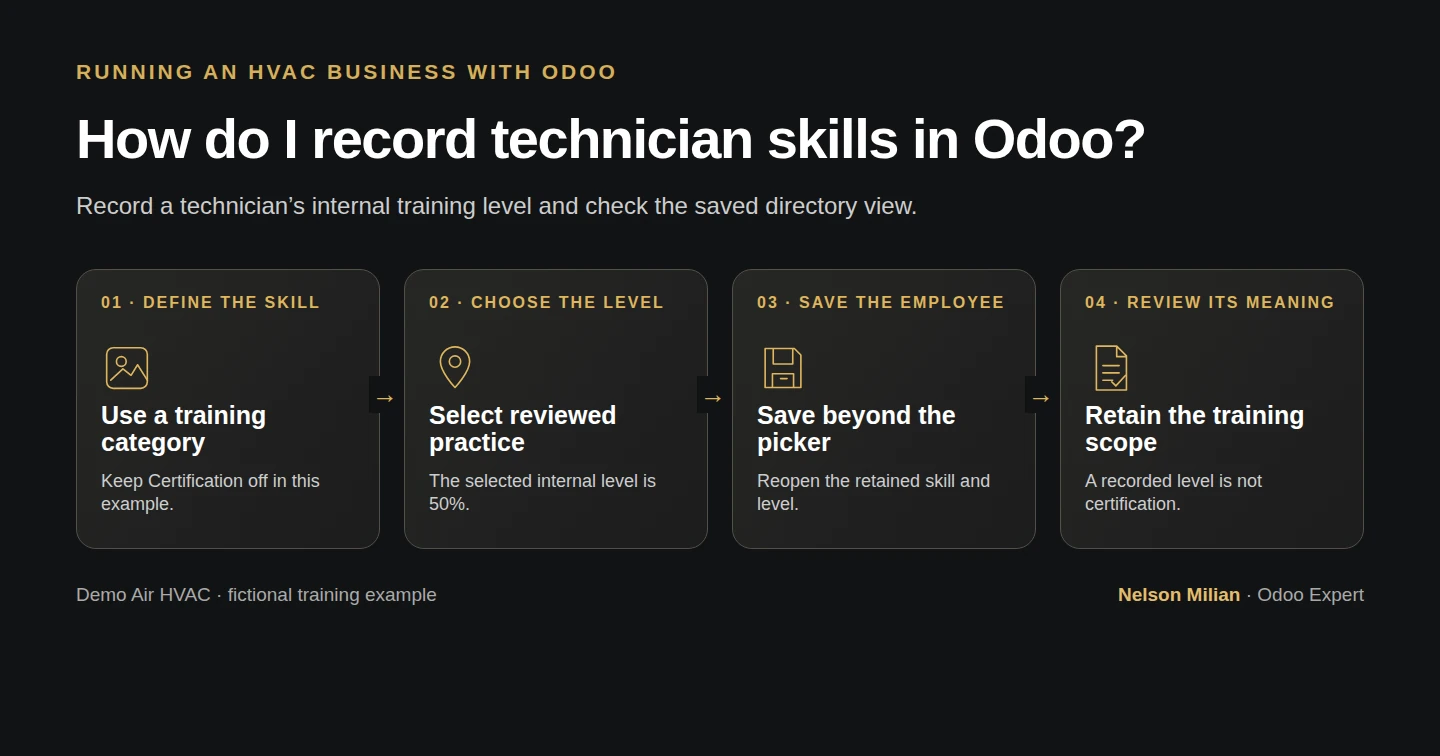
Record a technician skill with stock Odoo categories and levels, save the employee correctly and check the technician’s directory view.
Alex wants the office to find a technician’s recorded skills without confusing an internal training label with an external qualification. In this guide, the owner creates one fictional HVAC training skill, defines two internal levels and records the selected level on the existing technician. We save and reopen the employee, then check what the technician sees in the native directory.
Alex Rivera and Demo Air HVAC are fictional training examples. Prices, dates, quantities and business situations in this guide are illustrative.
Before you begin
Tested in stock Odoo 20.0-20260926 Community as the demo owner administrator, with official modules and standard configuration. Complete How do I create an employee record in Odoo? and How do I assign a technician and deadline to an Odoo task?. Reuse Demo Technician H42, linked to the existing technician user. The tested official Employees and Skills Management (hr_skills) modules are already installed; both are Odoo-authored LGPL-3 modules. The owner has existing HR administration access, while the technician retains the earlier Project User/Own Timesheets/basic internal-user access. No group is added for this lesson. Define these as invented training data only: category Demo HVAC Training H62, skill Service report practice H62, default level Practice H62 — 25%, and selected level Reviewed practice H62 — 50%. The percentages describe a fictional internal scale, not measured competence or progress toward a licence.
Step-by-step workflow
Step 1. Open the native skill-type configuration
As the owner, open Employees → Configuration → Skill Types, then click New. The existing library contains Languages and Soft Skills; keep those definitions intact. This configuration creates records in the shipped skills feature rather than adding a custom field or model.
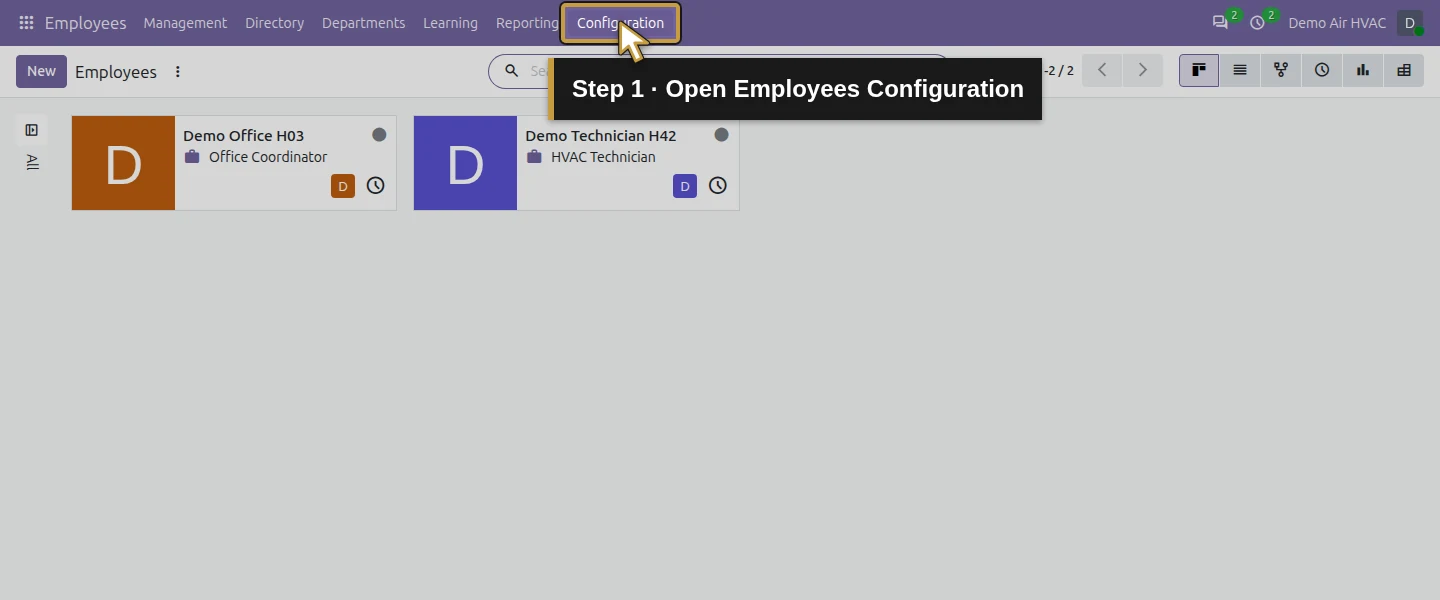
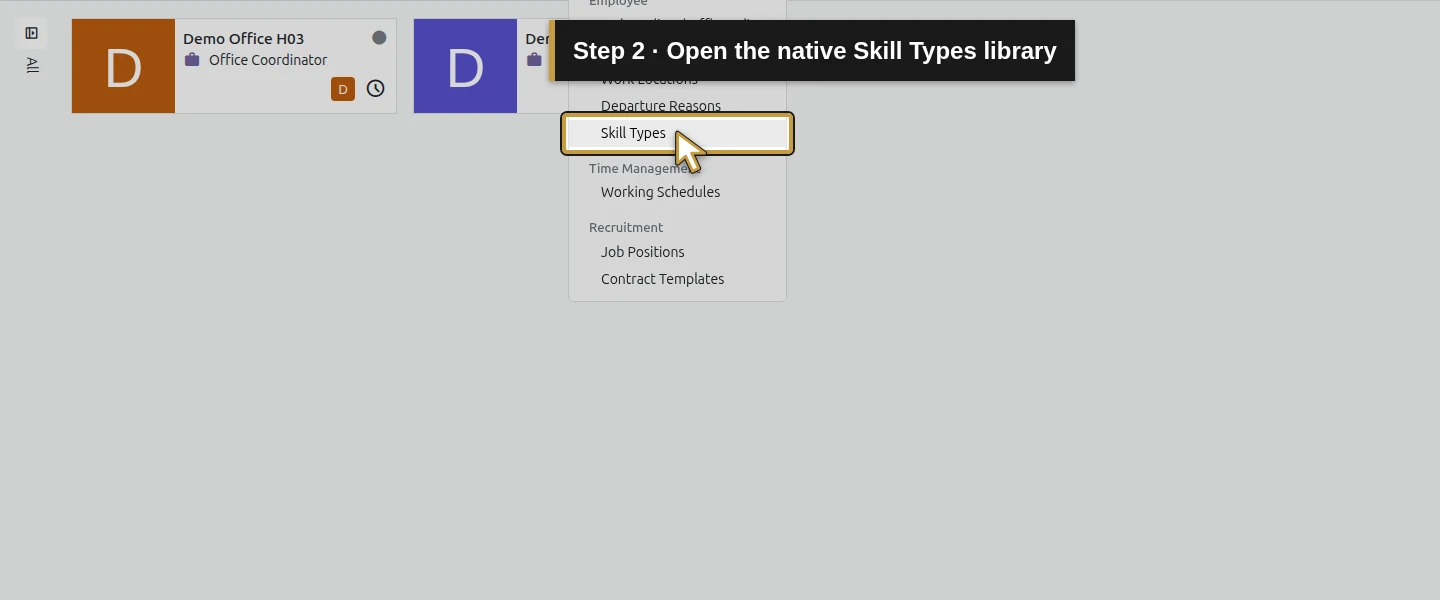
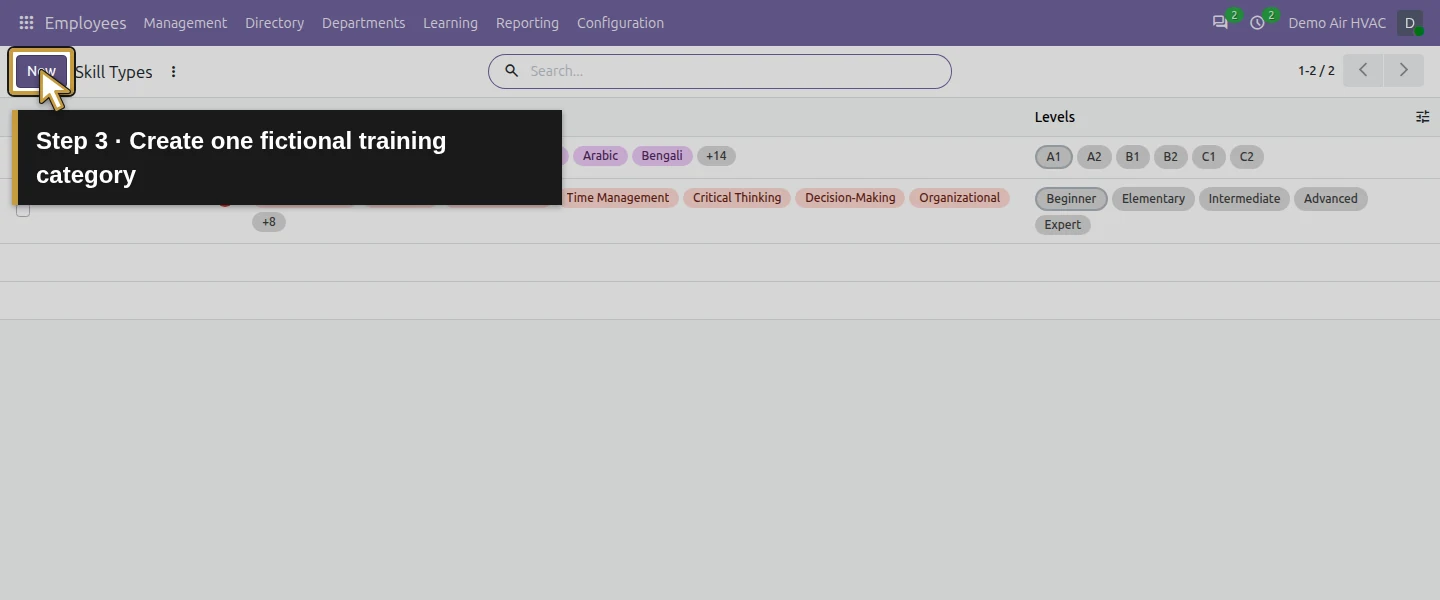
Step 2. Name the training category and add its skill
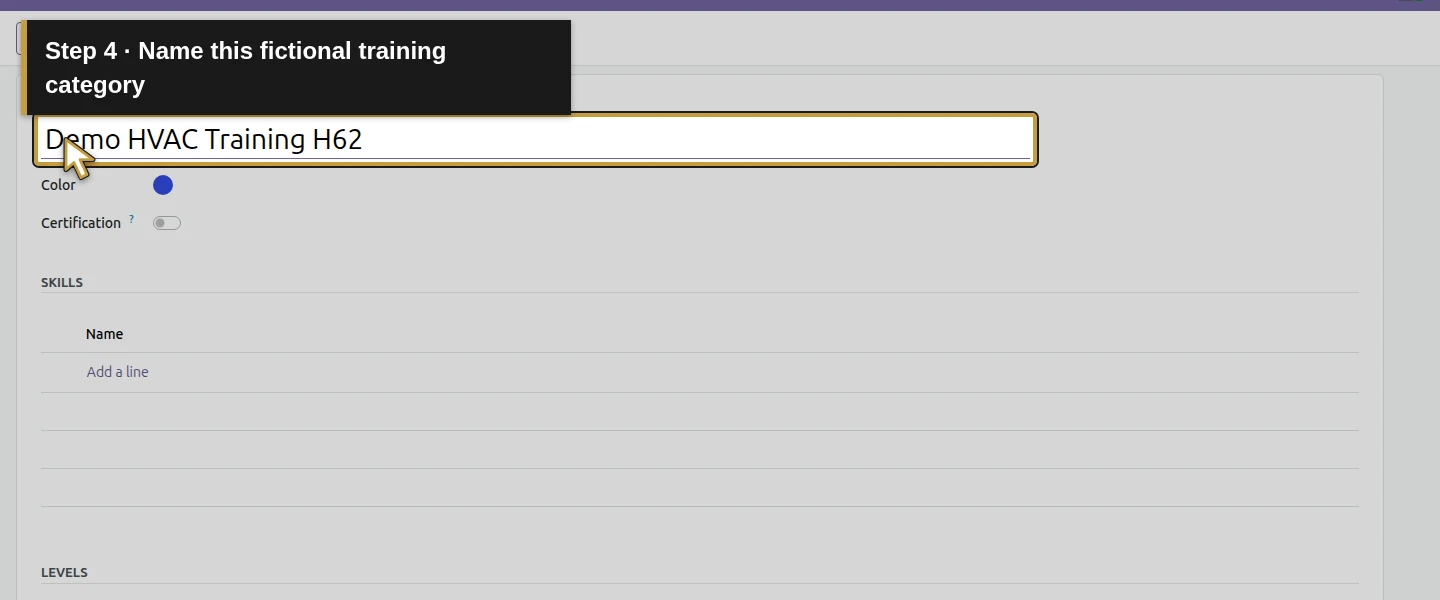
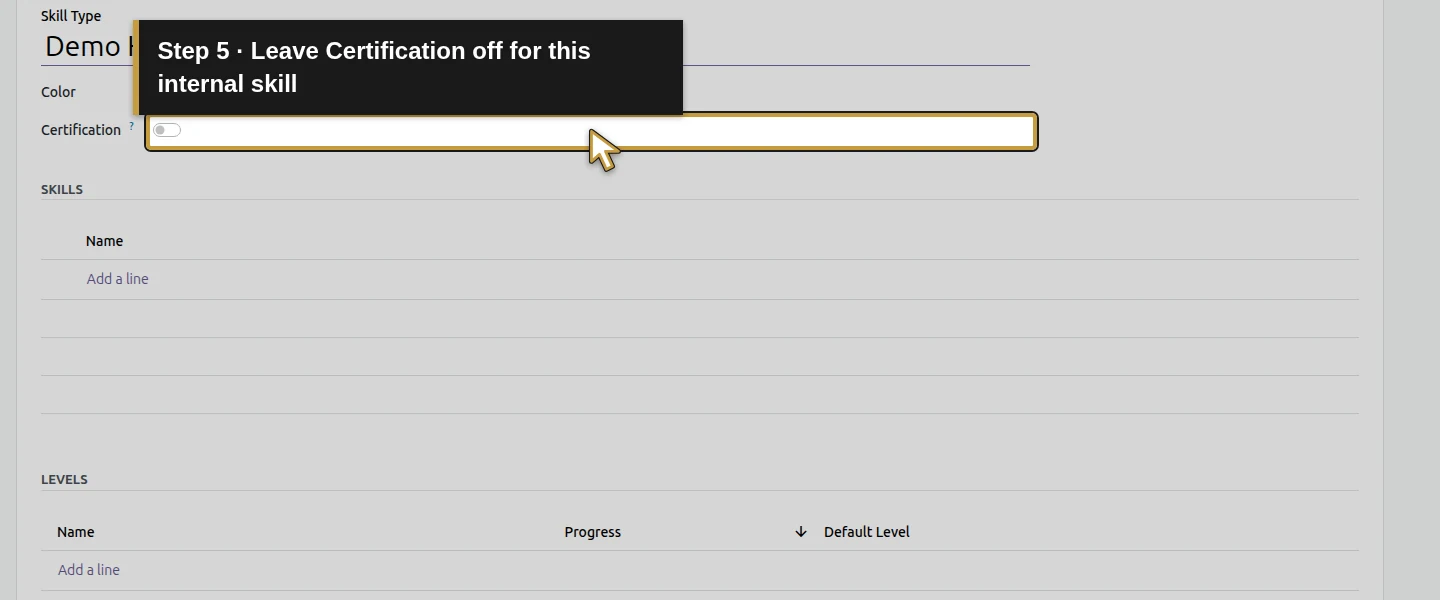
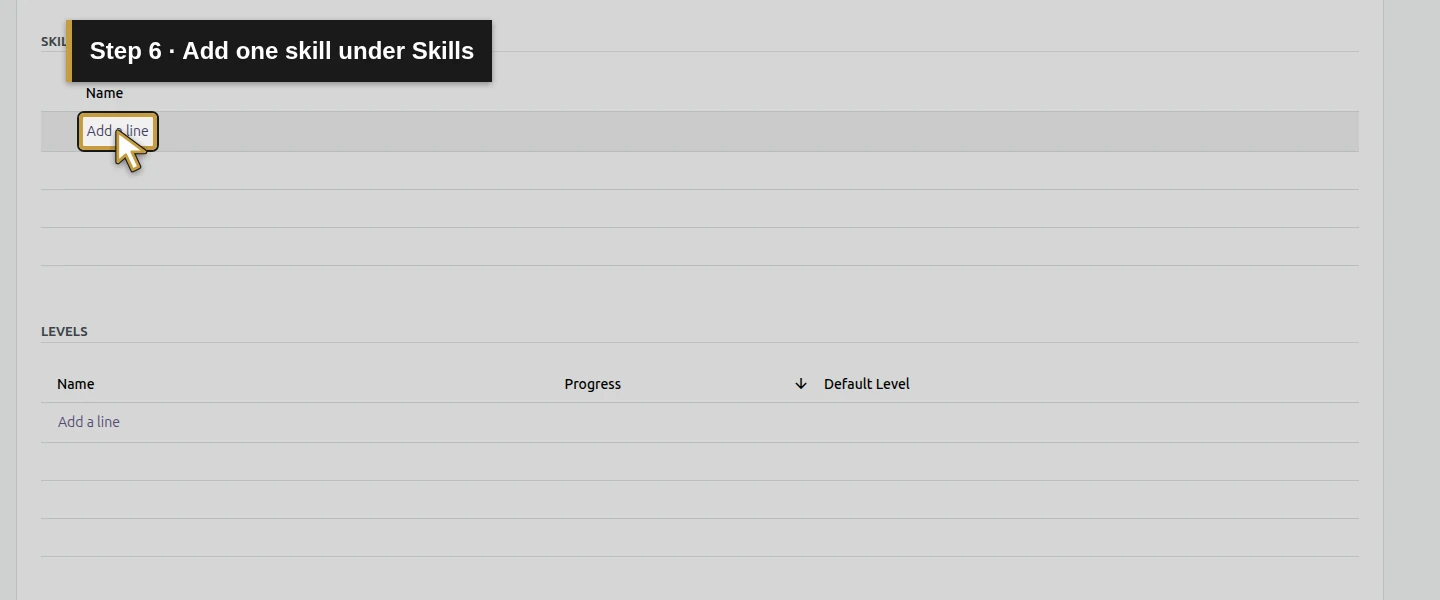
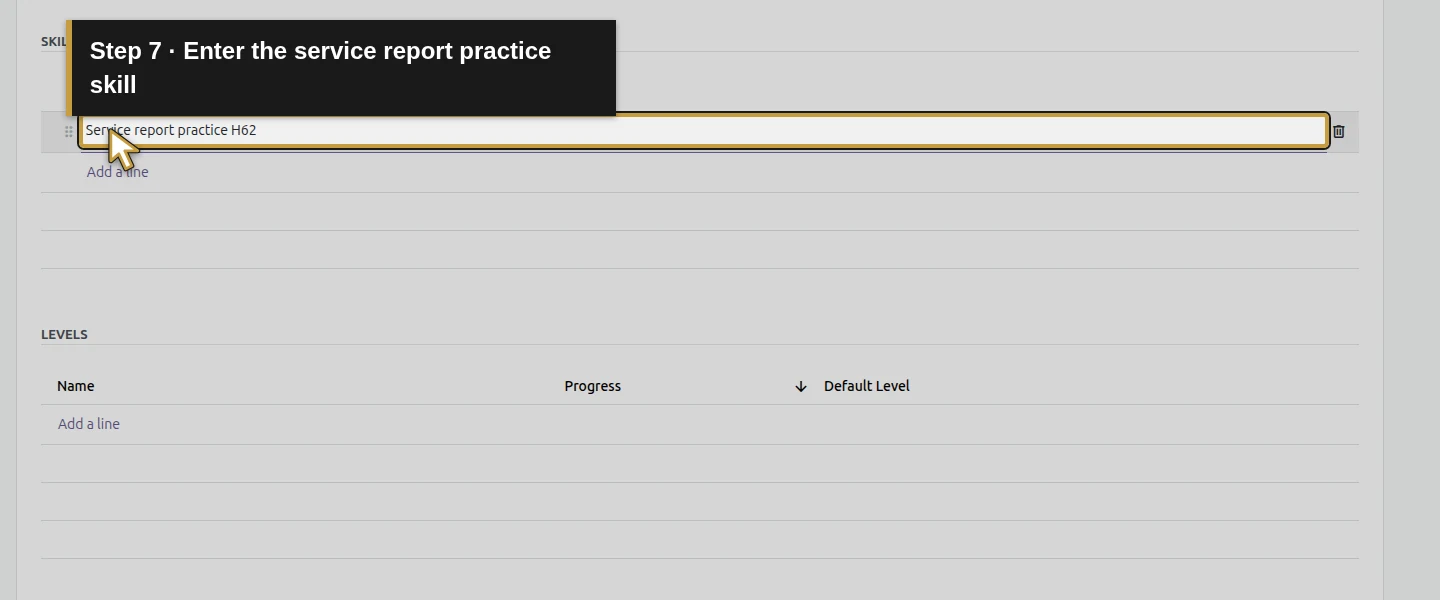
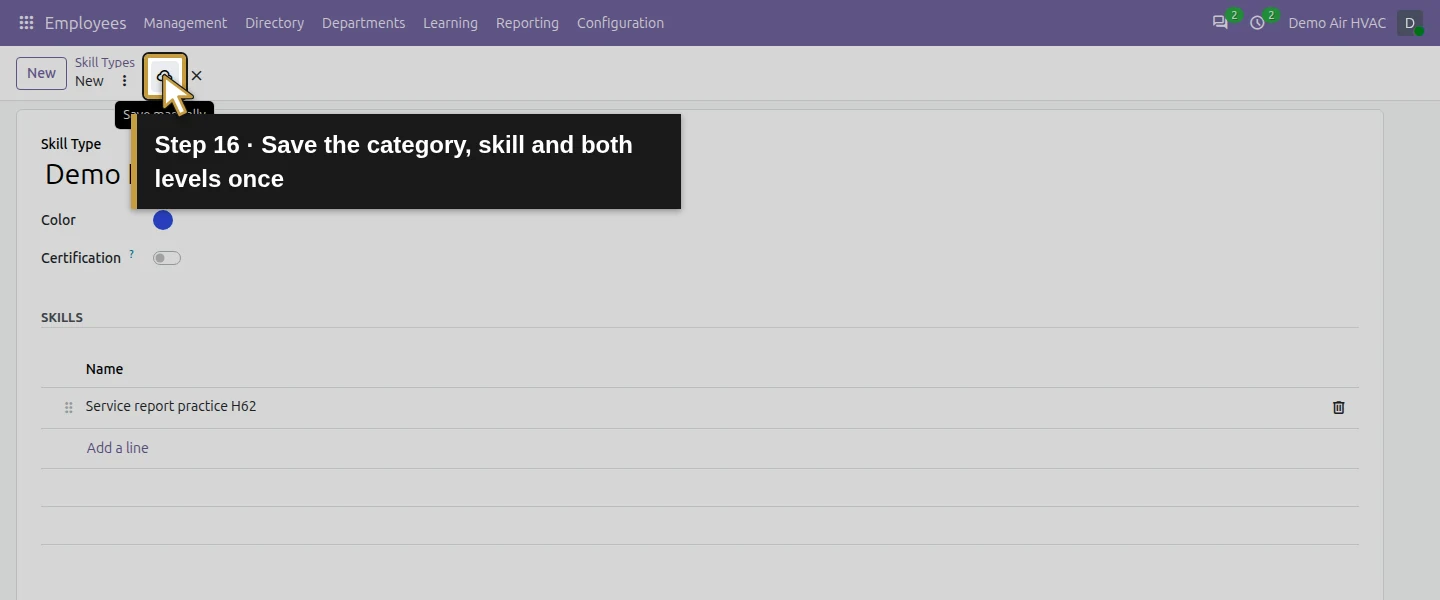
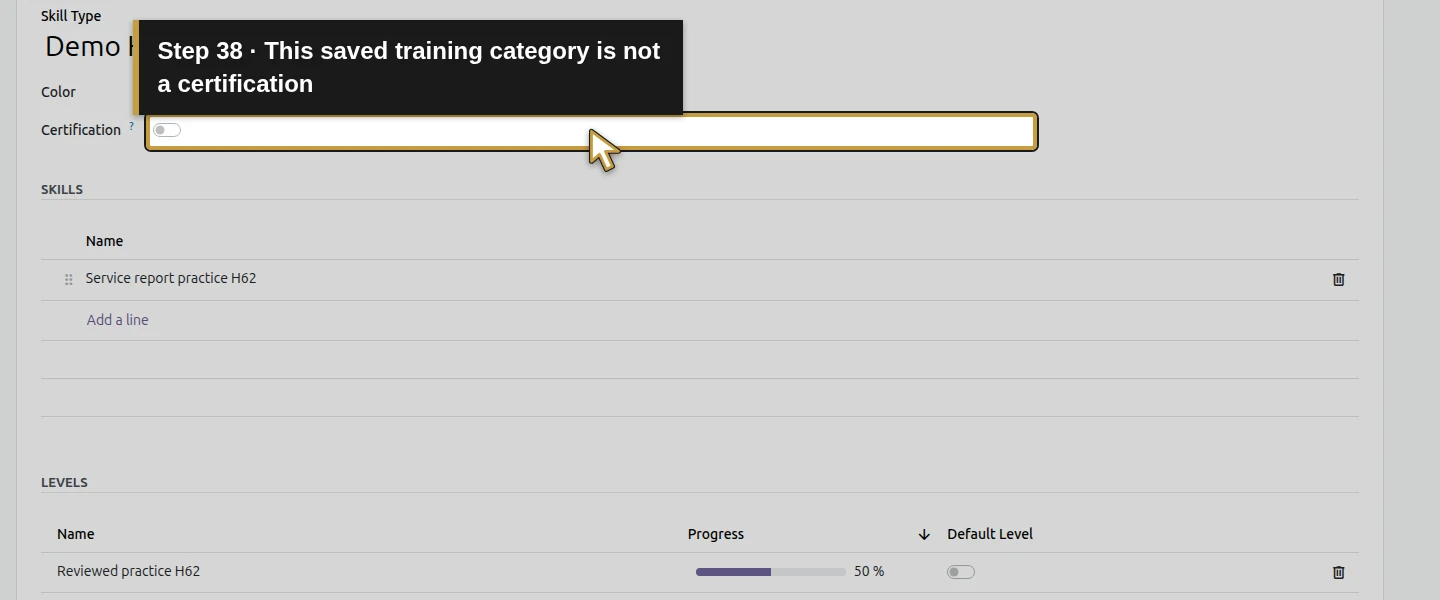
Enter Demo HVAC Training H62 in Skill Type. Leave Certification unchecked: this example records an internal training skill. Under Skills, click Add a line and enter Service report practice H62. Click a stable heading to commit the row before moving to Levels.
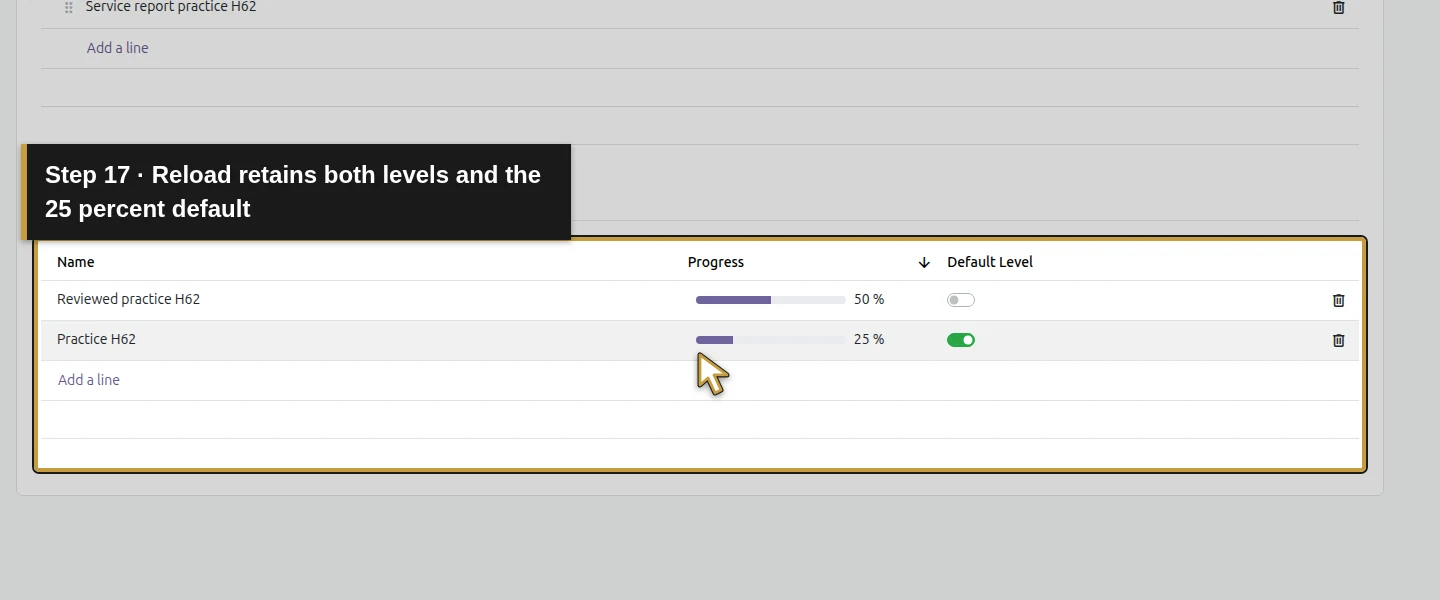
Step 3. Define the two internal levels and save the type
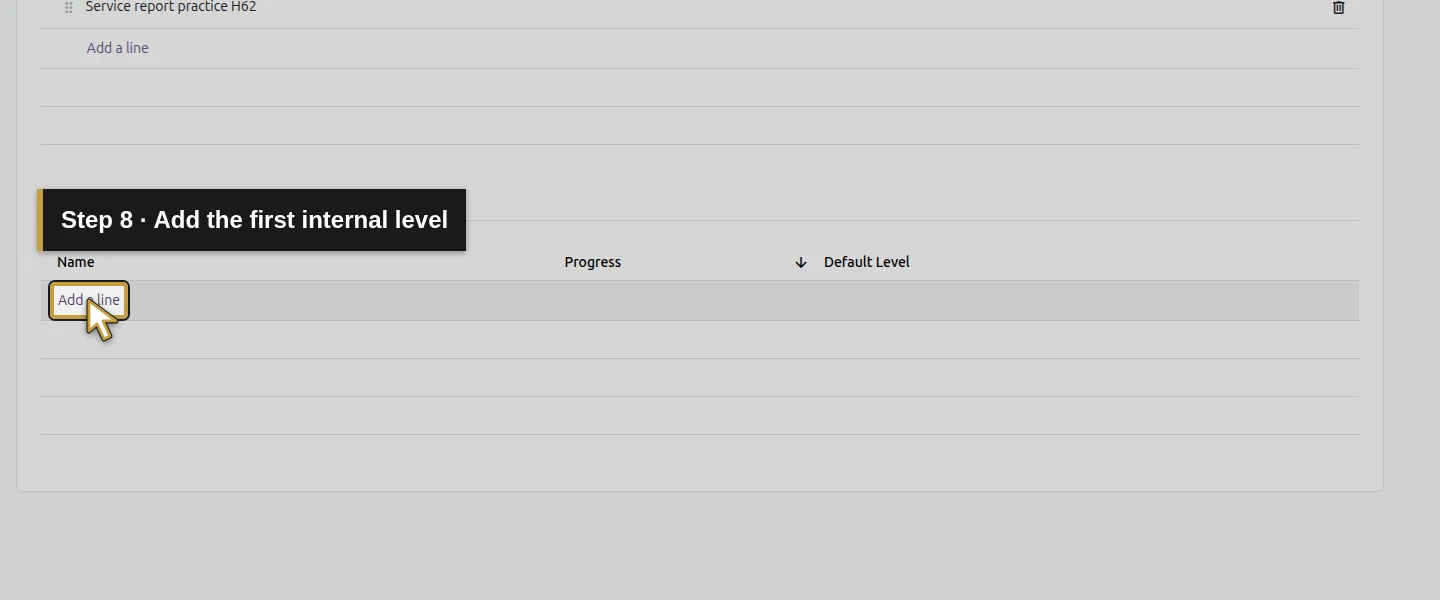
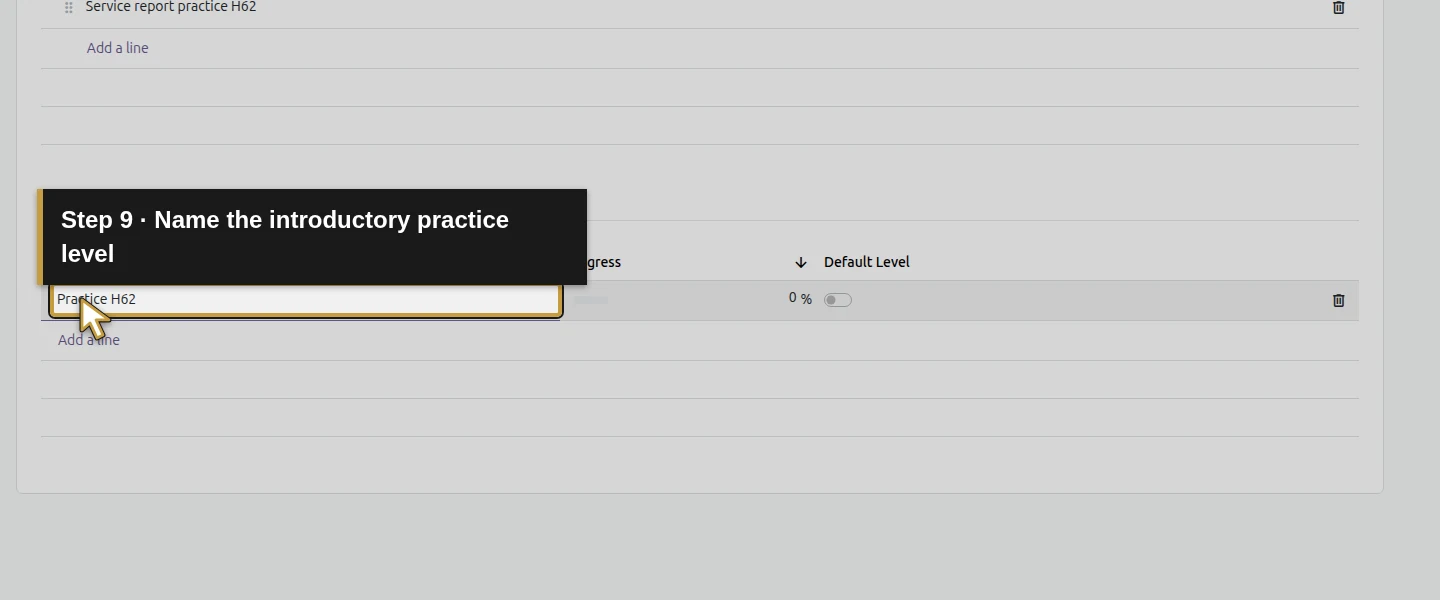
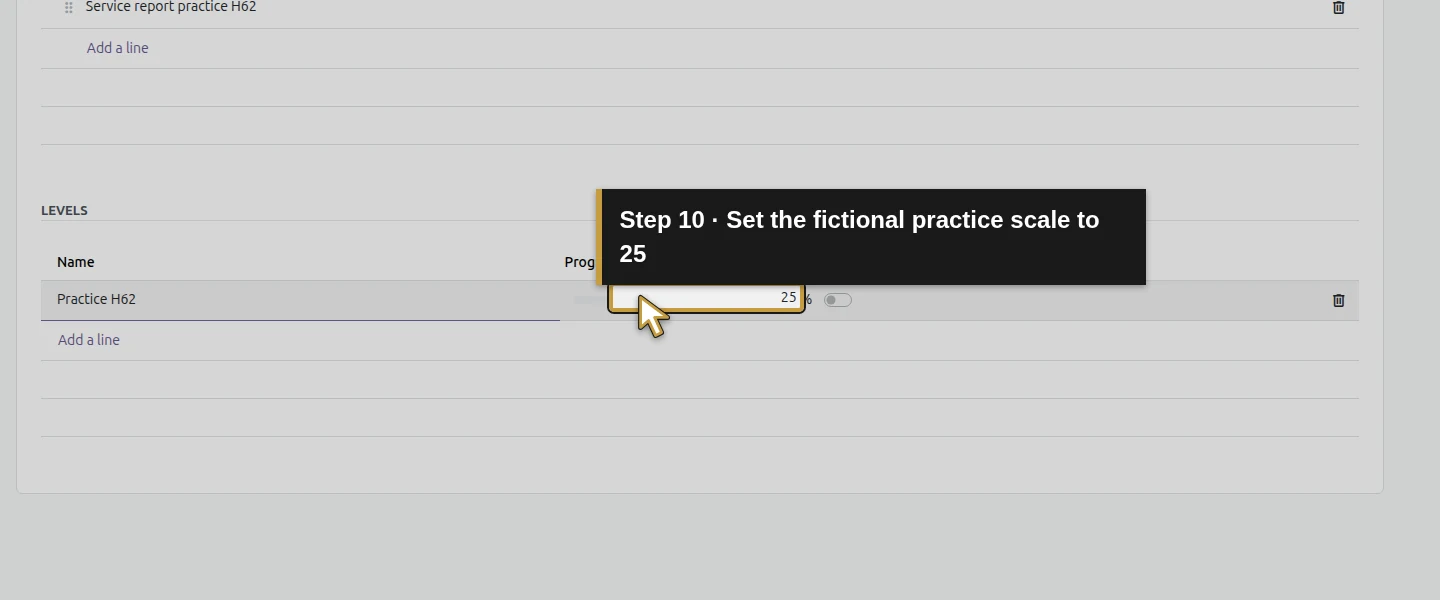
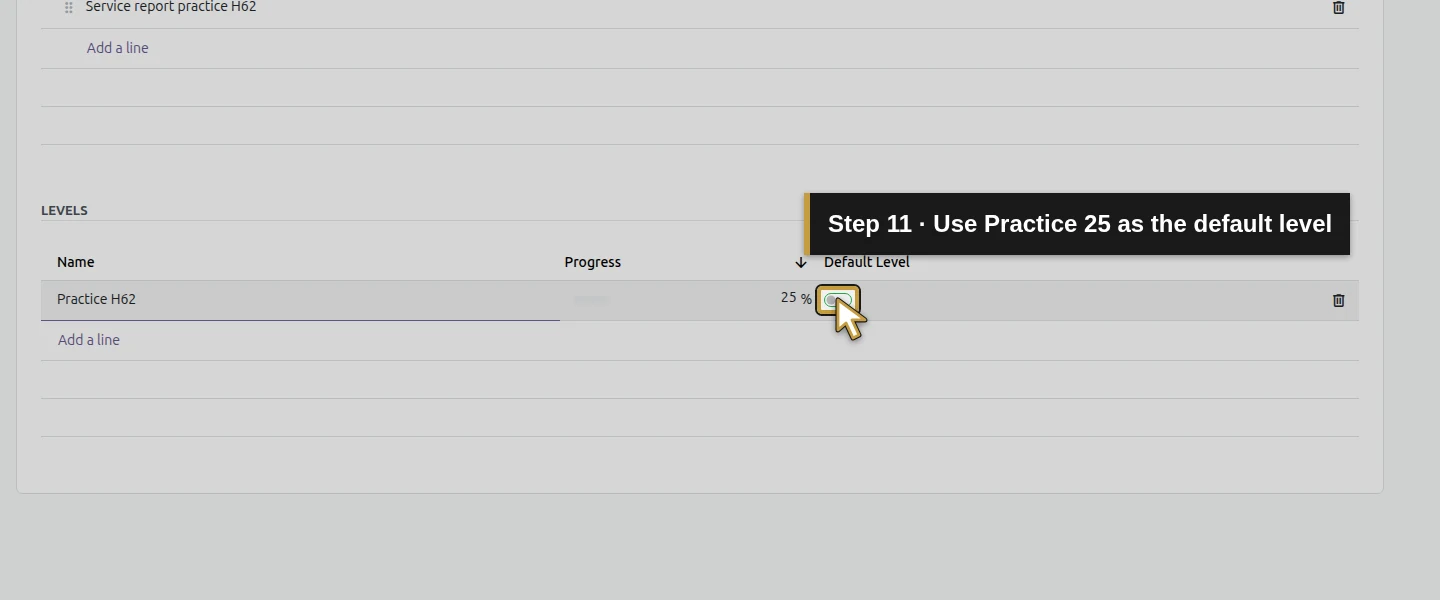
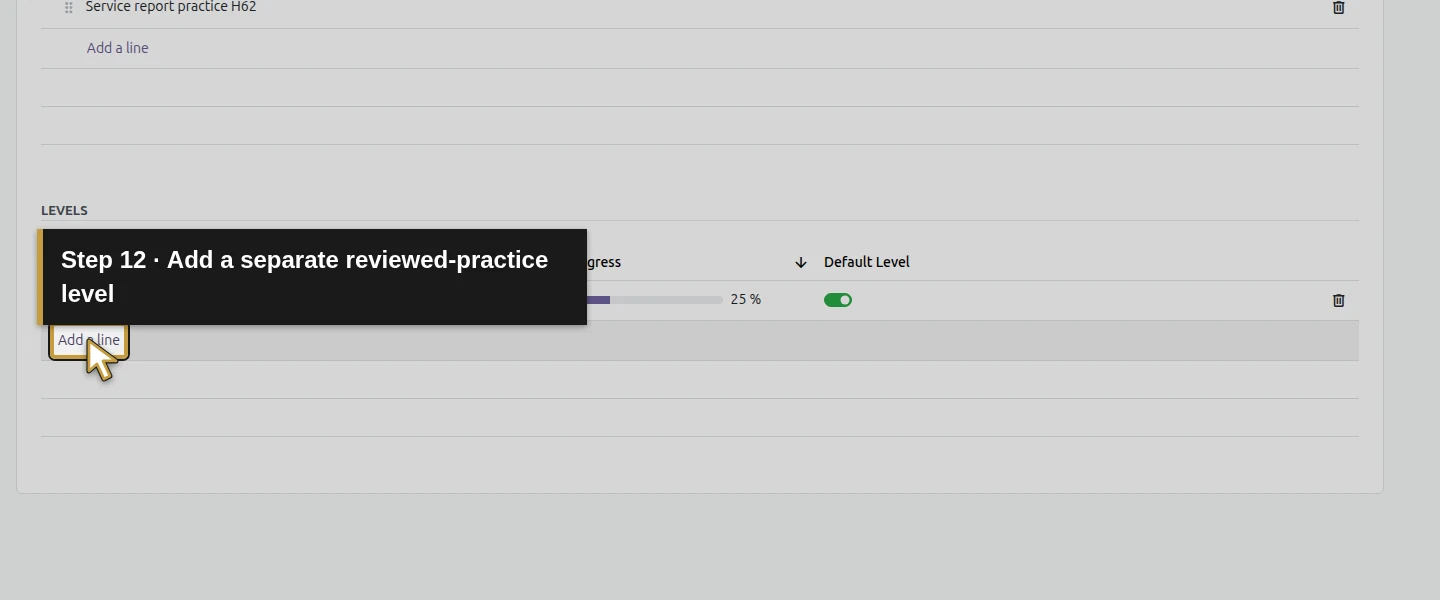
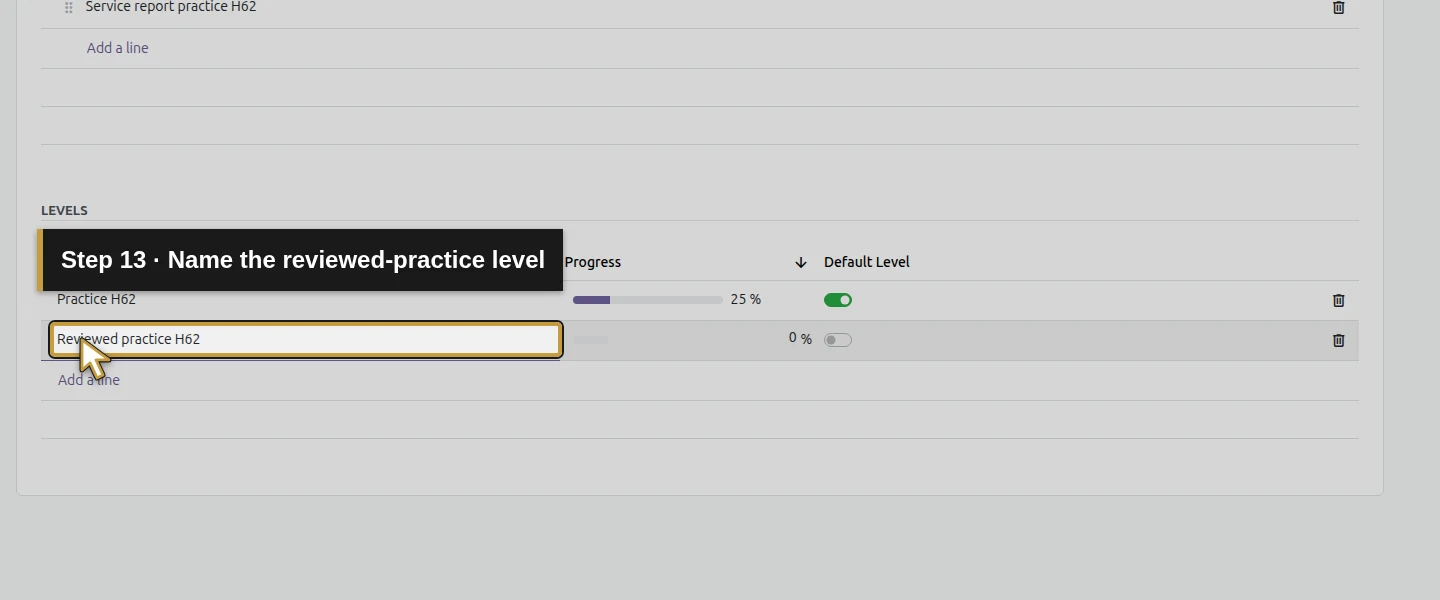
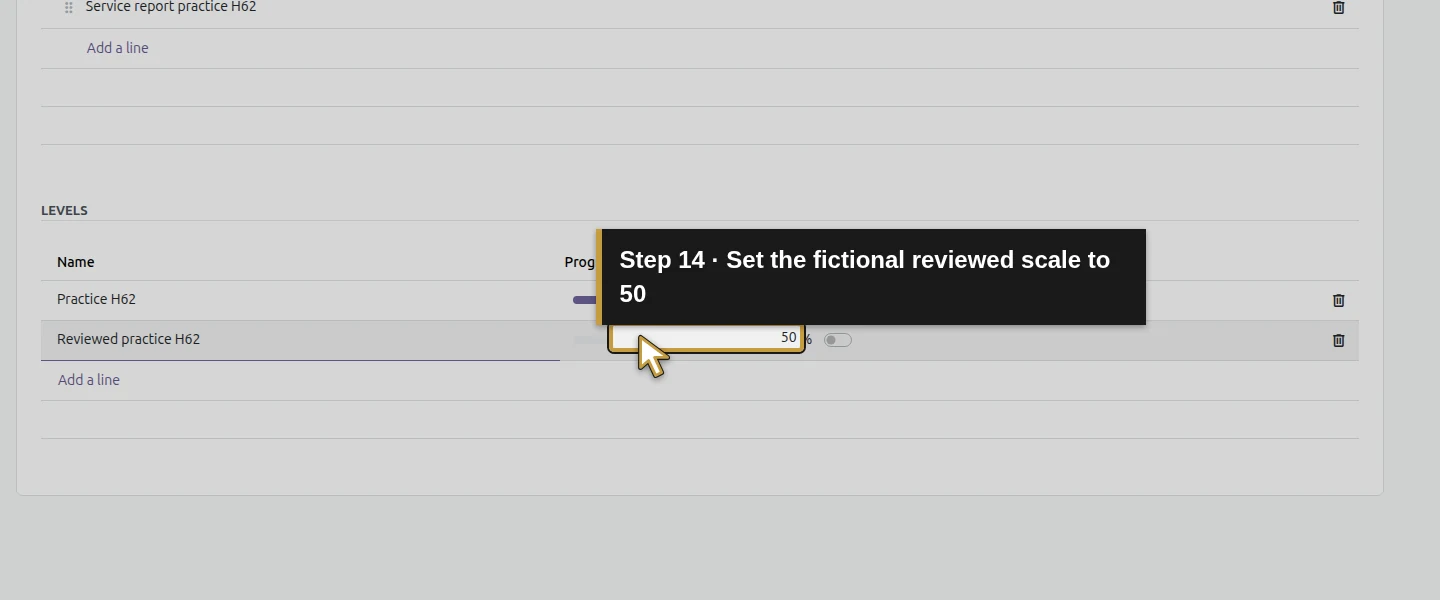
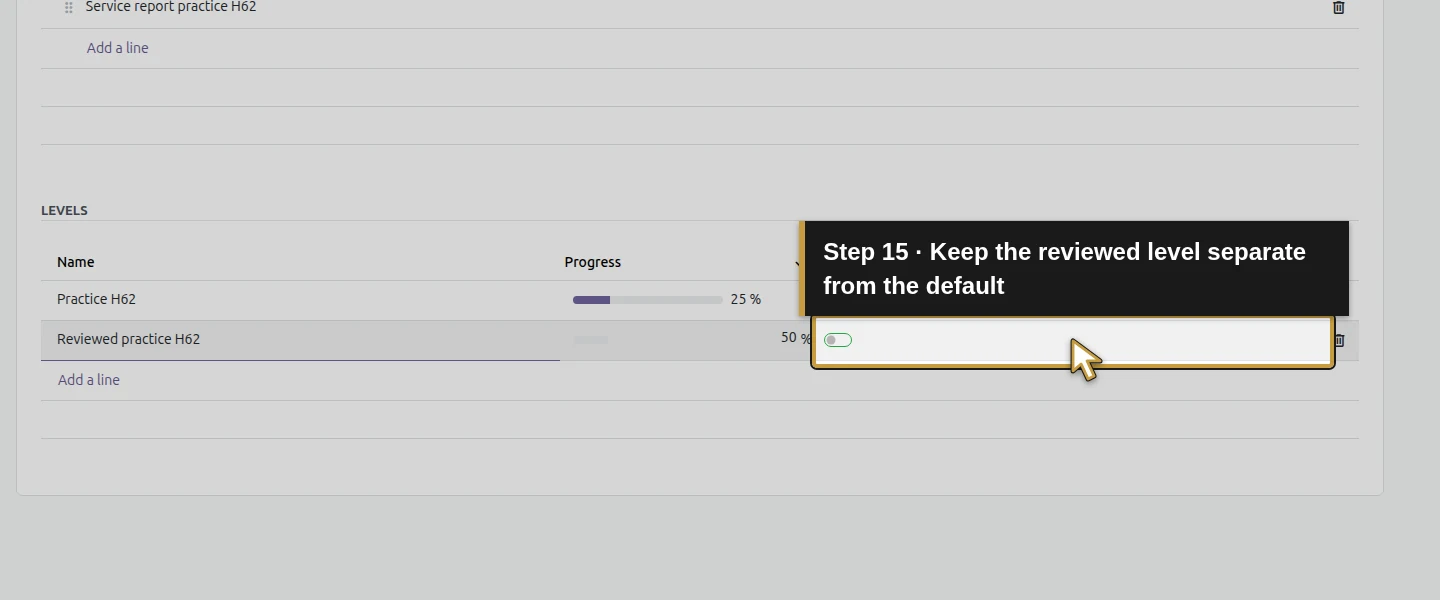
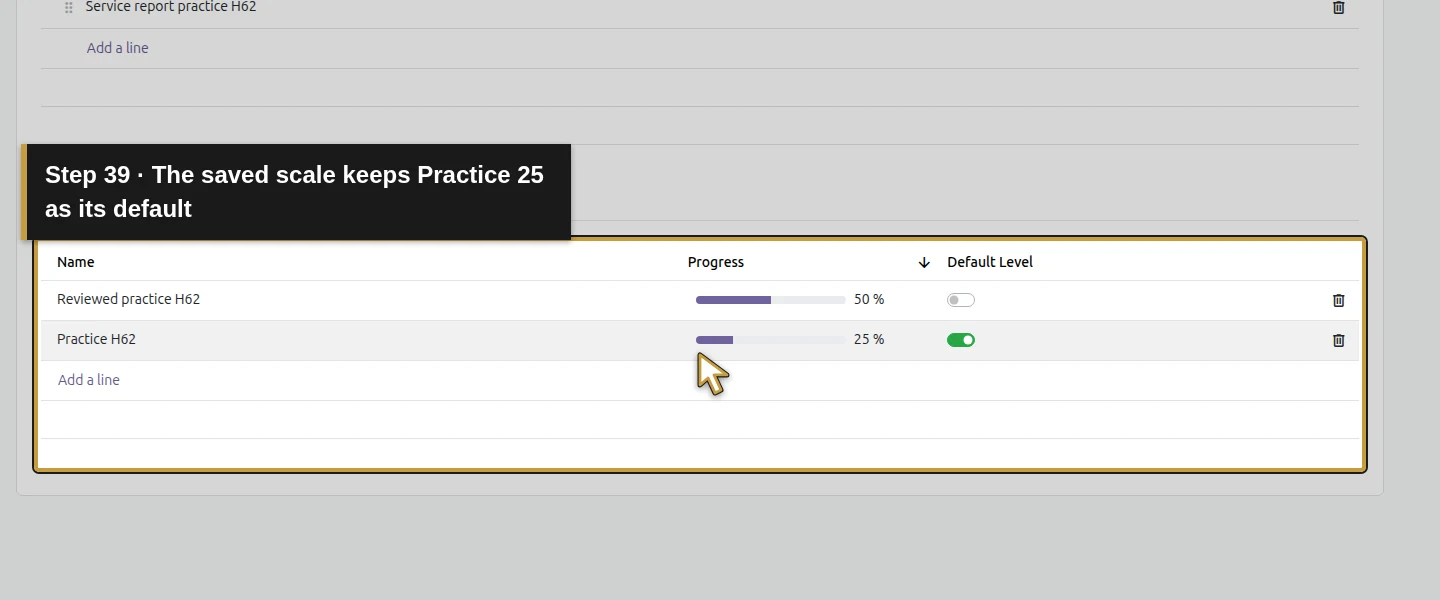
Under Levels, click Add a line. Enter Practice H62, set Progress 25, and check Default Level. Commit that row, add Reviewed practice H62 with Progress 50, and leave its Default Level unchecked. Commit the final row and click Save manually. Reload the saved type and check one skill, both levels and the intended default. The native list may sort the 50% row above 25%; that does not make 50% the default.
Step 4. Open the technician’s skill picker
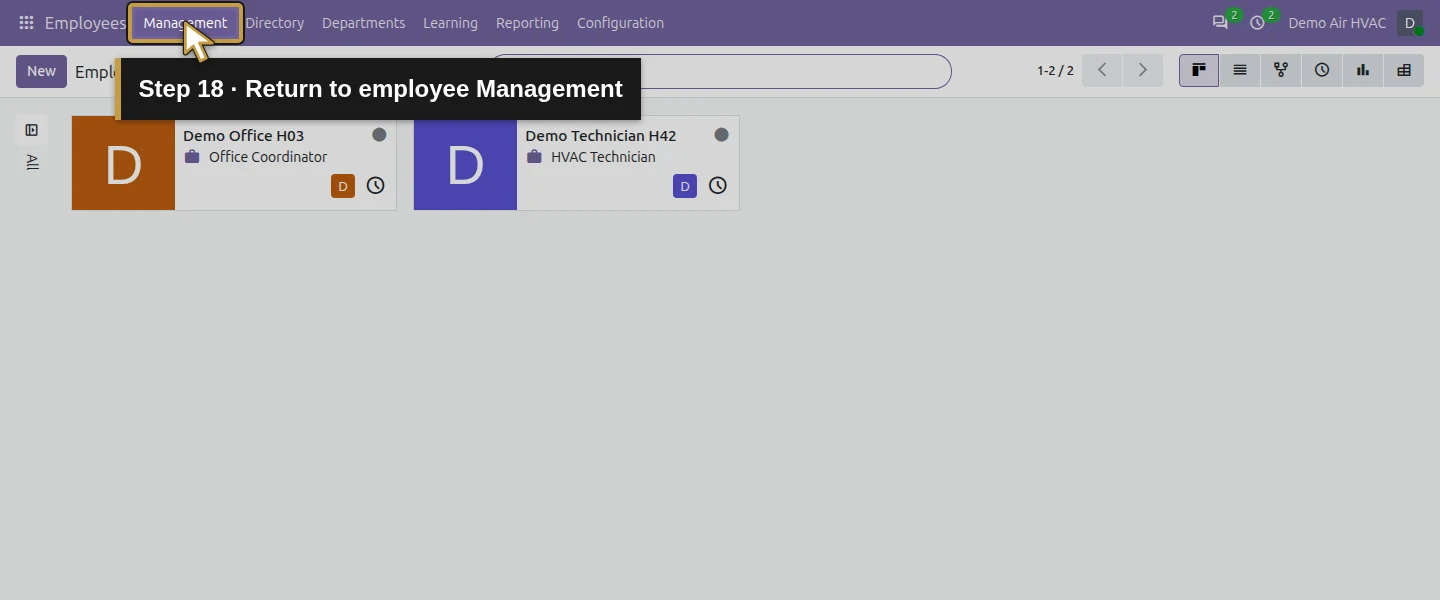
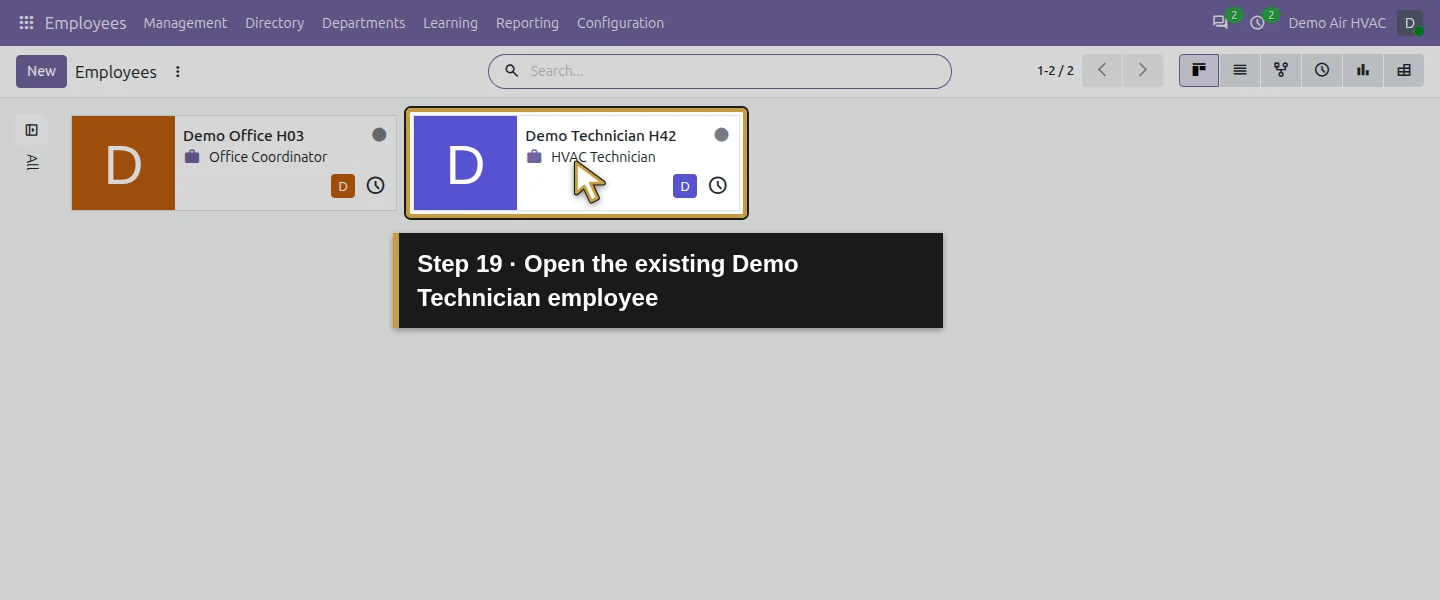
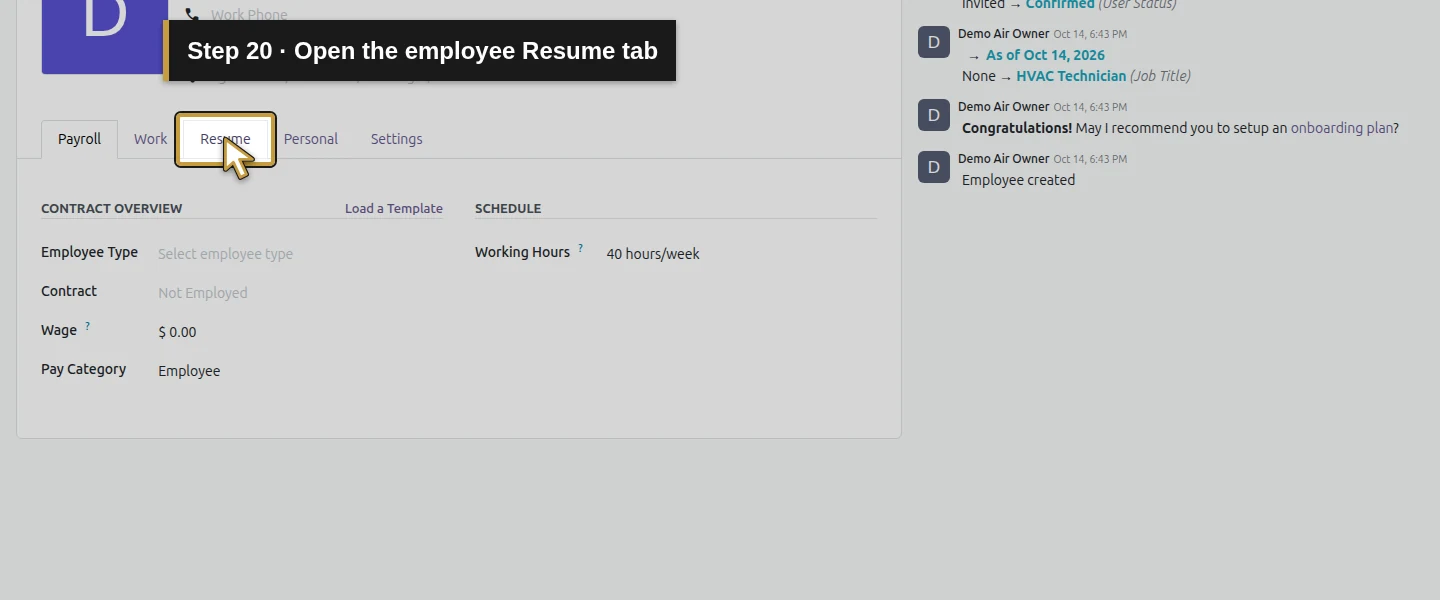
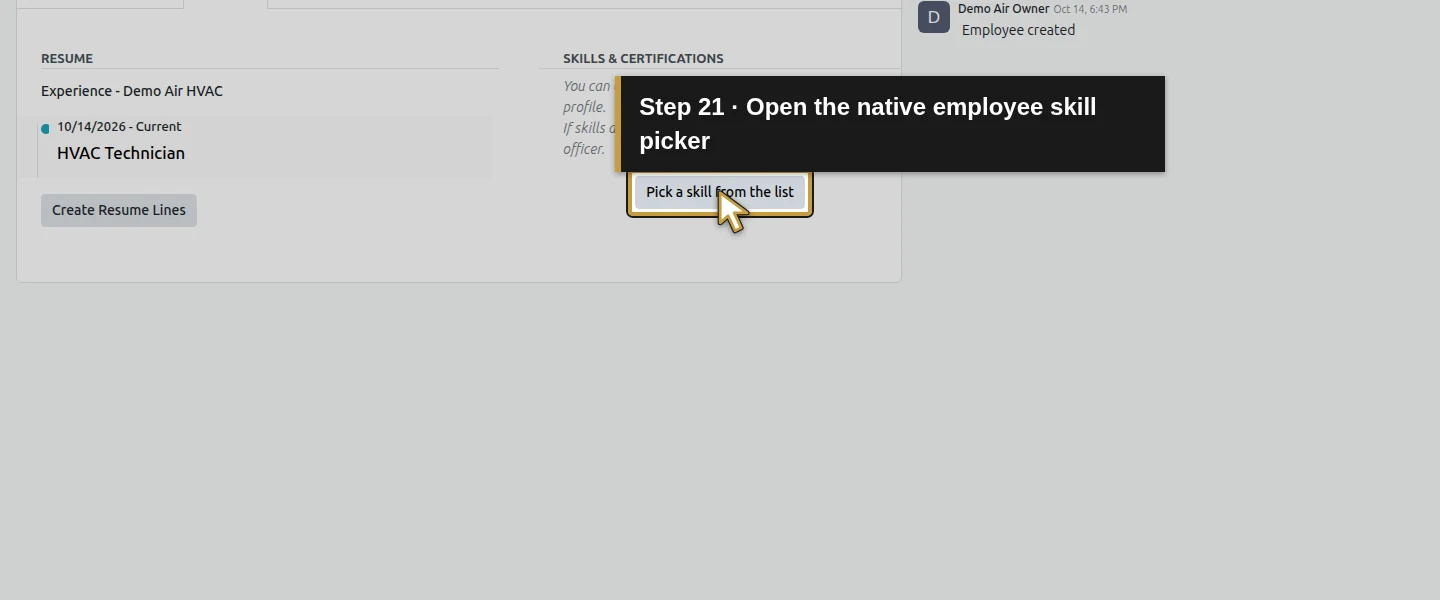
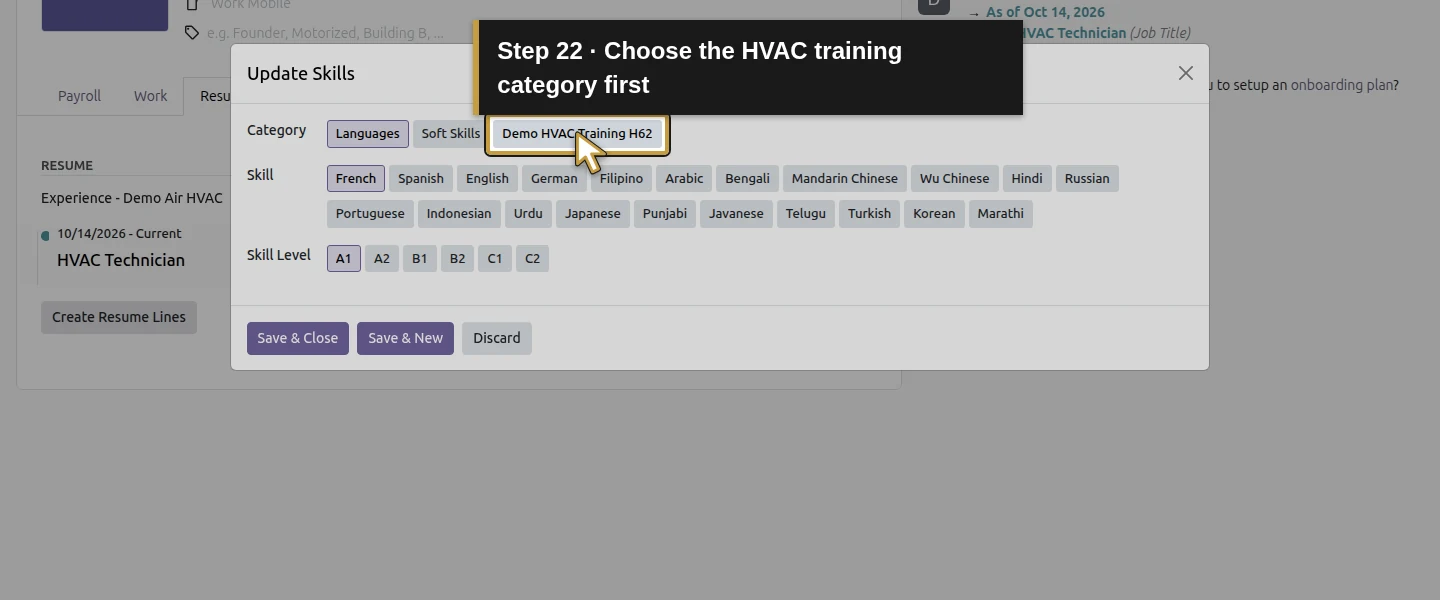
Return to the existing employee through Employees → Management and open Demo Technician H42. Select Resume. Under Skills & Certifications, click Pick a skill from the list. The Update Skills dialog initially selects Languages in this test. Change Category to Demo HVAC Training H62 before choosing the skill. Do not save the initially selected language by mistake.
Step 5. Choose the skill and reviewed-practice level
Select Service report practice H62, then explicitly choose Reviewed practice H62 in Skill Level. The category offers the two levels defined earlier; this example deliberately chooses the 50% level rather than the 25% default. Click Save & Close. The employee’s Skills & Certifications section now displays the training row, but the parent employee form still has unsaved changes.
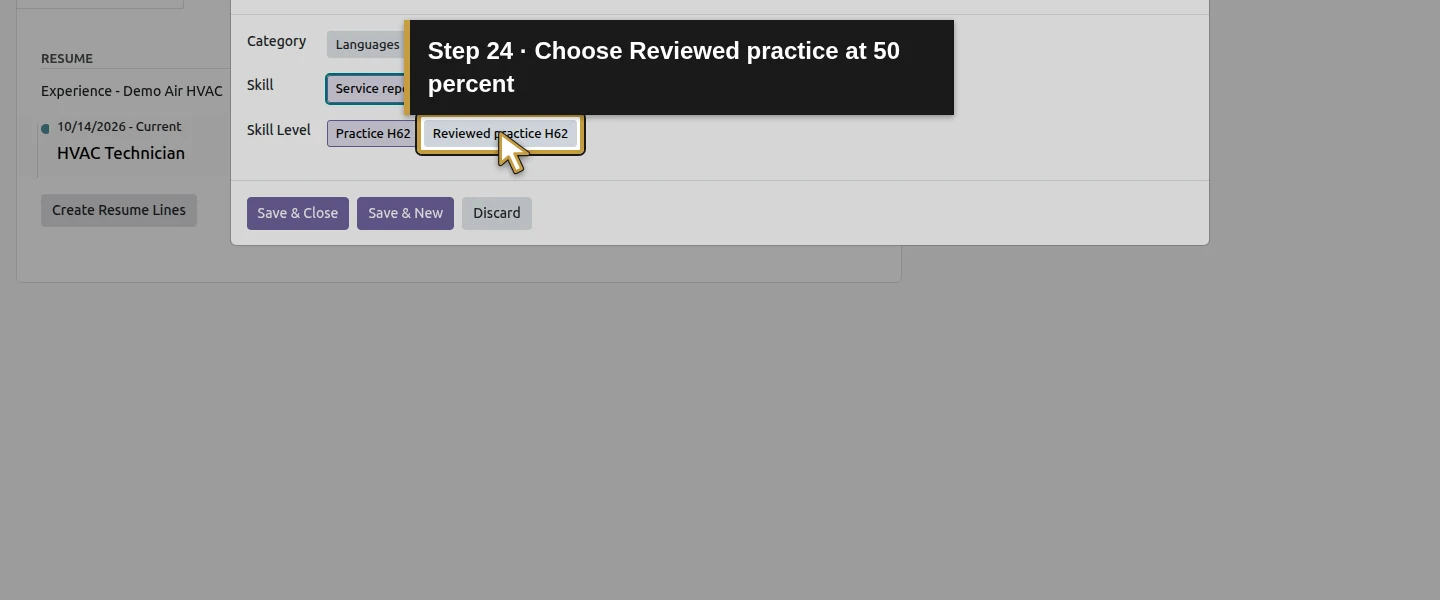
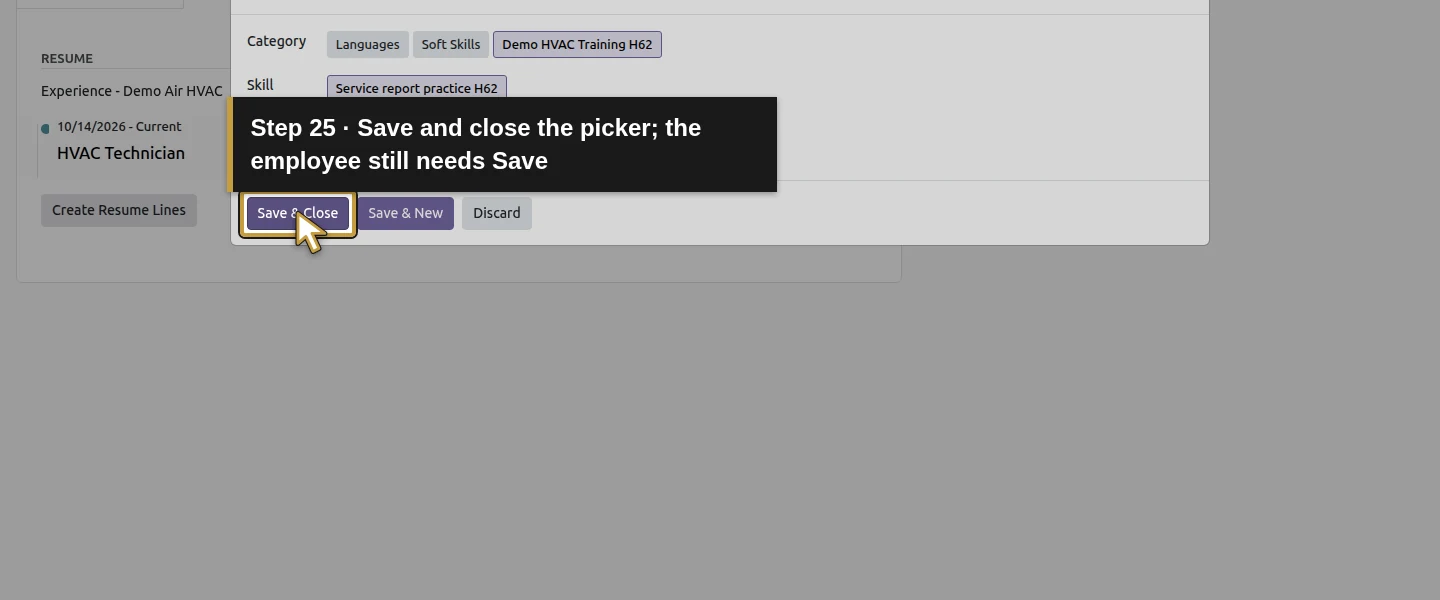
Step 6. Save the employee before leaving the form
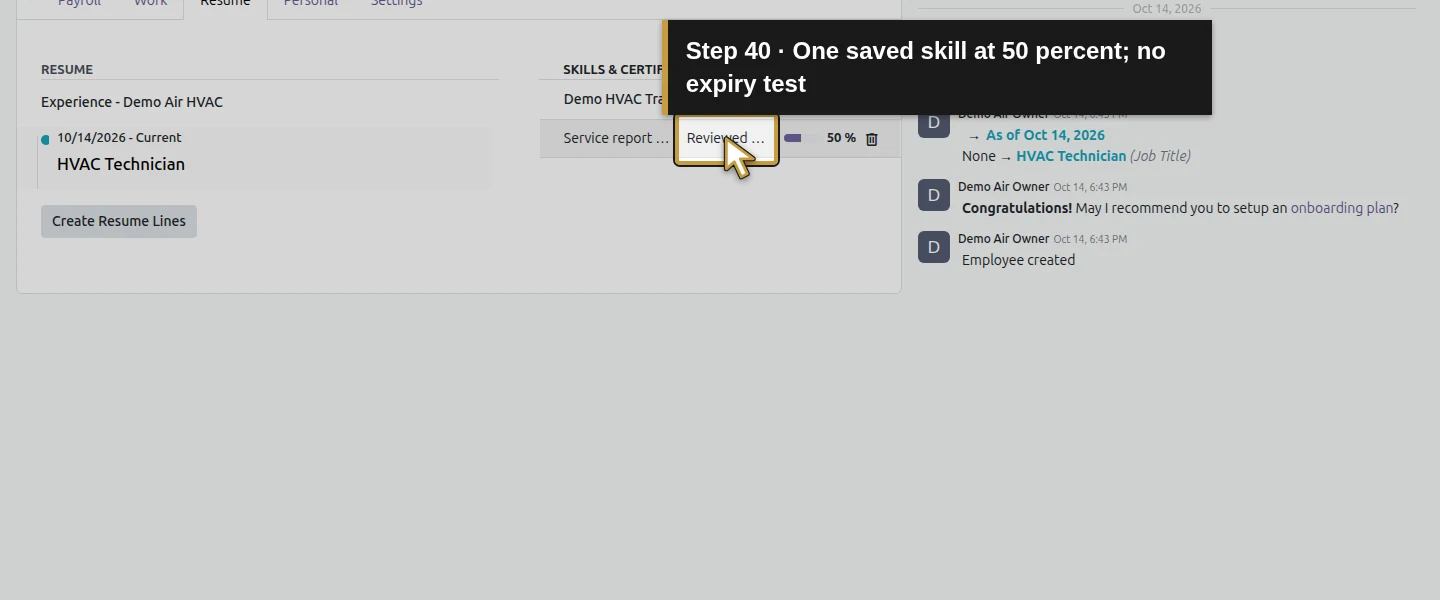
Click the employee form’s Save manually control and wait for the save to finish. In this test, Save & Close in the picker alone had not persisted an employee skill: the saved record count was still zero until the parent Save. After the employee save, one skill record links this employee to the selected category, skill and 50% level. Reload the employee, select Resume again and check the same row; do not add it a second time.
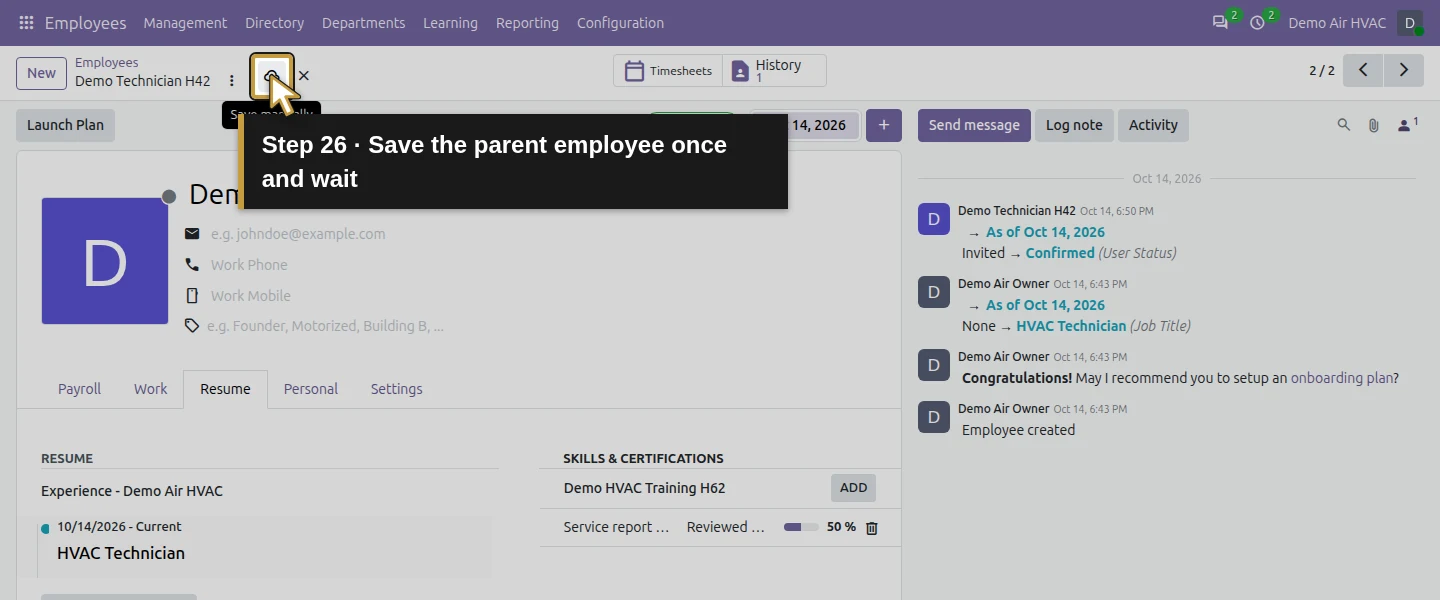
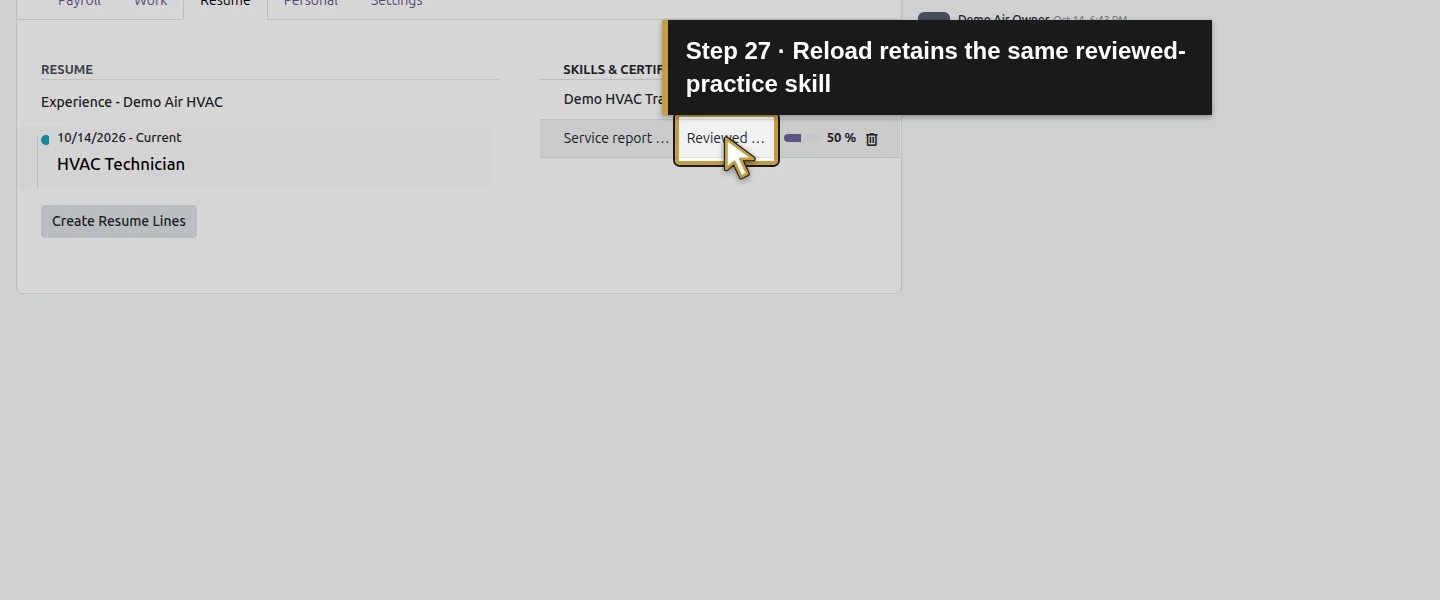
Step 7. Retain the meaning and training boundary
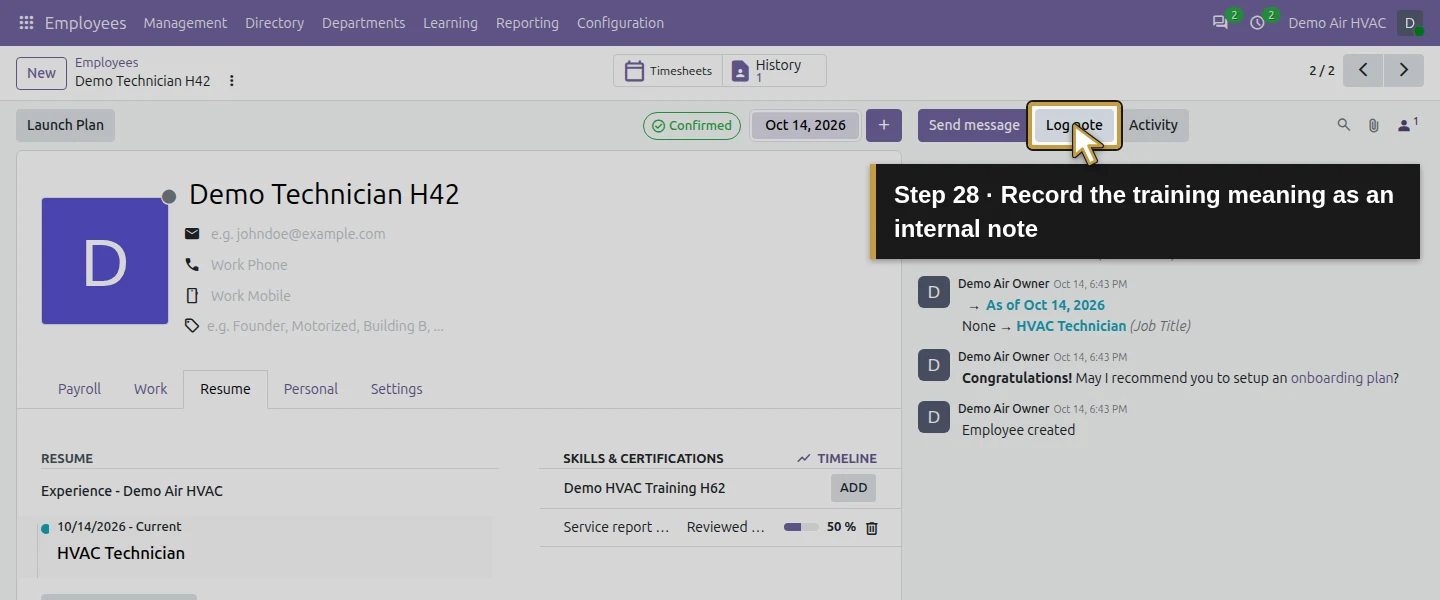
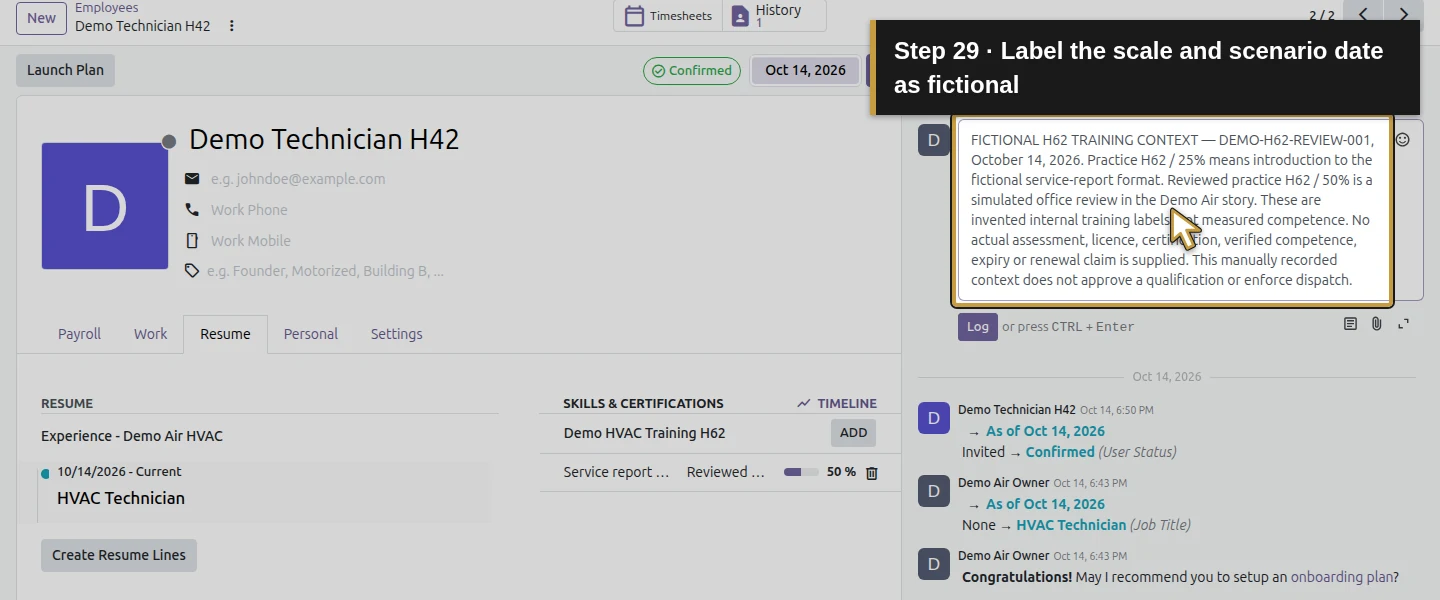
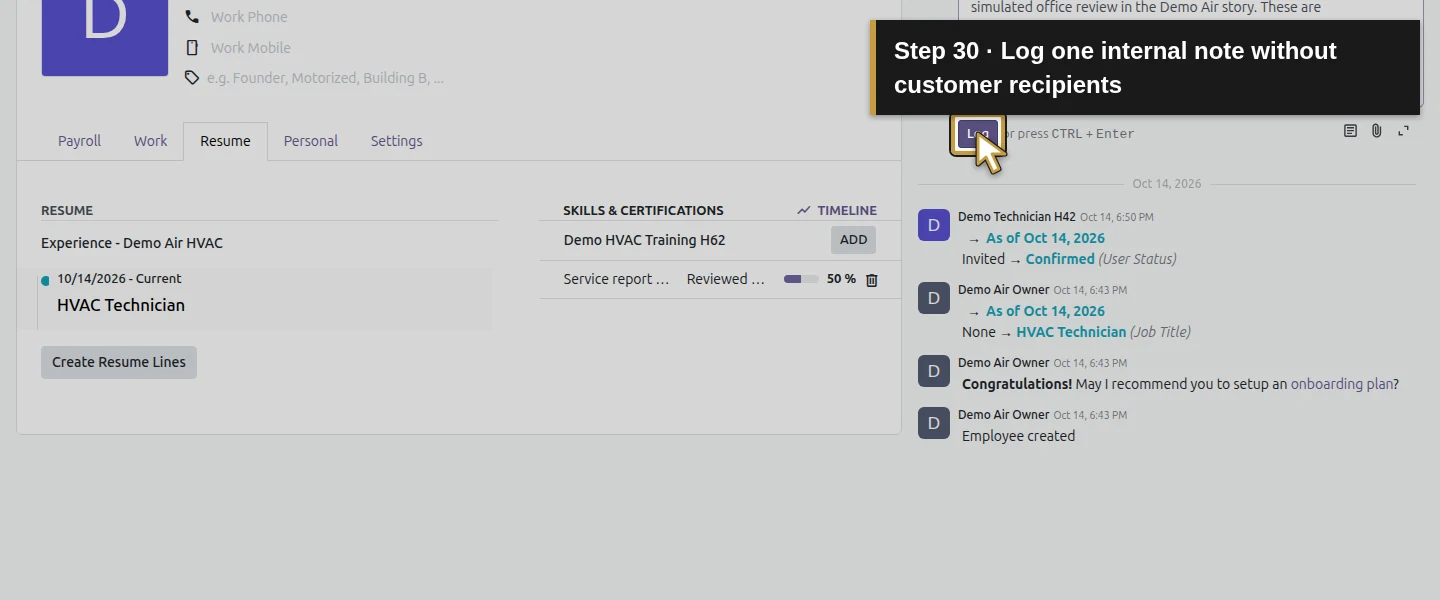
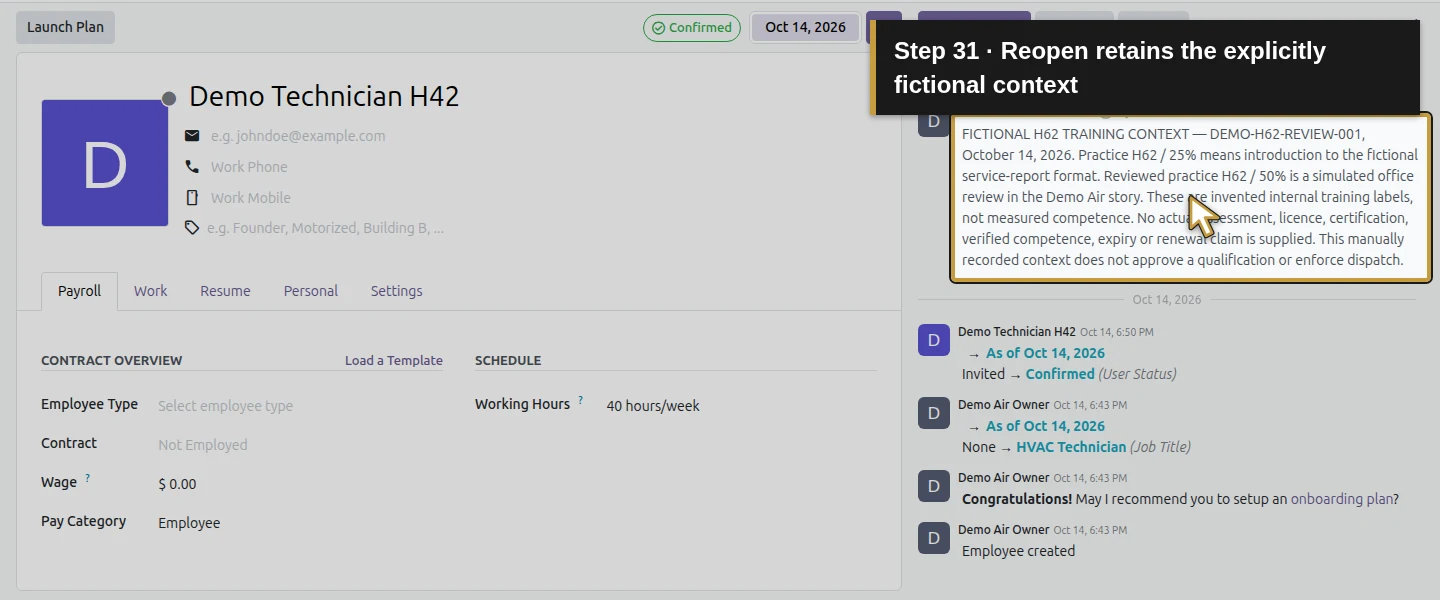
On the owner’s employee form, use Log note to record FICTIONAL H62 TRAINING CONTEXT — DEMO-H62-REVIEW-001, October 14, 2026. Explain that Practice 25% means introduction to the fictional report format and Reviewed practice 50% is a simulated office review in the story. State that no actual assessment, licence, certification, verified competence or expiry/renewal claim is supplied. Click Log and reopen the employee to check the retained context. This is manually recorded context, not an automatic approval or dispatch rule.
Step 8. Check the technician’s actual directory view
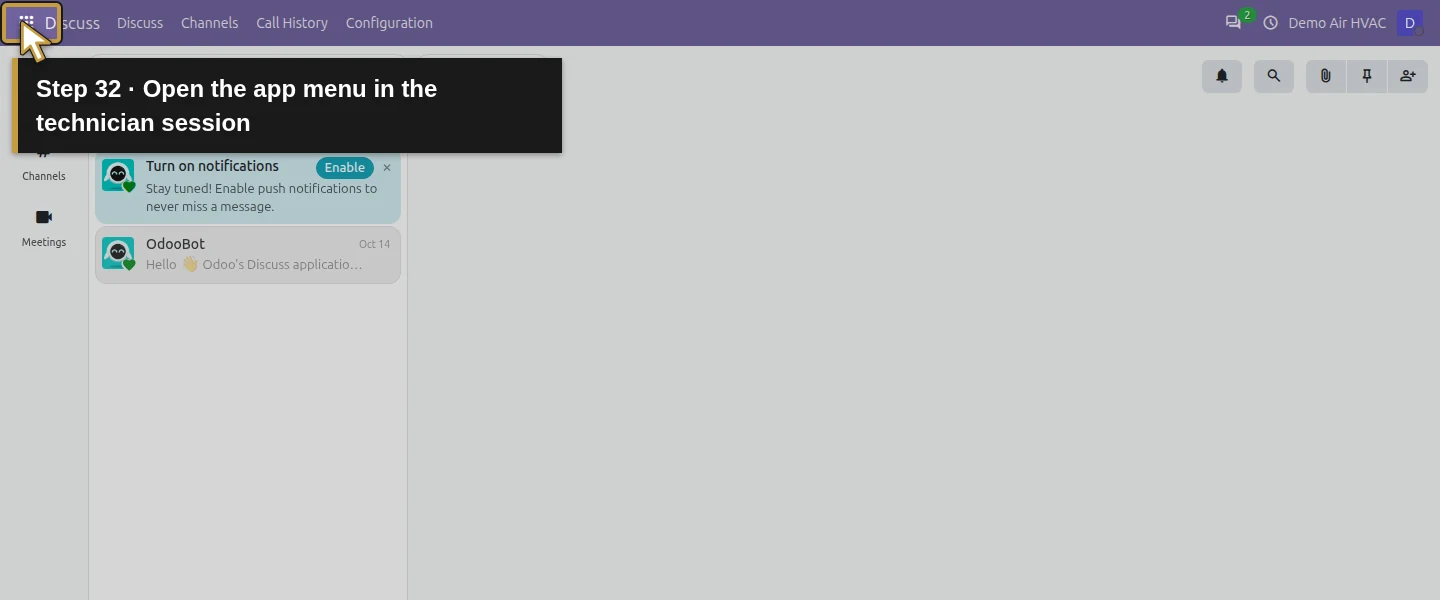
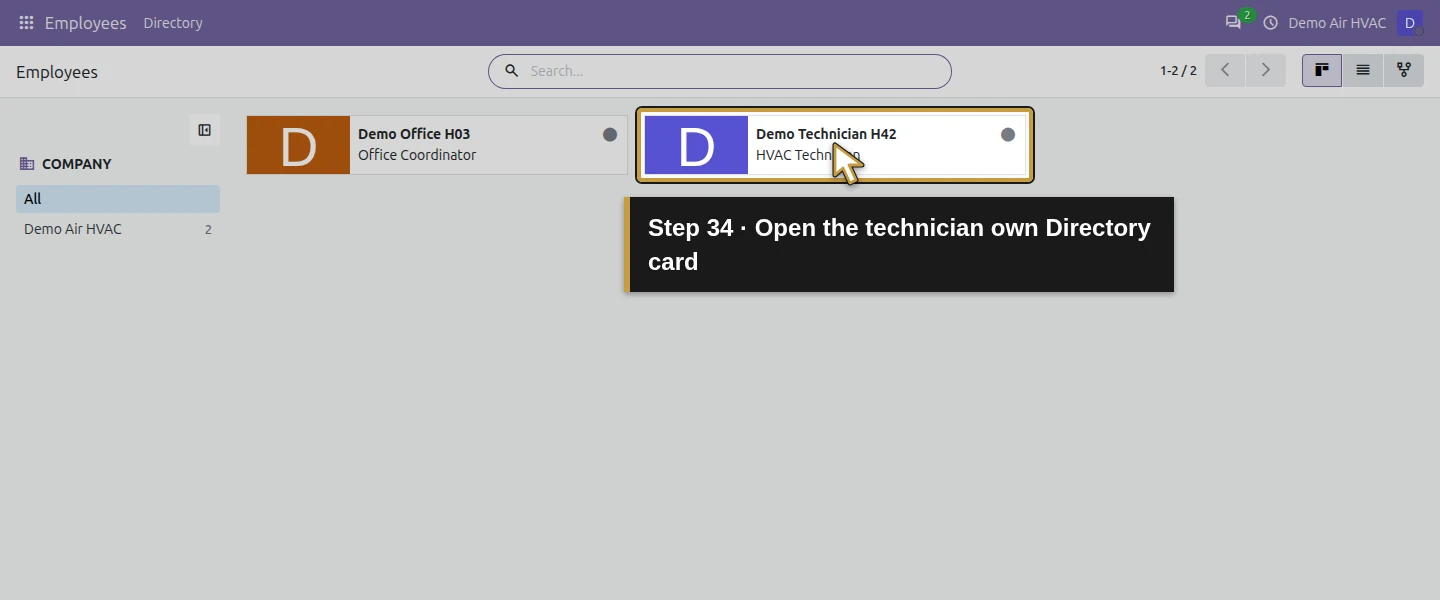
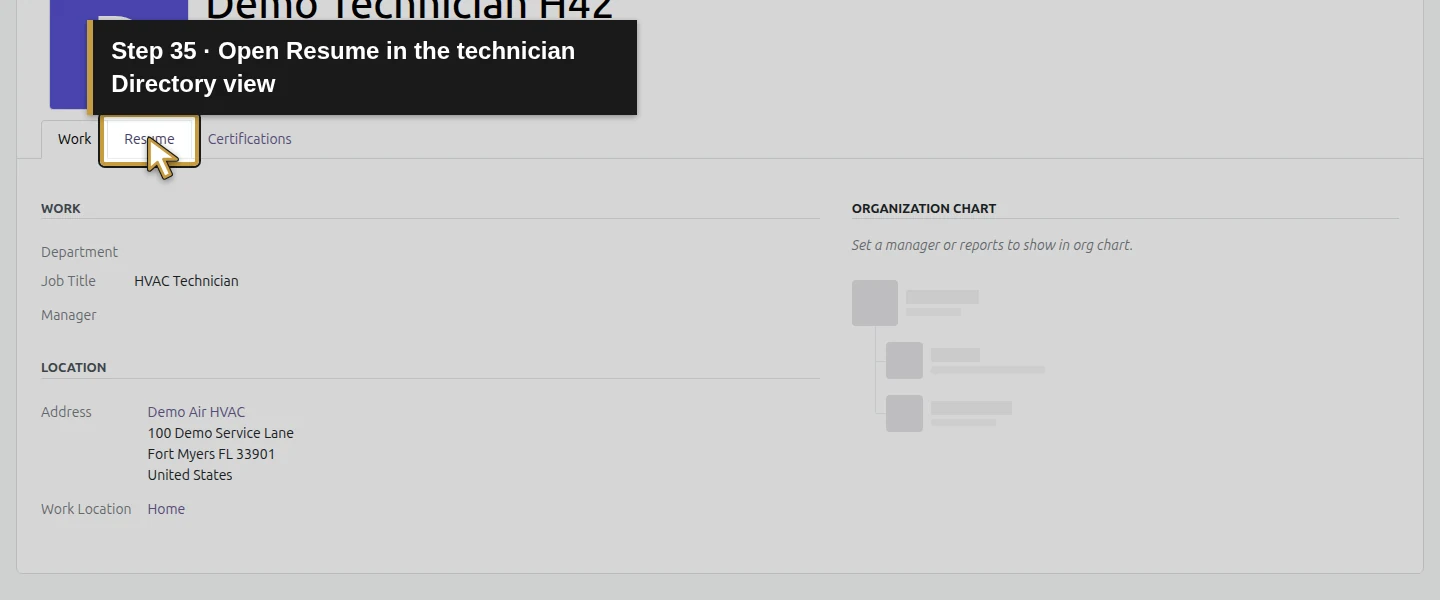
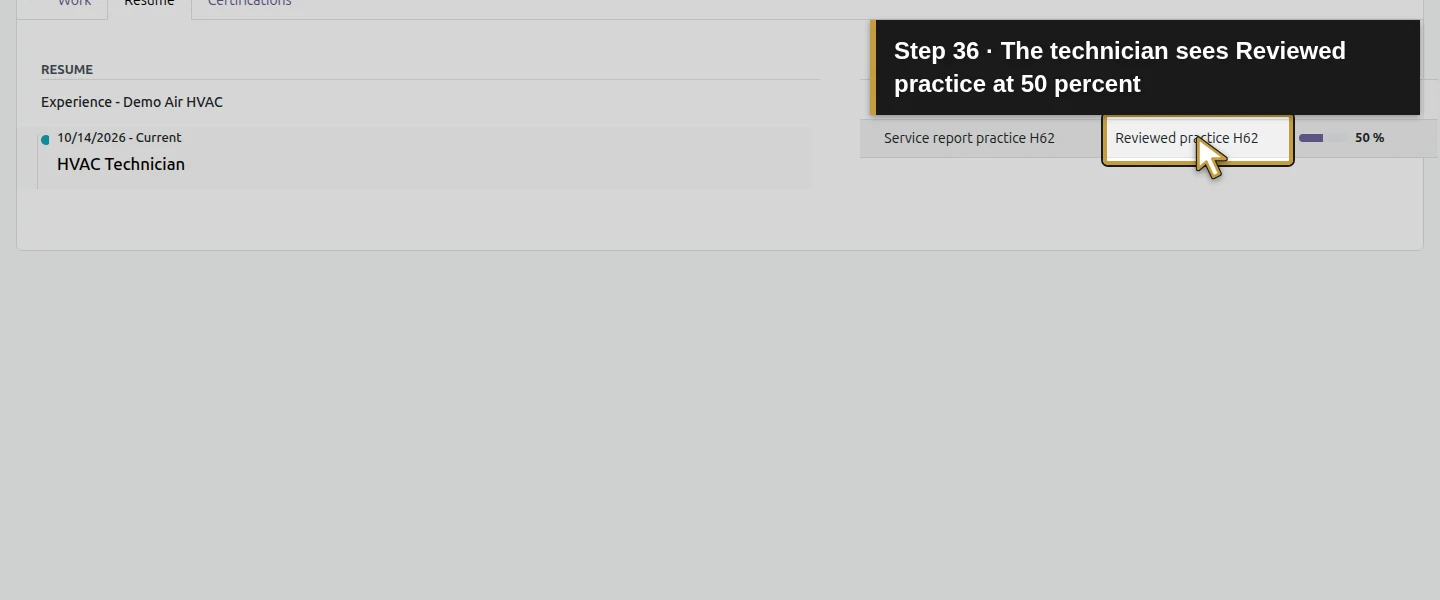
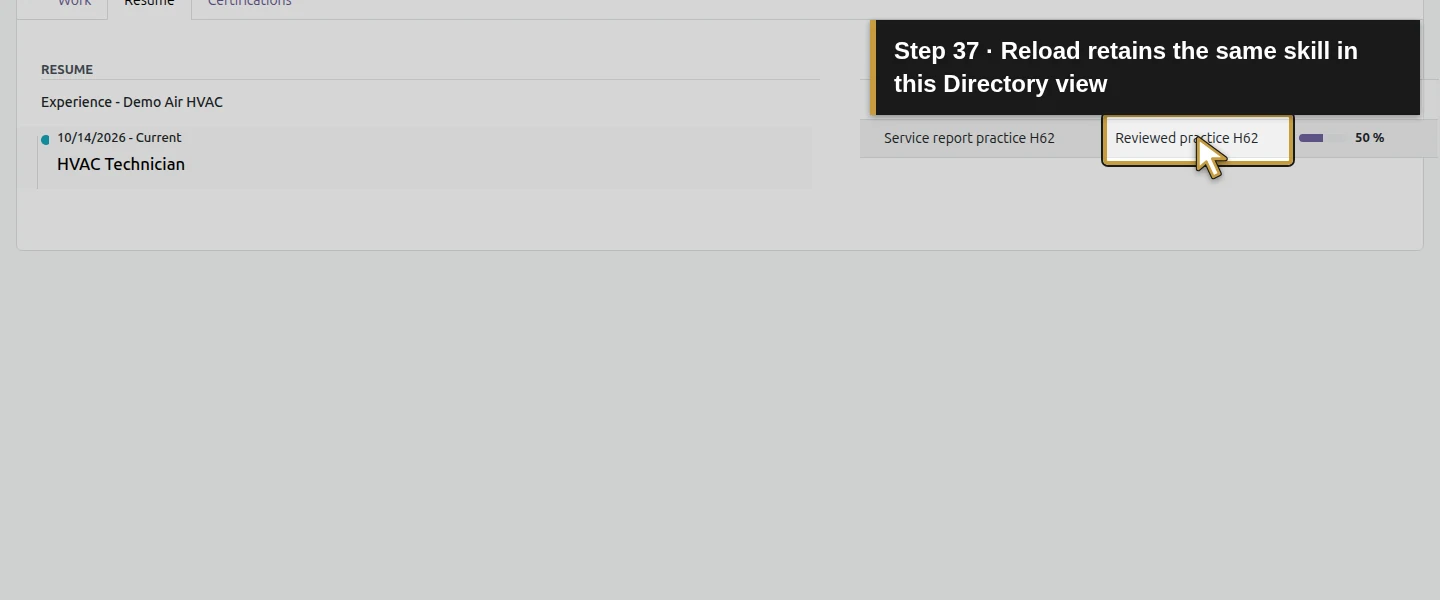
In the existing technician session, open Employees, select Demo Technician H42, then Resume. The native Directory view shows Demo HVAC Training H62 / Service report practice H62 / Reviewed practice H62 / 50%. Reload and select Resume again to confirm it persists. In this tested view the technician has no add-skill, delete, Save or HR Configuration controls. The owner’s internal context note is not part of this demonstrated public-directory view.

Step 9. Review the final scope before using the record
The owner retains exactly one employee skill, one labelled context note and the new category’s one skill/two levels. In this capture, the saved skill starts on October 16, 2026 and has no stop date; it remains a non-certification example. This start date is separate from the fictional October 14 training context in the note. Earlier employee identity, user link, expense reviewer, billed 1.5-hour entry and financial records are unchanged. This lesson does not run an expiry reminder, approve a qualification or prevent assignment to work based on a skill.
Check the result
The existing technician retains one native skill at Reviewed practice H62 / 50%, under Demo HVAC Training H62. The type retains its separate 25% default and 50% selected level, with Certification off. Owner reload preserves the skill and labelled context note; technician Directory/Resume reload shows the same skill and level without edit/configuration controls in that view. The picker’s Save & Close must be followed by the employee’s own Save in the demonstrated procedure. No new employee, role grant, timesheet, transaction or qualification-renewal workflow was created.
If your screen differs
This test covers the owner’s HR form and one technician’s own Directory/Resume view. Absence of edit controls is the observed UI boundary; no arbitrary server-write denial, other-employee privacy or every-role permission guarantee is claimed. The owner’s internal note was checked as the owner, not as a directory attachment or externally shareable credential. A stored level and percentage are recorded information, not proof of assessment or an external licence/certification. The stock type has a Certification option and the skill model has validity dates, but this non-certification example leaves the stop date blank. Certification entry, expiration, renewal notifications, automatic verification and skill-based dispatch enforcement remain untested. Do not turn that scoped finding into a claim that Odoo has no certification or validity support.
Frequently asked questions
How do I record technician skills in Odoo?
Use Employees → Configuration → Skill Types to define the existing-feature category, skill and levels. On the intended employee’s Resume tab, pick the skill and level, choose Save & Close and then save the employee form. Reopen the employee to confirm the row; the tested technician also sees the saved level in Directory → Resume.Can Odoo employee skills prove a technician’s certification?
A skill record stores the category, skill and selected level; that alone does not prove an external credential or assessment. This demonstrated type has Certification unchecked and uses a clearly fictional internal scale. Actual qualification evidence and the process for reviewing it remain separate; no external certification was created or verified here.Does Odoo automatically warn when a technician qualification expires?
No expiry or reminder behavior was exercised in this example. The recorded skill is non-certification and has no stop date. The stock feature exposes Certification and validity support, so this test does not establish a blanket absence of those features. A working qualification-renewal procedure must be separately demonstrated before promising automatic warnings.Continue building the business
Continue with How do I request and approve time off in Odoo?. Keep the technician’s skill record and availability decisions separate.
Talk about your Odoo setup
Bring your current process and the result you need to Onward to plan your Odoo workflow. Talk about your Odoo setup.