
Running an HVAC business with Odoo
How do I qualify a service enquiry in Odoo CRM?
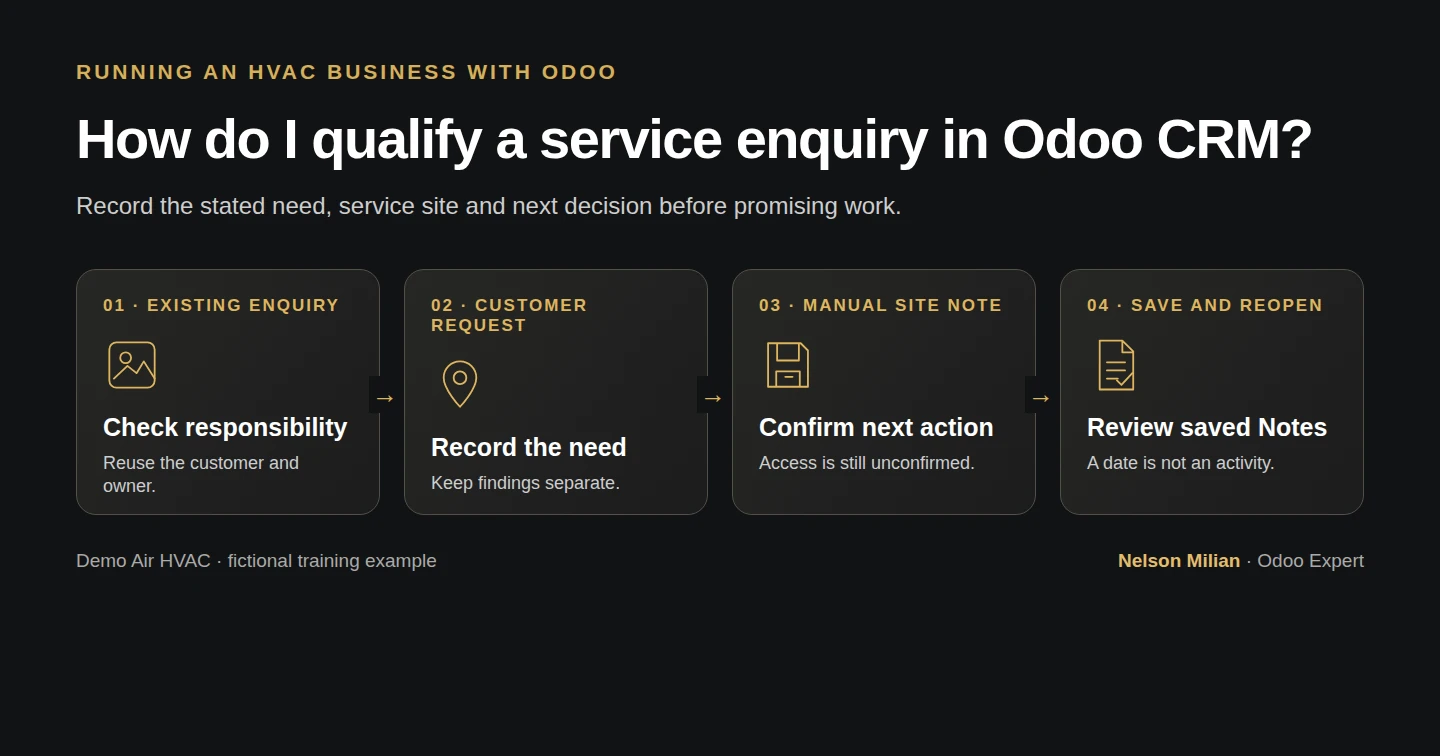
Record an HVAC service request, site and next action in an Odoo opportunity using standard CRM fields and Notes.
Alex needs to understand the request before promising a repair, replacement or appointment. This procedure adds useful qualification notes to the existing opportunity. Alex Rivera and Demo Air HVAC are fictional training examples.
Before you begin
Tested in stock Odoo 20.0-20260926 Community, using CRM as the demo owner administrator. Complete pipeline setup and customer/service addresses.
Use the existing Demo Service Enquiry H16 opportunity and Demo Property H08 customer. The opportunity is assigned to Demo Air Owner and is in Qualified. Its expected revenue remains the illustrative zero, not a sales forecast.
Record the service enquiry
Step 1. Open the existing opportunity
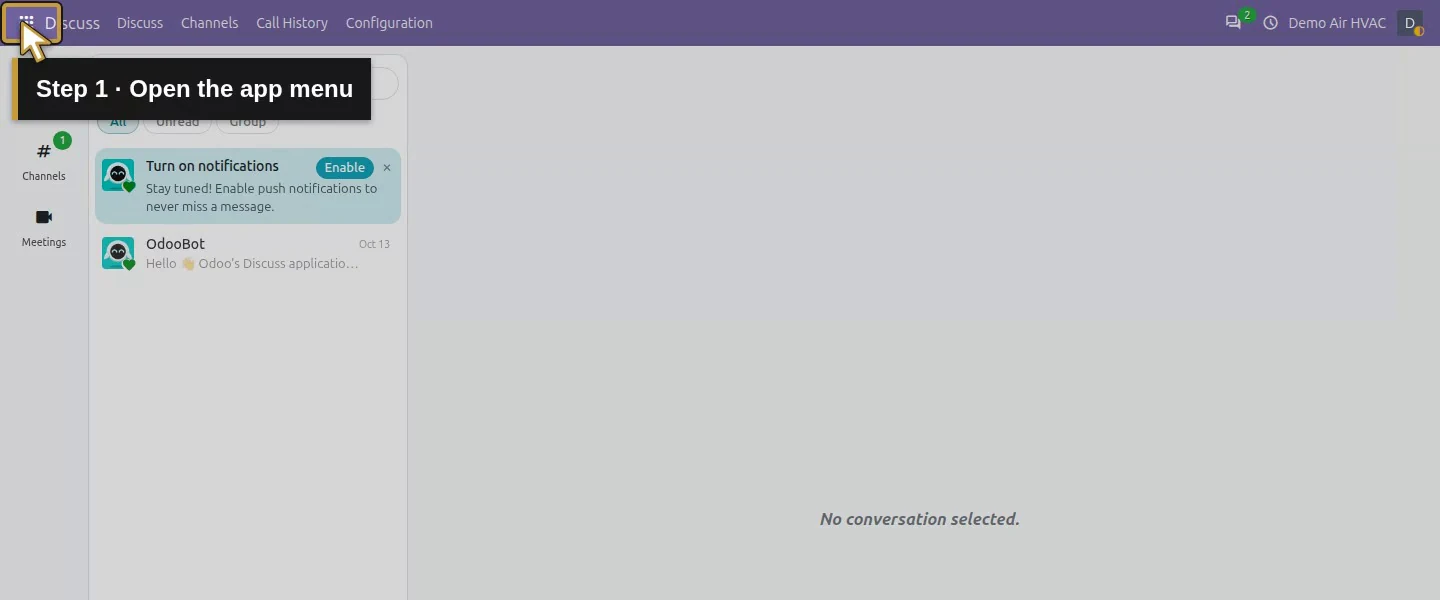
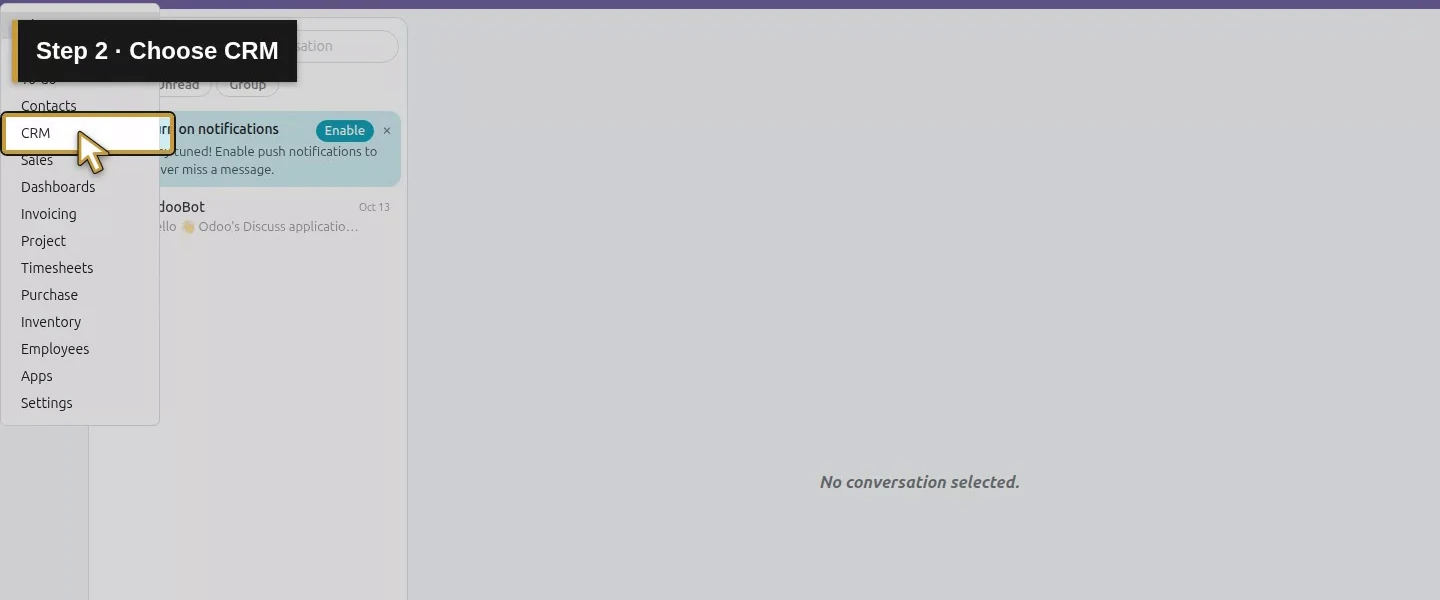
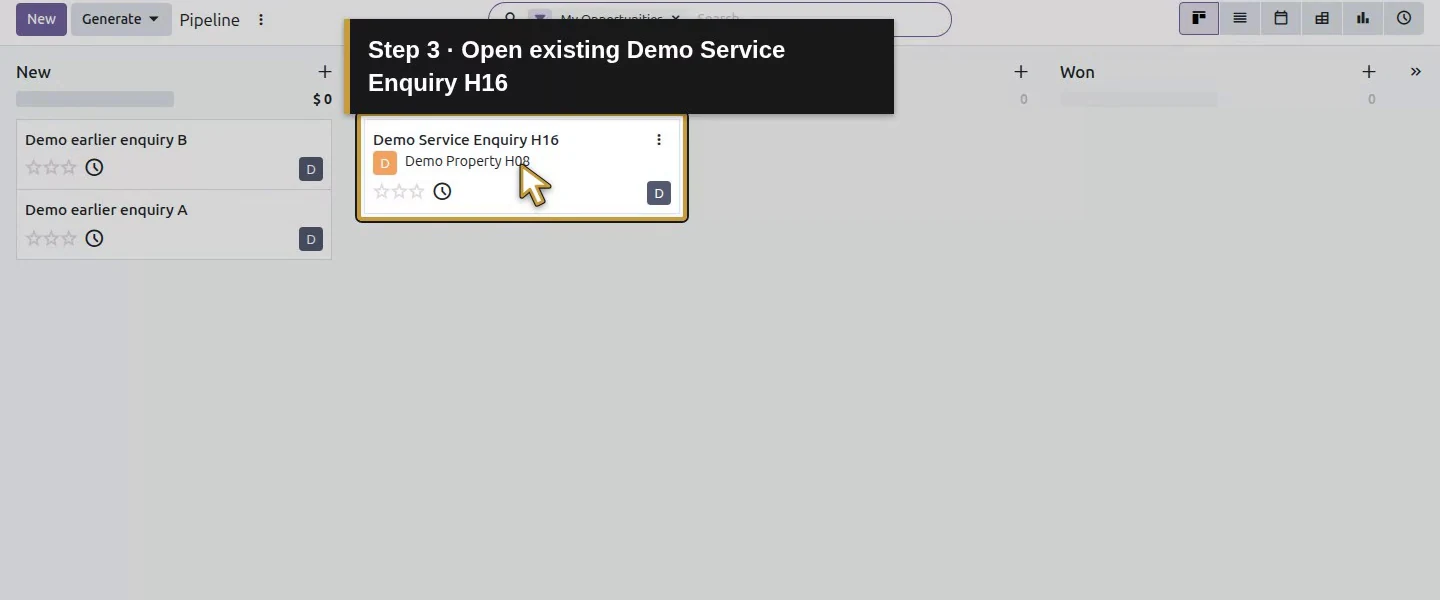
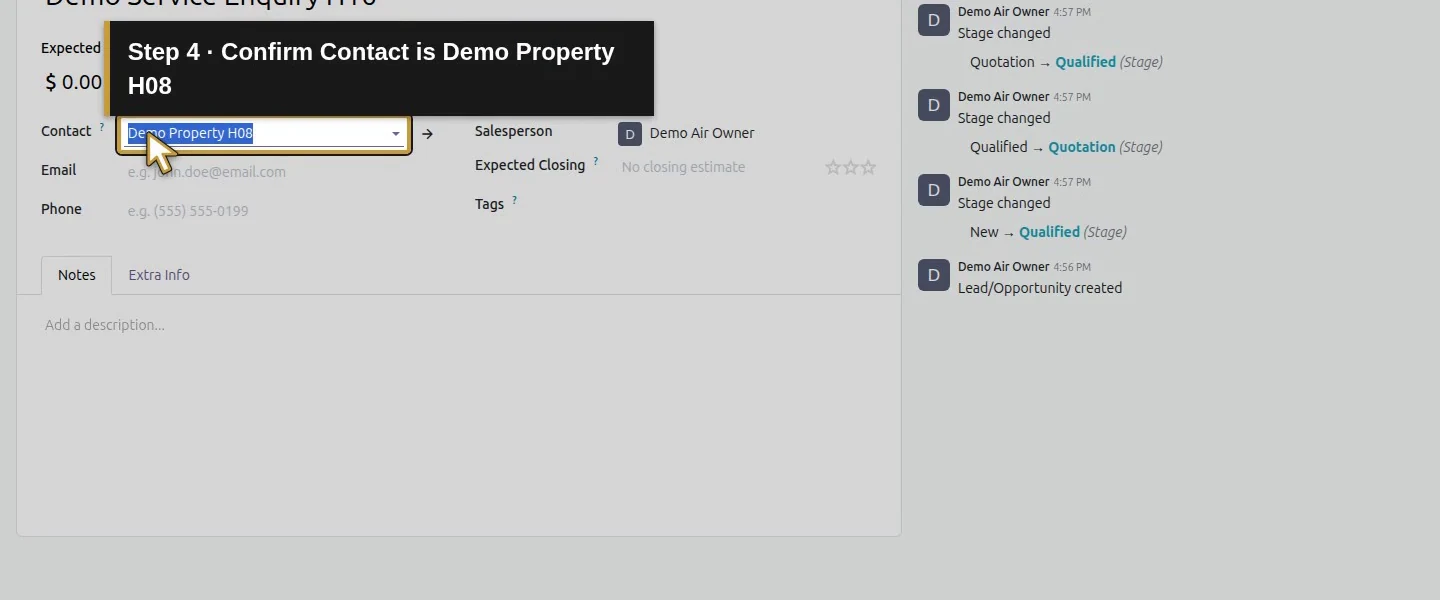
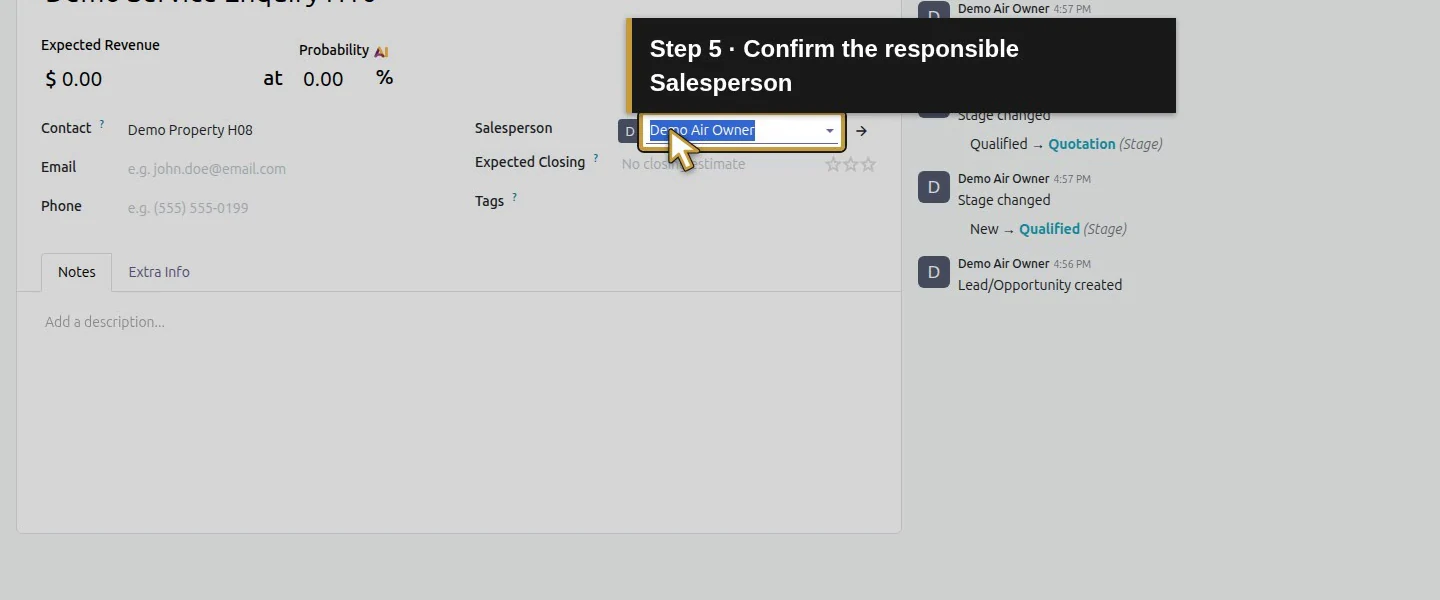
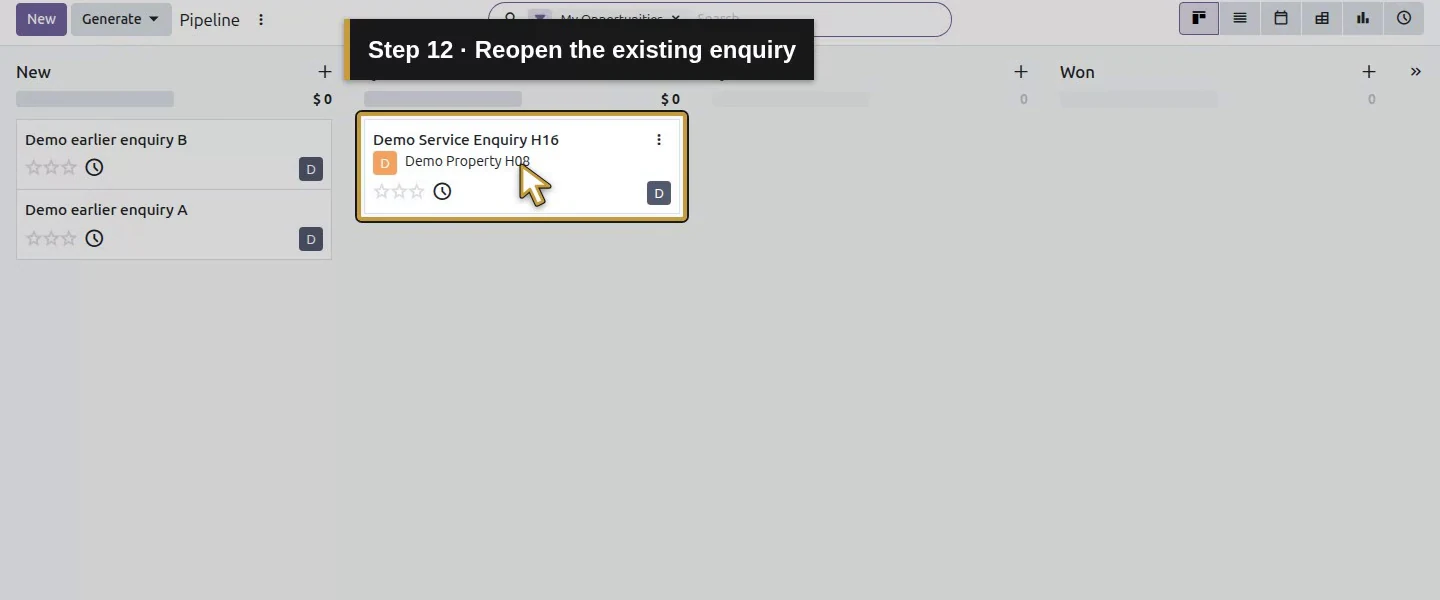
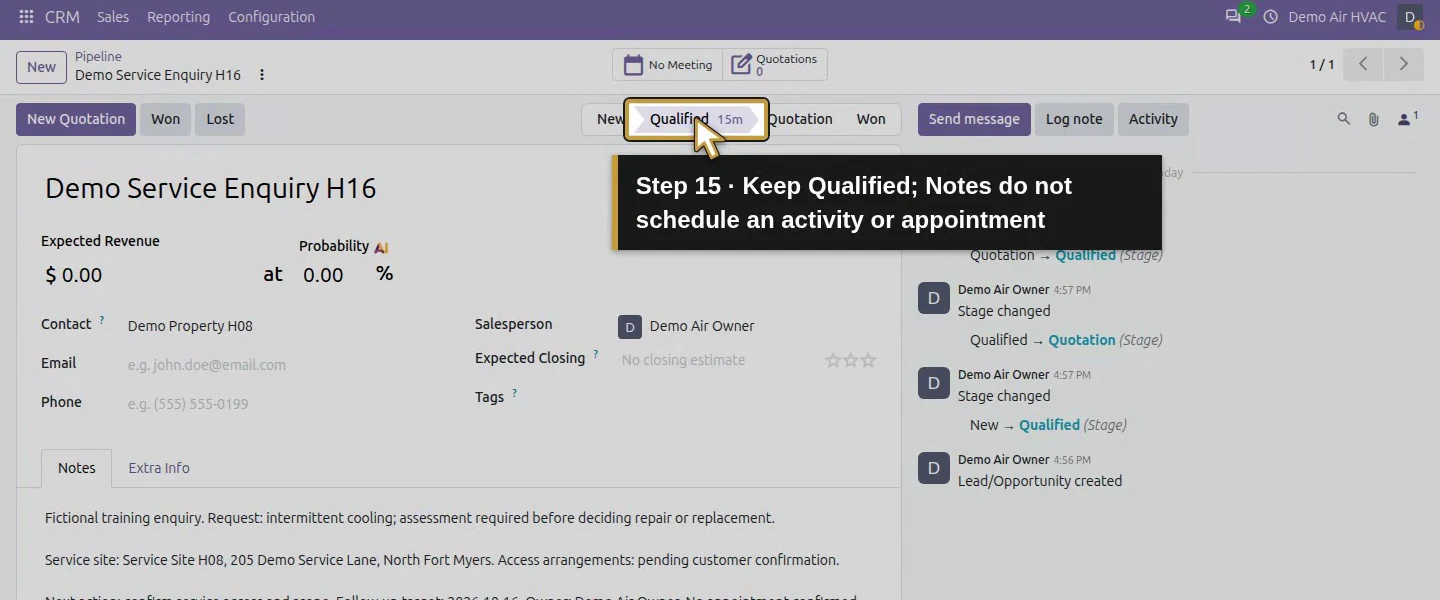
Open CRM and click the Demo Service Enquiry H16 card. Confirm Contact is Demo Property H08 and Salesperson is the responsible user.
Step 2. Open Notes
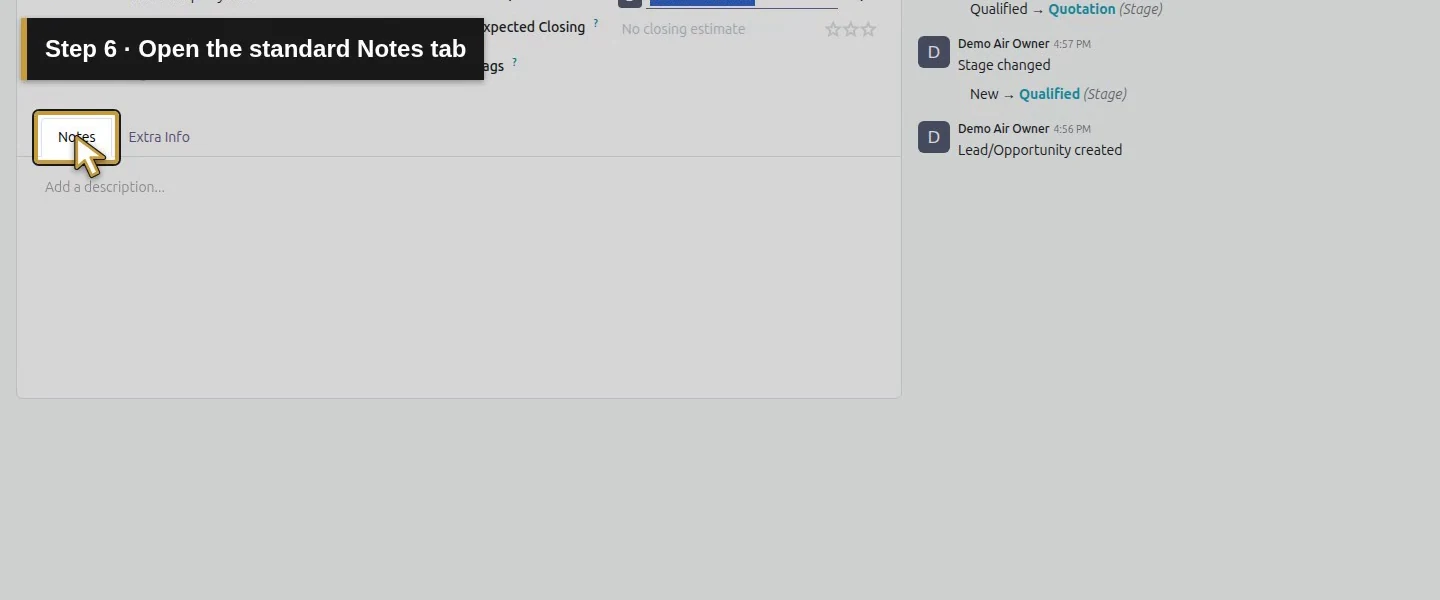
Select the Notes tab. Use its standard text editor; no custom qualification field or worksheet is needed for this example.
Step 3. Record the need and what remains unknown
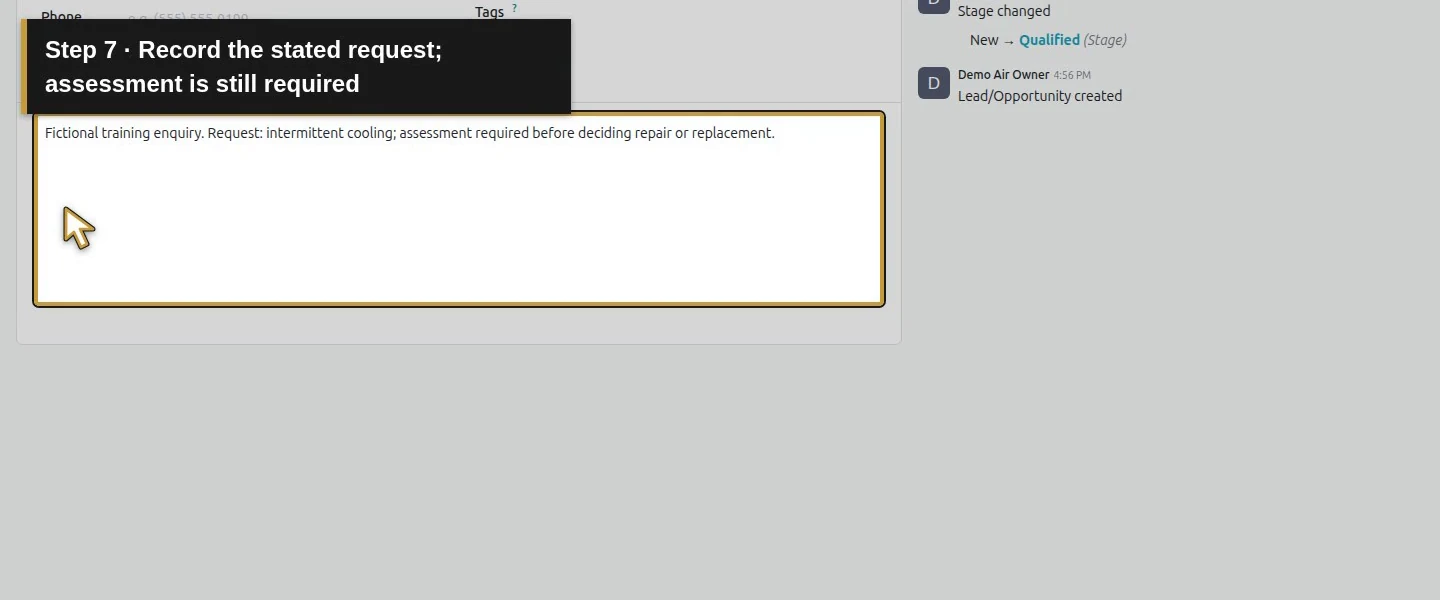
Enter a clear training description:
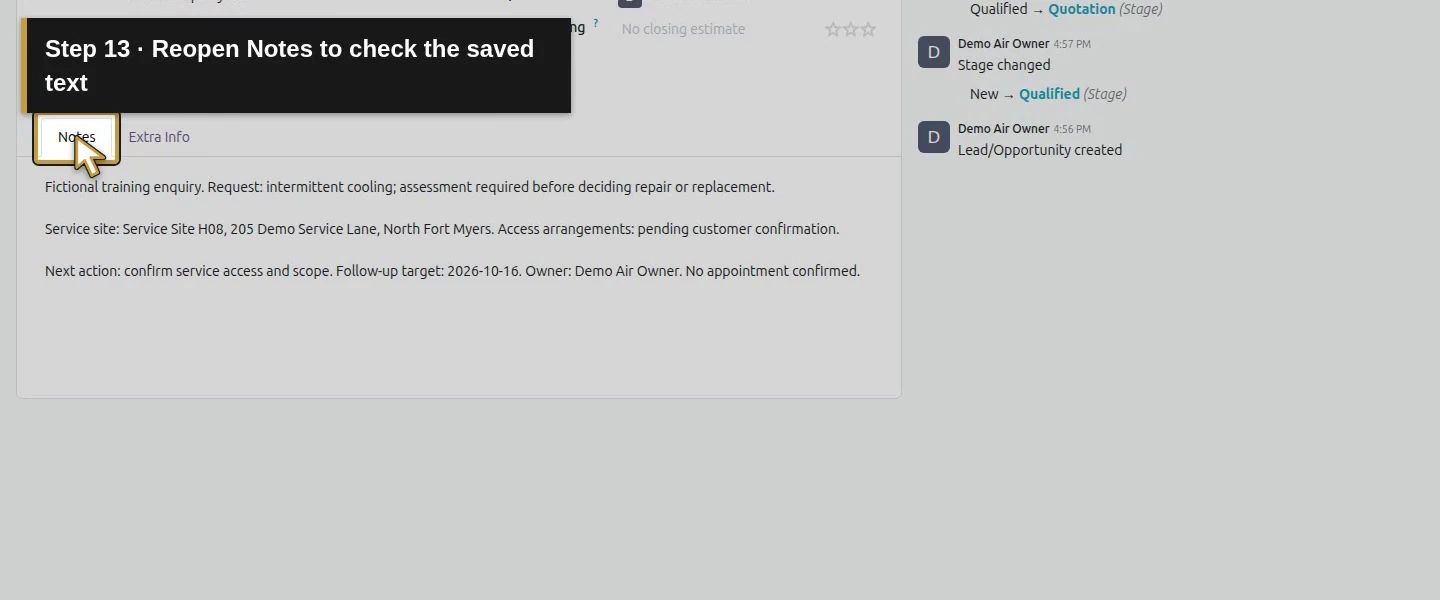
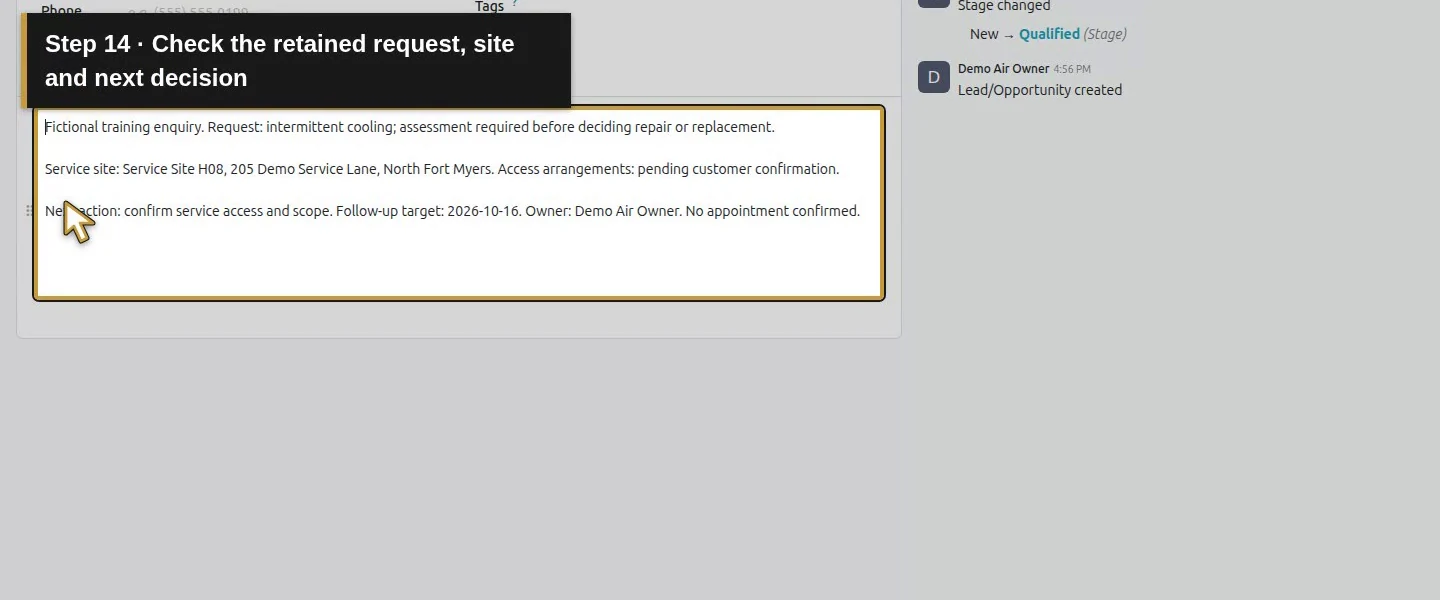
Fictional training enquiry. Request: intermittent cooling; assessment required before deciding repair or replacement.
Record the customer's stated problem separately from a technician's later findings. This CRM lesson does not diagnose or size an HVAC system.
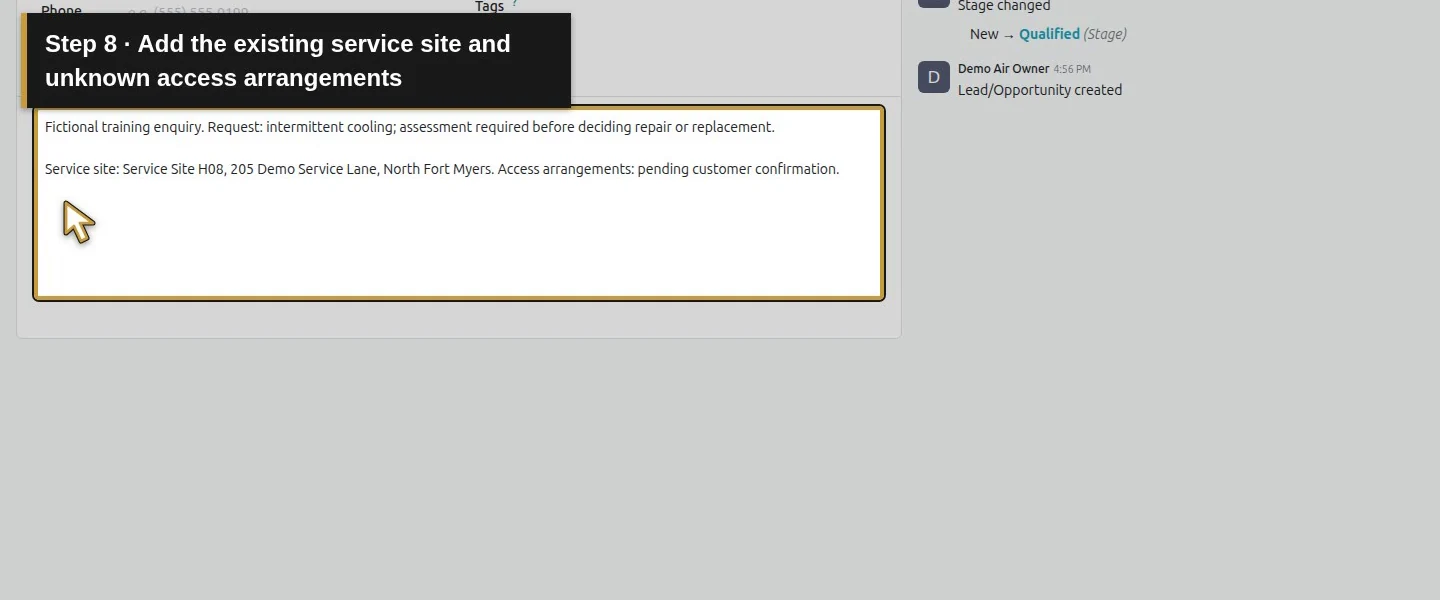
Step 4. Record the service site
Add the existing site to the same notes:
Service site: Service Site H08, 205 Demo Service Lane, North Fort Myers. Access arrangements: pending customer confirmation.
The tested CRM form has Contact, Notes and sales context; its Extra Info tab did not expose a separate service-address selector. The site reference here is an explicit manual note. Review the actual address used on later quotations and jobs.
Step 5. Record the next decision
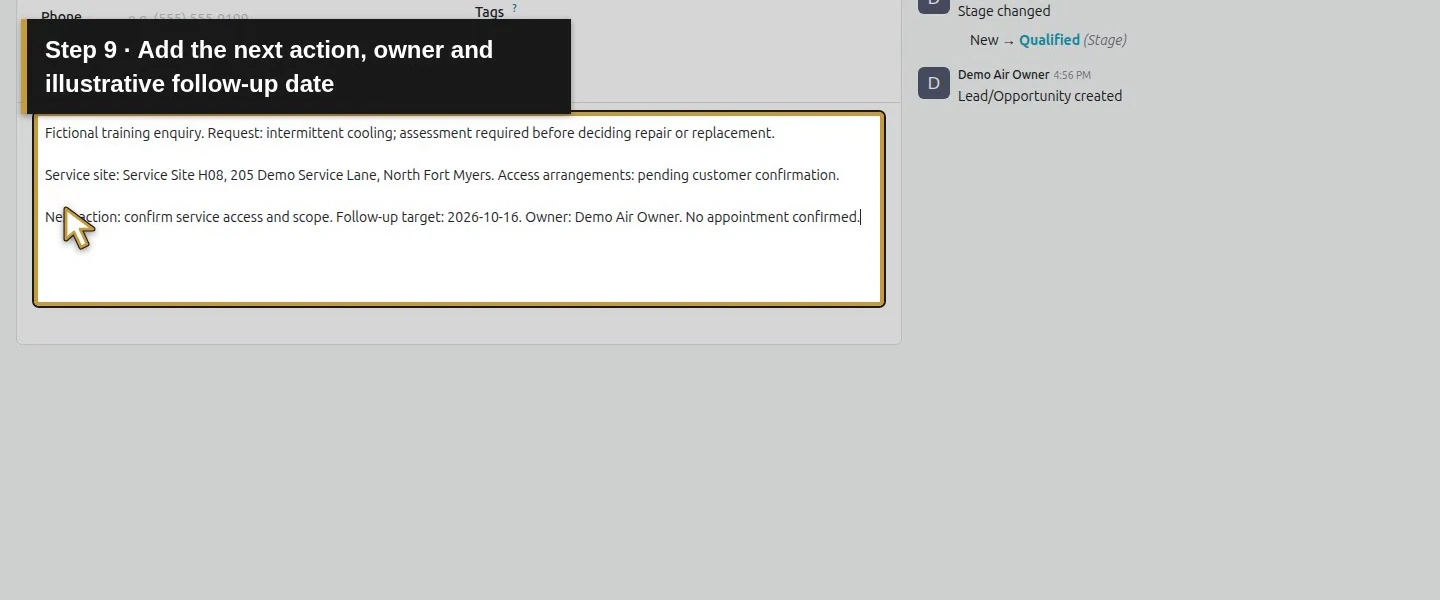
Add the next action, responsible person and target date:
Next action: confirm service access and scope. Follow-up target: 2026-10-16. Owner: Demo Air Owner. No appointment confirmed.
The date is a clearly labeled training example. A date typed in Notes is not a scheduled Odoo activity; the activity lesson creates that assigned reminder.
Step 6. Save and reopen
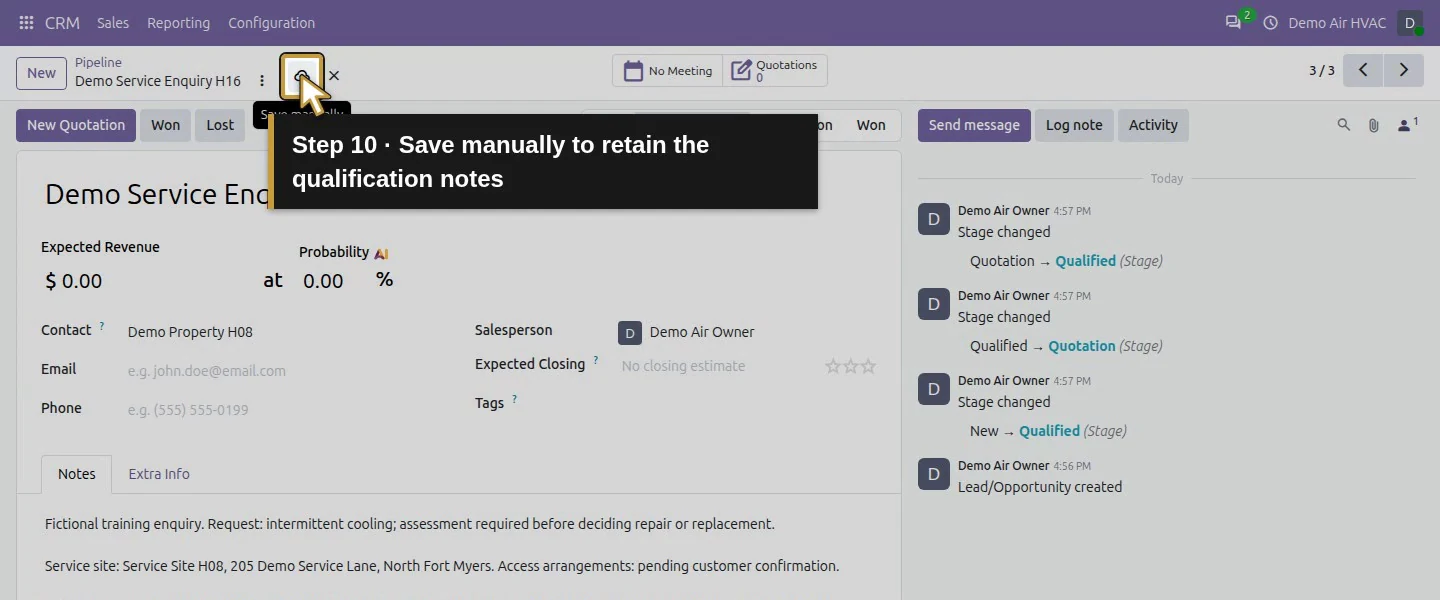
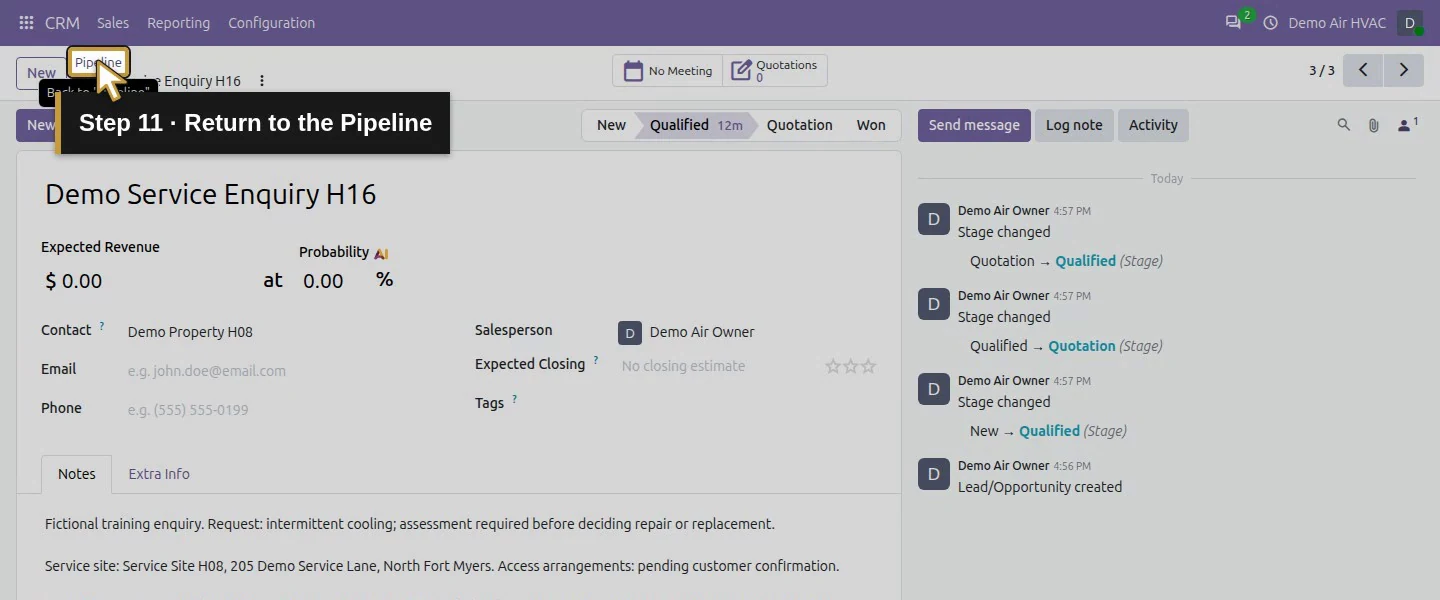
Click Save manually. Reopen the opportunity and its Notes tab. Check that the request, site, unknown access arrangements and next action remain.
Keep the stage consistent with the actual sales decision. This example retained Qualified; it created no quotation or confirmed appointment.
Check the result
Opportunity 3 retained customer 7, owner 2 and the full qualification note. It reuses service-site record 9 under the existing customer. No new customer or opportunity was created by this qualification step.
If something does not match
If the expected enquiry is missing, inspect the pipeline's My Opportunities filter, sales team and your permitted record scope before creating another request.
Do not put the service-site address into an unrelated contact field simply to make it look structured. Keep the note explicit and check later transaction addresses.
Frequently asked questions
What information should I record on an Odoo service opportunity?
Record the customer, stated need, service site, unknown details, responsible salesperson and next action. The tested example uses Contact, Salesperson and Notes.How do I avoid duplicate opportunities in Odoo?
Find the existing enquiry and check the customer, team and active filters before creating another. My Opportunities can hide enquiries assigned to someone else; access remains limited by your role.Does qualifying an opportunity confirm an HVAC appointment?
This workflow saved qualification notes. It created no customer appointment, technician assignment or scheduled activity. Confirm those separately.Continue building the business
Schedule and complete the follow-up activity, then prepare the reviewed quotation when the scope is clear.
Talk about your Odoo setup
Bring your enquiry and qualification process to Onward to plan the required Odoo workflow. Talk about your Odoo setup.