
Running an HVAC business with Odoo
How do I schedule recurring HVAC maintenance visits in Odoo?
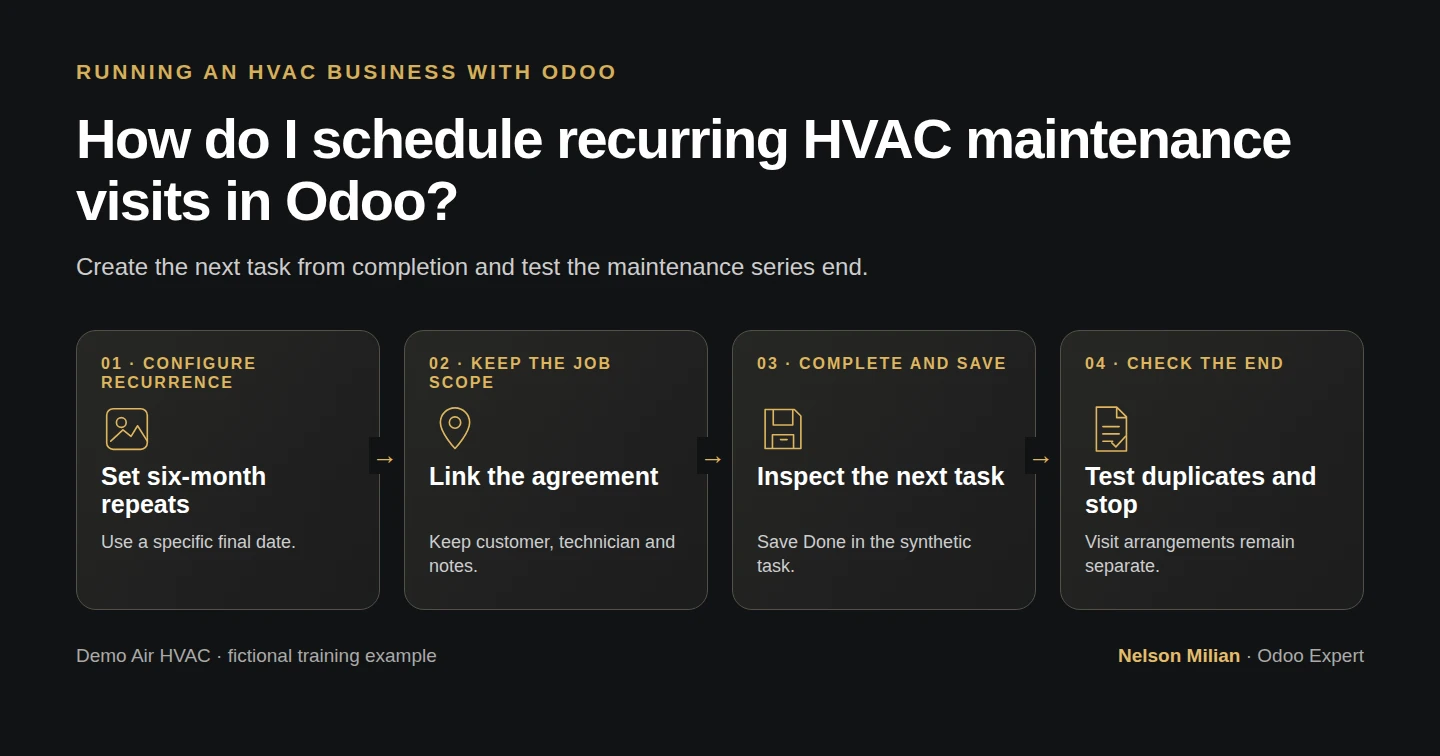
Schedule recurring HVAC maintenance tasks in Odoo, verify the Done trigger, review copied visit details and stop at the agreement term.
Alex needs two maintenance visits within one annual agreement. Odoo recurring tasks can prepare the next job when the current task is closed. In this example, a six-month interval produces the second task, while an explicit end date prevents another task outside the agreement term. Customer booking, technician availability and billing still need their own review.
Alex Rivera and Demo Air HVAC are fictional training examples. Prices, dates, quantities and business situations in this guide are illustrative.
Before you begin
Tested in stock Odoo 20.0-20260926 Community as the demo owner administrator, with official modules and standard configuration. Complete H50 maintenance agreements and H40 service jobs. Use official Project and the existing Demo Service Jobs H40 project, Demo Property H08, Demo Technician H42 and maintenance sale S00013. The agreement covers October 15, 2026–October 14, 2027: one annual $240 fee for two planned visits. Recurrence does not change that price or renew the agreement. The deadlines below are internal targets, not confirmed appointments. Perform the completion/stop tests only in a training environment: both future tasks are closed synthetically to check automation, with no actual work or time recorded. Keep messages in the local test sink.
Step-by-step workflow
Step 1. Enable recurring tasks on the existing project
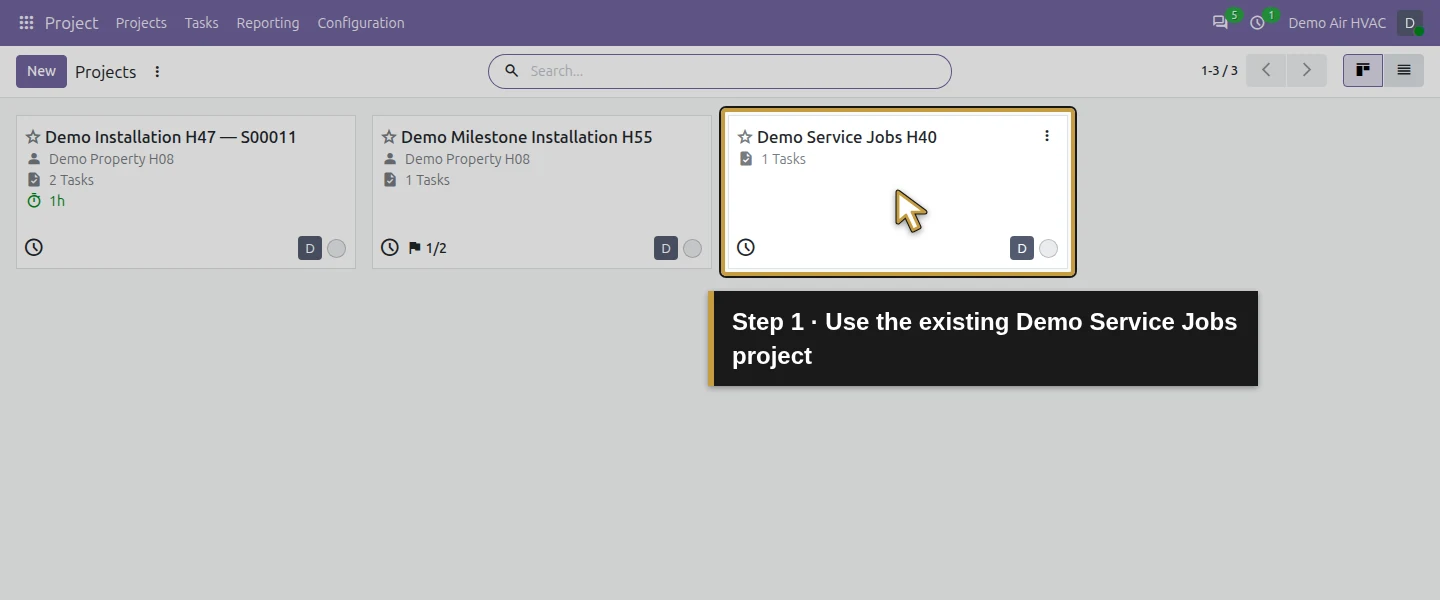
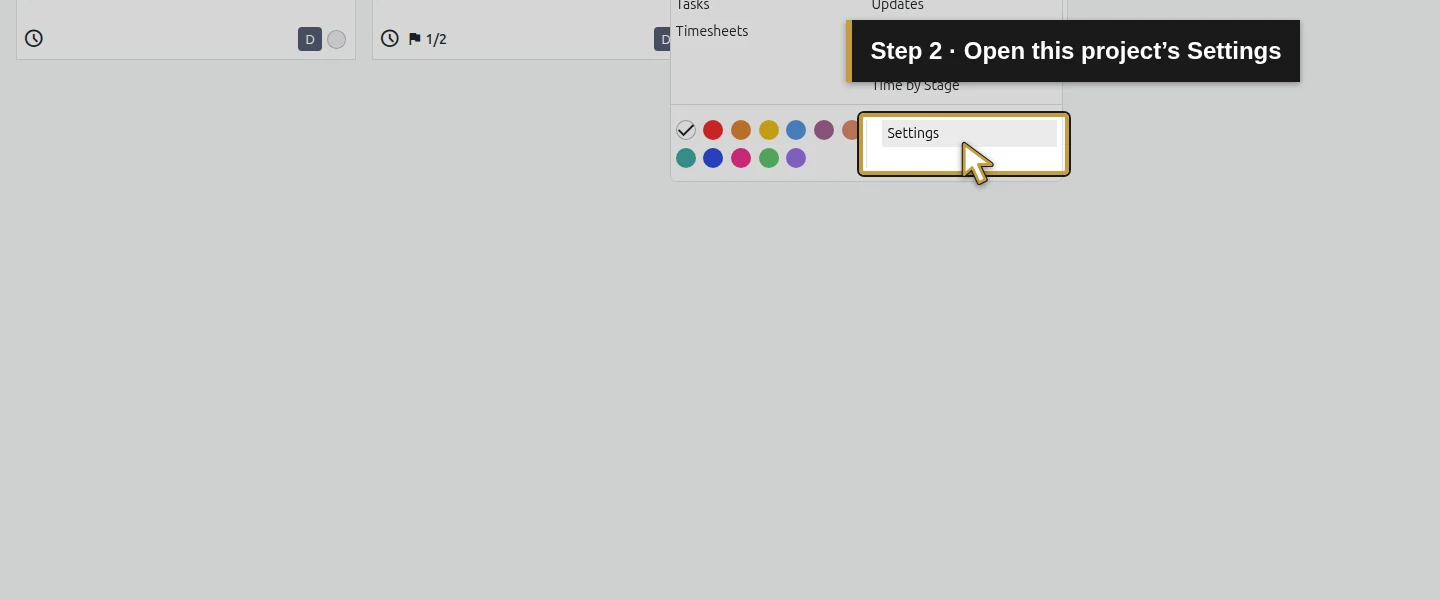
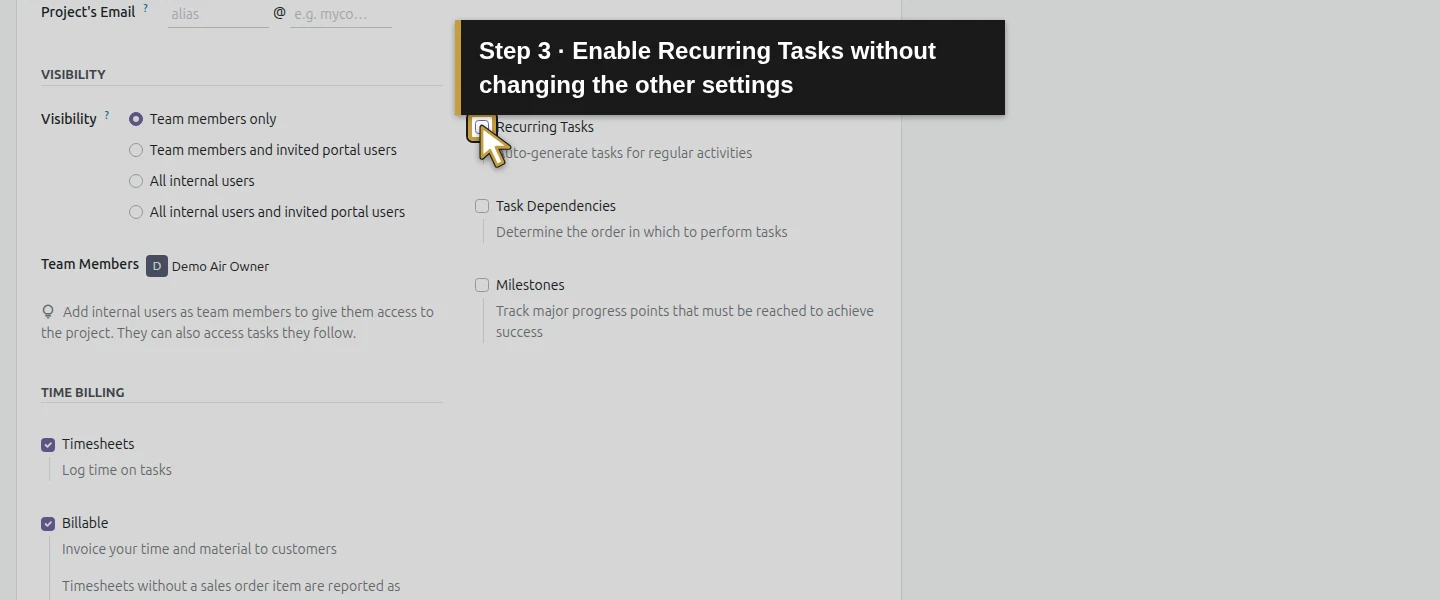
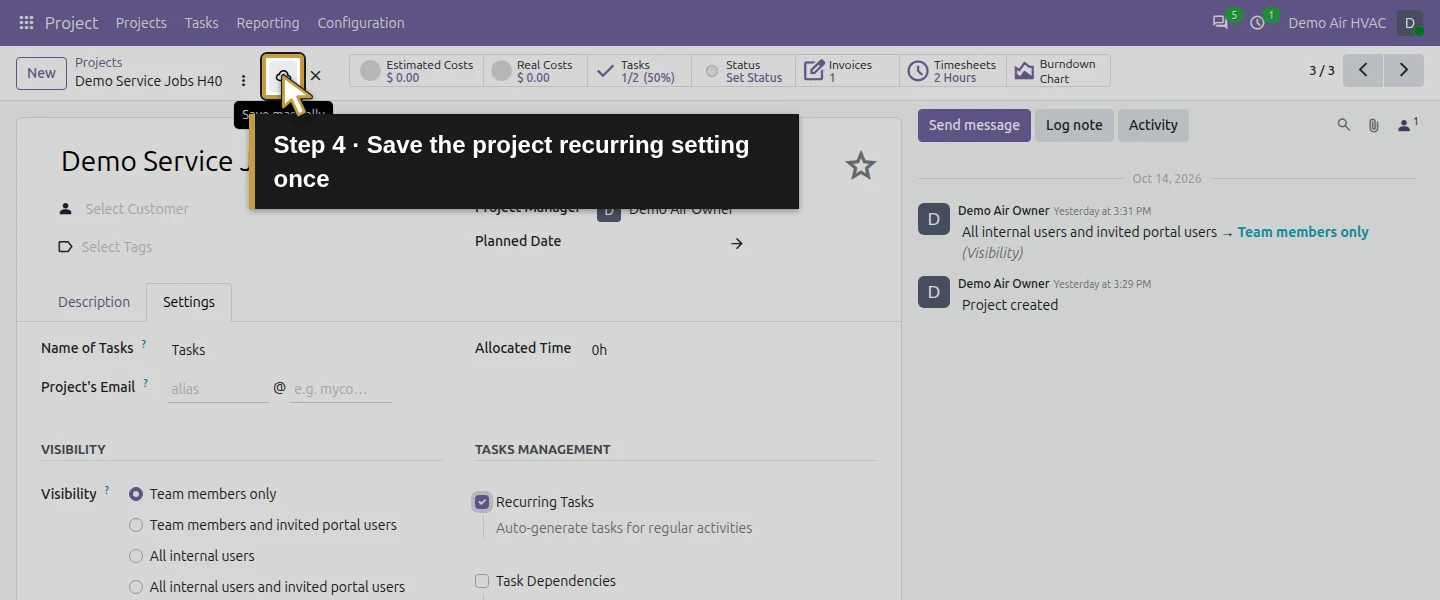
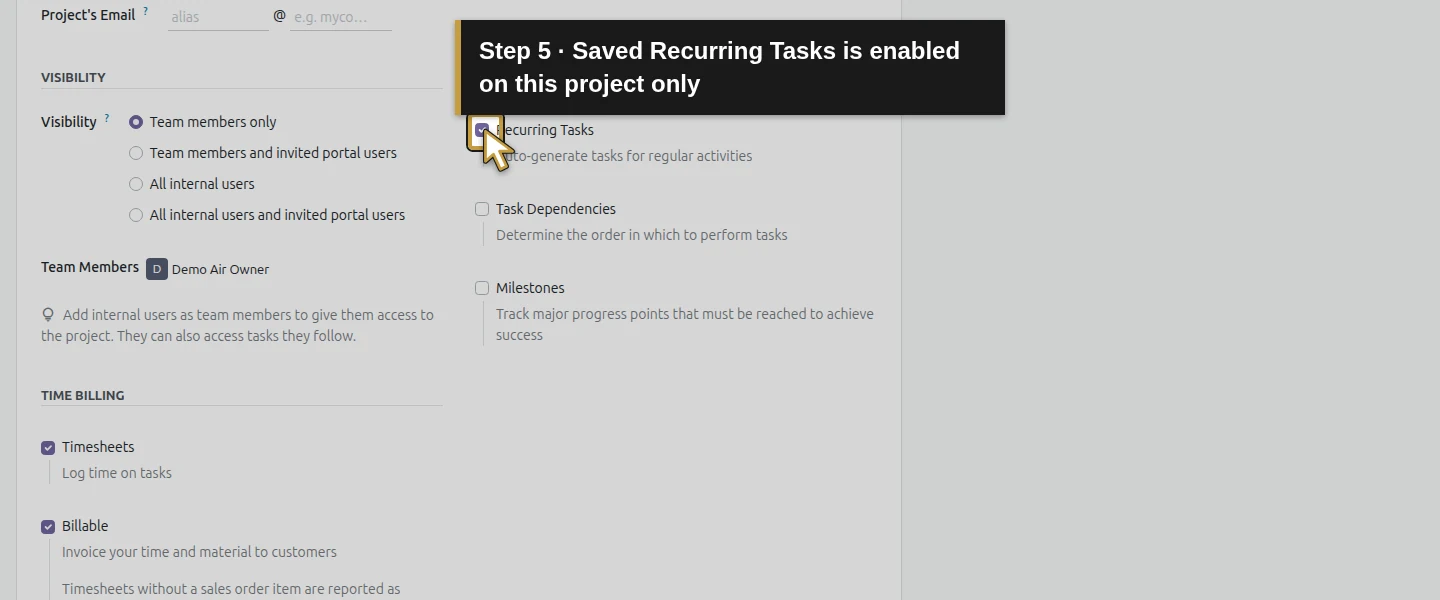
Open Project → Projects. On Demo Service Jobs H40, open the card’s more_vert → Settings, then its Settings tab. Select Recurring Tasks and click Save manually. Keep the existing visibility, Timesheets, Billable, stages and project team. This is a project setting; the existing installation projects are unchanged.
Step 2. Create a separate maintenance visit task
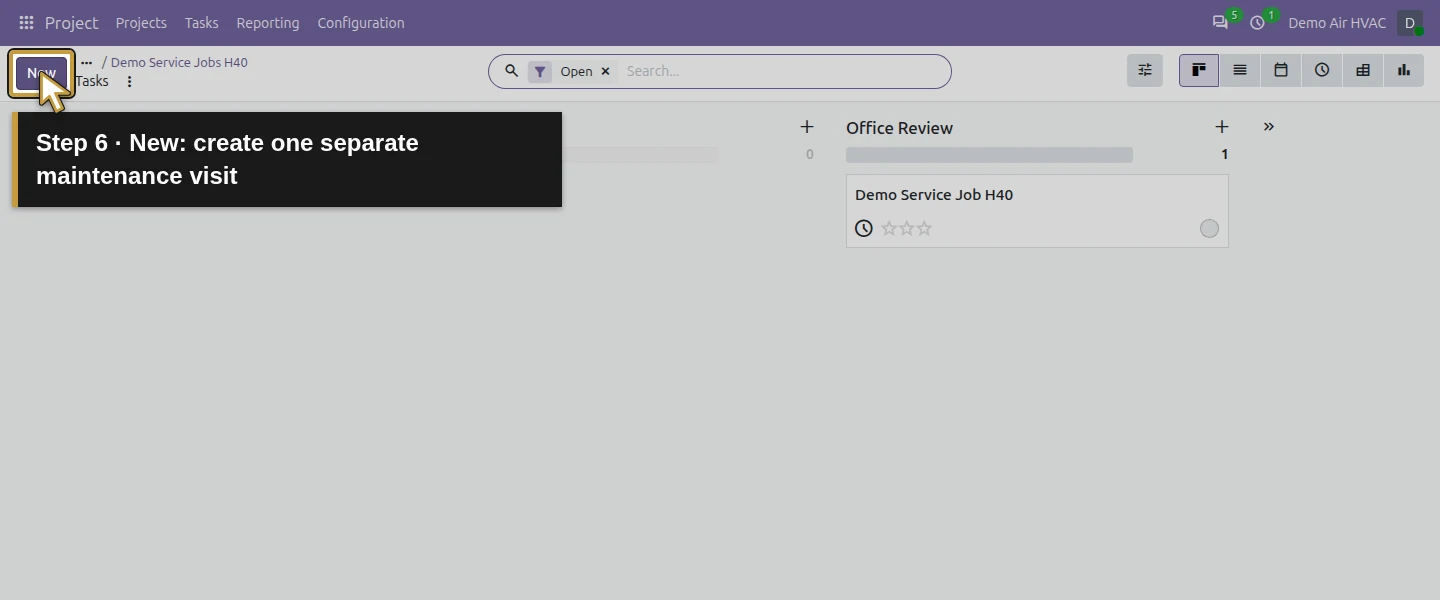
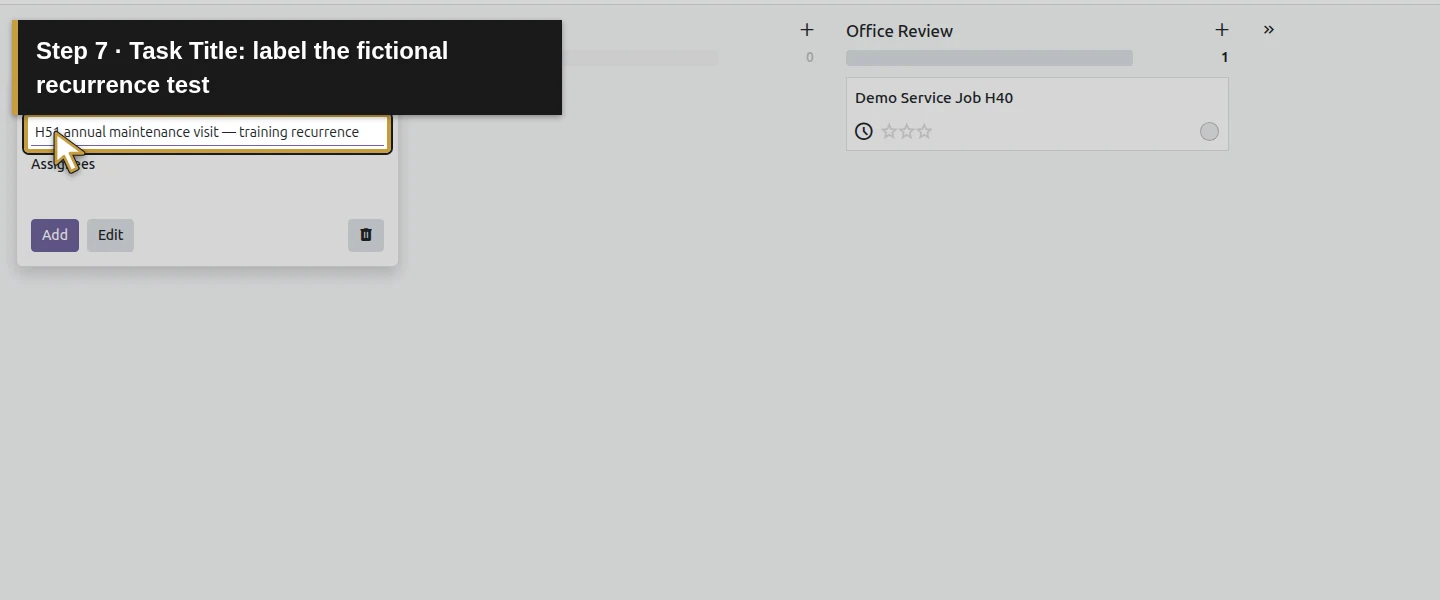
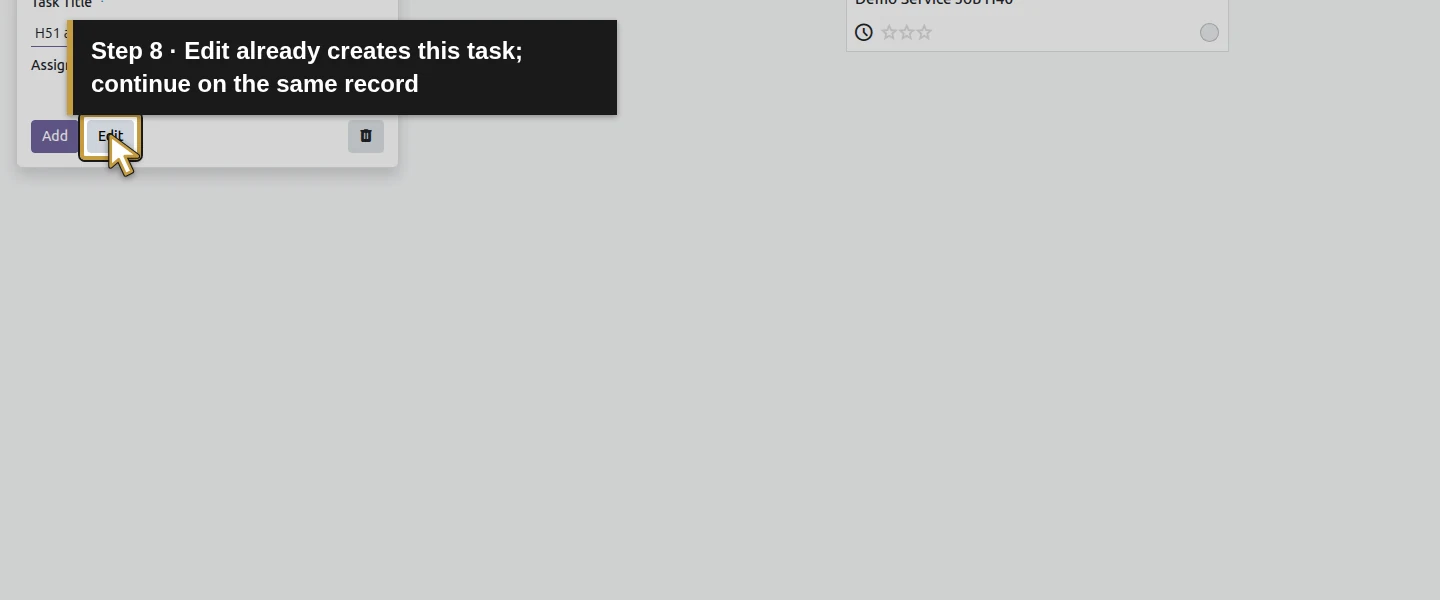
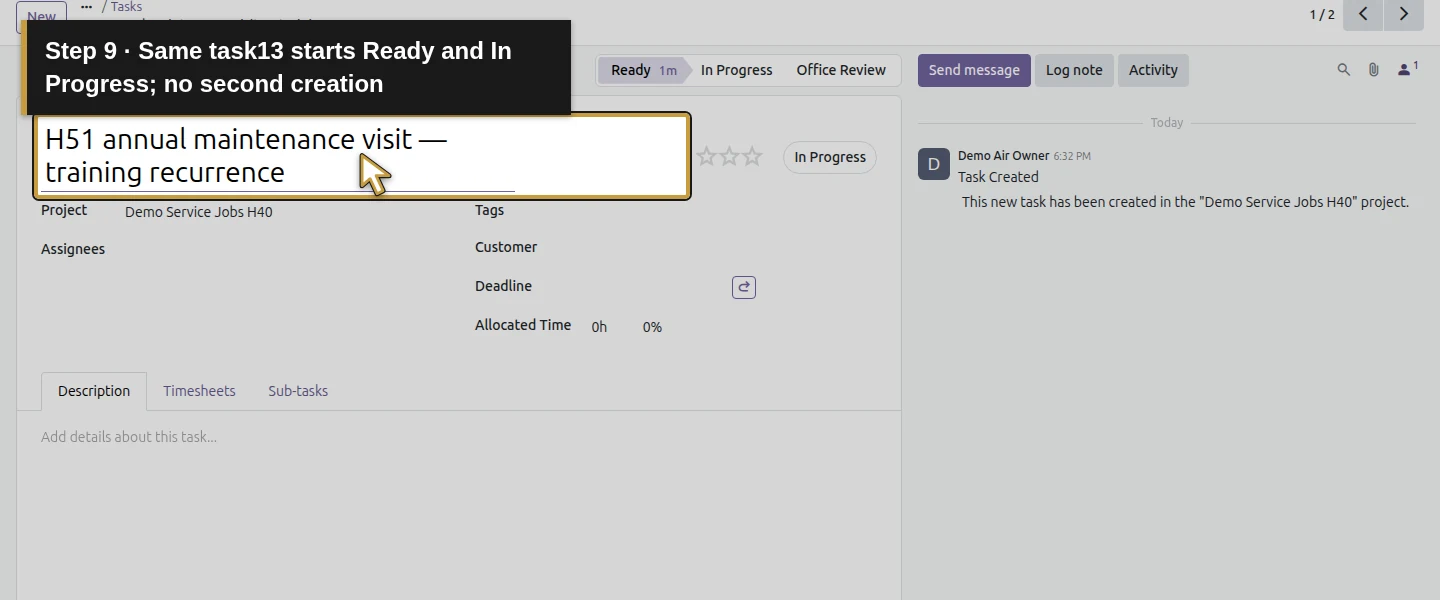
Open the project’s Tasks button. Click New, enter H51 annual maintenance visit — training recurrence in Task Title, then click Edit to open the full task. This quick-create action already creates the initial task. Continue editing that same record instead of clicking Add or New again. It starts in the project’s Ready stage with In Progress status.
Step 3. Set the customer, technician and first deadline
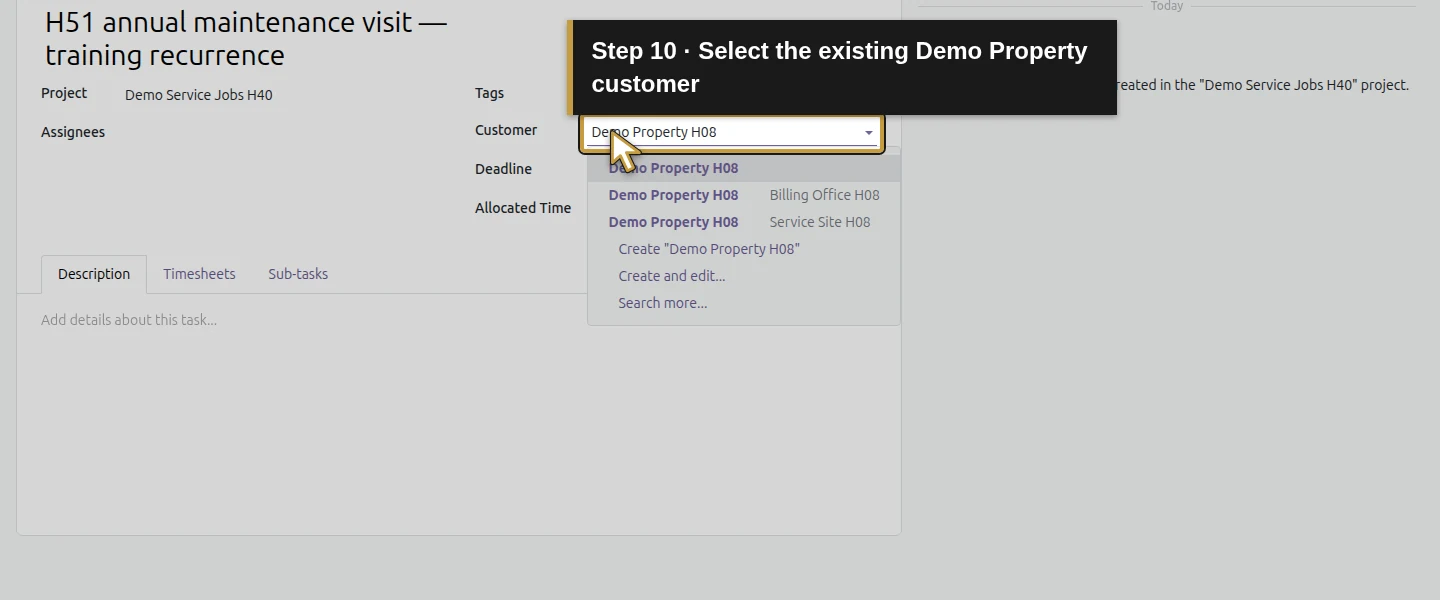
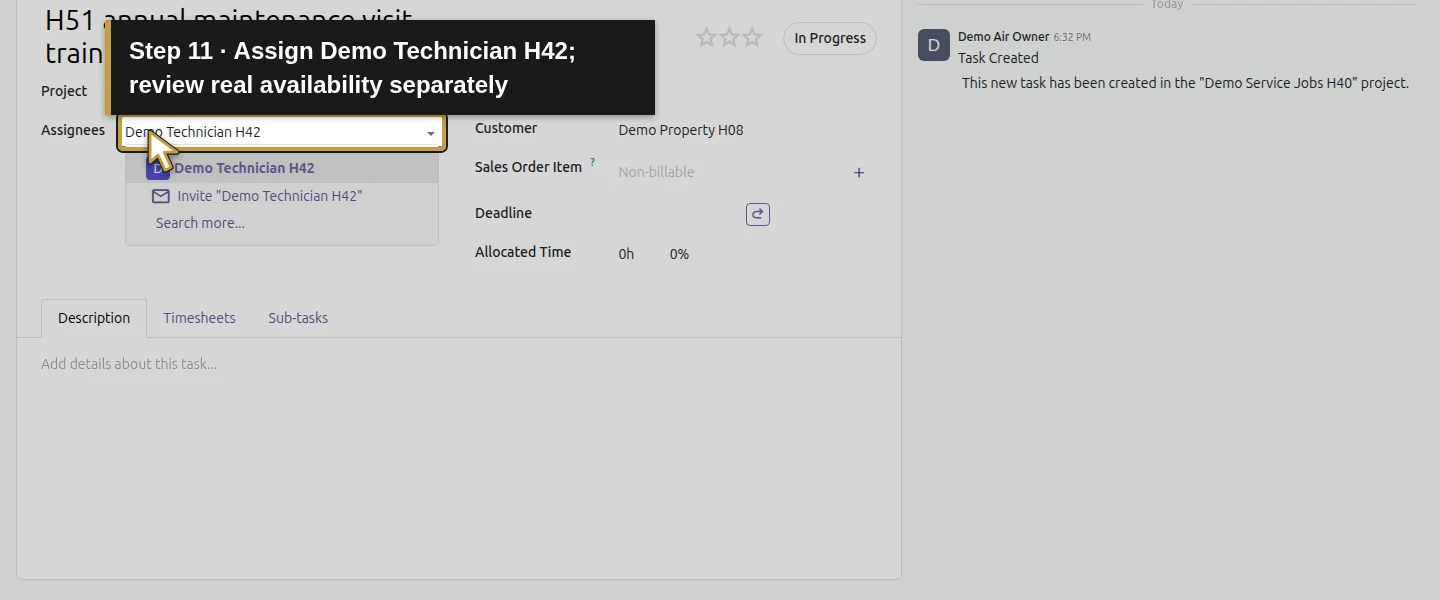
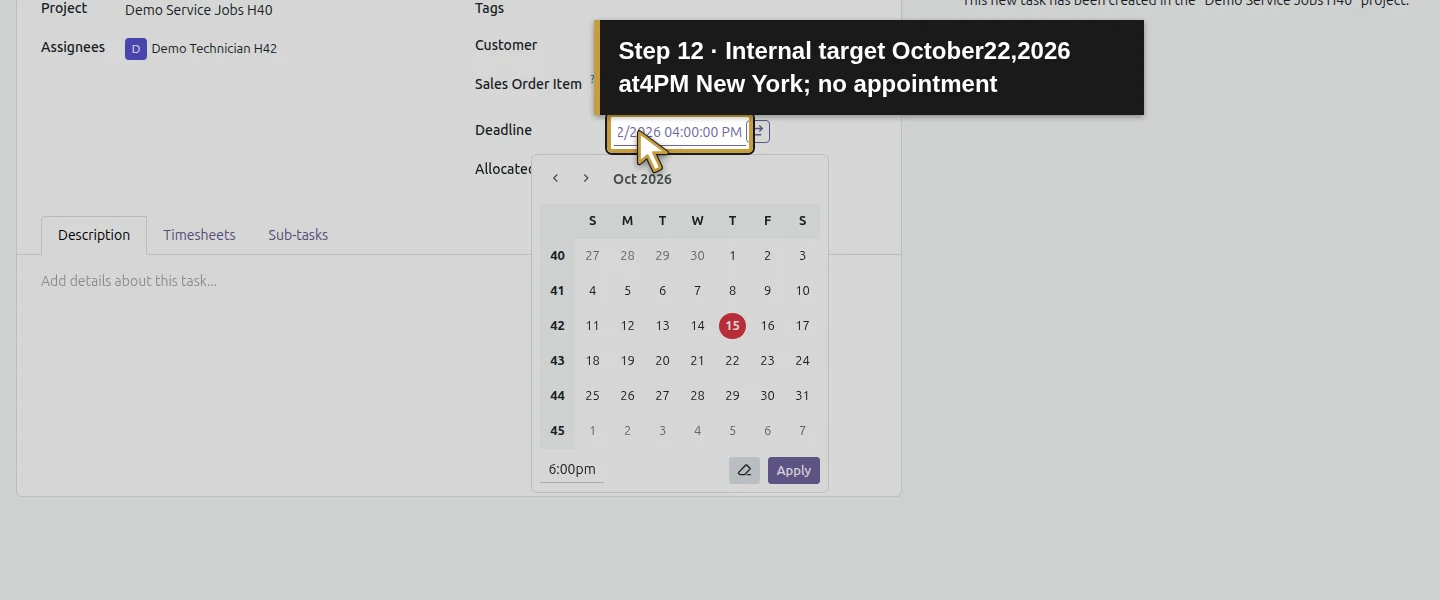
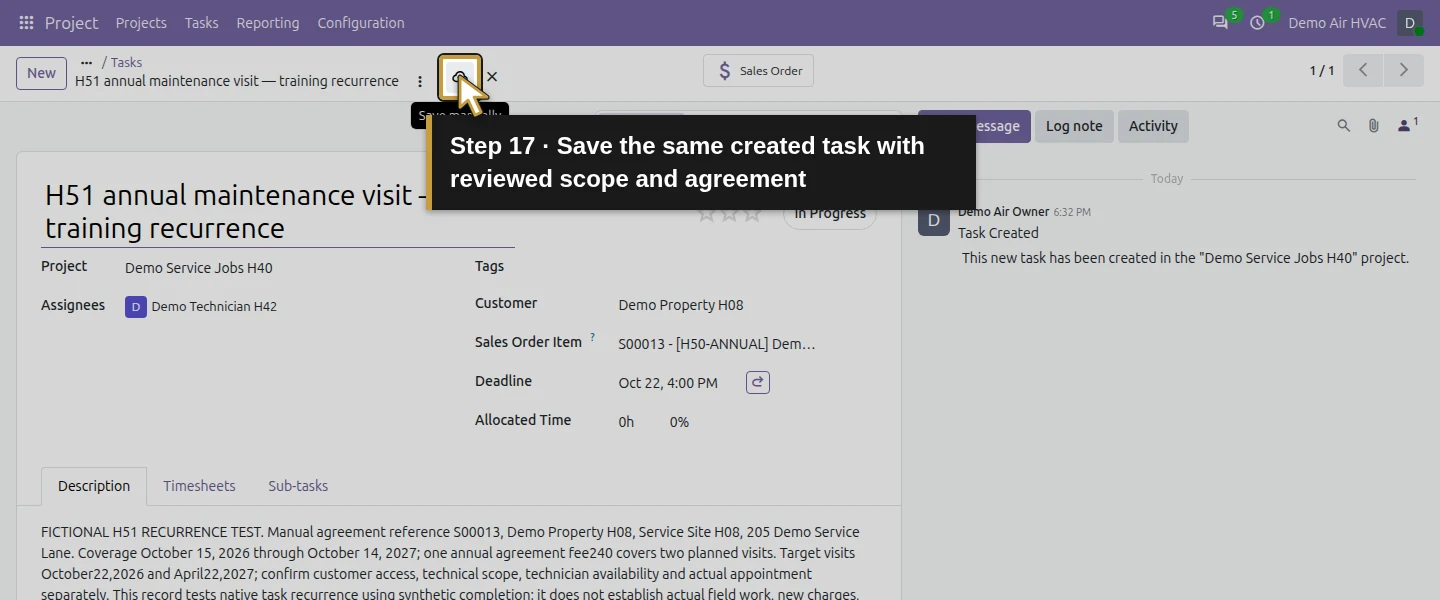
Select Customer → Demo Property H08 and Assignees → Demo Technician H42. Set Deadline October 22, 2026, 4:00 PM in the owner’s America/New_York timezone, then commit the date. Leave Allocated Time at zero in this recurrence test. The deadline does not reserve the technician’s calendar or confirm a customer visit. Review access, equipment, actual scope and availability separately.
Step 4. Check the sales line explicitly
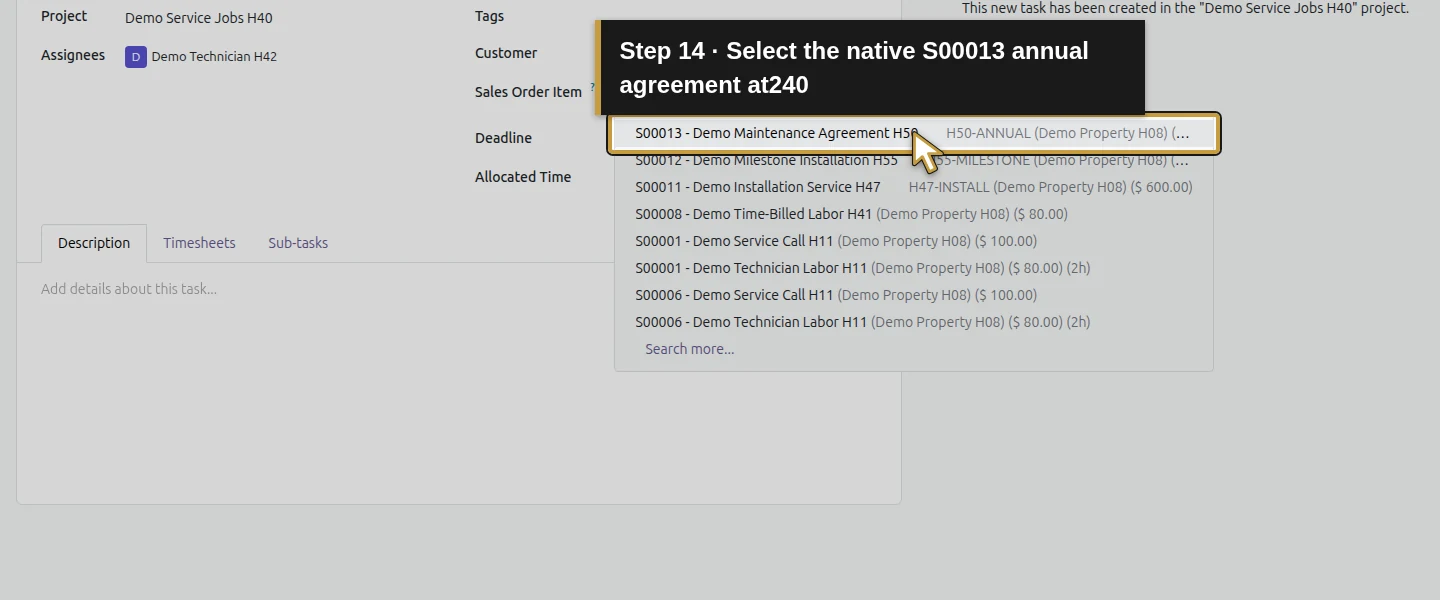
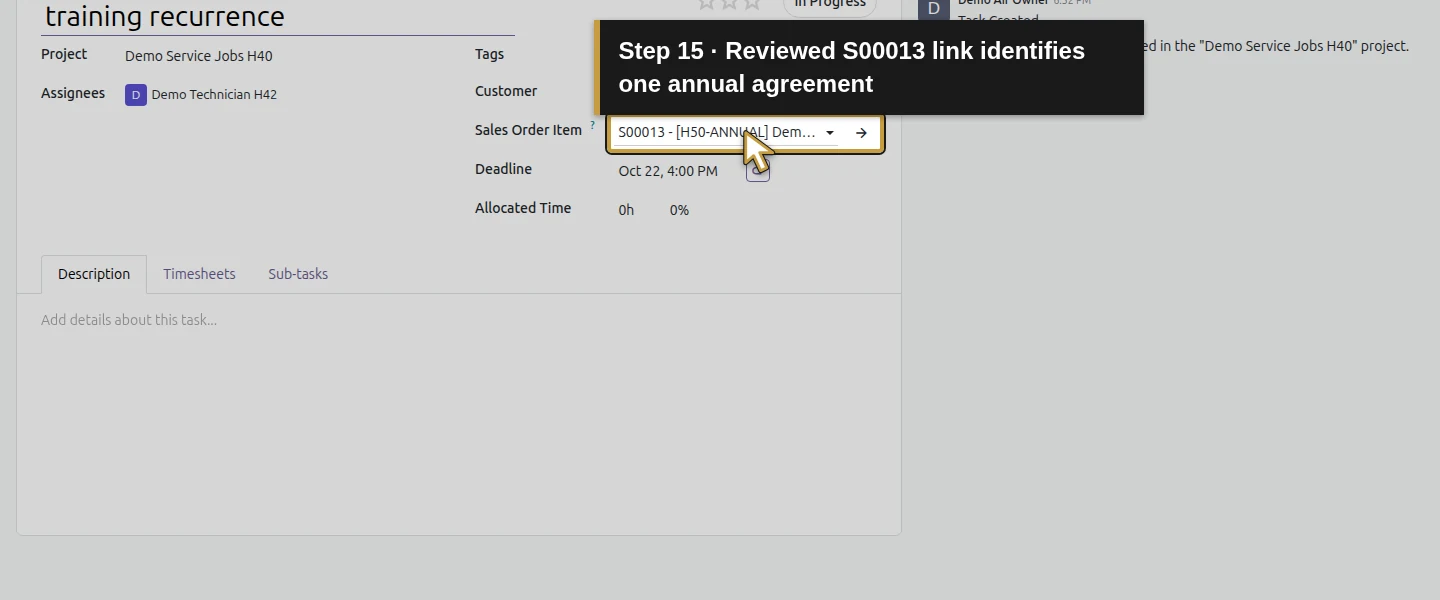
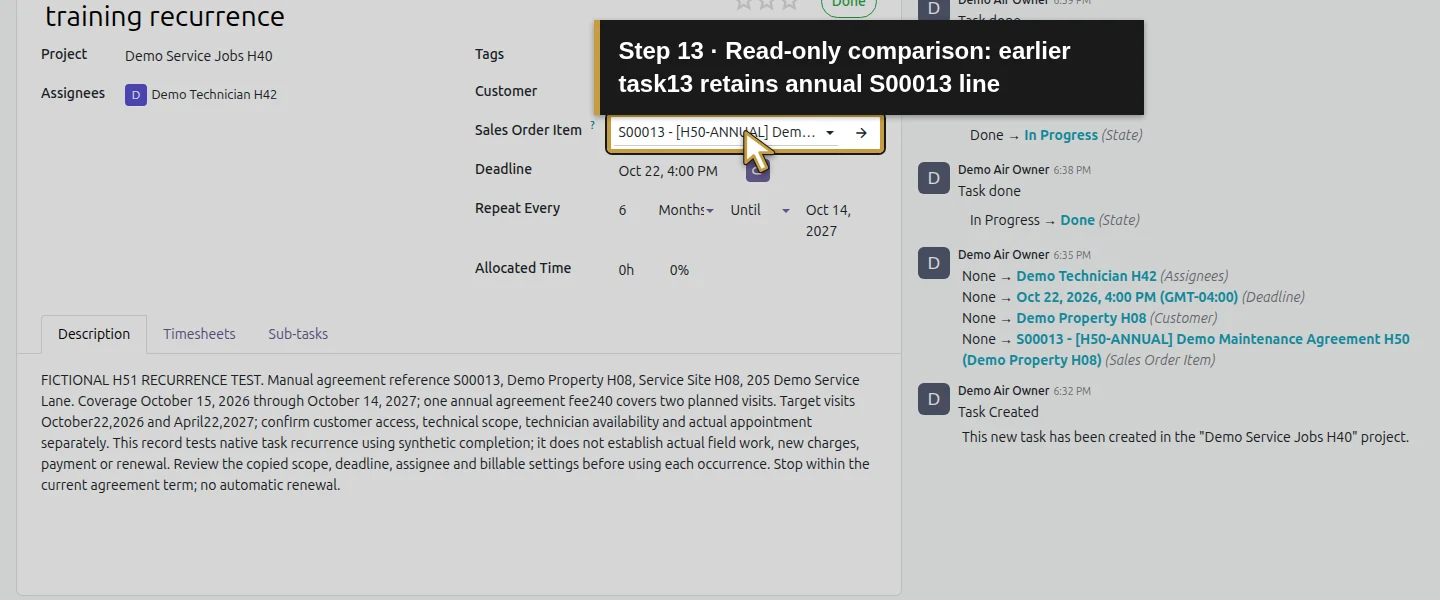
Inspect Sales Order Item after selecting the customer. Check the current value before continuing; it may show Non-billable or an older labor line. Replace it with S00013 – Demo Maintenance Agreement H50, using the H50-ANNUAL service. If the task was already saved with the older line, correct it and save the same task. Do not create another sale. The intended link identifies the annual agreement; it does not add another annual fee or create an invoice.
Step 5. Write visit scope that will remain useful when copied
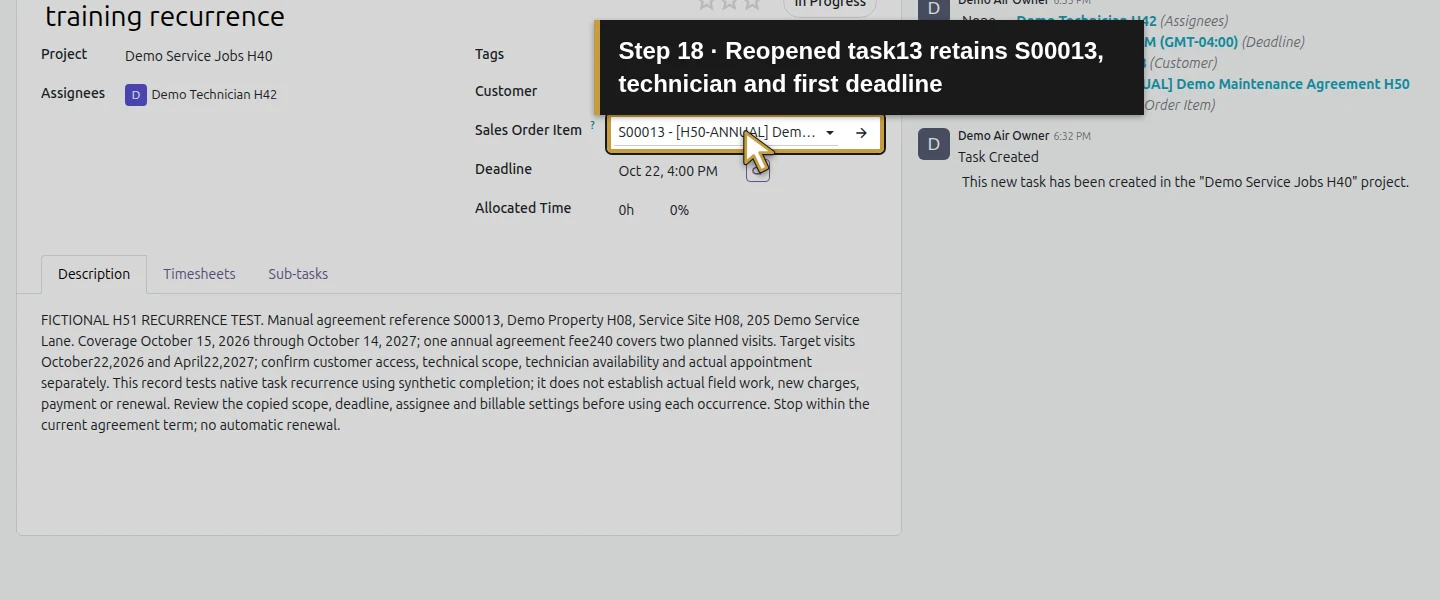
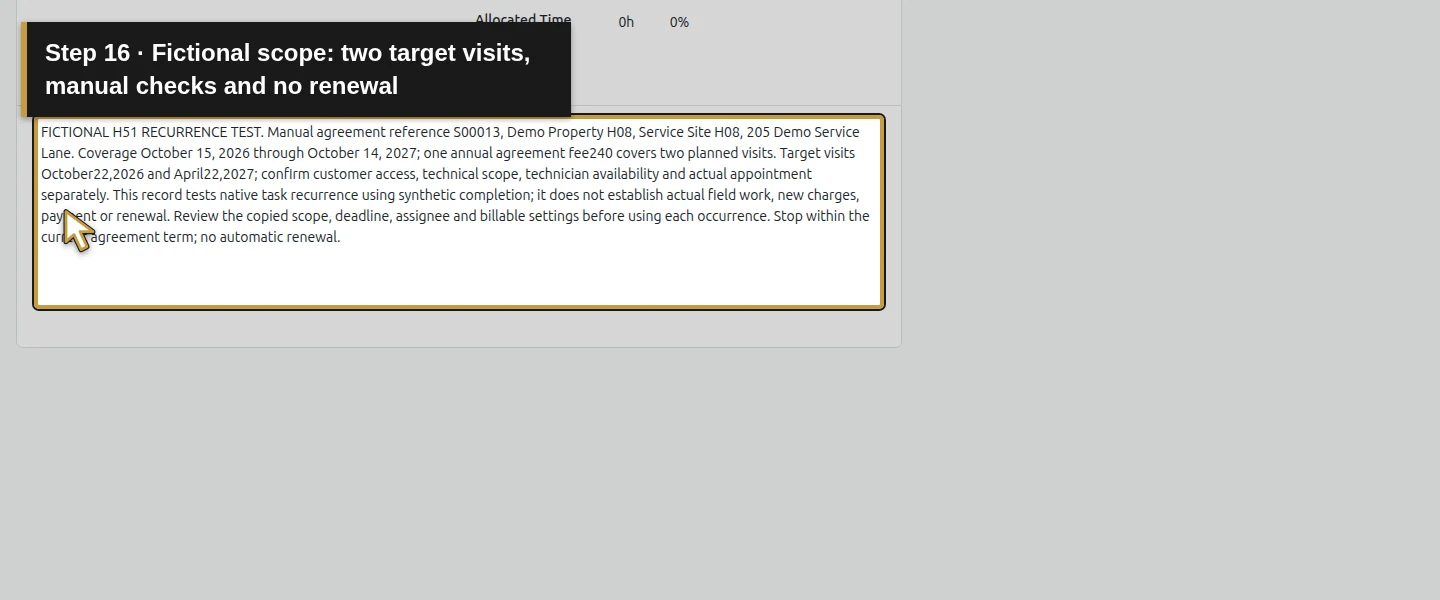
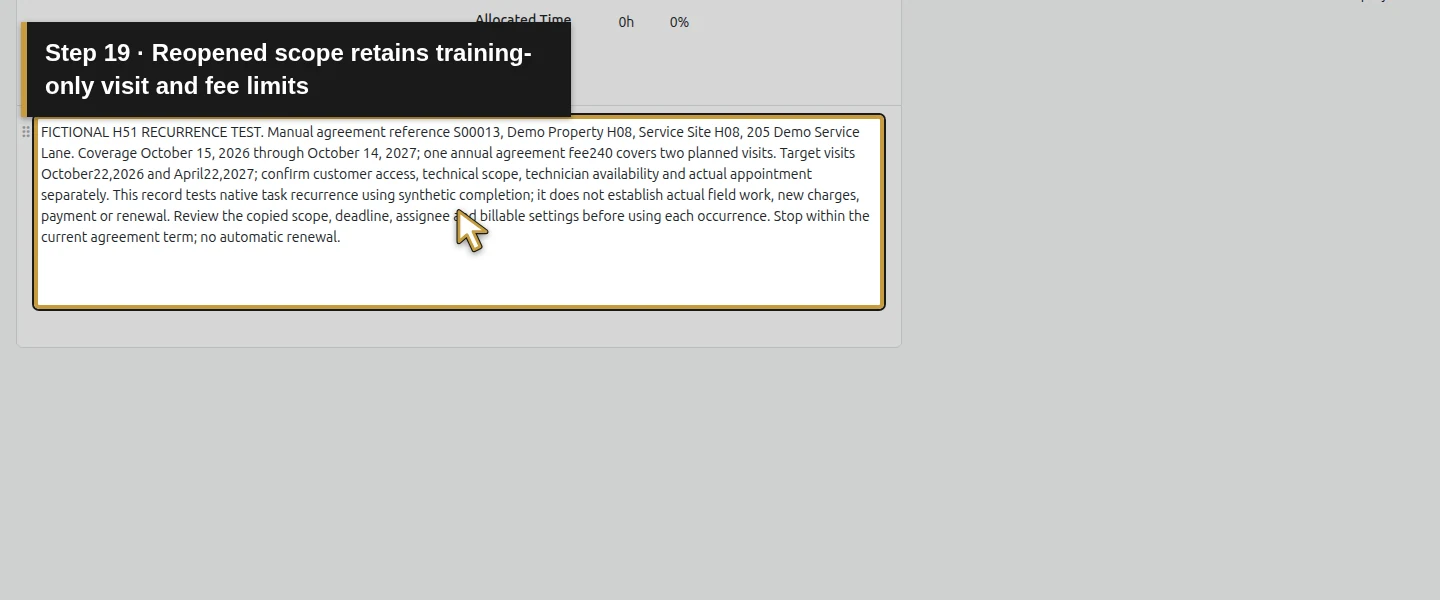
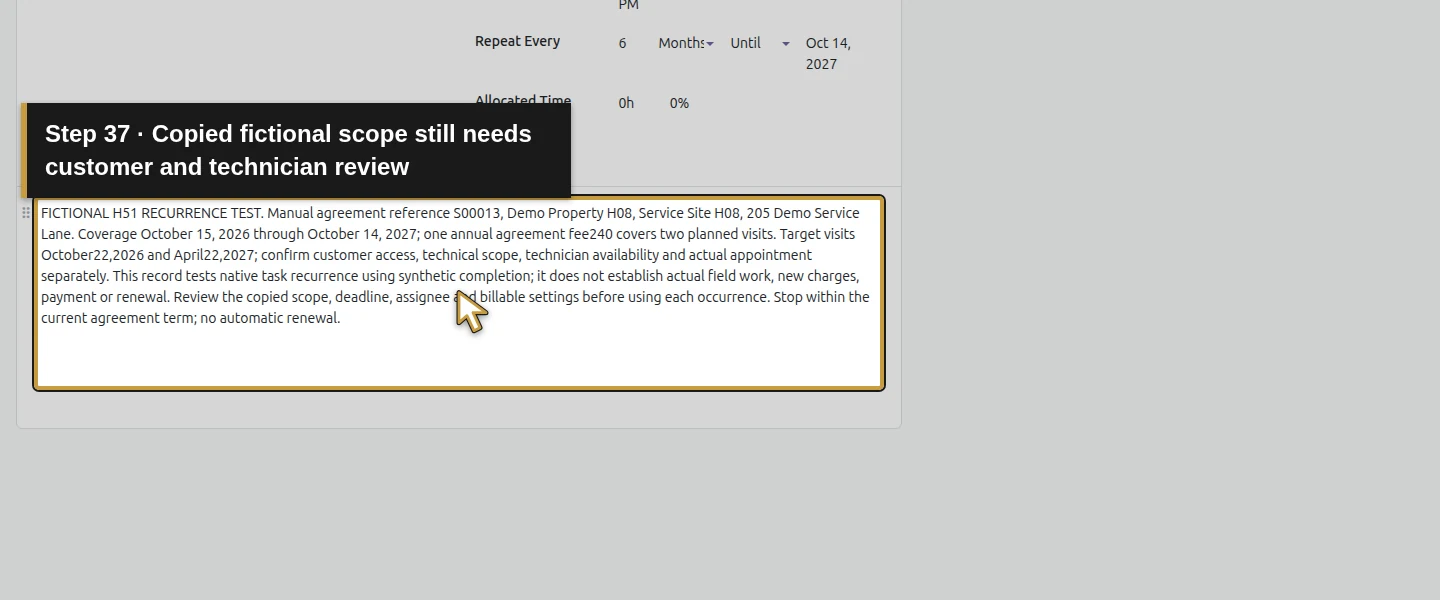
In Description, label this a FICTIONAL H51 RECURRENCE TEST. Record the manual agreement reference S00013, Demo Property H08 and Service Site H08, 205 Demo Service Lane. Include the October 15, 2026–October 14, 2027 term, the annual fee covering two visits, and target dates October 22, 2026 and April 22, 2027. Ask the office to confirm customer timing, access, technical scope and technician availability before each occurrence. State that synthetic completion proves no actual work, payment or renewal.
Step 6. Set six months and a specific end date
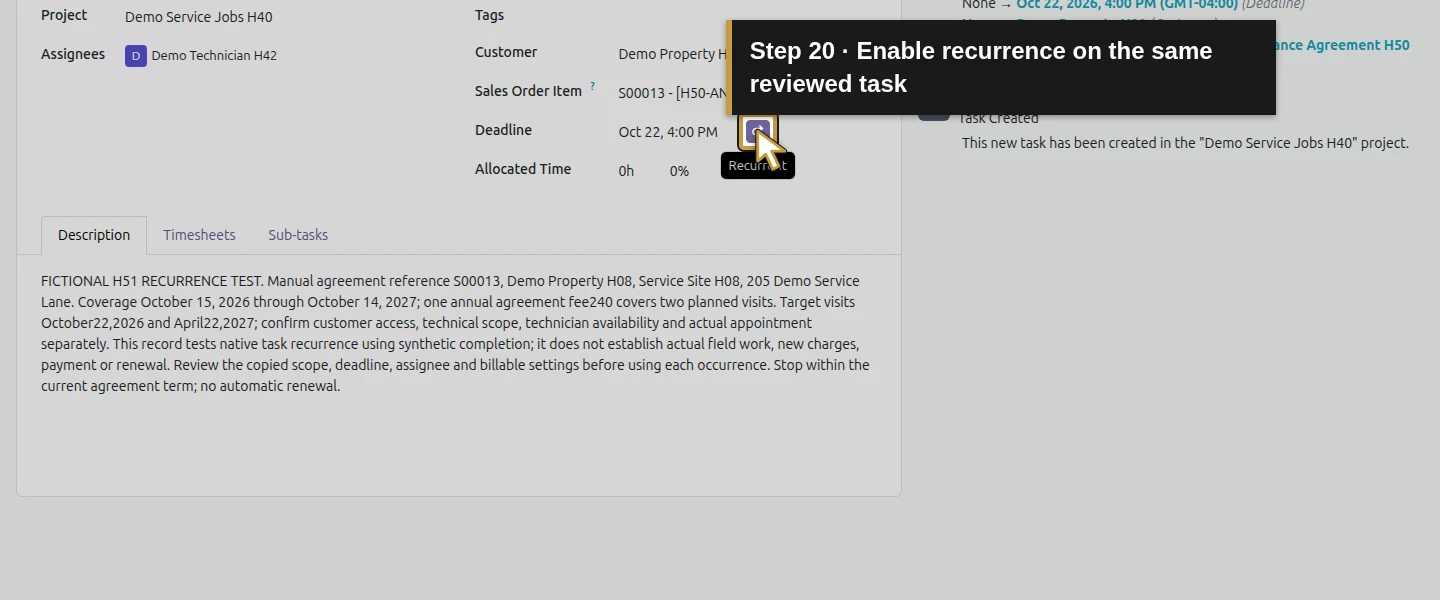
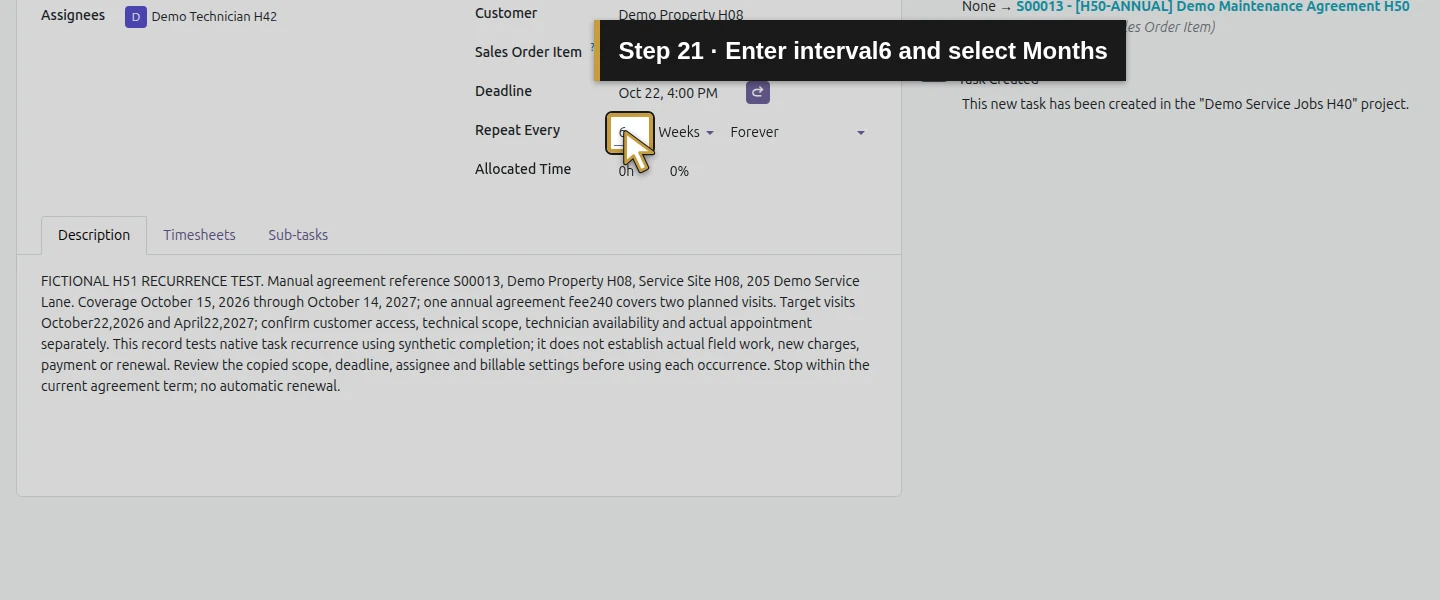
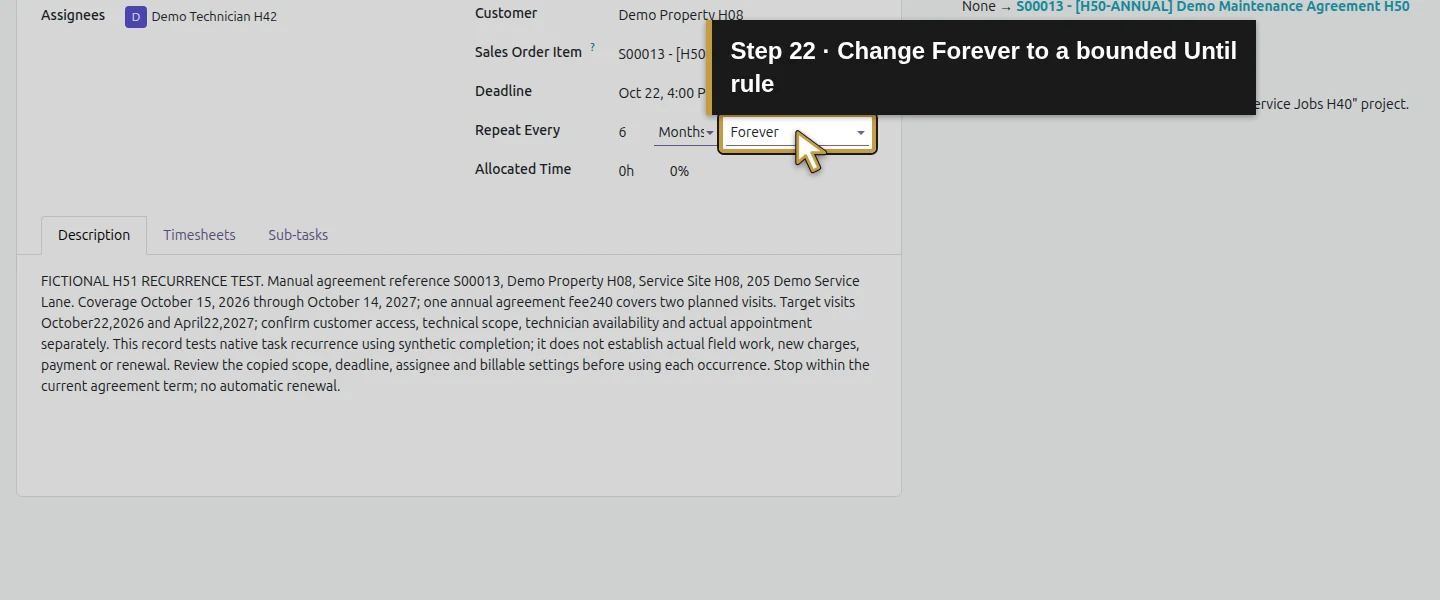
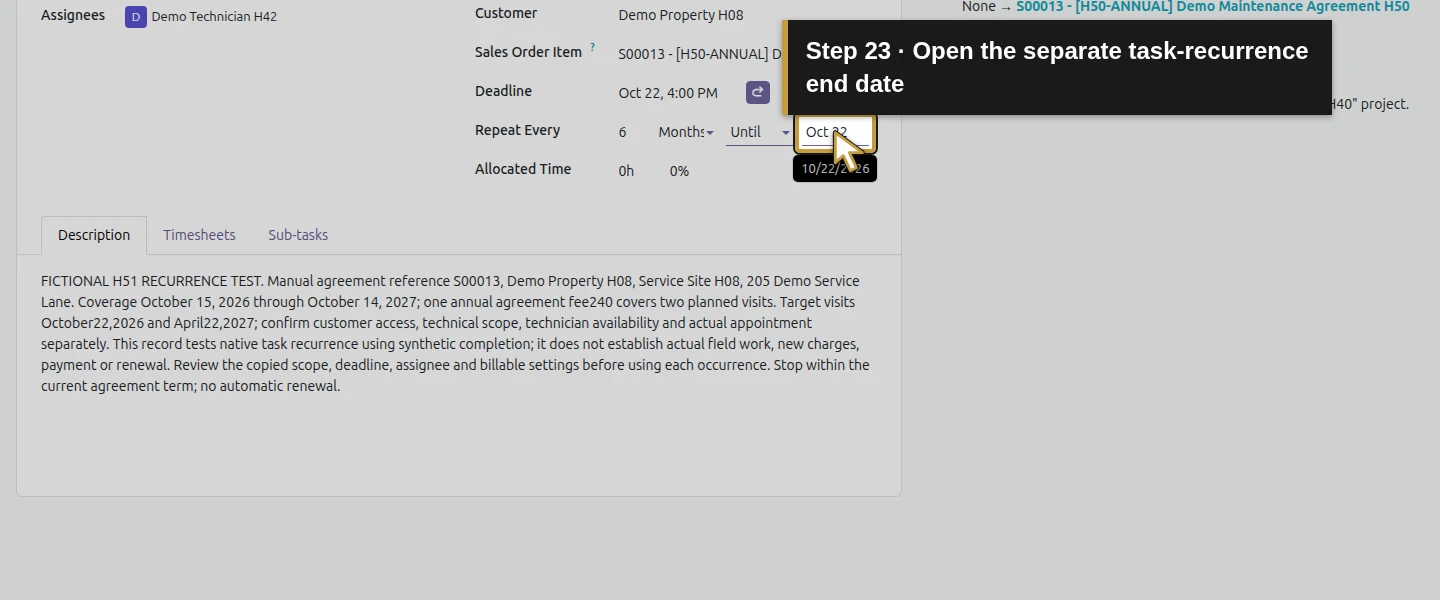
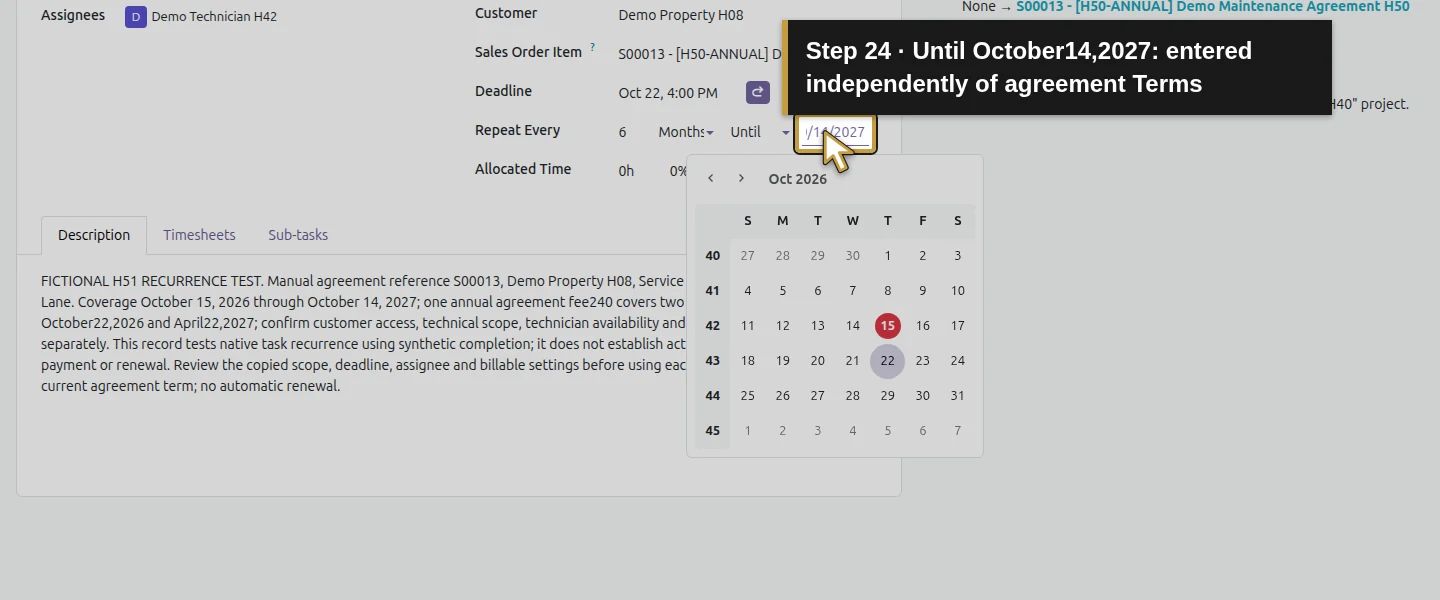
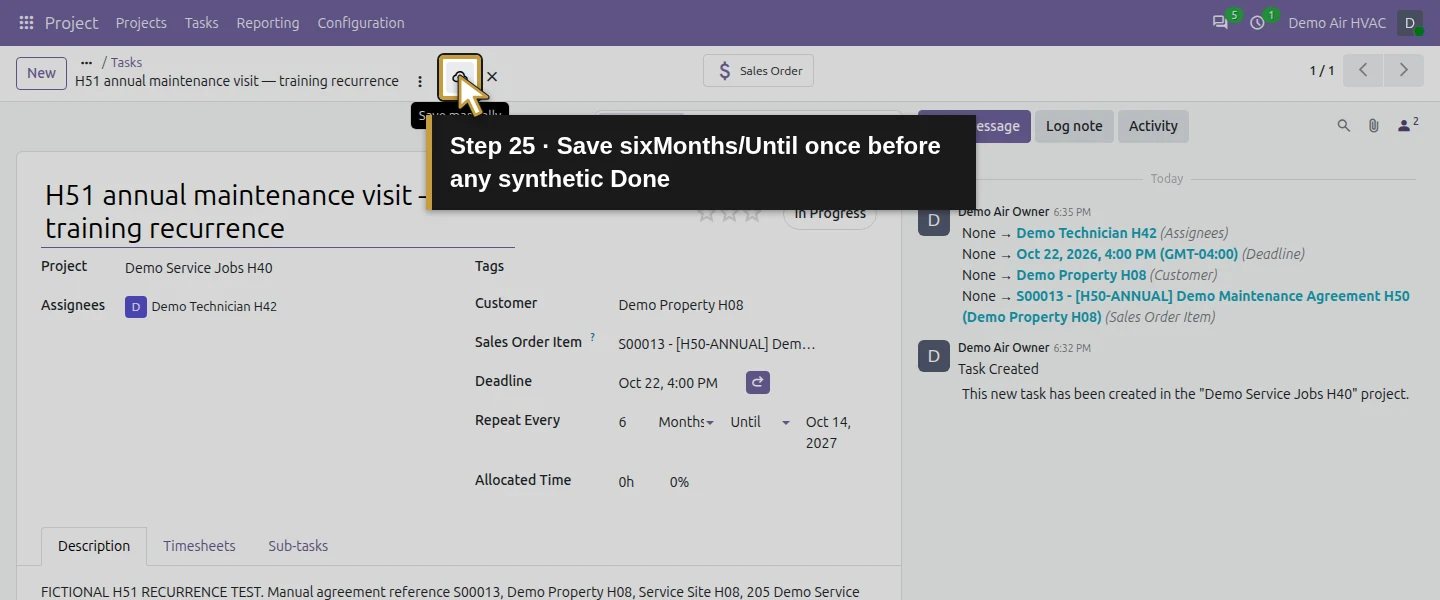
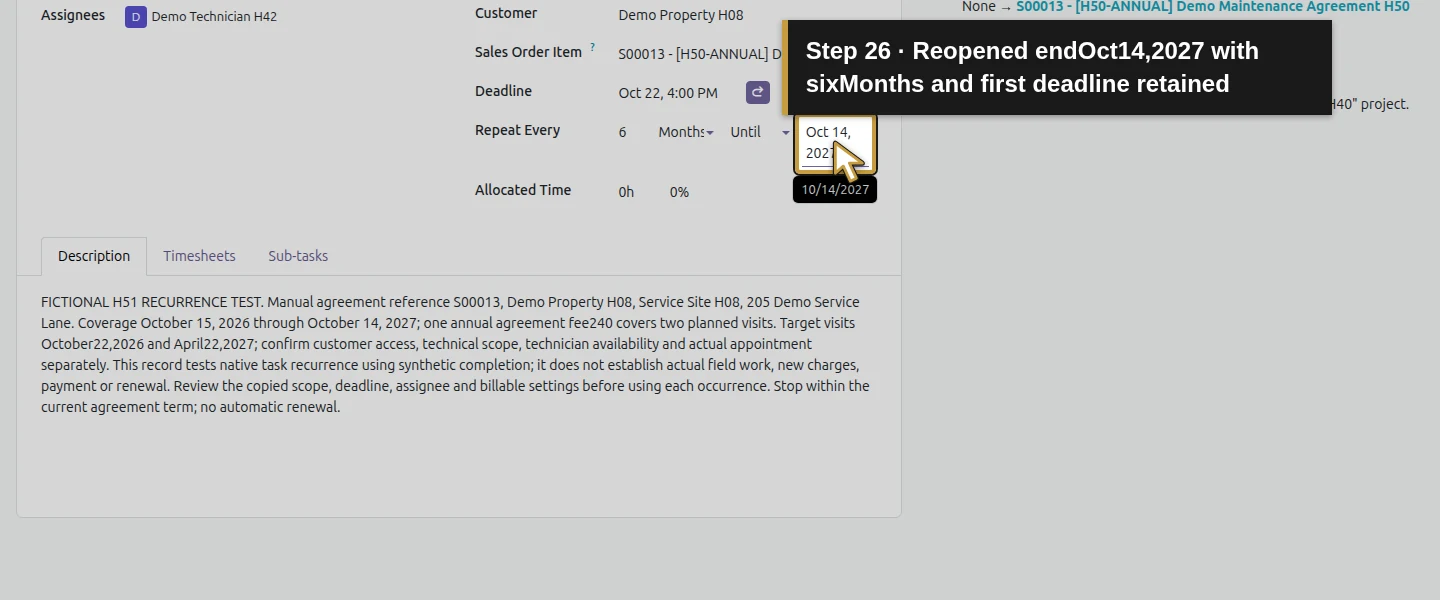
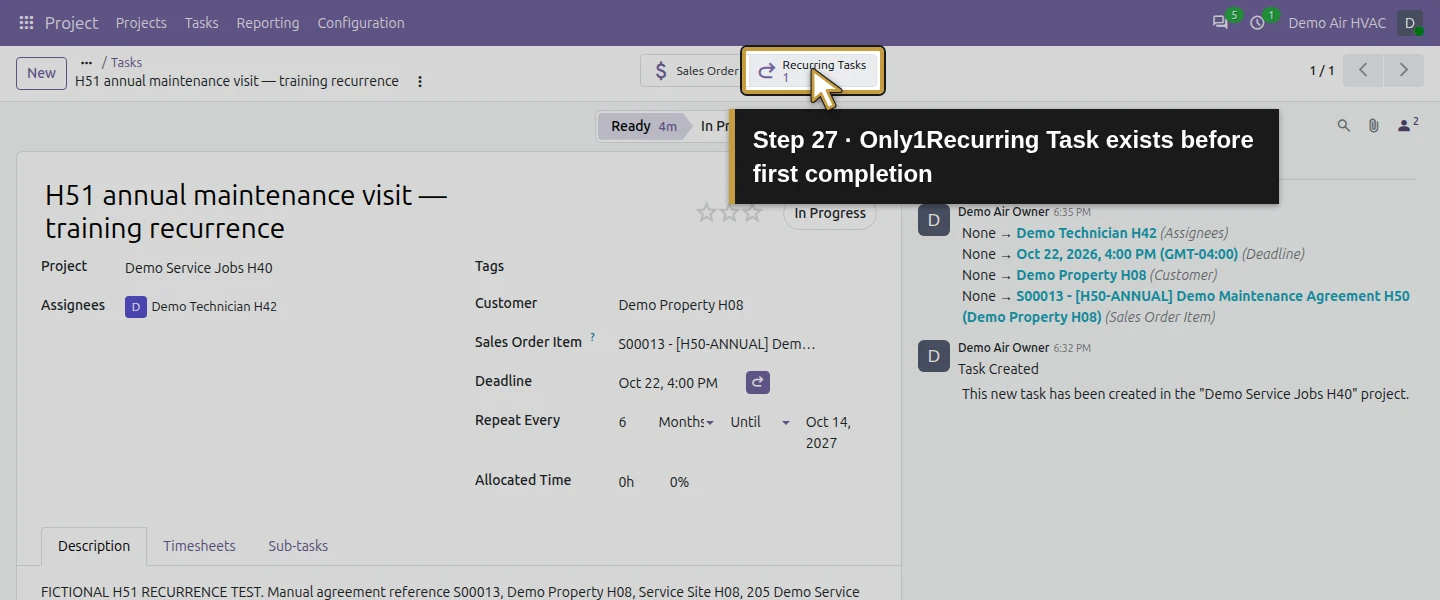
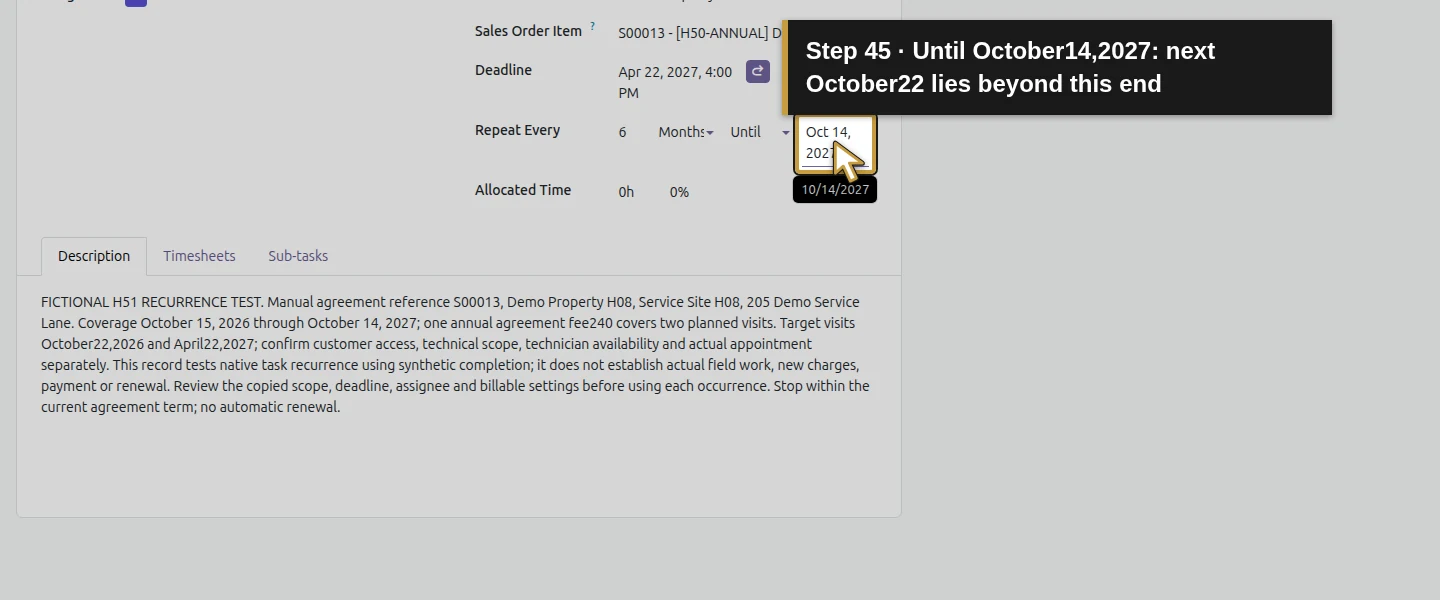
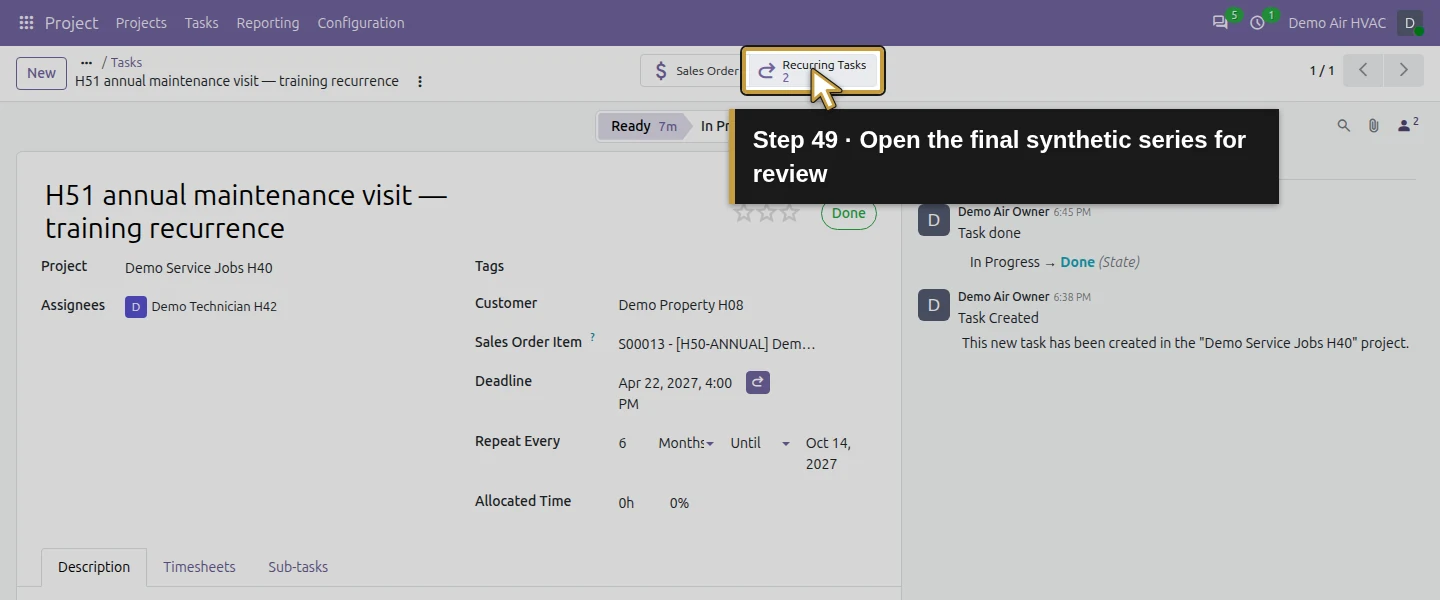
Click the redo icon beside Deadline to show Repeat Every. Enter 6, select Months, and change Forever to Until. Click the end-date control and enter October 14, 2027. This task-recurrence end is entered separately; Odoo did not read it from the agreement’s free-text Terms and conditions. Keep the first deadline populated. Save, wait for pending-change controls to disappear and reload the same task. Check the S00013 line, technician, description, October 22 deadline and six-month/Until settings. At this point there is only 1 Recurring Task.
Step 7. Exercise the completion trigger in the training task
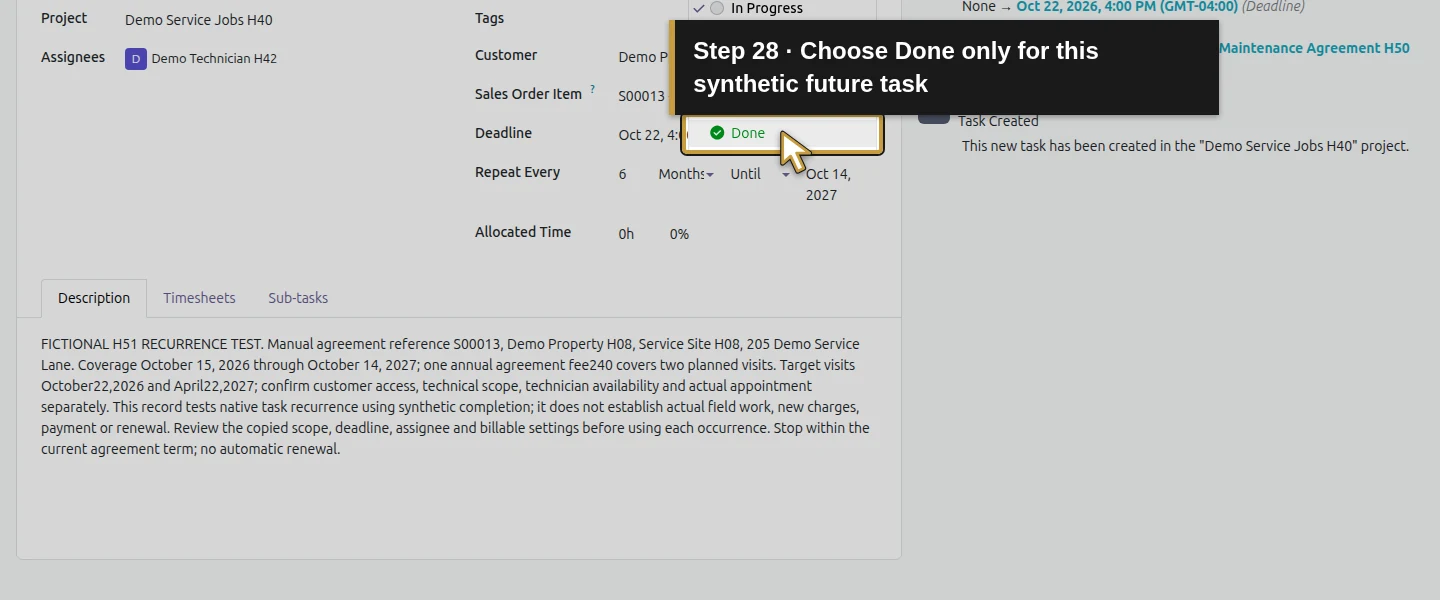
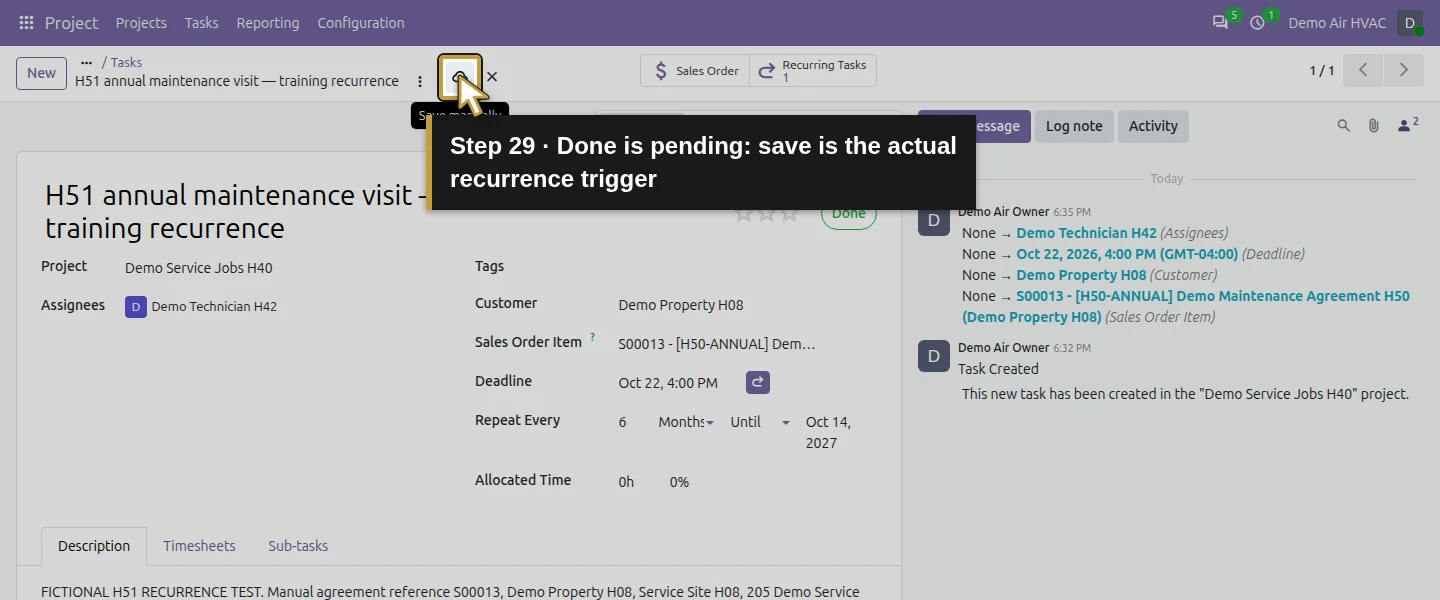
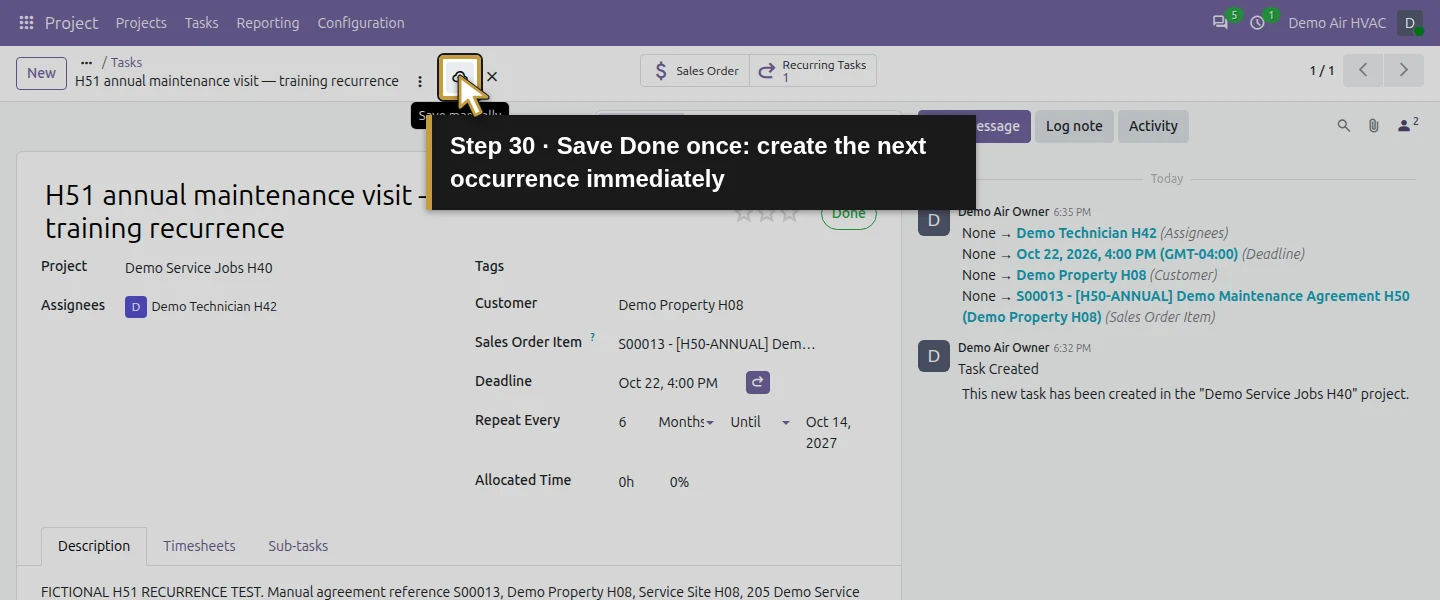
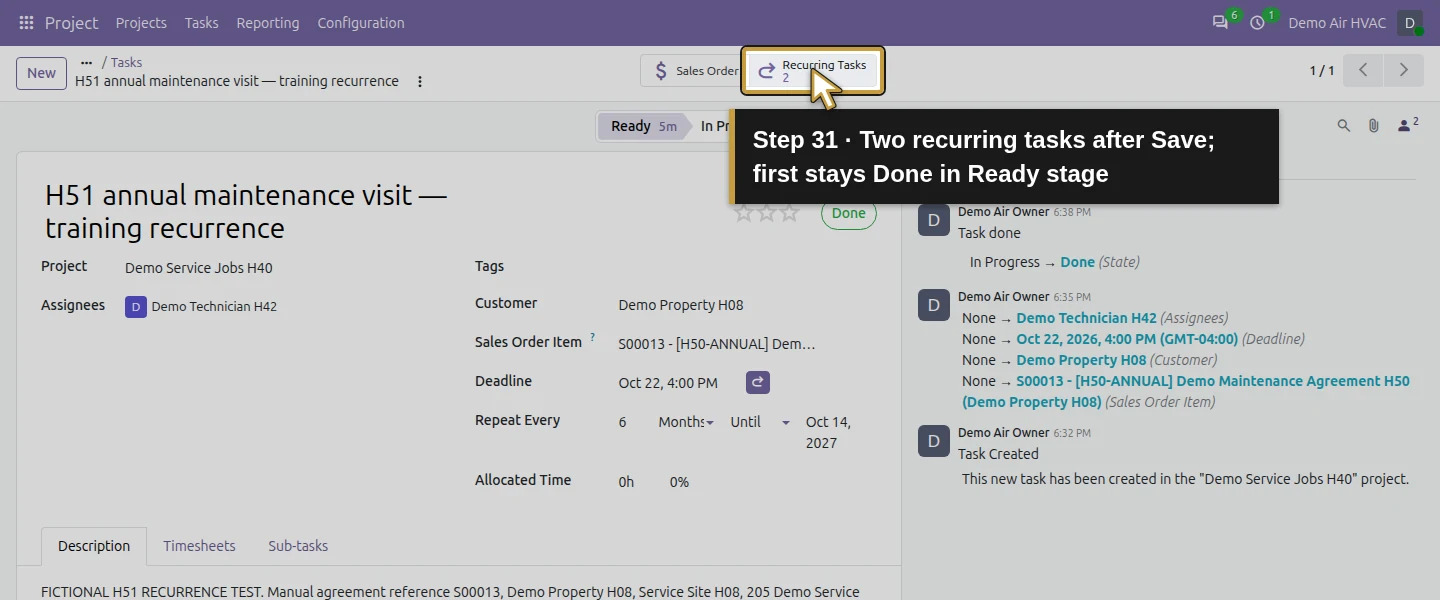
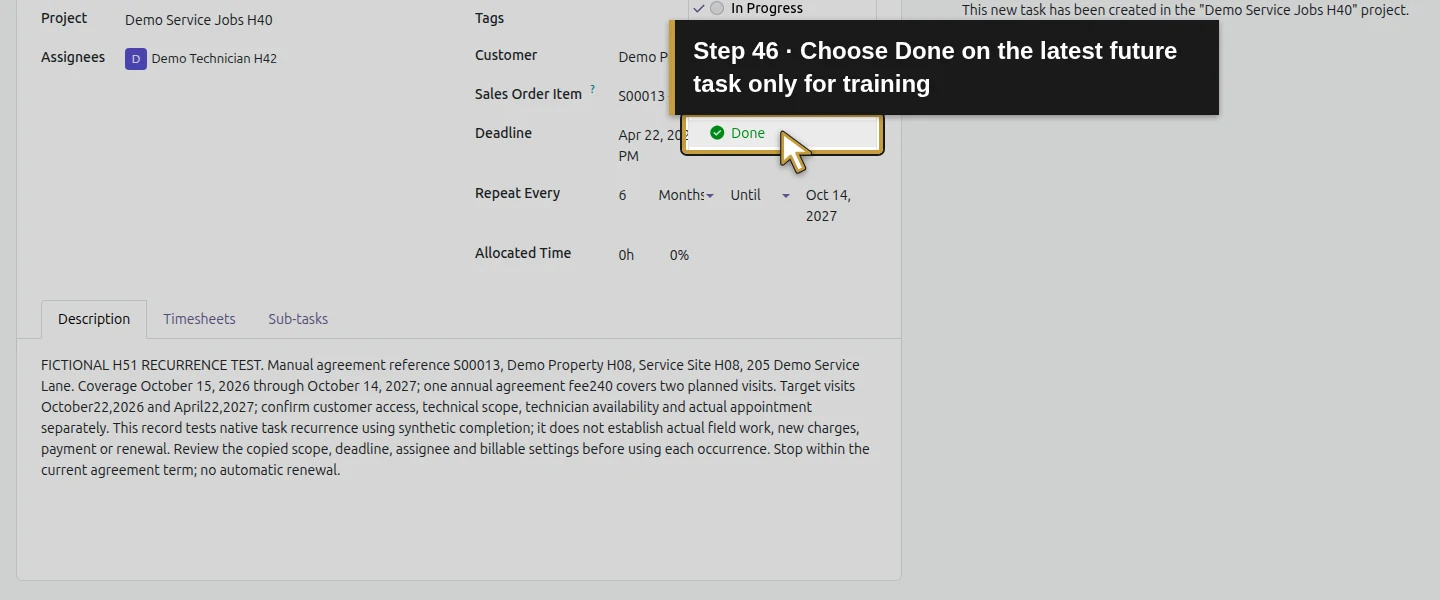
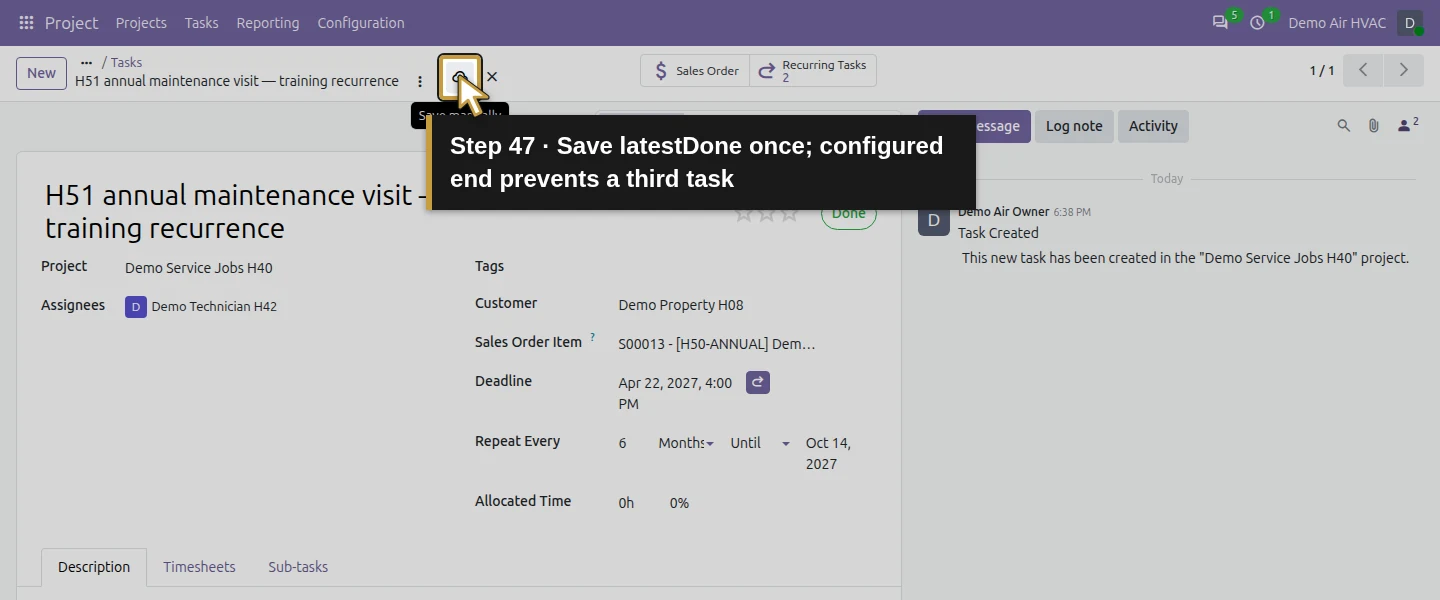
Open the task status menu, choose Done, then click Save manually. This native saved status change creates the next occurrence immediately; the test does not wait until October 22 or run a scheduler. The first task stays Done in its Ready stage, so stage and task status remain distinct. Only close a real task when its actual work is ready for closure. The future dates here are deliberately synthetic test data.
Step 8. Review the generated task before arranging a visit
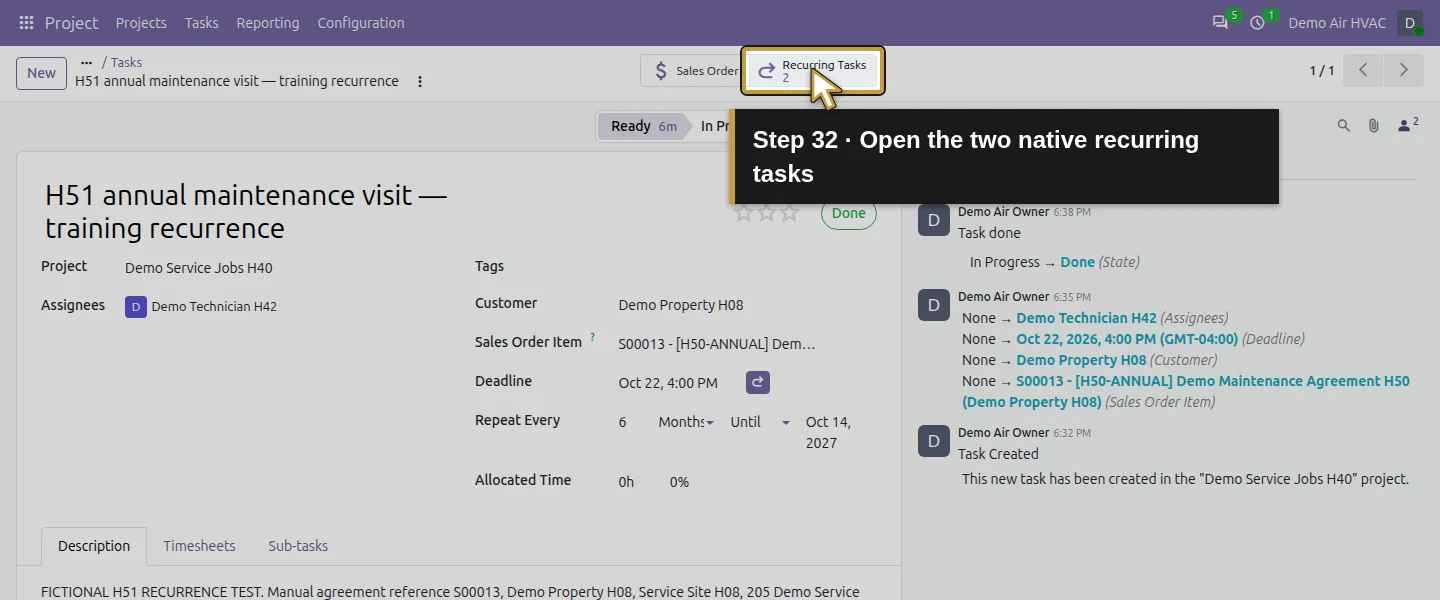
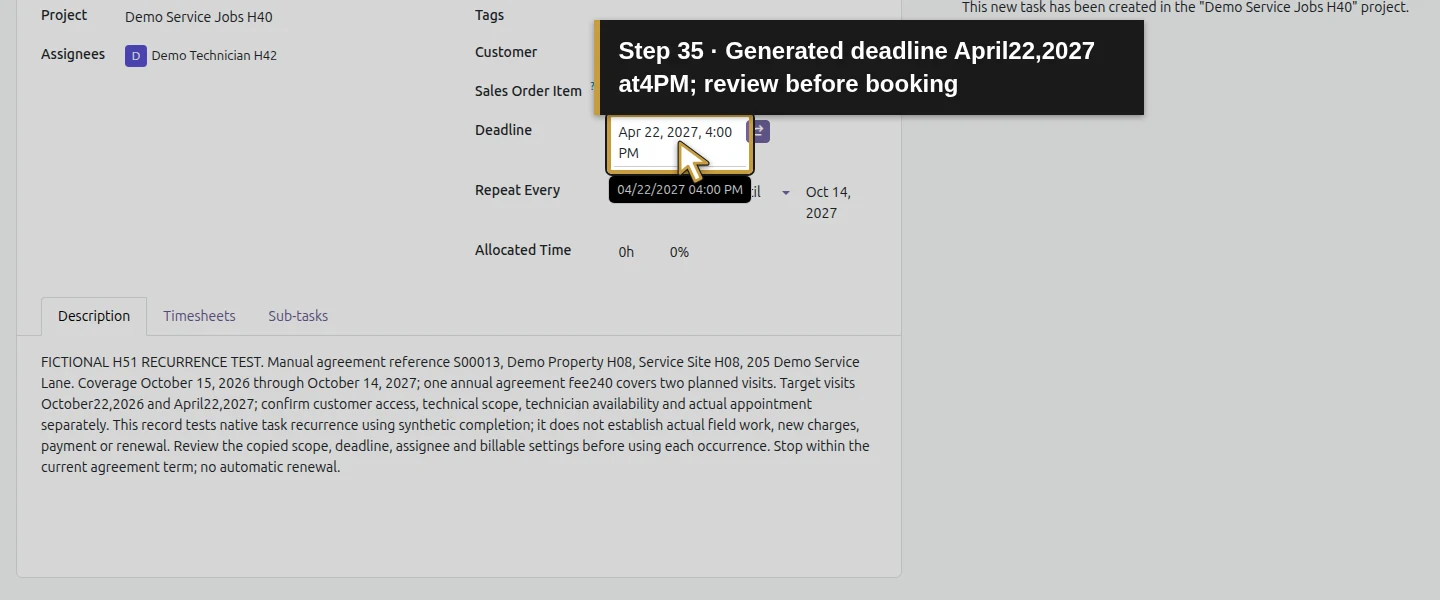
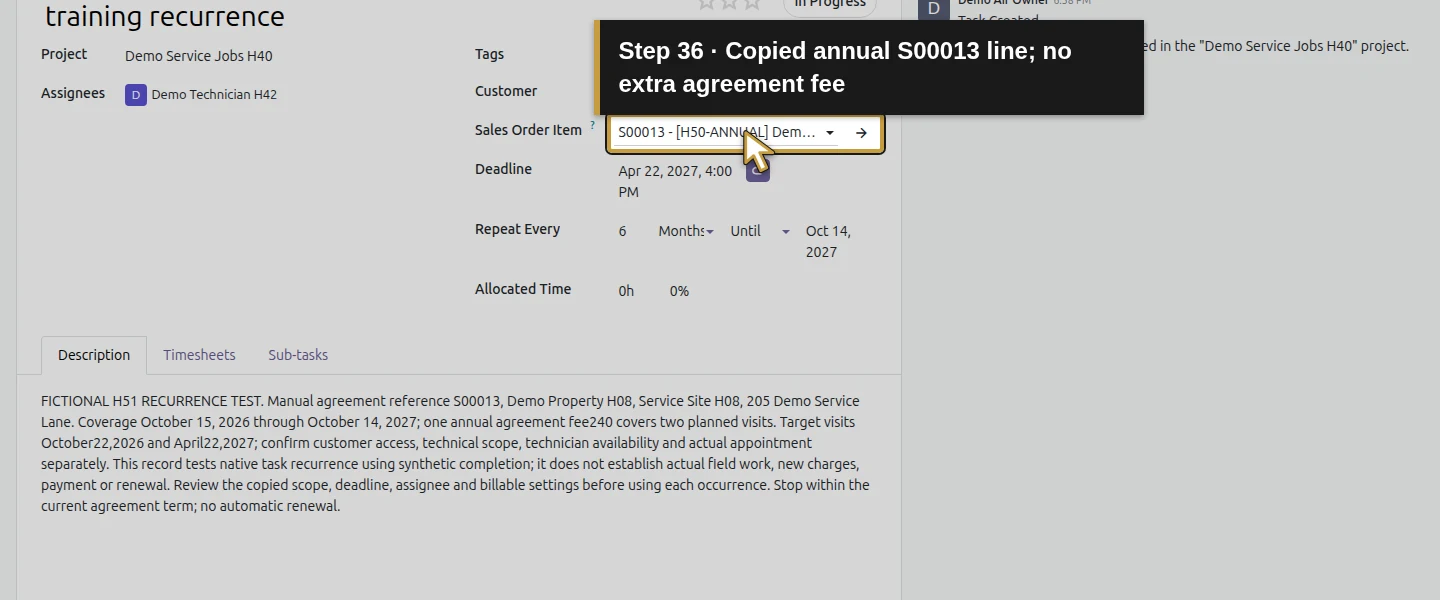
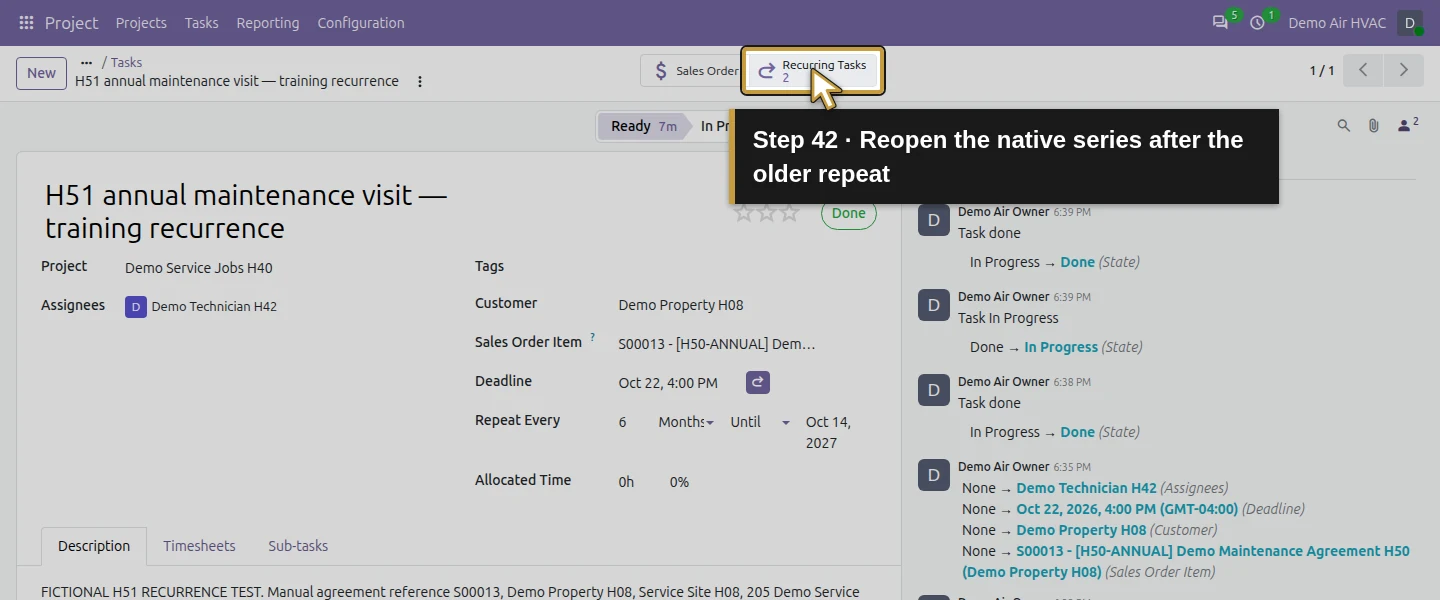
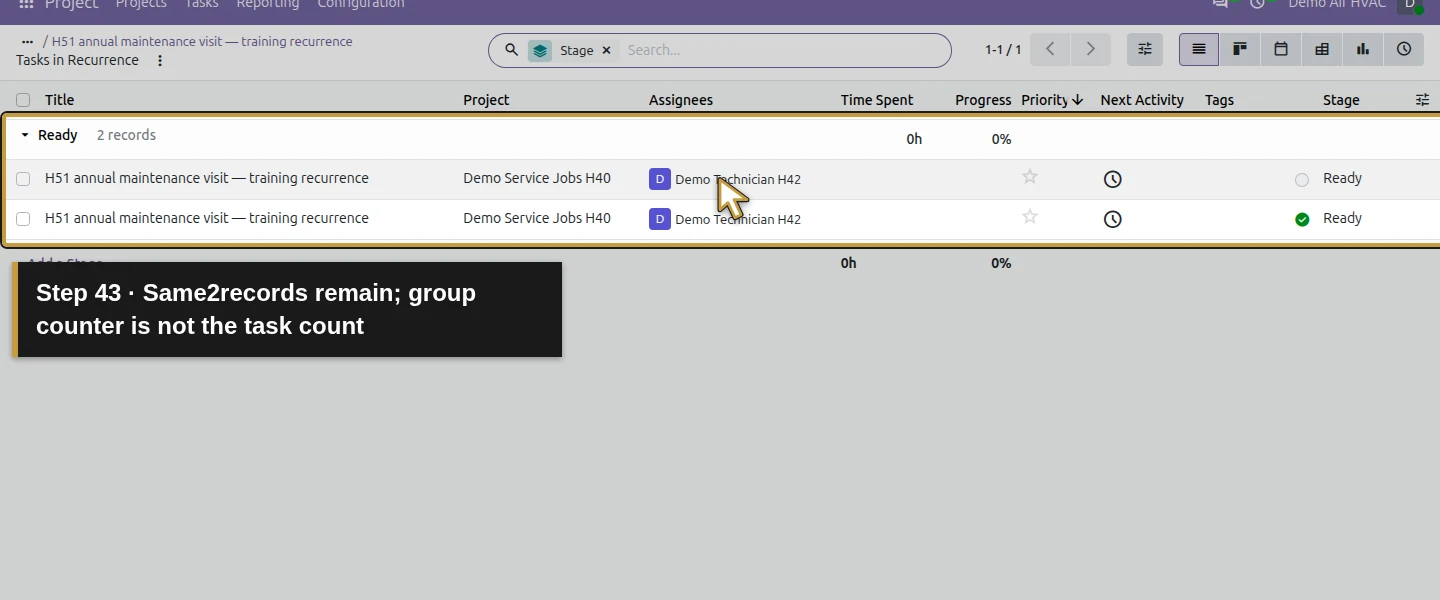
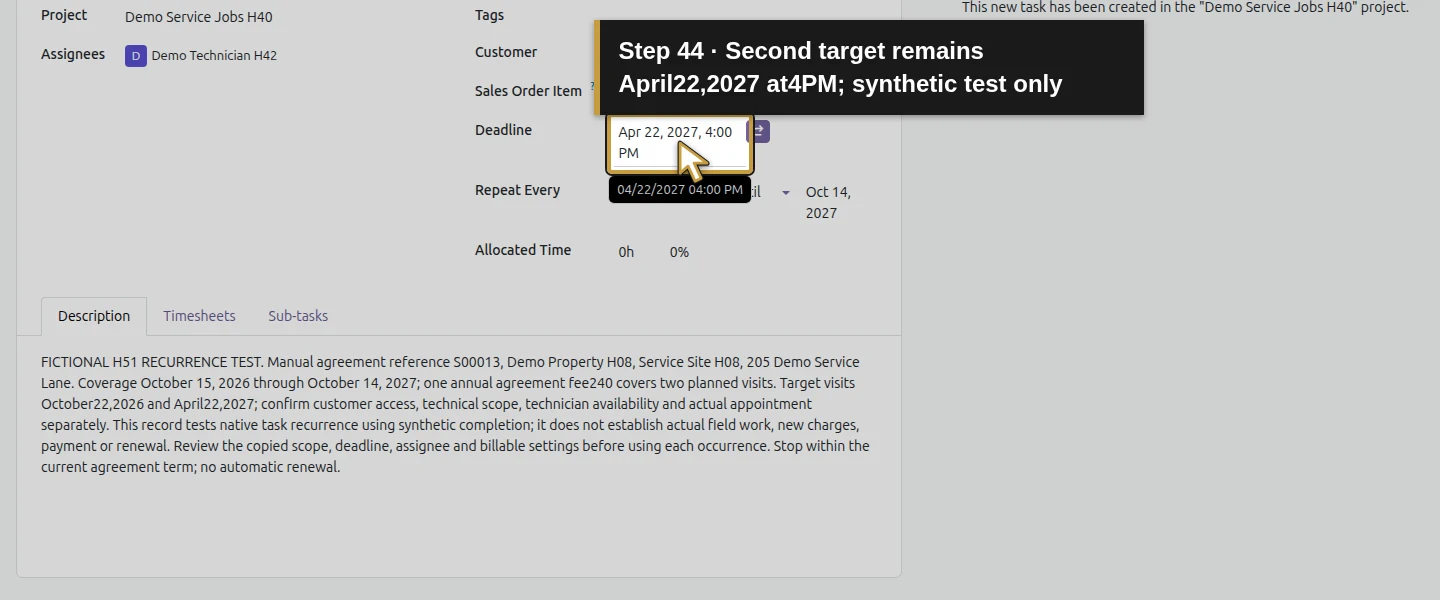
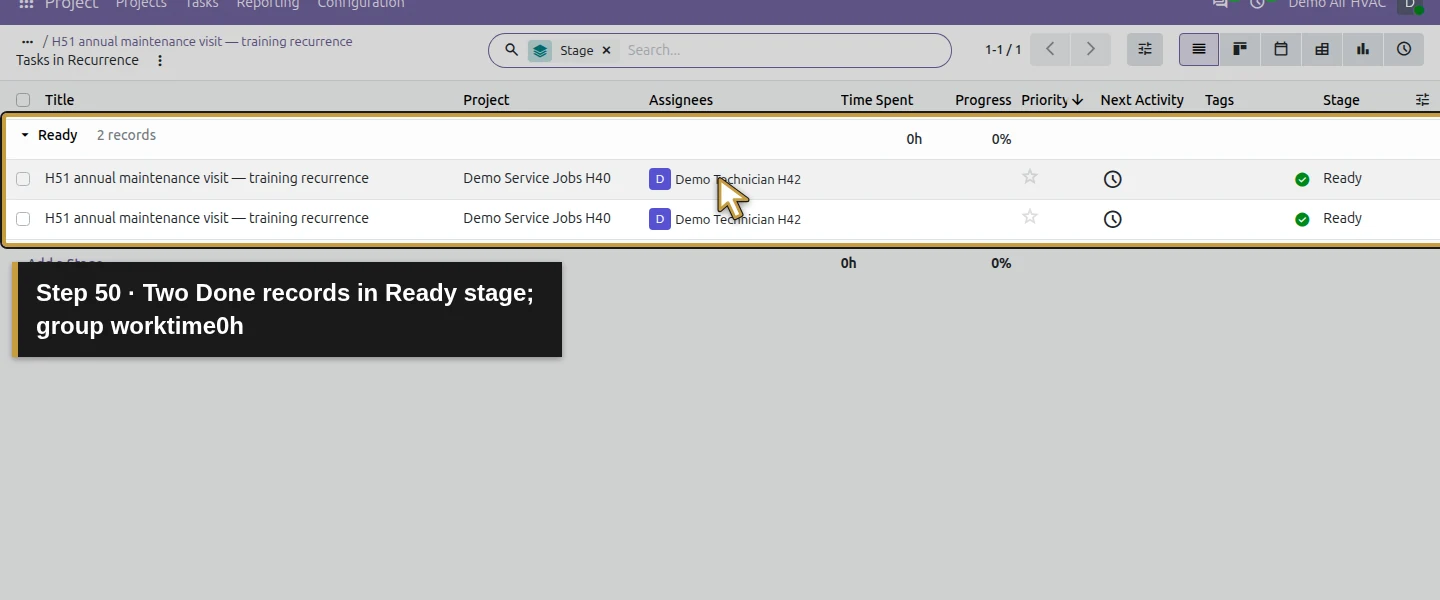
Click 2 Recurring Tasks. Open the unfinished row, which has no Done checkmark, and verify Deadline April 22, 2027, 4:00 PM. Check the same project, customer, technician, S00013 agreement line and copied description. The new task is Ready/In Progress with zero allocation and time. Review its copied scope and dates before dispatch; copied text can carry old instructions forward. No calendar appointment, new invoice, payment or additional agreement charge was created.
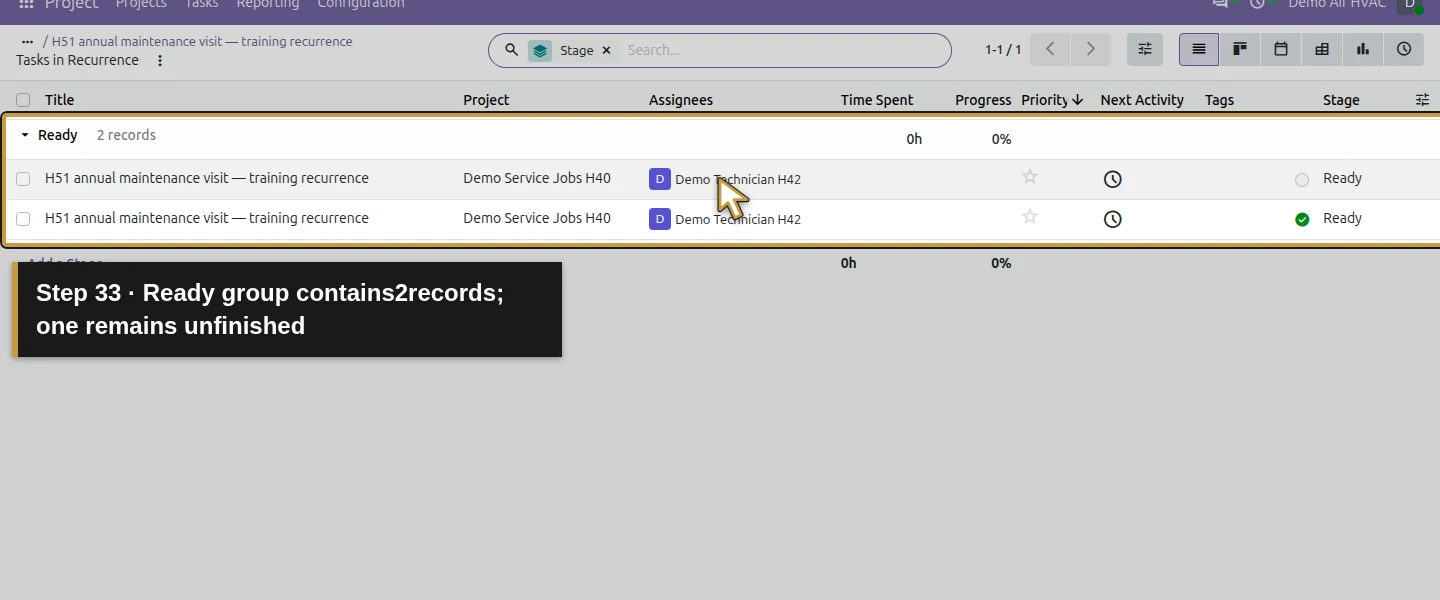
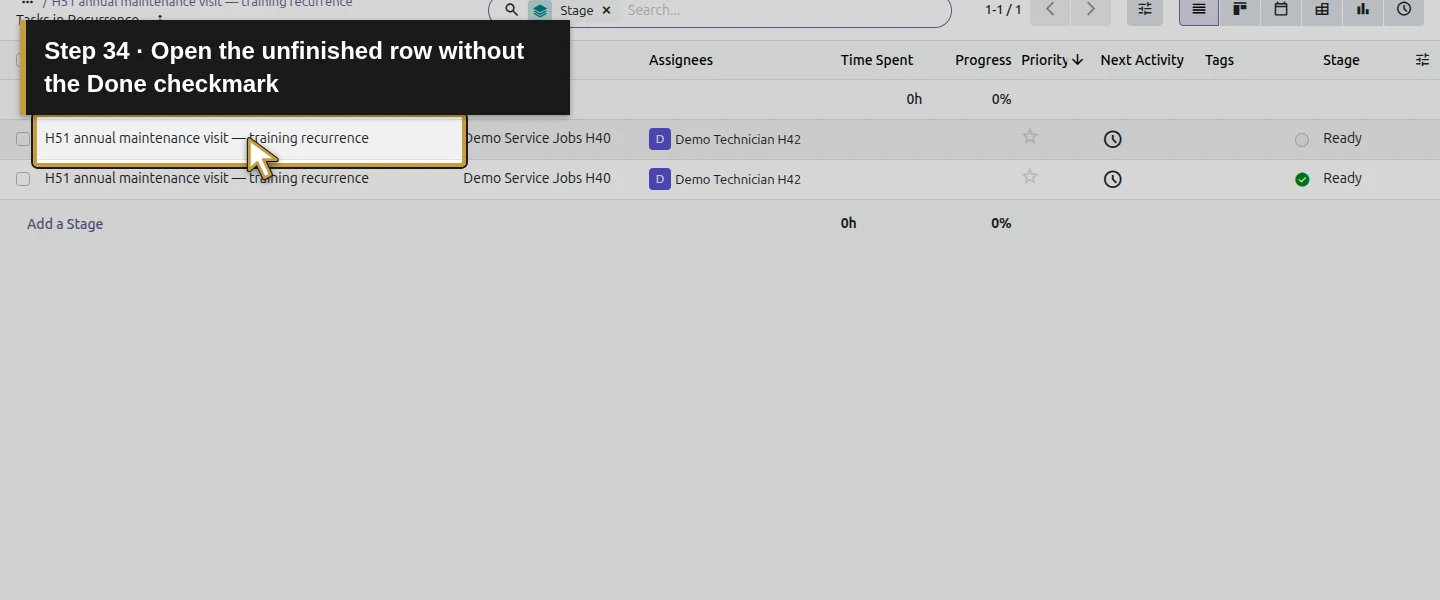
Step 9. Check that revisiting the earlier occurrence does not duplicate the next one
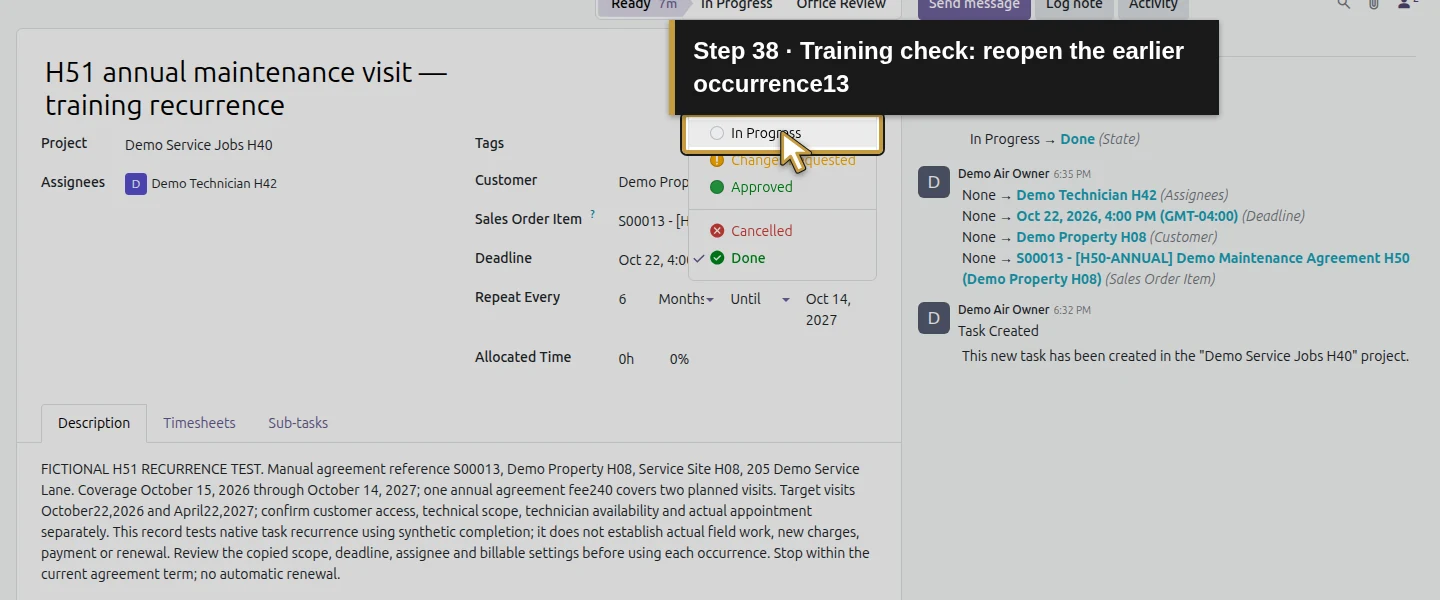
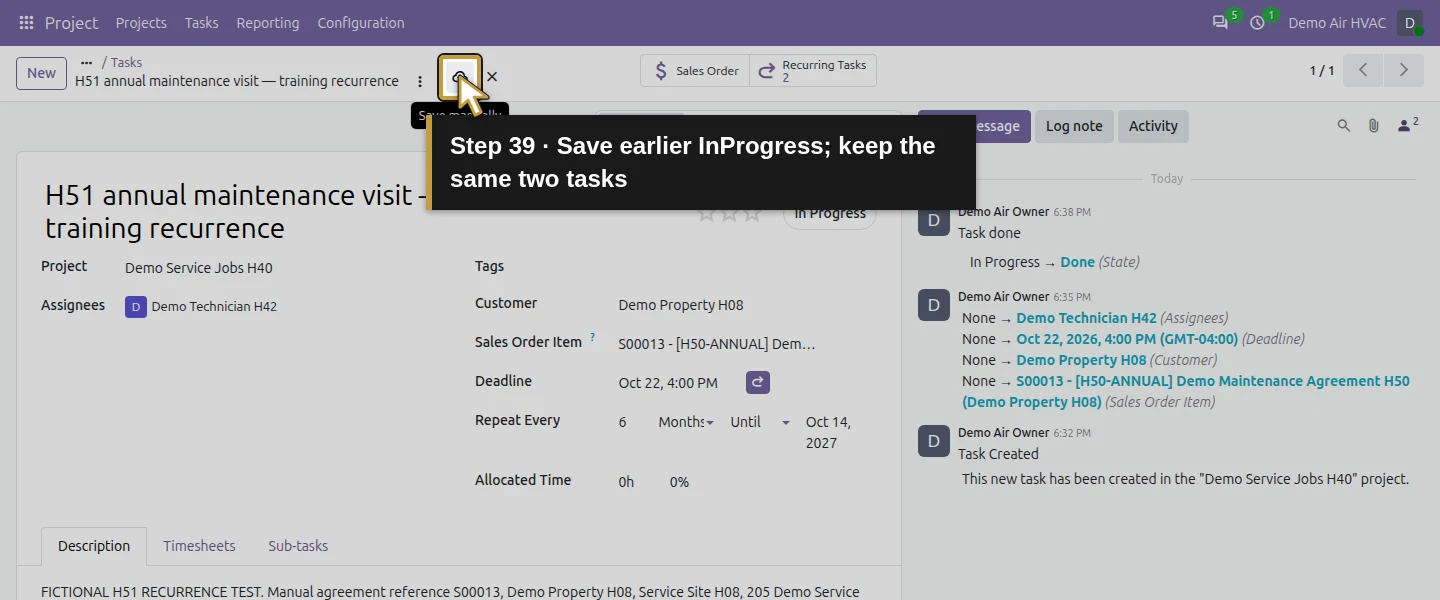
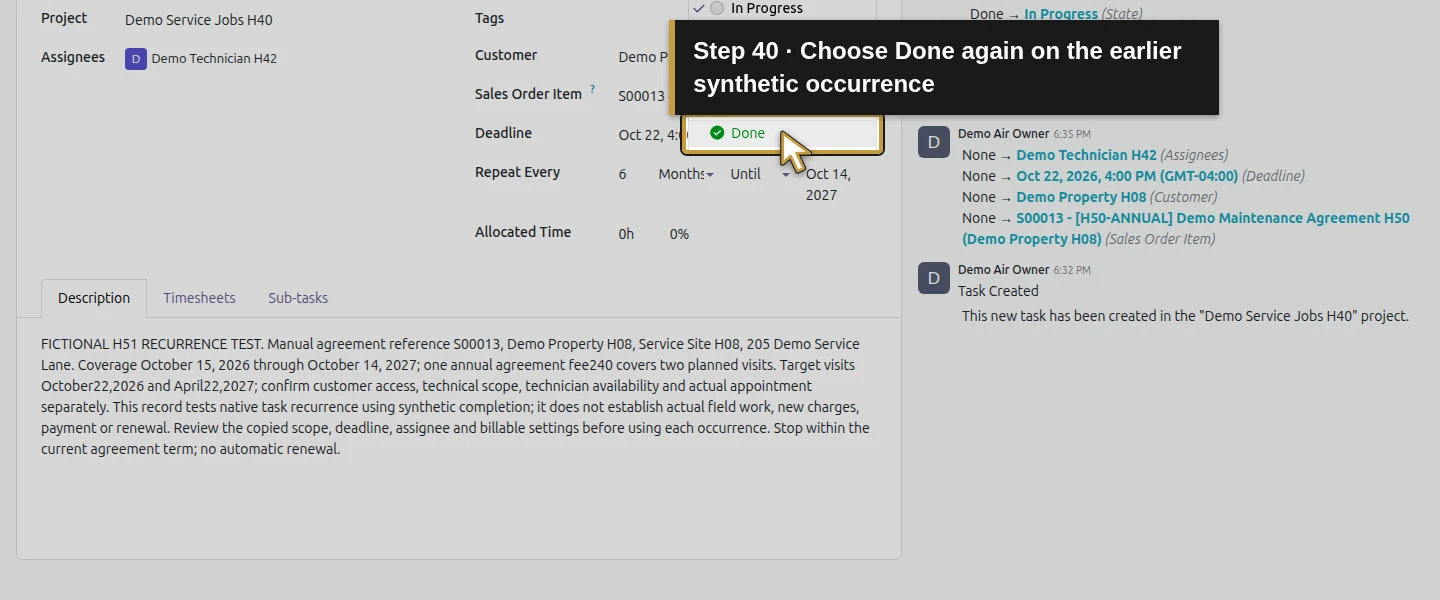
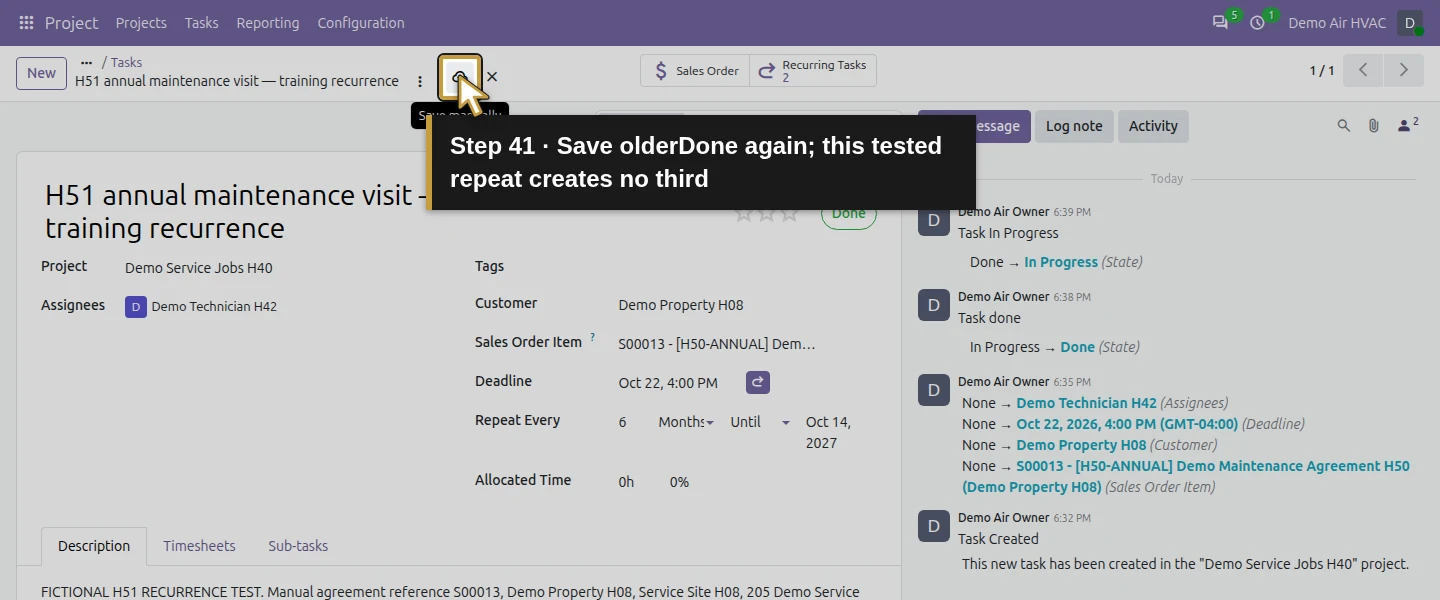
In this training test, return to the first occurrence. Change its status back to In Progress, save, then choose Done and save again. Reopen Recurring Tasks and check the same two records. This repeated closure of the older occurrence produced no third task. Do not apply that result to arbitrary date edits, duplicate commands or other recurrence changes that were not tested.
Step 10. Verify the agreement-end stop in the training series
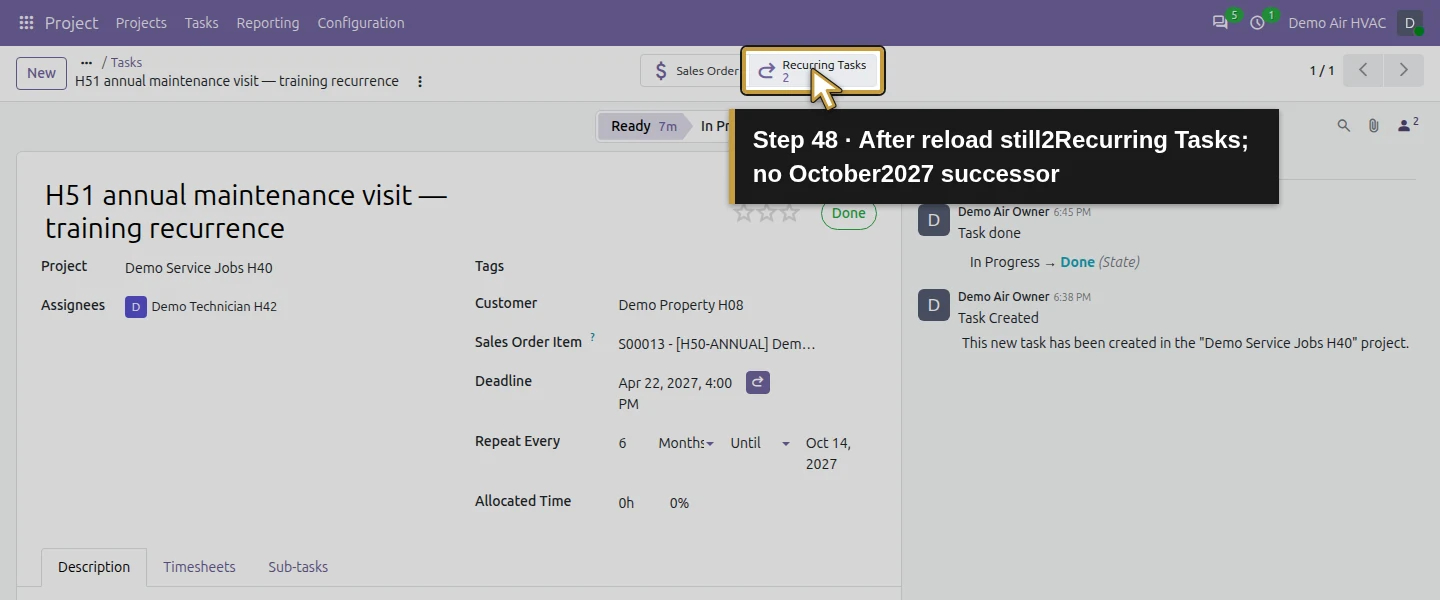
Open the second occurrence, verify its April 22, 2027 deadline and Until October 14, 2027, then choose Done and save. Its next six-month deadline would be October 22, 2027, beyond this configured end. Reload and inspect the series: it still contains exactly two tasks, both synthetically Done, with no third occurrence. Their recorded work time is zero; these statuses do not establish actual maintenance visits. Preserve the training evidence. Review any real renewal and future dates before setting up another term.
Check the result
The existing project has Recurring Tasks enabled. One new task and its generated successor share the intended annual agreement line, customer, technician, scope and native recurrence. Their deadlines are October 22, 2026 and April 22, 2027 at 4:00 PM local time. Saving the first Done creates one successor; repeating completion on the older task adds none. Saving the second Done stops at the configured October 14, 2027 end, retaining two synthetic completed tasks and no third. The $254.40 agreement total, annual terms, planned office handoff and invoiceable quantity remain unchanged; its sales order now links these two tasks. No work time, invoice, payment, stock movement, appointment or new sale is created. Earlier business records are preserved.
If your screen differs
These are recurring Project tasks in stock Odoo 20 Community. The tested generation trigger is a saved Done status on the latest occurrence; a target date alone was not demonstrated as a trigger. Both future tasks were deliberately closed in training, with no actual service or customer acceptance. Recurrence copies scope and the sales link, so review the Sales Order Item after choosing a customer and review copied instructions before each visit. The explicit recurrence end is independent of free-text agreement terms and was tested with populated deadlines. Other roles, missing deadlines, cancellation, immediate recurrence disabling, end-date edits and daylight-saving transitions outside the two tested dates remain unverified. Assignment generated a local email notification failure because the fictional technician has no valid email; no delivery or retry is claimed. Recurrence does not book appointments, renew coverage or automate billing.
Frequently asked questions
How do I schedule recurring HVAC maintenance in Odoo?
Enable Recurring Tasks in the project’s Settings, prepare a task with a deadline and reviewed agreement link, then set Repeat Every and Until. In this tested stock Odoo 20 Community example, six months and an October 14, 2027 end support two annual-plan tasks. Generation prepares a job record; customer booking and technician availability remain separate.When does Odoo create the next recurring task?
Here, saving Done on the latest recurring task immediately creates the next occurrence. The first October 22, 2026 deadline becomes April 22, 2027 with a six-month interval, and reviewed scope, assignee and sales line are copied. A repeated completion of the older task produces no extra occurrence. Date-only generation and other closure states were not tested.How do I stop recurring Odoo maintenance tasks at the contract end?
Set Until to a specific end date on the recurring task and keep its deadline populated. The end is entered independently of the agreement’s text. In the test, completing the April 22, 2027 occurrence creates no October 22 successor because that next deadline falls after October 14, 2027. This checks the configured end condition; immediate disabling and other stop methods need their own verification.Continue building the business
Continue with H52: How do I automate recurring invoices in Odoo? to configure and review a separate recurring-invoice workflow. Preserve S00013’s one annual fee and separately review H53 maintenance renewals before another coverage term.
Talk about your Odoo setup
Bring your current process and the result you need to Onward to plan your Odoo workflow. Talk about your Odoo setup.