First published: August 27, 2025 | Updated: October 6, 2026 | Open any image to view full size
These screenshots and examples come from the original tutorial. Google's interface and model choices have changed; use the current Google help instructions for navigation. The examples illustrate edits without a turnaround-time promise.

Before: Original Image

After: Edited with Nano Banana
An example edit: the Onward mascot now holds a banana.
What is Google Nano Banana?
Nano Banana is Google's family of image-generation and editing models in Gemini. Google's current instructions describe Nano Banana 2, 2 Lite and Pro. You can upload an image and describe the change you want, then inspect the result before using it.
Where can a business use image editing?
- Product mockups: explore logo placement before production.
- Marketing drafts: compare backgrounds or color choices.
- Team imagery: try an edit with the person's permission.
Treat generated images as drafts. Check that the final image accurately represents what you intend to show.
How to Access Nano Banana
Getting Started with Gemini
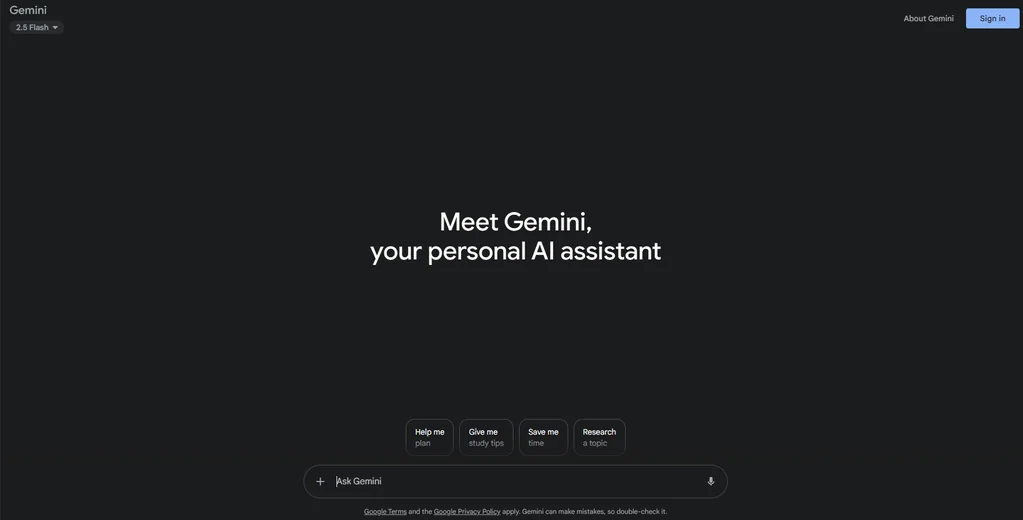
- Open Gemini and sign in with an eligible account.
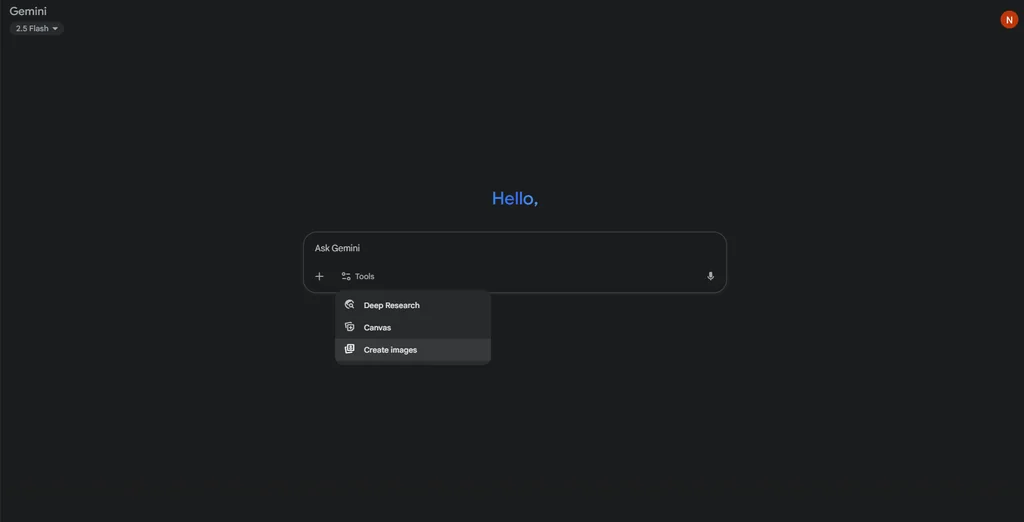
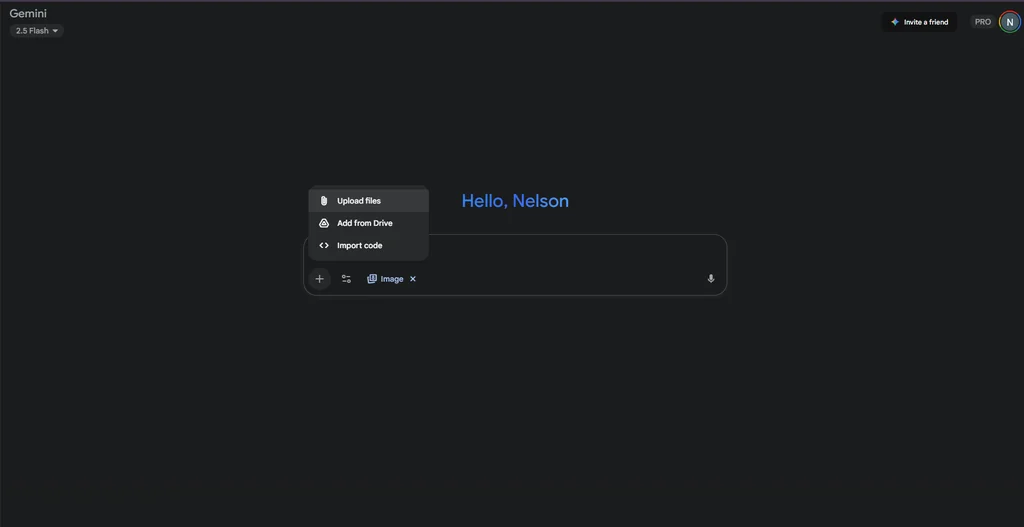
- Upload an image you are allowed to use and enter the edit you want.
- For an existing generated image, Google's current desktop instructions use Library, the selected image and Chat. Follow the current help instructions if your interface differs.
- Review the result before downloading or publishing it.
The original interface screenshots below are illustrations; they are not a current navigation checklist.
Pricing and Account Access
Check Google's current image-generation help for model access and account requirements. Available models and quotas depend on your account. For an automated integration, use the Gemini API pricing documentation for the model you intend to use; API charges are separate from the app's subscription options.
Before Uploading Business Images
Use images you own or have permission to upload and edit. Get permission before using another person's likeness. Review Google's account and privacy guidance and your organization's rules before uploading confidential material. Work or school account terms can differ from personal-account terms.
Keep an original copy. Inspect spelling, logos, faces and product details before publishing. Label a mockup when it could be mistaken for a real product or location.
Step-by-Step Visual Tutorial
Tutorial 1: Logo Placement on Product
This original example shows a logo placed on a product mockup. Inspect the logo and product details before using the result.
Gemini Interface
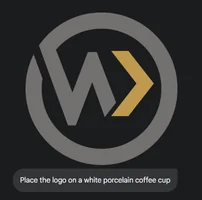
The Prompt:
"Place the logo on a white porcelain coffee cup"
Example result

Output:
Branded mockup to review before use
Tutorial 2: Professional Headshot Transformations
This original example illustrates edits to a headshot. Use a photo you are authorized to edit, with the subject's permission.
Starting Point: Professional Headshot
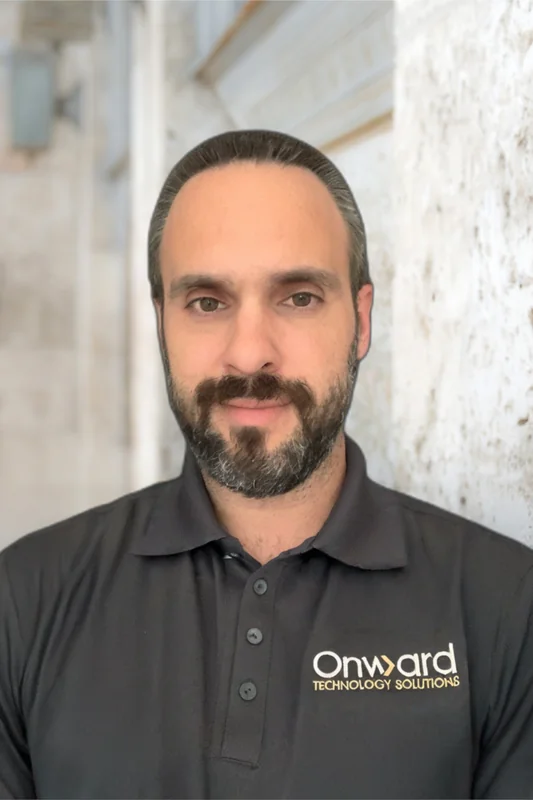
Original professional headshot ready for transformations
Transformation 1: Wardrobe Color for Cause Marketing
Prompt for Awareness Campaign
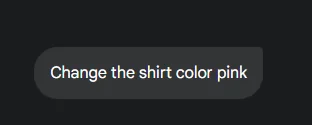
October Campaign Prompt:
"Change the shirt color pink"
Team Ready for October
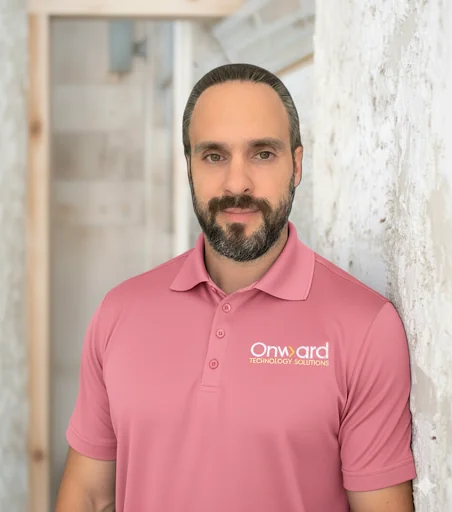
Business Value:
Preview entire team before ordering shirts
Transformation 2: Complete Professional Makeover (3 Steps)
Watch how we transform the previous transformation into a completely different professional narrative through three progressive edits.
Step 1: Change the Wardrobe
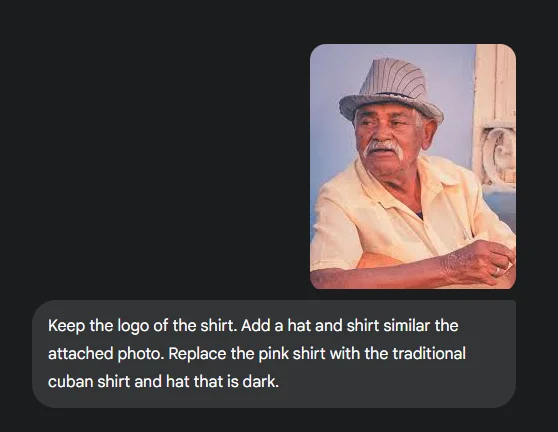
Interface Prompt 1:
"Keep the logo of the shirt. Add a hat and shirt similar to the attached photo. Replace the pink shirt with the tradtional cuban shirt and hat that is dark."
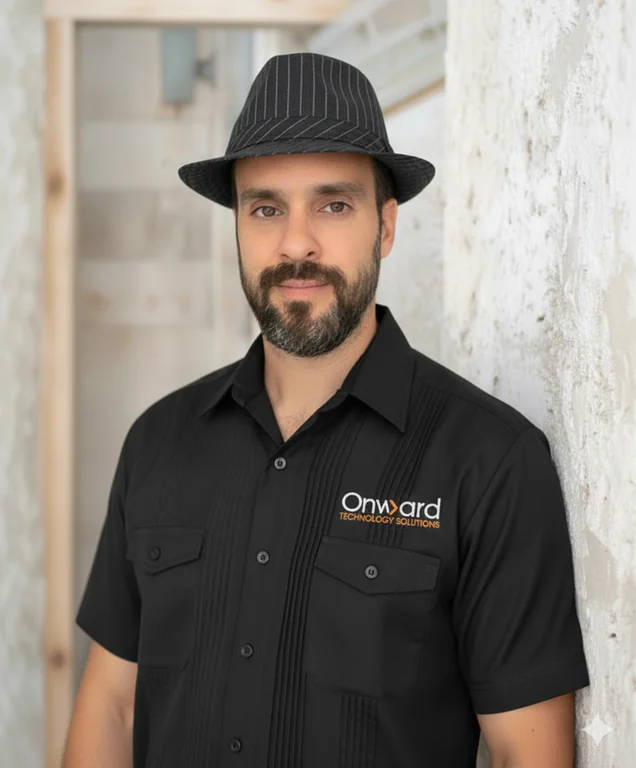
Result: Professional wardrobe transformation
Step 2: Adjust the Pose
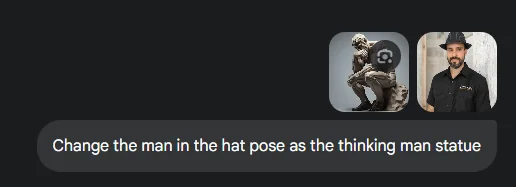
Interface Prompt 2:
"Change the man in the hat pose as the thinking man statue"
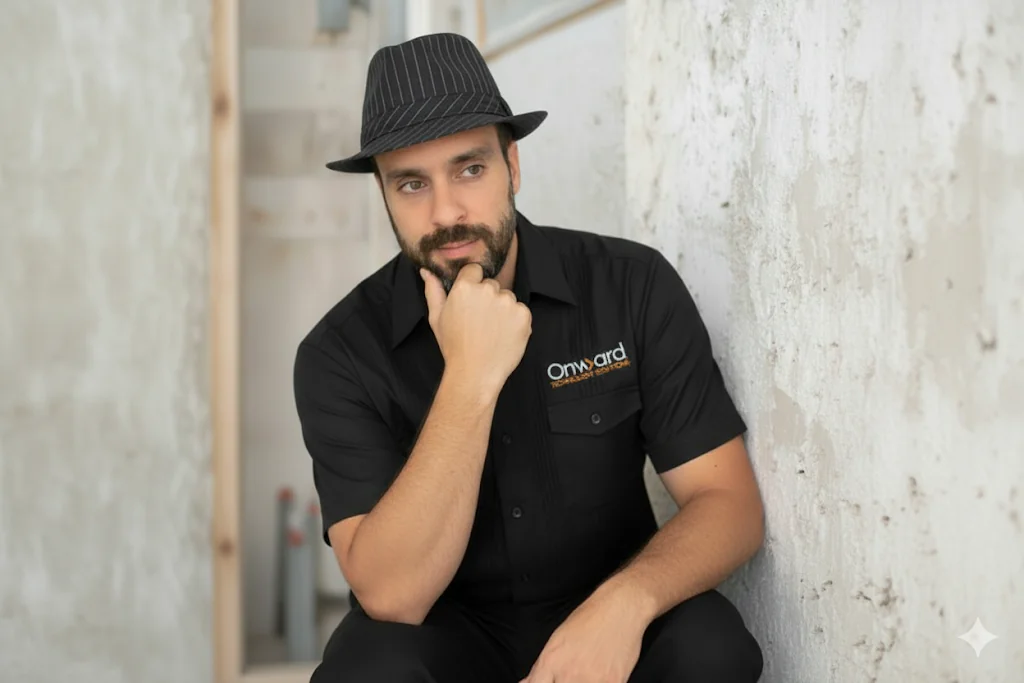
Result: Thinking pose
Step 3: Transform the Scene
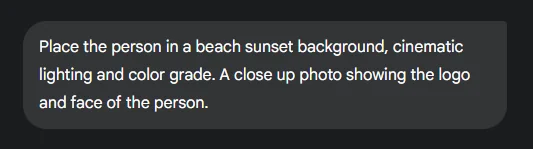
Interface Prompt 3:
"Place the person in a beach sunset background, cinematic lighting and color grade. A close up photo showing the logo and face of the person."
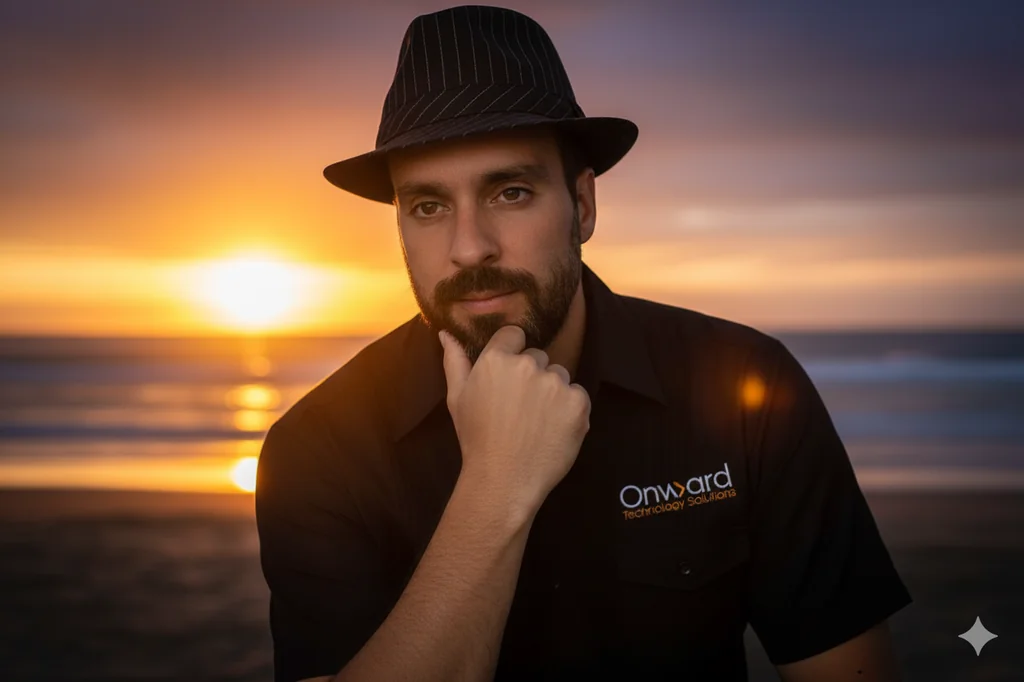
Final Result: Complete transformation achieved
Pro Tip
Each transformation builds on the previous one. This progressive approach gives you more control than trying to change everything at once.
Business Applications
Corporate Rebranding
Update all executive photos to match new brand image
Industry Events
Transform casual headshots for conference speaking profiles
Marketing Campaigns
Create dramatic visuals for thought leadership content
Social Media
Generate multiple variations for A/B testing
What to Check in Generated Images
These original examples show results that needed correction. They do not establish the limits of today's models. Check each new result yourself.
❌ Person Placement
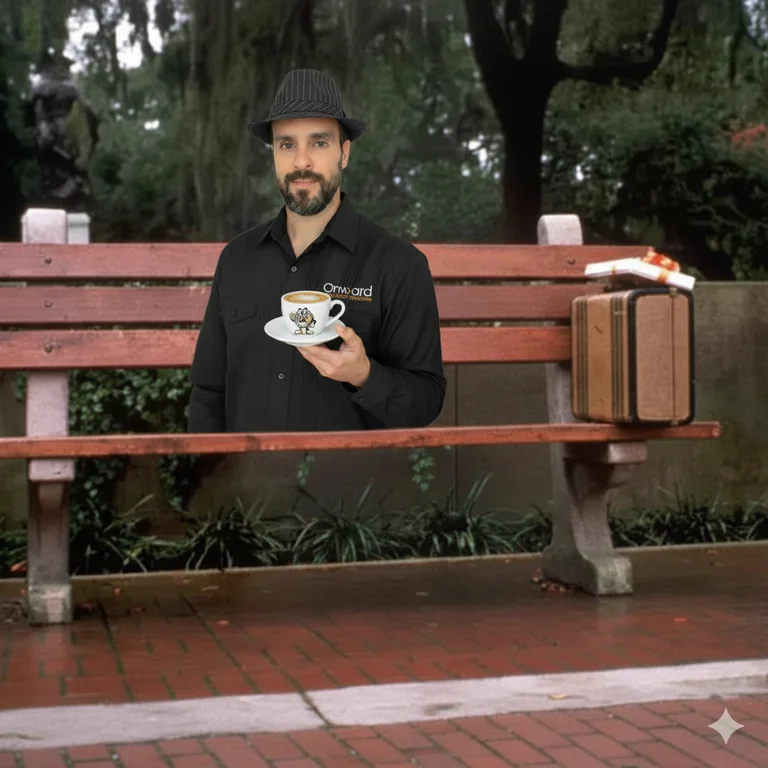
In this example, the person was not positioned as requested
❌ Object Interactions
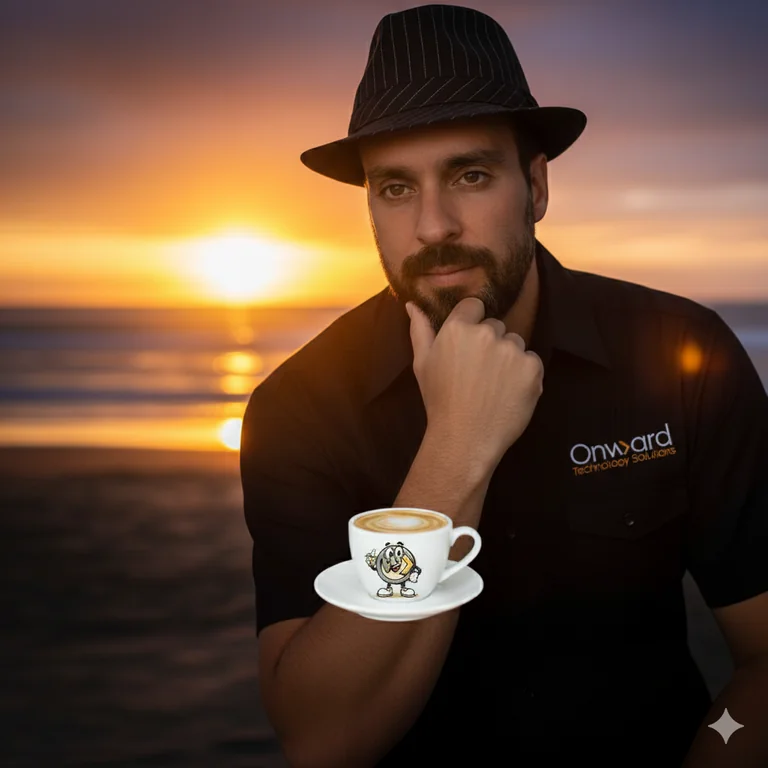
In this example, the hand and object interaction needed correction
❌ Complex Scenes
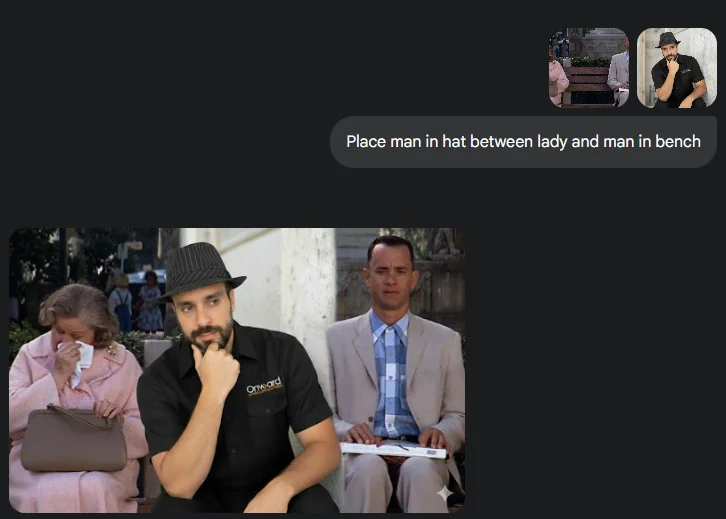
In this example, the person did not fit the scene naturally
❌ Precise Logo Placement

In this example, the logo did not appear as requested
Best Practice
Review each output against the original and your brief. Use a qualified designer or photographer when an image needs exact branding, accurate product details or a faithful representation of a person.
Review Before Publishing
Use the examples to plan an edit, keep the original file and check the output. Get the needed permissions and confirm that the image says what you intend. Current account access and model choices are documented in Google's image-editing help.
Ready to Learn More About AI for Your Business?
This tutorial shows just one AI tool's capabilities. Onward Technology Solutions is a Southwest Florida managed IT company. We help businesses use AI safely at work. Talk to Onward about AI at work.